

07 ਅਪ੍ਰੈ 2025·8 ਮਿੰਟ
ਗਾਹਕ ਸਿੱਖਿਆ ਪੋਰਟਲ ਲਈ ਵੈੱਬਸਾਈਟ ਕਿਵੇਂ ਬਣਾਈਏ
ਸਿੱਖੋ ਕਿ ਕਿਵੇਂ ਇੱਕ ਗਾਹਕ ਸਿੱਖਿਆ ਪੋਰਟਲ ਵੈੱਬਸਾਈਟ ਦੀ ਯੋਜਨਾ ਬਣਾਈਏ, ਬਣਾਈਏ ਅਤੇ ਲਾਂਚ ਕਰੋ: ਸਮੱਗਰੀ ਸੰਰਚਨਾ, LMS ਫੀਚਰ, ਡਿਜ਼ਾਈਨ, ਐਕਸੈਸ, ਐਨਾਲਿਟਿਕਸ ਅਤੇ ਲਗਾਤਾਰ ਅਪਡੇਟ।
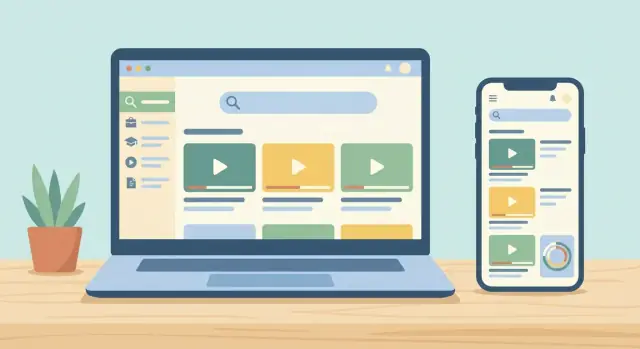
ਸਿੱਖੋ ਕਿ ਕਿਵੇਂ ਇੱਕ ਗਾਹਕ ਸਿੱਖਿਆ ਪੋਰਟਲ ਵੈੱਬਸਾਈਟ ਦੀ ਯੋਜਨਾ ਬਣਾਈਏ, ਬਣਾਈਏ ਅਤੇ ਲਾਂਚ ਕਰੋ: ਸਮੱਗਰੀ ਸੰਰਚਨਾ, LMS ਫੀਚਰ, ਡਿਜ਼ਾਈਨ, ਐਕਸੈਸ, ਐਨਾਲਿਟਿਕਸ ਅਤੇ ਲਗਾਤਾਰ ਅਪਡੇਟ।
A customer education portal website is a single place where customers learn how to use your product—and solve common problems on their own. It typically combines training content (guided courses, onboarding checklists, certification-style learning paths) with self-serve help (a searchable knowledge base, FAQs, troubleshooting articles).
A help center answers questions when something goes wrong or feels confusing. Training prevents many of those questions by teaching the right workflow early.
When you blend both in one portal, customers can move naturally from “I’m stuck” to “I want to learn this properly,” without jumping between disconnected sites or tools.
Most customer education portals are created to support a handful of business outcomes:
A portal usually needs to serve multiple audiences, each with different needs and permissions:
Defining your audiences early helps you avoid a portal that’s “technically complete” but hard to navigate.
This article follows the lifecycle of a successful portal: plan (goals, audiences, content), build (structure, platform, features, access), launch (testing and rollout), and improve (analytics, iteration, and scaling). Each step is designed to help you create a portal customers actually use—and keep using.
Before you pick tools or write lessons, get clear on what the portal is meant to change for customers and for your team. A customer education portal works best when it has a few focused outcomes, a defined audience, and measurable signals that tell you what to improve next.
Start with a short list of primary outcomes you can defend in a meeting. Typical examples include faster onboarding, higher product adoption, and fewer repetitive support requests. Keep the list small: if everything is a goal, nothing is.
A helpful prompt: “After customers use this portal for 30 days, what should be easier for them?”
Write down your key segments and what they need:
Also note constraints: do you need multiple languages or region-specific versions? If you serve regulated industries, capture compliance needs early (privacy, data retention, accessibility requirements, approval workflows for content).
Pick metrics that are easy to collect and explain. Good starting points include:
Avoid vanity metrics like total pageviews unless they connect to a real behavior change.
Customer education touches multiple teams. Agree up front on roles and approvals across Support, Customer Success, Product, and Marketing. Decide who owns each metric, who publishes updates, and how often you’ll review results (monthly works well for most teams).
A customer education portal succeeds or fails based on what you publish—and how reliably it stays up to date. Before you choose tools or design pages, decide what content you’ll offer, who it’s for, and who will maintain it.
Start by listing the formats you’ll support. Most portals mix “quick answers” with “guided learning.” Common building blocks include:
This helps you avoid a portal that’s only a knowledge base, or only courses—when customers often need both.
Organize topics around what customers are trying to achieve, not your internal teams. A simple, effective path is:
Setup → first win → advanced use
For each stage, write down:
This approach naturally ties onboarding content to later skill-building, and it supports a “knowledge base and courses” model where articles answer immediate questions while courses reinforce best practices.
Portals decay when ownership is vague. Create a lightweight content ownership model:
Add an “update trigger” list (new feature, UI change, policy change, top searched term, repeated support ticket) so maintenance is event-driven, not wishful.
To launch faster, commit to an MVP:
That’s enough to validate your portal information architecture, search behavior, and early learning analytics before you scale.
A customer education portal works best when people can answer one question quickly: “Where do I go next?” Your structure and learning paths provide that answer—whether someone is brand new, stuck on a specific task, or trying to level up.
Start with a small set of top-level categories based on what customers try to do (not how your org is structured). Then add subcategories for common tasks and use tags for cross-cutting themes (integrations, billing, admin, troubleshooting).
Keep category names plain and consistent. If you need inspiration, audit your support tickets and onboarding calls for repeated phrases.
Create a clear “Start here” onboarding path that includes the minimum steps to get value fast (setup → first success → next milestone). Then add role-based paths (e.g., Admin, Manager, End User, Developer) so customers don’t have to filter everything themselves.
A good pattern is:
Define the relationship between courses and your knowledge base early:
Set simple rules your whole team follows: title format, capitalization, product terminology, and tag conventions. A lightweight style guide prevents “Settings,” “Configuration,” and “Setup” from becoming three different paths to the same place.
A customer education portal succeeds when it’s easy to use, easy to maintain, and genuinely reduces support load. Before comparing platforms, define the feature set your website must deliver on day one—and what can wait.
Start with the basics that make content discoverable and usable:
If people can’t find answers in 10–20 seconds, they’ll leave and open a ticket instead.
If your portal includes structured training, prioritize:
Keep completion visible but not intrusive—learning should feel supportive, not like homework.
Education portals work best when they connect to help:
For your team, these are non-negotiable:
If you want a practical next step, list your “must-haves” and test them in a small demo portal before committing to a full build.
Your platform choice determines how fast you can launch, how easy it is to maintain, and whether your portal can grow from “a few onboarding guides” into a full customer learning program.
Best when your portal is content-first (articles, guides, videos) and you want training features as an add-on.
You get flexible design, strong SEO, and easy publishing workflows. Add a learning plugin for basics like course pages, quizzes, and simple progress tracking. Trade-off: reporting and certifications are often limited, and plugins can create upkeep overhead as your portal expands.
Best when learning-first requirements are non-negotiable: structured courses, cohorts, assignments, certificates, and detailed learning analytics.
An LMS usually ships with user management, enrollments, and reporting built in, but you may compromise on marketing pages, branding flexibility, or knowledge-base style navigation unless you customize heavily.
Best when you need both self-service support and formal training.
A hybrid setup pairs a help center/knowledge base with an LMS (or course module). It’s common for onboarding: users search for quick answers, then follow guided learning paths for deeper skills.
No matter which route you choose, plan for:
If you need to launch quickly with a small team, buying (LMS or help center) reduces maintenance. If branding, SEO, and custom flows matter most—and you can support ongoing updates—a CMS or hybrid may be better.
If you’re considering a custom build but don’t want a long engineering cycle, a vibe-coding platform like Koder.ai can be a practical middle path: you can describe your portal requirements in chat (information architecture, gated areas, dashboards, search behavior) and generate a working web app quickly, with the option to export source code and host it. That’s especially useful when you want a portal that’s tightly integrated with your product (SSO, account-based access rules, custom analytics events) without stitching together multiple plugins.
If you’re weighing cost and capability trade-offs, see /pricing for decision guidance.
Access control is where a customer education portal becomes “your” portal—tailored to different audiences, while still being easy to discover and use.
Start by splitting content into two buckets:
A practical rule: make the “what” public and the “how exactly” gated. For gated pages, use your platform’s settings to prevent indexing (noindex) and avoid exposing files via direct URLs.
Keep roles simple at first, then grow:
Decide whether permissions are set per course, per category, or per space (recommended for clarity).
Choose the lightest login that still meets your security needs:
For recordings and downloadable assets, ensure they’re served from gated pages, with expiring links when possible. Consider watermarking certificates or PDFs and limiting sharing by role to reduce accidental leakage.
A customer education portal should feel like a natural extension of your product: familiar, calm, and easy to scan. Good design isn’t decoration—it’s how learners find what they need, trust the guidance, and complete tasks without extra support tickets.
Start with a one-page style guide that keeps every article and lesson consistent, even when multiple people contribute.
Define:
Consistency makes your help center website feel trustworthy and reduces “Is this outdated?” doubts.
Templates prevent blank-page syndrome and help readers know what to expect.
A practical structure for onboarding content and courses:
This format works across a knowledge base and courses, and it’s easy to maintain.
Keep paragraphs short, use descriptive subheadings, and make key actions obvious. Buttons and links should say exactly what happens next (e.g., “Start onboarding course” or “Download the admin checklist”), not “Click here.”
Use visuals intentionally: a screenshot to confirm the right screen, a short annotated image to highlight a setting, or a 30–60s clip when motion matters.
Accessibility improves learning for everyone and helps your self-service support content work across devices.
Prioritize:
If you can, test a few key pages with only a keyboard and a screen reader before you publish widely.
A customer education portal only reduces support load if people can actually find the right answer—either through Google or your on-site search. Set up both early, because structure decisions (URLs, page types, gating) affect discoverability.
Start with clean, predictable URLs that mirror your information architecture. For example, use paths like /help/billing/invoices or /academy/onboarding/getting-started rather than long query strings.
Add consistent page titles and meta descriptions, especially for high-intent help articles (setup, troubleshooting, pricing-related questions). Generate an XML sitemap and submit it in Google Search Console, and define canonical rules so duplicates (print views, filtered lists, tracking parameters) don’t compete with the main page in search results.
Not everything in an education portal should be public. A common split is:
For gated areas, use noindex and ensure your login pages aren’t indexed. This keeps search traffic landing on pages people can access.
Internal links help visitors move from “I have a problem” to “I understand the workflow.” Add “Related” links between:
Keep links relative (for example, /help/integrations/slack) and update them as you reorganize content.
On-site search is where frustrated users go. Handle “no results” queries with:
A good “no results” page can turn a dead end into a successful session.
Analytics turns your customer education portal from a content library into a system you can continuously improve. Set up measurement early so you can tie learning activity to customer outcomes (fewer tickets, faster onboarding, higher feature adoption).
Use web analytics to understand navigation and discovery, and add learning-specific events to understand progress.
Define a small set of key events that represent success, such as:
If you have multiple tools (CMS + LMS), make sure events share consistent identifiers (user, account, plan, product area) so you can compare learning behavior across segments.
Pay special attention to:
Combine behavioral data with direct feedback:
Create a simple monthly review: top searches, top exits, lowest-rated items, highest-impact courses. Use that list to prioritize fixes and new content, then publish a short changelog in /help so customers notice improvements.
A smooth launch is less about a “big reveal” and more about removing friction before customers hit it. Treat testing, piloting, and launch as one workflow: verify the basics, validate with real users, then roll out with clear guidance.
Before anyone outside your team sees the portal, run a repeatable checklist:
Document issues in one place, assign owners, and re-test fixes.
Pick 10–30 customers who match your target audience (including a few “new to your product” users). Give them 3–5 specific tasks—like completing onboarding, finding an answer via search, and earning a certificate—then collect feedback via a short survey and a few interviews.
Ask:
Prepare launch messaging that meets customers where they already are:
If you need templates for rollout emails and onboarding flows, keep supporting resources in a central place like /blog/ so teams can reuse them.
Launching your customer education portal is the start of the work, not the end. A portal stays useful when it tracks your product, your customers’ questions, and your team’s capacity to keep it current.
Set a content review schedule so your most-visited pages don’t quietly drift out of date.
If you have a knowledge base and courses side-by-side, treat “how-to” articles as faster-moving than structured learning paths.
Plan updates around product releases and recurring customer issues. A simple habit: add a “portal checklist” to every release process (what changed, which lessons need edits, what screenshots need refreshing). Then use support tickets and search queries to spot what customers are trying to learn but can’t find.
Create a backlog of improvements so you’re not scrambling when stakeholders request “more training.” Examples:
Prioritize items that reduce self-service support load and improve onboarding completion.
Document workflows so the portal stays current even as the team changes. Define who owns each content area, how updates are requested, and what “done” means (reviewed, tagged, added to a learning path, announced). A lightweight playbook and templates keep quality consistent without slowing you down.
When you’re ready, add clear change notes and a “What’s new” area (e.g., /help/whats-new) to keep returning learners engaged.
A customer education portal combines ਮਾਰਗਦਰਸ਼ਿਤ ਟ੍ਰੇਨਿੰਗ (onboarding paths, courses, quizzes, certificates) with ਸਵੈ-ਸੇਵਾ ਸਹਾਇਤਾ (knowledge base, FAQs, troubleshooting). The goal is to let customers move from “I’m stuck” to “I understand the right workflow” in one place.
Pick 2–3 outcomes you can measure and defend, such as:
Then define what should be true after 30 days of portal usage and set metrics around that behavior.
Start with the audiences you must serve and what each needs most:
Also write down who the portal is for (or what content they shouldn’t see) to avoid messy navigation and permissions later.
Use a blended content model:
Organize around what customers are trying to achieve, not internal teams. A simple structure that scales is:
Within each stage, create role-based paths (Admin, End User, Developer, etc.) and link out to relevant help articles as supporting resources.
A practical MVP is:
Launch with that, validate search behavior and completion patterns, then expand based on support tickets, top searches, and drop-offs.
Prioritize day-one basics that reduce friction:
Choose based on whether you’re content-first, learning-first, or need both:
Split content into public vs gated early:
Define simple roles (Customer, Partner, Internal, Admin) and use the lightest authentication that meets your needs (SSO, magic links, or email/password). For gated pages, prevent indexing (e.g., noindex) and avoid exposing downloads via direct URLs.
Set up measurement so you can connect learning to outcomes:
This prevents the portal from becoming “only a knowledge base” or “only courses,” when customers typically need both.
Whichever you pick, plan integrations like SSO, CRM access rules, product analytics, and email automation.
Use internal linking to guide progression (for example, link a troubleshooting article to the relevant concept lesson) and keep links relative like /help/....