

01 ਜੁਲਾ 2025·8 ਮਿੰਟ
ਕਿਸੇ ਵੀ ਵੈੱਬਸਾਈਟ 'ਤੇ Calendly-ਵਾਂਗ ਸ਼ਡਿਊਲਿੰਗ ਨਾਲ ਆਨਲਾਈਨ ਬੁਕਿੰਗ ਸ਼ਾਮਲ ਕਰੋ
ਵਿਜ਼ਟਰ ਸਾਈਟ ਤੋਂ ਸਿੱਧਾ ਮੁਲਾਕਾਤਾਂ ਬੁਕ ਕਰੋ। ਇੱਕ Calendly-ਵਾਂਗ ਸ਼ਡਿਊਲਰ ਐਮਬੈੱਡ ਕਰੋ, ਉਪਲਬਧਤਾ ਸੈਟ ਕਰੋ, ਰਿਮਾਈਂਡਰ ਆਟੋਮੇਟ ਕਰੋ ਅਤੇ ਨਾਂ-ਸ਼ੋਅਜ਼ ਘਟਾਓ।
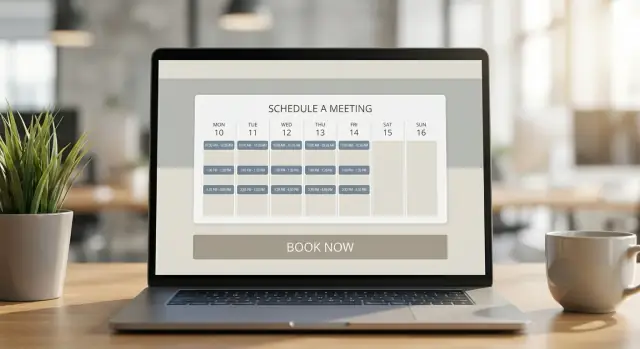
ਵਿਜ਼ਟਰ ਸਾਈਟ ਤੋਂ ਸਿੱਧਾ ਮੁਲਾਕਾਤਾਂ ਬੁਕ ਕਰੋ। ਇੱਕ Calendly-ਵਾਂਗ ਸ਼ਡਿਊਲਰ ਐਮਬੈੱਡ ਕਰੋ, ਉਪਲਬਧਤਾ ਸੈਟ ਕਰੋ, ਰਿਮਾਈਂਡਰ ਆਟੋਮੇਟ ਕਰੋ ਅਤੇ ਨਾਂ-ਸ਼ੋਅਜ਼ ਘਟਾਓ।
Online booking on your website means visitors can pick a time and confirm an appointment right where they already are—without calling, waiting for a reply, or bouncing between back-and-forth emails. A Calendly-style scheduler shows real-time availability, collects the basics (name, email, reason for meeting), and locks in the slot automatically.
Online booking works anywhere time is part of the purchase decision. Typical examples include:
The key is that the booking flow becomes part of your website appointment scheduling—so the user doesn’t have to figure out “what happens next.”
A good appointment booking system usually pays off in three straightforward ways:
Faster conversions. When someone can book meetings online immediately, you capture intent at the peak moment. Instead of “Contact us” and waiting, the next step is a confirmed time.
Fewer emails. No more “Does Tuesday at 3 work?” threads. Your availability settings handle time zones, buffers, and working hours automatically.
24/7 booking. Visitors can schedule at night, on weekends, or from another time zone. Even if you respond later, the appointment is already on the calendar.
People are used to seamless, checkout-like experiences. With an embed booking widget (or a simple link), they typically expect:
When online booking feels effortless, it builds trust. It signals you’re organized, responsive, and ready to help—before you ever speak.
Where (and how) you show online booking affects conversions as much as your availability settings. The best choice depends on what you want visitors to do next—and how much focus you want to give scheduling.
An embed booking widget keeps everything in one place: visitors see times immediately and book without leaving your site.
Best for: service pages, “Contact” pages, high-intent traffic.
Pros: highest visibility, fewer clicks, feels like part of your website appointment scheduling.
Cons: takes page space, can slightly impact performance if added to every page.
A popup keeps your page clean but makes booking one click away (often via a “Book now” button).
Best for: homepages, long-form pages, portfolios—anywhere you want booking available without dominating the layout.
Pros: good balance of design + conversion, easier to place in multiple spots.
Cons: extra step; some visitors dislike popups if they trigger too aggressively.
A simple link is the lightest integration: “Book meetings online” using a dedicated scheduling page.
Best for: email signatures, social profiles, ads, and teams that want a quick launch.
Pros: fastest to implement, minimal impact on your site.
Cons: feels less “native,” and the handoff can reduce completion rates.
If you’re single-person scheduling, any option works—choose based on design and traffic intent.
For team scheduling (round-robin, ownership, or routing), popups and embeds help users pick the right time without navigating away.
If you offer appointments vs. classes/events, consider:
Choose the format that supports your goal: quick conversions (embed), flexible placement (popup), or fastest rollout (link).
Embedding a booking widget is the easy part. The results (smooth scheduling vs. endless back-and-forth) mostly depend on how you set your rules first. Spend a few minutes planning now and you’ll avoid confusing availability, last‑minute requests, and meetings that don’t fit your day.
Start by listing the appointments people can book. Keep the menu short and specific.
Decide the length (e.g., 15, 30, 60 minutes), add buffers before/after (so you can prep, travel, or write notes), and set the location for each type:
If you offer different purposes (intro call vs. paid consultation), make them separate meeting types so each can have its own rules.
Your availability should reflect your real workday, not just your calendar’s default settings. Block out recurring commitments (team meetings, lunch, deep work) and decide whether you want availability to differ by day.
For time zones, aim for a simple experience:
Rules prevent awkward gaps and last‑minute surprises. Common ones include:
Pick defaults that match your capacity, then adjust per meeting type.
Don’t hide this in fine print. Add one or two clear sentences near the widget, such as:
“Please reschedule or cancel at least 24 hours in advance. Late cancellations may be charged a fee.”
Clarity here reduces no‑shows and sets expectations before anyone clicks “Confirm.”
Embedding a booking flow should feel like adding a “Book now” block—not starting a web project. The goal is to place scheduling exactly where visitors are already ready to take action.
Start with pages that attract high-intent visitors:
If you’re unsure, add it to the page that already gets the most “How do I talk to you?” clicks.
Use a button visitors can understand instantly—“Book a call”, “Schedule a demo”, or “Reserve an appointment.” Right below it, include one sentence that removes hesitation, like: “Pick a time that works—confirmation is instant.”
Most scheduling tools offer three common ways:
No-code site builders often have an “Embed” block where you paste a widget URL. Custom sites typically paste a short script snippet into the page template.
If you want a more tailored flow than a standard widget—like a custom booking page, intake step, and post-booking automation—teams sometimes build it as a lightweight app. For example, Koder.ai can generate web apps from a chat prompt (React front end + Go/PostgreSQL back end) and supports deployment/hosting and source code export, which is handy when you want full control without a long dev cycle.
On mobile, keep the booking block near the top or after the first key section. Add generous spacing, avoid tiny buttons, and don’t sandwich the widget between dense text—let it breathe so it’s easy to tap and scroll.
A scheduling widget shouldn’t feel like a detour. With a few small tweaks, it can look and sound like a natural part of your site—so visitors trust it and complete the booking.
Start with the basics your visitors notice instantly:
If your widget supports it, preview on both desktop and mobile before publishing. A button that looks perfect on desktop can feel too small on a phone.
Keep the form short so people don’t abandon it. Add only questions that help you prepare or qualify the appointment.
Good examples:
Avoid long, multi-part questions. If you need more detail, collect it after booking via email or a follow-up form.
Your confirmation screen is a great place to reduce back-and-forth.
Include:
A branded widget still needs to be usable for everyone:
Double-booking usually happens when your booking page doesn’t know what’s already on your calendar—or when your calendar doesn’t update after someone schedules. The fix is a proper calendar connection with two-way sync, so busy times are blocked automatically and new bookings appear on the right calendar immediately.
When you connect Google Calendar, Outlook, iCloud, or Exchange, make sure the connection is set to read and write. “Read-only” can show availability, but it won’t add the appointment back to your calendar—so conflicts still slip through.
A good two-way setup means:
Many people keep separate calendars (work, personal, shared team). If your booking tool only checks one, you can accidentally offer times that clash with something on another calendar.
Best practice: check all calendars for conflicts, but write new bookings to one “main” calendar. That gives you clean reporting and fewer duplicates while still protecting your availability.
Remote clients should see availability in their local time zone, while you keep your schedule anchored to yours. Enable automatic time zone detection and include the time zone in confirmations so no one shows up an hour early (or late).
Before embedding your online booking widget on your website, create a few real calendar events (busy blocks, recurring meetings, personal appointments) and try booking around them. Then cancel/reschedule a test appointment and confirm the calendar updates correctly. This is the fastest way to catch sync gaps before clients do.
Once someone books, the real work begins: confirming details, helping them show up, and making it easy to adjust plans without back-and-forth. A few simple automations can save hours and noticeably cut no-shows.
Start with a confirmation email sent immediately after booking. Keep it scannable:
Then schedule at least one reminder (commonly 24 hours before) and, for shorter appointments, an additional reminder 1–2 hours before. If you serve multiple regions, double-check time zone wording (e.g., “10:00 AM Eastern”).
SMS is best for high-volume, time-sensitive appointments (salons, clinics, onsite services) where people are on the move. Use it sparingly—too many texts can feel intrusive.
A good SMS is short and action-oriented:
“Reminder: Your appointment with [Business] is tomorrow at 10:00 AM. Need to change it? Reschedule: [link]”
Only send SMS if you have clear consent, and include a simple opt-out method if your provider supports it.
Always include reschedule and cancel links in confirmations and reminders. It reduces no-shows by giving people a graceful exit.
Add guardrails so your calendar doesn’t get disrupted:
If no-shows are costly, combine:
The goal is simple: remove uncertainty, make changes easy, and make attendance the default.
If more than one person can take an appointment, team scheduling keeps your online booking experience fast for customers and fair for your team. The key is deciding how availability is shared, how bookings are assigned, and who owns what.
Shared availability shows times when anyone on the team is free, then books the first available person (or lets the visitor choose). It’s ideal for “next available” services like support calls or consultations.
Round-robin rotates bookings across the team so workload stays balanced. It’s a good fit for sales demos, onboarding calls, or any workflow where you want even distribution. Most Calendly-style scheduling tools let you add weighting (e.g., senior staff get fewer meetings) and buffer rules.
Routing prevents visitors from picking the wrong person. You can route by:
This turns your embed booking widget into a simple “smart form” that directs people to the right calendar—without back-and-forth emails.
Decide who can edit availability settings, event types, and notifications. Common setup:
Set clear rules for out-of-office coverage: automatically skip unavailable teammates, reroute to a backup, or temporarily remove a person from rotation. This avoids broken booking links and helps reduce no-shows caused by last-minute rescheduling.
If your online booking flow ends with “Great—now please go pay somewhere else,” you’ll lose people. The best appointment booking system keeps payment (when needed) and intake details inside the same Calendly-style scheduling experience so customers can confirm in one pass.
Payments work best when they remove uncertainty for both sides: reserving limited time slots, protecting against no-shows, or selling fixed-price sessions. For lower-commitment meetings (like discovery calls), skipping payment often increases conversions—so consider enabling it only for certain services or event types.
If you do charge at booking, deposits are usually the sweet spot: they improve show-up rates while keeping the decision easy.
Be upfront before anyone clicks “Confirm.” Display the total price (or deposit amount), what’s included, and any conditions (like late cancellation fees). Keep refund rules short and human, and avoid surprises at checkout.
After payment, the confirmation should be unambiguous:
This clarity reduces support emails and builds trust.
Intake questions can turn a “book meetings online” flow into a prepared, productive session. Ask only what you truly need to deliver the service well—then follow up later for everything else.
Good intake topics include:
If you need more detail, consider a two-step approach: collect essentials during booking, then send a link to a longer form after confirmation.
Every extra field increases abandonment. Aim for the minimum set: name, email, and 1–3 high-value questions. Use multiple choice where possible, avoid long paragraphs, and don’t require account creation.
As a rule of thumb: if a question won’t change how you run the appointment, remove it from the booking form.
A booking is only the first step. The real payoff of online booking comes when each appointment automatically triggers the right next actions—so leads don’t sit in inboxes, and clients feel taken care of without extra manual work.
Connect your appointment booking system to tools you already use (or plan to use) for lead management and communication:
This keeps your “who booked what” data consistent, and makes it easy to run follow-up campaigns without exporting spreadsheets.
When someone books, treat it like a status change:
With a simple workflow, you can also tag bookings by meeting type, source, or service—helpful when you want reporting later (“Which services are getting booked most?”).
Small, timely messages reduce no-shows and improve meeting quality:
If you take payments or collect intake info elsewhere, you can trigger a “complete your details” email only when those fields are missing—no nagging everyone.
A booking widget should feel invisible: quick to load, clear about data use, and dependable. Use this checklist before and after launch.
Only load the scheduling widget on pages where people are ready to book (for example, /contact or /book). If you place it site-wide, you’re adding extra scripts to every page view.
If your site supports it, defer or lazy-load the embed so the rest of the page renders first. Also keep the surrounding page lightweight: large videos, heavy sliders, and multiple third-party trackers can make the widget feel slow even when it’s fine.
List the exact fields you collect (name, email, phone, notes) and connect each one to a purpose (confirmations, reminders, prep for the call). Don’t ask for “nice to have” details unless you truly use them.
If you record meeting links, capture health information, or work with minors, check whether you need additional consent language. Update your privacy policy and link it near the widget (e.g., “By booking, you agree to our Privacy Policy”).
Most spam shows up as fake bookings. Reduce it by:
If the embed isn’t showing:
If time slots are missing:
If bookings aren’t arriving:
A smooth launch is less about “publishing the widget” and more about confirming the full loop works: booking → calendar → notifications → show-up.
Run at least two test bookings: one from a desktop browser and one from a phone.
At minimum, measure clicks to booking completion:
Look for drop-offs: if lots of clicks don’t turn into bookings, your availability may be too limited, the form too long, or the widget too slow to load.
After launch, review weekly for the first month:
Try your live booking flow end-to-end, then share the link in your site header and key pages. If you’re choosing a plan or need advanced features, see /pricing. Want help setting it up for your team? Reach out at /contact.
Online booking lets visitors choose a time and confirm an appointment directly on your site—without calls or email back-and-forth.
A Calendly-style scheduler shows real-time availability, collects a few details (like name and reason), and automatically creates the calendar event and confirmation.
Choose based on intent and layout:
Start with pages where visitors are already ready to act:
If you’re unsure, add booking to the page that gets the most “contact” clicks today.
Define 2–4 clear meeting types, each with:
Keep choices specific (e.g., “15-min Intro Call” vs. “Call”) so visitors know what they’re booking.
Let invitees see times in their time zone, but keep your availability anchored to your working hours.
Also:
Use rules that protect your calendar and reduce chaos:
Add a short cancellation/reschedule policy near the widget so expectations are set before someone clicks “Confirm.”
Connect your calendar with two-way sync (read + write), not view-only.
Best practices:
Use lightweight automations:
For high-no-show services, consider deposits and clearer instructions (what to bring, how to join, what happens if late).
Yes—if more than one person can take appointments.
Common approaches:
Keep it minimal and transparent:
If you need more detail, collect essentials at booking and send a longer form after confirmation.