

10 ਅਪ੍ਰੈ 2025·8 ਮਿੰਟ
ਨਿੱਜੀ ਪ੍ਰੋਜੈਕਟਾਂ ਦੀ ਮੈਨੇਜਮੈਂਟ ਲਈ ਮੋਬਾਈਲ ਐਪ ਕਿਵੇਂ ਬਣਾਈਏ
ਸਿੱਖੋ ਕਿ ਕਿਵੇਂ ਨਿੱਜੀ ਪ੍ਰੋਜੈਕਟਾਂ ਨੂੰ ਮੈਨੇਜ ਕਰਨ ਲਈ ਮੋਬਾਈਲ ਐਪ ਦੀ ਯੋਜਨਾ ਬਣਾਈਏ, ਡਿਜ਼ਾਇਨ ਕਰੋ, ਬਣਾਓ ਅਤੇ ਲਾਂਚ ਕਰੋ—MVP ਸਕੋਪ, UX, ਡਾਟਾ, ਟੈਸਟਿੰਗ ਅਤੇ ਰਿਲੀਜ਼ ਸਮੇਤ।
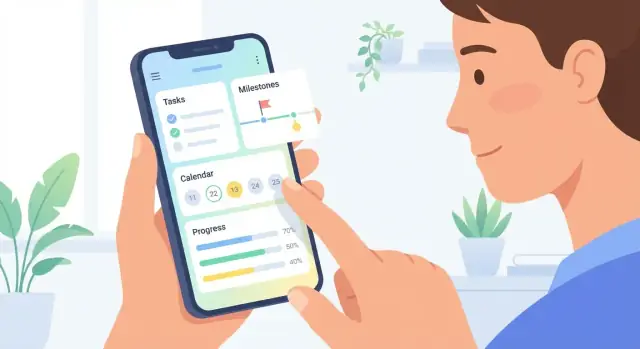
ਸਿੱਖੋ ਕਿ ਕਿਵੇਂ ਨਿੱਜੀ ਪ੍ਰੋਜੈਕਟਾਂ ਨੂੰ ਮੈਨੇਜ ਕਰਨ ਲਈ ਮੋਬਾਈਲ ਐਪ ਦੀ ਯੋਜਨਾ ਬਣਾਈਏ, ਡਿਜ਼ਾਇਨ ਕਰੋ, ਬਣਾਓ ਅਤੇ ਲਾਂਚ ਕਰੋ—MVP ਸਕੋਪ, UX, ਡਾਟਾ, ਟੈਸਟਿੰਗ ਅਤੇ ਰਿਲੀਜ਼ ਸਮੇਤ।
A “personal project” can mean very different things: a student planning a thesis, a freelancer juggling client work, a hobbyist rebuilding a motorcycle, or someone running a weekend side hustle. Before you design screens or features, define the specific problem your app will solve for a specific group of people.
Write a one-sentence definition your users would agree with. For example: “A personal project is a goal with multiple steps that competes with daily life and needs gentle structure.” Then list the typical project types, time horizons (days vs. months), and constraints (offline use, irregular schedules, motivation swings).
Choose one primary audience to design for first:
You can support other audiences later, but your first version needs a clear “home base.”
Focus on outcomes users want, not features you want to build. A solid set for personal projects is:
Pick a few measurable signals that match your outcomes:
Write these metrics into your product brief so later decisions stay grounded in user goals (see also /blog/mvp-mobile-app).
The “right” model depends on what your users are trying to finish. A personal project management app should feel natural for everyday projects—planning a trip, studying for an exam, organizing a move—not like enterprise software.
Different people think in different shapes. Decide what your app is best at, then add alternate views later (or keep them lightweight):
A common approach: start with Task list as the default, then offer Kanban as an optional view for the same tasks.
Templates make the app feel instantly helpful. Offer a few starter projects users can copy and tweak:
Keep templates editable and allow users to save their own as “My templates.”
Progress tracking should motivate, not nag. Consider simple options:
Let users choose what they see, and avoid guilt-inducing messaging.
Personal projects often rely on reference material. Support:
The key is speed: adding a note or link should take seconds, not a mini-form.
A personal project management app succeeds when it does a few core jobs extremely well. Your MVP (minimum viable product) should be the smallest version that still feels complete, trustworthy, and useful—something you can ship in 6–10 weeks.
Start with the basics people expect when they open a personal project management app:
If any of these are shaky, everything else will feel pointless. Spend your time here: fast task entry, easy edits, and a clear “what’s next?”
These can improve the experience, but they’re not required to prove the concept:
Scope creep often happens because good ideas arrive mid-build. Capture them—don’t implement them.
Create a visible “Not now” list in your project doc with examples like: collaboration, heavy attachment management, full calendar sync, advanced AI planning, time tracking, integrations, custom themes. This keeps the team aligned while preserving future roadmap options.
Define what “done” means in plain terms:
Anything beyond this should earn its place by directly improving daily use, not by being merely “nice.”
Before you polish colors and icons, sketch how someone actually gets value from your app in under a minute. A simple personal project management app succeeds when the next action is always obvious—and never more than a couple taps away.
Map the key places users will spend time:
Keep each screen’s purpose narrow. If your Home screen tries to show everything (projects, tags, calendar, stats), it becomes a dashboard people ignore.
For most productivity apps, bottom navigation tabs work well because they keep primary areas visible:
If you don’t have enough main sections, use three tabs and move the rest into Settings. Avoid hiding essential areas inside a hamburger menu—people forget they exist.
“Quick capture” is the moment when users decide whether they’ll stick with your app. Make adding a task feel effortless:
A practical flow: tap Add → type task → choose project (or default “Inbox”) → save.
New users will hit empty screens immediately. Turn those moments into guidance:
Keep onboarding lightweight: 2–3 tips during first use beats a long tutorial. The goal is to help users succeed once, fast, so the app earns a spot in their routine.
A personal project management app only feels “productive” when it’s effortless: quick to scan, quick to edit, and hard to mess up. Your UI should reduce thinking time, not add new decisions.
Before polishing visuals, sketch the MVP screens with simple boxes and labels. Focus on the few moments users repeat every day:
Keep the wireframes intentionally rough so it’s easy to delete, rearrange, and simplify. If a screen needs a long explanation, it’s a sign the flow is too complex.
Good microcopy is tiny, specific, and reassuring. Draft text for:
Aim for consistency in tone and verbs. Users should never wonder what happens after a tap.
A lightweight design system keeps your app feeling fast and coherent—even as you add features:
Prioritize readability over decoration. A clean hierarchy (title → due date → status) makes scanning effortless.
Accessibility also improves speed and usability for everyone:
If your UI still works at larger text sizes and with one-handed use, it’s likely simple enough for your MVP.
Before you design every screen, decide where your app will run and how you’ll build it. This choice affects speed, budget, and what “good enough” looks like for your first release.
If you’re unsure, validate with a lightweight landing page and waitlist, then pick the platform your early adopters actually use.
Native (Swift for iOS, Kotlin for Android)
Best performance and the most polished platform feel, but you’ll likely need two codebases and often two specialists.
Cross-platform (Flutter, React Native)
One shared codebase, faster iteration, and easier feature parity across platforms. Great for a personal project management app unless you need very platform-specific UI or heavy on-device processing.
No-code/low-code (or “vibe-coding” platforms)
Great for getting to a working MVP quickly—especially when you want to validate UX, onboarding, and the core loop before investing in a full engineering pipeline. For example, Koder.ai lets you build web, backend, and mobile app foundations from a chat interface, then export source code when you’re ready to take full control. This can be a practical way to prototype your project/task model, iterate on screens, and keep scope tight while you learn from early users.
Productivity apps win when they’re reliable:
This implies you’ll need local storage on the phone plus a clear sync strategy (even if collaboration isn’t in your first version).
A practical way to plan:
Whichever path you pick, write it down as a decision with trade-offs—future-you will thank you.
Your feature list can be perfect, but if the data model and syncing rules are vague, the app will feel unreliable. Planning this early keeps later UI and backend decisions simpler—and helps you avoid painful migrations after users already have real projects inside the app.
Define the “things” your app stores and how they relate:
Be explicit about rules like: Can a task belong to multiple projects? Are tags shared across projects? Do reminders survive if a task is deleted?
You’ll typically pick one of three paths:
On-device only: fastest to build and great for privacy, but switching phones is painful unless you add backups.
Cloud sync: best cross-device experience, but requires accounts, server costs, and careful handling of offline edits.
Hybrid: store locally for speed/offline, then sync to cloud when available. This is often the best UX, but more complex.
If users edit the same task on two devices, what happens?
Write down your rule per field (title, notes, due date, completion) so behavior is predictable.
Even early on, users will ask: “Can I get my data out?” Support basic CSV export for tasks and PDF export for project summaries. Also define backup expectations: manual backup, scheduled backups, and what happens during restore (does it merge or replace?).
Once your core task and project flows work smoothly, you can add a few “support services” that make the app feel complete—without turning it into a pile of half-finished features. The rule: each service should reduce friction for the user or protect their data, not just sound impressive.
Offer more than one way to get in, but keep the first session effortless:
If you support guest mode, plan the “upgrade” path: how a guest account becomes a real account without losing projects.
Reminders should support intentions (“work on this tonight”), not nag.
Focus on:
A simple strategy: start with one reminder type (e.g., due-time reminders) and only add more after users ask for them.
Calendar sync, email import, and advanced attachment workflows can be powerful—but they add edge cases (permissions, duplicates, conflicts). Consider them “phase 2” unless your app’s core promise depends on them.
You can still prepare by keeping tasks, due dates, and attachments as clean, well-defined data fields.
Track a small set of events tied to product choices, such as:
Use analytics to answer practical questions (“Do reminders increase weekly return rate?”), and avoid collecting extra data “just because.” For privacy expectations, align your events with the controls you describe in your privacy section and app settings.
Monetization works best when it feels like a natural extension of the value your app already provides. For a personal project management app, users need to trust that the core product won’t suddenly become unusable because they didn’t upgrade.
Most apps in this category fit one of these models:
A simple rule: keep core usage free so the app is genuinely useful without payment. Then charge for features that expand capacity or save significant time.
Good free foundations:
Good paid upgrades:
Be clear about what’s included in each plan, and keep the upgrade path easy to undo. Avoid “nag” screens that interrupt task entry or lock users out of their existing data.
A practical approach is a small, honest upgrade screen with:
Don’t ask for payment at install. Instead, place a paywall at a moment when the user already understands the benefit—like enabling sync, creating a 4th project, or trying an advanced view.
If you want examples, add a short “Compare plans” page at a relative link like /pricing so users can decide without pressure.
People will only rely on a personal project management app if it feels safe and predictable. Trust isn’t a marketing add-on—it’s part of the product experience. Start by making clear decisions about what you collect, where it lives, and what the user can change.
Practice data minimization: if a feature works without personal data, don’t ask for it. For example, a to-do list doesn’t need contacts, location, or access to photos. Optional fields (like “work email” for syncing) should be truly optional.
Explain storage in plain language inside onboarding and Settings:
Also state what happens offline and how conflicts are handled (“last edit wins” vs. “we’ll ask you to choose”).
You don’t need complicated jargon, but you do need fundamentals:
If you offer sign-in, consider passkeys or “Sign in with Apple/Google” to reduce password risk.
Trust grows when users can manage their own data:
Keep these options easy to find in Settings, not buried in a help article.
Testing a personal project management app isn’t just about “no bugs.” It’s about confirming that real people can finish the job they opened the app for—quickly, confidently, and without surprises.
Before polishing animations or adding new features, verify the essentials end-to-end:
Run these flows on different devices and screen sizes. Pay attention to how many taps it takes and where users hesitate—those moments usually signal unclear labels, missing affordances, or awkward navigation.
Productivity apps break trust when data feels inconsistent. Actively test scenarios that are easy to miss:
Even in an MVP, decide what the “safe” behavior is (for example: show a clear “Not synced yet” state rather than guessing).
A beta group of 10–30 people can uncover most usability issues if you ask the right questions. Instead of “What do you think?”, use prompts like:
Combine quick interviews with lightweight analytics (drop-off points, time-to-complete key actions).
Prioritize stability, clarity, and speed over new options. A smaller feature set that feels reliable beats a bigger one that feels unpredictable. Once your core flows are consistently smooth, you’ll know exactly which upgrades are worth building next.
Launching isn’t a finish line—it’s the moment your app meets reality. A smooth release helps you collect honest feedback early, avoid support chaos, and build momentum for a personal project management app that people actually keep.
Treat your store page as onboarding before the download. Create:
If you have a simple landing page, link to it from your store listing and keep it consistent with the app’s tone.
Before you submit, make sure the basics are ready:
Expect early fixes. Prioritize:
Combine three inputs: store reviews, support tickets, and usage data. Tag requests by theme (e.g., reminders, templates, calendar view) and validate impact before building.
Publish a lightweight “What’s next” note in your release updates to show progress without promising dates you can’t meet.
Start with a one-sentence definition your users would agree with, then validate it with examples:
If users disagree with the definition, your features will drift because you’re solving different problems for different people.
Pick one primary audience for v1 and explicitly say “no” to the rest until later. Choose the group whose workflow you can serve end-to-end with the smallest feature set (e.g., students with deadlines, hobbyists with checklists).
A practical test: can you describe your ideal user and their top 3 frustrations in one paragraph? If not, your audience is still too broad.
Aim for 3–5 outcomes that describe what users accomplish, not what you build. Common outcomes for personal projects:
Use these outcomes to decide what features make the MVP and what goes on the “Not now” list.
Use a small set of signals that map to your outcomes and can be measured early:
Write these into your product brief so feature decisions stay grounded (for example, avoid adding “nice” views that don’t improve completion or retention).
Start with one primary view that matches everyday projects, then add optional views later.
Common choices:
A reliable MVP pattern is on the same tasks.
A realistic MVP is the smallest version that feels complete and trustworthy—often ship-ready in 6–10 weeks.
Must-haves usually include:
Keep a visible “Not now” list (e.g., collaboration, AI planning, deep integrations) to prevent scope creep.
Design for “quick capture” and a predictable home base.
A practical navigation structure is bottom tabs such as:
For task entry, optimize this flow: Add → type task → choose project (or Inbox) → save. Hide optional fields behind “More” so capture takes seconds.
Plan offline behavior up front so the app feels reliable.
A common approach:
Also define conflict rules early (e.g., “last edit wins” vs. field-level merges) so users don’t see unpredictable changes after reconnecting.
Give users a fast start, then add “completeness” features only where they reduce friction.
Good early choices:
Avoid rushing complex integrations; design your data fields cleanly so you can add them later without migrations.
Make trust and sustainability part of the product, not add-ons.
For privacy/security:
For monetization, keep core usage genuinely useful for free, and charge for expansion features (e.g., cross-device sync, advanced views, automations). Place paywalls after value is proven (like enabling sync or adding an advanced view).