

Add Online Payments to Your Website: Stripe vs PayPal
Learn the basics of adding online payments to your website and how Stripe and PayPal differ on setup, checkout experience, fees, and best use cases.
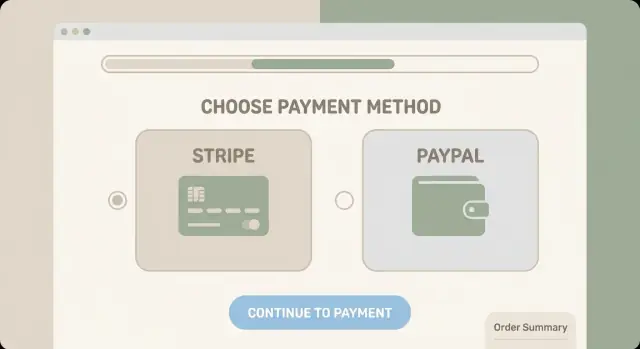
Online Payments 101: What You’re Actually Setting Up
When people say they want to “add online payments” to a website, they’re usually describing a small system made of a few moving parts. Understanding those pieces makes it much easier to compare Stripe vs PayPal without getting lost in jargon.
The three building blocks: processor, gateway, checkout
- Payment processor: Moves money from your customer’s payment method to your business, and handles the behind-the-scenes connection to card networks and banks.
- Payment gateway: Securely sends payment details to the processor and returns the result (approved/declined). Many modern providers bundle this so you don’t buy it separately.
- Checkout: The customer-facing payment page or form (on your site or hosted elsewhere). This is where conversion, trust, and friction are won or lost.
In practice, providers often combine these roles. What you’re “setting up” is mostly an account, a checkout method, and the way your site talks to that provider.
Common payment methods (what you can offer)
Most websites start with credit/debit cards. Depending on your country and provider settings, you may also be able to add:
- Digital wallets (like Apple Pay or Google Pay)
- PayPal wallet payments (customers pay using their PayPal balance or linked bank/card)
- Bank transfers (availability varies widely by region and business type)
The exact mix depends on where you sell, where your customers are, and what the provider supports for your account.
The high-level flow: pay → authorize → capture → payout
A typical card payment follows this path:
- Customer pays at checkout.
- The provider requests an authorization (a real-time “is this payment method valid and are funds available?” check).
- If approved, the payment is captured (the charge is finalized—sometimes immediately, sometimes later if you set it up that way).
- Funds are grouped and sent to you as a payout to your bank account (often on a schedule).
Where Stripe and PayPal fit
- Stripe is commonly used as the card processing + gateway layer, with flexible checkout options (from hosted checkout pages to embedded forms).
- PayPal can act as both a payment method (the PayPal button/wallet) and, in some setups, a broader card processing option depending on your region and product.
The key takeaway: you’re not just “adding a button.” You’re choosing how customers pay, how approvals happen, and how money reaches your bank—plus how much control you want over the checkout experience.
Quick Checklist: What Your Website Needs
Before you compare Stripe vs PayPal, make sure your site is ready to accept payments without awkward workarounds. This “pre-flight check” helps you avoid choosing the wrong checkout type—or realizing too late that your product, pricing, or flow doesn’t match how customers actually buy.
1) Your business model (what you’re selling)
Different payment setups fit different business types. Be clear about which bucket you’re in:
- One-time purchases (products, services, tickets)
- Subscriptions/recurring billing (memberships, SaaS, retainers)
- Marketplaces/platforms (multiple sellers, split payments, payouts)
- Donations (nonprofits, fundraising, “pay what you want”)
Why this matters: subscription tools, payout features, and dispute handling can look very different depending on the model—even if both providers can “take a card.”
2) Your typical order value and where customers are
Write down two simple numbers: your average order value (AOV) and your top customer countries.
- Small average orders can make fees feel bigger, so you’ll want to compare pricing carefully.
- Selling internationally affects currency support, local payment methods, and how payouts land in your bank.
If you’re planning to sell outside your home country soon, pick a checkout approach that won’t force a redesign later.
3) Your preferred checkout experience
Decide how important a seamless on-site checkout is for you.
- Do you want customers to stay on your website from cart to confirmation?
- Or are you okay sending them to a hosted checkout page?
This choice affects conversion, branding, and trust. Some audiences prefer familiar “wallet-style” options, while others expect a standard card form.
4) How much control you want over design and UX
Be honest about your trade-off between speed and customization:
- If you want to match your brand closely (fonts, layout, form flow), you’ll want more UX control.
- If you want the fastest path to “accept payments today,” you may prefer a simpler, more templated checkout.
A practical tip: decide who will own updates—you, a developer, or your website builder/plugin—because that affects how easy it is to maintain long-term.
If you can answer these four areas in a sentence each, you’re ready to compare Stripe vs PayPal without guesswork.
Stripe vs PayPal at a Glance
Stripe and PayPal both let you accept online payments, but they feel different in day-to-day use. Think of Stripe as a flexible payments platform that blends into your site, while PayPal is a familiar wallet brand customers may already trust.
What Stripe is best known for
Stripe is popular with businesses that want a clean, customizable checkout and room to grow. It’s especially strong if you plan to tailor the payment experience to match your brand, offer multiple payment methods, or connect payments to other tools (like subscriptions, invoicing, or reporting).
What PayPal is best known for
PayPal is known for speed to launch and its wallet-based checkout—many shoppers can pay using their PayPal balance or linked bank account/card without re-entering details. For some audiences, the PayPal button itself increases confidence because it’s recognizable.
Card payments vs wallet payments
- Stripe: Primarily built around card payments (plus Apple Pay/Google Pay and local methods depending on country). Customers typically enter card details directly in your checkout.
- PayPal: Excels at wallet payments through the PayPal flow, and also supports card payments (either through PayPal’s card processing tools or “guest checkout” where available).
In practice, Stripe often feels like “your” checkout, while PayPal can feel like a separate, familiar payment option customers choose.
When using both makes sense
Many sites offer Stripe for card payments and PayPal as an extra button for people who prefer wallets. This can reduce checkout friction without forcing you to pick one “winner,” especially if you sell to mixed age groups or international customers with different payment habits.
Account Setup and Approval: What to Expect
Setting up Stripe or PayPal isn’t just “making an account.” You’re opening a financial services relationship, so both providers will ask for details that help them confirm who you are, what you sell, and where money should be paid out.
Stripe setup: create, verify, and get oriented
Stripe account creation is quick, but verification is where most people spend time. Expect to provide basic business info (legal name, address, tax details where applicable) plus a bank account for payouts.
Inside the Stripe Dashboard, you’ll mainly use:
- Payments (to see successful/failed charges)
- Payouts (when money is sent to your bank)
- Customers (useful later for receipts and repeat buyers)
- Settings (business details, branding, team access)
Verification may include confirming an owner’s identity and, for some businesses, additional documentation.
PayPal setup: business account and confirmation steps
For PayPal, you’ll typically start with a PayPal Business account. To remove limitations and process smoothly, plan to confirm:
- Email and phone
- Business identity (company details and sometimes documents)
- Bank account (for withdrawals)
PayPal also emphasizes disputes and seller protection rules, so take a moment to review the account limits and notifications after signup.
Time to first payment (what’s realistic)
Many businesses can take a first payment the same day—especially with PayPal. Stripe is often fast too, but time-to-first-payment varies by business (industry, country, sales volume, and how quickly you submit verification info).
Common friction points to plan for
The usual delays come from mismatched business details, bank account verification hiccups, missing identity documents, or selling products in restricted categories. Gathering documents and matching names/addresses exactly can save you days of back-and-forth.
Checkout Options and Customer Experience
Your checkout is where visitors decide whether they trust you enough to pay. Stripe and PayPal can both get you to “card accepted,” but the way you present checkout (and where customers complete payment) affects trust, speed, and conversion—especially on mobile.
Hosted checkout vs embedded (on-site) checkout
Hosted checkout sends customers to a payment page managed by Stripe or PayPal (sometimes on a branded page, sometimes in a pop-up). This usually means faster setup and less maintenance.
Embedded/on-site checkout keeps customers on your site while they enter payment details. It can feel more seamless, but it often takes more implementation work and you’re responsible for more of the edge cases (validation, errors, updates).
In plain terms:
- Hosted checkout: quicker to launch, typically fewer compliance and UX pitfalls, slightly less control over design.
- Embedded checkout: more control and brand consistency, but more work to get it polished and keep it working smoothly.
Stripe options: Checkout and payment links
Stripe Checkout is Stripe’s hosted checkout page. You can usually style it with your logo/colors, and it’s designed to work well on mobile with features like address autocomplete and saved payment methods (where available). It’s a common choice when you want a modern checkout without building every detail yourself.
Stripe Payment Links are shareable URLs that open a hosted checkout. They’re useful for simple selling scenarios (single product, services, invoices, social media) where you don’t want to build a full cart flow.
PayPal options: Smart Buttons and PayPal Checkout
PayPal Smart Buttons typically appear on your product or cart page and let customers pay using their PayPal account (and sometimes cards, depending on setup and region). The upside is familiarity—many buyers recognize PayPal and trust it.
PayPal Checkout generally refers to the PayPal-branded flow where customers authenticate with PayPal, then confirm payment. It can reduce typing because customers don’t have to enter card details on your site.
Mobile experience and conversion considerations
On mobile, small friction becomes a big drop-off. A checkout that’s fast, readable, and doesn’t force extra account creation usually converts better.
Key things to watch:
- Fewer taps and less typing: hosted solutions often handle this well.
- Clear total price early: shipping/taxes surprises at the end hurt conversion.
- Trust cues: recognizable payment options (cards + PayPal) can increase confidence.
- Fallbacks and errors: make sure customers can retry payment without starting over.
If you’re unsure, start with a hosted checkout (Stripe Checkout or PayPal Checkout) to launch quickly, then move to a more customized on-site experience once you know your customers’ needs.
If you’re building the entire app at the same time (site + checkout + backend fulfillment), a vibe-coding platform like Koder.ai can help you ship faster: you can describe the flow in chat, generate a React front end with a Go + PostgreSQL backend, and iterate on webhooks, order states, and confirmation emails without rebuilding everything manually.
Fees and Pricing: How to Compare Without Guesswork
Fees are usually the biggest “surprise” after you turn payments on—not because providers hide them, but because the real cost depends on what your customers actually do.
The fee types that matter
When you compare Stripe vs PayPal, make sure you’re lining up the same categories:
- Transaction fee (percentage): a % of the sale (often higher for international cards or alternative payment methods).
- Fixed fee: a small flat amount per successful transaction.
- Chargeback/dispute fee: paid when a customer disputes a charge (even if you later win, depending on the provider).
- Currency conversion fee: applied when you charge or settle in a different currency.
Also watch for “extras” that can affect totals, like instant payouts, advanced fraud tools, or micropayment pricing.
Why your fees won’t match a simple headline rate
Pricing changes based on country, card type (debit vs credit, rewards cards), and payment method (cards vs wallets vs bank transfers). A US-only store with mostly debit cards can look very different from a business selling internationally with higher-ticket orders.
A simple way to estimate total cost
Start with your average order value (AOV) and your typical mix of payments.
Example: If your AOV is $50 and your provider charges 2.9% + $0.30, then your baseline processing cost per order is:
- $50 × 2.9% = $1.45
-
- $0.30 fixed fee
- ≈ $1.75 per order
Now adjust for reality: if 20% of orders are international and cost +1%, add $0.10 on those orders on average (20% × $50 × 1%). Do the same for expected refunds, chargebacks, and currency conversion.
Questions to ask before you commit
- What is the total rate for domestic vs international cards in my target countries?
- What are chargeback/dispute fees, and are they refunded if I win?
- What’s the currency conversion spread, and can I settle in multiple currencies?
- Are there payout fees, minimums, or holds during early months?
- Does the pricing change if I use hosted PayPal checkout vs a full card checkout like /blog/stripe-checkout?
Security and Compliance Basics (PCI, Fraud, 3D Secure)
Taking payments online means handling card data safely—even if you never “see” the card number. The good news: Stripe and PayPal are built to do the heavy lifting, especially if you use their hosted checkout pages.
PCI compliance (plain language)
PCI DSS is a set of security rules created by the card networks. Think of it as: “prove you’re not storing or exposing card details in unsafe ways.” Your obligations depend on how you collect payment information.
Hosted checkout = less compliance work
If customers enter card details on Stripe Checkout or PayPal Checkout (hosted by them), sensitive card data is handled on their systems. That typically reduces your PCI scope to a simpler self-assessment (often just confirming you don’t store card numbers and you use secure practices).
If you build a custom card form on your site, your compliance burden increases because more of the payment flow touches your servers and pages.
Security features worth enabling
Both providers offer tools that prevent fraud and reduce failed payments:
- 3D Secure (3DS): Extra verification from the customer’s bank. It can lower fraud and help meet Strong Customer Authentication (especially in Europe).
- Fraud checks / risk tools: Stripe’s risk scoring and PayPal’s seller protections and risk signals can block suspicious payments.
- Address and CVC checks (when available): Simple signals that often catch low-effort fraud.
What you still must do
Even with hosted checkout, you’re responsible for basic site security:
- Use HTTPS everywhere (not just on the checkout page).
- Turn on 2FA for Stripe/PayPal accounts and your website admin.
- Limit admin access, use strong passwords, and remove unused accounts.
- Keep your CMS, plugins, and themes updated to avoid common compromises.
Refunds, Chargebacks, and Disputes
Refunds and disputes are part of running online payments—so it helps to understand what’s normal, what costs money, and what you can do to prevent problems before they start.
Refunds: full vs partial (and timelines)
A full refund reverses the entire purchase amount. A partial refund returns only part of it (useful for returns, price adjustments, or “keep it + discount” situations).
Typical timeline: you can usually issue a refund immediately from your payment dashboard, but the customer doesn’t see the money right away. Many banks take 5–10 business days to post the refund, sometimes longer depending on the card and country.
Important detail when comparing Stripe vs PayPal: some processors don’t return the original processing fees when you refund, while others may return part of them depending on the policy and region. When you’re estimating costs, include the “we’ll have refunds sometimes” reality.
Chargebacks: what triggers them (and what you’ll need)
A chargeback is when the customer asks their bank/card issuer to reverse the charge. Common triggers include:
- The customer doesn’t recognize the charge on their statement
- “Item not received” (shipping delays, no tracking, unclear delivery timeline)
- “Not as described” (expectations don’t match what arrived)
- Fraud (stolen card, account takeover)
- Poor support experience (can’t reach you, confusing returns)
To fight a chargeback, you’ll typically need evidence such as:
- Order details (what was sold, price, date)
- Proof of delivery (tracking number, delivery confirmation)
- Communication records (emails, support tickets)
- Your refund/return policy as shown at time of purchase
- For digital goods: access logs, download records, IP/device info (if available)
Dispute management: differences to look for
Stripe and PayPal both provide dispute workflows, but the day-to-day experience can differ. When comparing, look for:
- Where disputes start: card-network chargebacks vs PayPal’s internal disputes/claims
- Evidence tools: how easy it is to upload tracking, screenshots, and policies
- Deadlines: how clearly the dashboard shows due dates and required fields
- Fees: dispute/chargeback fees and whether they’re refunded if you win
If your customers often pay via PayPal wallet, you may also deal with PayPal’s Resolution Center processes. With card payments (often via Stripe), disputes generally follow card network rules.
Simple ways to reduce disputes
A few small changes can prevent a surprising number of headaches:
- Use a clear billing descriptor (your business name should match what customers expect to see).
- Put refund, shipping, and cancellation policies near checkout (and in confirmation emails).
- Send fast order confirmations with delivery timelines and tracking.
- Make support easy to reach (a real email address, contact form, or /support page).
- For subscriptions, include renewal reminders and make cancellation straightforward.
Handled well, refunds are just customer service. Disputes are where costs and time add up—so prevention is usually the best “feature” you can build into your checkout.
Subscriptions and Recurring Billing
Recurring billing is where payment tools start to feel less like a “button on your site” and more like a system: you’re managing renewals, plan changes, failed payments, and customer expectations.
Stripe: subscription basics (plans, invoices, proration)
Stripe Subscriptions is built around products and prices (often called “plans” in plain English). You can bill monthly or yearly, add usage-based charges, and automatically email or host invoices/receipts depending on how you configure checkout.
A key concept is proration: if someone upgrades mid-cycle, Stripe can automatically charge the difference (or credit them) instead of waiting for the next renewal. This is useful for tiered memberships and SaaS-style upgrades.
Stripe also handles common subscription plumbing: retries for failed cards, dunning emails, tax options (depending on setup), and customer self-service via a portal if you enable it.
PayPal: subscription options (and limitations to confirm)
PayPal supports recurring billing through subscription features and button-based flows, and it can be a good fit if your customers prefer paying from their PayPal balance.
Before committing, confirm details that can vary by region/account type: how plan changes work, whether proration is supported the way you expect, what customer update/cancel flows look like, and how well it fits your checkout (on-site vs redirect).
Trials, discounts, and invoicing needs
If you need free trials, coupons/discounts, or invoices (especially for B2B customers), map those requirements early. Some businesses also need downloadable invoices with VAT/tax fields, purchase order references, or manual invoicing for bank-transfer customers.
How to choose based on your billing model
If you offer multiple tiers, frequent upgrades/downgrades, or want more control over invoices and proration, Stripe is often the smoother path. If your audience strongly prefers PayPal and your plans are simple (one or two tiers, minimal changes), PayPal subscriptions may be enough—just validate the edge cases before launch.
International Sales, Currencies, and Payouts
Selling beyond your home country is mostly about three practical questions: what currencies can customers pay in, what currency you’ll receive, and how quickly funds land in your bank.
Supported currencies (and what you actually “settle” in)
Both Stripe and PayPal support a wide range of currencies, but the detail that surprises people is settlement.
With Stripe, you can usually present prices in many currencies and, depending on your business location, settle into one (or sometimes multiple) bank currencies. If you charge in a currency you don’t settle in, Stripe will convert it (with a conversion fee).
With PayPal, customers can pay from their PayPal balance, bank, or card in many currencies. You may end up holding multiple currency balances inside PayPal, then convert when you withdraw or when PayPal needs to complete a transaction.
Practical tip: pick 1–2 primary currencies to price in, and treat others as an add-on for international customers only if your margins can handle conversion costs.
Payout schedules: how money reaches your bank
Stripe payouts are typically automatic on a schedule (often daily/weekly), with a delay that varies by country and risk history. Funds go straight to your linked bank account.
PayPal often feels faster because money appears in your PayPal balance quickly, but getting it to your bank depends on withdrawal timing and method (standard bank transfers can take extra time; instant transfers may cost more).
Decide which matters more: “money visible now” (PayPal balance) vs “money deposited predictably” (scheduled bank payouts).
Tax/VAT coordination (don’t leave this to checkout alone)
Neither tool replaces proper tax handling. Coordinate with your accountant on:
- Whether you need to collect VAT/GST or sales tax in specific regions
- How you’ll store tax evidence (especially for VAT rules)
- What your receipts/invoices must show (tax IDs, addresses, currency)
Record-keeping: exports, receipts, and reconciliation
Plan your bookkeeping before you launch:
- Export monthly transaction reports (CSV) and keep them with your accounting files
- Reconcile by matching order ID ↔ payment ID ↔ payout ID
- Track fees, refunds, and currency conversions separately so your revenue numbers stay clean
A little structure here saves hours when you do your first tax filing or dispute review.
Which One Should You Choose? Common Scenarios
The best choice depends less on the brand name and more on how you want checkout to feel, what you’re selling, and how much control you need. Here are common scenarios that make the decision easier.
Stripe is usually the better fit
Pick Stripe if you care about a highly tailored checkout and expect your payment needs to grow over time.
- Custom UX and branding: If you want the checkout to match your site closely, minimize redirects, and control the flow (coupon fields, upsells, custom forms), Stripe tends to be more flexible.
- Subscriptions and recurring billing: If memberships, SaaS, retainers, or usage-based pricing are central to your business, Stripe’s subscription tooling is often the smoother path.
- Scaling and operations: If you anticipate more complex needs later (multiple products, team workflows, deeper reporting, more integrations), Stripe is typically built for that progression.
PayPal is usually the better fit
PayPal can be the fastest win when your customers already trust and use it.
- PayPal-heavy audiences: If you sell to customers who strongly prefer paying from their PayPal balance or bank account, offering PayPal can reduce friction.
- Quick add-on checkout: If you want to add online checkout with minimal setup and you’re okay with a more standardized experience, PayPal can get you accepting payments quickly.
Offering both: more trust, more choice
If you can support it, offering both Stripe (cards/Apple Pay/Google Pay) and PayPal often improves conversion—customers pick the option they recognize and prefer. It can also help internationally, where payment habits vary.
Common decision traps to avoid
The biggest mistake is choosing solely by the headline processing fee. Fees vary by card type, country, refunds, chargebacks, and currency conversion—so the “cheapest” option on paper isn’t always cheaper in real life.
Also consider the less visible costs: a clunky checkout can lower conversion, and limited subscription tools can create manual work later. If you’re unsure, start with the option that best matches your checkout needs today, but choose one that won’t block you six months from now.
Launch Checklist and Next Steps
Before you announce “we accept cards,” run a quick launch pass. Payment setups often fail for small, fixable reasons: a missing webhook, a confusing error message, or an email that never sends.
Test payments (and use sandbox mode)
Both Stripe and PayPal provide test environments (“sandbox” or “test mode”) so you can simulate real scenarios without moving money. Use them to confirm:
- A successful payment updates your order status (or triggers whatever you deliver)
- A failed payment shows a helpful message and lets the customer try again
- Your payment confirmation page loads correctly on mobile
If your site relies on webhooks (common for Stripe Checkout and many PayPal integrations), test that events are received and processed—this is where many launches quietly break.
Go-live checklist
Once you switch to live mode, double-check the customer experience end-to-end:
- Confirmation emails: purchase receipt, access instructions, and support contact
- Refund flow: how you trigger a refund, what the customer sees, and how long it takes
- Failed payments: clear messaging, retry options, and a way to contact support
- Customer proof: order number/invoice ID stored in your admin system
Tracking and analytics
Set up basic measurement so you can spot drop-off points:
- Track “started checkout” vs “completed purchase” conversion
- Log the most common payment failures (declines, authentication, timeouts)
- Compare Stripe Checkout vs PayPal checkout button performance if you offer both
Next steps after launch
Document your setup (accounts, keys, webhooks, refund steps) so future changes don’t break payments. Then schedule a 30-day review: revisit fees, conversion rate, and checkout friction—and adjust pricing or UX based on what customers actually do.
If you want a smoother iteration loop after launch, consider building your payments flow in a way that’s easy to version and roll back. For example, Koder.ai supports snapshots and rollback, plus source code export—useful when you’re adjusting checkout UX, webhook handling, or subscription logic and want a safe path back if a change impacts conversion.
FAQ
What does it actually mean to “add online payments” to a website?
You’re typically setting up three things:
- A provider account (Stripe or PayPal) with identity and bank verification
- A checkout method (hosted checkout, embedded form, or payment link/button)
- The connection to your site (plugin/integration or custom code + webhooks)
It’s less about “adding a button” and more about choosing how customers pay and how money reaches your bank.
What’s the difference between a processor, a gateway, and checkout?
A payment processor moves money through card networks/banks.
A payment gateway securely transmits payment details and returns approval/decline.
Checkout is the customer-facing page or form where payment happens.
Many modern providers bundle processor + gateway, so the biggest decision becomes which checkout experience you want to run.
Where do Stripe and PayPal fit in the payments stack?
Stripe is commonly the card processing + gateway layer with flexible checkout options (hosted or embedded).
PayPal is best known as a wallet payment method (PayPal button/flow), and in some regions it also supports broader card processing.
Practically: Stripe often feels like “your checkout,” while PayPal often feels like an additional, familiar option customers choose.
What payment methods can I offer with Stripe or PayPal?
Start with:
- Credit/debit cards (baseline for most stores)
- Digital wallets like Apple Pay/Google Pay (where available)
- PayPal wallet payments (great for PayPal-heavy audiences)
- Bank transfers (varies a lot by region and business type)
Your best mix depends on your customer countries, device usage (mobile vs desktop), and the provider features available for your account.
Should I use hosted checkout or an embedded/on-site checkout?
Hosted checkout is usually best if you want to launch quickly with fewer compliance and maintenance headaches.
Choose hosted when you want:
- Fast setup and fewer edge cases
- Strong mobile UX out of the box
- Reduced PCI scope
Choose embedded when you need tighter branding, a custom flow, or deeper control over the on-site experience—and you can maintain it.
Does it make sense to offer both Stripe and PayPal?
In many cases, yes. A common setup is:
- Stripe for card payments (and wallets like Apple Pay/Google Pay)
- PayPal as an extra button for customers who prefer the PayPal wallet
This often improves conversion by giving shoppers a choice, especially if you sell internationally or to mixed demographics.
What information do Stripe and PayPal require for account approval?
Both providers typically require:
- Legal business name and address (must match documents)
- Owner identity verification (sometimes additional documents)
- A bank account for payouts/withdrawals
Most delays come from mismatched details (names/addresses), missing documents, or restricted product categories. Collect your docs first and enter information consistently to avoid back-and-forth.
How do I compare Stripe vs PayPal fees realistically?
Look beyond the headline rate and compare:
- % fee + fixed fee per transaction
- International and currency conversion costs
- Dispute/chargeback fees (and whether fees are returned if you win)
- Refund fee policies (some providers don’t return processing fees)
A practical approach is to estimate costs using your average order value and your expected mix of domestic vs international payments.
Do Stripe and PayPal handle PCI compliance and fraud protection for me?
If customers enter card details on Stripe Checkout or PayPal Checkout (hosted by them), sensitive card data stays on their systems, which usually reduces your PCI burden.
You still need to secure your own site and accounts:
- Use HTTPS site-wide
- Enable 2FA on payment and admin accounts
- Keep your CMS/plugins updated
- Restrict admin access
Also consider enabling 3D Secure and basic fraud checks where available.
What should I expect with refunds, disputes, and chargebacks?
Refunds are usually easy to issue from the provider dashboard, but banks often take 5–10 business days (or longer) to post them.
Chargebacks/disputes are more work: you’ll need evidence like order details, delivery proof, and policy screenshots.
To reduce disputes:
- Use a clear billing descriptor
- Put shipping/refund terms near checkout
- Send confirmation + tracking promptly
- Make support easy to reach (for example, a relative link like
/support)