

Admin panel screens: 12 must-have views for ops and support
A practical list of 12 admin panel screens that cover most support and ops, plus a simple method to prioritize what to build first.
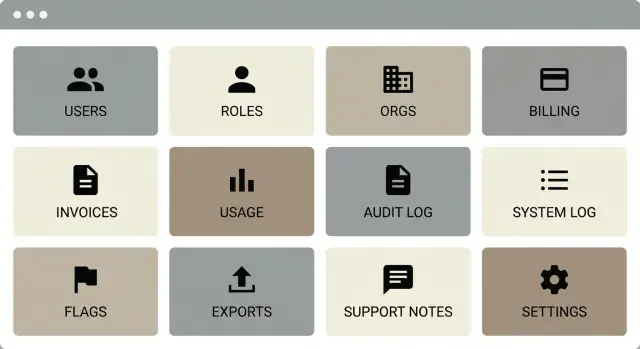
What an "80% ops" admin panel looks like in practice
An admin panel that "covers 80% of operations" isn't the one with the most settings. It's the one that lets your team solve the most common support and ops requests in minutes, without pulling an engineer into a one-off query or manual fix.
The shift is separating product features from support tools. Product features help end users do their work. Support tools help your internal team answer: "What happened? Who did it? What can we safely change?" A lot of teams ship plenty of user-facing controls, then realize support still can't see the basics like ownership, billing state, recent errors, or a clean history of changes.
Different teams use the admin panel for different goals. Support needs to unblock users and make safe changes. Finance needs billing, invoices, refunds, and tax details. Ops needs org health, usage trends, risk checks, and exports. Engineering needs debugging breadcrumbs like logs and an audit trail (not full observability).
To decide what counts as the 80%, use a frequency vs impact check. Frequency is how often the request shows up. Impact is how painful it is when you can't solve it quickly (lost revenue, churn risk, compliance risk).
A simple method:
- List your top 20 ticket types from the last month.
- Score each one for Frequency (1-5) and Impact (1-5).
- Multiply to get a priority score.
- Build screens that solve the highest scores end to end.
If a user says, "I was charged but can't access Pro," the best admin dashboard checklist is the one that takes support from user lookup to subscription status to invoice to action, with an audit trail for every change.
How to prioritize screens for real-world support (step by step)
An admin panel earns its keep when it helps you close tickets quickly and safely. The easiest way to pick the right admin panel screens is to start from support reality, not from what feels "complete."
Step-by-step prioritization
First, write down the top 20 questions you already get (or expect to get in the first 90 days). Use your inbox, chat logs, and refund notes. If you're building something like Koder.ai, examples include: "Why can't I log in?" "Who changed this setting?" "Why was I charged twice?" "Can you export my data?" "Is the app down for everyone?"
Next, group those questions into a few themes: access (users, orgs, roles), money (billing, invoices, usage), data (exports, deletions, retention), and incidents (audit, logs, status).
Then turn each theme into one screen, plus 2-3 safe actions that solve most tickets. "Safe" means reversible, logged, and hard to misuse. Examples: resend invite, reset MFA, retry a payment, regenerate an export, or roll back a config change.
Rank what to build first
Use the same scoring lens for every proposed screen:
- Frequency: how often support will open it
- Urgency: how painful it is when you can't answer fast
- Risk: how bad it is if someone clicks the wrong thing
- Effort: how long it takes to ship a basic version
Build the smallest version that still resolves tickets end to end. A good test is whether a support agent can handle a real case without asking an engineer. If not, the screen is usually missing one detail (like last login, billing status, or what changed, when, and by whom).
Screens 1-3: Overview, Users, Organizations
These three screens do most of the daily work in an ops admin panel. They should answer two questions fast: "What's on fire right now?" and "Who is affected?"
1) Overview (the page you check first)
The Overview should be a small, reliable pulse check. Keep it focused on today and the last 24 hours: new signups, active users, payment failures, and any spikes in errors. Add a short alerts area for things support shouldn't miss, like unusually high login failures, webhook errors, or a sudden rise in refunds.
A good rule: every metric on this page should lead to one clear next click, usually to Users, Organizations, or Logs.
2) Users (the screen support lives in)
The Users screen needs great search. Support should find people by email, name, user ID, and organization. Put status and trust signals up front: verified email or phone (if you collect it), last login, and whether the account is active, suspended, or invited-but-not-joined.
Keep key actions in one consistent place and make them safe: deactivate or reactivate, reset access (sessions, MFA, or password depending on your product), and resend invite. Add an internal notes field for context like "requested invoice change on Jan 9" so tickets don't start from zero.
3) Organizations/Teams (where billing and limits usually live)
This screen should show membership, current plan, usage vs limits, and the owner. Support often needs to solve "wrong person has access" and "we hit a limit" cases, so include ownership transfer and membership management.
Keep these views fast with filters, sorting, and saved searches like "payment failed," "no login in 30 days," or "over limit." Slow admin screens turn simple tickets into long ones.
Screen 4: Roles and permissions (so support can answer fast)
Roles and permissions is where support wins or loses time. If someone says "I can't do X," you need to answer in minutes. Treat this screen as a clear, readable view of role based access control, not a developer tool.
Start with two simple tables: roles (what they can do) and people (who has what). The most useful detail is effective access. Show a user's roles, any org-level role, and any overrides in one place, with a plain-language summary like "Can manage billing: Yes."
A safe permission editor matters because role changes can break accounts fast. Add a preview that shows exactly what will change before saving: which abilities are added or removed, and which users will be affected.
To keep it support-friendly, add a "Why can't they do this?" troubleshooter. Support picks an action (like "export data" or "invite user"), chooses the user, and the screen returns the missing permission and where it should be granted (role vs org policy). That avoids long back-and-forth and reduces escalation.
For high-risk actions, require extra confirmation. Common ones are changing admin roles, granting access to billing or payouts, enabling production access or deployment permissions, and disabling security controls like MFA requirements.
Finally, make permission changes auditable. Every edit should log who changed it, who it impacted, before/after values, and the reason. In a platform like Koder.ai, that history helps support explain why a user suddenly can or can't export source code, deploy, or manage a custom domain.
Screens 5-7: Billing, invoices, and usage
Billing is where support tickets pile up. These admin panel screens should be clear, fast, and hard to misuse. If you only get one thing right, make it: "What plan are they on, what did they pay, and why did access change?"
Screen 5: Billing and subscription
Show the current plan, renewal date, status (active, trial, past due, canceled), seat counts, and who the billing owner is. Put the source of truth at the top, and keep history below (plan changes, seat changes). Keep risky controls (cancel, change plan, restart) separate from viewing, with confirmation and a required reason.
Screen 6: Invoices and payments
Support needs a simple invoice list with dates, amounts, tax, and status (paid, open, failed, refunded). Include payment attempts and failure reasons like card declined or authentication required. Receipts should be accessible in one click from the invoice row, but avoid making edits here unless you truly need them.
Screen 7: Usage and limits
If you charge by usage or credits, show a meter that matches what the customer sees. Include current period usage, limits, overages, and any caps. Add a short "why they were blocked" summary so support can explain it in plain language.
Common support actions belong here, but keep them controlled: applying a one-time credit (with expiry and an internal note), extending a trial (with limits), updating tax or billing address (tracked), retrying a failed payment, or adding seats without changing the plan.
Make read-only fields visually distinct from editable ones. For example, show "Plan: Business (read-only)" next to "Seat count (editable)" so an agent doesn't accidentally trigger a plan change.
Screens 8-9: Audit log and system logs for faster debugging
When support says "something changed," these two screens stop guesswork. The audit log tells you who did what. The system log tells you what the system did (or failed to do). Together, they cut follow-up questions and help you give clear answers quickly.
Screen 8: Audit log (the human trail)
An audit log should answer three questions at a glance: who took the action, what they changed, and when it happened. If you also capture where (IP address, device, location estimate), you can spot suspicious access and explain odd behavior without blaming the user.
Support-friendly filters usually include actor (admin, support agent, end user, API key), user and organization, time window, action type (login, role change, billing change, export), and target object (account, project, subscription).
Keep each row readable: action name, before/after summary, and a stable event ID that can be shared with engineering.
Screen 9: System log and incidents (the machine trail)
System logs are where you confirm "it broke" vs "it worked but was delayed." This screen should group errors, retries, and background jobs, and show what happened around the same time.
Show a tight set of fields that make debugging faster: timestamp and severity, request ID and correlation ID, service or job name (API, worker, billing sync), error message with a short stack trace (if safe), retry count, and final status.
This reduces back-and-forth. Support can reply with: "Your export started at 10:14, retried twice, and failed with a timeout. We restarted it and it completed at 10:19. Request ID: abc123."
Screen 10: Feature flags without chaos
Feature flags are one of the fastest ways support can help a customer without waiting for a full release. In an admin panel, they should be boring, clear, and safe.
A good flags view supports per-user and per-organization toggles, plus staged rollouts (like 5%, 25%, 100%). It also needs context so nobody is guessing what a flag does at 2 a.m.
Guardrails that keep flags readable
Keep the screen small but strict. Every flag should have a plain description of the user-facing effect, an owner, a review or expiration date, scope rules (user, org, environment), and a change history that shows who flipped it and why.
Support workflow matters too. Allow temporary enablement with a short note (example: "Enable for Org 143 for 2 hours to confirm fix"). When the timer ends, it should auto-revert and leave a trail in the audit log.
When a flag should be a setting instead
Flags are for experiments and safe rollouts. If it's a long-term choice a customer expects to control, it's usually a setting. Signals include repeated requests during onboarding or renewal, changes to billing/limits/compliance behavior, the need for a UI label and help text, or permanent default differences across teams.
Example: if a Koder.ai customer reports a new build step breaking only for their workspace, support can temporarily enable a compatibility flag for that org, confirm the root cause, then either ship a fix or turn the behavior into a real setting if it's meant to stay.
Screen 11: Data exports that don't create new risks
Exports look harmless, but they can become the easiest way to leak data. In most admin panels, exporting is the one action that can copy a lot of sensitive information in a single click.
Start with a small set of high-value exports: users, organizations, billing and invoices, usage or credits, and activity (events tied to a user or workspace). If your product stores user-generated content, consider a separate export for that, with tighter permissions.
Give support control without making the export UI complicated. A solid export flow includes date range, a few key filters (status, plan, workspace), and optional column selection so the file is readable. CSV works well for quick support work; JSON is better for deeper analysis.
Make exports safe by design. Put exports behind role-based access control (not just "admin"), redact secrets by default (API keys, tokens, full card data) and mask PII where possible, run exports as background jobs with clear status (queued, running, ready, failed), set a download expiry window, and rate-limit or cap huge exports unless a higher role approves.
Also treat export as an auditable event. Record who exported, what they exported (type, filters, date range, columns), and where it was delivered.
Example: a customer disputes a charge. Support exports invoices and usage for the last 30 days for that organization, with only the needed columns (invoice id, amount, period, payment status). The audit log captures the export details, and the file is delivered after the job finishes, without exposing payment method details.
Screen 12: Support workspace (notes and safe actions)
A good support workspace stops tickets from bouncing between people. It should answer one question quickly: "What happened to this customer, and what did we already try?"
What this screen needs to show
Start with a customer timeline that mixes system events and human context. Internal notes (not visible to the customer), tags (for routing like "billing", "login", "bug"), and an activity feed prevent repeated work. Every admin action should show up in the same timeline with who did it, when, and before/after values.
Keep actions safe and boring. Give support tools to unblock users without turning them into developers: lock or unlock an account (with a reason required), invalidate active sessions (force re-login), resend verification or password reset emails, trigger a "recalculate access" or "refresh subscription status" job, or add a temporary hold note (example: "do not refund until reviewed").
If you allow "login as user" or any kind of admin access to the user's account, treat it like a privileged operation. Require explicit user consent, record it, and log full session start/stop in your audit trail.
Reply templates that reduce escalations
Add short templates that remind support what to collect before escalating: the exact error message, timestamp/timezone, affected account or organization, steps taken, and what action was already attempted in the admin.
Example: a customer says they were charged twice. Support opens the workspace, sees a note that a session reset was done earlier, checks billing status, then records a new note with invoice IDs, the customer's confirmation, and the refund action taken. The next agent sees it immediately and doesn't repeat the same steps.
Common mistakes that make admin panels hard to operate
Most admin panels fail for boring reasons. Not because the team missed a fancy feature, but because the basics make daily support slow, risky, or confusing.
The mistakes that most often turn admin panel screens into a time sink:
- Shipping lots of views before you can do the common fixes. Ten screens look impressive, but support still can't reset access, resend an invite, or correct an org setting.
- No clear history of changes. When a user says, "My account was disabled," you need to answer who did it, when, and what else changed around the same time.
- Permissions that are too vague or too strict. If support roles are blocked from safe actions, tickets pile up. If they are overpowered, one wrong click can become an incident.
- Weak search and filtering. If you can't find a user by email, filter by status, or narrow results by date, every ticket becomes a manual hunt.
- Dangerous actions placed next to routine workflows. Delete, refund, disable, or rotate keys should never sit beside "Save" without extra friction and clear labeling.
A simple example: support needs to help a customer who can't log in after a billing change. Without search, they can't find the account fast. Without an audit log, they can't confirm what changed. Without proper role-based access control, they either can't fix it or they can do too much.
If you're building on a platform like Koder.ai, treat safety as a product feature: make the safest path the easiest path, and make the risky path slow and loud.
Quick checklist before you ship the admin panel
Before you call it "done," run a reality check. The best admin panel screens are the ones support can use under pressure, with little context, and without fear of breaking things.
Start with speed. If a support agent can't find a user in under 10 seconds (by email, ID, or org), tickets will pile up. Make the search box visible on the first admin view, and show the fields support needs most: status, last login, org, plan.
Next, check whether billing is answerable in one glance. Support should see current plan, billing status, last payment result, and next renewal date on the same page as the customer. If they must open three tabs, mistakes happen.
Pre-ship checklist:
- Can support locate a user fast and confirm it's the right account (ID, org, status)?
- Can they see billing status and the last successful or failed payment without switching screens?
- Can they answer "who changed this?" using an audit log with actor, time, and before/after details?
- Are exports limited by role-based access control, and is every export request logged?
- Can feature flags be rolled back safely, with a clear history of changes?
Treat every risky action like a power tool. Put it behind the right permissions, add a clear confirmation step, and log it. If you're building these admin panel screens in a tool like Koder.ai, bake these checks into your first version so you don't have to retrofit safety later.
Example: resolving a real support ticket using these screens
A customer writes: "I changed plans and now I can't log in." This is where good admin panel screens save time, because support can follow the same path every time and avoid guessing.
Start with the checks that explain most lockouts: identity, membership, billing state, then permissions. A common cause is a user who is still active, but their organization was moved to a different plan, a payment is past due, or a role changed during the upgrade.
A practical order to follow:
- Users: find the user by email, confirm they're active, and check last login and recent changes.
- Organizations: open the user's org, confirm membership, and verify org status and current plan.
- Billing and invoices: look for a failed payment, an overdue invoice, or a plan swap that triggered an access rule.
- Roles and permissions: confirm the user still has a role that allows sign-in and the right org access.
- Audit log and system logs: confirm what happened (plan changed, role edited) and why login failed ("account disabled" vs "permission denied").
If everything looks correct, check feature flags next. A flag might have turned on a new auth method for only some orgs, or disabled legacy login for a plan tier. Logs plus flag state usually tell you whether it's a bug or config.
Before closing the ticket, write clear Support notes so the next agent doesn't repeat the work:
- What you saw (plan, invoice status, role)
- What you changed (if anything) and when
- The exact error from logs
- The user impact (who is blocked, since when)
Escalate to engineering only after you attach useful context: user ID, org ID, timestamps, relevant audit entries, and the flag state at the time of failure.
Next steps: ship v1, measure, then expand
A good first release isn't "all the screens." It's the smallest set that lets support answer most tickets without asking engineering for help. Ship, watch what happens, then add only what earns its place.
For v1, pick the six screens that unblock the most common requests: Overview (status + key counts), Users, Organizations, Roles and permissions (RBAC), Billing and usage, and Logs (audit + system). If support can identify a customer, confirm access, understand usage, and see what changed, you'll cover a surprising share of day-to-day work.
After v1 is in use, choose the next set based on measured support volume. That usually means invoice/payment details, data exports, feature flags, a support workspace (notes and safe actions), and any product-specific settings that drive "please change this for me" tickets.
Measure with simple signals and review them weekly: top ticket categories by count, time to first meaningful response, time to resolution, how often support escalates to engineering, and which admin actions are used most.
Write short admin runbooks for the top 10 actions (2-5 steps each). Include what "good" looks like, what could break, and when to stop and escalate.
Finally, plan for rollback and versioning of config changes. Any switch that affects customers (permissions, flags, billing settings) should have change notes, who changed it, and a way to revert quickly.
If you want to build fast, Koder.ai (koder.ai) is one option for generating admin screens from chat, then iterating with planning mode and snapshots so risky changes are easier to roll back.
FAQ
What does “80% ops admin panel” actually mean?
Aim for the smallest set of screens that lets support resolve most tickets end to end without engineering.
A practical v1 is usually:
- Overview (today/last 24h signals)
- Users + Organizations
- Roles/permissions
- Billing + invoices/usage basics
- Audit log + system logs
How do I decide which screens to build first?
Pull your last month of tickets (or your first 90-day “expected” list) and score each request.
A simple approach:
- List top 20 ticket types.
- Score Frequency (1–5) and Impact (1–5).
- Multiply for a priority score.
- Build screens that solve the top scores end to end (lookup → explain → safe action → logged change).
What makes an admin screen actually useful for support?
Design each screen around a repeatable support flow.
A good screen lets an agent:
- Find the right user/org quickly (search + filters)
- See the current state (plan, status, last login, limits)
- See what changed recently (audit trail)
- Take 2–3 safe actions (reversible, confirmed, logged)
If the agent still has to ask an engineer for “one missing detail,” the screen isn’t complete yet.
What should the Users screen include?
Start with search that works: email, user ID, name, and organization.
Then show the trust and status fields support needs most:
- Account status (active/suspended/invited)
- Verified signals (if you collect them)
- Last login
- Org membership
Keep actions consistent and safe, like resend invite, reset sessions/MFA, and deactivate/reactivate, with a required reason and an audit entry.
What’s the minimum Billing screen for fewer “charged but no access” tickets?
Show what support needs to answer billing questions in one glance:
- Current plan and status (trial/active/past due/canceled)
- Renewal date
- Seats and usage vs limits
- Billing owner
- History of plan/seat changes
Keep risky actions (cancel/change plan/restart) separated from read-only info, and require confirmation + a reason.
What should the Invoices/Payments screen show to help support troubleshoot quickly?
Invoices should be optimized for fast answers, not editing.
Include:
- Invoice list (date, amount, tax, status)
- Payment attempts and failure reasons
- Clear mapping to subscription/access state
- One-click access to receipts (read-only)
If you allow actions, keep them narrow (for example, retry payment), and log every attempt.
How should I design Usage & Limits so support can explain blocks clearly?
Make the meter match what customers see.
At minimum show:
- Current period usage
- Limit/cap and what happens when exceeded
- Overages (if any)
- A plain-language “why they were blocked” summary
Common controlled actions are one-time credit with expiry, trial extension with limits, or recalculate access/entitlements, all with notes and audit logging.
Do I really need both an audit log and system logs?
Use both, because they answer different questions.
- Audit log: who changed what, when, and before/after (human actions)
- System logs: what the system did or failed to do (jobs, retries, errors)
Together they let support say “what happened” without guessing, and give engineering a stable event/request ID when escalation is needed.
How do I add feature flags without creating chaos?
Treat flags as a controlled support tool.
Good defaults:
- Clear description of user impact
- Scope (user/org/environment) and staged rollout support
- Change history (who/when/why)
- Optional temporary enablement with auto-revert
If a flag becomes a permanent customer choice, graduate it into a real setting with UI and help text.
How can I offer data exports without increasing security risk?
Exports are one of the easiest ways to leak data, so make them safe by default.
Do this:
- Put exports behind specific roles (not “any admin”)
- Redact secrets and mask sensitive fields
- Run as background jobs with status + download expiry
- Log who exported what (type, filters, date range, columns)
- Rate-limit or require approval for large exports
Keep the flow simple: date range, a few filters, and CSV/JSON depending on the use case.