

App naming conventions for generated apps from day one
App naming conventions help generated apps stay clear as teams grow. Learn how to name statuses, roles, and actions for easier prompts and handoffs.
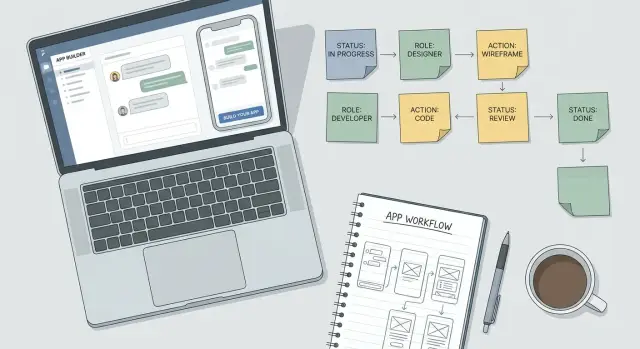
Why naming gets messy fast
Naming problems rarely start with a big decision. They start with small shortcuts.
A screen says "Open," a button says "Start," and a prompt later asks for "Active" items. All three may point to the same state, but now the app treats them like different ideas. What felt harmless at first becomes confusing for the team and for users.
This happens often in chat-built products because people describe the same thing in slightly different ways over time. On Monday, a founder calls a role "manager." On Wednesday, a teammate asks for an "admin" view. A week later, someone adds "team lead." If nobody stops to choose one label, the app starts splitting one concept into several versions.
The damage shows up in two places at once. Prompts become harder to write because the builder cannot always tell whether two words mean the same thing. Screens become harder to use because people see different labels for similar actions, statuses, or permissions.
Small teams feel this first. One person may still remember that "approved," "published," and "live" were meant to match. A new teammate does not. They have to guess what each word means, where it appears, and whether changing one label should also change the others.
The pattern is familiar. A feature gets named quickly to keep work moving. Later prompts use a different word that sounds close enough. Screens, filters, and notifications start showing both terms. Then someone updates one label and misses the rest.
Now even simple edits take longer than they should. A request to rename a button turns into a bigger change because that button text is tied to a status, a workflow step, and a report filter.
In a platform like Koder.ai, where teams shape apps through natural language, wording gaps matter even more. Clear labels make it easier to ask for changes without creating accidental duplicates.
App naming conventions are not about sounding polished. They stop confusion before it spreads. When names stay consistent, prompts are easier to write, screen updates are safer, and handoffs rely less on memory.
What to name early
The first names you choose become the words your app repeats everywhere: screens, buttons, filters, notifications, and future prompts. If those words change from place to place, people slow down, ask more questions, and make more mistakes.
Start with the terms users will see every day.
Workflow words come first
Statuses should be named early because they appear in lists, reports, and automations. Pick a small set of clear labels such as Draft, Active, and Closed, then define what each one means. If one person says Closed, another says Completed, and a third says Done, the app starts to feel inconsistent fast.
Roles need the same care. Admin, Manager, and Viewer may sound obvious, but teams often attach different permissions to the same word. A manager in one app may approve requests. In another, the same role can only review them. The name should match the responsibility.
Actions matter just as much. Create, Approve, Assign, Archive, and Delete should be chosen carefully because they shape what users expect to happen next. Archive and Delete, for example, should never mean the same thing unless you want people to lose data by accident.
Name your main business objects
Your core records need stable names from the start. Decide whether the app tracks orders, leads, accounts, requests, projects, or something else. Avoid using two words for the same record, like Customer in one menu and Account in another, unless they truly mean different things.
Shared terms in menus and filters matter more than many teams expect. If a sidebar says Open, a filter says Active, and a dashboard says Current, users waste time guessing whether those labels match.
A simple early naming set usually covers five things: statuses, roles, actions, core records, and shared menu terms. If you are building with a prompt-based tool like Koder.ai, these labels also make future prompts clearer. The model has fewer terms to interpret, so the app stays more consistent as it grows.
Simple rules for a naming system
A naming system does not need to be fancy. It just needs to be clear.
The basic rule is simple: one concept, one label. If one screen says "client," another says "customer," and a prompt later uses "account holder," people stop trusting the words.
Choose terms your team already uses in normal conversation. Short, familiar labels are easier to remember and easier to reuse later. "Approved" is better than "administratively validated." "Manager" is better than a clever title people need explained.
Action names should start with clear verbs. Buttons and menu items work best when they tell users exactly what will happen: "Create invoice," "Send reminder," "Archive project." This matters even more in generated app prompts, because vague labels like "Handle" or "Process" often lead to confusing updates later.
Be consistent with number style too. Pick singular or plural once, then stick with it. If the main menu says "Orders," do not switch to "Order list" in one place and "My order" in another unless there is a real reason.
The last rule is the one teams skip most often: define important terms in plain language. Write one short line for each key word. What counts as a lead? When does an item become closed? What can a reviewer do? A new teammate should understand the definition in seconds.
If you are building in Koder.ai or any chat-based tool, these rules make prompts more stable. When labels stay consistent, the app is easier to extend and the team spends less time clarifying what words were supposed to mean.
How to set conventions from day one
Naming is easiest to fix before screens, workflows, and prompts start multiplying. On day one, open a simple shared note and decide what the app will call its core things. That first hour saves a lot of cleanup later.
Start with the main items users will create, view, or edit. In a sales app, that might be Lead, Account, Deal, Task, and Invoice. Pick one name for each item and use it everywhere, including prompts, menus, and internal notes.
Then name the states each item can have. A deal should not be "Open" in one screen, "Active" in another, and "In progress" in a prompt unless those labels mean different things. If they mean the same thing, choose one and document it.
Roles need the same discipline. Use plain words people already understand, such as Admin, Manager, Agent, or Customer. Fancy titles may sound more interesting, but they usually make permissions harder to explain during team handoff.
Actions are where inconsistency sneaks in fastest. Decide early whether users "create" or "add," "archive" or "close," "assign" or "send." Button text, menu labels, and prompts should use the same verbs so people know what will happen next.
A simple day-one setup is enough:
- List the core items in the app.
- Give each item a standard name.
- Define the allowed statuses for each item.
- Choose role names and note what each role can do.
- Set the action words for buttons, menus, and automations.
Keep these rules in one shared place the whole team can see. A single page is enough if it shows item names, approved statuses, roles, and action names. If you are building with Koder.ai, this can live in planning notes before major changes.
That way, the next prompt is easier to write, the next teammate has less guesswork, and the app grows with fewer naming conflicts.
A realistic example from a small team app
A small team builds an internal app to track work requests. The support lead calls each item a ticket. The operations manager calls the same thing a request. A founder using chat prompts mixes both words while shaping the app. Soon the product uses both terms across screens, filters, and notifications.
At first, this seems harmless. Then the team tries to answer a simple question: "How many open tickets do we have?" Someone else asks, "Do you mean requests waiting for review, or all pending work?" One label has turned into two meanings.
The same thing happens with statuses. One person uses Pending for anything not finished. Another uses In Review for items waiting on a manager. Soon both statuses are being used for the same stage. People stop trusting the board because they cannot tell whether work is blocked, waiting, or actually being checked.
Roles get messy too. In one prompt, the app uses Reviewer for the person who checks details. In another, it uses Approver for the person who gives final sign-off. But on this team, one manager does both jobs. Later, a new teammate assumes those are separate roles and adds extra steps nobody needed.
A short naming sheet fixes this faster than most teams expect. It does not need to be polished. It just needs to define the main words once, in plain language.
Example naming sheet
- Request: the main work item in the app
- Pending: submitted but not yet being checked
- In Review: currently being checked by a manager
- Reviewer: checks accuracy and completeness
- Approver: gives final yes or no
Once these names are set, future prompts become clearer. Instead of saying, "Add a ticket stage for approval," the team can say, "Move a request from In Review to Approved when the approver confirms it." That removes guesswork.
The next handoff gets easier too. A new person can read five lines and understand how the app works.
How better names improve future prompts
Good names make later prompts shorter and clearer. When your app already has fixed labels for statuses, roles, and actions, you do not need to explain the same thing over and over.
That is where app naming conventions start paying off. A prompt like "show manager-only actions for Approved requests" works because each word has one clear meaning.
Without that shared vocabulary, prompts get long fast. You end up adding notes such as "manager means the team lead, not the account owner" or "approved is the final state, not reviewed." Those little fixes slow the work down and create more chances for the system to guess wrong.
Clear names also help when you regenerate a screen. If the app always uses Draft, In Review, and Published, the next version is more likely to keep those labels. If one screen says Pending and another says Waiting for approval, the builder may treat them like different states and build around that confusion.
A naming system also cuts down correction rounds. Instead of fixing "staff" to "agent," "done" to "resolved," and "submit" to "send request" in separate passes, you can build on the terms that already exist.
This matters even more when another person takes over. A teammate, freelancer, or client can read the labels and understand the app faster. They do not need a long explanation of what each screen really means because the names already do the work.
If a support app uses the roles Customer, Agent, and Admin, and the statuses New, Assigned, Waiting on Customer, and Closed, later requests for dashboards, filters, or a mobile version stay much easier to describe. In chat-based builders such as Koder.ai, stable language gives the platform less room to misread what you want.
Common mistakes to avoid
The fastest way to create confusion is to give one thing several names. If your app uses "client," "customer," and "account" for the same record, people will start guessing. Future prompts become less reliable too, because the team and the product are no longer speaking the same language.
This often starts with synonyms that feel harmless. One teammate writes "approved," another writes "accepted," and a third uses "confirmed." Each label sounds reasonable on its own, but together they make filters, reports, and handoffs harder than they need to be.
Another common mistake is leaving internal slang in the product. A support team might say "save it to ops" or "send it to tier two," but users may have no idea what that means. Internal shorthand is fine in private notes. User-facing labels should stay plain and obvious.
Teams also run into trouble when they update a label in the app but forget old prompts, templates, and docs. Then the screen shows a new button name while saved instructions still use the old one. Someone follows the prompt, cannot find the action, and assumes the app is broken.
Roles are especially easy to mix up. "Manager" might be a real job title, while "Admin" is an app permission level. One describes a person in the company. The other describes what they can do in the system. If those ideas get blended, access rules become hard to explain and even harder to maintain.
Action names need the same clarity. A button labeled "Process" says almost nothing. Process what, and what happens next? Clear verbs like "Approve invoice," "Assign lead," or "Archive project" remove doubt.
If you are building with generated app prompts, every vague or inconsistent name creates more cleanup later. A small naming mistake today can turn into awkward screens, messy prompts, and avoidable team questions.
A quick naming checklist
A good naming system should feel almost boring. A new teammate should open the product, read a few screens, and understand what things mean without asking for a translation.
Before you lock in labels, ask a few simple questions:
- Could a new person understand every label?
- Do statuses follow a clear order?
- Does each role have one plain name?
- Do buttons start with a clear verb?
- Are the same words used in prompts and on screens?
A fast test helps. Hand your labels to someone outside the project for five minutes and ask them to explain what each status, role, and button does. If they guess wrong, the name needs work.
This matters even more when you are building quickly. When prompts, UI labels, and team notes all use the same words, future changes are easier to request, review, and ship.
If your checklist finds even one weak label, fix it early. Small naming gaps spread fast once more screens, workflows, and teammates get involved.
Next steps for your team
A naming system only works if the whole team can use it without thinking too hard. The easiest next step is to make one short reference page and treat it like a shared rulebook. Keep it simple enough that a founder, designer, developer, or ops teammate can read it in two minutes.
That page should cover the words people use most often, especially statuses, roles, and actions. Those terms show up in prompts, screens, tables, and team chats every day. If one person writes "approved" and another writes "accepted," confusion starts small and spreads fast.
A good starter page usually includes approved status names, role labels with a short note about permissions, standard action verbs, and a few style rules such as singular versus plural or whether labels should use title case. One or two real examples help too, especially if they show the terms used in a screen or prompt.
Once the page exists, review it before adding new features. Naming problems usually appear during rushed updates, not during the first build. A quick check before adding a new module, form, or workflow can stop duplicate terms from slipping in.
Do not rewrite the sheet every time someone has a new preference. Update it only when the meaning of a term truly changes or when the old name causes real confusion. Stable names matter more than perfect names.
If your team is building in Koder.ai, keeping these rules in planning mode gives future prompts a clearer vocabulary. That makes it easier to keep screens, roles, and flows consistent as the product grows.
App naming conventions are not a branding exercise. They are a practical habit that makes prompts clearer, handoffs easier, and future changes much less painful.
FAQ
What should we name first in a generated app?
Start with the words users will see and use most: core records, statuses, roles, actions, and shared menu terms. If those are clear early, later screens and prompts stay much more consistent.
How many statuses should we start with?
Begin with a small set that covers the real workflow, usually three to five states. Fewer clear statuses are easier to understand and much easier to keep consistent across screens, filters, and automations.
Should app roles match our company job titles?
Not always. A job title describes a person at work, while an app role describes permissions in the system. Use role names that match what the person can actually do in the app.
Is it okay to use different words for the same thing?
Use one concept, one label. If one screen says "customer" and another says "client" for the same record, people will assume they are different things and prompts become less reliable.
What makes a good action label?
Use clear verbs that tell users exactly what will happen next, such as "Approve invoice" or "Archive project." Avoid vague labels like "Handle" or "Process" because they hide the outcome.
How should we document naming rules?
Keep one short shared page with approved names and plain definitions. It should cover your main records, statuses, roles, and action verbs so the whole team can check it before making changes.
Why do naming conventions matter in Koder.ai?
Stable names make prompts shorter and clearer because the builder has less guesswork. If "Manager," "Approved," and "Request" each have one fixed meaning, future changes are easier to describe correctly.
What if our app already has inconsistent labels?
Fix the highest-impact terms first, especially core records, statuses, and role names. Then update screens, prompts, templates, and docs to match so old wording does not keep reintroducing confusion.
Should labels be singular or plural?
Either can work, but pick one style and stay with it. If your menu uses plural names like "Orders," avoid switching to other forms unless there is a clear reason.
How can we tell if a name is actually clear?
Show the labels to someone outside the project and ask what they think each one means. If they hesitate or guess wrong, the name is probably too vague and should be simplified.