

Apple Pay in Mobile Apps: What It Is and How It Works
Learn what Apple Pay in mobile apps is, how it works behind the scenes, and how to integrate it securely to speed up checkout and improve conversion.
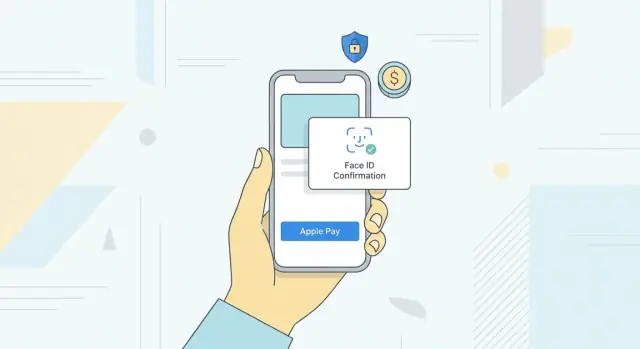
What Apple Pay Is and Why It Matters in Mobile Apps
What Apple Pay is
Apple Pay is Apple’s digital wallet and payment service. It lets users store credit, debit, and some prepaid and store cards securely on their iPhone, Apple Watch, iPad, or Mac and pay with a single tap or glance.
Instead of entering card numbers and billing details, the user authenticates with Face ID, Touch ID, or a device passcode. Apple generates a device-specific token so the actual card number is not shared with the merchant.
Where Apple Pay works
Apple Pay works in three main contexts:
- In‑store: Contactless payments using NFC on iPhone or Apple Watch at physical terminals.
- On the web: Checkout in Safari on iOS and macOS, often from a product or cart page.
- In‑app: Native payment sheet inside iOS and iPadOS apps, triggered directly from the app’s checkout or pay button.
This guide focuses on in‑app Apple Pay, where the entire payment experience stays inside the app.
Why it matters in mobile apps
Typing card details on a small screen is slow and error‑prone. Apple Pay replaces multiple form fields with one interaction, which typically:
- Shortens checkout time
- Reduces cart abandonment
- Increases completed orders and subscription sign‑ups
Because cards and addresses are already stored on the device, Apple Pay also reduces friction for first‑time customers.
Availability and when to use it
Apple Pay works on recent iPhone, iPad, Apple Watch, and Mac models in supported regions, with major networks such as Visa, Mastercard, American Express, and many local schemes, depending on the issuing bank.
Apple Pay is most suitable when:
- Your audience uses iOS devices in meaningful volume
- You see drop‑off during payment or address entry
- You want to support card payments without handling raw card data
It should sit alongside traditional card forms and other wallets, not replace them entirely, so users without Apple Pay can still pay.
How Apple Pay Works Behind the Scenes
Apple Pay hides a lot of complexity behind a simple “double-click to pay” experience. Under the hood, several parties and security layers coordinate to move money safely.
The Key Players
A typical Apple Pay transaction involves:
- User: Owns the device and card.
- Issuing bank: The bank that issued the user’s payment card.
- Card network: Visa, Mastercard, Amex, etc.
- Apple: Provides Wallet, device security, and tokenization infrastructure.
- Merchant: Your app or business accepting payment.
- PSP / payment gateway / acquirer: Processes the payment for the merchant and connects to the card networks.
Tokenization: DPAN vs FPAN
When a user adds a card to Apple Wallet, the real card number (the FPAN, or Funding Primary Account Number) is sent securely to the card network and issuer. They respond with a DPAN (Device Primary Account Number) plus cryptographic keys unique to that device.
The DPAN is what Apple Pay uses during transactions. Your app and backend never see the FPAN. This is the core of Apple Pay’s tokenization model: the device uses a surrogate card number and one-time cryptograms instead of exposing the real card.
Secure Element and Payment Token Creation
On supported devices, payment credentials and keys live in the Secure Element (or are protected via the Secure Enclave). When the user authenticates (Face ID, Touch ID, or passcode), the Secure Element:
- Uses the DPAN and unique keys to generate a payment cryptogram.
- Assembles an Apple Pay payment token containing:
- DPAN
- Transaction-specific cryptogram
- Other metadata (expiry, network, etc.)
- Encrypts this token for your payment processor using their public key.
Your app receives this opaque, encrypted token via Apple Pay APIs and sends it to your backend, which forwards it to the PSP or gateway.
Authorization and Settlement
The PSP decrypts the token, extracts DPAN and cryptogram, and submits an authorization request through the card network to the issuing bank. The issuer validates the cryptogram and card status, then approves or declines.
Later, during settlement, the authorized amount is captured, batched, and moved from the issuing bank to the merchant’s acquiring bank. To your app, this is just capture or sale completion, but behind the scenes it’s coordinated between acquirer, card network, and issuer using the DPAN—not the customer’s real card number.
Requirements and Prerequisites for Using Apple Pay
Before you add Apple Pay to your app, you need to satisfy a set of technical, business, and regional requirements.
Apple accounts and identifiers
On the merchant side you must have:
- An active Apple Developer Program account (paid)
- An App ID with the Apple Pay capability enabled in Xcode
- At least one Apple Pay Merchant ID
- A Payment Processing certificate associated with that Merchant ID
Many merchants also create a Merchant Identity certificate for merchant validation during web-based or hybrid flows.
Supported platforms and OS versions
Apple Pay in apps is supported on:
- iOS and iPadOS devices with Touch ID or Face ID, or a paired Apple Watch
- Recent OS versions (as a rule of thumb, target iOS 12+ unless you have a strong reason not to)
Check Apple’s current documentation for minimum OS support, especially if you rely on newer APIs.
Regional and banking availability
Apple Pay is not available in every country or for every bank. You need to confirm:
- Apple Pay is supported in your selling regions
- The major card networks you accept (Visa, Mastercard, Amex, etc.) support Apple Pay there
- Your acquiring bank or payment service provider (PSP) can process Apple Pay transactions in those markets
Merchant categories and allowed goods
Apple may restrict certain merchant categories and use cases (e.g., illegal goods, some digital content or services, high‑risk industries). Verify that:
- Your Merchant Category Code (MCC) is allowed for Apple Pay
- Your app’s products and services comply with App Store Review Guidelines and Apple Pay terms
Payment service provider and gateway support
Finally, you need a PSP or payment gateway that supports Apple Pay tokenization and decryption. Confirm that your provider:
- Issues you the keys needed to decrypt payment tokens (or decrypts on your behalf)
- Supports your currencies and regions
- Provides clear documentation and SDKs for Apple Pay integration
User Experience Flow of Apple Pay in a Mobile App
A smooth Apple Pay flow feels almost invisible to the user. Here’s what it typically looks like, step by step.
1. From Product Page to Apple Pay Button
The journey usually starts on a product page or cart screen. Once the user has chosen items and options (size, color, quantity), they move to checkout.
On the checkout or cart screen, show the standard Apple Pay button provided by Apple. It should:
- Use the official “Pay” mark (never custom text like “Pay with Apple”).
- Be clearly visible near the primary checkout action.
- Indicate whether it pays for the entire cart or a specific item.
2. The Apple Pay Sheet
When the user taps the button, the Apple Pay sheet slides up from the bottom of the screen.
This sheet typically includes:
- Payment cards: Default card preselected, with an option to switch cards.
- Shipping details: Address selection or confirmation if physical goods are involved.
- Contact info: Name, email, and phone number, editable if needed.
- Summary: Line items (optional) and a clear total amount, including tax and shipping.
The user can adjust details (card, shipping, contact) directly in the sheet before confirming.
3. Authentication
To authorize the payment, the user authenticates with:
- Face ID (look at the device)
- Touch ID (fingerprint on the sensor)
- Device passcode (fallback if biometrics fail or are unavailable)
The sheet clearly prompts the user, for example: “Double-click to pay” on Face ID devices.
4. Success, Failure, and Cancellation States
After authentication, the sheet indicates progress and then disappears, returning the user to your app.
Your app should immediately show a clear state:
- Success: “Payment confirmed” with order number, summary, and next steps (tracking, downloads).
- Failure: A concise error message (e.g., “Payment was declined”) and alternative options, such as trying another card or payment method.
- Cancellation: If the user cancels on the Apple Pay sheet, show a neutral message (e.g., “Payment not completed”) and keep them on the checkout screen without losing cart data.
Keeping these states clear and consistent reassures users that their payment status is unambiguous and that they stay in control throughout the flow.
Core Implementation Steps for Apple Pay on iOS
Implementing Apple Pay on iOS centers around the PassKit framework and a few key classes. Here’s the end‑to‑end flow at app level.
1. Enable Apple Pay in Xcode
- In Xcode, open Signing & Capabilities for your target.
- Click + Capability and add Apple Pay.
- Select the Merchant ID you created in the Apple Developer portal (or create one if needed).
This wires your app bundle to your merchant identity so Apple Pay tokens can be generated for your server.
2. Import PassKit and Build a PKPaymentRequest
import PassKit

func createPaymentRequest() -> PKPaymentRequest? {
    guard PKPaymentAuthorizationController.canMakePayments() else { return nil }

    let request = PKPaymentRequest()
    request.merchantIdentifier = "merchant.com.yourcompany.app"
    request.countryCode = "US"
    request.currencyCode = "USD"

    request.supportedNetworks = [.visa, .masterCard, .amex]
    request.merchantCapabilities = [.capability3DS]

    request.paymentSummaryItems = [
        PKPaymentSummaryItem(label: "Pro Subscription", amount: 9.99),
        PKPaymentSummaryItem(label: "Your Company", amount: 9.99)
    ]

    return request
}
merchantIdentifier, countryCode, and currencyCode must match your merchant setup. supportedNetworks reflects the card schemes you and your PSP support. At minimum, include .capability3DS in merchantCapabilities.
3. Add and Place the PKPaymentButton
Use PKPaymentButton rather than custom buttons so you comply with Apple’s UI guidelines:
let payButton = PKPaymentButton(paymentButtonType: .buy, paymentButtonStyle: .black)
Place it where purchase intent is strongest: product screen, cart, and final checkout. Disable or hide it if PKPaymentAuthorizationController.canMakePayments() is false.
4. Present PKPaymentAuthorizationController and Handle Callbacks
Create a controller from the request and conform to PKPaymentAuthorizationControllerDelegate:
func startApplePay() {
    guard let request = createPaymentRequest() else { return }
    let controller = PKPaymentAuthorizationController(paymentRequest: request)
    controller.delegate = self
    controller.present(completion: nil)
}

extension CheckoutViewController: PKPaymentAuthorizationControllerDelegate {
    func paymentAuthorizationController(_ controller: PKPaymentAuthorizationController,
                                        didAuthorizePayment payment: PKPayment,
                                        handler completion: @escaping (PKPaymentAuthorizationResult) -> Void) {
        // Send payment.token to your server for processing
        // Then call completion(.init(status: .success, errors: nil)) or .failure
    }

    func paymentAuthorizationControllerDidFinish(_ controller: PKPaymentAuthorizationController) {
        controller.dismiss(completion: nil)
    }
}
The didAuthorizePayment method is where you pass the payment.token to your backend for actual charging. After your server responds, complete with .success or .failure, then dismiss the sheet in paymentAuthorizationControllerDidFinish.
Server-Side Handling and Payment Processing
Server-side logic is what turns an Apple Pay sheet into real money movement. The app collects user authorization; your backend validates the merchant, processes the token, and talks to your payment gateway.
Merchant validation and merchant session
Before showing the Apple Pay sheet, your app must obtain a merchant session from Apple.
- The app sends your backend the merchant validation URL provided by
PKPaymentAuthorizationController. - Your server, using your Apple Pay merchant ID and certificate, calls Apple’s merchant validation endpoint.
- Apple returns a signed merchant session object.
- Your backend passes this session back to the app, which uses it to initialize Apple Pay.
This flow proves to Apple that the app is associated with your merchant identity and domain.
Handling the payment token
After the user authorizes payment, the app receives an encrypted payment token (PKPaymentToken) and sends it to your backend over HTTPS.
On the server:
- Do not attempt to decrypt the token yourself.
- Forward the token as-is to a payment gateway or processor that supports Apple Pay (Stripe, Adyen, Braintree, etc.).
The gateway decrypts the token (using network tokens or DPANs) and runs the card authorization with the card networks.
Authorization vs capture
Gateways usually give you two flows:
- Authorize only: Place a hold on funds, then capture later (e.g., after shipment). Useful for physical goods or variable totals.
- Authorize and capture: Immediately charge the customer. Common for digital goods or subscriptions starting right away.
Your backend should persist the gateway’s transaction ID, amount, currency, and status—but not raw card data or decrypted token contents.
Data storage and security
Store only what you truly need for reconciliation, refunds, and customer support:
- Order ID and payment transaction ID
- Masked card info and brand (if provided by gateway)
- Authorization/capture timestamps and amounts
Never store full card numbers, CVV, or unencrypted payment tokens on your own servers. Offload sensitive handling to PCI-compliant gateways, and ensure all communication is over TLS with strict logging and access controls.
Security, Privacy, and Compliance Considerations
Apple Pay is designed so your app never touches raw card numbers, but you still need to understand the security model and your responsibilities.
Tokenization: Hiding the Real Card Number
When a user adds a card to Apple Pay, the issuer and network replace the actual PAN (card number) with a Device Account Number (DAN).
During a payment:
- The DAN and a one-time cryptogram are sent instead of the real card number.
- The cryptogram is unique per transaction and useless if intercepted.
Your app and backend only see tokens and transaction metadata, not the underlying card details.
Device-Level Protection: Secure Enclave and Biometrics
Sensitive keys and payment credentials are stored and processed inside the Secure Enclave, a hardware-isolated coprocessor.
Authorization is tied to user verification:
- Face ID / Touch ID
- Or device passcode
Your app simply receives a success or failure signal from the system sheet; it never accesses biometric data or Secure Enclave contents.
Network Protections and One-Time Cryptograms
Each Apple Pay transaction uses:
- A per-transaction cryptogram
- Merchant- and device-specific data
Networks and issuers validate these values, helping detect cloning, replay, and tampering.
PCI DSS Scope (High-Level, Non-Legal)
Apple Pay can significantly reduce the PCI DSS scope of your app because:
- You do not collect, transmit, or store primary account numbers.
- Most sensitive handling is offloaded to Apple, the network, and your PSP.
However:
- You are still responsible for how you process payment tokens and any related data.
- Your payment service provider (PSP) and gateway must be PCI-compliant.
For formal guidance, consult your acquiring bank, PSP, and a qualified security assessor.
Protecting APIs, Logs, and Error Messages
Apple Pay reduces risk, but careless integrations can reintroduce exposure.
Practical tips:
- Never log raw payment tokens, decrypted payloads, or full PANs (if you ever receive them server-side via your PSP).
- Mask all but the last 4 digits of card numbers or DANs in logs and analytics.
- Strip payment tokens and customer identifiers from crash reports.
- Use TLS everywhere (HSTS on web backends, certificate pinning where appropriate).
- Treat payment tokens as secrets: short TTL, store only if required, encrypt at rest, and restrict access by strict IAM rules.
- Design error messages for users and logs for engineers: show generic messages in the UI, put technical details only into secured logs.
By respecting these boundaries, you leverage Apple Pay’s built-in protections while keeping your own compliance burden manageable.
Testing Apple Pay: Sandbox, Scenarios, and Debugging
Thorough testing is the only way to be confident your Apple Pay integration behaves correctly for real customers. That starts with a proper sandbox setup and a clear plan of what to test.
Setting up sandbox testers and test cards
In your Apple Developer / App Store Connect account, create sandbox tester accounts under Users and Access → Sandbox. These special Apple IDs are used on test devices to simulate real users without charging real cards.
On your test devices:
- Sign out of the regular Apple ID in Settings
- Sign in to the App Store with the sandbox Apple ID
- Add test cards to Wallet using the card numbers from Apple’s documentation (region-specific test card details are provided by Apple and/or your payment gateway)
Use separate sandbox testers for different user profiles (regions, currencies, card schemes) so you can reproduce edge cases consistently.
Testing on Simulator vs physical devices
The iOS Simulator supports basic Apple Pay testing, which is useful for quick UI validation and early development. You can simulate authorization and check that your PKPaymentAuthorizationController flow works.
However, always validate on physical devices because only they provide:
- Real Wallet setup flows
- Actual Face ID / Touch ID / passcode UX
- Device-specific behaviors, such as network reliability and OS-level prompts
Treat Simulator as a convenience, not a replacement.
Core test scenarios
Cover at least the following flows end-to-end (client and server):
- Successful authorization and capture
- Card decline (insufficient funds, generic decline, invalid card)
- Timeouts / network failures (client and gateway side)
- User cancellation at different stages (sheet shown, biometric prompt, shipping or contact selection)
- Partial approvals or amount changes if your gateway supports them (e.g., tips, adjustments)
Use gateway-specific test card numbers and triggers to force declines and error codes.
Safe logging and debugging
Log enough to trace issues, but never log sensitive payment data. Avoid:
- PANs (card numbers), expiry, CVC
- Full billing/shipping addresses
- Apple Pay payment tokens or decrypted payloads
Instead, log:
- Internal order IDs and Apple Pay transaction identifiers
- Gateway response codes and error messages
- Selected shipping methods, country, and currency (when needed)
- High-level payment state transitions (e.g.,
created → authorized → captured → failed)
Correlate client logs with server logs via a shared correlation ID passed from app to backend.
Monitoring during testing
While running test cycles, keep an eye on:
- Your payment gateway dashboard for incoming test payments, declines, and error ratios
- Apple’s System Status page for Apple Pay and related services
If you see intermittent errors or slow authorizations, check both your gateway’s status and Apple’s status before assuming an integration bug. This saves time and avoids chasing transient platform issues as code problems.
Design and UX Best Practices to Maximize Conversion
Thoughtful Apple Pay design can turn a “nice-to-have” into a major conversion driver. Small placement and copy decisions have a big impact on how often users choose it.
Where to Place the Apple Pay Button
Use Apple Pay where intent to buy is strongest:
- Primary position on the payment step of checkout, visually grouped with other payment methods but clearly highlighted.
- Above the fold on the checkout screen so it’s visible without scrolling.
- Sticky action bar (when appropriate) on mobile: a persistent bottom bar with “Apple Pay” alongside a standard “Continue” button.
Avoid hiding Apple Pay behind extra taps such as “More payment options”. Every extra step reduces use.
Use Apple Pay as Express Checkout
Offer Apple Pay as an express checkout from:
- Product pages: ideal for single-item, low-consideration purchases.
- Cart screens: present “Apple Pay” next to “Checkout” so users can skip account or form steps.
When used as express checkout, make it clear that shipping and contact details will be handled during Apple Pay authorization.
Button Language, Branding, and Sizing
Follow Apple’s Human Interface Guidelines:
- Use the official “Apple Pay” mark without modification.
- Keep sufficient padding and make the button large enough for thumb reach, typically full-width on mobile.
- Use clear supporting labels near the button, e.g., “Pay instantly with Apple Pay”.
Avoid custom colors or icons that dilute recognition or violate brand rules.
Minimize Steps with Pre-Filled Data
Let Apple Pay do the heavy lifting:
- Retrieve and apply shipping address, email, and phone from the Apple Pay token.
- Only ask for truly required extras (e.g., delivery instructions) after authorization and keep them optional where possible.
- Persist selected options (shipping method, promo codes) so returning users don’t repeat choices.
The goal is a single decisive tap, not a multi-screen funnel.
Handling Errors and Recovering Gracefully
The fastest way to lose a sale is a confusing failure state. Plan for errors with:
- Plain-language messages: “We couldn’t complete your Apple Pay payment. Your card was not charged.”
- Actionable next steps: “Try another card in Apple Pay or choose a different payment method.”
- Non-destructive design: keep cart contents, promo codes, and addresses intact so the user can retry without rework.
Log error details silently for your team, but show users only what they need to understand what happened and what to do next.
Common Issues and How to Troubleshoot Them
Configuration Pitfalls
Most Apple Pay problems stem from misconfiguration.
The first thing to confirm is that the merchant ID used in code exactly matches the one in the Apple Developer account and in your payment gateway settings. A single character mismatch (or a sandbox merchant ID in production) will break the flow.
Next, verify entitlements and capabilities:
- Apple Pay is enabled in the app target in Xcode.
- The correct merchant IDs are added to the app’s entitlements.
- The Payment Processing Certificate is created and not expired.
If Apple Pay buttons do not appear or the sheet never presents, configuration is the prime suspect.
Region, Card Network, and Device Compatibility
Apple Pay may be available in some countries, issuers, or devices but not others.
Use PKPaymentAuthorizationController.canMakePayments() and canMakePayments(usingNetworks:) before showing the Apple Pay button. If they return false, hide the button and present a clear explanation plus an alternative payment method.
When users report that cards are “not supported,” check:
- Whether the issuing bank supports Apple Pay.
- Whether the card network (e.g., Amex, Discover) is allowed in your configuration.
Merchant Validation Failures
Merchant validation failures usually show up as the Apple Pay sheet dismissing quickly or never appearing.
For native apps, they are often caused by:
- Using a merchant ID that is not associated with the app bundle ID.
- An expired or missing payment processing certificate.
- Incorrect Apple Pay settings at the gateway.
On the server or validation endpoint, log:
- Incoming merchant identifier.
- Environment (sandbox vs production).
- Detailed error returned from Apple or the gateway.
These logs usually point straight to the misconfigured element.
Declined Transactions and User-Facing Errors
Not every failure is technical; many are issuer declines.
Always inspect the gateway or processor response. Distinguish between:
- Hard technical errors (token decryption failures, invalid requests).
- Soft or financial declines (insufficient funds, suspected fraud, card not supported).
Map these categories to user-friendly messages such as:
- “Your bank declined this payment. Try another card or contact your bank.”
- “Something went wrong processing your payment. Please try again.”
Avoid exposing raw gateway error codes or unnecessary technical detail.
Monitoring Logs and Gateway Responses in Production
To keep Apple Pay stable in production, invest in structured logging around every payment attempt:
- Timestamp, environment, merchant ID, and device info.
- Truncated payment token identifiers (never full PAN data).
- Gateway request IDs and response codes.
Set up dashboards and alerts for spikes in declines, merchant validation errors, or timeouts. Correlate client-side events with server logs to quickly trace where failures occur.
This level of observability dramatically shortens debugging time when issues surface in live traffic.
Measuring Performance and Impact of Apple Pay
Once Apple Pay is live in your mobile app, you need to prove it actually improves checkout, not just looks modern. That means tracking the right events, watching key metrics, and running structured experiments.
Events to Track Around Apple Pay
Start with a clear funnel and log events at each step:
- Apple Pay sheet shown – user taps the Apple Pay button and the sheet appears.
- Sheet canceled – user dismisses the Apple Pay sheet.
- Authorization failed – Touch ID / Face ID / passcode failure or user denial.
- Payment authorized – Apple Pay returns a valid payment token to your app.
- Payment captured – your server successfully charges the payment method.
Correlate these events with context:
- Where the button was tapped (product screen, cart, checkout).
- Platform and OS version.
- New vs returning customers.
This lets you see where users drop off and whether issues are UX‑related (cancellations), technical (authorization failures), or backend (capture failures).
Core Metrics to Monitor
A focused metric set makes it easier to judge impact:
- Apple Pay adoption rate – Apple Pay checkouts ÷ all eligible checkouts.
- Apple Pay success rate – successful captures ÷ Apple Pay attempts.
- Time to pay – median time from Apple Pay sheet shown to payment captured.
- Average order value (AOV) – compare AOV for Apple Pay vs other payment methods.
- Checkout completion rate – for users who see Apple Pay vs those who do not.
Track these over time and across app versions to see whether Apple Pay integration and UX changes are moving the needle.
A/B Testing Apple Pay Placement and Messaging
Run experiments to optimize Apple Pay’s impact:
- Placement: test Apple Pay on product pages, cart, and the main checkout screen.
- Hierarchy: compare Apple Pay as primary call‑to‑action vs alternative payment option.
- Copy and labels: try short labels ("Buy with Apple Pay") vs more explicit value props ("Fast checkout with Apple Pay").
- Defaults: experiment with pre‑selected Apple Pay for eligible users vs neutral defaults.
Measure differences in adoption, success rate, time to pay, and conversion. Even small layout changes can yield meaningful gains.
Analytics and Privacy Considerations
Integrate analytics carefully so you respect Apple Pay’s privacy guarantees and broader regulations:
- Log event types and outcomes, not raw card data or personal account numbers.
- Avoid storing any payment token beyond what is required for immediate processing.
- Use pseudonymous identifiers (e.g., app user IDs) instead of direct personal identifiers where possible.
- Configure your analytics tools to mask or omit sensitive fields, and document what is collected in your privacy policy.
Major analytics platforms (e.g., Mixpanel, Amplitude, Firebase) can handle these Apple Pay events as long as you keep payloads free of sensitive payment details.
Using Apple Pay Data to Improve Checkout Overall
Insights from Apple Pay extend beyond that one button:
- If Apple Pay users have higher completion and lower time to pay, use that as a benchmark for card and wallet flows.
- If Apple Pay adoption is strong on mobile but weak on tablet, revisit layout and prominence by device.
- If cancellations spike at the Apple Pay sheet, refine your pre‑sheet screens—better price clarity, shipping info, and totals reduce last‑second doubts.
Over time, these measurements help you refine not just Apple Pay in mobile apps, but the entire checkout experience, making each step faster, clearer, and more trustworthy for users.
Cross-Platform and Multi-Channel Considerations
Supporting Apple Pay rarely stops at a single iOS app. Users expect to pay the same way across devices and channels, and your implementation choices should reflect that.
Native iOS vs Apple Pay on the Web
Native apps use PKPaymentAuthorizationController and pass payment tokens directly to your backend. This gives you:
- Deep UI control
- Tighter integration with app state (carts, logged-in user, offers)
Apple Pay on the web (Safari) uses JavaScript and the Payment Request API. It’s ideal when you:
- Already have a web checkout
- Want Apple Pay on both desktop and mobile Safari
For many teams, the sweet spot is: native Apple Pay in the app, Apple Pay on the web in Safari, with a shared backend payment pipeline.
Other Wallets and Consistency
If you also support Google Pay, PayPal, or similar wallets, align the high-level flow:
- Present all wallets at the same decision point
- Use consistent naming, button placement, and error patterns
- Keep business rules (e.g., supported countries, minimum order value) the same across wallets
That way, switching devices or payment methods doesn’t feel like learning a new system.
Cross-Platform Frameworks and Devices
For React Native, Flutter, and similar frameworks, you’ll typically rely on:
- Official or community plugins that wrap native Apple Pay APIs
- A shared business layer calling into small platform-specific modules
Test on iPhone, iPad, and Apple Watch where relevant:
- Confirm supported networks and shipping options are identical
- Verify button styles and labels follow Apple’s guidelines on each device
Aim for a single design system and checkout logic that spans iOS, web, and other platforms, with thin integration layers for each channel rather than one-off implementations.
Maintaining, Updating, and Future-Proofing Apple Pay
Keeping Apple Pay healthy is less about big rewrites and more about disciplined maintenance.
Certificates, Keys, and OS Versions
Apple Pay relies on merchant IDs and payment processing certificates that expire.
Create an ownership map: who holds the Apple Developer account, where certificates live, and how they’re used in CI/CD and on servers.
Then:
- Add calendar reminders for 90/60/30 days before expiration.
- Script checks in CI that fail a build when a certificate is near expiry.
Each major iOS release should trigger a test cycle for Apple Pay flows on beta and final builds. Focus on:
- Sheet appearance and wording
- Supported card networks
- Edge cases like 3D Secure and biometric prompts
Staying in Sync with Apple Guidelines
Monitor:
- Apple’s Human Interface Guidelines (HIG) for the Apple Pay button, labeling, and copy.
- Developer documentation and WWDC sessions for changes in required fields, tokens, or capabilities.
Plan a design review at least yearly to align wording, button placement, and accessibility with the latest guidance.
Evolving Networks, Currencies, and Regions
Card networks, currencies, and supported regions change over time. Keep them configurable:
- Drive supported networks, countries, and currencies from server-side config.
- Log declines by network/region to detect when new options should be enabled.
Coordinate with your payment gateway when they add networks or local methods, and update your PKPaymentRequest accordingly.
Safe Migrations and Refactors
For gateway changes, app restructures, or token format updates:
- Use feature flags to run old and new paths side-by-side.
- Ensure idempotent server-side payment APIs so retries do not double-charge.
- Roll out in stages and monitor authorization/decline rates and timeouts.
Document these flows so new team members can maintain them without reverse-engineering.
Looking Ahead: Trends to Watch
Expect deeper tokenization with networks, richer receipts and order updates in Wallet, and tighter links between in-app, web, and in-store Apple Pay. Features like Tap to Pay on iPhone and regional financing options will keep expanding, so design your integration to be configuration-driven and ready to adopt new capabilities without redoing the core flow.
FAQ
What is Apple Pay in a mobile app context?
Apple Pay is Apple’s digital wallet that lets users pay with cards stored on their iPhone, iPad, Apple Watch, or Mac.
In mobile apps, it replaces manual card entry with a secure system sheet where users confirm payment via Face ID, Touch ID, or passcode. The app receives an encrypted payment token instead of raw card data, which it sends to your backend and payment gateway to complete the charge.
This makes checkout faster, reduces errors, and keeps card numbers out of your app’s infrastructure.
When does it make sense to add Apple Pay to my app?
You should add Apple Pay when:
- A meaningful share of your customers use iOS devices.
- You see drop‑off during card entry, address entry, or final payment.
- You want to accept card payments without handling raw PANs (card numbers).
Apple Pay works best as an additional option alongside cards, PayPal, etc. Don’t remove other payment methods; instead, offer Apple Pay as the fastest path for eligible users.
What are the prerequisites to use Apple Pay in my app?
At a minimum you need:
- An active Apple Developer Program account.
- An app target with Apple Pay capability enabled in Xcode.
- An Apple Pay Merchant ID.
- A Payment Processing certificate linked to that merchant ID.
- A payment gateway/PSP (e.g., Stripe, Adyen, Braintree) that supports Apple Pay.
You also must operate in regions and banks where Apple Pay is supported and ensure your merchant category and products comply with Apple’s rules.
How do I implement Apple Pay in an iOS app at a high level?
On iOS you:
- Enable Apple Pay in Signing & Capabilities and attach your Merchant ID.
- Build a
PKPaymentRequestwith merchant identifier, country, currency, supported networks, and summary items. - Show a
PKPaymentButtonwhere users decide to pay. - Present
PKPaymentAuthorizationControllerwith your request. - In
didAuthorizePayment, sendpayment.tokento your backend for processing. - After the server response, return
.successor.failureand dismiss the sheet.
Most of the heavy lifting (biometrics, token creation) is handled by the system UI.
How does Apple Pay keep card data secure in my app?
The device creates an encrypted payment token that contains:
- A device‑specific card number (DPAN), not the real card number (FPAN).
- A one‑time cryptogram unique to that transaction.
This token is encrypted for your payment processor, so your app and backend treat it as an opaque blob. Your backend forwards it to the gateway, which decrypts it, sends an authorization request to the card network and issuer, then returns success or failure.
You never see the actual PAN or cryptographic keys; you only see transaction metadata and status.
What does my server need to do with the Apple Pay token?
Your backend should:
- Accept the Apple Pay payment token from the app over HTTPS.
- Forward it as‑is to your PSP or gateway that supports Apple Pay.
- Decide whether to authorize only or authorize and capture based on your business rules.
- Store only what you need: order IDs, transaction IDs, masked card info, amounts, and timestamps.
Do not try to decrypt tokens yourself or store them long‑term. Let your PCI‑compliant gateway handle all sensitive card processing.
Why might my Apple Pay integration fail or not show the payment sheet?
Common failure points include:
- Misconfigured merchant ID (typos, wrong ID, or sandbox ID in production).
- Apple Pay not enabled in the app’s capabilities or missing entitlements.
- Expired or missing Payment Processing certificate.
- Region or network not supported for a user’s card.
- Merchant validation failures on the server (wrong certificate, environment mismatch).
Start by checking configuration in the Apple Developer portal, Xcode entitlements, and your gateway settings, then inspect your server logs for merchant validation and gateway error codes.
How do I test Apple Pay without charging real cards?
To test Apple Pay safely:
- Create sandbox tester Apple IDs in App Store Connect.
- Sign into the App Store on test devices with those sandbox accounts.
- Add test cards to Wallet using numbers from Apple or your gateway.
- Exercise key flows: successful payments, declines, cancellations, and timeouts.
Use the Simulator for quick UI checks, but always validate on real devices to test Wallet setup, biometrics, and real network conditions.
What are some UX best practices for Apple Pay in my app?
For better conversion:
- Place the Apple Pay button above the fold on cart/checkout screens.
- Offer it as express checkout from product or cart pages when possible.
- Use the official
PKPaymentButtonwith correct branding and clear nearby copy (e.g., “Pay instantly with Apple Pay”). - Let Apple Pay supply shipping and contact details; only ask for truly necessary extras.
- On failure, show plain‑language messages and keep the cart intact so users can retry or switch methods easily.
These patterns minimize friction and make Apple Pay feel like a fast, trustworthy shortcut.
How can I measure whether Apple Pay is improving my checkout?
Track Apple Pay as its own funnel. Useful signals include:
- Apple Pay adoption rate: Apple Pay checkouts ÷ all eligible checkouts.
- Success rate: successful captures ÷ Apple Pay attempts.
- Time to pay: from sheet shown to payment captured.
- Checkout completion rate for users who see Apple Pay vs those who don’t.
Use A/B tests for button placement and messaging, and compare Apple Pay users’ completion and cancellation rates against other payment methods to see whether it actually improves checkout performance.