

How to Build a Mobile App for Contactless Checklists & Inspections
Learn how to plan, design, and build a mobile app for contactless checklists and inspections—QR/NFC start, offline mode, evidence capture, and reports.
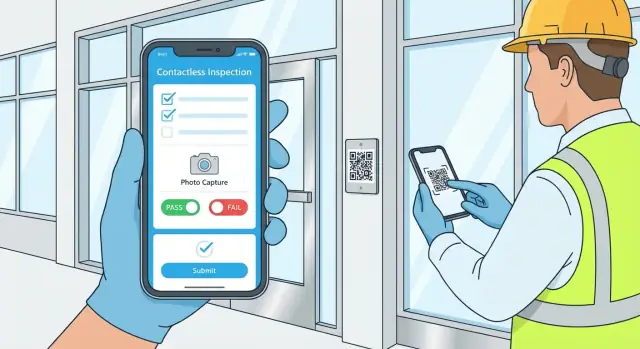
1) Clarify the use case and success criteria
Before you pick QR vs. NFC or sketch your first screen, get specific about who the app is for and what “good” looks like. Contactless checklists fail most often when they try to serve everyone with one generic form.
Define the people and the moment of use
Start by mapping the real users and where they are when inspections happen:
- Inspectors doing the work in the field (often with gloves, poor signal, time pressure)
- Supervisors reviewing results, approving exceptions, and assigning follow-ups
- Contractors completing tasks on shared sites, sometimes using their own devices
- Clients or site owners who may need a read-only view or sign-off
Capture constraints for each group (device types, connectivity, language needs, training time). This will influence everything from login flow to how strict required fields should be.
List the primary inspection types
Document the top 3–5 inspection categories you’ll support first, such as safety checks, cleaning verification, equipment inspections, or site walkthroughs. For each, note:
- Frequency (per shift, daily, weekly)
- Risk level (what happens if it’s missed)
- Evidence requirements (photo, serial number, signature)
Define what “contactless” means for your team
“Contactless” can mean no shared clipboards, fewer shared devices, QR code inspections at a location, remote approvals by a supervisor, or a touch-minimized UI. Be explicit so you don’t overbuild.
Set measurable success criteria
Pick metrics you can track from day one:
- Median time to complete an inspection
- Error rate (missing fields, invalid readings, failed uploads)
- Audit readiness (percentage with complete evidence and timestamps)
- Adoption rate (active users, repeat usage per site)
These success criteria become your product north star and help decide what goes into v1 versus later releases.
2) Plan the contactless workflow (QR/NFC, offline, approvals)
A contactless inspections app succeeds or fails based on how quickly someone can start an inspection and finish it correctly—without hunting through menus or waiting on a signal. Before you design screens, map the workflow end-to-end.
Choose how an inspection starts (QR, NFC, or location)
Most teams rely on asset-first entry: the inspector walks up to a room, machine, vehicle, or site point and scans a marker.
- QR codes are cheap, easy to print, and work on almost any device.
- NFC tags are faster (tap vs. align a camera) and harder to copy casually, but cost more and can be damaged in harsh environments.
- Location-based prompts (GPS/geofencing) can reduce scanning, but are less precise indoors and can create false starts.
Whichever you choose, define what the identifier resolves to: an asset, a location, a checklist template, or a specific scheduled inspection.
Map the “happy path” in one page
Write the core flow as a simple sequence:
Start (scan/tap) → confirm asset/location → answer items → add evidence (as needed) → sign off → submit.
Then mark the decision points: required questions, conditional sections, and when the app should block submission (e.g., missing signature, mandatory photo).
Decide what must work offline
Be explicit about offline rules:
- Can users start from a QR/NFC scan without internet?
- Are templates, asset details, and last-known hazards cached?
- Can they capture photos and signatures and submit later?
Offline support usually means “complete everything locally, then sync when possible,” not “show a blank form.”
Plan review, return, and approval
Approvals are a workflow, not a button. Define:
- Who can review (supervisor, QA, client)
- What they can do: approve, reject/return with comments, or request more evidence
- What happens after: generate a follow-up task, notify a team, or lock the record from edits
A clear state model (Draft → Submitted → Approved/Returned) prevents confusion and makes audits easier.
3) Design the checklist data model and question types
A contactless checklists app lives or dies by how well your data model matches real inspections. Start by modeling the “things” you inspect, the template you follow, and the recorded results—then make question types flexible enough for many industries.
Core entities to model
Most mobile inspections apps need a small set of shared building blocks:
- Sites/Locations: where inspections happen (store #42, warehouse aisle A, job site).
- Assets: what’s being checked (forklift, fire extinguisher, HVAC unit), often tied to a site.
- Checklists (Templates): reusable forms with versioning (so old results still make sense later).
- Questions: the individual prompts, validation rules, and optional help text.
- Inspections (Runs): one completed (or in-progress) instance of a checklist at a time.
- Users & Roles: who performed, reviewed, and approved an inspection.
A practical pattern is: ChecklistTemplate -> Sections -> Questions, and InspectionRun -> Answers -> Evidence. That separation makes editing templates safe without rewriting historical inspections.
Question types that cover 90% of needs
Support a compact set of types, each with clear validation:
- Yes/No (optionally “N/A”)
- Numeric (min/max, units like psi/°C)
- Multiple choice (single or multi-select)
- Text (short/long, required/optional)
- Date/Time (scheduled checks, maintenance due dates)
Conditional logic and rules
Inspections are faster when the app asks only what’s relevant. Add show/hide logic based on answers (e.g., if “Leak detected = Yes”, reveal “Leak severity” and “Photo required”).
If you need standard outcomes, add scoring and pass/fail rules at question, section, or checklist level. Keep it configurable, and store the rule results with the inspection so reports remain consistent even when templates evolve.
4) User accounts, roles, and audit trail essentials
Contactless inspections only work at scale when you can trust who completed a checklist, what they were allowed to see, and when changes happened. That starts with clear roles and ends with a reliable audit trail.
Roles: keep access simple and enforceable
Most teams can cover 90% of needs with three roles:
- Inspector: completes assigned checklists, captures evidence, adds notes, and submits results. Typically can’t edit templates or delete past submissions.
- Manager: reviews submissions, approves/rejects, assigns follow-ups, and views reports for a site or region.
- Admin: manages templates, sites/clients, user provisioning, integrations, and retention policies.
Avoid role sprawl. If you need exceptions (e.g., an inspector can edit only their draft submissions), implement them as permissions tied to actions (create, edit draft, submit, approve, export) rather than inventing new roles.
Authentication: choose the lowest-friction option that still fits policy
For field teams, login friction directly reduces completion rates. Common options:
- Email + password: familiar, but requires password resets and stronger device security.
- Magic link / one-time code: smoother for occasional users and contractors.
- SSO (SAML/OIDC): ideal for enterprises that already manage identities centrally.
Also decide whether QR/NFC launches the app into a specific inspection after login, or allows a limited kiosk-like flow with strict constraints.
Multi-site and multi-client separation (tenants)
If your app serves multiple clients—or a company with many sites—build tenant separation early. A user should only see:
- sites they’re assigned to,
- templates approved for those sites,
- submissions belonging to that tenant.
This prevents accidental data leaks and simplifies reporting.
Audit trail: prove what happened
Your audit log should record key events such as template changes, submission edits, approvals, and deletions. Capture:
- who (user ID, role),
- what (entity and field changes),
- when (timestamp in UTC),
- where/how (site, device ID, app version; optionally coarse location).
Make audit logs append-only and searchable, and treat them as a first-class feature.
5) UX for fast, low-friction inspections on mobile
Speed and accuracy depend less on “more features” and more on frictionless screens. Inspectors are often standing, wearing gloves, moving between rooms, or working in poor signal—so the interface must feel effortless.
Design for one-handed, in-the-moment use
Prioritize large tap targets, clear spacing, and a layout that can be completed with a thumb. Keep the primary action (Next, Pass/Fail, Add Photo) anchored near the bottom, and show a simple progress indicator (e.g., “12 of 28”).
Minimize typing wherever possible:
- Use toggles, pickers, and predefined options instead of free-text.
- Offer quick notes (“Common issues”) and optional voice input for longer comments.
- Remember last-used values when it’s safe (e.g., inspector name, location zone).
Use templates so every inspection feels familiar
Templates reduce cognitive load and help teams stay consistent.
Structure templates with standard headers (site, asset, date), predictable sections, and item cards that keep each question self-contained: prompt + answer controls + evidence button + notes.
When designing item cards, avoid hiding key actions behind menus. If taking evidence is common, make it visible on the card rather than on a secondary screen.
Accessibility basics that improve everyone’s speed
Good accessibility is also good productivity:
- Strong contrast for outdoor/industrial settings.
- Readable font sizes and consistent typography.
- Clear error states and helpful microcopy (“Required before submit”).
If your audience includes multilingual teams, keep labels short and ensure the app supports system-level text scaling.
Confirm critical actions (without slowing people down)
Use confirmation for irreversible steps like Submit, Close inspection, or marking a critical item as Fail. Keep confirmations lightweight: show a short summary and a final “Submit” button.
Also provide clear recovery paths: “Undo” for recent edits, and a visible Draft status so users don’t worry about losing work.
6) Offline-first storage and reliable syncing
Field inspections don’t wait for perfect signal. An offline-first approach means the app stays fully usable with zero connectivity, then syncs when it can—without losing data or confusing the inspector.
Make offline the default
Store everything needed to complete an inspection locally: assigned checklists, templates, reference info, and any required assets (like site lists or equipment IDs). When the user starts an inspection, create a local inspection session record so every answer and attachment is saved immediately on the device.
Add a clear sync status indicator that’s visible but not distracting: “Offline,” “Syncing…,” “Up to date,” and “Needs attention.” Also show per-inspection status so a supervisor can quickly spot what’s still pending upload.
Handle template changes and conflicts
A common edge case: a checklist template changes mid-inspection. Decide your rule and communicate it in-app:
- Freeze the template at inspection start (recommended). The inspection finishes on the original version, and reporting notes the template version used.
- If you must apply updates, treat it like a migration and clearly flag any questions added/removed so the inspector can review before submitting.
For conflicts (the same inspection edited on two devices), pick a predictable policy: either prevent it with a lock, or allow it and resolve with “latest edit wins” plus an audit note.
Sync efficiently and reliably
Optimize data usage by syncing only changes (deltas), not full records. Queue uploads so large items (especially photos) don’t block text answers.
Compress images on-device, upload in the background, and retry with backoff when connectivity is unstable. When a retry fails repeatedly, show a simple action (e.g., “Tap to retry” or “Send now on Wi‑Fi only”) rather than failing silently.
Make syncing resilient to interruptions (app closed, phone rebooted) by persisting the upload queue and resuming automatically.
7) Evidence capture: photos, scans, signatures, and context
Evidence is what turns a checklist into something you can trust later. The goal isn’t to collect more media—it’s to capture the minimum proof needed to verify what happened, where, and by whom, without slowing the inspector down.
Photos and video (with lightweight annotations)
Support quick photo and short video capture directly from a checklist question (e.g., “Attach photo of safety seal”). Make it optional where possible, but easy to add when needed.
Add simple annotations that work well on mobile: arrows, a highlight box, and a short note. Keep editing fast and non-destructive (save the original plus an annotated copy), so auditors can review raw evidence if required.
Scans for asset/location identification
Barcode and QR scanning should be available from anywhere in the inspection flow—not buried behind menus. This lets a user identify an asset, room, or machine instantly, auto-filling the checklist header (asset ID, location, last inspection date) and reducing manual typing.
If the scan fails, provide a fallback: manual search or a short ID entry with validation.
Signatures and contactless acknowledgment
For approvals, add signatures as a dedicated step: inspector sign-off, supervisor approval, or customer acknowledgment. Consider a contactless option where a supervisor approves remotely, or a second person signs on the same device without sharing accounts.
Context you should capture (and when to ask consent)
Attach metadata automatically: timestamp, device identifier, app version, and user ID. Location can strengthen verification, but make it optional and permission-based; clearly explain why it’s requested.
Store this context with each evidence item, not just the overall inspection, so individual photos and approvals remain traceable.
8) Automations, alerts, and follow-up tasks
A contactless inspections app is most valuable when it doesn’t just collect answers—it helps teams respond. Automations turn failed items into clear next steps, reduce manual chasing, and create consistency across sites.
Trigger actions when something fails
For each question (or for the whole checklist), define rules such as: if answer = “Fail” or if reading is out of range. Typical trigger actions include creating a follow-up task, notifying a manager, and requiring a re-check before the inspection can be closed.
Keep triggers configurable per template. A food-safety checklist might require an immediate re-check, while a facilities walk-through might simply create a ticket.
Escalation rules that match real operations
Not every issue deserves the same urgency. Add severity levels (e.g., Low/Medium/High/Critical) and let severity drive:
- Due dates (same day vs. 7 days)
- Responsible owner (inspector vs. shift lead vs. regional manager)
- Escalation path if overdue (remind owner → notify manager → flag in dashboard)
Make ownership explicit: every task should have one accountable person and a clear status (Open, In progress, Blocked, Done).
Automatic summaries that help managers act
After submission, generate a concise summary: issues found, items that failed, required follow-ups, and repeated failures compared to recent inspections. Over time, surface simple trends like “Top 5 recurring problems” or “Sites with rising failure rates.”
Notifications without spam
Relevance beats volume. Support batching (one message per inspection), digests (daily/weekly), and quiet hours. Let users control which alerts they receive, while ensuring critical items (e.g., safety hazards) always break through.
9) Backend, APIs, and storage choices
Your backend is what turns a checklist into a reliable system: it stores templates, collects inspection results, secures photo evidence, and makes reporting fast. The right choice depends on your timeline, budget, and how much control you need.
Picking a backend approach
A managed backend (Firebase, Supabase, AWS Amplify, etc.) can speed up delivery with built-in auth, databases, and file storage. It’s a good fit for early versions and small teams.
A low-code backend can work if your workflow is straightforward and you’re optimizing for speed, but it may limit offline sync, complex permissions, or custom reporting.
A custom API (your own service + database) gives the most control over data models, audit requirements, and integrations—often worth it for compliance-heavy inspection programs.
If you want to move quickly without locking yourself into a rigid toolchain, a vibe-coding platform like Koder.ai can be useful for prototyping a mobile inspections app from a chat-driven spec—then iterating on the workflow (QR entry, offline drafts, approvals) before you finalize your long-term architecture.
Define the core APIs early
Keep the API surface small and predictable:
- Templates: create/update versions, publish/unpublish, assign to sites.
- Inspections: start, save draft, submit, approve/reject, list by status.
- Media uploads: request an upload URL, upload evidence, attach to a question.
- Reporting: filter by site/date/template, export CSV/PDF, summary endpoints.
Design for versioning (template v1 vs. v2) so older inspections remain readable.
Evidence storage and access control
Store photos/scans/signatures in secure object storage with role- and site-based access. Use short-lived signed URLs for download and upload, and enforce server-side rules so users can’t access evidence from other locations.
Performance planning
Mobile inspectors notice latency quickly. Add caching for templates and reference data, use pagination for inspection lists, and implement fast search (by site, asset ID, inspector, status). This keeps the app responsive even with years of audits.
10) Security, privacy, and compliance considerations
Security and privacy aren’t “nice to have” in a contactless checklists app—they directly affect whether people trust the workflow enough to use it consistently.
Protect data in transit and at rest
Use HTTPS/TLS for all API traffic, including uploads of photo evidence and signatures. On the server side, encrypt databases and object storage (where media is kept). For especially sensitive customers, consider per-tenant encryption keys and clear key-rotation procedures.
On the device, treat authentication tokens like cash: store them only in secure device storage (Keychain on iOS, Keystore on Android). Avoid keeping long-lived tokens in plain app storage, logs, screenshots, or share sheets.
Minimize what you collect
Collect only what you need to run inspections and generate reports. A few practical examples:
- Make GPS capture optional and visible to the user (and record why it’s needed).
- Don’t require personal data for every assignee—often a role + ID is enough.
- If you capture signatures, store the minimal representation required and keep it attached to the specific inspection record.
Retention rules for records and media
Inspection records and media can grow quickly, and “keep forever” is rarely a good default. Offer configurable retention by checklist type, site, or tenant (for example: keep inspections for 7 years, photos for 1 year unless flagged). Build a reliable delete workflow that removes database references and the underlying files.
Auditability and accountability
Log access and changes in a way that’s useful during incidents and compliance reviews:
- Who viewed, created, edited, or deleted an inspection
- When the action happened (timestamp, time zone)
- What changed (before/after for key fields)
- Device/app version and basic request context
If you operate in regulated environments, align controls with your target standards (e.g., SOC 2, ISO 27001, HIPAA) early so you don’t retrofit them later.
11) Reporting, dashboards, and exports
Inspections don’t create value until results are visible to the people who need to act. Plan reporting as a first-class feature: it should answer “Are we compliant?”, “Where are we slipping?”, and “What needs attention today?” without forcing users to dig through individual checklists.
The core reports most teams actually use
Start with a small set of metrics that map directly to operations:
- Completion rates by site and schedule (what was due vs. done)
- Pass/fail trends by checklist, asset type, and question category
- Open issues (and aging) to prevent set-and-forget findings
- Time per inspection to spot training gaps or overloaded routes
Make every chart clickable so users can drill down from a spike in failures to the exact inspections and evidence.
Dashboards that match how work is organized
Dashboards are most useful when they mirror real accountability lines. Common slices include site, asset type, inspector, and timeframe (shift/week/month). Add filters for status (passed/failed/needs follow-up) and show top recurring issues so teams can focus on prevention, not just detection.
Exports and sharing
Many stakeholders still rely on documents. Offer:
- PDF exports for sharing with clients, landlords, or internal leadership
- CSV exports for deeper analysis in spreadsheets or BI tools
- Scheduled email delivery (e.g., weekly compliance summary per site)
Keep exported PDFs consistent and audit-ready: include checklist version, timestamps, inspector name, location/asset identifiers, and embedded photo evidence where applicable.
Regulatory-style record templates
If your users operate in regulated environments, provide report templates that resemble familiar paper forms. Matching the expected format reduces review time and makes audits smoother—even when the data originates from a modern mobile workflow.
12) Testing, pilot rollout, and ongoing improvement
Shipping a contactless inspections app without field testing is risky because the “real world” is rarely a quiet office with perfect Wi‑Fi. Treat testing as part of product design, not a final checkbox.
Test the messy reality
Run scenario-based tests that mirror how inspections actually happen:
- Gloves on: can users tap small controls, type notes, and sign?
- Low light: can they read screens and capture usable photos?
- Noisy environments: are alerts, confirmations, and error messages still obvious?
- Spotty internet: does offline mode behave predictably, and are sync conflicts understandable?
Also test QR/NFC scanning from different distances, angles, and worn labels. A great workflow can still fail if the scan experience is inconsistent.
Pilot with a small group first
Start with a limited pilot (5–20 inspectors) across a few sites. Measure speed and clarity, not just “did it work.” Useful feedback questions include:
- Where did you hesitate or backtrack?
- Which questions were confusing or too long?
- Did the app ever make you feel unsure whether something saved?
Combine interviews with lightweight metrics (time per checklist, completion rate, offline queue length) to avoid relying on memory alone.
Rollout and distribution plan
Choose a release path that matches your organization:
- Public app stores for broad access
- Private distribution for controlled rollouts
- Device management tools (MDM) for company-owned devices
Document the rollout steps, training materials, and a quick “what to do if sync fails” guide.
Maintain, measure, improve
Set up analytics, crash reporting, and a support channel from day one. Maintain a small iteration roadmap focused on field friction: fewer taps, clearer wording, faster evidence capture, and smoother updates to checklist templates.
FAQ
How do I define a clear v1 scope for a contactless inspections app?
Define:
- Primary users (inspectors, supervisors, contractors, clients) and their constraints (gloves, low signal, device types, language).
- Top 3–5 inspection categories to support first.
- What “contactless” means for your team (QR-at-location, remote approvals, touch-minimized UI, no shared devices).
Then set measurable success criteria like time-to-complete, error rate, audit readiness, and adoption rate to guide v1 scope.
Should I start inspections with QR codes or NFC tags?
Use QR codes when you want the cheapest, most compatible option and can tolerate camera alignment.
Use NFC tags when speed matters (tap-to-start), you want fewer scan failures, and you can handle higher tag cost and potential wear.
Whichever you choose, decide what the identifier resolves to (asset, location, template, or scheduled inspection) and whether the flow requires login first.
What’s the simplest way to map the inspection workflow before designing screens?
Map a single “happy path” on one page:
Start (scan/tap) → confirm asset/location → answer items → add evidence → sign off → submit.
Then explicitly mark:
- Required fields vs optional
- Conditional sections (show/hide)
- Blockers that prevent submission (missing signature, mandatory photo)
This becomes your reference for UX, validation, and backend states.
What should an offline-first contactless checklist app support?
Offline support is easiest when the app can complete everything locally, then sync later.
Practically, that means:
- Let users start from scan/tap without internet (if possible).
- Cache templates, site/asset details, and last-known reference info.
- Save answers, photos, and signatures immediately on-device.
- Show clear statuses like Offline, Syncing, Up to date, and Needs attention (both globally and per inspection).
How should approvals and “return for changes” work in an inspections app?
Most teams use a simple state model:
- Draft (editable)
- Submitted (locked or limited edits)
- Approved or Returned (with comments / request for evidence)
Define who can review (supervisor/QA/client), what actions they can take (approve, reject/return, request more evidence), and what happens next (create a follow-up task, notify owners, lock record).
How do I design the data model so template changes don’t break old inspections?
Model templates and results separately:
ChecklistTemplate → Sections → QuestionsInspectionRun → Answers → Evidence
Add template versioning so historical inspections remain readable even after edits. A common rule is to freeze the template version at inspection start, then store that version on the completed record for audit consistency.
Which question types and rules should I support first?
A compact set covers most use cases:
- Yes/No (optionally N/A)
- Numeric (min/max + units)
- Multiple choice (single or multi-select)
- Text (short/long)
- Date/Time
Add configurable validation and conditional logic (e.g., if Fail → require photo + reveal follow-up questions). If you need standard outcomes, store pass/fail/scoring results with the inspection so reports stay consistent over time.
What roles and authentication options work best for field inspections?
Start with three roles and expand via permissions, not role sprawl:
- Inspector: complete and submit
- Manager: review/approve, assign follow-ups, reporting
- Admin: templates, sites/tenants, users, integrations, retention
For authentication, pick the lowest-friction option that fits policy:
- Email/password
- Magic link / one-time code
- SSO (SAML/OIDC)
If you serve multiple sites/clients, build tenant separation early so users only see assigned data.
How should I handle evidence capture (photos, scans, signatures) without slowing inspectors down?
Treat evidence as “minimum proof” captured with low friction:
- Fast photo/short video capture directly from a question.
- Lightweight annotations (arrow/highlight + short note), preferably non-destructive.
- QR/barcode scanning available throughout the flow, with fallback to manual search/ID entry.
- Signatures as a dedicated step (inspector sign-off, supervisor/client acknowledgment), with options for remote approval.
Store metadata like timestamp, user ID, device/app version; request consent for location if you collect it.
How do I automate follow-ups and alerts from failed inspection items?
Use simple rules that turn failures into action:
- Trigger on Fail or out-of-range readings.
- Create a follow-up task with one owner, due date, and status.
- Support severity (Low/Medium/High/Critical) to drive urgency and escalation.
- Send notifications with batching/digests and quiet hours so you avoid spam.
Also generate a short post-submission summary (failed items, follow-ups, recurring issues) so managers can act quickly.