

How to Build a Mobile App for Daily Planning and Prioritization
A step-by-step guide to plan, design, and build a mobile app for daily planning and task prioritization—from MVP features to notifications, testing, and launch.
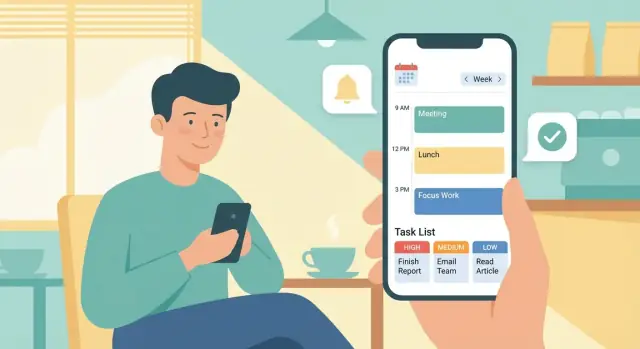
1) Clarify the problem and target users
Before you design screens or pick a tech stack, get specific about who you’re helping and what they’re trying to accomplish in a normal day. “Everyone who wants to be productive” is too broad—daily planning looks very different for a student, a nurse on shifts, a freelancer, or a parent juggling school pickups.
Define your primary user
Choose one primary audience for v1 (you can support others later):
- Students: deadlines, class schedules, study blocks, irregular workload
- Professionals: meetings, deep-work blocks, shifting priorities, email-driven tasks
- Caregivers: reminders, routines, errands, multiple people’s commitments
- Teams of one (solo operators): client work, admin tasks, constant context switching
Write a one-sentence promise like: “Help solo professionals plan a realistic day in under 3 minutes.” That promise should guide every feature decision.
Identify the top 3 pains
Most daily planning apps fail because they don’t solve the painful parts:
- Forgetting tasks (ideas get lost; tasks live in multiple places)
- Unclear priorities (everything feels urgent; it’s hard to choose what’s next)
- Unrealistic schedules (too many tasks, not enough time, constant carryover)
Talk to 8–12 people in your target group and listen for repeated phrases. Those phrases become your product language.
Pick one primary job
Decide what your app is mainly for:
- Plan the day (time blocking, routine templates, “today” focus)
- Prioritize tasks (ranking, simple rules, quick decisions)
- Both (only if you can keep the flow fast and simple)
Define success (so you can design for it)
Choose measurable outcomes for the first release, such as:
- Daily active use (e.g., 4+ days/week)
- Tasks completed per day (or completion rate)
- Planning time reduced (e.g., from 10 minutes to 2–3)
Clear users, pains, and success metrics prevent feature creep—and make v1 feel purposeful.
2) Define the core workflow (the daily planning loop)
A planning app sticks when it makes one repeated behavior feel effortless. Before features, define the “loop” a user completes every day (or at least every workday). This loop will shape your home screen, navigation, and north-star metric.
Start with a few simple user stories
Keep them concrete and time-bound so the team can debate less and build faster:
- “I want to capture a thought in under 5 seconds so I don’t lose it.”
- “I want to plan my day in 3 minutes so I can start work quickly.”
- “I want to know what to do next without scanning a long list.”
- “I want my plan to survive interruptions, so I can re-plan in 30 seconds.”
- “I want to review what I did today so I can improve tomorrow.”
Choose the core loop: capture → prioritize → schedule → do → review
Capture: A single, always-available input. Fast add now; optional details later. The goal is zero friction, not perfect structure.
Prioritize: Turn raw tasks into a short list. This can be as simple as “Top 3” + “Later,” or a gentle method like an Eisenhower-style important/urgent choice (you’ll pick the exact method later).
Schedule: Convert priorities into a realistic plan. Time blocking works well here: assign 1–3 blocks for deep work, plus a flexible “admin” block for smaller tasks.
Do: Show “Now” and “Next” clearly. Reduce decisions: one primary action (“Start block” / “Mark done”) and quick defer (“Move to later today”).
Review: End-of-day takes ~60 seconds: done items, moved items, and one reflection prompt. This is where the app feels like progress, not pressure.
Decide what the app will NOT do in v1
Write these down explicitly to protect the loop:
- Team collaboration and shared workspaces
- Complex project management (dependencies, Gantt charts)
- A full note-taking system or document editor
- Advanced automation rules
Create a one-page product brief
Keep it short and visible to everyone:
- Target user + main pain point
- The daily planning loop (above) and a “north star” metric (e.g., % of days with a completed plan)
- v1 must-haves vs. won’t-haves
- Key screens: Inbox (capture), Today (plan), Review
This brief is your guardrail: if a feature doesn’t strengthen the loop, it waits.
3) Choose MVP features for v1
Your v1 should help a person do one thing exceptionally well: capture tasks quickly, decide what matters today, and follow through. If the app needs a tutorial just to reach a usable daily plan, the MVP is too big.
Must-have features (non-negotiable)
These are the features that make the loop possible:
- Quick add: one-tap entry from the home screen with minimal fields.
- Priority levels: simple labels (e.g., High / Medium / Low) or a single “Today” flag.
- Due dates: optional, fast to set (today, tomorrow, pick a date).
- Reminders: basic local notifications tied to a task and time.
Nice-to-have features (save for later)
These add value, but they also add UI, edge cases, and settings screens:
- Calendar sync
- Recurring tasks
- Tags/labels
- Templates (e.g., “Morning routine,” “Weekly review”)
MVP rules to keep scope under control
- Fewer screens: aim for 3–5 core screens (Inbox, Today, Task details, Settings).
- Fewer settings: ship smart defaults; avoid preference overload.
- Faster daily usage: every key action should take seconds, not minutes.
- No “power features” without evidence: add them only after real user feedback.
Simple scope table
| Area | MVP (v1) | Later |
|---|---|---|
| Capture | Quick add + basic inbox | Widgets, voice capture |
| Organize | Priority + due date | Tags, projects, templates |
| Plan | “Today” list | Time-blocking, drag-and-drop schedule |
| Remind | One reminder per task | Smart nudges, multiple reminders |
| Sync | Local/offline basics | Calendar sync, cross-device sync |
Treat this as a contract: if a feature isn’t in the MVP column, it doesn’t ship in v1.
4) Select prioritization methods that feel natural
Prioritization should feel simple, familiar, and optional—users shouldn’t feel forced into a system they don’t understand.
Start with a default that takes 1 tap
For v1, pick one method as the default and make it the least effort to use. The most universal option is High / Medium / Low because it’s instantly understood and works across work, home, and school.
Keep labels short (“High”), but clarify meaning with tooltips like:
- High: “Must get done today”
- Medium: “Important, but flexible”
- Low: “Nice to do if time allows”
Offer alternative modes for different thinking styles
Some users think in urgency, others in impact. Supporting a couple of additional modes can help without bloating the UI:
- Eisenhower (Urgent / Important): Great for separating true priorities from noise.
- Effort vs. Impact: Useful when users want quick wins (low effort, high impact) or need to justify big tasks.
A strong pattern is “one active method at a time,” selectable in Settings. That way, the same task doesn’t end up with conflicting priority signals.
Teach the system during onboarding (with examples)
Avoid abstract explanations. Show 2–3 concrete examples that match your target audience:
- “Submit expenses (Urgent + Important)”
- “Book dentist appointment (Important, not urgent)”
- “Organize downloads folder (Low)”
This takes under a minute, but dramatically reduces misuse (like marking everything High).
Add a Focus view that filters the noise
A Focus view should show only what the user decided matters most—e.g., High priority tasks or the top-left Eisenhower quadrant. Keep it calm: a short list, a clear next action, and a quick way to mark done.
Even as you add features later, the Focus view should remain the “home base” that makes prioritization feel worth the effort.
5) Design the daily plan: time blocks, deadlines, and routines
A daily planner succeeds when “making a plan” feels quick, and “changing the plan” feels painless. Decide early whether your day view is a simple list, time blocks, or a hybrid.
Pick a planning style (list, time blocks, or both)
A simple day list is best for users who think in priorities (“top 3 today”). Time blocking fits users who think in calendar time (“9–10: write report”). Many successful apps offer both views over the same data:
- List view for capturing and ranking tasks fast.
- Schedule view where tasks can be assigned a start time and duration.
If you support time blocking, treat it as “planned intention,” not a hard promise—people need to adjust without feeling like they failed.
Model the key time concepts: Today, Upcoming, Someday
Make time feel predictable by separating:
- Today: what the user is actively committing to.
- Upcoming: items with future dates or “next few days.”
- Someday/Backlog: ideas and tasks without a date yet.
This structure reduces clutter and makes “planning tomorrow” a small step rather than a full reorganization.
Deadlines vs. scheduled time (don’t mix them)
A deadline answers “must be done by when.” A time block answers “when will I work on it.” Let tasks have one or both, and show conflicts clearly (e.g., a deadline today with no planned slot).
Routines and recurring items
Support recurring tasks for habits, bills, and weekly routines. Keep recurrence simple (daily/weekly/monthly) and allow “skip once” without breaking the series.
Rescheduling should be effortless
Plans change. Offer:
- One-tap “Move to tomorrow” (and optionally “Next week”).
- Drag-and-drop to a new time block or day.
The easier rescheduling is, the more often users will keep planning instead of abandoning the app.
6) UX and UI basics for a planner people actually use
Great planner UX is less about “more features” and more about fewer decisions per tap, clearer status, and a flow that matches how people think: capture now, organize later, act today.
Draft the main screens (and keep them focused)
Design your first version around a small set of screens that each answer one question:
- Inbox: “Where do I dump tasks quickly?”
- Today: “What am I doing next?”
- Calendar / Plan: “How does my day fit together?”
- Task details: “What is this task, really?”
- Review: “What should I adjust for tomorrow/this week?”
Avoid mixing planning and editing everywhere. For example, the Today view should emphasize action (start, snooze, complete), while deeper edits live in Task details.
Make task creation frictionless
Treat capture like a note: title first, details later. A single input field plus an optional “Add details” affordance is often enough.
If you offer extras (due date, priority, tags), keep them as quick chips or a bottom sheet—not mandatory form fields. Users who can’t add a task in two seconds will postpone, then stop trusting the app.
Visual hierarchy: priority and time without confusion
People scan. Your UI should clearly separate:
- Time-bound items (scheduled blocks, deadlines)
- Priority cues (e.g., High/Medium/Low)
Use color + text, not color alone (“High priority” label, icons, or weight). Reserve the strongest emphasis for “what needs attention now,” not for every decorative element.
Accessibility that boosts adoption
Accessibility is usability:
- Large tap targets (especially for complete/reschedule)
- Readable type and strong contrast
- Support for voice input (quick capture while walking)
Also design for one-handed use: primary actions near the bottom, and destructive actions (delete) behind a confirmation step.
7) Data model: tasks, priorities, and schedules
A planning app feels “smart” when its data model is simple, consistent, and flexible enough to support real life. Store the minimum structure needed for planning (tasks), prompting (reminders), and committing time (schedule blocks), while leaving room for future organization features.
Core objects (keep them few)
Task is the center: something the user might do.
Around it, add:
- List/Project: where a task belongs (e.g., “Work”, “Home”, “Trip planning”).
- Tag: cross-cutting labels (e.g., “Calls”, “Deep work”).
- Reminder: a notification rule attached to a task (time-based, optionally location-based later).
- Schedule block: a reserved time slot on a day plan, optionally linked to a task.
Required vs optional fields
Make title required; almost everything else can be optional so capture stays fast.
Suggested fields:
- Task (required): id, title, createdAt
- Task (optional): notes, dueAt (deadline), estimateMinutes, priority (low/med/high), projectId, tagIds[], reminderIds[], scheduledBlockId, recurrenceRule
Task states (reflect the planning flow)
Use explicit states so the UI can show “what’s next” without guessing:
- inbox (captured, not clarified)
- planned (assigned to a day and/or schedule block)
- done
- skipped (intentionally not doing)
- archived (hidden from daily views, kept for history)
Offline-first and conflict handling
Assume users will add/edit tasks without service. Store changes locally as operations (create/update/complete). When reconnecting, sync and resolve conflicts predictably:
- Prefer last write wins for simple fields (title/notes).
- Use merge rules for sets (tags/reminders): add/remove operations replayed in order.
- Detect “double edits” on the same task and show a small “Review changes” prompt only when needed.
8) Reminders and notifications without annoying users
Notifications are a power tool: they can keep people on track, or make them uninstall your app. The goal is to be helpful at the exact moment action is possible—without constant buzzing.
Pick a small set of notification types
Start with three clear categories and make them easy to understand:
- Due reminders: “Task due in 1 hour” or “Due today at 5:00 PM.” Best for real deadlines.
- Planned block start: “Time block: Write proposal (30 min).” Best for time blocking.
- Daily planning prompt: A gentle nudge at a user-chosen time (“Plan your day?”) to build a routine.
If you can’t explain why a notification helps the user do something right now, it probably shouldn’t ship in v1.
Give control from day one (frequency + quiet hours)
Add notification controls in onboarding and in Settings (not buried three screens deep). Let users set:
- Quiet hours (including weekends) and whether “critical” due reminders can break through
- How early they want due reminders (e.g., 5 min, 1 hour, 1 day)
- Whether they want daily prompts, and at what time
Default to fewer notifications than you think—people can opt in to more.
Prevent overload with grouping and smart defaults
When several tasks trigger at once, group them into a single summary (“3 tasks due this afternoon”) with an option to expand in-app. Use smart defaults like:
- Only notify for tasks with a time (not “someday” tasks)
- One reminder per task by default, plus an easy snooze
Provide fallbacks when push is off
Assume many users will disable push notifications. Add backup cues:
- App icon badges for “due today” counts
- An in-app inbox (“Notifications”) showing missed reminders and upcoming blocks
That way, the app still feels reliable even without push.
9) Integrations: calendar sync, widgets, and quick capture
Integrations can make a daily planning app feel “native” to someone’s routine—but they also multiply complexity. For v1, pick the few that reduce daily friction the most, then design the app so you can add more later.
Calendar sync (high value, easy to misunderstand)
A practical v1 approach is one-way read from the device calendar: show events in the daily plan so users can time-block around real commitments. Writing tasks back into the calendar is powerful, but it creates tricky questions (which calendar, what happens on edits, how to resolve conflicts). If you do write-back in v1, keep it optional and clearly labeled.
Document edge cases early:
- Duplicate events (especially if users have multiple calendars enabled)
- Time zone changes while traveling
- DST shifts (a 9:00 AM block shouldn’t silently slide)
Widgets and quick capture
Widgets are often the fastest win: a “Today” widget (next 3 items + add button) and a “Quick add” widget cover most needs without deep navigation.
For voice assistants, keep v1 simple: support a single intent like “Add task” with a default list and minimal parameters. The goal is capture, not perfect categorization.
Import/export to reduce lock-in anxiety
Even basic CSV export (tasks + due dates + notes) and a simple local/Cloud backup option build trust. Import can come later; exporting is usually enough to remove the fear of getting stuck.
Permissions: ask late, explain clearly
Request calendar/notifications/microphone access only when the user triggers the feature. Add one sentence explaining why (e.g., “We need calendar access to show your meetings in Today”). This increases acceptance and reduces support issues.
10) Build plan: platforms, tech choices, and architecture
A daily planning app wins or loses on speed and reliability. Your build plan should keep scope tight, ship an MVP, and leave room to grow without rewriting everything.
Pick your platform path
You have three practical options:
- iOS first: good if your target users are in iPhone-heavy markets or you want fewer device variations early.
- Android first: makes sense if you need broader device coverage or your users skew Android.
- Cross-platform (Flutter / React Native): fastest way to reach both platforms with one codebase, usually ideal for an MVP—especially for CRUD-heavy apps like planners.
Choose based on where your earliest adopters are, not what’s “best” in general.
A simple MVP architecture
For v1, aim for: UI → app logic → local database, with sync as optional.
- Local-first storage (SQLite, Room, Core Data, or an embedded DB): tasks, time blocks, and settings load instantly and work offline.
- Sync (optional in v1): if you add accounts, treat sync as a separate module so offline behavior stays predictable.
Keep your data model and app logic independent from the UI so you can change screens without breaking core behavior.
Prototype faster (without locking yourself in)
If you want to validate the workflow quickly—Inbox → Today → Review—consider building a clickable, working MVP first and iterating with real users. Platforms like Koder.ai can speed this up by letting you describe screens and flows in chat, generate a full app (web, backend, and even mobile), and then export source code when you’re ready to take over the codebase in a traditional repo.
This approach is especially useful when you’re still learning what “planning in 3 minutes” actually means for your target audience.
Plan for performance from day one
Productivity apps are opened dozens of times a day. Optimize for:
- Fast startup (cached “Today” view)
- Smooth scrolling (virtualized lists, minimal re-renders)
- Instant search (local index, debounced input)
A feature checklist your team can reuse
For each feature (e.g., “Add task,” “Plan my day,” “Reschedule”):
- UI states: empty, loading, error, success
- Business rules: priority changes, due dates, recurring items
- Edge cases: timezone changes, daylight savings, offline edits
- Analytics: event names, funnels, key outcomes
- QA notes: test steps + expected results
This checklist prevents half-finished features that look done but fail in real daily use.
11) Testing: usability, reliability, and edge cases
Testing a daily planning app isn’t just about “no crashes.” You’re validating a habit: people will only return if the loop feels quick, predictable, and trustworthy.
Test the daily planning loop end-to-end
Create concrete scenarios that mirror real mornings and messy afternoons. Aim to cover the full loop (add → prioritize → plan → complete) under different conditions.
A good set of scenarios includes:
- Add tasks in multiple ways (typing, quick add, voice, inbox)
- Prioritize with your chosen method (e.g., Eisenhower matrix or simple priority levels)
- Build today’s plan (time blocks, deadlines, routines)
- Mark complete, reschedule, or snooze—and confirm stats/history stay accurate
Include “interruptions” (new urgent task mid-day) and “failure” states (user abandons planning halfway, then returns).
Validate reminders without annoying surprises
Notifications often fail in the real world, not in a simulator. Test reminders across device states:
- Silent mode / Ring mode / Vibrate
- Do Not Disturb (allowed vs not allowed)
- Low Power Mode / Battery optimization
- App killed in background, phone rebooted
- Time zone change and daylight saving time
Confirm the user-facing behavior matches what you promise (sound, banner, lock screen) and that missed reminders are handled gracefully.
Run small usability tests early
Recruit 5–8 target users and give them tasks using a clickable prototype first, then a test build. Watch for hesitation: where do they tap first, what do they expect to happen, and what feels “too much work” for daily use.
Bug triage and release readiness
Set a simple triage process (severity, reproducibility, owner, target release) and keep a release checklist: critical flows pass, notification checks complete, offline behavior verified, analytics events firing, and a rollback plan ready.
12) Launch, metrics, and continuous improvement
A daily planning app only becomes “real” when people try it on busy days. Treat launch as the start of learning, not the finish line.
Soft launch: ship small, learn fast
Start with a beta group that matches your target users (e.g., students, shift workers, managers). Keep it intentionally small (50–200 people) so you can respond quickly.
Set up a simple feedback loop:
- In-app feedback: a “Send feedback” button that opens a short form
- Weekly check-ins: one question prompt (“What felt confusing today?”)
- Iteration cadence: release updates on a predictable rhythm (e.g., every 1–2 weeks)
Make your beta onboarding explicit: “Use it for 7 days, then tell us what broke your routine.”
Store assets: sell the “Today” moment
Your screenshots should highlight the core promise in 3 seconds:
- A clean Today view with time blocks or a short plan
- A visible prioritization choice (e.g., “Top 3” or an Eisenhower-style decision)
- A quick capture flow (“Add in 2 taps”) and a calm reminder example
Use plain-language captions like “Plan your day in 60 seconds” and “Know what matters next.”
Measure what matters (and ignore vanity stats)
Track a few metrics that reflect habit formation:
- Activation: users who create today’s plan within the first session/day
- Week-1 retention: how many return in 7 days
- Tasks completed: per active user (watch for “created” inflation)
- Reminder opt-in: and the follow-up engagement after a reminder
Post-launch improvements to prioritize
Start with upgrades that deepen daily use:
- Templates (weekday routines, “meeting-heavy day,” “errand run”) — see /blog/productivity-templates
- Smarter suggestions (carry-over rules, “Top 3” prompts, time-block hints)
- Better review flow (end-of-day recap, streaks that don’t punish missed days)
If you have tiers, keep upgrade messaging tied to outcomes and clarify it on /pricing.
Bonus: accelerate iteration with content and referrals
If you’re building in public, you can turn lessons from your MVP into user acquisition. For example, Koder.ai supports an earn credits program for creating content about what you built and a referral link flow—both useful if you want to keep experiments running while controlling costs across free, pro, business, and enterprise tiers.
FAQ
How do I choose the right target user for a daily planning app?
Start by choosing one primary user group for v1 (e.g., students, professionals, caregivers, solo operators) and write a one-sentence promise like: “Help solo professionals plan a realistic day in under 3 minutes.”
Then validate the top 3 pains with 8–12 interviews (common ones are forgetting tasks, unclear priorities, and unrealistic schedules).
What core workflow should a daily planning app be built around?
A reliable loop is: capture → prioritize → schedule → do → review.
Design your navigation and home screen around completing this loop quickly (e.g., Inbox for capture, Today for action, Review for reflection). If a feature doesn’t strengthen the loop, defer it.
What features are truly “must-have” for an MVP daily planner?
Keep v1 focused on the minimum needed to complete the loop:
- Quick add (fast capture)
- Simple priority (e.g., High/Medium/Low or a Today flag)
- Optional due dates (today/tomorrow/date picker)
- Basic reminders (local notifications)
Limit to ~3–5 core screens and ship smart defaults instead of lots of settings.
Which prioritization method works best for most users in v1?
Pick a default that takes one tap and is instantly understood—High / Medium / Low is usually the safest.
If you add alternatives (Eisenhower, Effort vs. Impact), use one active method at a time (switchable in Settings) so tasks don’t end up with conflicting priority signals.
How should I handle time blocking vs. deadlines in the app?
Treat deadlines and scheduled blocks as different concepts:
- A deadline answers “done by when?”
- A time block answers “when will I work on it?”
Let tasks have either or both, and highlight conflicts (e.g., deadline today with no planned slot). This prevents “calendar clutter” while still supporting realistic planning.
What UX decisions make a planner feel fast enough for daily use?
Make capture feel like writing a note: title first, details later.
Use quick controls (chips/bottom sheet) for optional fields like due date and priority. If task entry becomes a form, users will delay capture—and stop trusting the app.
How can I design reminders that help without annoying users?
Use a small set of clear types:
- Due reminders (based on real deadlines)
- Planned block start notifications
- A daily planning prompt at a user-chosen time
Add quiet hours, conservative defaults, grouping (“3 tasks due this afternoon”), and easy snooze. Also provide an in-app notifications list so the app stays useful when push is disabled.
What’s a practical data model for tasks, reminders, and schedules?
Keep the model small and consistent:
- Task at the center
- Optional: project/list, tags, reminders, schedule blocks
- Explicit states like inbox, planned, done, skipped, archived
For offline-first, store changes locally and sync later with predictable conflict rules (e.g., last-write-wins for text fields, operation-based merges for tag/reminder sets).
What’s the safest approach to calendar sync and integrations in v1?
For v1, one-way read calendar sync is often best: show events so users can plan around meetings without writing back.
Document edge cases early:
- Duplicate events across multiple calendars
- Time zone travel
- Daylight saving time shifts
Ask for calendar permission only when the user enables the feature, and explain why in one sentence.
What metrics should I track after launch to know the app is working?
Measure habit formation, not vanity metrics:
- Activation: user creates today’s plan in the first session/day
- Week-1 retention
- Task completion per active user (not just tasks created)
- Reminder opt-in plus engagement after reminders
Use a small beta (50–200 target users), add an in-app feedback button, and iterate on a predictable cadence. If you add templates later, keep them tied to outcomes (see /blog/productivity-templates).