

How to Build a Mobile App for Field Notes and Observations
Learn how to build a mobile app for field notes and observations: offline capture, templates, media, GPS, syncing, security, and a practical MVP roadmap.
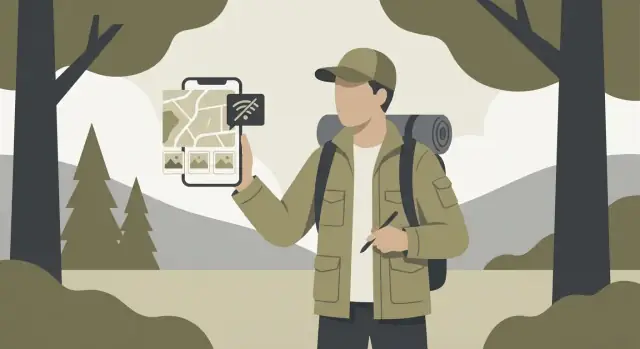
Define the Problem and Field Workflow
Before you sketch screens or pick a tech stack, get specific about who is in the field and what they’re trying to accomplish. A “field notes app” for a wildlife researcher feels very different from one used by a safety inspector or a maintenance crew.
Who the app is for
Common audiences include researchers logging observations over long periods, inspectors completing compliance checklists, naturalists recording sightings on the move, and maintenance teams documenting issues, parts used, and follow-up work. Each group has different vocabulary, required fields, and tolerance for friction.
Typical workflows to map
Start by writing down the real sequence of actions during a day in the field:
- Quick capture: jot a note, snap a photo, record a short audio clip, tag a location, and move on.
- Structured forms: fill a repeatable template (e.g., inspection items, condition ratings, species attributes) that standardizes data.
- Follow-ups: flag an observation for later, assign it to someone, add a revisit date, or link it to a related record.
- Exporting and sharing: deliver a report to a client, send a CSV to analysts, or share a set of observations with a supervisor.
To keep this grounded, watch at least one field session (or do a ride-along) and note where people pause, switch tools, or lose time.
Key constraints you can’t ignore
Field work is full of constraints that should drive your design:
- Poor connectivity: spotty signal, airplane mode, or no service for hours.
- Harsh conditions: gloves, rain, dust, bright sunlight, and noisy environments.
- Time pressure: users need to capture details in seconds, often while standing or walking.
What “good” looks like
A strong observations tracking app is fast to capture, reliable offline, and hard to mess up. Notes should be searchable later (even across photos and metadata), and the output should be shareable without extra cleanup.
Define success metrics early—e.g., “log an observation in under 15 seconds,” “zero data loss offline,” or “export ready-to-send reports.”
Choose an MVP That Delivers Value Quickly
An MVP for a field notes app should solve one core job: capture an observation in the field quickly, even when connectivity is unreliable. Everything else is optional until you’ve proven people will use it daily.
Decide what an “observation” is
Before features, define the basic unit your app stores. In different teams an observation might mean a record, event, sample, or site visit. Pick one primary meaning and write it down in a single sentence, for example:
“An observation is a time-stamped visit to a location where a user records notes, selects a few attributes, and attaches media.”
This definition drives your form fields, permissions, reporting, and even how you name buttons.
Must-have vs. nice-to-have features
Must-have (MVP): create/edit an observation, basic template fields, offline capture with reliable sync, attach photos, GPS location, simple search, and export.
Nice-to-have (later): maps with layers, audio transcription, advanced analytics dashboards, custom workflows, integrations (e.g., GIS/CRM), team chat, and automation rules.
Define success metrics (what “working” means)
Choose metrics you can measure in a pilot:
- Time to log: median time from opening the app to saving an observation
- Completion rate: % of started observations that are successfully saved and synced
- Sync reliability: % of sync attempts that finish without errors; average time to sync after reconnect
A 6–10 week MVP scope (example)
To ship fast, keep the first release focused:
- Sign-in for a single organization and basic roles (admin/user)
- One observation type with a fixed template (10–15 fields)
- Offline-first capture: create/edit, queue changes, background sync
- Photo capture + automatic timestamp + GPS coordinates
- List view, detail view, and simple filters (date, project, status)
- Export to CSV (or share link) for supervisors
If this MVP reliably saves observations under real field conditions, you’ve earned the right to expand.
If you’re trying to compress timelines even further, a vibe-coding workflow can help you validate the MVP faster. For example, Koder.ai lets you describe the app in chat (screens, data model, roles, sync expectations), iterate in a planning mode, and then export source code when you’re ready to take development in-house.
Design the Data Model for Notes and Observations
A field notes app lives or dies by its data model. If you get the “shape” of an observation right, everything else—forms, search, offline sync, exports—becomes simpler.
Core entities (what you store)
Start with a small set of building blocks:
- Observation: the main record (what was seen, measured, or reported).
- Location: a point (or area) tied to an observation; can be reused across observations.
- Media: photos, audio clips, videos, and attachments linked to an observation.
- Tags: lightweight labels for filtering (e.g., “safety”, “high priority”).
- Projects: a container for organizing work, permissions, and reporting.
- Users: who created, edited, reviewed, or approved a record.
Keep relationships straightforward: an Observation belongs to one Project, has one “primary” Location, and can have many Media items and Tags.
Metadata that makes records trustworthy
Beyond the note itself, capture context automatically:
- Timestamps: created at, updated at, submitted at (see drafts below).
- GPS details: latitude/longitude plus accuracy and (optionally) altitude.
- Device info: device model and app version to help debug field issues.
- Custom fields: answers to form questions (store them in a structured way, not as a blob of text).
Drafts vs. submitted records
Treat “draft” as a first-class status. A draft can be incomplete, editable, and excluded from official exports. A submitted record should be harder to change—ideally with an edit history or an “amended” version—so supervisors can trust reports.
Design for change (templates evolve)
Your forms will change over time. Store a template version on each observation, and keep custom-field values keyed to stable field IDs (not just labels). This enables backward compatibility: old observations still render correctly even after a template update.
Build Templates and Forms for Consistent Data
Free‑text notes are flexible, but they’re hard to filter, compare, and report on later. Templates and forms give your field notes app structure without slowing people down.
Form builder vs. fixed fields
A fixed set of fields works best when the workflow rarely changes (e.g., daily safety inspections). It’s faster to build, easier to test, and simpler for users.
A form builder makes sense when each project has different requirements (environmental surveys, construction punch lists, audits across clients). It also reduces app updates—admins can adjust templates without shipping a new version.
The tradeoff: you’ll need more UI work and clearer guardrails so templates don’t become messy.
Templates per project
Treat templates as project assets: each one defines required fields, validation, and default values.
Examples:
- Required: “Site ID”, “Observer”, “Observation type”
- Validation: numeric ranges (temperature −40 to 60), date not in the future, minimum photo count
- Defaults: today’s date, current user, last selected category
Also support versioning. If a template changes mid‑project, old entries should still display correctly, and new entries should use the latest version.
Input types that match real work
Provide a focused set of field types: text, numbers, picklists, checklists, date/time, signatures, and “yes/no/NA”. Keep picklists editable by project admins so teams can add new categories without workarounds.
Make forms fast (because time matters)
Speed is a feature in the field:
- Autocomplete for names, locations, equipment IDs
- Recent values (“use last”, “repeat previous”) for repetitive entries
- Smart defaults based on context (project, user role, time of day)
A well-designed form should feel like a shortcut, not a chore—and that’s what drives consistent, usable data.
Plan Offline Storage, Syncing, and Conflict Resolution
Field work rarely happens with perfect reception. Treat offline mode as the default, not a fallback. If the app can reliably save notes, photos, and locations without signal—and sync later without surprises—users will trust it.
Offline-first basics
Use a local database on the device so every note and observation is written instantly, even in airplane mode. Store new/edited records in an “outbox” queue that tracks what needs to be uploaded (create/update/delete).
Sync should run in the background when connectivity returns, but never block the user. If media files are large, upload them separately and link them to the note once complete.
Sync strategies that scale
Most apps need both directions:
- Push: send queued changes from the device to the server.
- Pull: fetch server updates made by other devices.
Prefer incremental updates (since a timestamp or version) instead of re-downloading everything. Add pagination so large projects don’t time out. If you support teams, consider periodic background pulls so a user opens the app already up to date.
Conflict handling: pick a clear rule
Conflicts happen when the same note is edited in two places before syncing. Common options:
- Last-write-wins: simplest, but can overwrite someone’s work.
- Automatic merge: good for structured fields (e.g., tags), harder for long text.
- User review: show “Mine vs Theirs” and let the user choose or combine.
For field notes, a practical approach is to merge structured fields automatically, and require review for the main narrative text.
User feedback that prevents panic
Make sync visible but calm: a small status (“Saved on device”, “Syncing…”, “Up to date”), clear error messages, and simple controls like “Retry now” and “Sync over Wi‑Fi only.” When something fails, keep the note safe locally and explain what will happen next.
Add Location, Maps, and Media Capture
Location and media are what turn “a note” into a usable field record. The goal is to capture them quickly, store them efficiently, and keep them trustworthy when connectivity is poor.
Geotagging that’s accurate (and editable)
When the user taps Add location, record more than just latitude/longitude. Save GPS accuracy (meters), timestamp, and source (GPS vs network). This helps you flag low-confidence points and prevents “mystery pins.”
Also allow manual adjustments. Field staff often need to place a point on a structure, trail, or plot boundary when GPS is drifting. A simple “Move pin” mode with a map preview is usually enough. Keep the original coordinates too, so edits remain auditable.
Maps: online tiles vs offline caches
Online tiles are simplest and small on-device, but they fail in remote areas. Offline maps require storage planning:
- Cached tiles: fast to implement, but cache size can balloon and evictions can surprise users.
- Downloadable areas: predictable offline use, but you must manage package sizes, updates, and expiration.
A practical approach is to support both: online by default, with optional “Download area for offline use” for known work zones.
Photo/video/audio capture with useful metadata
Keep the capture flow one tap from the note, with an immediate thumbnail so users trust it saved. Compress media on-device (especially video) and store metadata: creation time, orientation, approximate size, and (if allowed) location.
Avoid aggressive compression that ruins evidence. Offer a “Low bandwidth mode” that prioritizes smaller uploads while keeping originals queued for Wi‑Fi.
Uploading attachments on unreliable networks
Use resumable uploads (chunked transfers) so a 30-second drop doesn’t restart a 200 MB video. Track per-file upload state locally, retry with backoff, and let users pause uploads.
For export workflows, consider bundling attachments into a single background sync job users can monitor from a simple status screen.
Design a Field-Friendly Mobile UX
A field notes app isn’t used at a desk—it’s used while walking, wearing gloves, in bright sun, in the rain, and under time pressure. Your UX should prioritize speed, clarity, and “can’t lose work” behavior over fancy screens.
Navigation built for one hand
Keep primary actions reachable by thumb. A bottom navigation bar (or a single home screen with clear sections) is usually better than a side drawer.
Make the “add” action impossible to miss: a prominent button that opens the most common note type immediately, not a menu maze.
Tap targets, contrast, and outdoor readability
Small controls are a major failure point in the field:
- Use large tap targets (aim for ~44px+), generous spacing, and clear labels.
- Prefer high-contrast text and simple color cues; avoid light gray on white.
- Offer a dark mode, but also test in sunlight—glare can make some dark themes harder to read.
Quick add + drafts that never disappear
Field users often capture a thought mid-task and finish later.
Design a “quick add” flow that can be done on one screen when possible: title/observation, optional tags, and save.
Auto-save drafts continuously and show a clear status (e.g., “Saved as draft”). If the app closes, the draft should still be there when they return.
Accessibility basics that help everyone
Accessibility features also improve usability in harsh conditions.
Support screen readers, allow font scaling without breaking layouts, and ensure focus order makes sense. Use clear error messages and avoid relying on color alone to indicate required fields or validation issues.
Implement Search, Filters, and Export
Field work generates lots of small, messy entries—quick notes, photos, timestamps, and location points. Search and filters turn that pile into something you can actually use when you’re tired, in bad weather, and need an answer fast.
Search that matches how people remember
Start with full-text search across titles, note bodies, and transcribed audio (if you have it). Then add the “handles” people naturally recall:
- Tags and template types (e.g., “Safety incident”, “Species sighting”)
- Time ranges (today, last 7 days, custom)
- People fields (assignee, author)
- Proximity search (near current location or near a pinned site)
Make results readable: show the matching snippet, the template name, and key metadata (project, date, location) so users don’t have to open five items to find the right one.
Filters and sorting for triage
Filters are for narrowing; sorting is for priority. Common combinations that work well in an observations tracking app:
- Filter by project/site, status (draft, submitted, reviewed), assignee, and confidence/quality rating
- Sort by most recent, distance, priority, or last updated
Keep filter state visible and easy to clear. A “Saved filters” option can be a big time-saver for recurring checks.
Offline search needs local indexing
If your app is offline-first, search can’t depend on the network. Build a lightweight local index on the device (for text + key fields), update it when notes change, and degrade gracefully for heavier queries (like large-range proximity) with a clear message.
Exports people can actually use
Support a few practical export paths:
- CSV for spreadsheets and reporting
- JSON for integrations and backups
- PDF summaries for sharing with non-app stakeholders
Let users export a filtered set (not just “everything”), and include attachments options (links vs embedded) depending on file size and sharing needs.
Handle Accounts, Permissions, and Data Privacy
Field work apps often end up holding sensitive information: precise locations, photos of private property, names, and operational details. Accounts and permissions aren’t just “admin features”—they shape trust and determine whether teams can actually deploy the app.
Authentication that fits the field
Offer at least two sign-in options so teams can match their reality:
- Email + password: familiar, works anywhere, but requires password hygiene and reset flows.
- Magic links / one-time codes: reduces password reuse; make sure it works with limited connectivity by caching the login state.
- SSO (SAML/OIDC): best for larger orgs with IT policies; supports quick offboarding when staff change.
Whatever you choose, avoid frequent re-logins in the field. Use long-lived refresh tokens stored in the platform’s secure storage (Keychain/Keystore), and design a clear “Lost device?” process to revoke sessions.
A practical permissions model
Start simple, then grow:
- Roles (e.g., Admin, Manager, Contributor, Viewer) to control global actions like inviting users or exporting.
- Project-based access so contractors can work only on assigned sites.
- Record-level rules for edge cases (e.g., only the author and managers can edit; everyone can view).
Be explicit about what happens offline. If someone loses access while disconnected, decide whether they can still view cached records until the next sync, and document that behavior for customers.
Data protection end-to-end
Protect data in three places:
- On device: encrypt local databases when possible; keep attachments in app-private storage.
- In transit: TLS everywhere; pinning is optional but consider it for high-sensitivity deployments.
- On the server: encryption at rest, audited access to production data, and backups with the same protections.
Privacy: location and retention choices
Location data needs careful handling. Ask for location permission only when the user is about to geotag a note, explain why, and allow “approximate” or manual location entry when possible.
Finally, give teams data retention controls: how long to keep deleted records, whether to purge attachments, and what gets exported. Clear settings and plain-language prompts reduce surprises and support compliance.
Choose a Tech Stack and Architecture
Your tech stack should support fast note capture, offline use, and reliable syncing—without creating a maintenance burden your team can’t sustain.
Native vs cross-platform
Native (Swift for iOS, Kotlin for Android) is a good fit when you need the best performance, deep OS integration (camera, background uploads, precise location), or you expect heavy device-specific features. The tradeoff is building and maintaining two codebases.
Cross-platform (Flutter or React Native) is often the practical choice for a field notes app: one codebase, faster iteration, and shared UI components. Flutter tends to shine for consistent UI and predictable rendering; React Native can be great if your team is already strong in JavaScript/TypeScript and wants to share libraries across web and mobile.
If you’re a small team optimizing for speed, cross-platform usually wins—unless you have a clear iOS/Android-only requirement.
Backend: API, database, and media storage
For the backend, keep responsibilities clear:
- API layer: REST is straightforward and easy to debug; GraphQL can reduce over-fetching when screens need many related fields. Either can work—choose what your team can support confidently.
- Managed database: a hosted SQL database (like Postgres) works well for structured observations and permissions.
- Media storage: store photos/audio in object storage (rather than your database) and reference them from notes. This keeps costs predictable and avoids database bloat.
Local database options (and why they matter)
Offline-first apps live or die by the local database. You want strong querying (filters, full-text search), smooth migrations, and the ability to record “pending changes” for sync.
Common choices include SQLite (widely supported, flexible), or a wrapper like Room (Android). The key is not the brand—it’s whether your solution supports:
- fast queries on large datasets
- safe schema migrations
- storing a sync queue and conflict metadata
Cost and maintenance tradeoffs
A simpler architecture—one cross-platform app, a managed database, and object storage—usually lowers ongoing costs. The “cheapest” stack is the one your team can operate confidently: fewer moving parts, clear logs/monitoring, and predictable upgrades.
If you need a starting point, document your assumptions and pick a stack you can ship with—then validate it with a small pilot before expanding features.
If your goal is to get from concept to a working pilot with minimal engineering overhead, Koder.ai can be a practical accelerator: it’s a chat-driven platform that can generate a React web app, a Go + PostgreSQL backend, and a Flutter mobile client, with built-in deployment/hosting and source code export. That makes it easier to prototype the workflow (capture → offline queue → sync → export), demo it to real field users, and iterate quickly before committing to a long custom build.
Test in Real Conditions (Not Just on Wi‑Fi)
Field notes apps fail most often at the edges: no signal, low battery, and messy data. Before launch, test the app the way it will be used—outside, under time pressure, with inconsistent connectivity.
Stress-test offline and syncing
Don’t just “turn off Wi‑Fi” once and call it done. Create a repeatable checklist:
- Airplane mode: create/edit notes, attach photos/audio, queue uploads, then reconnect and confirm everything syncs.
- Flaky networks: switch between 5G/3G/Wi‑Fi, force brief dropouts, and verify the app retries safely without duplicating records.
- Large payloads: sync batches of notes with many media files and long text. Watch for timeouts, stalled progress, or runaway storage.
Make sure conflict handling is visible and predictable. If two edits collide, the user should understand what happened and how to resolve it.
Test real devices, not just your favorite phone
Run the same scenarios on:
- Low-end Android devices with limited storage and memory
- Older OS versions you support
- Phones in power-saving mode and with “background activity” restricted
Measure battery impact during a typical day: GPS usage, camera capture, and background sync are common drains.
Validate data integrity end-to-end
Add test cases for:
- Duplicate submissions caused by retries
- Partial uploads (text synced, media missing)
- Corrupted or unreadable photos/audio (especially after interruptions)
Add observability so you can fix issues fast
Ship with lightweight diagnostics: crash reporting, structured logs around sync steps, and basic “sync health” metrics (queue size, last successful sync, failed items). This turns vague field complaints into actionable fixes.
Launch, Support, and Iterate
A field notes app is only “real” once it’s used outdoors, under time pressure, with messy data and spotty reception. Plan your launch as a learning cycle, not a finish line.
Run a beta that mirrors real field work
Start with a small rollout (10–30 people) across different roles and environments. Give testers a checklist of scenarios: creating notes offline, syncing later, attaching photos/audio, and correcting mistakes.
Collect feedback in two ways:
- In-app feedback: a quick “Report an issue” form that attaches device info and optional screenshots.
- Weekly prompts: short questions (“What slowed you down today?”) rather than long surveys.
Tag feedback by workflow step (capture, review, sync, export) so patterns are obvious.
Ship with clear store metadata and permission explanations
App stores increasingly enforce privacy disclosures. Prepare:
- Privacy labels (what data you collect, why, and whether it’s linked to a user)
- Permission descriptions that match user intent: location for geotagging, camera for photo notes, microphone for audio notes
- A plain-language privacy policy page (for example, /privacy)
If a permission is optional, let the app work without it and explain what improves when it’s enabled.
Onboarding that teaches by doing
Keep onboarding short: a sample project, a few templates, and “first note” guidance. Add a lightweight help center with quick tips, not manuals—think “How to log a geotagged observation in 10 seconds.” Link it from the home screen and settings (/help).
Iterate with an analytics-driven roadmap
Track outcome-focused metrics: time to create a note, sync success rate, crash-free sessions, and export usage. Use these to prioritize improvements, then release on a predictable cadence. Small, frequent updates build trust with field teams more than big, rare launches.
FAQ
What should I define before designing a field notes and observations app?
Start by defining who is using it and the real workflow they follow in the field (quick capture, structured forms, follow-ups, exporting). Then design around constraints like poor connectivity, gloves/rain/sunlight, and time pressure. A good field app is fast, reliable offline, and hard to mess up.
What features belong in a field notes app MVP?
An MVP should reliably do one core job: capture an observation quickly in the field, even offline, and sync it later.
Minimum set is typically:
- Create/edit an observation with a simple template
- Offline storage + dependable background sync
- Photo capture, timestamp, GPS
- Basic search and a practical export (e.g., CSV)
Everything else can wait until daily usage is proven.
How do I define what an “observation” is in the app?
Write a one-sentence definition that describes the record your app stores, for example: “A time-stamped visit to a location with notes, attributes, and attached media.”
That definition determines:
- Which fields exist and which are required
- How you name actions (“New Observation” vs “New Visit”)
- What exports and reports need to include
What data model works best for notes, locations, and media?
Keep the model small and consistent:
- Observation (main record)
- Project (organizes work, permissions, reporting)
- Location (point/area; store accuracy + timestamp)
- Media (photos/audio/video/attachments)
- Tags (fast filtering)
- Users (authorship, review, approvals)
Capture metadata like created/updated timestamps, GPS accuracy, and app/device version for auditing and support.
How should I handle drafts vs submitted records?
Use explicit statuses:
- Draft: can be incomplete, auto-saved, and excluded from official exports
- Submitted: treated as “official,” ideally with edit history or an “amended” flow
This protects report integrity while still letting users capture partial information quickly in the field.
How do I design forms and templates that can change over time?
Make templates project-specific and versioned.
Practical rules:
- Store a template version on each observation
- Store answers keyed by stable field IDs (not labels)
- Keep old observations rendering correctly after template updates
This avoids breaking historical data when requirements evolve.
What’s a good offline sync approach for field work?
Treat offline as the default:
- Write all changes to a local database immediately
- Maintain an outbox queue for create/update/delete operations
- Sync in the background when connectivity returns
- Upload large media separately and link it after completion
For conflicts, pick a clear rule (often: auto-merge structured fields, require user review for long text).
How do I capture trustworthy location and media in the field?
Store more than lat/long:
- GPS accuracy (meters)
- Timestamp
- Source (GPS vs network)
Also allow manual “move pin” adjustments (GPS drifts), while keeping the original coordinates for auditability. For attachments, use resumable (chunked) uploads and local per-file retry state.
What UX patterns make a mobile field app usable outdoors?
Prioritize speed and readability:
- One-hand navigation (bottom nav, prominent “Add”)
- Large tap targets (~44px+), high contrast, sunlight testing
- A one-screen “quick add” where possible
- Continuous auto-save with an obvious “Saved as draft” state
Accessibility features (font scaling, screen reader support) also help in harsh conditions.
How should search, filters, and exports work in an observations tracking app?
Support how people actually retrieve and share data:
- Offline-capable search (local indexing)
- Filters by project/site, status, assignee, date range, priority
- Results that show snippets + key metadata so users don’t open multiple records
For exports, offer filtered exports and common formats like CSV (reporting), JSON (integrations/backups), and optional PDF summaries for stakeholders.