

How to Build a Mobile App for Field Observations With Photos
Step-by-step guide to planning and building a field observation mobile app with photos, GPS, offline mode, syncing, storage, and privacy basics.
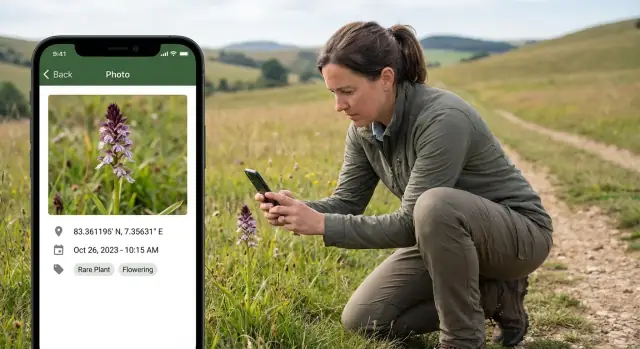
Clarify the Use Case and Users
Before you think about a form builder, GPS geotagging, or photo capture in-app, get specific about what your team is actually recording. A field observation app succeeds when everyone shares the same definition of an “observation” and the workflow matches real field behavior.
Define an “observation” in plain terms
Write down the minimum information that makes an observation useful and defensible later:
- Who made it (person, team, contractor)
- What was observed (category, severity, asset type, pass/fail)
- Where it happened (GPS point, site name, zone)
- When it happened (timestamp, shift/day)
- Notes (free text, structured checkboxes, optional measurements)
- Evidence (one or more photos, plus any required annotations)
This definition becomes your data model for mobile data collection. It also helps you decide which fields are required, which can be auto-filled, and what needs validation.
Identify users and roles
List the people who touch an observation from start to finish:
- Field staff: capture observations quickly, often under time pressure
- Supervisors: review, request clarifications, approve, assign follow-ups
- Admins: manage templates, user access, devices, and reference lists
- Reviewers/auditors: verify evidence and consistency across teams
Be clear about what each role can see and do (create, edit after submit, delete, export). These decisions drive permissions and review workflows, which then shape the rest of the product.
Set measurable success criteria
Pick a few metrics you can track from day one:
- Time from observation to submitted report
- Fewer incomplete records (missing photos, missing location, wrong category)
- Higher-quality evidence (photo clarity, consistent framing)
- Reduced rework from supervisors
Surface real-world constraints early
Field conditions drive requirements: an offline mobile app may be mandatory; gloves and rain affect button sizes; battery limits push you toward fewer background tasks; no-signal zones force reliable sync behavior. Capture these constraints now so the app is designed for the field, not for the office.
Design the Observation Form and Data Model
Once your team agrees on what an observation is, translate that definition into a form and a set of rules that keep data consistent—especially when users are working fast.
Required vs. optional fields
Start with a small set of required fields that make an observation usable even under pressure (for example: category, timestamp, location, and at least one photo). Everything else should be optional or conditionally required. This prevents drop-offs and speeds up mobile data collection without sacrificing the minimum you need for reporting.
Keep the form structure simple
Design the form in clear sections that match the way people think in the field (e.g., “What is it?”, “Where is it?”, “Condition”, “Notes”). Use dropdowns for standardized inputs, checklists for multi-select attributes, and free text only where you genuinely need nuance. Every free-text box increases cleaning work later.
Tagging and categorization
Plan a tagging model that supports filtering and analytics: species, asset type, issue severity, status, and any organization-specific codes. In the data model, store both a human-readable label and a stable ID for each tag so you can rename categories without breaking historical data.
Photos per observation
Decide the default and maximum number of photos per observation, and whether captions are required. Captions can be optional but valuable—consider making them required only for “high severity” or “needs follow-up” cases.
Validation rules
Add validation that prevents incomplete or inconsistent records: required fields, allowed ranges, conditional logic (e.g., if status is “resolved,” require a resolution note), and sensible defaults. Strong validation makes offline sync cleaner and reduces back-and-forth later.
Plan Location Features: GPS, Maps, and Metadata
Location is what turns a basic field observation app into a usable tool for audits, inspections, and follow-ups. Plan it early, because it affects your data model, offline behavior, and how people capture evidence.
Choose how users set a location
Most teams need more than one option, because signal quality varies by site:
- GPS (default): fastest for most observations.
- Manual pin drop on a map: useful when GPS is drifting or when users are standing near (not at) the item.
- Address search (optional): handy for urban work, but can add cost/complexity and may not work well offline.
If teams work in known areas (plants, farms, construction sites), consider site selection (pick “Site A → Zone 3”) as a first step, and then capture the precise point within that site.
Store the right metadata (not just coordinates)
For reliable mobile data collection, save context alongside latitude/longitude:
- Accuracy radius (e.g., ±8 m)
- Timestamp (when the fix was recorded)
- Location source (GPS, pin drop, site-based)
- Coordinate system (typically WGS84)
This helps reviewers trust the data and lets you filter out questionable points during analysis.
Handle low-accuracy situations gracefully
Indoors, near tall buildings, forests, or canyons, GPS geotagging can be misleading. Instead of silently saving bad points, prompt the user:
- “Accuracy is low (±60 m). Wait for a better fix?”
- Offer “Use pin on map” or “Save anyway” with a visible warning.
Maps and nearby browsing
Add both a map view (quick spatial understanding) and a list view sorted by distance (“nearby observations”). If your offline mobile app must work without tiles, keep the list view functional even when maps can’t load.
Optional: geofencing and validation
Geofencing can reduce errors by warning when an observation is outside an allowed area, or by auto-suggesting the correct site—especially helpful for busy field teams.
Build Photo Capture and Image Handling
Photos are often the most valuable part of a field observation, but they can also create the most friction if capture feels slow or confusing. Design the photo flow so a user can take a clear image, confirm what was saved, and move on in seconds.
Choose where photos can come from
Decide whether your app supports:
- Camera-only (best for consistency and chain-of-custody workflows)
- Gallery upload (useful when photos are taken ahead of time or shared)
- Both (most flexible, but requires clearer UI and validation)
If you allow gallery uploads, consider whether you’ll accept edited images and how you’ll handle missing metadata.
Set image quality rules (without ruining the experience)
Define practical limits up front: maximum resolution, compression level, and a file size cap. The goal is readable detail with predictable upload times. A common approach is to save a “submission” version (compressed) while optionally keeping an original locally until sync completes.
Make quality rules visible only when they matter—for example, warn the user if a photo is too large or too blurry to be useful.
Capture the right metadata
Alongside the image, store metadata such as:
- Timestamp
- Location (only if permitted by policy and permissions)
- Device orientation (helps with display and later review)
Treat metadata as helpful context, not a guarantee—users may be indoors, offline, or unable to grant location access.
Light editing: keep it optional
Basic tools like crop and rotate can reduce rework. Annotation (arrows, labels) is valuable in inspection-style apps, but keep it optional to avoid slowing down capture.
Multiple photos, clear control
Support multiple photos per observation with ordering, plus an obvious delete/replace flow. Show thumbnails, confirm destructive actions, and make it clear which photos are already attached to the record versus still pending.
Make It Work Offline and Sync Reliably
Field work rarely happens in perfect connectivity. If your app can’t save observations when there’s no signal, people will fall back to paper, screenshots, or notes—and you’ll lose data quality. Plan offline behavior as a core feature, not a fallback.
Decide: offline-first vs. online-only
Most field observation apps should be offline-first: every action (filling a form, capturing photos, adding GPS notes) succeeds locally, then sync happens when possible. Online-only can work for short, indoor workflows with reliable Wi‑Fi, but it increases risk and frustration outdoors.
Local storage: drafts and a sync queue
Treat the phone as a temporary “source of truth” until upload completes.
Store:
- Draft observations (not submitted yet)
- Submitted-but-not-synced records
- Queued photo uploads with references to the observation
Keep photos in a managed local cache and track upload state per file. If the app is closed or the device restarts, the queue should resume without data loss.
Make sync status obvious
People need confidence that work is safe. Show a simple status on each observation and at the app level:
- Pending (saved locally)
- Uploading (in progress)
- Failed (needs attention)
- Synced (safe on the server)
When something fails, provide a human-readable reason (no connection, file too large, permission denied) and a retry path.
Handle conflicts with simple rules
Conflicts happen when the same observation is edited on two devices or edited locally after an earlier version synced. Keep it predictable:
- Prefer “last write wins” only if edits are rare and low-risk.
- Otherwise, lock editing after submission, or create a new revision instead of overwriting.
Give users control
Add “Sync now” for impatient moments and “Sync on Wi‑Fi only” to protect data plans. If uploads are large, consider background sync with a visible pause/resume option.
Reliable sync isn’t just technical polish—it’s what makes the app trustworthy in the field.
Set Up the Backend, Storage, and Upload Pipeline
A field observation app lives or dies by how reliably it moves data from a phone to a central system. The goal is simple: every observation and photo should arrive once, stay correctly associated, and remain easy to retrieve later.
Define a clean backend API
Start with a small, predictable API that matches your data model. Typical resources include observations, photos, users, and permissions.
Keep the main workflows explicit:
- Create/update an observation (text fields, timestamps, GPS, status)
- Request an upload “slot” for a photo (so the app gets an upload URL or token)
- Confirm the upload and attach the photo record to the observation
- Fetch observation lists and details (with thumbnail URLs)
This two-step upload pattern reduces errors: the app can retry uploads without creating duplicate observation records.
Store images in object storage, not your database
Photos are large and expensive to serve from a relational database. A common approach is:
- Object storage holds the original image and derived sizes
- Database stores references (photo ID, observation ID, storage key, size, mime type, created by)
This makes querying fast while keeping image delivery scalable.
Build an upload pipeline that tolerates bad networks
Use background uploads with retries. When a connection drops, the app should resume later without user babysitting.
Key practices:
- Exponential backoff for retries (e.g., wait 2s, 4s, 8s…) to avoid hammering the server
- Idempotency keys so repeated requests don’t create duplicates
- Clear states: queued → uploading → uploaded → confirmed/failed
Generate thumbnails and control data usage
Create thumbnails server-side (or during upload processing) so list screens load quickly and don’t burn mobile data. Store thumbnail references alongside the original photo.
Plan retention and deletion flows
Define what “delete” means:
- User delete: removes from their device and marks the record deleted (or soft-deleted)
- Admin delete: permanently deletes the database record and removes the objects from storage
Write these rules down early to avoid confusion when teams expect photos to disappear—or to be recoverable.
Design a Field-Friendly UI and Workflow
A field observation app succeeds or fails on speed and clarity. People are often standing, wearing gloves, dealing with glare, or trying to capture something before it changes. Your UI should reduce decisions, reduce typing, and make the “next step” obvious.
Keep the home screen laser-focused
Start with two primary actions and nothing more:
- New Observation (the main path)
- My Drafts (to continue unfinished work)
Everything else—settings, help, exports—can live behind a secondary menu so it doesn’t compete with the core workflow.
Design for harsh conditions
Use large tap targets, readable font sizes, and high-contrast color choices that remain visible in bright sunlight. Prefer clear icons with text labels. Avoid tiny toggles and dense tables.
Error handling matters here: show plain-language error messages (“GPS signal is weak—save as draft?”), and keep validation close to the field that needs attention.
Minimize typing wherever possible
Typing on a phone in the field is slow and error-prone. Replace free text with:
- Presets (common categories, conditions, statuses)
- Autocomplete (sites, species, asset IDs)
- Recent values (last used location, team, project)
When text is needed, offer short prompts and sensible defaults.
Support quick capture: photo first, details later
Many observations start with a photo. Let users capture the image immediately, then guide them to add details afterward. A practical flow is:
- Photo capture
- Quick essentials (one or two required fields)
- Optional details (notes, tags, measurements)
- Save as draft or submit
Accessibility basics that pay off
Add screen reader labels, ensure focus order makes sense, and avoid color-only cues. Clear, specific messages (“Date is required”) help everyone, not just users with assistive needs.
Handle Security, Privacy, and Permissions
Field observations often include sensitive details: photos of private property, GPS coordinates, names, or notes about safety issues. Treat security and privacy as product features, not afterthoughts.
Start with data minimization
Collect only what you need to meet the use case. If a photo is enough, don’t also require a full address. If location is optional, let users turn it off for specific records. Minimizing data reduces risk, lowers storage costs, and makes compliance easier.
Explain permissions in plain language
Mobile operating systems are strict about permissions, and users are right to be cautious. When requesting access, tell people exactly why you need it and what happens if they decline:
- Camera: to capture observation photos
- Location: to geotag records and place them on a map
- Storage/photos: to attach existing images (only if you support this)
- Notifications: to alert about sync failures or assignments
Ask at the moment it’s needed (e.g., when tapping “Take Photo”), not on first launch.
Protect data end-to-end
Use HTTPS for every network call. On-device, store tokens and sensitive fields in secure storage (Keychain/Keystore) and rely on device encryption. For offline mode, encrypt the local database if it contains personal or high-risk data.
Authentication and access control
Choose auth that matches your environment: email/password for small teams, SSO for enterprises, or magic links for simplicity. Pair it with role-based access so reviewers, editors, and admins only see what they should.
Plan audit trails
Keep an audit log for edits and review actions: who changed what, when, and (optionally) why. This is essential for quality control and accountability, especially when photos or locations are updated after the fact.
Pick a Tech Stack That Fits the Requirements
Your tech stack should be driven by what field teams actually need: fast capture, reliable offline work, and trustworthy sync—often in harsh conditions. Start by deciding whether you’ll build native apps or go cross-platform.
Native vs cross-platform
Native (Swift for iOS, Kotlin for Android) is a good fit when you need deep control over camera behavior, background uploads, device permissions, and performance tuning. It can also reduce edge-case bugs on older devices.
Cross-platform (React Native or Flutter) is attractive when you want one shared codebase, faster iteration, and consistent UI across iOS and Android. For many field observation apps, both React Native and Flutter can handle camera, GPS, and offline storage well—just confirm the exact features you need are stable on both platforms.
If you want to prototype quickly before committing to a full engineering pipeline, a vibe-coding approach can help validate the workflow (forms, offline drafts, photo capture screens, and basic sync states) with real users. For example, Koder.ai lets teams build web, server, and mobile apps from a chat interface—typically with React on the web, Go + PostgreSQL on the backend, and Flutter for mobile—then export source code when you’re ready to take over development in-house.
Confirm must-have device capabilities
At minimum, plan for:
- Camera: quick launch, multiple photos per observation, compression, and EXIF handling
- GPS: accurate coordinates, timestamping, optional accuracy threshold
- Offline storage: save drafts and photos safely until sync
- Background sync: resume uploads when connectivity returns (within OS limits)
Local data storage choices
For structured observations, SQLite is widely supported and predictable. Realm can speed development with an object model and built-in sync patterns (depending on your setup). Use secure storage/keychain/keystore for tokens and sensitive settings, not for bulky records or photos.
Plan for scalability early
Even a “small” program can grow. Build in pagination, filtering, search, and caching so lists stay fast as records and photos pile up.
Document tradeoffs
Be explicit: cross-platform may speed delivery, while native can unlock deeper device integration. Writing these decisions down prevents surprises when field requirements get stricter later.
Test for Real-World Field Conditions
Field observation apps often look perfect on office Wi‑Fi and fail the first day on a windy roadside. Plan testing around the conditions your users actually face, not the conditions you wish they had.
Simulate the field, not the lab
Create a repeatable “rough day” test run:
- Weak signal and no signal (including airplane mode)
- Switching between Wi‑Fi and cellular mid-task
- Low battery and battery saver mode
- Older devices with limited storage
- Bright sunlight, wet fingers, and one-hand use
Have testers follow a realistic route: open an existing assignment, create a new observation, capture multiple photos, edit details, and close the session.
Use checklists for the risky parts
A simple checklist keeps testing honest and comparable across devices.
Photos: camera opens reliably, focus works, orientation is correct, multiple photos attach to the right observation, and very large images don’t freeze the UI.
GPS: location fixes within an acceptable time, accuracy is displayed, manual override works if you support it, and coordinates remain stable when the user moves a few meters.
Sync: queued items survive app restarts, partial uploads resume, duplicates aren’t created, and conflicts produce clear messages (not silent data loss).
Validate form rules and edge cases
Try empty fields, maximum-length notes, unusual characters, and rapid tapping. Confirm required fields behave correctly offline, and that validation messages are specific (“Add at least one photo”) instead of generic.
Observe real users
Run usability tests with actual field workers. Watch where they hesitate: naming, button placement, and the number of taps to complete one observation.
Instrument crashes without collecting sensitive data
Enable crash reporting and error logging, but avoid storing photos, precise locations, or personal identifiers in logs. Focus on actionable signals: upload failures, GPS timeouts, and form validation errors.
Launch, Train Teams, and Support Adoption
A field observation app only succeeds when real people can use it confidently on real jobs. Treat launch as a change-management project, not just a button press.
Prepare store listings and privacy disclosures
Before release, make sure your App Store / Play Store submissions are complete: screenshots that show the workflow, a plain-language description, and accurate category tags.
Privacy disclosures matter even more for field apps because photos and GPS geotagging can be sensitive. Document what you collect (photos, location, device IDs), why you collect it, how long you keep it, and who can access it. If you use background location or upload in the background, justify it clearly and request only the permissions you truly need.
Release safely with staged rollouts
Start with a small group: internal staff, a pilot team, or a beta testing group. Use staged rollouts to limit risk—release to 5–10% of users, watch crash reports and sync success rates, then expand.
Have a simple go/no-go checklist: login works, offline capture works, sync completes, and photos upload reliably.
Train users where they work
Add in-app onboarding that takes under two minutes: a quick tutorial, a sample observation, and a short “how to recover” guide (what to do if there’s no signal, a photo fails, or a form was submitted by mistake). Keep help text close to the moment it’s needed.
Support operations: admin review and user help
Provide basic admin tools or a dashboard to review incoming observations, flag incomplete submissions, and export data for reporting.
Offer a clear support path: an FAQ, a contact form inside the app, and a lightweight ticketing process that captures app version, device model, and sync status to speed up troubleshooting.
Maintain, Measure, and Improve Over Time
A field observation app isn’t “done” when it reaches the app store. Real value comes from keeping it reliable as teams, forms, and connectivity conditions change.
Measure what matters in the field
Start with a small set of product health metrics you can track over time:
- Sync success rate (overall and by region/network type)
- Time to submit (from opening a form to confirmed upload)
- Photo upload failures (by device model, file size, and connection)
Treat these numbers as early warning signals. A slight dip in sync success can mean a backend change, a new OS update, or simply larger photos after a camera upgrade.
Plan updates without breaking work
Field teams may go days without updating, so aim for backwards compatibility. If you change the observation schema, design versioning and safe migrations: older app versions should still upload, and new versions should still read previously saved drafts.
Keep a simple rule: never force an update in order to finish an in-progress observation.
Know the real costs
Budget isn’t only development time. Track ongoing costs such as cloud storage for photos, bandwidth for uploads and downloads, backend hosting, and the time spent on support and bug fixes. Watching these trends helps you decide when to compress images more, archive old records, or change retention policies.
Improve with a feedback-driven roadmap
Add features incrementally based on common pain points: exports for auditors, basic analytics, QR codes for asset identification, and custom reports for supervisors. Review field feedback regularly, prioritize the top blockers, and ship small improvements that reduce taps, retries, and confusion.
FAQ
What exactly should count as an “observation” in a field observation app?
Define the smallest defensible record your team can agree on:
- Who recorded it
- What happened (category/severity)
- Where (GPS/site/zone)
- When (timestamp/shift)
- Notes/measurements
- Evidence (at least one photo)
That definition becomes your data model and drives required fields, validation, and permissions.
Which fields should be required vs. optional on the observation form?
Start with a minimal set that makes the record usable under pressure (commonly: category, timestamp, location, and at least one photo). Make everything else optional or conditionally required.
Use conditional rules like: if severity is “high,” require an extra photo or a caption; if status is “resolved,” require a resolution note.
How should the app capture location—GPS, map pin, or site/zone selection?
Offer more than one way to set location:
- GPS by default
- Manual pin drop when GPS drifts
- Site/zone selection for known areas (Site → Zone → point)
Also store metadata like accuracy radius, location source, and the timestamp of the GPS fix so reviewers can judge reliability.
What should the app do when GPS accuracy is low or the user is indoors?
Don’t silently save bad points. If accuracy is poor (e.g., ±60 m), show a clear prompt with options:
- Wait for a better fix
- Use pin on map
- Save anyway (with a visible warning)
This preserves speed without hiding data quality issues.
Should a field observation app allow gallery uploads or camera-only photos?
Decide early:
- Camera-only (best consistency)
- Gallery upload (more flexible, but metadata may be missing/edited)
- Both (requires clearer UI and validation)
If you allow gallery uploads, document whether edited images are acceptable and how you handle missing EXIF/location data.
How do you set photo quality and file size limits without hurting usability?
Set practical limits: maximum resolution, compression level, and a file size cap. A common pattern is:
- Create a compressed “submission” image for upload
- Optionally keep the original locally until sync completes
Warn only when it matters (too large, too blurry, upload will likely fail).
What does “offline-first” mean for observations and photo uploads?
Use an offline-first model:
- Save drafts locally
- Queue submitted records and photo uploads
- Persist the queue across app restarts
Show clear per-record states (Pending, Uploading, Failed, Synced) and provide a human-readable failure reason with a retry path.
How should the app handle sync conflicts or duplicate uploads?
Keep rules simple and predictable:
- If edits after submission are rare, consider locking the record
- Otherwise, create revisions rather than overwriting
- Use idempotency keys so retries don’t create duplicates
Avoid “silent merges”—make it clear to users when a record changed or needs review.
What’s a solid backend approach for storing observations and photos?
Use a reliable upload pattern:
- Store images in object storage
- Store only references/metadata in the database
- Use a two-step flow: request upload slot → upload → confirm/attach
Generate thumbnails so list screens stay fast and data usage stays predictable.
What real-world tests matter most before launching a field observation app?
Test the “rough day” scenarios:
- No signal, weak signal, Wi‑Fi↔cell switching
- Low battery and battery saver mode
- Older devices with limited storage
- Bright sunlight and one-hand use
Verify: camera reliability, correct photo attachment, GPS fix time/accuracy handling, queue survival after restart, and clean retries without duplicates.