

How to Build a Mobile App for Offline Field Data Collection
Learn how to plan, design, and build an offline-first mobile app for field data collection, including storage, sync, conflicts, security, and testing.
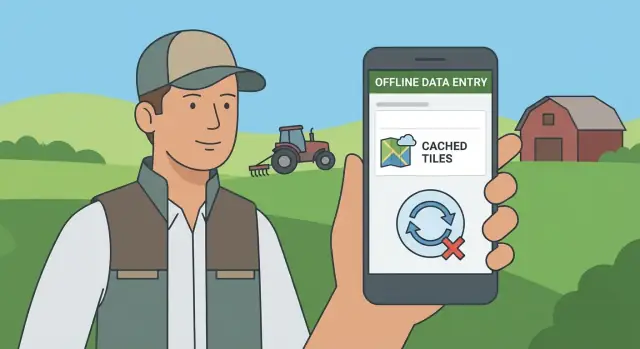
Define the Field Workflow and Offline Requirements
Before you pick tools or start designing screens, get very clear on how work happens in the field—and what “offline” must mean for your team. This section is about turning real routines into requirements you can build, test, and support.
Who is collecting data, and where?
Start by naming the roles: inspectors, surveyors, technicians, auditors, community workers, or contractors. Each role tends to have different constraints (protective gear, one‑handed use, long travel days, shared devices).
Document where they work: indoor facilities, basements, remote roads, farms, construction sites, or across borders. Note practical realities like intermittent reception, charging opportunities, and whether users can step away to “wait for sync” (most can’t).
What exactly gets captured?
List the records your app must collect and attach to a job, asset, location, or customer. Be specific about every field and file type, for example:
- Structured forms (checklists, ratings, measurements)
- Photos and videos (how many per record, typical resolution)
- GPS points or tracks (required accuracy, sampling frequency)
- Signatures and consent acknowledgements
- Barcodes/QR scans, NFC tags, or meter readings
Also define what “done” means: can a record be saved as a draft, submitted, and later approved?
Offline expectations and limits
Define operational targets like maximum days offline, expected records per device, and maximum attachment sizes. These numbers drive local storage needs, performance constraints, and sync behavior.
Include edge constraints: shared devices, multiple jobs per day, and whether users must search past records while offline.
Compliance and approvals
Identify any PII involved, consent requirements, retention rules, and audit trails. If approvals are needed (supervisor review, QA checks), define which actions must be blocked offline and which can be queued for later submission.
Choose an Offline-First Product Scope
Offline-first design starts with a brutally clear scope. Every feature you allow offline increases local storage, sync complexity, and conflict risk—so define what must work when the signal drops.
Decide what must work offline
For most field data collection teams, the offline data collection app needs to support a core set of actions without relying on the network:
- Create and edit records (inspections, audits, visits) using mobile forms
- Search and filter recent records and assigned work
- View history for a site/asset (last visit notes, open issues)
- Capture GPS data and timestamps automatically
- Attach photos/files (with sensible limits and compression)
- Basic map access or at least a cached site list with coordinates
Be explicit about what can be “read-only” versus fully editable. Allowing edits offline usually implies you’ll need mobile offline sync plus conflict resolution syncing later.
Separate “must have” from “nice to have”
A practical way to cut offline complexity is to ship the smallest offline loop first:
- Must have: create/edit, queue changes, local database on mobile, clear sync state
- Nice to have (later): offline analytics dashboards, advanced global search, large attachment workflows, multi-step approvals offline
If a “nice to have” feature forces heavy reference data caching or tricky merges, postpone it until the core workflow is reliable.
Define when the app should block actions
Some actions should be blocked offline (or when reference data is stale). Examples:
- Submitting a form that requires the latest compliance checklist or pricing codes
- Creating records for new entities when IDs must be validated centrally
Use clear rules like “allow draft offline, require sync to submit.”
Set UX rules for offline status
Don’t hide connectivity—make it obvious:
- Persistent offline/online banner with last sync time
- Per-record sync icons (queued, syncing, failed)
- Plain-language messages: “Saved on device. Will upload when connected.”
This scope definition becomes your contract for every later decision: data model, background sync, and device security offline.
Select the Mobile Stack and Architecture
Your offline app’s architecture should make “no connection” the normal case, not the exception. The goal is to keep data entry fast and safe on-device, while making sync predictable when connectivity returns.
Pick a primary platform
Start by deciding whether you’re building for iOS, Android, or both.
If your users are mostly on one platform (common for enterprise rollouts), a native build can simplify performance tuning, background behavior, and OS-specific storage/security features. If you need iOS and Android from day one, cross-platform frameworks like React Native or Flutter can reduce duplicated UI work—but you still need platform-aware handling for background sync, permissions (GPS/camera), and file storage.
If you’re moving fast and want an opinionated path, it can help to standardize on a small set of technologies across web, backend, and mobile. For example, platforms like Koder.ai are designed around a chat-driven workflow for building web, server, and mobile apps (commonly React on the web, Go + PostgreSQL on the backend, and Flutter for mobile). Even if you don’t adopt a platform end-to-end, that kind of standardization mindset makes offline-first development easier to scale and maintain.
Choose a local storage approach
Offline-first apps live or die by their on-device database. Typical options:
- SQLite-based storage (often via wrappers) for wide compatibility and clear control.
- Android Room if you’re native on Android and want strong schema/queries with good tooling.
- Core Data if you’re native on iOS and want Apple’s integrated persistence model.
- Realm for an object-centric approach and fast local reads/writes.
Whatever you choose, prioritize migrations you can trust, query performance on older devices, and encryption support.
Plan your API style and versioning
REST and GraphQL can both work for offline sync, but pick one and design it with change over time in mind.
- REST is straightforward for “download reference data” and “upload changes” endpoints.
- GraphQL can reduce over-fetching, but you’ll still need careful caching and sync semantics.
Add an explicit versioning strategy (e.g., /v1 endpoints or schema versions) so older app builds can keep syncing safely during rollouts.
Decide how to handle files
Photos, signatures, audio, and documents need their own plan:
- Store files in a local cache with clear retention rules.
- Compress images/video before queueing uploads.
- Use an upload queue that survives app restarts, with retry/backoff and user-visible status (e.g., “3 items waiting to upload”).
A clean separation—UI → local database → sync worker → API—keeps offline capture reliable even when networking is unpredictable.
Design Data Models for Offline Storage
Your offline app lives or dies by its local data model. The goal is simple: field staff should be able to create records, save drafts, edit later, and even delete items—without waiting for a network. That means your local database needs to represent “work in progress,” not just “final submitted data.”
Model drafts, edits, and deletions explicitly
A practical approach is to store each record with a sync state (for example: draft, pending_upload, synced, pending_delete). This avoids tricky edge cases like “deleted locally but still visible after restart.”
For edits, consider keeping either (a) the latest local version plus a list of pending changes, or (b) a full local record that will overwrite server fields during sync. Option (a) is more complex but helps with conflict handling later.
Add the metadata you’ll rely on during sync
Even for non-technical teams, a few consistent fields make everything easier to debug and reconcile:
- created_at and updated_at (timestamps)
- device_id (which phone/tablet produced the change)
- user_id (who performed the action)
- version (an incrementing number or server-provided revision)
If you generate IDs offline, use UUIDs to prevent collisions.
Plan reference data as first-class offline content
Field apps usually depend on catalogs: asset lists, site hierarchies, picklists, hazard codes, etc. Store these locally too, and track a reference dataset version (or “last_updated_at”). Design for partial updates so you can refresh only what changed, instead of re-downloading everything.
Index for fast offline search and filtering
Offline users expect instant results. Add indexes for common queries like “by site,” “by status,” “recently updated,” and any searchable identifiers (asset tag, work order number). This keeps the UI responsive even when the local database grows over weeks of field work.
Build Offline Forms and Field Capture Features
Field teams don’t “fill out a form” the way office users do. They’re standing in the rain, moving between sites, and getting interrupted. Your job is to make data capture feel unbreakable—even when the connection is.
Offline-friendly forms that don’t lose work
Start with a form engine that treats every keystroke as valuable. Autosave drafts locally (not only on submit), and make saving invisible: no spinners, no “please wait” dialogs that block the user.
Validate locally so the user can finish the task without network access. Keep rules simple and fast (required fields, ranges, basic formats). If some checks need server-side validation (e.g., verifying an ID), clearly label them as “will be checked during sync” and let the user proceed.
Avoid heavy screens. Break long workflows into smaller steps with clear progress (e.g., “1 of 4”). This reduces crashes, makes resumes easier, and improves performance on older devices.
Repeatable sections and conditional questions
Real inspections often include “add another item” patterns: multiple assets, readings, or defects. Support repeatable sections with:
- Add/edit/delete items without leaving the form
- A compact summary row for each item (so users can scan what’s already captured)
- Reasonable limits and warnings before the list becomes unwieldy
Conditional questions should be deterministic offline. Base conditions only on values already on the device (previous answers, user role, selected site type), not on a server lookup.
Capture device signals as first-class data
Make the app collect context automatically when it’s relevant:
- GPS location and accuracy (meters), plus whether it was fresh or cached
- Timestamp (device time) and, if possible, a monotonic sequence to preserve event order
- Photos and short videos with optional annotations
- Barcode/QR scans for asset IDs
Store these signals alongside the user-entered values so you can audit and trust the record later.
Attachments that survive bad connectivity
Treat each attachment as its own mini-job. Queue uploads separately from form sync, support retry/resume, and show per-file state: pending, uploading, failed, uploaded. Let users continue working while attachments upload in the background, and never block form submission on an immediate upload if the device is offline.
Implement Offline Access to Reference Data and Maps
Field teams rarely work with “just a form.” They also need reference information—asset lists, customer sites, equipment catalogs, picklists, safety checklists—and they often need a map that works when signal drops. Treat these as first-class offline features, not nice-to-haves.
Cache key datasets (and let users download only what they need)
Start by identifying the smallest set of reference data that makes the workflow possible (e.g., assigned work orders, asset IDs, locations, allowed values). Then support partial downloads by region, project, team, or date range so the device isn’t forced to store everything.
A practical approach is a “Download for offline use” screen that shows:
- What will be stored (datasets and size estimates)
- Which region/project filter is applied
- When it was last updated
Offline maps: prefetch tiles and manage cache size
If technicians need navigation and context, implement offline maps by prefetching tiles for selected areas (e.g., a bounding box around a job site or a route corridor). Enforce cache limits—both total size and per-area—to avoid silent storage failures.
Include controls to:
- Clear old tiles automatically (e.g., remove areas not used in 30 days)
- Manually remove a downloaded area
- Warn when storage is low before starting a download
Smart offline search with filters and saved queries
Offline access is frustrating without fast lookup. Index key fields locally (IDs, names, tags, addresses) and support filters that match real tasks (project, status, assigned to me). Saved queries (“My sites this week”) reduce tapping and make offline feel intentional.
Show data freshness and degradation gracefully
Always surface “freshness” for reference data and map areas: last sync time, dataset version, and whether updates are pending. If something is stale, show a clear banner and allow the user to proceed with known limitations—while queueing a refresh for the next connection.
Plan a Reliable Sync Strategy
Sync is the bridge between what happens in the field and what the office sees later. A reliable strategy assumes connectivity is unpredictable, batteries are limited, and users may close the app mid-upload.
Choose the right sync triggers
Different teams need different timing. Common triggers include:
- Manual sync (a clear “Sync now” button) for maximum user control
- Background sync when the app is open, so work quietly uploads without disrupting data entry
- On Wi‑Fi only to avoid mobile data costs, especially for photos and GPS trails
- Scheduled intervals (e.g., every 15 minutes) for steady progress in areas with intermittent signal
Most apps combine these: background sync by default, with a manual option for reassurance.
Use an outbox pattern for local changes
Treat every create/update/delete as a local “event” written to an outbox queue. The sync engine reads the outbox, sends changes to the server, and marks each event as confirmed.
This makes sync resilient: users can keep working, and you always know what still needs to upload.
Make sync safe to retry (idempotent)
Mobile networks drop packets, and users may tap “Sync” twice. Design requests so repeating them doesn’t duplicate records.
Practical tactics:
- Assign stable client IDs to new records
- Use unique request IDs for each outbox event
- Prefer server APIs that support upsert behavior
Handle big backlogs gracefully
After a day offline, uploads can be huge. Prevent timeouts and throttling by:
- Pagination when downloading updates
- Batching uploads (small, consistent chunk sizes)
- Respecting rate limits with backoff and retry
Aim for visible progress (“23 of 120 items uploaded”) so field staff trust the app and know what to do next.
Handle Conflicts and Data Integrity
Offline work means two versions of the truth can exist at the same time: what a technician changed on the device, and what someone else changed on the server. If you don’t plan for this, you’ll get “mysterious” overwrites, missing values, and support tickets you can’t reproduce.
Pick clear conflict rules (and document them)
Start by defining what your app should do when the same record is edited in two places.
- Last-write-wins (LWW): simplest, but can silently overwrite important updates
- Server-wins: safer for centrally managed records, but can frustrate field staff when their edits disappear
- Per-field merge: best experience for forms where different people edit different fields (e.g., notes vs status), but requires more engineering
Write these rules down and reuse them consistently across the app. “It depends” is fine, as long as it’s predictable by record type.
Show a simple conflict screen when it matters
For high-value data (inspections, compliance checks, signatures), don’t auto-merge blindly. Show a conflict UI that answers two questions:
- What changed on this device? (local version)
- What changed on the server? (remote version)
Let users choose: keep mine, keep server, or (if you support it) accept field-by-field changes. Keep the wording plain—avoid technical timestamps unless they genuinely help decision-making.
Prevent conflicts before they happen
The best conflict is the one you never generate. Common prevention tactics include lightweight record locking, work assignments (only one person owns a job), or edit windows (records become read-only after submission).
Also validate data locally with the same rules as the server (required fields, ranges). This reduces “accepted offline, rejected later” surprises.
Log sync outcomes for support and audits
Treat sync like a business process: store a local sync log with timestamps, error codes, and retry counts per record. When a user reports “my update vanished,” you’ll be able to trace whether it failed to upload, conflicted, or was rejected by server validation.
Secure Offline Data on the Device
Field data collection often includes customer details, locations, photos, and inspection notes. When that data is stored locally for offline use, the phone becomes part of your security perimeter.
Encrypt local storage (and store keys safely)
If you collect sensitive or regulated information, encrypt data at rest in the local database and any file storage used for attachments (photos, PDFs). On iOS and Android, rely on platform-backed keystores (Keychain / Keystore) to protect encryption keys—don’t hardcode secrets, and don’t store keys in plain preferences.
A practical approach is: encrypt the local database, encrypt large attachments separately, and rotate keys when users sign out or when policies require it.
Authentication, tokens, and offline sessions
Use strong authentication and short-lived access tokens. Plan what “offline” means after login:
- Allow a time-limited offline session (e.g., 8–24 hours) after a successful online sign-in
- Require re-authentication when the session expires, even if the device is offline
This limits exposure if a device is lost and prevents indefinite access to cached data.
Protect sensitive screens and reduce shoulder-surfing
Offline apps are used in public places—warehouses, job sites, lobbies—so screen-level protections matter.
- Offer biometric lock (Face ID / fingerprint) for opening the app or specific sections (e.g., customer details)
- Add auto-timeout with quick re-unlock, especially after backgrounding
- Consider screenshot prevention policies if your risk profile demands it (and communicate clearly, since it can affect usability)
Auditability and tamper resistance
Offline data can be edited before sync. Reduce tampering risk by designing for verification:
- Add audit fields on every record: created_at, created_by, updated_at, device_id, and (when relevant) GPS timestamp/source
- Perform server-side validation on sync (required fields, ranges, allowed transitions), even if you validate locally too
- Treat the server as the source of truth for permissions and final acceptance of changes
These steps won’t eliminate all risk, but they make offline storage safer without making the app painful to use.
Design for Field UX, Reliability, and Low Connectivity
Field users care less about “tech” and more about whether the app tells them what’s happening and lets them keep working. Offline-first design is as much a UX problem as it is an engineering one: if people can’t trust the status, they’ll create their own workarounds (paper notes, duplicate submissions, screenshots).
Make offline status obvious (and calm)
Show connectivity and sync state in places users naturally look—without being noisy.
Use a simple status indicator (e.g., Offline / Syncing / Up to date) and always display a “Last synced” timestamp. When something goes wrong, show an error banner that stays visible until the user dismisses it or the issue is resolved.
Good offline indicators help users answer:
- “Is my data saved on this device?”
- “Has it been uploaded yet?”
- “What should I do next?”
Give users practical controls
Even the best mobile offline sync will occasionally stall due to poor networks, OS background limits, or server hiccups. Provide controls that match real field workflows:
- Sync now for when they regain coverage
- Retry failed to reattempt specific uploads without resending everything
- Pause uploads to preserve battery or avoid expensive data
- Clear cache (carefully labeled) to reduce storage use—without deleting unsynced records
If your offline data collection app supports background sync, make it transparent: show a queue count (e.g., “3 items waiting”) so users don’t have to guess.
Make failures actionable
Avoid vague errors like “Sync failed.” Use plain language that explains what happened and what to do.
Examples:
- “No connection. Your entry is saved on this device. We’ll sync automatically when you’re back online.”
- “Upload blocked. Please sign in again to continue syncing.”
- “1 photo is too large to upload. Compress it or remove it to finish syncing.”
Tie messages to a next-step button (“Try again,” “Open settings,” “Contact support”) so users can recover quickly.
Respect low-end devices and harsh conditions
Field data collection often happens on older phones with limited storage and unreliable charging. Optimize for reliability:
- Reduce battery use: avoid constant GPS polling; capture GPS only when needed (or at intervals)
- Optimize media: resize/compress images before saving to the local database on mobile
- Be resilient to app restarts: autosave forms, keep drafts, and restore state after crashes
When the app is predictable under low connectivity, users will trust it—and adoption becomes much easier.
Test Offline, Sync, and Real-World Edge Cases
Offline field apps don’t fail in a lab—they fail on a windy roadside with 2% battery and a spotty signal. Testing needs to mirror that reality, especially around mobile offline sync, attachments, and GPS data capture.
Simulate real connectivity problems
Cover more than “no internet.” Build a repeatable test checklist that includes:
- Airplane mode start-to-finish (create, edit, delete, attach photos, capture GPS)
- Flaky networks (rapidly switching between LTE/3G/none)
- Captive portals ("connected" Wi‑Fi that blocks the internet until login)
- App restarts and OS kills (background sync interrupted mid-upload)
Verify that the user can keep working, that the local database on mobile stays consistent, and that the UI clearly indicates what is saved locally vs. synced.
Automate sync failure scenarios
Sync bugs often show up only after repeated retries. Add automated tests (unit + integration) that validate:
- Retry behavior with backoff (including after app relaunch)
- Partial failures (some records uploaded, some rejected)
- Duplicate prevention (idempotency): repeated sends must not create extra records
- Ordering constraints (e.g., a “visit” must exist before its “photos” upload)
If you can, run these tests against a staging server that injects faults (timeouts, 500s, and slow responses) to mimic field conditions.
Load test the worst case
Plan for “multi-day offline” and “everything syncs at once.” Stress test with thousands of records, many attachments, and edits to older items. Measure battery drain, device storage growth, and sync time on low-end phones.
Pilot with real field users
Do short field pilots and capture feedback immediately: which mobile forms are confusing, where validations block progress, and what makes sync feel slow. Iterate on form flow and conflict resolution syncing rules before broad rollout.
Launch, Monitor, and Maintain the Offline App
Launching an offline field app isn’t the finish line—it’s the moment real connectivity, device, and user-behavior patterns start showing up. Treat the first releases as a learning phase, with clear metrics and a fast feedback loop.
Instrument what “healthy sync” looks like
Add lightweight telemetry so you can answer basic questions quickly:
- Sync success rate (overall and by endpoint)
- Average backlog size (how many unsent records a device carries)
- Time-to-sync after reconnect (median and worst cases)
- Crash reports tagged with device model, OS version, and app version
When possible, record why a sync failed (auth expired, payload too large, server validation, network timeout) without logging sensitive field data.
Create a support playbook for the field
Offline apps fail in predictable ways. Write a simple internal runbook for diagnosing:
- “Stuck sync”: last sync timestamp, pending queue count, battery saver restrictions, background data disabled
- Data gaps: confirm record exists locally, check if it was rejected by server validation, review conflict outcomes
- Account and permissions issues: expired tokens, role changes, revoked access
Make the playbook usable by non-engineers (support and ops), and include what to ask the user to do (e.g., open the app on Wi‑Fi, keep it in foreground for 2 minutes, capture a diagnostic log ID).
Plan migrations for local schemas and API versions
Offline-first apps need safe upgrades. Version your local database schema and include tested migrations (add columns, backfill defaults, re-index). Also version your API contracts so older app versions degrade gracefully, rather than silently dropping fields.
Document onboarding and training
Create short training guides for field teams: how to confirm data is saved, how to spot “pending upload,” and when to retry.
If you’re building content or internal enablement around your offline-first rollout, consider incentivizing it. For example, Koder.ai offers an “earn credits” program for creating content about the platform and a referral link program—both can be useful for teams documenting build approaches and encouraging adoption.
If you need help scoping rollout or support, point stakeholders to /pricing or /contact.
FAQ
What does “offline” actually need to mean for a field data collection app?
Start by writing down operational targets:
- Maximum time a device may be offline (hours/days)
- Expected records per device per day/week
- Typical and maximum attachment sizes (photos/video)
- Whether users must search history while offline
These numbers directly determine local storage needs, database performance, and whether sync must be incremental, batched, or Wi‑Fi only.
How do I translate real field workflows into offline requirements?
Capture:
- Roles (inspectors, technicians, contractors) and constraints (one-handed use, gloves, shared devices)
- Work environments (basements, remote sites, border crossings) and connectivity patterns
- Charging opportunities and whether users can ever “wait for sync”
Turn this into testable requirements like “create a full inspection in airplane mode” and “finish a job without any spinners.”
Which features should be in the offline-first “must have” scope?
Most teams start with the smallest loop that keeps work moving:
- Create/edit records in offline forms
- Save drafts automatically
- Attach photos/files with limits and compression
- Search/filter assigned work and recent records
- Queue everything for later upload with clear status
Defer heavy features (offline dashboards, global search across everything, complex approvals) until core capture + sync is reliable.
When should the app block actions while offline?
Use simple rules that reduce risk:
- Allow draft offline, require sync to submit when server validation matters
- Block actions when reference data must be current (compliance checklists, pricing codes)
- Prevent creating new entities offline when IDs must be validated centrally
Make the rule visible in the UI (e.g., “Draft saved. Sync required to submit”).
What’s the best on-device storage option for offline-first apps?
Pick a local database that supports:
- Reliable migrations
- Fast queries + indexing
- Encryption support
Common choices:
- SQLite-based storage for broad compatibility and control
- Android Room (native Android)
- Core Data (native iOS)
- Realm for an object-centric model
Choose based on your team’s platform and your need for predictable performance on older devices.
How should I model drafts, edits, and deletions for offline sync?
Model “work in progress,” not just final server records:
- Add a sync state per record (draft, pending_upload, synced, pending_delete)
- Include metadata you’ll debug later:
created_at,updated_at,device_id,user_id,version - Use UUIDs for offline-created IDs
This makes offline edits, deletions, and retries predictable after app restarts.
How do I handle photos and other attachments with unreliable connectivity?
Treat attachments as separate jobs:
- Save files locally with clear retention rules
- Compress images/video before queueing upload
- Upload via a durable queue that survives restarts
- Show per-file status: pending, uploading, failed, uploaded
Don’t block form completion on immediate file upload; let the record sync and attachments catch up when connectivity returns.
What’s a reliable sync strategy for offline field apps?
Use an outbox pattern:
- Every local create/update/delete writes an event to an outbox queue
- A sync worker reads the outbox and uploads changes
- Each event becomes idempotent with stable client IDs and unique request IDs
Combine triggers (background when open + a manual “Sync now” button) and handle big backlogs with batching, pagination, and retry/backoff.
How do I handle conflicts when the same record is edited offline and online?
Pick and document conflict rules by record type:
- Last-write-wins: simple but can overwrite silently
- Server-wins: safer for centrally managed data
- Per-field merge: best UX, more engineering
For high-value records (inspections, signatures), show a conflict screen that compares local vs server and lets users choose what to keep.
How do I secure sensitive data stored on devices for offline use?
Focus on device risk and auditability:
- Encrypt local DB and attachments; store keys in Keychain/Keystore
- Use short-lived tokens and define offline session limits (e.g., 8–24 hours)
- Add biometric/app locks and auto-timeout where appropriate
- Keep audit fields and server-side validation on sync
If you need help scoping security tradeoffs or rollout support, route stakeholders to /contact or /pricing.