

How to Build a Mobile App for Queue Management On-Site
Learn how to plan, design, and build a mobile queue management app for physical locations—features, architecture, hardware needs, and rollout tips.
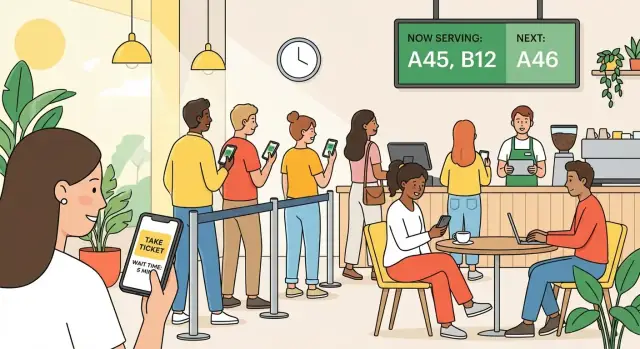
What a Queue Management App Should Solve
A queue management app isn’t just “a digital line.” It’s a practical tool to reduce friction when real people show up, get confused, get impatient, or leave. Before you choose features, clarify the exact pain you’re fixing—and for whom.
The real problems behind long lines
Most on-site queues fail in predictable ways:
- Long, visible lines that feel slow—even when service speed is reasonable.
- Crowding in waiting areas, which frustrates customers and creates safety and comfort issues.
- Unclear or changing wait times, leading to constant “How much longer?” questions at the desk.
- Missed turns when someone steps away, doesn’t hear their name, or staff can’t find them.
A good virtual queue system makes the process legible: who’s next, roughly how long it might take, and what to do if plans change.
Where a waitlist app is most valuable
Your requirements should reflect the venue. Common targets for in-store queue management include:
- Clinics and labs (walk-ins mixed with appointments; privacy needs)
- Salons and barbershops (variable service times; staff schedules)
- Government offices (multiple service desks; strict ordering rules)
- Restaurants (party size; SMS updates; “we’re ready for you” timing)
- Retail pickup and service counters (rush periods; quick triage)
Each one shapes the “right” mobile app for queues: a clinic may prioritize identity and consent, while retail may prioritize speed and simplicity.
Define success in measurable terms
Avoid vague goals like “reduce wait time.” Many of the biggest wins come from reducing uncertainty and perceived waiting. Define success early, such as:
- Shorter perceived waits (customers feel informed and in control)
- Fewer no-shows and walk-aways (people don’t abandon the line)
- Higher satisfaction (better ratings, fewer complaints at the desk)
- Smoother staff workload (less time answering status questions)
These goals translate directly into queue analytics (e.g., abandon rate, average time to serve, notification effectiveness).
Identify stakeholders and their different needs
A queue management app typically serves four stakeholder groups:
- Customers want clarity, fairness, and simple updates (often via mobile ticketing).
- Front-desk staff need fast check-in, predictable reordering rules, and “who’s here?” visibility.
- Managers need control over services, staffing, and performance reports.
- IT/ops care about reliability, device setup, and integration constraints.
When these needs conflict, decide which role is the “source of truth” for queue state. That single decision prevents many V1 failures in a service desk app.
Choose Your Queue Model and Rules
Before you design screens or pick tech, decide what your “queue” means in the real location. The model and rules you choose will shape ticket logic, staff workflow, ETA accuracy, and how fair the system feels.
Walk-ins, appointments, or a hybrid
- Walk-ins only: simplest. Customers join a live line and wait for the next available counter.
- Appointments only: the queue is essentially a schedule with check-in and late/no-show handling.
- Hybrid: common for clinics, banks, and service centers. Define clear rules for how appointments interleave with walk-ins (e.g., “appointments take priority unless more than 10 minutes late”).
One line or many
Decide whether you want:
- Single service line (one queue feeds multiple counters): easiest for customers and often perceived as fairest.
- Multiple services/counters (separate queues per service type): faster routing, but requires good signage and a simple service selection flow.
A practical compromise is a single entry flow where customers pick a service, but staff can re-route tickets when the choice was wrong.
Peak hours and daily volume
Estimate peak arrival rates and typical service times. This helps you set limits like maximum queue size, when to pause new tickets, and whether you need “join later” time windows.
Special cases you must encode
Define these upfront so they don’t turn into ad-hoc exceptions:
- Priority customers (VIP, elderly, urgent cases): how priority is granted, visible, and audited.
- Accessibility needs: seating requests, reduced standing time, optional staff assistance.
- Group bookings: one ticket for many vs. multiple tickets linked together, and what happens if part of the group arrives late.
Write these rules down as plain-language policies first; your app should enforce them consistently.
Define Users and Core Journeys
A queue management app succeeds or fails based on whether it fits the real people using it. Before you pick screens, define your user types and the “happy path” journeys they run dozens of times per day.
Customer journey (self-serve, low effort)
A customer typically wants one thing: certainty. They don’t want to guess how long the wait is or wonder whether they’ll miss their turn.
A practical Version 1 customer journey:
- Join the queue by scanning a QR code at the entrance or selecting a service (e.g., “Returns,” “New account,” “Service desk”).
- See an ETA and position immediately, plus guidance like “You can wait nearby.”
- Get notified when they’re getting close (e.g., “You’re next in ~5 minutes”).
- Check in when they arrive on-site (prevents remote joins from clogging the line). Check-in can be QR, short code, or geofence—keep it simple.
- Cancel easily if plans change, ideally with one tap.
Key UX principle: customers should never need to ask staff “Am I in the system?” or “How much longer?”
Staff journey (fast operation under pressure)
Staff need speed, clarity, and a way to handle exceptions without creating chaos.
The core staff journey:
- Create tickets for walk-ins or customers who can’t self-serve.
- Call next with one tap, showing the customer identifier to announce (name, initials, or ticket number).
- Skip / recall when someone is temporarily away, without permanently losing their place.
- Mark served (or “no-show”) to keep the queue accurate.
- Add notes when necessary (e.g., “Needs ID,” “Prefers Spanish,” “Complex case”).
Make the staff view feel like a service desk app, not a social feed: big buttons, minimal typing, and clear status.
Manager journey (tuning the system)
Managers care about balancing demand and staffing—without manually babysitting the queue.
Manager essentials:
- Configure services (service types, expected duration, priority rules if any).
- Set staffing (which counters/agents are active, who handles which service).
- View reports to spot bottlenecks: average wait, peak times, abandonment rate.
Admin journey (control and consistency)
Admins keep locations consistent and secure:
- User roles and permissions (staff vs. manager vs. admin).
- Location setup (opening hours, service menu, branding).
- Device management for kiosks/tablets (lockdown mode, pairing, replacements).
Once these journeys are written down, feature decisions get easier: if it doesn’t improve a core journey, it can wait.
Must-Have Features for Version 1
A solid V1 should cover the full “join → wait → get called → get served” loop without edge cases turning into chaos at the counter. Focus on a small set of features that staff can trust and customers can understand.
Ticket creation (3 entry points)
Provide a few simple ways to create a ticket so the queue works even when connectivity or staffing levels vary:
- QR code at the entrance: customers scan and join instantly.
- Staff-created ticket: staff can add a customer from a tablet/phone (useful for seniors, walk-ins without smartphones, or accessibility needs).
- In-app join: returning customers can join from the app (optionally with a time window).
Live position + estimated wait time
Show current position and an ETA that’s explainable. Avoid “AI” estimates in V1—clarity beats sophistication.
A practical formula:
- Track average service time per completed ticket (e.g., last 10–20 tickets).
- Estimate:
ETA ≈ (people_ahead ÷ active_counters) × avg_service_time.
Always label ETA as an estimate and refresh it when counters open/close or service speed changes.
Notifications (configurable)
Customers should be able to step away without missing their turn.
Support push, SMS, and/or email (pick what fits your audience), with configurable triggers like:
- “You’re 5 away”
- “It’s almost your turn (≈10 minutes)”
- “Now serving / please check in”
Check-in + anti-abuse controls
Queues break when people reserve spots unfairly. Add lightweight controls:
- Geo-fence check-in (or “must be on-site” verification) before being called.
- One ticket per phone number/device (with staff override).
- Timeouts for no-shows (grace period, then auto-skip with rejoin option).
Multi-location basics (only if you need it)
If you operate multiple sites, include location selection, separate queues per site, and staff accounts scoped to one location. Keep reporting and settings minimal in V1—just enough to avoid mixing queues.
Nice-to-Have Features for Later Releases
Once V1 is stable, prioritize extras that reduce staff effort and improve the on-site experience without changing your core queue logic. Make them optional per location so small stores aren’t forced into complex workflows.
Appointment scheduling integration
If you support both appointments and walk-ins, add lightweight scheduling sync. The key isn’t building a full calendar product—it’s handling real-world edge cases.
For example: send an “arrival check-in” prompt 10–15 minutes before the slot, allow customers to confirm they’re on the way, and define late rules (grace period, auto-convert to walk-in, or move to the next available staff member). This reduces no-shows and prevents staff from manually reshuffling.
Remote join with capacity controls
Remote joining is great until it creates a crowd at the entrance. Add capacity controls like:
- Limit remote joins to a time window (e.g., only when estimated wait is under 45 minutes)
- Geofencing or “nearby” checks (optional), with a manual override for accessibility needs
- Per-service caps so one popular service doesn’t flood the queue
This keeps the virtual queue system feeling fair for customers already on-site.
On-site displays and fallbacks
A simple TV dashboard (now serving / next up) can dramatically reduce “who’s next?” questions. Pair it with a tablet mode for reception to quickly add walk-ins and mark no-shows.
For reliability, consider a printer fallback: if a customer doesn’t have a phone, print a ticket with a short code and estimated wait. This also helps in low-connectivity areas.
Languages, accessibility, and post-visit feedback
Add multi-language support for the customer-facing flow first (join, status, notifications), then staff screens.
Accessibility settings that matter most: larger text, clear contrast, screen-reader friendly labels, and vibration/visual alternatives to audio cues.
Finally, trigger a quick feedback prompt after service (1–2 questions). Tie it to the visit record so you can spot patterns by service type, staff team, or time of day—without turning your waitlist app into a survey tool.
Plan the System Architecture (Simple and Practical)
A queue management app works best when the architecture stays boring: a small set of apps talking to a single backend that owns “the truth” about tickets and their status.
Pick the platforms (and keep roles separate)
Most on-site setups need three touchpoints:
- Customer app (iOS/Android) for joining the queue, checking position, and getting alerts.
- Staff tablet app (often iPad/Android tablet) for calling the next customer, pausing a service, or moving tickets.
- Web admin for configuring locations, services, opening hours, printers/kiosks, and staff permissions.
If your customers won’t install an app, the customer experience can be a lightweight web flow (QR → web page) while you still keep the staff tablet and admin web.
Decide the build approach
For Version 1, a single cross-platform codebase (React Native or Flutter) often covers both the customer and staff apps with different sign-in roles and UI. It speeds up delivery and reduces maintenance.
Consider separate apps only if staff needs deep hardware integrations (special printers, barcode scanners) or if the customer experience must be highly branded and frequently updated.
If you want to validate workflows quickly before committing engineering time, tools like Koder.ai can help you prototype the customer web flow, staff console, and admin screens from a chat-based spec. It’s designed for vibe-coding full-stack apps (commonly React on the frontend, Go + PostgreSQL on the backend), and it supports source code export—useful if you plan to take the MVP in-house later.
Backend needs (the “queue brain”)
Your backend should provide:
- Real-time updates (ticket created, called, served, canceled) via WebSockets or Server-Sent Events.
- Notification dispatch (push/SMS/email) triggered by ticket events.
- Admin settings and access control (who can manage which location/service).
- Analytics events (wait time, serve time, abandonment, peak hours).
A simple pattern is a REST/GraphQL API for regular requests plus a real-time channel for live queue state.
Data storage basics (start minimal)
You can ship a solid MVP with a small schema:
- Locations (store/branch) and Services (counter types).
- Tickets (number, status, timestamps, service, location, priority).
- Customers (minimal): optional name/phone, notification preference—avoid collecting more than needed.
- Events: append-only log (created/called/served/no-show) to power analytics and debugging.
This structure keeps operations reliable today and makes it easy to extend later without rewriting the foundation.
Real-Time Updates, Notifications, and Reliability
A queue management app only feels “real” if customers and staff see the same status at the same time. The goal is to get there without overbuilding on day one.
Real-time queue updates
For Version 1, pick one primary real-time approach and keep a fallback.
If you can, use WebSockets (or a managed service that provides WebSocket-style subscriptions). This lets the staff app publish events like “ticket 42 called” and the customer app instantly update the status screen.
If your team prefers less custom infrastructure, a real-time database with subscriptions can work well for simple queue documents (position, estimated wait, called/served status).
As a safety net, implement polling fallback (e.g., every 10–20 seconds) when the app detects the real-time channel is unavailable. Polling shouldn’t be the default, but it’s a reliable backstop in noisy Wi‑Fi environments.
Notification delivery that people actually receive
Real-time updates are great when the app is open. For background alerts, combine:
- Push notifications via APNs (iOS) and FCM (Android) for standard events (you’re next, please return, delay updates).
- SMS via a provider for critical alerts (for example, “You missed your call—tap to rejoin”), especially if customers don’t install the app or disable push.
Treat SMS as an escalation path rather than the primary channel to control cost and avoid spamming.
Reliability under poor connectivity (staff-side)
Staff devices are the control plane—if they go offline, the queue can’t stall. Use an offline-first action log:
- Cache queue actions locally (call next, mark served, skip, move back).
- Sync them when connectivity returns.
- Add conflict rules (e.g., prevent two devices from calling the same ticket).
Also show clear connection status to staff, with a “Syncing…” indicator and a timestamp of the last successful update.
Scaling to multiple branches without over-engineering
Design your data model around locations/branches from the start (each queue belongs to a branch), but keep deployment simple:
- A single backend can serve many branches.
- Use per-branch configuration (hours, services, max capacity) instead of separate codebases.
- Partition real-time channels by branch to avoid sending irrelevant updates.
This supports growth while staying manageable for a first release.
Hardware and On-Site Setup
A queue management app can run on phones, but smooth on-site operations usually depend on a few dedicated devices. The goal is consistency: staff should always know which screen to use, customers should always see where to go, and the setup should survive a busy day without fiddling.
Front desk setup (your “control center”)
Most locations do best with a tablet at the front desk that acts as the main console to:
- Create tickets (walk-ins), search customers, and adjust priority rules
- Call the next customer and route them to a counter/room
- Handle exceptions (no-shows, returns, “hold for 5 minutes”, transfers)
Mounting the tablet on a stand reduces drops and keeps it visible. If you expect multiple service points, consider one tablet per station, but keep roles clear (e.g., “Greeter” vs. “Service Desk 1”).
Customer entry: QR, kiosk, or both
Offer an optional QR code sign near the entrance so customers can join from their own phone. Place it where people naturally pause (doorway, host stand), and include a short instruction line (“Scan to join the waitlist”).
If many customers don’t want to scan, add a kiosk-mode device (tablet on a stand) that only shows the join screen. Kiosk mode should block settings, notifications, and app switching.
“Now Serving” display and audio
A TV/monitor facing the waiting area reduces “Did I miss my turn?” questions. Keep it high-contrast and readable from a distance (“Now Serving: A12”). If you’ll make announcements, test volume levels under real noise conditions.
Optional peripherals (when they’re worth it)
A receipt printer can help in high-throughput environments or where phone usage is low. Use it for ticket numbers and estimated wait ranges, not long messages.
Device management and day-to-day reliability
Treat on-site devices like shared equipment:
- Lock down settings (kiosk mode / guided access) and restrict installs
- Plan charging (powered stands, spare cables, labeled outlets)
- Set a simple backup routine (spare tablet pre-configured, quick login)
- Keep a paper “fallback flow” for outages (manual numbering) so service continues
Privacy, Security, and Compliance Considerations
Queue management apps often feel “low risk,” but they still touch personal data (names, phone numbers, device tokens) and can affect trust on-site. Treat privacy and security as product features from day one.
Keep data minimal (and purposeful)
Collect only what you need to run the queue. For many locations, a ticket number plus an optional first name is enough. Avoid sensitive data (full date of birth, precise location, government IDs) unless there’s a clear operational or legal need.
If you store phone numbers or emails for waitlist updates, define retention rules: delete them after service, or after a short window needed for dispute handling. Document what you store, why, and for how long.
Separate consent: service alerts vs. marketing
Service notifications (e.g., “You’re next”) should not be bundled with marketing consent. Use separate, explicit opt-ins:
- Service alerts: operational, time-bound, easy to stop when the visit ends.
- Marketing: optional, revocable, and clearly described.
This reduces complaints and helps meet common privacy expectations.
Security basics that matter on-site
Implement authentication for staff, role-based access (admin vs. agent vs. kiosk), and audit logs for actions like skipping tickets or editing customer details. Protect data in transit (HTTPS) and at rest, and ensure sessions expire on shared devices.
Regulations, accessibility, and decisions
Check relevant local rules (privacy notices, data residency, SMS requirements) and accessibility expectations for customer-facing screens. Keep a simple “compliance notes” document that records decisions and trade-offs—this becomes invaluable during audits, partnerships, or expansion.
UX and UI Design for Customers and Staff
Great queue apps feel “instant” because the UI removes decisions. Your goal is to help a customer join in seconds, then reduce anxiety while they wait. For staff, the goal is confident, mistake-resistant actions—especially during busy peaks.
Customer UI: fast entry, clear status
Design for speed: joining the queue should take a few taps with big, obvious buttons (e.g., Join Queue, Check Status, Cancel). Ask only what you truly need (name/phone, party size, service type). If you need more details, collect them later.
Once someone is waiting, the status screen should be the home base:
- Ticket number and current position (or “You’re up soon”)
- Where to stand and what to prepare (ID, documents, forms)
- A large “I’m here” confirmation if you support on-site check-in
Set expectations (and explain changes)
Avoid overly precise estimates. Show ranges like 10–15 min and add plain-language context when the estimate changes (“Two longer appointments are in progress”). This builds trust and reduces desk interruptions.
Accessibility: usable for everyone
Use readable font sizes, strong color contrast, and clear labels (not only icons). Support screen readers/voice-over, large tap targets, and avoid color-only status indicators. If you display a QR code, also provide a manual code entry option.
Staff UI: one screen, minimal taps
Staff should handle the core flow from a single screen: Call next, Recall, No-show, Served. Show key details (service type, wait time, notes) without digging through menus. Add gentle confirmations for irreversible actions and an “Undo” for common mistakes.
Keep the UI consistent across phones and tablets, and optimize for one-handed use at the service desk.
Analytics and Measuring Queue Performance
You can’t improve what you don’t measure. Analytics in a queue management app should answer two practical questions for managers: How long are people actually waiting? and Where are we losing them? Start simple, but make sure the data is trustworthy and tied to real events in the customer journey.
Key metrics to track from day one
Focus on a small set of metrics that directly reflect customer experience and operational efficiency:
- Average wait time: time from ticket created to being called (and optionally to check-in).
- Service time: time from “served started” to “served completed.”
- Abandonment rate: percent of tickets canceled, timed out, or “no-show.”
- Peak load: busiest hours/days, plus queue length distribution over time.
A common pitfall is using only averages. Add a median (or percentiles like P90) when you can, because a few very long waits can distort the story.
Event tracking (your analytics foundation)
Good analytics starts with consistent event tracking. Define events as state changes so they’re easy to log and audit:
- Ticket created
- Customer notified (SMS/push sent)
- Customer checked-in (on-site confirmation)
- Customer called (assigned to desk/agent)
- Customer served (service started/completed)
- Ticket canceled (by customer or staff)
These events let you compute metrics reliably even if the UI changes later. They also make it easier to explain numbers to staff (“we measure wait time from X to Y”) and to diagnose issues (e.g., too many “called” but not “served” events).
Dashboards managers will actually use
Keep dashboards decision-oriented:
- Daily/weekly trends for wait time, abandonment, and volume
- Per-service performance (e.g., returns vs. consultations)
- Time-of-day heatmaps to see peak load at a glance
Turning insights into operational changes
Analytics should drive action: adjust staffing during peak load, tune queue rules (prioritization, max tickets), and refine notification timing to reduce abandonment. For more operational playbooks and templates, see related guides in our /blog.
Testing, Pilot Launch, and Rollout Plan
Treat your first release like a controlled experiment. A queue management app changes staff routines and customer expectations, so testing must include real people, real devices, and real peak times—not just happy-path demos.
Test what matters (before customers see it)
Start with scenario-based testing: “customer joins remotely,” “walk-in gets a ticket on-site,” “staff pauses a queue,” “no-shows,” “priority customers,” and “closing time.” Add failure cases like spotty Wi‑Fi, a tablet reboot, or a printer running out of paper. Confirm the system degrades gracefully and staff can recover quickly.
Pilot in one location
Run a pilot in a single store/branch first, with limited hours and a small, trained team. Put up clear signage near the entrance and service area that explains:
- How to join the queue (QR, kiosk, or staff)
- What customers will receive (ticket number, ETA, notifications)
- What to do if they miss a call
Keep the pilot short (1–2 weeks), but include at least one busy period.
Create a rollout checklist
A rollout succeeds when frontline staff feel supported. Prepare a simple checklist that includes staff scripts (“what to say at the door”), a one-page FAQ, and an escalation path for technical issues (who to call, expected response time, and a backup process like paper tickets).
Collect feedback and iterate weekly
Capture feedback from both staff and customers. Ask staff what slows them down; ask customers what confused them. Review metrics and comments weekly, ship small improvements, and update your scripts/signage as you learn.
Pricing and packaging guidance
Before expanding to more locations, decide how you’ll package the product: per location, per counter, or per monthly volume. Make it easy for stakeholders to choose a plan and get help—point them to /pricing for options or /contact for rollout support.
If you’re building and marketing your own queue solution, it can also help to align distribution with product iteration: for example, Koder.ai offers free through enterprise tiers and supports fast MVP iterations, and teams can earn credits via its content and referral programs—useful when you’re testing go-to-market while you refine your queue workflows.
FAQ
What problems should a queue management app actually solve?
Start by targeting the real friction, not just “long lines.” Common problems include visible crowding, unclear wait times, missed turns, and staff constantly answering status questions.
Define success with measurable outcomes like lower abandonment (walk-aways), fewer no-shows, higher satisfaction, and reduced front-desk interruptions.
Which businesses benefit most from an on-site virtual queue system?
It’s especially valuable anywhere demand is bursty and service time varies:
- Clinics and labs (hybrid walk-in + appointments, privacy)
- Salons/barbershops (variable duration, staff schedules)
- Government offices (multiple services, strict order)
- Restaurants (party size, SMS timing)
- Retail pickup/service counters (rush periods, triage)
Your venue type should drive the queue rules and the UI, not the other way around.
How do I choose between walk-ins, appointments, or a hybrid queue model?
Pick a model that matches reality:
- Walk-ins: one live line, simplest rules.
- Appointments: schedule + check-in + late/no-show handling.
- Hybrid: define how appointments interleave with walk-ins (e.g., “appointments prioritized unless >10 minutes late”).
Write the rules as plain-language policies first, then enforce them consistently in the app.
Should I build one queue or multiple queues per service type?
A single line feeding multiple counters is usually the easiest and feels fairest.
Use multiple queues when service types require different staff skills or different stations.
A practical compromise: one entry flow where customers pick a service, but staff can re-route tickets if the selection was wrong.
What are the must-have features for a Version 1 queue management app?
A solid V1 covers the full loop: join → wait → get called → get served.
Must-haves typically include:
- Multiple ticket entry points (QR, staff-created, optional in-app join)
- Live position + explainable ETA
- Notifications (push/SMS/email) with simple triggers
- Check-in + anti-abuse controls (on-site verification, no-show timeouts)
- Staff actions: call next, skip/recall, mark served/no-show, add notes
If it doesn’t improve a core journey, defer it.
How can I estimate wait time without overcomplicating it?
Keep it explainable and refresh often. A practical baseline:
- Track average service time from recent completed tickets (e.g., last 10–20).
- Estimate:
ETA ≈ (people_ahead ÷ active_counters) × avg_service_time.
Show ETA as a range (e.g., 10–15 min) and update when counters open/close or service speed changes.
What notification strategy works best for on-site queue apps?
Use notifications so people can step away without missing their turn.
Good triggers include:
- “You’re 5 away”
- “Almost your turn (~10 minutes)”
- “Now serving / please check in”
Treat SMS as escalation (for critical alerts or users without the app) to control cost and avoid spamming.
How do I prevent abuse and “remote spot holding” in a waitlist app?
Add lightweight controls that keep the line fair:
- Require on-site check-in (QR code, short code, geofence)
- Limit to one ticket per phone/device (with staff override)
- Implement no-show grace periods and auto-skip rules
These measures prevent remote “spot holding” while still supporting accessibility needs through manual overrides.
What devices and on-site hardware should I plan for?
Most setups use three touchpoints:
- Customer web/app (join, status, alerts)
- Staff tablet app (call next, manage exceptions)
- Web admin (services, hours, roles, device setup)
On-site hardware that often helps:
- A front-desk tablet on a stand
- Optional kiosk-mode tablet for self check-in
- “Now Serving” TV/monitor
- Optional receipt printer for low-phone environments
Also plan a paper fallback flow for outages.
What analytics should a queue management app measure from day one?
Track metrics from real state changes so your numbers stay trustworthy.
Core events:
- Ticket created
- Customer notified (push/SMS sent)
- Customer checked-in
- Customer called
- Service started/completed
- Ticket canceled/no-show
Key metrics:
- Average/median wait time
- Service time
- Abandonment rate
- Peak load by time of day
Use these to adjust staffing, tune rules, and refine notification timing.