

How to Build a Product Website With Interactive Walkthroughs
Learn how to plan, design, and build a product website that includes interactive walkthroughs—covering UX, tech choices, tracking, and launch.
Set Goals for the Website and Walkthroughs
Before you design pages or pick tooling, get clear on what you’re building and why. A product website with interactive walkthroughs isn’t just “marketing plus a demo”—it’s a guided path that helps the right people understand the value quickly and take a next step with confidence.
Define the product, audience, and the job-to-be-done
Write a one-sentence description of your product (what it does and for whom). Then define the primary job-to-be-done: the real outcome a visitor wants.
Example: “I need to see if this tool can automate my weekly reporting without involving engineering.”
If you’re trying to serve multiple audiences, pick one primary audience for the first version. You can expand later.
Clarify what the walkthrough should help users accomplish
Your walkthrough should deliver a specific “win” that maps to the job-to-be-done. Good walkthrough outcomes include:
- Producing a realistic sample result (a report, a dashboard, a plan)
- Completing a core workflow in a safe sandbox
- Making a confident decision: “Yes, this fits our process”
Keep it focused. One walkthrough that proves value beats five that explain features.
Choose a north-star metric
Decide what success means in one measurable action, such as trial starts, demo requests, or activation (e.g., completing a key step). Your website and walkthrough should both push toward the same north star.
List key objections to address
Collect the top objections you hear in sales calls, support tickets, and reviews: pricing, security, setup time, integrations, learning curve, or “will this work for my use case?” Make sure the website answers these before the walkthrough begins—and the walkthrough reinforces them with proof.
Set success criteria for the walkthrough experience
Define pass/fail signals: completion rate, time to first value, drop-off points, and what percentage of users reach the final call to action. This becomes your baseline for improvement after launch.
Plan the User Journey and Site Structure
Before you design pages or write walkthrough copy, decide what you want a visitor to do next—at every moment. Interactive walkthroughs work best when they’re the natural continuation of a clear story, not a surprise detour.
Map the ideal journey: discovery → proof → try → activate
Start with a simple path that matches how people build confidence:
- Discovery: “What is this, and is it for me?”
- Proof: “Does it work? Can I trust it?”
- Try: “Let me experience it quickly.”
- Activate: “Help me reach my first value.”
Your job is to reduce uncertainty at each stage. Discovery needs clarity. Proof needs specifics (results, examples, constraints). Try needs speed. Activate needs guidance.
Identify walkthrough entry points (and make them consistent)
Decide where the “try it” moment begins. Common entry points include:
- Home: a primary call to action that starts a lightweight demo walkthrough
- Features pages: contextual “See it in action” triggers next to key capabilities
- Pricing page: “Try before you choose” entry for visitors comparing plans
Consistency matters: use the same labels and expectations so people don’t wonder whether they’re about to watch a video, start a demo, or sign up.
Define walkthrough milestones that match user intent
A walkthrough shouldn’t be “Step 1, Step 2, Step 3” unless those steps create value. Define milestones like:
- Step 1: choose a goal or template (personalization)
- Step 2: complete one meaningful action (the “aha”)
- First value: see an outcome (saved time, created asset, insight generated)
These milestones should align with your site’s narrative: the page promises something, the walkthrough delivers it.
Decide what must be interactive vs. static
Use interactive walkthroughs for actions people need to feel (configuration, building, exploring). Use static content for what people need to understand quickly (positioning, limitations, pricing logic, security notes).
Create a simple sitemap and content outline
Keep your structure easy to scan. A basic sitemap might include: Home → Features → Use Cases → Pricing → Demo/Walkthrough → FAQ/Trust.
Then outline what question each page answers and which walkthrough (if any) it should start.
Design Core Pages That Support Walkthrough Adoption
Your core pages should do two jobs at once: explain the product clearly and funnel the right visitors into an interactive walkthrough with confidence. The goal isn’t to “sell harder,” but to remove uncertainty so more people are willing to try the guided experience.
Homepage: make the first step obvious
Lead with a crisp value proposition, who it’s for, and one primary call to action that starts the walkthrough (or takes users to a page where they can launch it). Keep supporting CTAs secondary so visitors don’t get decision fatigue.
Include a short “what you’ll do in the walkthrough” preview (2–4 steps) to set expectations and reduce drop-off.
Feature pages: one page per promise
Dedicate a page to each major feature, framed around outcomes (“reduce onboarding time,” “ship faster”) and backed by concrete examples.
Each feature page should end with a context-specific CTA, such as “Try this feature in the walkthrough.” If your walkthrough can deep-link into a relevant step, match the page copy to what users will see next.
Pricing page: clarity beats cleverness
Make tiers easy to compare, repeat the CTA near decision points, and answer common objections with a tight FAQ. If the walkthrough is available without signup, say so plainly—lowering perceived risk often lifts trial starts.
Proof pages: trust without hype
Case studies and testimonials should focus on real outcomes and constraints (“after 6 weeks,” “with a 3-person team”). Avoid inflated claims; credibility is what pushes visitors to invest time in a walkthrough.
Support and trust pages: remove hidden blockers
Have dedicated pages for security, integrations, and documentation references where relevant. These pages often get visited right before conversion; a well-placed walkthrough CTA here can capture high-intent visitors who just needed reassurance.
Create a Walkthrough Strategy (Formats, Triggers, Copy)
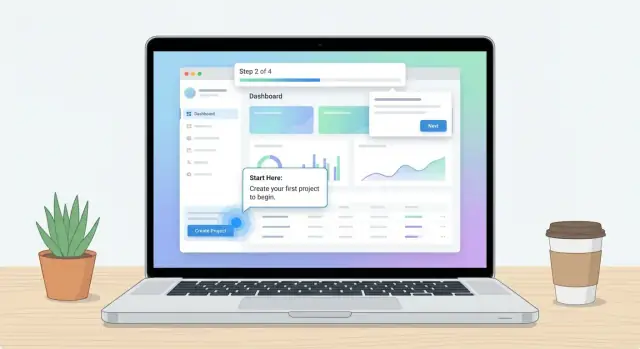
An interactive walkthrough is any guided, step-by-step experience that helps visitors “learn by doing” instead of just reading. Before you design screens, decide what the walkthrough should feel like for your product—and what success looks like (e.g., reaching a key feature, completing a setup task, or understanding a workflow).
Pick the right format (and mix them intentionally)
Most teams benefit from a small set of patterns:
- Tooltips for explaining a single control (“Click here to import your CSV”).
- Hotspots to invite exploration without interrupting (“New: Automations”).
- Checklists to guide multi-step setup (“Connect data → Invite teammates → Create first report”).
- Mini product tour for a quick orientation (5–7 steps max).
Choose formats based on intent: tooltips teach an action, hotspots spark curiosity, checklists drive completion.
Decide when the walkthrough starts (triggers)
Triggers should match user readiness:
- On page load only for the simplest, highest-confidence tours.
- On click (e.g., “Start interactive tour”) for visitors who want control.
- After signup when you can personalize steps to their role or goal.
- Via CTA (buttons like “Try it with sample data”) that naturally lead into a guided flow.
Write microcopy that moves people forward
Keep each step short, skippable, and action-first:
- Start with a verb: “Choose a template.” “Add a teammate.”
- Use plain language and one idea per step.
- Add a progress indicator (“Step 2 of 5”) to reduce drop-off.
Plan the exit (and the return)
Always provide clear options: Skip, Remind me later, and Restart tour. Skipping shouldn’t feel like failure—treat it as a preference, and make it easy to re-enter when the user is ready.
Decide Where Walkthroughs Live: Site, App, or Hybrid
Where you place an interactive walkthrough changes everything: what visitors can experience, how much friction you introduce, and how you measure success. The right choice depends on whether your walkthrough is meant to sell the promise or teach the product.
Option A: On-site walkthroughs (marketing-page previews)
Use this when your goal is to help visitors understand value fast, before they commit.
An on-site walkthrough works best as an interactive feature preview: click through a simulated UI, explore a workflow, or “try” a key moment without creating an account. It’s ideal for top-of-funnel traffic and can lift conversions on your landing page and pricing page by reducing uncertainty.
Option B: App walkthroughs (after signup onboarding)
Use this when the walkthrough must interact with real data and real settings.
In-app walkthroughs are true onboarding: they guide new users through setup, first project creation, integrations, or inviting teammates. Because they’re inside the product, they can react to what the user has (or hasn’t) done, making the guidance feel personal and timely.
Option C: Hybrid (teaser on the site + full walkthrough in the app)
Hybrid is often the most effective: a lightweight teaser on the product website to build confidence, followed by a deeper in-app walkthrough to drive activation.
The teaser should focus on outcomes and “aha” moments. The in-app walkthrough should focus on completion: connect, configure, create, and succeed.
Hosting choice: website vs. app (or a subdomain)
Decide where the walkthrough is technically hosted based on user expectations and consistency. If it’s a marketing preview, keeping it on the website usually feels smoother. If it requires authentication or personal data, it belongs in the app—often on the same domain or an app subdomain.
Make the handoff unmistakable
Your call to action should clearly explain what happens next:
- “Start free trial to continue in the app”
- “Send me a magic link to open this walkthrough in my workspace”
Aim for a seamless transition: visitors should recognize the same flow they just previewed, and immediately see how to resume it after signup.
Choose the Tech Stack and Walkthrough Tooling
Your tooling choices determine how quickly you can ship walkthroughs, how personalized they can be, and how painful they’ll be to maintain later. Aim for a stack that lets marketing update pages while product teams iterate on tours without redeploying the whole site.
Walkthrough tooling: no-code/low-code vs. custom
No-code/low-code product tour tools are usually the fastest path. They’re great when you need tooltips, hotspots, checklists, and simple branching without engineering time.
When evaluating options, focus on:
- Pricing model: per MAU, per published tour, or per environment (staging vs. production)
- Limits: number of steps, audience segments, localization, and team seats
- Targeting: show a walkthrough by page, UTM, referrer, role, or funnel stage
- Delivery controls: frequency caps, dismissal behavior, and “don’t show again” rules
A custom JavaScript build makes sense when walkthroughs are a core differentiator or when performance is extremely sensitive. You’ll gain precise control over styling, loading, and data collection—but you’ll also own QA, browser quirks, accessibility, and ongoing updates whenever the site changes.
If you want to move fast without rebuilding your whole pipeline, consider generating the marketing site and the app shell together. For example, Koder.ai can help teams prototype and ship a React-based product website and a real app experience from a chat-driven spec, then iterate safely using planning mode and snapshots/rollback. Because you can export source code and deploy with custom domains, it’s a practical way to keep the “teaser on the site + activation in the app” approach consistent as your walkthroughs evolve.
CMS choice: who needs to ship updates?
If non-technical teammates will regularly update landing pages, FAQs, and release notes, pick a CMS that supports fast edits and safe publishing.
- A traditional CMS can be simpler for page building and previews.
- A headless CMS often shines when you want the same content reused across the product website and in-app surfaces.
Either way, define ownership: who updates walkthrough copy, who updates pages, and what the approval flow is.
Analytics stack: measure both interest and activation
Interactive walkthroughs touch both marketing and product outcomes, so plan for a combined view:
- Web analytics to understand page conversion (for example, from homepage to /pricing, or discovery via /blog)
- Product analytics to see whether walkthrough users reach activation milestones
- Event tracking for step-by-step signals (started, completed, skipped, CTA clicked)
Decide event names and properties early (page, audience segment, experiment variant) so reporting stays consistent as you scale.
Design for Performance, Accessibility, and Mobile
Interactive walkthroughs only help if people can actually use them. If pages load slowly, text is hard to read, or the walkthrough traps someone on a small screen, the experience turns from “guided” to “blocked.” This section focuses on the practical design decisions that keep walkthroughs fast, inclusive, and effective everywhere.
Use a component-based design system
Create a small set of reusable UI components (buttons, modals, tooltips, step cards, banners, form fields). Use the same components across marketing pages and walkthrough overlays.
This consistency reduces design drift, speeds up iteration, and makes your walkthrough feel like part of the product—not an add-on. It also improves conversion because CTAs, typography, and spacing behave predictably from page to page.
Keep load times tight
Walkthroughs add scripts and UI layers, so performance needs a budget.
- Optimize images (correct dimensions, modern formats, compression)
- Limit font weights and preload only what’s necessary
- Defer non-critical scripts and remove unused tags
- Avoid heavy animation for walkthrough steps; keep transitions subtle
A good rule: the page should still feel quick even if the walkthrough fails to load.
Build accessibility into the walkthrough, not after
A walkthrough is often a sequence of focus changes, overlays, and popups—exactly where accessibility breaks.
Ensure:
- Full keyboard navigation (Tab order, Enter/Escape behaviors)
- Visible focus states on interactive elements
- Readable contrast for overlay text and dimmed backgrounds
- Clear headings and labels so screen readers can follow steps
Mobile-first walkthrough behavior
On phones, overlays can cover the target UI and force users into dead ends.
Prefer bottom sheets, compact tips, and scroll-to-target behavior. Avoid blocking the screen with large modals, and always include a clear “Skip” and “Finish” action.
Plan for localization
If you serve multiple languages, design for longer text, different line breaks, and right-to-left layouts where needed. Keep step copy flexible, avoid text baked into images, and allow per-locale adjustments to triggers and CTAs.
Build Page Layouts That Lead Into the Walkthrough
A walkthrough shouldn’t feel like a separate “thing” you bolt onto a page. The layout should naturally build confidence, answer objections, and then offer the walkthrough at the exact moment a visitor is ready to explore.
Wireframe the sections that do the heavy lifting
Start with a simple page skeleton you can reuse across key pages (home, core feature pages, pricing).
- Hero: one clear value statement, one primary action
- Social proof: logos, short testimonial, metric—keep it scannable
- Feature blocks: 3–6 benefits, grouped by outcome (not by internal product modules)
- CTA bands: repeated “next step” moments after major sections
- FAQ: the top 6–10 friction questions placed near the bottom, right before the final CTA
This structure gives visitors a steady path: understand → trust → visualize value → act.
Place walkthrough CTAs at moments of intent
A walkthrough CTA works best when it’s attached to a specific promise. Put it:
- directly inside feature sections (e.g., “See how this works in 2 minutes”)
- near comparisons (“Not sure which plan fits? Try the walkthrough”)
- next to demo-oriented elements (screenshots, short “how it works” summaries)
Avoid placing the walkthrough link only in the navigation. Navigation clicks are low-intent; feature sections are high-intent.
Use one primary CTA per page (and make it consistent)
Pick a single “main move” for the page—typically Start walkthrough or Try the interactive tour—and repeat that same CTA label throughout.
If you must include a secondary action (like “Contact sales”), visually down-rank it so it doesn’t compete. Competing buttons create hesitation.
Make the entry visible, not intrusive
Treat the walkthrough entry like a helpful guide, not a pop-up ambush. Good defaults:
- a clear button in the hero
- inline CTAs inside feature blocks
- a final CTA after the FAQ
Save attention-grabbing patterns (sticky banners, slide-ins) for returning visitors or high-intent pages, and only if they don’t obscure reading.
Put friction-reducers right before the CTA
Your final section should remove the “last mile” doubts. Short FAQs, setup time, privacy notes, and “what you’ll see in the walkthrough” can increase clicks without adding clutter—because they answer the question behind the hesitation.
Instrument Analytics for Walkthrough and Website Conversion
Interactive walkthroughs feel “magical” when they work—and confusing when they don’t. Analytics is how you turn that feeling into measurable, repeatable improvements. The goal isn’t to track everything; it’s to track the moments that explain adoption and drop-off.
Define a clean event vocabulary
Pick event names that are consistent across your site, product, and walkthrough tooling. Start with a small set you’ll actually use:
walkthrough_startedstep_viewedcompleteddismissed
Add a few shared properties so you can compare performance across pages and campaigns:
{
  "event": "step_viewed",
  "walkthrough_id": "pricing-tour",
  "step_id": "value-proof",
  "page": "/pricing",
  "entry_source": "cta_button",
  "campaign": "winter_promo",
  "referrer": "newsletter",
  "device": "mobile"
}
Track where people enter the walkthrough
Attribution matters because a walkthrough launched from a hero CTA behaves differently than one launched from a sticky button or an exit-intent prompt. Track the entry source at minimum:
- Page (URL or page type)
- Button or trigger name
- Campaign parameters and referral source
Build funnels that connect marketing to activation
Set up a primary funnel that matches your business outcome:
Visit → CTA click → Walkthrough start → Signup → Activation
This gives you a single conversion narrative while still letting you diagnose each stage. If activation happens in your app, ensure IDs (anonymous and logged-in) are stitched correctly so the funnel doesn’t break at signup.
Dashboards for step-by-step drop-off
Create dashboards that show conversion and drop-off by step, not just overall completion. Look for:
- Steps with high “viewed” but low “next” rates
- Frequent dismissals on the same step
- Big differences by device or traffic source
Be careful with session replay and heatmaps
Session replay and heatmaps can explain “why,” but only enable them if your privacy requirements allow it. Mask sensitive fields, honor consent, and document what’s collected so the walkthrough remains trustworthy.
Create Content and Visuals That Support Guided Learning
Interactive walkthroughs work best when your website content does half the teaching before the first step appears. The goal is to reduce confusion: visitors should know what your product is, who it’s for, and what they’ll accomplish in the walkthrough.
Write benefit-led headlines that match intent
Headlines should mirror what a visitor is trying to do, not what your feature is called. If someone arrives searching for “invoice approvals,” a headline like “Approve invoices in minutes, with a clear audit trail” will land better than “Workflow Engine.”
Keep the promise realistic. A walkthrough can demonstrate a quick win, but it can’t replace setup, data imports, or team adoption.
Use concrete examples (and honest visuals)
Choose examples that look like real work: realistic names, plausible numbers, and a scenario that matches your audience. When you show screenshots or UI previews:
- Highlight the exact area the walkthrough will interact with
- Keep annotations minimal (one message per callout)
- Avoid “perfect” mock data that feels staged
If you can’t use screenshots yet, use simple diagrams or short UI snippets that explain outcomes rather than pretending the product is further along than it is.
Walkthrough copy: one action + one reason
Each step should ask for a single action and explain why it matters. This keeps people moving and builds confidence.
Example step copy:
- “Click Create project — so we can generate your dashboard.”
Avoid multi-part instructions (“Click A, then B, then fill C”). Split those into separate steps.
Add trust content without overclaiming
Guided learning reduces risk for new users, but visitors still look for proof. Add testimonials, customer logos, or security statements only when you have permission and they’re current. Place trust near the moment of decision: next to the primary call to action and near the walkthrough entry point.
Create reusable snippets for scale
Build a small content library you can reuse across pages:
- Feature blurbs (benefit + example)
- FAQ answers that remove common hesitation
- CTA variations tied to intent (e.g., “Try the walkthrough,” “See an example workflow”)
This keeps your site consistent and makes future walkthrough updates faster.
Test Walkthroughs, Edge Cases, and Compliance Basics
Interactive walkthroughs sit on top of your website experience, so small issues can turn into big conversion leaks. Treat testing as part of the product—not a final checkbox.
QA the flow across browsers and devices
Start by validating the walkthrough on the combinations your visitors actually use: Chrome/Safari/Firefox, iOS/Android, and at least one smaller-screen device.
Check for UI overlap (tooltips covering buttons), broken positioning after scroll, and timing issues (steps advancing before a page finishes rendering). If your site has sticky headers, chat widgets, or cookie banners, confirm the walkthrough doesn’t collide with them.
Test the awkward realities (edge cases)
Walkthroughs often behave perfectly in the “happy path” and fail everywhere else. Run a checklist for:
- Logged out visitors: steps that assume an account, gated content, or missing data
- Returning visitors: ensure you don’t force the same tour every time
- Repeated starts: restarting mid-flow shouldn’t duplicate overlays or trap the user
- Deep links: starting from a blog post or pricing page should still work
Also test partial completion. If someone closes step 3 of 7, what happens next visit—resume, restart, or stay dismissed?
Don’t block navigation or critical actions
A walkthrough should guide, not trap. Confirm the user can still:
- Navigate menus and footer links
- Submit forms (newsletter, contact, request demo)
- Access pricing, terms, and support content
If the walkthrough uses a modal overlay, add an obvious close button and ensure keyboard users can escape it.
Add a fallback when scripts fail
Assume something will break: ad blockers, slow networks, or third-party script errors. Provide a graceful alternative such as a static demo page section, a short embedded video, or a screenshot carousel. The key is continuity: visitors should still understand the product even if the interactive layer doesn’t load.
Review privacy and consent implications
Walkthrough tracking can touch analytics and behavioral events. Verify your privacy notice reflects what you collect (events, device info, identifiers) and that cookie consent gates non-essential tracking where required. If the walkthrough tool sets cookies or records sessions, confirm settings align with your consent categories and retention policies.
Launch, Experiment, and Maintain the Experience
A strong launch is less about “shipping” and more about making sure people can find the site, load it quickly, and complete the walkthrough without surprises. Then the real work begins: learning from behavior and keeping the experience accurate as the product evolves.
Launch checklist (the unglamorous stuff that saves you)
Before announcing anything, run a tight checklist:
- Redirects: map old URLs to new ones so existing traffic and bookmarks don’t break.
- Sitemap and indexing: confirm your sitemap is generated and your key pages are discoverable.
- Metadata: page titles and descriptions should match the promise of each page and walkthrough.
- Page speed checks: validate performance on mobile data, not just office Wi‑Fi.
- Walkthrough smoke test: complete every path from landing page → trigger → end step → primary call to action.
Run a focused A/B test
Pick one variable at a time and define success in advance (conversion rate, walkthrough completion, qualified signups).
Good starting tests:
- CTA text: “Start free” vs “Try the interactive demo”
- Walkthrough trigger timing: immediate vs after scrolling 30% vs after first click
- Step count: 5–6 steps vs 8–10 steps (watch drop-off per step)
Keep the test window long enough to capture weekday/weekend behavior, and avoid changing other parts of the page mid-test.
Iterate based on data (and a little common sense)
Use analytics and recordings to spot friction. Typical wins include:
- Shortening steps where drop-off spikes
- Moving triggers closer to the moment of intent (e.g., right after pricing or feature comparison)
- Rewriting copy to be concrete (“Upload a file”) instead of abstract (“Configure settings”)
Maintenance and governance
Walkthroughs age quickly when UI labels and flows change. Create an internal process with:
- A simple request form (what changed, which steps are affected)
- An owner for approvals (product + marketing)
- A monthly review cadence and a “fix within 48 hours” rule for broken steps
Treat walkthrough updates like content updates: continuous, scheduled, and accountable.
FAQ
What’s the first thing to define before building a product website with interactive walkthroughs?
Start with the visitor’s job-to-be-done and define one “win” the walkthrough delivers (e.g., generate a realistic sample result or complete a core workflow in a sandbox). Then align both the site and walkthrough to a single north-star metric like trial starts, demo requests, or activation.
If you can’t state the outcome in one sentence, the walkthrough is probably trying to do too much.
What user journey should the website and walkthrough support?
A solid default is:
- Discovery: what it is and who it’s for
- Proof: specific outcomes, examples, constraints, trust
- Try: a fast interactive walkthrough entry
- Activate: in-app guidance to reach first value
Design each page and CTA to reduce uncertainty at the current stage and move users to the next stage.
Where should I place walkthrough entry points on the site?
Use consistent “try it” entry points where intent is highest:
- Homepage hero CTA (primary)
- Contextual CTAs on feature pages (“See it in action”)
- A “try before you choose” option on pricing
Track the entry source (page + trigger) because walkthrough behavior varies a lot depending on where it starts.
How do I decide what the walkthrough steps should be?
Define milestones based on intent and value, not arbitrary steps:
- Pick a goal/template (personalization)
- Complete one meaningful action (the “aha”)
- See first value (output, insight, saved time)
Each milestone should match a promise made on the page that launches the walkthrough.
What should be interactive versus static content?
Make interactive what users need to feel:
- Configuration
- Building/creating
- Exploring a workflow
Keep static what users need to understand fast:
- Positioning and limitations
- Pricing logic
- Security notes and integration details
This keeps the walkthrough short and reduces drop-off.
What pages do I need in the initial sitemap?
A practical structure is Home → Features → Use Cases → Pricing → Demo/Walkthrough → FAQ/Trust.
For each page, write:
- The single question it answers
- The primary CTA
- Whether it starts a walkthrough (and which one)
This prevents random CTAs and makes the walkthrough feel like the natural next step.
How do I increase walkthrough adoption from the homepage and core pages?
Use one primary CTA per page (e.g., “Start walkthrough”) and repeat it through the layout. Add a 2–4 step preview of what the walkthrough will do, and down-rank secondary actions like “Contact sales” so they don’t compete.
Place friction-reducers (setup time, privacy note, “no signup required”) right before the CTA.
What microcopy and UX patterns reduce walkthrough drop-off?
Start with action-first, skippable steps:
- Begin with a verb (“Choose a template”)
- One idea per step
- Add a progress indicator (“Step 2 of 5”)
Always offer Skip, Remind me later, and Restart tour so users don’t feel trapped and can re-enter when ready.
Should walkthroughs live on the marketing site, inside the app, or both?
Choose based on whether you’re selling the promise or teaching the product:
- On-site walkthrough: best for fast value previews without signup
- In-app walkthrough: best for real data, real settings, true onboarding
- Hybrid: teaser on-site + deeper in-app activation flow
Make the handoff explicit (“Start free trial to continue in the app”) so users understand what happens next.
What analytics should I instrument for walkthrough and website conversion?
Track a small, consistent set of events and connect marketing to activation:
- Events:
walkthrough_started,step_viewed,completed,dismissed - Key properties:
walkthrough_id,step_id,page,entry_source,campaign,device
Build one primary funnel: Visit → CTA click → Walkthrough start → Signup → Activation, and create step-by-step drop-off reporting to find where users get stuck.