

How to Build a School Website With Clear Enrollment Info
Step-by-step guide to creating a school or kindergarten website with clear enrollment info: pages to include, forms, accessibility, privacy, and launch tips.
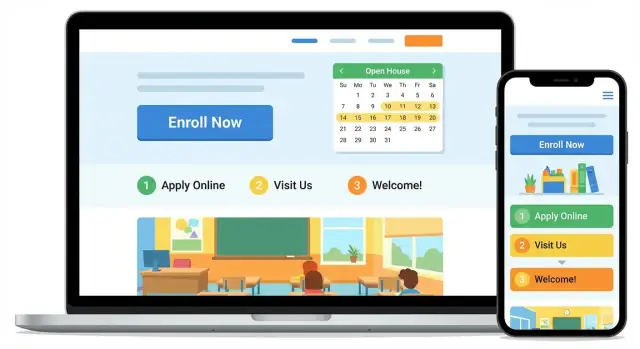
Set goals for enrollment and parent communication
Before you write a single page, decide what “success” looks like for enrollment on your school website. A clear goal keeps the site focused on what parents actually need: finding steps quickly and completing them without confusion.
Define the primary goal
For most schools and kindergartens, the main goal is simple: help prospective parents understand eligibility and timelines, then complete the enrollment steps with minimal back-and-forth. That means every key detail should be easy to locate, written in plain language, and paired with an obvious next step (apply, request a tour, call, email).
Choose success metrics you can track
Pick a few measurable outcomes so you can tell whether your enrollment information is working:
- Fewer repetitive phone calls (e.g., “What documents do I need?”)
- More completed inquiry or application submissions
- Fewer incomplete applications (missing documents, unsigned forms)
- Shorter time between first visit and form submission
If you use a form tool, enable confirmation pages and basic analytics so you can see where families drop off.
Identify your audiences (and what they need)
Your site isn’t just for prospective families. List the key groups and the questions they bring:
- Prospective parents: steps, dates, costs, eligibility, how to apply
- Current families: re-enrollment, calendars, contact info
- Staff: printable resources, policy links, referral instructions
- Community: admissions overview, events, how to get in touch
Decide what must work on mobile first
Assume many parents will read and submit forms from a phone—often with one hand, between tasks. Prioritize:
- A tap-friendly “Apply / Enroll” button
- Short, scannable enrollment steps
- Download-free options (web forms instead of PDFs when possible)
- Click-to-call and click-to-email contact paths
These goals and metrics will guide every later decision about your school admissions page, online enrollment form, and overall parent communication.
Understand parents’ questions and the enrollment journey
Enrollment info works best when it mirrors how families think: “Is this right for my child?” then “Can we apply?” then “What happens after we submit?”
Start with the questions parents ask most
Collect questions from emails, phone calls, tours, and front-desk notes. If you don’t have that data yet, start with these common ones and refine as you learn:
- Age requirements: What birth dates are eligible for each grade/class?
- Deadlines: When do applications open/close, and are there rolling admissions?
- Fees and costs: What are the tuition/fees, deposit, and what’s included?
- Schedule: What are the school hours, extended care options, and calendar?
- Availability rules: Is there a waitlist, and how are places offered?
Map the parent journey (and match it to website content)
Most families move through a predictable path:
Discover → Verify fit → Check eligibility → Apply → Confirm next steps
When you understand this flow, your school website can anticipate questions at each step. For example, “Verify fit” often needs a short program overview plus practical details (meals, naps, after-school care). “Apply” needs requirements, documents, and a simple way to submit.
Plan for language and clarity
If your community is multilingual, decide which pages must be translated first (usually the Enrollment/Admissions page, fees, and required documents). Even in one language, use short sentences, define school-specific terms (like “priority enrollment”), and avoid jargon.
Identify what needs extra clarity
Certain topics create the most confusion—and the most follow-up calls:
- Required documents and acceptable formats
- Waitlist steps and typical timing (if you can share)
- Priority rules (siblings, district boundaries, staff children)
- How offers are sent and how long families have to respond
This groundwork makes the rest of your enrollment information easier to organize—and easier for parents to trust.
Plan your website structure and navigation
A parent visiting your school website is usually trying to answer a few urgent questions quickly: “Do you have space?”, “How do I enroll?”, “What does it cost?”, and “Who do I contact?” Your navigation should make those answers easy to find without hunting.
Start with a simple top menu
Keep the main menu focused and familiar. For most schools, this structure works well:
- About (mission, campus, staff)
- Programs (grades/age groups, curriculum, hours)
- Enrollment (how to apply, steps, dates)
- Tuition/Fees (pricing, discounts, payment options)
- Contact (phone, email, address, office hours)
If you already have many pages, avoid adding more top-level items. Instead, group related content under these labels using dropdowns.
Add quick actions in the header
Put high-intent actions where they’re always visible (especially on mobile): Call, Email, Directions, and Enroll. These should be one tap away and work from every page.
- “Enroll” can link to /enrollment
- “Directions” can link to /contact
Create an Enrollment hub page
Treat Enrollment as a hub that links to every step: requirements, timeline, tours, forms, and FAQs. Parents shouldn’t have to piece the process together from scattered pages.
A good rule: key pages should be reachable in 1–2 clicks from the homepage. If a parent needs three or four clicks to find tuition or application steps, your structure is working against you.
If you’re rebuilding your site and want to move fast without wrangling multiple tools, a vibe-coding platform like Koder.ai can help you prototype an enrollment hub, navigation, and forms through a chat-driven workflow—then iterate safely using snapshots and rollback.
Decide the core pages every school website needs
A school website works best when parents can answer the basics in a few clicks: “Is this the right place for my child?” and “What do I do next?” Start with a small set of pages that stay accurate year-round.
Homepage: the fast overview
Your homepage should immediately clarify:
- Who you are (school name and a one-line description)
- Grades/ages served (for example, “Ages 3–6” or “K–5”)
- Location and hours
- The next enrollment deadline or key date
Add a clear path to the next step, such as a button to /enrollment or /contact.
About: trust without oversharing
Parents look for values and people. Include your mission, a short history, and what makes your approach distinctive.
Highlight staff in a respectful, safe way: names, roles, and professional bios are enough. Avoid sensitive personal details (home addresses, personal phone numbers, personal social profiles).
Add a simple facilities overview—what spaces you have and how they support learning—without posting anything that could compromise safety.
Programs / Classes: what a day looks like
This page reduces uncertainty. Explain:
- Ages served by each program
- Schedule options and daily routine
- Any special services (meals, extended care, language support)
If you share class size, only publish it if you can keep it accurate.
Calendar / News: the living heartbeat
A calendar builds confidence because it shows planning and transparency. Post closures, events, parent meetings, and important deadlines. If updates happen often, separate /calendar and /news so families can find dates quickly.
Build an Enrollment page that answers the big questions
Your Enrollment page should feel like a clear checklist a parent can finish in one sitting. If families have to hunt through PDFs or multiple menus, they’re more likely to email (or give up). Aim for a single page that explains the process, sets expectations, and makes the next step obvious.
Start with a simple enrollment overview
Open with a short summary: who can apply, which school year you’re enrolling for, and the general timeline.
Then add a step-by-step list parents can follow:
- Check eligibility (age, residency/zone, program requirements).
- Gather required documents.
- Submit the application (online or in person).
- Attend a tour/meeting (if required).
- Receive a decision and confirm your spot.
Keep each step to 1–2 lines and link to deeper details on the same page (jump links) or to a relevant page like /contact.
Explain eligibility in plain language
Parents want a quick “Do we qualify?” section. Include:
- Age cutoffs: the exact date rule (for example, “Must be 5 by September 1”).
- Residency rules (if any): what area you serve and what counts as proof.
- Required documents (high level): you’ll list everything in detail in a later section/page, but mention the basics here (ID, proof of address, immunization record, prior school records if applicable).
Share deadlines and when families will hear back
Spell out key dates: application open/close, lottery date (if used), and the notification window. If you review applications on a rolling basis, say so and give a realistic response time (e.g., “within 10 business days”).
Be transparent about fees and tuition
List only what you actually offer:
- Application fee: if $0, say “No application fee.”
- Tuition and schedules: monthly/annual options, part-time vs full-time if applicable.
- Optional costs: uniforms, meals, aftercare, field trips.
- Payment methods: card, bank transfer, cash/check, payment portal.
If you have a detailed pricing breakdown, link to /tuition-and-fees so parents can confirm details without leaving the enrollment flow.
List required documents and make them easy to submit
Parents will move faster (and feel calmer) when they can see exactly what’s needed—without hunting through emails or PDFs. Treat your document list like a simple checklist, not a policy document.
Create a clear document checklist
Add a short, scannable list on the page itself (best for mobile), with plain-language examples. For instance:
- Child’s proof of age (birth certificate or passport)
- Proof of address (utility bill or lease)
- Immunization record (where required)
- Previous school or daycare records (if applicable)
- Custody/guardianship paperwork (if relevant)
Keep it specific, and note when an item is “only if applicable” to avoid confusing families.
Make submission options obvious
Directly under the list, explain how to submit documents and what formats you accept:
- Upload: PDFs or photos (JPG/PNG), max file size
- Email: send to a named inbox (e.g., admissions@…)
- In person: office hours and where to go
If you use an online enrollment form, link to it right beside the document list (for example, “Upload during enrollment: /enrollment”).
Offer both PDF and mobile-friendly options
Provide a printable “Enrollment Document Checklist” PDF for families who like paper—and keep the same checklist on the page for phone users. Name the PDF clearly so it’s easy to find in downloads.
Explain what happens if something is missing
Say what you’ll do next and the timeline. Example: “If a document is missing, we’ll email you within 2 business days with a list of items to complete. Please submit missing documents by the stated deadline to hold your child’s spot.”
Create enrollment forms that are simple and parent-friendly
Enrollment forms are often the moment where interested parents either move forward—or give up. A good form feels quick, reassuring, and clear about what happens next.
Choose the right form approach
Start by deciding what you actually need from parents at this stage.
A simple inquiry form is best when your process includes tours, calls, or a first conversation before an application. It reduces friction and increases submissions.
A full application form can work if you truly enroll on a first-come/first-served basis or if you need details to determine eligibility. If you go this route, make it obvious that it’s an application (not just a question form) and estimate the time to complete.
If you’re unsure, choose the inquiry form first. You can always collect more information after you’ve made contact.
Keep it short and parent-friendly
Aim for the few fields that let you respond quickly:
- Parent/guardian name
- Email and/or phone
- Child’s age or birth month/year
- Desired start date
- Program/location (if you have options)
Avoid long dropdowns and questions that feel invasive early on (household details, employer info, medical history). If you need those later, say so on the Enrollment page and request them after the initial step.
Include clear consent language
Parents want to know how their information will be used. Add a short consent checkbox near the submit button, written in plain language, such as:
“I consent to [School Name] using my information to contact me about enrollment and related updates. We do not sell personal data.”
Link to your privacy details using a relative URL (for example, /privacy). If you plan to send marketing newsletters, make that a separate opt-in.
Add spam protection and a reassuring confirmation
Forms attract spam. Use CAPTCHA or an equivalent anti-spam tool that doesn’t frustrate mobile users.
After submission, show a confirmation message that includes next steps, not just “Thanks.” For example:
- When you’ll respond (e.g., “within 1 business day”)
- Who will contact them (office team, admissions coordinator)
- What to prepare next (tour scheduling, documents, fees)
Also send an email confirmation so parents have a record—and include a clear contact path in case they don’t hear back (e.g., “Reply to this email” or “Call us at…”).
If you’re modernizing your enrollment workflow, you can implement these forms as true web forms (instead of PDFs) and keep them consistent across pages. For teams building quickly, Koder.ai can generate and iterate on form UX via chat, while still letting you export source code if you want to host and maintain it yourself.
Add clear calls to action and contact paths
Parents rarely arrive on your school admissions page ready to fill out an online enrollment form in one sitting. They often want one quick answer, a human confirmation, or a simple next step. Your job is to make that next step obvious on every enrollment-related page.
Put contact options everywhere
Add a small, consistent contact block on your Enrollment pages (and any page that supports enrollment information), not just on /contact. Include:
- Phone number (tap-to-call on mobile)
- Email address (tap-to-email)
- Office hours (and a note about typical response time)
This reduces drop-off when parents have a question mid-read and don’t want to hunt for how to reach you.
Offer a “tour” or “call back” path
If your team can support it, add a lightweight option such as “Book a tour” or “Request a call.” This is especially helpful for a kindergarten website, where families often want to see classrooms and meet staff before submitting forms.
Keep it simple: a short form (name, child’s age/grade, preferred time, phone/email) or a link to your scheduling tool. Place it near the top and again near the bottom of /enrollment so parents always have a next step.
Make location and logistics crystal clear
Many enrollment questions are really “Can we get there easily?” Add a clear location section with:
- Address
- Parking instructions
- Drop-off/pick-up notes (where to enter, what time traffic is heaviest)
This turns “I’ll ask later” into “Let’s visit this week.”
Use helpful, relative links at decision points
When parents are ready to act, link them directly to the next page—without sending them on a scavenger hunt. Use relative links like:
- Programs overview: /programs
- Enrollment details and steps: /enrollment
- Contact and office info: /contact
The best calls to action are specific and reassuring: “Check availability,” “Request a tour,” “Start enrollment,” or “Ask a question.” Keep the wording consistent across your school website so families always know what happens next.
Write and design content that builds trust
Parents decide quickly whether a school feels organized, caring, and safe. Your content should make it easy to understand what you offer, how enrollment works, and what the first days will be like—without school-specific jargon or internal acronyms.
Use plain language (and explain anything that’s new)
Write as if you’re answering a parent who is new to your school. Prefer short paragraphs, clear headings, and specific details (“Drop-off starts at 8:15”) over vague promises.
If you must use a term (like “before-care” or “extended day”), add a one-line explanation right under it.
Make key details scannable
Parents often skim on a phone. Put the most important information in bullets, highlight deadlines, and use tables for anything that compares options.
Example: hours and fees (simple table)
| Program | Days | Time | Fee (example) |
|---|---|---|---|
| Half-day | Mon–Fri | 8:30–12:00 | $___ / month |
| Full-day | Mon–Fri | 8:30–3:00 | $___ / month |
| Extended day | Mon–Fri | 3:00–5:30 | $___ / month |
Add a short note under the table for what’s included (meals, materials, after-school activities) and what’s not.
Use photos thoughtfully (with permission)
Real photos build confidence—classrooms, play areas, student work walls, and outdoor spaces help parents picture a normal day.
Only use student photos if you have appropriate permissions, and avoid identifying details (full names on cubbies, visible paperwork, uniforms with names).
Add an enrollment-focused FAQ
A small FAQ reduces back-and-forth and shows you’ve thought about parents’ worries.
Include questions like:
- “What does my child need on the first day/week?”
- “How do you handle separation anxiety?”
- “How do you communicate updates with parents?”
- “What are the next steps after I submit the form?”
Link to your /enrollment page from every relevant page, and end key pages with a simple next step: “Schedule a tour” or “Start an application.”
Make the site accessible and mobile-first
Families will check enrollment details on phones between work, errands, and pickup time. If your pages are hard to read, slow to load, or impossible to use without a mouse, you’ll lose inquiries—even when your program is a great fit.
Accessibility basics that help every parent
Start with clear structure and readable design:
- Use strong color contrast for text and buttons (especially for “Apply” and “Contact”).
- Write clear headings in order (H2, H3) so screen readers and skimming parents can follow the page.
- Add meaningful alt text for informative images (e.g., “Students painting in art class”). If an image is decorative, leave alt text empty.
- Make sure everything works by keyboard: menus, dropdowns, form fields, and submit buttons.
Also use descriptive titles and headings that match what parents search for. For example, instead of “Admissions,” consider “Kindergarten Enrollment Requirements” or “Enrollment Timeline and Tuition.”
If your school can support it, publish an accessibility statement (for example: /accessibility). Keep it practical: what you’ve done, what may still be improving, and how families can request help.
Mobile-first performance (so forms don’t get abandoned)
Mobile-friendly enrollment info is mostly about speed and simplicity:
- Compress images and avoid heavy sliders or background videos.
- Keep pages fast-loading and scannable with short paragraphs.
- Use short forms with the minimum required fields; save longer intake questions for after first contact.
- Use large tap targets for buttons and form controls, and avoid tiny links packed together.
Before launch, test your key enrollment paths on a phone using only your thumb and spotty Wi‑Fi. If it feels effortless, it’s ready.
Handle privacy and safety for student-related information
Enrollment content naturally involves personal details. Parents will share more—and feel more confident—when your school website is clear about what you collect, why you need it, and how you protect it.
Collect only what you truly need
Start by trimming your forms to the essentials for an initial application (for example: child’s name, age/grade, parent/guardian contact details). Avoid requesting sensitive data unless it’s legally required at that step.
Examples of information to avoid collecting early (or at all on the website): full medical histories, copies of ID documents, or detailed custody documentation. If those are required later, describe the process and collect them through a safer, controlled channel.
Publish a clear, plain-language privacy notice
Add a short privacy notice near every enrollment form, then link to a fuller policy page (for example, /privacy). Explain:
- What you store (submitted form data, attachments, timestamps)
- Why you store it (enrollment processing, follow-up)
- How long you keep it (e.g., “90 days if not admitted”)
- Who can access it (admissions team only)
Avoid vague wording. Parents want specifics.
Protect submissions in transit and at rest
Your site should use HTTPS everywhere, especially on form pages. Restrict access to submissions so only the right staff can view them.
Be cautious with email: sending full applications and attachments via email can expose data to forwarding and inbox compromises. If you must use email notifications, send a “new submission received” alert with a link to a secure admin area instead of the full contents.
If you’re choosing a platform for hosting and deployment, ask where applications run and how data is stored. For example, Koder.ai runs on AWS globally and can deploy applications in different regions—useful when you need to consider data residency and privacy requirements.
Decide ownership: who receives, stores, and deletes data
Before launch, document the workflow:
- Which role receives submissions and checks completeness
- Where data is stored (website database, secure drive, admissions system)
- When and how it’s deleted (scheduled cleanup, deletion on request)
Clear internal rules reduce mistakes and make your privacy promises real.
Launch, test, and keep enrollment information up to date
A school website can look finished and still fail families at the last step: a broken form, a missing deadline, or a phone number that no one answers. Before you share your new enrollment information widely, do a quick but thorough launch pass—and then set a simple routine so it stays accurate all year.
A practical launch checklist
Run your checks like a parent would: on a phone, in the evening, with limited time.
- Test every link and download: enrollment forms, tuition PDFs, calendars, handbooks, and any “required documents” lists.
- Submit every form (including your online enrollment form): confirm it sends to the right inbox, shows a clear confirmation message, and doesn’t require parents to create an account unless truly necessary.
- Check mobile layout: buttons should be easy to tap, text should not overflow, and key calls to action (Apply, Schedule a Tour, Contact Admissions) should be visible without hunting.
- Proofread the high-stakes details: deadlines, start dates, age cutoffs, fees, hours, and contact info. One typo can create dozens of parent communication issues.
If you have a dedicated school admissions page, make sure it’s reachable from the main navigation and from your homepage—parents shouldn’t need to guess where enrollment lives.
Set a light maintenance routine (so info stays trustworthy)
Outdated pages quietly erode confidence, even when the rest of your school website content is strong. Assign ownership (one staff role, not “everyone”) and pick a cadence.
A simple monthly check is usually enough:
- Deadlines and enrollment windows (open/close dates, waitlist notes)
- Calendar items (open houses, tours, holiday breaks, summer closures)
- Staff info (admissions contact, office hours, response expectations)
- Policy documents (tuition, refunds, health requirements, arrival/dismissal)
For seasonal changes, set reminders ahead of time—e.g., six weeks before enrollment opens, and again a week before it closes.
If your team iterates frequently, consider using a workflow that supports safe changes and quick rollbacks. Platforms like Koder.ai include snapshots and rollback, which can reduce the risk of breaking enrollment paths during updates.
Use basic analytics—without over-collecting
Add privacy-friendly analytics so you can see what parents actually use most: your Enrollment page, tuition info, required documents, or tour scheduling. Focus on page views and top paths, not personal profiles.
This helps you spot friction early (for example, lots of visits to the kindergarten website enrollment page but few form submissions) and improve wording, placement of calls to action, or clarity—without collecting unnecessary data.
If you want a quick pre-launch sweep of the entire site, adapt a simple /blog/school-website-checklist and run it each time you update enrollment information.
FAQ
What is the main goal of a school website’s enrollment information?
Start with one primary goal: help prospective parents understand eligibility and timelines and then complete the next step (apply, request a tour, call, or email) without confusion.
A practical way to check focus: every enrollment-related section should answer a parent question and end with a clear next action (for example, link to /enrollment or /contact).
Which metrics should we track to know if enrollment pages are working?
Track a few outcomes that reflect real friction points:
- Fewer repetitive calls/emails (for example, documents and deadlines questions)
- More inquiry or application submissions
- Fewer incomplete applications (missing documents, unsigned forms)
- Shorter time from first visit to form submission
If you use forms, add a confirmation page and basic analytics so you can see where families drop off.
Who should the enrollment section be written for (besides prospective parents)?
List your audiences and design content for their top tasks:
- Prospective parents: steps, dates, costs, eligibility, how to apply
- Current families: re-enrollment, calendars, key contacts
- Staff: printable resources, policy links, referral instructions
- Community: overview, events, how to reach you
Then make sure the most important pages are reachable in 1–2 clicks from the homepage.
What does “mobile-first” actually mean for school enrollment pages?
Assume parents will read and submit forms on a phone, often quickly and with one hand. Prioritize:
- A tap-friendly Apply/Enroll button
- Short, scannable steps (checklist style)
- Web forms instead of PDFs where possible
- Click-to-call and click-to-email contact options
Test the whole flow on mobile (including spotty Wi‑Fi) before launch.
What navigation structure makes enrollment info easiest to find?
A simple structure works for most schools:
- About
- Programs
- Enrollment
- Tuition/Fees
- Contact
Add persistent header actions like Call, Email, Directions, and Enroll so parents can act from any page.
What should an Enrollment “hub” page include?
Make /enrollment a hub that explains the process and links to each step (requirements, timeline, tours, forms, FAQs).
A useful standard is that tuition, eligibility, and the application/inquiry form should be reachable in 1–2 clicks from the homepage.
How do we figure out what parents actually need on the enrollment page?
Mirror the way families think:
- “Is this right for my child?” (program overview, daily routine, logistics)
- “Can we apply?” (eligibility, documents, deadlines)
- “What happens after we submit?” (next steps, response timing)
Collect real questions from emails, calls, tours, and front-desk notes, then update the page copy to match the language parents use.
How should we present required documents so parents don’t get stuck?
Use a short checklist and keep it scannable on the page:
- Proof of age (birth certificate/passport)
- Proof of address (utility bill/lease)
- Immunization record (where required)
- Prior school/daycare records (if applicable)
- Guardianship/custody documents (if relevant)
Immediately below, state how to submit (upload/email/in person), accepted formats, file limits, and what happens if something is missing.
Should we use an inquiry form or a full application form?
Collect only what you need at the current stage.
- Use an inquiry form if your process starts with a tour or conversation.
- Use a full application only if you truly need it to determine eligibility or you enroll first-come/first-served.
Keep early forms short (parent contact, child age/birth month-year, desired start date) and clearly state the expected response time on the confirmation message.
What privacy and consent information should we include on enrollment forms?
Include plain-language consent near the submit button and link to /privacy.
Keep it specific:
- What you store (form data, attachments, timestamps)
- Why you store it (enrollment processing and follow-up)
- How long you keep it
- Who can access it
Avoid collecting sensitive data (full medical history, copies of IDs) unless required, and use HTTPS and restricted staff access for submissions.