

How to Build a Web App for Knowledge Bases and SOPs
Learn how to plan, design, and build a web app to manage internal knowledge bases and SOPs, with roles, workflows, versioning, search, and security.
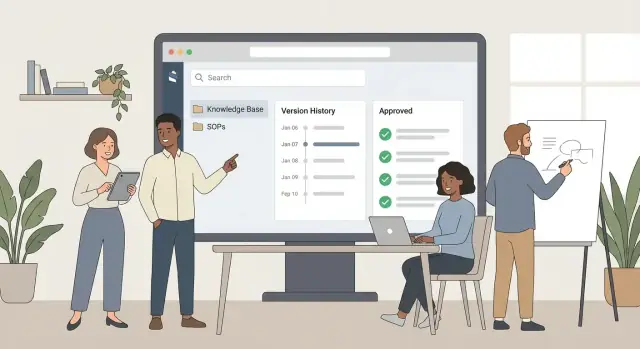
Start with goals and user needs
Before you sketch screens or pick a tech stack, get clear on who this app is actually serving day to day. Knowledge base and SOP tools fail most often not because of code quality, but because they don’t fit how people work.
Identify your primary users
Different groups need different experiences:
- Operators and frontline teams need fast answers on the job (checklists, “what to do when…” steps, mobile-friendly views).
- Managers and team leads need consistency, visibility, and confidence that procedures are followed.
- New hires need guided learning paths, plain language, and context—not just a wall of documents.
Define “knowledge base” vs “SOP” in your org
Use your own definitions, but write them down so everyone builds toward the same goal. A practical split is:
- Knowledge base: reference material (policies, FAQs, troubleshooting notes, how-tos).
- SOPs: repeatable procedures with clear ownership, required steps, and a versioned “source of truth.”
List the problems worth solving first
Prioritize the pain you can measure:
- People can’t find the right doc quickly.
- Content is outdated or duplicated.
- Changes require approvals, but the process is unclear.
Set success metrics you can track
Pick a few simple metrics you can validate after launch:
- Time to find the right answer (e.g., median under 30 seconds)
- Fewer avoidable mistakes or rework tied to outdated instructions
- Adoption: weekly active users, searches per user, or % of teams contributing updates
These goals will guide every later decision—from navigation to workflows—without overbuilding.
Define requirements and content model
Before picking tools or drawing screens, get specific about what your knowledge base must store and how it should behave. A clear requirements list prevents “wiki sprawl” and makes workflows (like approvals) easier to implement later.
Start with content types
Decide which document types you’ll support from day one. Common choices include SOPs, policies, how-tos, templates, and announcements. Each type may need different fields and rules—for example, SOPs usually require stricter approvals than announcements.
Define the core fields (your content model)
At minimum, standardize the metadata every document carries:
- Title (human-friendly, searchable)
- Owner (a person or team responsible for accuracy)
- Last updated (date + who made the change)
- Status (used for publishing rules)
- Tags (for filtering and grouping)
This is also where you decide what “the document” is: rich text, markdown, attached files, or a mix.
Document lifecycle rules
Write down the states and what each one means. A practical default is:
Draft → Review → Approved → Archived
For each transition, define who can move it forward, whether comments are required, and what happens to visibility (for example, only Approved content appears to everyone).
Non-functional requirements that matter
Capture constraints early so you don’t redesign later:
- Performance (fast load for large docs and search)
- Availability (expected uptime and backups)
- Accessibility (WCAG-friendly navigation and editor)
If you want a simple worksheet to collect these inputs, create an internal page like /docs/requirements-template.
Plan structure: spaces, categories, tags, and templates
A knowledge base succeeds or fails on structure. If people can’t predict where something lives, they’ll stop trusting the system—and start saving docs “somewhere else.” Invest in an information architecture that mirrors how the company actually operates.
Spaces/teams, categories, and collections
Start with spaces that map to clear ownership (e.g., People Ops, Support, Engineering, Security). Inside each space, use categories for stable groupings (Policies, Onboarding, Tools, Processes). For work that spans teams, create collections (curated hubs) rather than duplicating content.
A simple rule: if a newcomer asks “who maintains this?”, the answer should point to a space owner.
SOP templates and naming conventions
Standardize SOPs so they read and feel consistent:
- Naming: Verb + object + context (e.g., “Process customer refunds (Stripe)”).
- Template sections: Purpose, When to use, Prerequisites, Steps, Exceptions, Owner, Related docs.
Templates reduce writing friction and make reviews faster because approvers know where to look for risk-sensitive details.
Tagging that stays manageable
Tags are powerful—and easy to overdo. Keep a small, controlled set with rules:
- Use tags for cross-cutting concepts (Product area, Tool, Region, Compliance).
- Avoid tags that duplicate categories (“Onboarding,” “Policy”).
- Create a “tag budget” (e.g., max 3–5 per doc) and publish an allowed list.
Onboarding paths: “Start here” and curated hubs
Plan for first-time readers. Create a “Start here” page per space with the 5–10 essential docs, and add role-based hubs like “New Manager” or “New Support Agent.” Link them from your home page and navigation so onboarding doesn’t depend on tribal knowledge.
UX and navigation for non-technical teams
A knowledge base only works if people can find, read, and update documents without learning “how the system works.” Design around a few predictable paths and keep the UI calm—especially for occasional users.
Key pages to make navigation obvious
Keep the core set small and always reachable from the top navigation:
- Home: “Start here” tiles (Top SOPs, New/Updated, Your approvals)
- Browse: categories, spaces, and popular tags
- Doc view: the single source of truth with clear metadata
- Editor: focused writing experience (no clutter)
- Approvals: pending reviews, comments, decisions
- Admin: users, roles, templates, retention settings
Simple reading and writing modes
Treat Doc view as a clean, printable page. Put navigation (breadcrumbs, table of contents) on the side, not inside the text.
For the Editor, prioritize common actions: headings, lists, links, and callouts. Hide advanced formatting under “More,” and autosave with a clear confirmation (“Saved • 2 seconds ago”).
Quick actions that match real work
Non-technical teams value speed. Add one-click actions in the doc header:
- Copy link (for Slack/email)
- Request change (creates a task or draft)
- Mark as read (for training/compliance)
UI patterns that build trust
Every SOP should answer: “Is this current, and who owns it?” Show these elements consistently:
- Last updated date and version
- Owner (person or team) and contact link
- Status badges (Draft, In review, Approved, Deprecated)
- Next review date and a short change summary
When users trust what they see, they stop screenshotting docs and start using the portal.
Select tech stack and architecture
Picking a tech stack isn’t about chasing trendy tools—it’s about choosing what your team can build, maintain, and securely operate for years.
Match the stack to your team (and your constraints)
Start with what your developers already ship confidently. A simple, common setup is a single-page app (React/Vue) paired with a backend API (Node.js, Django, or Rails) and a relational database (PostgreSQL). If your team is smaller or you want to move fast, a full-stack framework (Next.js, Laravel, or Django) can reduce complexity by keeping frontend and backend in one place.
Also decide early whether documents are stored as HTML, Markdown, or a structured format (JSON-based blocks). That choice affects your editor, search quality, and future migrations.
If you want to accelerate prototyping without committing to weeks of scaffolding, a vibe-coding platform like Koder.ai can help you spin up a React-based internal portal with a Go + PostgreSQL backend from a chat-driven spec, then export the source code when you’re ready to take over the repo. This can be especially useful for validating navigation, roles, and approval flows with real users before hardening the system.
Hosting: managed platform vs self-hosted
Managed hosting (e.g., a PaaS) reduces ops overhead: automatic deploys, scaling, backups, and SSL. It’s often the quickest path to a reliable internal knowledge base web app.
Self-hosting can make sense if you have strict data residency rules, existing infrastructure, or a security team that prefers everything inside your network. It usually increases setup and maintenance effort, so plan accordingly.
Environments: dev, staging, production
Separate environments prevent “surprise” changes from affecting employees. A typical flow:
- Dev: fast iteration and experiments
- Staging: realistic testing with production-like data and permissions
- Prod: stable, audited releases
Use feature flags for risky changes like new approval steps or search ranking tweaks.
Modular architecture that can grow
Even if you start small, design clear boundaries so you can add features without rewrites. A practical approach is a modular monolith: one deployment, but separate modules for auth & roles, documents, workflows, search, and audit trails. If you later outgrow it, you can split specific modules (like search) into separate services.
If you want a deeper checklist for setup decisions, link this section to your rollout plan in /blog/testing-rollout-improvement.
Design the database and data relationships
A knowledge base or SOP app lives or dies on how well it can represent “who wrote what, when, under which rules.” A clean data model makes versioning, approvals, and auditing predictable instead of fragile.
Key entities to model
Start with a small set of core tables (or collections) and let everything else attach to them:
- Users and Groups: people, teams, and membership (many-to-many).
- Spaces: top-level areas like “Engineering,” “HR,” or “Operations.”
- Documents: the canonical record (title, status, current_version_id, space_id).
- Versions: immutable snapshots of a document’s content.
- Comments: discussion tied to a document or a specific version.
- Tasks: review requests, approval items, or “update this SOP by Friday.”
Relationships that keep data consistent
A typical set of relationships looks like:
- A document belongs to a space (space_id).
- A document has many versions (versions.document_id).
- A version is authored by a user (versions.created_by).
- A comment belongs to a document and optionally a version.
This structure keeps the “current” document fast to load while preserving a full history.
Storing rich text safely
Prefer a structured format (e.g., JSON from ProseMirror/Slate/Lexical) over raw HTML. It’s easier to validate, safer to render, and more resilient when your editor changes. If you must store HTML, sanitize on write and on render.
Plan migrations and backups early
Pick a migration tool from day one and run migrations in CI. For backups, define RPO/RTO, automate daily snapshots, and test restores regularly—especially before you import legacy SOPs from other systems.
Build the editor and document viewing experience
Your editor is where people spend the most time, so small UX details make or break adoption. Aim for an experience that feels as easy as writing an email, while still producing consistent SOPs.
Choose an editor style: Markdown, WYSIWYG, or hybrid
- Markdown is fast and clean, but can intimidate non-technical teams.
- WYSIWYG (“what you see is what you get”) is familiar and great for formatting, tables, and quick edits.
- Hybrid works well for an internal knowledge base web app: a WYSIWYG surface with optional “view source” for power users.
Whichever you choose, keep formatting controls simple and consistent. Most SOPs need headings, numbered steps, checklists, tables, and callouts—not a full desktop publishing tool.
Templates, checklists, and reusable sections
Support document templates for common SOP types (e.g., “Incident Response,” “Onboarding,” “Monthly Close”). Make it one click to start with the right structure.
Add reusable blocks like “Safety checks,” “Definition of done,” or “Escalation contacts.” This reduces copy-paste and helps SOP version control stay clean.
Inline comments and review-friendly writing
Inline comments turn your wiki with approvals into a true collaboration tool. Let reviewers:
- Comment on a specific sentence or step
- Suggest edits (tracked suggestions)
- Resolve threads so the final SOP is easy to read
Also consider a “read mode” that hides editing UI and shows a clean, print-friendly layout for shop floors or field teams.
Attachments, images, and embeds
SOPs often need screenshots, PDFs, and spreadsheets. Make attachments feel native:
- Drag-and-drop uploads with clear file names
- Automatic thumbnail previews for images
- Safe embeds for approved file types
Most importantly, store files in a way that preserves the audit trail for SOPs (who uploaded what, when, and which document version referenced it).
Roles, permissions, and approval workflows
If your knowledge base includes SOPs, access control and review steps aren’t “nice to have”—they’re what makes the system trustworthy. A good rule: keep everyday usage simple, but make governance strict where it matters.
Define clear roles
Start with a small, understandable set of roles:
- Viewer: can read published content (and possibly leave comments).
- Editor: can draft and update documents, but can’t publish regulated SOPs alone.
- Approver: reviews and approves changes for specific spaces or SOP categories.
- Admin: manages spaces, templates, users/groups, and workflow rules.
This keeps expectations clear and avoids “everyone can edit everything” chaos.
Permissions at space and document level
Set permissions at two levels:
- Space-level (department, team, product area): who can view, draft, approve, or manage.
- Document-level (exceptions): lock down a single SOP, restrict a sensitive runbook, or grant temporary edit access.
Use groups (e.g., “Finance Approvers”) rather than assigning individuals wherever possible—maintenance gets easier as teams change.
Approval workflows for SOPs
For SOPs, add an explicit publishing gate:
- Require one or more reviewers before a draft can become “Published.”
- Support sequential or parallel approvals (e.g., Compliance then Ops).
- Allow “minor edit” vs “major change” rules if your policy needs them.
Audit trail (who, what, when, why)
Every change should record: author, timestamp, the exact diff, and an optional change reason. Approvals should be logged too. This audit trail is essential for accountability, training, and external/internal reviews.
Search, filters, and findability
People don’t “navigate” a knowledge base as much as they hunt for an answer mid-task. If search is slow or vague, teams will fall back to Slack threads and tribal memory.
Make search fast and readable
Implement full-text search that returns results in under a second and shows why a page matched. Highlight matches in the title and a short snippet so users can judge relevance immediately.
Search should handle real-world phrasing, not just exact keywords:
- Support synonyms (e.g., “PTO” ↔ “vacation”, “onboarding” ↔ “new hire”) to reduce missed results.
- Add “did you mean” suggestions for common typos and near-matches.
Filters that match how teams think
Search alone isn’t enough when results are broad. Add lightweight filters that help users narrow quickly:
- Status (draft, in review, approved)
- Owner (who maintains it)
- Tag
- Updated date (e.g., last 30/90 days)
- Space (department or function)
The best filters are consistent and predictable. If “owner” is sometimes a person and sometimes a team name, users won’t trust it.
Saved views for recurring work
Teams often run the same queries repeatedly. Create saved views that can be shared and pinned, such as:
- “SOPs needing review” (approved + next review date approaching)
- “Recently updated in Operations”
- “Drafts waiting on my approval”
Saved views turn search into a workflow tool—not just a lookup box—and help keep documentation fresh without extra meetings.
Versioning, review cycles, and change management
When your knowledge base includes SOPs, the question isn’t “will this change?”—it’s “can we trust what changed, and why?” A clear versioning system protects teams from outdated steps and makes updates easier to approve.
Version history people can actually use
Every document should have a visible version history: who changed it, when, and what status it’s in (draft, in review, approved, archived). Include a diff view so reviewers can compare versions without hunting line-by-line. For rollbacks, make it one action: restore a prior approved version while keeping the newer draft as a record.
Require change notes for approved SOP updates
For SOPs (especially approved ones), require a short change note before publishing—what changed and why. This creates a lightweight audit trail and prevents “silent edits.” It also helps downstream teams quickly assess impact (“Step 4 updated due to new vendor portal”).
Review cycles and reminders
Add review scheduling per document (for example, every 6 or 12 months). Send reminders to owners and escalate if overdue. Keep it simple: a due date, an owner, and a clear action (“confirm still accurate” or “revise”). This keeps content fresh without forcing constant rewriting.
Safe archiving (not deletion)
Avoid hard deletes. Archive instead, keeping links working (with an “Archived” banner) so old bookmarks and references don’t break. Restrict archive/unarchive permissions, require a reason, and prevent accidental deletion—especially for SOPs referenced in training or compliance.
Security and compliance basics
Security for a knowledge base or SOP portal isn’t only about hackers—it’s also about preventing accidental oversharing and proving who changed what. Start by treating every document as potentially sensitive and make “private by default” the baseline.
Identity and sign-in (SSO)
If your organization already uses single sign-on, integrate it early. Supporting SAML or OIDC (often via Okta, Azure AD, Google Workspace, etc.) reduces password risk and makes onboarding/offboarding predictable. It also enables central policies like MFA and conditional access.
Least privilege and safe defaults
Design roles and permissions so people get the minimum access needed:
- Default new spaces/projects to restricted visibility.
- Separate “view,” “edit,” and “publish/approve” permissions.
- Make administrative actions explicit and hard to do by accident (e.g., confirmation steps for permission changes).
Also consider temporary access for contractors and “break-glass” admin accounts with extra controls.
Protect the data (and the app)
Cover the basics well:
- Encrypt data in transit (HTTPS) and at rest (database/storage encryption).
- Validate and sanitize input to prevent XSS/SQL injection; treat rich-text editors carefully.
- Add rate limits for login, search, and export endpoints.
- Store secrets securely (no API keys in code); rotate tokens regularly.
Logging matters too: keep an audit trail for logins, permission changes, approvals, and document edits.
Compliance: retention and export
Even small teams run into compliance requirements. Decide upfront:
- Retention rules (how long to keep versions, drafts, and deleted docs).
- Legal hold or “do not delete” options for critical SOPs.
- Export capability (space-level or org-wide) for audits, migrations, or eDiscovery.
If you later add workflows and versioning, align them with these rules so compliance isn’t bolted on at the end.
Integrations and automation
A knowledge base only works when it fits into how people already communicate and get work done. Integrations and lightweight automation reduce “please update the SOP” chasing and make documentation feel like part of the workflow.
Notifications that drive action
Build notifications around the moments that matter:
- Mentions: @name and @team mentions that notify the right people.
- Approvals: alerts when a document is waiting for review or has been approved/rejected.
- Expiring reviews: reminders when a scheduled review date is approaching (or overdue).
Keep preferences simple (email vs in-app), and avoid spam by batching low-priority updates into a daily digest.
Connect docs to chat, email, and tasks
Start with the integrations most teams already live in:
- Slack / Microsoft Teams: share a doc card (title, status, owner, next review date) and allow quick actions like “request review.”
- Email: send approval requests and “review due” reminders that link back to the doc.
- Task tools (Jira, Asana, Trello): attach SOP links to tickets and optionally create a task automatically when a review cycle starts.
A good rule: integrate for awareness and follow-up, but keep the source of truth in your app.
Import/export for real-world operations
Teams often have existing content in spreadsheets and need “snapshot” exports for audits or training.
Support:
- CSV import/export for lists like SOP inventories, owners, and review dates.
- PDF export for a point-in-time SOP snapshot (include version number and export timestamp).
A small, stable internal API
Even without a public developer platform, a simple API helps connect internal systems. Prioritize endpoints for search, document metadata, status/approvals, and webhooks (e.g., “SOP approved” or “review overdue”). Document it clearly at /docs/api and keep versioning conservative.
Testing, rollout, and ongoing improvement
Shipping a knowledge base isn’t a one-time launch. Treat it like a product: start small, prove value, then expand with confidence.
Start with a focused pilot
Pick a pilot team that feels the pain most (Ops, Support, HR). Migrate a small set of high-value SOPs—ideally the ones people ask for weekly or the ones tied to compliance.
Keep the initial scope tight: one space, a handful of templates, and a clear owner. This makes it easier to spot what’s confusing before the whole company sees it.
Test the experience end-to-end
Beyond basic QA, run workflow tests that mirror real work:
- Create → review → approve → publish
- Edit a published SOP and verify notifications and visibility
- Search for common terms and confirm results match expectations
Also test on the devices your teams actually use (desktop + mobile) and with real permissions (author vs. approver vs. viewer).
Measure adoption and friction
Define a few lightweight metrics from day one:
- Searches performed (and “no results” rate)
- Reads per document and unique readers
- Edits per week (are people improving content?)
- Approval cycle time (draft → published)
Pair numbers with short check-ins to learn why something isn’t used.
Iterate, document, and roll out
Collect feedback and refine templates, categories, and naming rules. Write simple help docs (how to find an SOP, how to request changes, how approvals work) and publish them in the app.
Then roll out in waves with an internal plan: timeline, training sessions, office hours, and a single place to submit questions (e.g., /support or /docs/help).
FAQ
What’s the difference between a knowledge base and an SOP system?
Start with your org’s definitions and governance needs:
- A knowledge base is best for reference content (FAQs, policies, troubleshooting).
- SOPs are repeatable procedures that need ownership, approvals, versioning, and auditability.
Many teams use one app with two content types and different workflow rules.
What success metrics should I track for a knowledge base/SOP web app?
Aim for outcomes you can validate after launch:
- Median time to find an answer (e.g., under 30 seconds)
- Adoption (weekly active users, searches per user)
- Quality signals (fewer mistakes tied to outdated instructions)
- Workflow health (approval cycle time, overdue reviews)
Pick a small set and review them monthly.
What fields should every document include from day one?
Start with a minimal content model and enforce it everywhere:
- Title
- Owner (person or team)
- Status (Draft → Review → Approved → Archived)
- Last updated (who + when)
- Tags (controlled)
Keeping metadata consistent is what makes search, filters, and governance work later.
How should I structure spaces, categories, and collections?
Use spaces and categories for predictable ownership and navigation:
- Spaces map to who maintains content (HR, Support, Engineering).
- Categories are stable groupings inside a space (Policies, Processes, Tools).
- Use collections/hubs to curate cross-team content instead of duplicating docs.
If someone asks “who owns this?”, the space should answer it.
How do I avoid a tagging system that becomes messy?
Keep tags limited and rule-driven:
- Use tags for cross-cutting concepts (Tool, Region, Compliance, Product area).
- Avoid tags that duplicate categories.
- Set a “tag budget” (e.g., 3–5 per doc) and an allowed list.
This prevents tag sprawl while preserving flexible filtering.
What UX patterns help non-technical teams actually use the system?
Design around a few predictable pages and simple modes:
- Top nav: Home, Browse, Search, Approvals
- Doc view: clean layout + visible metadata (owner, status, version, last updated)
- Editor: headings, lists, links, checklists; autosave with clear confirmation
Add quick actions like Copy link and Request change to match real workflows.
Should the editor be Markdown, WYSIWYG, or hybrid?
Choose based on your users and future portability:
- Markdown: fast, but can intimidate non-technical users.
- WYSIWYG: familiar and good for tables and quick edits.
- Hybrid: WYSIWYG with optional source view for power users.
Whatever you pick, keep formatting minimal and optimize for SOP structures (steps, checklists, callouts).
What database entities and relationships are most important?
Model for auditability and safe rollbacks:
- Documents: canonical record (space, status, current version)
- Versions: immutable snapshots (author, timestamp)
- Comments: optionally tied to a specific version
- Tasks: review/approval items and update requests
This keeps “current” pages fast while preserving a full history for compliance and trust.
How do I design roles, permissions, and approvals without chaos?
Keep roles simple and apply stricter rules to SOP publishing:
- Roles: Viewer, Editor, Approver, Admin
- Permissions at space level by default; document-level exceptions when needed
- SOP publishing gate: require one or more reviewers (parallel or sequential)
Log everything important: edits, approvals, permission changes, and reasons for changes.
How do I make search and findability work in real-world usage?
Make search fast, explain results, and turn it into a workflow tool:
- Full-text search with highlighted snippets and “did you mean”
- Synonyms for real phrasing (e.g., PTO ↔ vacation)
- Filters: status, owner, tag, space, updated date
- Saved views: “Waiting on my approval,” “SOPs needing review,” “Recently updated”
Also track “no results” searches to identify missing content.