

How to Build a Web App That Tracks Manual Work to Automate
Learn how to plan and build a web app that tracks manual work, captures proof and time, and turns repeated tasks into an automation-ready backlog.
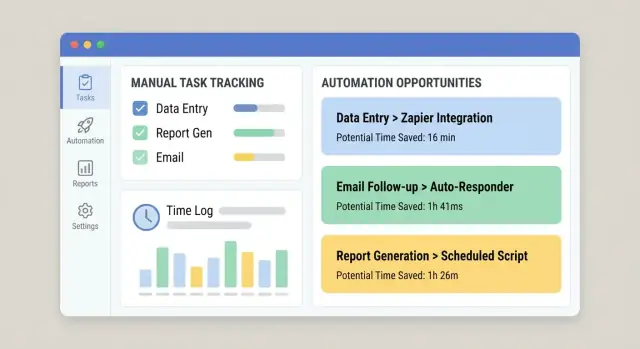
Start With the Problem: What Manual Work Are You Tracking?
Before you sketch screens or pick a database, get crisp about what you’re trying to measure. The goal isn’t “track everything employees do.” It’s to capture manual work reliably enough to decide what to automate first—based on evidence, not opinions.
Define the manual work in plain terms
Write down the recurring activities that are currently done by hand (copy/paste between systems, re-keying data, checking documents, chasing approvals, reconciling spreadsheets). For each activity, describe:
- What triggers it (a new order, an email, a weekly deadline)
- What “done” looks like (submitted, verified, paid, shipped)
- Where it happens (which tools, folders, inboxes)
If you can’t describe it in two sentences, you’re probably mixing multiple workflows.
Identify the target users (and their incentives)
A tracking app succeeds when it serves everyone who touches the work—not just the person who wants the report.
- Operators / frontline staff: need fast logging with minimal disruption.
- Team leads: need visibility into bottlenecks and exceptions.
- Managers: need prioritization signals for automation and staffing.
- Finance: needs credible numbers for cost, ROI, and budgeting.
- IT / automation team: needs clean inputs to build automations safely.
Expect different motivations: operators want less admin work; managers want predictability; IT wants stable requirements.
Decide what outcomes you’ll measure
Tracking is only useful if it connects to outcomes. Pick a small set you can compute consistently:
- Time saved: baseline manual minutes per task, then compare after changes.
- Errors reduced: rework counts, corrections, failed checks.
- Turnaround time: from trigger to completion, including wait states.
- Compliance / auditability: evidence that required steps happened (who, what, when).
Clarify what the app is not
Define boundaries early to avoid building an accidental monster.
This app is typically not:
- A full ERP replacement
- A comprehensive ticketing system
- A workforce monitoring tool
It can complement those systems—and sometimes replace a narrow slice—if that’s explicitly your intention. If you already use tickets, your tracking app might simply attach structured “manual effort” data to existing items (see /blog/integrations).
Choose the Workflows and Set Clear Scope
A tracking app succeeds or fails based on focus. If you try to capture every “busy thing” people do, you’ll collect noisy data, frustrate users, and still won’t know what to automate first. Start with a small, explicit scope that can be measured consistently.
Pick the first 3–5 workflows
Choose workflows that are common, repeatable, and already painful. A good starting set usually spans different kinds of manual effort, for example:
- Copy/paste between systems (e.g., CRM → spreadsheet → email)
- Data entry and reformatting (e.g., invoices, customer updates)
- Approvals (e.g., discounts, refunds, access requests)
- Reconciliations (e.g., matching payments, inventory checks)
- Reporting (e.g., weekly status updates assembled by hand)
Define what counts as “manual work”
Write a simple definition everyone can apply the same way. For instance: “Any step where a person moves, checks, or transforms information without a system doing it automatically.” Include examples and a few exclusions (e.g., customer calls, creative writing, relationship management) so people don’t log everything.
Set boundaries that prevent scope creep
Be explicit about where the workflow starts and ends:
- Departments/teams included (and excluded)
- Regions and channels (phone, email, in-person)
- Systems involved (and any systems you won’t integrate yet)
Agree on a measurement window
Decide how time will be recorded: per task, per shift, or per week. “Per task” gives the best automation signal, but “per shift/week” can be a practical MVP if tasks are too fragmented. The key is consistency, not precision.
Map the Current Process Before You Design Anything
Before you pick fields, screens, or dashboards, get a clear picture of how the work actually happens today. A lightweight map will uncover what you should track and what you can ignore.
Build a simple workflow map
Start with a single workflow and write it in a straight line:
Trigger → steps → handoffs → outcome
Keep it concrete. “Request arrives in a shared inbox” is better than “Intake happens.” For each step, note who does it, what tool they use, and what “done” means. If there are handoffs (from Sales to Ops, from Ops to Finance), call those out explicitly—handoffs are where work disappears.
Capture where delays and rework happen
Your tracking app should highlight friction, not just activity. As you map the flow, mark:
- Waiting for missing info (customer details, attachments, confirmation)
- Approvals (who approves, how long it typically takes, what gets rejected)
- System access constraints (permissions, queues, rate limits)
- Rework loops (task returns to a previous step)
These delay points later become high-value fields (e.g., “blocked reason”) and high-priority automation candidates.
Identify sources of truth
List the systems people rely on to complete the work: email threads, spreadsheets, ticketing tools, shared drives, legacy apps, chat messages. When multiple sources disagree, note which one “wins.” This is essential for later integrations and for avoiding duplicate data entry.
Document variability and exceptions
Most manual work is messy. Note the common reasons tasks deviate: special customer terms, missing documents, regional rules, one-off approvals. You’re not trying to model every edge case—just record the categories that explain why a task took longer or required extra steps.
Design the Data You Need to Capture (Without Overkill)
A manual-work tracker succeeds or fails on one thing: whether people can log work quickly while still generating data you can act on. The goal isn’t “collect everything.” It’s to capture just enough structure to spot patterns, quantify impact, and turn repeated pain into automation candidates.
Start with a small, reusable set of entities
Keep your core data model simple and consistent across teams:
- Work Item: the thing being processed (order, request, ticket, claim). Include an external reference ID if it exists.
- Process and Step: where the work sits (e.g., “Refunds” → “Validate receipt”). Steps help you surface bottlenecks without complex analytics.
- Task: a single unit of manual effort performed at a point in time (often tied to a Work Item + Step).
- Assignee: who did it (and optionally team/role).
- System: which tools were involved (CRM, spreadsheet, email, portal).
- Evidence (optional): attachments or links to screenshots/files when needed for audits.
This structure supports both day-to-day logging and later analysis without forcing users to answer a long questionnaire.
Track time in a friendly, low-friction way
Time is essential for prioritizing automation, but it must be easy:
- Start/stop timer for people doing focused work.
- Manual entry when tasks happen in short bursts.
- Batch edits for repetitive actions (“I did this 12 times today”).
If time feels “policed,” adoption drops. Position it as a way to remove busywork, not monitor individuals.
Capture the “why manual” with lightweight categories
Add one required field that explains why the work wasn’t automated:
- Missing integration
- Policy/compliance requirement
- Unclear rules/edge cases
- Tool limitations or poor UX
Use a short dropdown plus an optional note. The dropdown makes reporting possible; the note provides context for exceptions.
Store structured outcomes (so logs become actionable)
Every Task should end with a few consistent outcomes:
- Status (completed, blocked, escalated)
- Error type (if relevant)
- Rework count (0, 1, 2+)
- Completion notes (short, optional)
With these fields, you can quantify waste (rework), identify failure modes (error types), and build a credible automation backlog from real work—not opinions.
Plan the UX: Fast Logging Beats Perfect Forms
If logging a work item feels slower than just doing the work, people will skip it—or they’ll enter vague data you can’t use later. Your UX goal is simple: capture the minimum useful detail with the least friction.
Must-have screens (keep them plain)
Start with a small set of screens that cover the full loop:
- Task intake: a quick way to add work (manual entry, or “create from template”).
- Work queue: a prioritized list with filters (new, in progress, blocked, done).
- Work item detail: context, status, notes, and a clear “next action.”
- Time/evidence capture: start/stop timer, quick duration entry, attach files or paste links.
- Reports: a lightweight view of volume, time spent, and top reasons/outcomes.
Make it quick: fewer clicks, more flow
Design for speed over completeness. Use keyboard shortcuts for common actions (create item, change status, save). Provide templates for repeated work so users aren’t retyping the same descriptions and steps.
Where possible, use in-place editing and sensible defaults (e.g., auto-assign to the current user, set “started at” when they open an item).
Guided fields that standardize data
Free-text is useful, but it doesn’t aggregate well. Add guided fields that make reporting reliable:
- Dropdowns for reason, outcome, error type, and channel (email/chat/phone).
- Required fields only when they prevent ambiguity—not “because we can.”
Accessibility basics you shouldn’t skip
Make the app readable and usable for everyone: strong contrast, clear labels (not placeholder-only), visible focus states for keyboard navigation, and mobile-friendly layouts for quick logging on the go.
Permissions, Approvals, and Auditability
If your app is meant to guide automation decisions, people need to trust the data. That trust breaks when anyone can edit anything, approvals are unclear, or there’s no record of what changed. A simple permission model plus a lightweight audit trail solves most of this.
Define clear roles (and keep them simple)
Start with four roles that map to how work actually gets logged:
- Contributor: logs manual work (time, steps, evidence) and edits their own drafts.
- Reviewer/Approver: validates entries, requests clarification, and approves or rejects.
- Manager: views team activity, resolves disputes, and can override approvals when needed.
- Admin: configures workflows, permissions, retention, and integrations.
Avoid per-user custom rules early on; role-based access is easier to explain and maintain.
Editing rules after submission
Decide which fields are “facts” versus “notes,” and lock down the facts once reviewed.
A practical approach:
- Contributors can edit drafts freely.
- After submission, contributors can only edit non-critical fields (e.g., description) until review starts.
- After approval, edits to time entries, workflow/status, cost, or attached evidence should be limited to reviewers/managers, and ideally require a reason.
This keeps reporting stable while still allowing legitimate corrections.
Audit trail that answers “who changed what?”
Add an audit log for key events: status changes, time adjustments, approvals/rejections, evidence added/removed, and permission changes. Store at least: actor, timestamp, old value, new value, and (optionally) a short comment.
Make it visible on each record (e.g., an “Activity” tab) so disputes don’t turn into Slack archaeology.
Retention and evidence handling
Set retention rules early: how long to keep logs and related evidence (images, files, links). Many teams do 12–24 months for logs, and shorter for bulky attachments.
If you allow uploads, treat them as part of the audit story: version files, record deletions, and restrict access by role. This matters when an entry becomes the basis for an automation project.
Technical Architecture for a Practical MVP
A practical MVP should be easy to build, easy to change, and boring to operate. The goal isn’t to predict your future automation platform—it’s to reliably capture manual-work evidence with minimal friction.
A simple, scalable baseline
Start with a straightforward layout:
- Web client (browser UI)
- API (business logic + validation)
- Database (structured records)
- File storage (screenshots, PDFs, emails exported as files)
This separation keeps the UI fast to iterate while the API remains the source of truth.
Choose proven components
Pick a stack your team can ship quickly with strong community support. Common combinations:
- Frontend: React or Vue
- Backend: Node (Express/Nest), Django, or Rails
- Database: Postgres
- File storage: S3-compatible storage (or a managed equivalent)
Avoid exotic tech early—your biggest risk is product uncertainty, not performance.
If you want to accelerate the MVP without locking yourself into a dead-end tool, a vibe-coding platform like Koder.ai can help you go from a written spec to a working React web app with a Go API and PostgreSQL—via chat—while still keeping the option to export the source code, deploy/host, and roll back safely using snapshots. That’s especially useful for internal tools like manual-work trackers where requirements evolve quickly after the first pilot.
Define the API around user actions
Design endpoints that mirror what users actually do, not what your database tables look like. Typical “verb-shaped” capabilities:
- Create a work item (task/case)
- Log time (start/stop or duration + notes)
- Attach evidence (file upload + short description)
- Change status (e.g., New → In Progress → Done)
This makes it easier to support future clients (mobile, integrations) without rewriting your core.
POST /work-items
POST /work-items/{id}/time-logs
POST /work-items/{id}/attachments
POST /work-items/{id}/status
GET  /work-items?assignee=me&status=in_progress
Plan for CSV import/export from day one
Even early adopters will ask, “Can I upload what I already have?” and “Can I get my data out?” Add:
- CSV import for initial migration or bulk creation
- CSV export for reporting, audits, and trust
It reduces re-entry, speeds onboarding, and prevents your MVP from feeling like a dead-end tool.
Integrations That Reduce Logging Effort
If your app depends on people remembering to log everything, adoption will drift. A practical approach is to start with manual entry (so the workflow is clear), then add connectors only where they genuinely remove effort—especially for high-volume, repetitive work.
Where integrations help most
Look for steps where people already leave a trail elsewhere. Common “low-friction” integrations include:
- Email ingestion: forward messages to a special address to create or update a work item.
- Spreadsheets: import rows (or sync) from the sheet teams already maintain.
- Slack/Teams notifications: quick prompts (“log the outcome”) and status updates when an item is approved or reassigned.
- Webhooks: receive events from other tools (form submissions, ticket updates, payment failures) to create a draft entry automatically.
Use unique identifiers to connect the dots
Integrations get messy fast if you can’t reliably match items across systems. Create a unique identifier (e.g., MW-10482) and store external IDs alongside it (email message ID, spreadsheet row key, ticket ID). Show that identifier in notifications and exports so people can reference the same item everywhere.
Design for partial automation (not all-or-nothing)
The goal isn’t to eliminate humans immediately—it’s to reduce typing and avoid rework.
Pre-fill fields from integrations (requester, subject, timestamps, attachments), but keep human override so the log reflects reality. For example, an email can suggest a category and estimated effort, while the person confirms the actual time spent and outcome.
A good rule: integrations should create drafts by default, and humans should “confirm and submit” until you trust the mapping.
Turn Logs Into an Automation Backlog
Tracking manual work is only valuable if it turns into decisions. The goal of your app should be to convert raw logs into a prioritized list of automation opportunities—your “automation backlog”—that’s easy to review in a weekly ops or improvement meeting.
Create scoring criteria that people trust
Start with a simple, explainable score so stakeholders can see why something rises to the top. A practical set of criteria:
- Volume: how often it happens (per day/week/month)
- Time per task: median minutes per completion (not the max)
- Error rate: how often rework, corrections, or escalations occur
- Business impact: cost, customer impact, compliance risk, SLA breaches
- Feasibility: clarity of rules, system access, stability of inputs, number of exceptions
Keep the score visible next to the underlying numbers so it doesn’t feel like a black box.
Generate an “automation backlog” from real activity
Add a dedicated view that groups logs into repeatable “work items” (for example: “Update customer address in System A then confirm in System B”). Automatically rank items by score and show:
- Total time spent (last 30/90 days)
- Frequency trend
- Top teams/roles involved
- Common failure points (where users mark “blocked” or “rework”)
Tag repeat patterns to find what’s automatable
Make tagging lightweight: one-click tags like system, input type, and exception type. Over time, these reveal stable patterns (good for automation) versus messy edge cases (better for training or process fixes).
Add a basic ROI estimate
A simple estimate is enough:
ROI (time) = (time saved × frequency) − maintenance assumption
For maintenance, use a fixed monthly hours estimate (e.g., 2–6 hrs/month) so teams compare opportunities consistently. This keeps your backlog focused on impact, not opinions.
Reporting and Dashboards People Will Actually Use
Dashboards are only useful if they answer real questions quickly: “Where are we spending time?” “What’s slowing us down?” and “Did our last change actually help?” Design reporting around decisions, not vanity charts.
Start with leader-ready views
Most leaders don’t want every detail—they want clear signals. A practical baseline dashboard includes:
- Hours spent on manual work, broken down by team, workflow, and category
- Top manual processes (ranked by total time, frequency, or both)
- Cycle time (from start to completion) and where time is waiting
- Rework (items reopened, sent back, or edited after submission)
Keep each card clickable so a leader can move from a headline number to “what’s driving this.”
Show trends and before/after comparisons
A single week can mislead. Add trend lines and simple date filters (last 7/30/90 days). When you change a workflow—like adding an integration or simplifying a form—make it easy to compare before vs. after.
A lightweight approach: store a “change marker” (date and description) and show a vertical line on charts. That helps people connect improvements to real interventions instead of guessing.
Avoid misleading metrics
Tracking manual work often mixes hard data (timestamps, counts) and softer inputs (estimated time). Label metrics clearly:
- Measured: captured automatically (start/end times, number of items)
- Reported: entered by users (time spent, reason codes)
- Derived: calculated (cycle time, rework rate)
If time is estimated, say so in the UI. Better to be honest than precise-looking and wrong.
Enable drill-down to work items
Every chart should support “show me the records.” Drill-down builds trust and speeds action: users can filter by workflow, team, and date range, then open the underlying work items to see notes, handoffs, and common blockers.
Link dashboards to your “automation backlog” view so the biggest time sinks can be converted into candidate improvements while the context is fresh.
Security and Reliability Basics
If your app captures how work gets done, it will quickly collect sensitive details: customer names, internal notes, attachments, and “who did what when.” Security and reliability aren’t add-ons—you’ll lose trust (and adoption) without them.
Protect data with least privilege
Start with role-based access that matches real responsibilities. Most users should only see their own logs or their team’s. Limit admin powers to a small group, and separate “can edit entries” from “can approve/export data.”
For file uploads, assume every attachment is untrusted:
- Scan uploads (or route through a provider that does).
- Store files in private object storage, not in the web server filesystem.
- Use short-lived signed URLs for download.
Baseline app defenses
You don’t need enterprise security to ship an MVP, but you do need the basics:
- Authentication (SSO if possible, otherwise strong password + MFA).
- Rate limiting on login and write-heavy endpoints to reduce abuse.
- Input validation on every field (server-side), especially free-text and IDs.
- Regular backups with a tested restore procedure (a backup you can’t restore doesn’t count).
Logging that helps (without leaking secrets)
Capture system events for troubleshooting and auditability: sign-ins, permission changes, approvals, import jobs, and failed integrations. Keep logs structured and searchable, but don’t store secrets—never write API tokens, passwords, or full attachment contents to logs. Redact sensitive fields by default.
Compliance readiness (only if it applies)
If you handle PII, decide early on:
- Retention rules (how long logs and files are kept).
- Export and deletion workflows for access requests.
- Where data is stored and who can access it.
These choices affect your schema, permissions, and backups—much easier to plan now than retrofit later.
Rollout Plan, Adoption, and Continuous Improvement
A tracking app succeeds or fails on adoption. Treat rollout like a product launch: start small, measure behavior, and iterate quickly.
Start with a focused pilot
Pilot with one team first—ideally a group that already feels the pain of manual work and has a clear workflow. Keep scope narrow (one or two work types) so you can support users closely and adjust the app without disrupting the whole organization.
During the pilot, collect feedback in the moment: a one-click “Something was hard” prompt after logging, plus a weekly 15-minute check-in. When adoption stabilizes, expand to the next team with similar work patterns.
Define success metrics early
Set simple, visible targets so everyone knows what “good” looks like:
- % of work logged (coverage)
- Data quality (e.g., required fields completed, fewer “Other” entries)
- Reduced manual hours (self-reported or inferred from fewer repeat tasks)
Track these in an internal dashboard and review them with team leads.
Make it easy to learn while doing
Add in-app guidance where people hesitate:
- Examples under each field (“Good description: ‘Reconcile invoice #1842’”)
- Tooltips for categories and tags
- A short onboarding flow the first time someone logs (2–3 steps max)
Keep improvement continuous (and visible)
Set a review cadence (monthly works well) to decide what gets automated next and why. Use the log data to prioritize: high-frequency + high-time tasks first, with clear owners and expected impact.
Close the loop by showing outcomes: “Because you logged X, we automated Y.” That’s the fastest way to keep people logging.
If you’re iterating quickly across teams, consider tooling that supports rapid changes without destabilizing the app. For example, Koder.ai’s planning mode helps you outline scope and flows before generating changes, and snapshots/rollback make it safer to adjust workflows, fields, and permissions as you learn from the pilot.
FAQ
What should I define first before building a manual-work tracking app?
Start by listing recurring hand-done activities and writing each one in plain terms:
- Trigger: what event starts the work
- Done state: what “complete” means
- Where it happens: tools, inboxes, folders, systems
If you can’t describe it in two sentences, split it into multiple workflows so you can measure it consistently.
How many workflows should an MVP track?
Start with 3–5 workflows that are common, repeatable, and already painful (copy/paste, data entry, approvals, reconciliations, manual reporting). A narrow scope improves adoption and produces cleaner data for automation decisions.
How do we define “manual work” so everyone logs consistently?
Use a definition everyone can apply the same way, such as: “Any step where a person moves, checks, or transforms information without a system doing it automatically.”
Also document exclusions (e.g., relationship management, creative writing, customer calls) to prevent people from logging “everything” and diluting your dataset.
How detailed should process mapping be before we design the app?
Map each workflow as:
- Trigger → steps → handoffs → outcome
For each step, capture who does it, what tool they use, and what “done” means. Explicitly note handoffs and rework loops—those become high-value tracking fields later (like blocker reasons and rework counts).
What data model works best for tracking manual work without overkill?
A practical, reusable core model is:
- Work Item (order/request/ticket + external reference ID)
- Process / Step (where it is in the workflow)
- Task (a unit of manual effort tied to a work item + step)
- Assignee (who did it; optionally team/role)
- System (tools involved)
- Evidence (optional attachments/links for audits)
Keep it consistent across teams so reporting and automation scoring work later.
How should we track time without hurting adoption?
Offer multiple ways to log time so people don’t avoid the app:
- Start/stop timer for focused work
- Manual duration entry for short bursts
- Batch logging for repeated actions (e.g., “12 times today”)
The priority is consistency and low friction, not perfect precision—position it as busywork removal, not surveillance.
What fields help explain why tasks aren’t automated yet?
Make one required category for why the work stayed manual, using a short dropdown:
- Missing integration
- Policy/compliance requirement
- Unclear rules/edge cases
- Tool limitations/poor UX
Add an optional note for context. This creates reporting-friendly data while still capturing nuance for automation design.
What permissions and audit features are essential for trustworthy data?
Use simple role-based access:
- Contributor: log work, edit drafts
- Reviewer/Approver: validate, approve/reject
- Manager: team visibility, overrides
- Admin: configuration, retention, integrations
Lock “facts” (time, status, evidence) after approval and keep an audit log of key changes (who, when, old/new values). This stabilizes reporting and builds trust.
What’s a practical technical architecture for an MVP manual-work tracker?
A “boring” MVP architecture is usually enough:
- Web client + API + database + file storage
- Use proven components (e.g., React/Vue, Node/Django/Rails, Postgres, S3-compatible storage)
- Design APIs around user actions (create item, log time, attach evidence, change status)
- Include CSV import/export from day one for onboarding and trust
This keeps iteration fast while preserving a reliable source of truth.
How do we convert tracking data into a prioritized automation backlog?
Create a repeatable way to turn logs into ranked opportunities using transparent criteria:
- Volume (frequency)
- Median time per task
- Error/rework rate
- Business impact (cost, customer impact, compliance)
- Feasibility (rule clarity, exceptions, system access)
Then generate an “automation backlog” view that shows total time spent, trends, top teams, and common blockers so weekly decisions are based on evidence—not opinions.