

How to Build a Web App to Manage Internal Tool Permissions
Step-by-step guide to designing and building a web app that manages internal tool access with roles, approvals, audit logs, and secure operations.
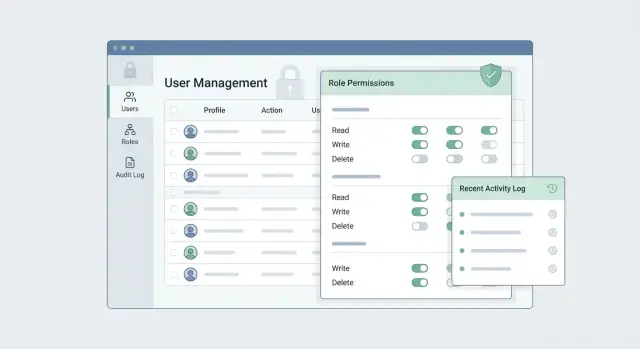
Define the problem and scope
Before you choose RBAC roles and permissions or start designing screens, get specific about what “internal tool permissions” means in your organization. For some teams it’s a simple “who can access which app”; for others it includes fine-grained actions inside each tool, temporary elevations, and audit evidence.
What counts as a permission?
Write down the exact actions you need to control, using verbs that match how people work:
- View (read-only access to dashboards, tickets, customer records)
- Edit (change configurations, update data, close requests)
- Admin (manage users, change billing, alter security settings)
- Export (download reports, pull customer data, API access)
This list becomes the baseline for your access management web app: it determines what you store, what you approve, and what you audit.
Inventory tools and where enforcement happens
Make an inventory of internal systems and tools: SaaS apps, internal admin panels, data warehouses, shared folders, CI/CD, and any “shadow admin” spreadsheets. For each, note whether permissions are enforced:
- Inside the tool (native roles)
- At your gateway (reverse proxy, API layer)
- By process (manual steps, shared credentials)
If enforcement is “by process,” it’s a risk you should either remove or explicitly accept.
Stakeholders and success metrics
Identify decision-makers and operators: IT, security/compliance, team leads, and end users who request access. Agree on success metrics you can measure:
- Median time to grant access
- Number of permission-related incidents
- Percentage of access with an owner and business justification
- Audit readiness (can you answer “who had access to what, when, and why?”)
Getting scope right prevents building a permission system that’s too complex to run—or too simple to protect least privilege access.
Pick your authorization model (roles, policies, and exceptions)
Your authorization model is the “shape” of your permission system. Get it right early and everything else—UI, approvals, audits, and enforcement—stays simpler.
Start with the simplest model that can survive reality
Most internal tools can begin with role-based access control (RBAC):
- Simple roles: users get one or more roles (e.g., Viewer, Operator, Admin).
- Role + overrides: roles cover 90% of cases, plus a small set of explicit grants/denies per user.
- Attribute-based rules (ABAC): permissions depend on attributes like department, location, data sensitivity, or environment.
RBAC is easiest to explain and review. Add overrides only when you’re seeing frequent “special case” requests. Move to ABAC when you have consistent rules that would otherwise explode your role count (e.g., “can access tool X only for their region”).
Make least privilege the default
Design roles so the default is minimal access, and privilege is earned through explicit assignment:
- Start with “no access” or “read-only” baselines.
- Separate “can view” from “can change” (and “can approve” from “can request”).
- Avoid “Admin” roles that silently include everything; make high-impact actions visible.
Decide what’s global vs tool-specific
Define permissions at two levels:
- Global permissions: org-wide capabilities like “manage users,” “view audit logs,” or “approve access.”
- Tool-specific permissions: actions inside each tool (e.g., deploy, edit configs, view secrets).
This prevents one tool’s needs from forcing every other tool into the same role structure.
Plan for exceptions without breaking your model
Exceptions are inevitable; make them explicit:
- Temporary access: time-bound grants that expire automatically.
- Break-glass admin: an emergency role with extra safeguards (limited duration, mandatory reason, extra logging).
If exceptions become common, it’s a signal to adjust roles or introduce policy rules—without letting “one-offs” turn into permanent, unreviewed privilege.
Design the data model
A permissions app lives or dies by its data model. If you can’t answer “who has access to what, and why?” quickly and consistently, every other feature (approvals, audits, UI) becomes brittle.
Core entities (keep them explicit)
Start with a small set of tables/collections that map cleanly to real-world concepts:
- Users (people who need access)
- Teams (groups you manage access for)
- Tools/Apps (what access is granted to)
- Roles (named bundles like “Billing Admin”)
- Permissions (fine-grained capabilities like
export_invoices) - Assignments (the fact that a user/team has a role for a specific tool)
Roles should not “float” globally without context. In most internal environments, a role is meaningful only within a tool (e.g., “Admin” in Jira vs “Admin” in AWS).
Relationships and inheritance rules
Expect many-to-many relationships:
- A user can belong to many teams, and a team has many users.
- A role contains many permissions, and a permission can be in many roles.
- An assignment typically links: (subject = user or team) → (role) → (tool/app).
If you support team-based inheritance, decide the rule up front: effective access = direct user assignments plus team assignments, with clear conflict handling (e.g., “deny beats allow” if you model denies).
Lifecycle fields that make audits easy
Add fields that explain changes over time:
created_by(who granted it)expires_at(temporary access)disabled_at(soft-disable without losing history)
These fields help you answer “was this access valid last Tuesday?”—critical for investigations and compliance.
Indexing for fast permission checks
Your hottest query is usually: “Does user X have permission Y in tool Z?” Index assignments by (user_id, tool_id), and precompute “effective permissions” if checks must be instant. Keep write paths simple, but optimize read paths where enforcement depends on them.
Authentication and SSO integration
Authentication is how people prove who they are. For an internal permissions app, the goal is to make sign-in easy for employees while keeping admin actions strongly protected.
Choose your login method
You typically have three options:
- SSO (recommended for most companies): employees sign in with their corporate identity (Google Workspace, Microsoft Entra ID/ADFS, Okta, Ping).
- Email magic link (passwordless): users enter their email and receive a time-limited link. This is simple to run, but weaker if inbox security varies.
- Passwords: usually the last choice for internal tools because it creates password reset and policy overhead.
If you support more than one method, pick one as the default and make others explicit exceptions—otherwise admins will struggle to predict how accounts get created.
Integrate with SAML or OIDC (SSO)
Most modern integrations use OIDC; many enterprises still require SAML.
- OIDC: you validate an ID token, map a stable user identifier (subject/issuer), and optionally read group/role claims.
- SAML: you validate signed assertions, map NameID (or a dedicated attribute), and handle metadata/cert rotation.
Regardless of protocol, decide what you trust from the IdP:
- Identity only (who the user is), while your app stores permissions.
- Identity + groups (who the user is and which groups they’re in), which can auto-assign baseline roles.
Sessions: expiration, refresh, and device trust
Define session rules up front:
- Short-lived access session (e.g., 8–12 hours) with a clear re-auth prompt.
- Refresh strategy: either silent refresh through the IdP (OIDC) or re-login after expiry (simpler, safer).
- Device trust: optionally remember a device for low-risk actions, but require re-auth for admin changes. Track sessions per device so admins can revoke them.
MFA for sensitive admin actions
Even if the IdP enforces MFA at login, add step-up authentication for high-impact actions like granting admin rights, changing approval rules, or exporting audit logs. Practically, that means re-checking “MFA performed recently” (or forcing re-auth) before completing the action.
Access request and approval workflows
A permissions app succeeds or fails on one thing: whether people can get the access they need without creating silent risk. A clear request and approval workflow keeps access consistent, reviewable, and easy to audit later.
The basic flow: request → decision → grant
Start with a simple, repeatable path:
- User requests access to a specific tool, environment (prod vs. staging), and permission set.
- Approvers review the request (with context like business justification and duration).
- System grants access automatically after approval (or creates an admin task if automation isn’t available).
- User is notified, and the grant is recorded in the audit log.
Keep requests structured: avoid free-form “please give me admin.” Instead, force selection of a predefined role or permission bundle and require a short justification.
Who can approve what
Define approval rules up front so approvals don’t turn into debates:
- Manager approval confirms the request matches the user’s job responsibilities.
- App owner approval confirms the permission level is appropriate for the tool (and often for the specific environment).
- Security approval is reserved for high-impact access (admin roles, production write access, sensitive data).
Use a policy like “manager + app owner” for standard access, and add security as a required step for privileged roles.
Time-bound access with automatic expiration
Default to time-bound access (for example, 7–30 days) and allow “until revoked” only for a short list of stable roles. Make expiration automatic: the same workflow that grants access should also schedule the removal and notify the user before it ends.
Urgent access without losing control
Support an “urgent” path for incident response, but add safeguards:
- Require a reason code (incident ticket, outage reference)
- Shorter default duration (hours, not days)
- Extra logging and alerts to app owners and security
That way, fast access doesn’t mean invisible access.
Admin dashboard UX that prevents mistakes
Your admin dashboard is where “one click” can grant access to payroll data or revoke production rights. A good UX treats every permission change as a high-stakes edit: clear, reversible, and easy to review.
Start with an admin-friendly layout
Use a navigation structure that matches how admins think:
- Users: who has access and why
- Roles: reusable bundles of permissions
- Apps/Resources: what can be accessed
- Requests: pending approvals and history
- Audit: who changed what, and when
This layout reduces “where do I go?” errors and makes it harder to change the wrong thing in the wrong place.
Make permissions readable (not just technically correct)
Permission names should be plain language first, technical detail second. For example:
- “View invoices” (scope: Billing → Invoices:read)
- “Deploy to production” (scope: CI/CD → prod:deploy)
Show the impact of a role in a short summary (“Grants access to 12 resources, including Production”) and link to the full breakdown.
Add guardrails for risky actions
Use friction intentionally:
- Preview before apply: “This will add 3 permissions and remove 1.”
- Confirmation dialogs for sensitive scopes (prod, finance, HR)
- Bulk changes carefully: require a CSV preview, highlight invalid rows, and ask for an “I understand” checkbox
- Easy rollback: “Revert this change” from the change detail page
Optimize for large organizations
Admins need speed without sacrificing safety. Include search, filters (app, role, department, status), and pagination everywhere you list Users, Roles, Requests, and Audit entries. Keep filter state in the URL so pages are shareable and repeatable.
Enforcement layer: how permissions are actually checked
The enforcement layer is where your permission model becomes real. It should be boring, consistent, and hard to bypass.
One permission-check function, everywhere
Create a single function (or small module) that answers one question: “Can user X do action Y on resource Z?” Every UI gate, API handler, background job, and admin tool must call it.
This avoids “close enough” re-implementations that drift over time. Keep inputs explicit (user id, action, resource type/id, context) and outputs strict (allow/deny plus a reason for auditing).
Protect routes and APIs (not just the UI)
Hiding buttons is not security. Enforce permissions on the server for:
- Every API endpoint (including internal/admin endpoints)
- Every server-rendered route
- Background tasks (exports, syncs, scheduled jobs)
A good pattern is middleware that loads the subject (resource), calls the permission-check function, and fails closed (403) if the decision is “deny.” If you expose a UI that calls /api/reports/export, the export endpoint must enforce the same rule even if the UI already disables the button.
Cache carefully so decisions stay current
Caching permission decisions can improve performance, but it can also keep access alive after a role change.
Prefer caching inputs that change slowly (role definitions, policy rules), and keep decision caches short-lived. Invalidate caches on events like role updates, user role assignment changes, or deprovisioning. If you must cache per-user decisions, add a “permissions version” counter to the user and bump it on any change.
Common pitfalls to avoid
Avoid:
- Implicit admin: “isEmployee=true” or “created the workspace” quietly granting everything
- Forgotten endpoints: old v1 routes, CSV exports, webhooks, GraphQL fields, internal tools
- “Deny” gaps: missing policy = allow. Default should be deny unless explicitly allowed
If you want a concrete reference implementation pattern, document it and link it from your engineering runbook (e.g., /docs/authorization) so new endpoints follow the same enforcement path.
Audit logs and reporting
Audit logs are your “receipt system” for permissions. When someone asks, “Why does Alex have access to Payroll?” you should be able to answer in minutes—without guessing or digging through chat.
What to log (and how to make it useful)
For every permission change, record who changed what, when, and why. “Why” shouldn’t be free-text only; it should tie back to the workflow that justified the change.
At a minimum, capture:
- Actor (admin/service), target user or group, and the resource (tool, environment, dataset)
- Old value → new value (e.g.,
Finance-Read→Finance-Admin) - Timestamp (UTC) and source (UI, API, automated job)
- Request ID and approval ID (or ticket ID) so you can replay the full decision trail
- Optional: business justification, expiration date, and policy that allowed it
Use a consistent event schema so reporting is reliable. Even if your UI changes over time, the audit story stays readable.
Logging reads of sensitive data
Not every data read needs a log entry, but access to high-risk data often does. Common examples include payroll details, customer PII exports, API key views, or “download all” actions.
Keep read-logging practical:
- Log events, not entire payloads (avoid storing sensitive values in logs)
- Capture resource identifiers, filters used, and volume where relevant (e.g., “exported 2,431 rows”)
- Use sampling only if compliance allows it—and document that choice
Reporting and exports (with guardrails)
Provide basic reports admins actually use: “permissions by person,” “who can access X,” and “changes in the last 30 days.” Include export options (CSV/JSON) for auditors, but treat exports as sensitive actions:
- Require explicit permission to export audit data
- Watermark exports with who generated them and when
- Log the export event itself (including filters and file format)
Retention and who can view audit trails
Define retention up front (for example, 1–7 years depending on regulatory needs) and separate duties:
- Only a limited set of roles can view audit logs
- Support read-only auditor access
- Make logs append-only and tamper-evident (e.g., immutable storage or signed event chains)
If you add a dedicated “Audit” area in your admin UI, link to it from /admin with clear warnings and a search-first design.
User lifecycle and provisioning
Permissions drift when people join, switch teams, go on leave, or leave the company. A solid access management web app treats user lifecycle as a first-class feature, not an afterthought.
Provisioning: how new users get the right access
Start with a clear source of truth for identity: your HR system, your IdP (Okta, Azure AD, Google), or both. Your app should be able to:
- Create a user record automatically when an employee appears in the IdP.
- Assign baseline access using least privilege (for example, a default “Employee” role plus team-specific roles).
If your identity provider supports SCIM, use it. SCIM lets you automatically sync users, groups, and status changes into your app, reducing manual admin work and preventing “ghost users.” If SCIM isn’t available, schedule periodic imports (API or CSV) and require owners to review exceptions.
Role changes: handling team moves without chaos
Team moves are where internal tool permissions often get messy. Model “team” as a managed attribute (synced from HR/IdP), and treat role assignments as derived rules where possible (e.g., “If department = Finance, grant Finance Analyst role”).
When someone changes teams, your app should:
- Remove old team-based roles automatically.
- Preserve explicitly approved exceptions (and flag them for re-approval).
Deprovisioning: fast offboarding across all tools
Offboarding should revoke access quickly and predictably. Trigger deprovisioning from the IdP (disable user) and have your app immediately:
- Revoke active sessions and API tokens.
- Remove tool access grants and notify tool owners.
If your app also provisions access out to downstream tools, queue those removals and surface any failures in the admin dashboard so nothing lingers unnoticed.
Security controls and threat checks
A permissions app is an attractive target because it can grant access to many internal systems. Security here isn’t a single feature—it’s a set of small, consistent controls that reduce the chance of an attacker (or a rushed admin) doing damage.
Validate inputs and block common web attacks
Treat every form field, query parameter, and API payload as untrusted.
- Validate types and allowed values (e.g., role names from a fixed list, not free text).
- Sanitize user-supplied text that might be displayed later to prevent XSS.
- Use CSRF protection for cookie-based sessions, especially on “grant/revoke” actions.
Also set safe defaults in your UI: preselect “no access” and require explicit confirmation for high-impact changes.
Enforce authorization on the server—every time
The UI should reduce mistakes, but it cannot be your security boundary. If an endpoint modifies permissions or reveals sensitive data, it needs a server-side permission check:
- Creating/changing roles and policies
- Granting access, revoking access, or changing exceptions
- Viewing audit logs and reports
This is worth treating as a standard engineering rule: no sensitive endpoint ships without an authorization check and an audit event.
Rate limits and abuse controls
Admin endpoints and authentication flows are frequent targets for brute force and automation.
- Rate-limit login attempts and password reset requests.
- Rate-limit admin actions like bulk grants/exports.
- Add alerts for suspicious spikes (e.g., many permission changes in a short window).
Where possible, require step-up verification for risky actions (for example, re-authentication or an approval requirement).
Secrets, encryption, and least privilege
Store secrets (SSO client secrets, API tokens) in a dedicated secret manager, not in source code or config files.
- Encrypt sensitive data at rest and in transit (TLS everywhere).
- Use least-privileged database and service accounts: the web app should only have the minimum permissions it needs.
- Separate “read” and “write” credentials where practical, especially for reporting and audit exports.
Quick threat checks (what to test for)
Run regular checks for:
- Privilege escalation (a user granting themselves or their team access)
- IDOR issues (changing an ID in a URL to access another team’s data)
- Missing authorization on “internal” endpoints
- Dangerous defaults (new integrations automatically getting broad access)
These checks are inexpensive and catch the most common ways permission systems fail.
Testing strategy for permission-heavy apps
Permissions bugs are rarely “the app is broken” issues—they’re “the wrong person can do the wrong thing” issues. Treat authorization rules as business logic with clear inputs and expected outcomes.
1) Unit test the rules (fast feedback)
Start by unit testing your permission evaluator (whatever function decides allow/deny). Keep tests readable by naming them like scenarios.
- Unit test permission rules for both allow and deny outcomes, including edge cases (e.g., user is suspended, tool is archived, role is removed mid-session).
- Include exception paths: temporary access, break-glass admin, and “self-service but needs approval” actions.
A good pattern is a small table of cases (user state, role, resource, action → expected decision) so adding new rules doesn’t require rewriting the suite.
2) Integration tests for high-risk journeys
Unit tests won’t catch wiring mistakes—like a controller forgetting to call the authorization check. Add a few integration tests around the flows that matter most:
- Request access → approver approves/denies → user gains/loses access
- Role change → immediate effect on access
- Deprovision user → access removed everywhere
These tests should hit the same endpoints your UI uses, validating both API responses and resulting database changes.
3) Test fixtures you can trust
Create stable fixtures for roles, teams, tools, and example users (employee, contractor, admin). Keep them versioned and shared across test suites so everyone tests against the same meaning of “Finance Admin” or “Support Read-Only.”
4) Regression checklist before every release
Add a lightweight checklist for permission changes: new roles introduced, default role changes, migrations that touch grants, and any UI changes on admin screens. When possible, link the checklist to your release process (e.g., /blog/release-checklist).
Deployment, monitoring, and ongoing operations
A permissions system is never “set and forget.” The real test starts after launch: new teams onboard, tools change, and urgent access needs show up at the worst time. Treat operations as part of the product, not an afterthought.
Plan your environments (dev, staging, production)
Keep dev, staging, and production isolated—especially their data. Staging should mirror production config (SSO settings, policy toggles, feature flags), but use separate identity groups and non-sensitive test accounts.
For permission-heavy apps, also separate:
- Audit logs (so test noise doesn’t pollute compliance reporting)
- Approval workflows (staging approvals shouldn’t notify real approvers)
- Secrets and keys (never reuse production signing keys in lower environments)
Monitoring that catches permission issues early
Monitor the basics (uptime, latency), but add permission-specific signals:
- Auth failures by type: expired session vs. SSO misconfig vs. missing permission
- Authorization denials spikes for a tool/team (often means a role mapping broke)
- Suspicious patterns: repeated access requests, rapid role changes, or unusual admin activity
Make alerts actionable: include the user, tool, role/policy evaluated, request ID, and a link to the relevant audit event in your admin UI.
Runbooks: what to do at 2 a.m.
Write short runbooks for common emergencies:
- Revoke access fast (disable user, remove role bindings, invalidate sessions)
- Restore service (rollback a policy change, decide fail closed vs. fail open, rotate keys)
- SSO outage procedure (break-glass access with time-limited approval)
Keep runbooks in the repo and in your ops wiki, and test them during drills.
Building faster (without skipping governance)
If you’re implementing this as a new internal app, the biggest risk is spending months on scaffolding (auth flows, admin UI, audit tables, request screens) before you’ve validated the model with real teams. A practical approach is to ship a minimal version quickly, then harden it with policy, logging, and automation.
One way teams do that is with Koder.ai, a vibe-coding platform that lets you create web and backend applications through a chat interface. For permission-heavy apps, it’s especially useful for generating the initial admin dashboard, request/approval flows, and CRUD data model quickly—while still keeping you in control of the underlying architecture (commonly React on the web, Go + PostgreSQL on the backend) and allowing source code export when you’re ready to move into your standard review and deployment pipeline. As your needs grow, features like snapshots/rollback and planning mode can help you iterate on authorization rules more safely.
Next steps
If you want a clearer foundation for role design before scaling operations, see /blog/role-based-access-control-basics. For packaging and rollout options, check /pricing.
FAQ
What counts as a “permission” in an internal tools access app?
A permission is a specific action you want to control, expressed as a verb that matches how people work—e.g., view, edit, admin, or export.
A practical way to start is to list actions per tool and environment (prod vs staging), then standardize names so they’re reviewable and auditable.
How do I inventory tools and decide where permissions should be enforced?
Inventory every system where access matters—SaaS apps, internal admin panels, data warehouses, CI/CD, shared folders, and any “shadow admin” spreadsheets.
For each tool, record where enforcement happens:
- Inside the tool (native roles)
- At a gateway (reverse proxy/API layer)
- By process (manual steps/shared credentials)
Anything enforced “by process” should be treated as explicit risk or prioritized for removal.
What success metrics should we use for internal permission management?
Track metrics that reflect both speed and safety:
- Median time to grant access
- Permission-related incidents
- % of access with an owner + business justification
- Audit readiness: “who had access to what, when, and why?”
These give you a way to judge whether the system is actually improving operations and reducing risk.
When should I use RBAC vs RBAC with overrides vs ABAC?
Start with the simplest model that won’t collapse under exceptions:
- RBAC if most access can be expressed as roles like Viewer/Operator/Admin
- RBAC + overrides when you have occasional special cases you can’t model cleanly
- ABAC when consistent attribute rules would otherwise create too many roles (e.g., region/department-based rules)
Pick the simplest approach that stays understandable during reviews and audits.
How do we make least privilege the default without slowing teams down?
Make minimal access the default and require explicit assignment for anything more:
- Start from “no access” or “read-only”
- Separate “view” from “change,” and “request” from “approve”
- Avoid “Admin means everything” bundles; make high-impact actions visible
Least privilege works best when it’s easy to explain and easy to review.
What’s the difference between global permissions and tool-specific permissions?
Define global permissions for org-wide capabilities (e.g., manage users, approve access, view audit logs) and tool-specific permissions for actions inside each tool (e.g., deploy to prod, view secrets).
This prevents one tool’s complexity from forcing every other tool into the same role structure.
What data model do we need to answer “who has access to what, and why?”
At minimum, model:
- Users, Teams
- Tools/Apps
- Roles, Permissions
- Assignments (subject → role → tool)
Add lifecycle fields like created_by, expires_at, and disabled_at so you can answer historical questions (e.g., “Was this access valid last Tuesday?”) without guesswork.
How should we integrate authentication and SSO (OIDC vs SAML)?
Prefer SSO for internal apps so employees use the corporate identity provider.
- OIDC is common in modern setups (ID tokens + stable identifiers)
- SAML is still required in many enterprises (signed assertions + metadata/cert rotation)
Decide whether you trust the IdP for identity only, or identity plus groups (to auto-assign baseline access).
What should an access request and approval workflow look like?
Use a structured flow: request → decision → grant → notify → audit.
Make requests select predefined roles/bundles (not free-form), require a short business justification, and define approval rules like:
- Manager + app owner for standard access
- Add security approval for privileged/prod/sensitive roles
Default to time-bound access with automatic expiration.
What should we put in audit logs, and who should be allowed to view them?
Log changes as an append-only trail: who changed what, when, and why, including old → new values and links to the request/approval (or ticket) that justified it.
Also:
- Consider logging reads for high-risk actions (exports, API key views)
- Treat audit exports as sensitive (explicit permission, watermark, export event logged)
- Set retention (often 1–7 years) and restrict who can view logs (read-only auditor roles help)