

How to Build a Website for a Tool That Replaces Spreadsheets
Learn how to plan, design, and launch a website for a tool that replaces spreadsheets—clear messaging, key pages, onboarding, SEO, and trust.
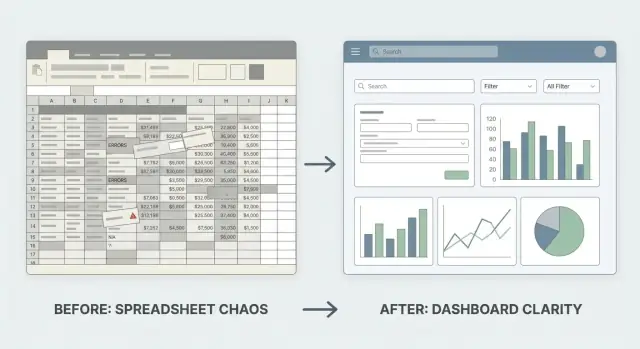
Start With the Problem, Not the Features
If you’re replacing spreadsheets, your website shouldn’t lead with “tables,” “filters,” or “API access.” Visitors already have a tool that can do those things. What they’re searching for is relief from the specific pain spreadsheets create once a process becomes shared, repeated, or business-critical.
Name the spreadsheet problem you’re solving
Be explicit. Spreadsheets fail in predictable ways:
- Errors and hidden logic (someone edits a formula, a cell reference breaks, or copy/paste quietly changes data)
- Version chaos ("Final_v7_really_final.xlsx" and conflicting edits)
- Slow reporting (manual consolidation, stale numbers, and end-of-week scramble)
- No real workflow (approvals, handoffs, and permissions are bolted on with comments and tabs)
Write your opening message like a diagnosis, not a feature list:
Stop chasing the latest file. Get one source of truth with clear ownership and approvals.
Describe who it’s for and the job to be done
Define the audience in plain language: which teams, roles, and typical company size.
Examples: operations managers tracking requests, finance teams collecting spend, HR running onboarding checklists.
Then state the job:
Collect structured data, route it for approval, and report on it instantly—without spreadsheet wrangling.
Focus on outcomes, not capabilities
List 3–5 outcomes people actually want: speed, accuracy, visibility, accountability, auditability. These become your homepage promises and section headers.
Define MVP vs. “later” features
Keep scope manageable by drawing a line:
- MVP: data entry forms, shared views, basic permissions, export, simple approvals
- Later: complex automations, advanced analytics, deep integrations, custom roles per field
A clear MVP makes your product easier to explain—and your website easier to convert.
If you’re building this product from scratch, it helps to choose a development approach that keeps MVP scope honest. For example, a vibe-coding platform like Koder.ai can be useful for quickly turning a spreadsheet workflow into a database-backed app through a chat interface—while still allowing source code export and iteration (including snapshots and rollback) as your requirements evolve.
Map Spreadsheet Workflows Into App Workflows
Before you design pages or write copy, translate what people actually do in Excel or Google Sheets into a clear, repeatable app flow. Most spreadsheet “systems” follow the same pattern:
input → review → approve → report
The goal isn’t to recreate the grid—it’s to preserve the outcome while removing the chaos.
Start by describing the real workflow
Pick one spreadsheet that matters (timesheets, inventory, requests, budgets) and write down:
- Who enters data (and how often)
- Who checks it (and what “good” looks like)
- Who approves it (and what rules they apply)
- Who consumes the result (a weekly report, a dashboard, an export)
This becomes the backbone of your app workflow: “submit,” “review,” “approve,” and “report.”
Identify where spreadsheets break
Instead of listing every annoyance, focus on the top failure points that consistently slow teams down:
- Copy/paste creates duplicates and missing rows
- Formulas get edited, overwritten, or drift between versions
- Multiple tabs become inconsistent (“Which sheet is the source of truth?”)
- Access control is blunt (everyone can see/edit too much)
List the top 3 issues users complain about. Those become your highest-priority product requirements and the strongest claims to make on your site.
Decide: form, table, or report
For each step, decide what the app should provide:
- Form for consistent data entry (same fields, required checks)
- Table for reviewing and filtering records
- Report for summaries (totals, trends, exceptions)
Set one simple success metric
Define a measurable win, such as “save 2 hours per manager per week” or “cut entry errors by 50%.” This keeps your build focused—and gives your website a concrete promise to communicate.
Define Positioning and Core Messaging
Your website will only convert if it’s obvious who the product is for and why it’s better than “just keeping it in Sheets.” Positioning is the filter that keeps your copy focused.
Choose the homepage audience: buyer or end user
Pick one primary reader for the homepage and write directly to them.
- Buyers (ops leads, team managers, founders) care about control, visibility, standardization, and risk reduction.
- End users (coordinators, admins, reps) care about speed, fewer mistakes, and not fighting messy files.
You can still serve both, but decide whose question you answer first. A clear “for teams that…” statement prevents your message from sounding like a generic spreadsheet replacement website.
Write a one-sentence value proposition
Use a simple structure: what it replaces + the key benefit.
Example formula:
Replace shared spreadsheets with a database-backed web app that keeps your team’s data accurate and approvals on track.
This works because it names the alternative (Excel/Sheets) and promises an outcome (accuracy + smoother workflow), not a feature list.
Add three supporting points (outcomes, not tech)
Keep these concrete and human. If you’re tempted to mention “permissions,” translate it into the result.
- Fewer errors and rework: stop broken formulas, duplicated rows, and accidental edits.
- Faster handoffs: structured requests, approvals, and status updates without chasing versions.
- Clear ownership: everyone sees what they’re responsible for and what’s waiting on someone else.
Commit to one clear CTA
Pick a single primary action and repeat it consistently. Examples:
- Book a demo (best for higher-price, team sales)
- Try it free (best for self-serve)
Everything on the page should support that one step—especially if you’re marketing a workflow app for teams moving from spreadsheets to a web app.
Plan the Website Structure and Key Pages
A spreadsheet replacement needs a website that answers one question quickly:
Can this fit my team’s process without breaking what already works?
The simplest way to do that is to organize pages around how buyers evaluate the switch: outcomes, workflows, proof, and next steps.
Homepage: sell the switch in seconds
Your homepage should lead with a clear value proposition (what improves compared to Excel/Sheets), then immediately show 3–5 common use cases. Add lightweight social proof (logos, short quotes, numbers) near the top, and repeat one primary call to action (start trial, book demo) throughout the page.
Product page: group features by workflow stage
Avoid a long “feature list.” Instead, structure the product page around stages people recognize:
- Capture data (forms)
- Organize and validate (rules, required fields)
- View and collaborate (filtered views, comments)
- Control access (permissions, approvals)
- Report and export (dashboards, CSV/PDF as needed)
This makes the product feel like a workflow app, not “a better spreadsheet.”
Use cases: speak to teams and processes
Create a use-cases page with sections for ops, finance, HR, inventory, and other core audiences. Each use case should include: the problem, the before/after workflow, and a concrete example (what gets tracked, who approves, what gets reported).
Pricing (or “Talk to sales”): keep it obvious
Pricing should be easy to interpret: what’s included, how seats work, and which plan fits which team size. If you’re sales-led, your “Talk to sales” page should still show what buyers get and what happens after they submit the form.
If you offer multiple tiers, make the progression obvious. (Koder.ai, for example, keeps this simple with Free, Pro, Business, and Enterprise tiers—an approach that maps well to “try it → adopt it as a team → standardize across the company.”)
Help, contact, and trust pages
A small help center reduces friction: setup steps, common tasks, and troubleshooting. Add contact, security, and terms/privacy pages as needed—especially if you’re replacing spreadsheets used for sensitive work.
Design a Homepage That Sells the Switch From Spreadsheets
Your homepage isn’t the place to explain every feature. It’s where people decide, in seconds, whether your tool is the “obvious next step” after Excel or Google Sheets.
Lead with a clear before vs after
Open with a simple comparison that feels familiar:
- Before: “One file, 12 versions, broken formulas, unclear owners.”
- After: “One source of truth, guided data entry, approvals, and reporting.”
If you use visuals, keep them dead simple: a messy spreadsheet snapshot on the left, a clean form + dashboard view on the right, each with a one-line caption. The goal is instant recognition, not a UI tour.
Show screenshots that prove the switch
Pick screenshots that demonstrate what spreadsheets struggle with:
- Forms that guide people to enter the right data (required fields, dropdowns, validation).
- Permissions that show who can view vs edit vs approve.
- Reports/views that show filtered lists, totals, and status—real content, not empty tables.
Avoid “blank app UI” screenshots. Use realistic sample data so visitors can picture their own workflow.
Explain how you prevent common spreadsheet mistakes
A short, plain-language block can do a lot of selling. For example:
- Prevents overwriting someone else’s work
- Stops invalid entries (wrong dates, missing IDs, duplicates)
- Keeps formulas and business rules consistent
- Tracks changes and ownership automatically
Keep it concrete: “No more accidental row deletes” beats “improved data integrity.”
Add a short “How it works” flow
A four-step strip works well, especially for spreadsheet replacements:
Import → Clean → Use → Report
Write one sentence per step. Make it feel quick and reversible (“Import your sheet in minutes,” “Fix duplicates with suggestions,” “Use forms and approvals,” “Generate reports without manual pivots”).
Place CTAs after each major block
Don’t make people scroll back to take action. After the hero, the proof screenshots, and the “How it works” flow, repeat a clear CTA like:
- “Import a spreadsheet”
- “See an example workflow”
- “Book a quick demo”
Keep the CTA text aligned to intent: early CTAs should feel low-commitment, later ones can ask for a demo or trial.
Build Product UX Around Forms, Views, and Permissions
Spreadsheets win because they’re flexible: people can type anywhere, copy/paste quickly, and sort their way to answers. A replacement tool needs a UX that keeps that speed—while removing the mess that happens when “anything goes.” The easiest way to do that is to design around three building blocks: forms (how data gets in), views (how data is found and used), and permissions (who can do what).
Forms: make data entry simpler than a grid
A great form feels like a guided spreadsheet row.
Use smart defaults so users don’t have to think about repetitive fields (today’s date, current project, last-used value). Add validation that prevents common errors (required fields, number ranges, unique IDs) and explains what to fix in plain language.
Keep forms fast: support keyboard navigation, autofill where possible, and show only the fields that matter for the current task. When a form saves, confirm clearly and let users add “one more” without reloading their mental context.
Views: retrieval should be instant, not a scavenger hunt
People don’t just store data in spreadsheets—they retrieve it constantly.
Provide filters, search, and sorting that feel immediate. Then go one step further with saved views like “My open requests,” “Awaiting approval,” or “Overdue this week.” These should be easy to create and share so teams align on the same “source of truth” without passing around copies.
For teams used to spreadsheets, include at least one familiar view: a table with sensible column widths, sticky headers, and quick inline edits (where allowed).
Bulk actions: match the moments where spreadsheets shine
Spreadsheets are strong when users need to change a lot at once.
Support import/export (CSV/Excel), multi-select edits (update owner/status on 50 items), and simple bulk workflows (archive, tag, reassign). Show a preview before applying changes, and make it easy to undo when possible.
Permissions and history: reduce confusion and “who changed this?”
Add roles and permissions early: viewers, editors, approvers, and admins. Restrict sensitive fields, and prevent accidental edits by default.
Include change history per record (what changed, when, by whom). This single feature replaces a lot of spreadsheet detective work.
Collaboration: keep work moving
Make collaboration part of the record: comments, @mentions, assignments, and approvals. When the workflow is visible inside the item—not in a separate chat—teams stop using the spreadsheet as a message board and start using your tool to complete work.
Make Onboarding and Migration From Excel/Sheets Easy
People don’t leave spreadsheets because they love change—they leave because the file is breaking under real-world teamwork. Your onboarding should minimize risk and make the first 10 minutes feel familiar.
A “Getting started” flow that leads to success
Create a simple, guided path: Sign up → pick a template → import data. Avoid dumping users into a blank workspace with no direction.
A good first-run experience includes two options:
- Start from a template (for common workflows like inventory, content calendars, requests, or onboarding trackers)
- Import my spreadsheet (for users who already have a working file)
Import that respects how spreadsheets are used
Spreadsheet import is where trust is won or lost. Make mapping explicit: show the spreadsheet columns on the left and the app fields on the right, with clear defaults.
Be specific and kind with errors. Instead of “Import failed,” say what happened and what to do next:
- “3 rows skipped: missing required ‘Status’ value”
- “Date format not recognized in Column D. Example: 2025-12-26”
Let users try without commitment
Provide sample data in templates so the app feels alive immediately. Pre-filled examples help users understand what “good” looks like (statuses, owners, due dates, tags) before they invest time migrating.
Tooltips and empty states that teach
Every empty state should answer: “What should I do next?” Add short tooltips near key actions (Add row, Create view, Share, Set permissions) and suggest the next best step.
Follow up with a helpful welcome email
Send a welcome email that includes:
- A quick setup checklist (3–5 steps)
- Links to your docs and migration guide
- A reminder of where to find templates and import tools
When onboarding and migration feel safe, switching stops being a project and becomes a quick upgrade.
Earn Trust: Security, Privacy, and Data Control
People use spreadsheets because they feel “owned” and understandable. If you want them to move to your tool, your website must clearly explain where their data lives, who can see it, and what happens when something goes wrong.
Explain data storage and access (in plain language)
Say, simply, where data is stored (for example: “in our cloud database” or “in your company’s workspace”), whether it’s separated by account, and who can access it. Avoid vague claims. Spell out the everyday meaning: “Only users you invite can view or edit records,” and “Admins control what each role can do.”
Create a dedicated Security page with verifiable details
A short Security page builds confidence because it answers practical questions:
- Authentication: email/password, SSO if you support it, and whether you offer multi-factor authentication
- Backups: how often you back up data and how recovery works if someone deletes something
- Roles and permissions: what admin, editor, and viewer roles can access
Keep it factual—only list what exists today.
If you run on managed cloud infrastructure, say so plainly. For instance, Koder.ai runs on AWS globally and can deploy apps in different regions to support data residency needs—this is the kind of concrete “where does my data live?” detail buyers look for when moving off spreadsheets.
Privacy and data ownership that match reality
Make your privacy and data ownership statements easy to scan. Clarify whether you sell data (ideally: no), how you use customer data to run the service, and what happens when an account is closed. If customers can export their data, say so, and describe the format.
Show control: audit trails, logs, and permissions
If you have audit trails or activity logs, surface them. People moving off spreadsheets want accountability: who changed a value, when it changed, and what the previous value was. If you support field-level or table-level permissions, explain that in one or two examples.
A simple support promise
Add a straightforward support note: what channels you offer (email, chat, ticketing) and a typical response window (for example, “within 1 business day”). This reduces the fear of being stuck after switching.
Pricing and Packaging That Match Spreadsheet Alternatives
Pricing is part of your product message. For a spreadsheet replacement, the best pricing is the one users can explain to their manager in one sentence.
Pick a model people already expect
Most spreadsheet-driven teams think in terms of access and ownership. That’s why per user (seat) and per workspace/team pricing tends to feel familiar.
If your costs scale mainly with data volume, you can add a second dimension like records, rows, or storage—but keep it as a simple limit per tier rather than a complicated calculator.
A practical rule: choose one primary metric (usually seats), and use 1–2 supporting limits (like records, automation runs, or integrations).
Make tiers feel like “who it’s for,” not a feature dump
Name tiers by audience and intent:
- Solo: for one person replacing a personal tracker
- Team: for a shared workflow with clear ownership
- Company: for multiple departments, controls, and admin needs
For each tier, show 4–6 key limits that match real buying questions: seats included, number of workspaces, records/rows, permissions and roles, audit history, and support level. Avoid listing every minor feature; it makes the decision harder.
Address the “but spreadsheets are free” objection directly
Add a short comparison box that frames the tradeoff:
- Risk: accidental overwrites, broken formulas, unclear source of truth
- Time: manual copy/paste, version confusion, chasing approvals
- Control: permissions, change history, and predictable workflows
You’re not arguing that spreadsheets are bad—you’re explaining why teams outgrow them.
Add a pricing FAQ that removes friction
Include an FAQ focused on common purchase blockers:
- What counts as a seat? Do viewers/guests pay?
- Can we start small and upgrade later?
- How do we handle contractors or temporary access?
- What happens if we exceed limits?
Finally, make Pricing easy to find in your top navigation, and repeat “See pricing” or “Start trial” calls-to-action across key pages so visitors never have to hunt for it.
Use Cases, Templates, and Examples That Convert
Most people won’t switch from spreadsheets because of a feature list—they switch because they recognize their own messy workflow and see a cleaner way to run it. Your website should make that recognition fast.
Create one page per core use case
Treat each use case like a mini story with a clear outcome. Keep it concrete and team-based (who does what, when, and why it matters). Good use-case pages often read like:
Here’s the problem in spreadsheets → here’s the workflow in the app → here’s what you get at the end.
Examples that convert well for spreadsheet-replacement tools:
- Intake and tracking (IT requests, facilities, HR)
- Approvals (purchase requests, content approvals)
- Audits and compliance checklists
- Inventory and asset tracking
Show real workflow examples (not generic claims)
Use one consistent example and walk it end-to-end. A simple diagram beats a long paragraph:
Request submitted → Auto-routes to approver → Approved items appear in a report
        ↓                 ↓                         ↓
     Form page        Permissioned view         Dashboard/export
Then add 3–5 screenshots worth of explanation in words: what fields exist, who can see what, what happens automatically, and what someone does next.
Make templates feel like “start here”
Templates should be tied to outcomes, not objects. Instead of “Inventory table,” use “Track office equipment with check-in/out and alerts.” Add a short “Works best when…” line so people self-qualify.
If you’re using a platform to build quickly, templates can also be internal accelerators—prebuilt workflows you can clone and adapt. In Koder.ai, teams often start from a simple spec in chat, use Planning Mode to lock requirements, then iterate with snapshots so changes are reversible.
Add CTAs that match intent
Use calls-to-action that fit the moment:
- “Try this template” (for hands-on visitors)
- “See a demo workflow” (for evaluators)
- “Talk to us about your process” (for complex teams)
Place CTAs after the workflow diagram and again after results (time saved, fewer errors, clearer ownership).
SEO and Analytics for People Searching to Replace Spreadsheets
People who want to “get out of spreadsheets” rarely search for your product name—they search for their problem. Your job is to show up for that intent and then measure whether the page actually moves them toward switching.
Target intent keywords (not generic ones)
Start with searches that include a team, function, or workflow. These are often higher intent than broad terms like “spreadsheet alternative.” Examples:
- “spreadsheet replacement for operations”
- “replace Excel tracker with web app”
- “data entry form instead of spreadsheet”
- “workflow app for teams without spreadsheets”
Create a simple keyword-to-page map so each page has a clear job (one primary query, a few close variants) rather than stuffing everything onto the homepage.
SEO-friendly titles, H1s, and meta descriptions
Write titles and H1s that match how someone speaks about the problem:
- Title: “Replace Spreadsheet Trackers With a Simple Workflow App”
- H1: “Move your tracking out of spreadsheets—without losing flexibility”
Meta descriptions should promise a specific outcome (fewer errors, permissions, audit history, faster handoffs) and match the page’s content.
Internal links that guide the journey
Link between use-case pages, templates/examples, docs, and blog posts so visitors can self-educate. Use descriptive anchor text like “Inventory request approvals” instead of “click here.” Keep navigation consistent so search engines (and humans) understand what matters.
Comparison pages—carefully
Comparison pages can convert well, but avoid claims you can’t prove. Stick to clear, verifiable differences: permissions, audit trail, database-backed records, structured forms, and role-based views.
Analytics goals that match buying intent
Set up events and funnels for:
- Signups and demo requests
- Activation actions (e.g., created first table/workflow, invited a teammate, imported a file)
Track each landing page’s conversion rate, not just traffic, and use that data to refine messaging and page structure.
Launch Checklist and What to Improve After Release
Launching a website for a spreadsheet replacement isn’t just “push it live.” Your first goal is to make the experience smooth enough that visitors can understand the switch, request a demo, and try the product without friction.
Pre-launch checklist (the stuff that breaks conversions)
Start with performance and usability—these are the silent deal-breakers.
- Ensure fast load times: compress images, remove unused scripts, and keep tracking tags minimal.
- Check mobile usability: navigation, sticky headers, and especially forms (field sizes, keyboards, date pickers).
- Add clear error states for every form: inline messages, accessible labels, and a “what to do next” hint.
- Set up lead capture: a simple demo/request form, confirmation message, and spam protection (rate limits, honeypot, CAPTCHA if needed).
Launch day checks (30 minutes that save hours)
Do a full run-through like a real visitor:
- Land on the homepage → understand the promise in 10 seconds.
- Find pricing or “book a demo” → complete the form → receive the confirmation.
- Try one key workflow in the product (or interactive preview) on both desktop and mobile.
Also confirm basics: analytics events fire once (not twice), emails deliver to the right inbox, and any “contact us” addresses are monitored.
What to improve after release (simple iteration plan)
Collect feedback fast, but don’t chase every request. Use a lightweight weekly rhythm:
- Review demo form drop-off and page scroll depth.
- Watch 5–10 session replays or support threads to spot confusing wording.
- Run a short survey after onboarding (“What were you using before?” “What blocked you?”).
Prioritize changes that reduce uncertainty: clearer migration messaging, stronger examples/templates, and fewer steps to reach a first successful workflow. Each week, ship one small improvement, measure it, and keep the loop tight.
If your product team is moving quickly, operational safeguards matter too: snapshots, rollback, and reliable deployments reduce the risk of breaking core workflows right after launch. Platforms like Koder.ai bake these iteration mechanics into the build process, which can be especially helpful when you’re replacing spreadsheet systems that teams depend on daily.
FAQ
What should a spreadsheet replacement website say first?
Lead with a clear diagnosis of the pain your visitor already feels, then connect it to an outcome.
- Name the failure: version chaos, broken formulas, slow reporting, unclear ownership
- Promise relief: one source of truth, guided entry, approvals, instant reporting
- Only then support with features (forms, views, permissions) as proof
How do I make it obvious who the product is for?
Describe the buyer in plain language (team/role/company size) and the job they’re trying to get done.
Example: “Operations managers at 20–200 person companies who need to collect requests, route approvals, and report status—without chasing the latest spreadsheet.”
What outcomes should I emphasize instead of features?
Pick 3–5 outcomes and make them your homepage promises and section headers.
Common outcome set:
- Fewer errors and rework
- Faster handoffs and approvals
- Clear ownership and accountability
- Visibility into status and bottlenecks
- Auditability (who changed what, when)
How do I decide what’s MVP versus “later” features?
Draw a hard line between what must exist to replace the spreadsheet and what can wait.
- MVP: forms, shared views, basic permissions, export, simple approvals
- Later: complex automations, advanced analytics, deep integrations, granular custom roles
A smaller MVP is easier to explain and usually converts better.
How do I map a spreadsheet workflow into an app workflow?
Translate what people do today into a simple flow you can build and explain.
Most spreadsheet “systems” fit:
- Input → Review → Approve → Report
Write down who does each step, how often, and what “good” looks like. Then design the app to support the flow—not the grid.
What pages does a spreadsheet replacement website need?
Use a structure buyers recognize when evaluating the switch.
Recommended core pages:
- Homepage (promise + use cases + CTA)
- Product (grouped by workflow stage, not a feature dump)
- Use cases (problem → before/after workflow → result)
- Pricing or Talk to sales (clear inclusions and next steps)
- Help/Contact + Trust (Security, Privacy, Terms)
What screenshots should I use to “prove” the switch from spreadsheets?
Show the moments where spreadsheets break—and how your product prevents it.
Good screenshots highlight:
- Forms with required fields, dropdowns, validation
- Permissioned views (who can view/edit/approve)
- Real reports/totals/status with realistic sample data
Avoid empty UI; visitors need to picture their workflow.
How can I reduce friction when onboarding and importing from Excel/Sheets?
Make the first 10 minutes feel safe and familiar.
Include:
- Guided start: Sign up → choose template or import → first workflow
- Column-to-field mapping with clear defaults
- Specific import errors (what failed + how to fix)
- Sample data so the app feels “alive” immediately
What trust and security information should I put on the website?
Be explicit and factual, in plain language.
Cover on a Security/Trust page:
- Where data is stored and how it’s separated by account
- Roles (viewer/editor/approver/admin) and what each can do
- Change history per record (who/what/when)
- Backups and recovery basics
- Support channel and typical response time
How do I handle the “spreadsheets are free” pricing objection?
State the tradeoff and make pricing easy to explain internally.
Tactics that work:
- Use a familiar model (usually per-seat, optionally with simple limits)
- Add a short box framing risk/time/control costs of spreadsheets
- Answer purchase blockers in a small FAQ (seats vs viewers, upgrades, overages, contractors)
If you have a pricing page, link it clearly in top navigation (e.g., /pricing).