

How to Build a Website for a Product Onboarding Microsite
Learn how to plan, design, and launch a product onboarding microsite: structure, content, UX, analytics, SEO, and a practical launch checklist.
What a Product Onboarding Microsite Is (and When to Use One)
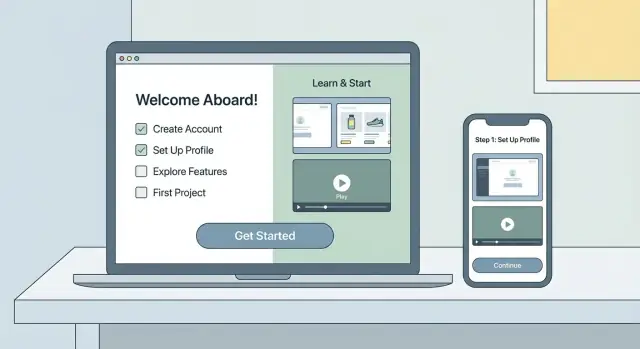
A product onboarding microsite is a small, focused website (often a handful of pages) designed to help new users reach a clear “first win” with your product—quickly. It’s not your full marketing site, and it’s not a sprawling documentation portal. Think of it as a guided path: short, task-based content that helps someone set up, try a key feature, and understand what to do next.
What it is (and what it is not)
A microsite is:
- A dedicated onboarding destination you can share from emails, sales handoffs, QR codes, or inside the app
- Structured around key tasks (setup, connect, invite, publish, track, etc.)
- Built to reduce confusion and support tickets during the first days
A microsite is not:
- A full help center with every edge case and release note
- A replacement for good in-app UX
- A one-time “welcome page” with generic copy and no next step
When to use a microsite vs. in-app onboarding vs. a help center
Use a microsite when:
- Your onboarding includes steps that happen outside the product (e.g., permissions, integrations, procurement)
- Multiple roles need guidance (admin vs. end user) and links must be shareable
- You need a single source of truth for onboarding that sales/support can send consistently
Prefer in-app onboarding when the user can complete everything while logged in and you can guide them with UI prompts, checklists, and tooltips.
Prefer a help center when your main goal is searchable reference content for ongoing use, not a short start-to-finish path.
What to expect from this approach
A good onboarding microsite is fast to scan, opinionated, and action-oriented. It should answer: “What do I do first?” and “How do I know it worked?”
By the end of this guide, you’ll be able to:
- Pick the right onboarding channel (microsite vs. in-app vs. help center)
- Plan a simple onboarding website structure that matches real user tasks
- Write onboarding content that gets used and leads to a first value moment
- Set up clear CTAs and measurement so the microsite improves over time
Set Goals, Audience, and Success Metrics
Before you sketch pages or write copy, get clear on what this microsite is for and who it’s meant to help. A product onboarding microsite works best when it has one primary outcome and a simple way to measure progress.
Pick one primary goal
Choose the main job the microsite must do. Common options:
- Activate: help users complete the first key setup and reach “first value.”
- Educate: explain core concepts so users understand what to do next.
- Convert to paid: support a trial-to-paid decision with proof and next steps (often pointing to /pricing).
- Reduce support: prevent repeat questions with clear troubleshooting and onboarding FAQs.
If you try to do all four equally, the site becomes a dumping ground. Pick one primary goal and treat the others as secondary.
Define audience segments (and their starting point)
Onboarding content lands better when it matches the user’s role and context. Identify your main segments, for example:
- New users who need a quick win and reassurance
- Admins who need setup, permissions, and security details
- Teammates invited into an existing workspace
- Trial users evaluating fit and limits
Write down what each segment already has (account created? invite received?) and what they must accomplish next.
Set success metrics you can track
Tie metrics to your primary goal. Useful onboarding measures include activation rate, time-to-value, task completion rate (e.g., “created first project”), and signups (or upgrade clicks).
Write a one-sentence value promise
This sentence keeps the microsite focused and makes copy easier to approve.
Template:
“In under [time], [audience] will be able to [first-value outcome] using [product], without [common friction].”
Example: “In 10 minutes, new team admins can set up their workspace and invite teammates, without guessing which settings matter first.”
Map the User Journey to the “First Value” Moment
Your microsite is easiest to build when you’re clear on what “first value” looks like for a new user. That’s the moment they stop evaluating and start benefiting—sending the first invite, importing the first file, launching the first campaign, publishing the first page.
1) Define the first-session jobs (3–5 max)
List the few tasks a user must complete on day one. Keep them action-based and measurable.
Examples:
- Create an account and confirm email
- Connect a required integration (Google, Slack, CRM)
- Add initial data (import, paste, or sync)
- Configure one key setting (permissions, workspace, brand)
- Complete the first real action (send, publish, automate, share)
2) Map the ideal path to the “aha” moment
Write the path as a simple story from the user’s perspective:
Arrive → Understand → Set up → Do the first meaningful action → See a result.
For each step, note:
- The decision they’re making (e.g., “Which template fits me?”)
- The minimum input required
- What success looks like (a clear output or confirmation)
3) Capture blockers before they become support tickets
Common friction points to document directly in the journey:
- Permissions: admin access, SSO, domain approval
- Integrations: API keys, OAuth, missing fields
- Setup: data formatting, required settings, team roles
- Time-to-value: steps that feel optional but are actually mandatory
4) Turn the journey into navigation
Convert the path into a short checklist that also becomes your microsite menu:
- Start here (what you’ll achieve)
- Connect / Install
- Set up essentials
- Complete your first success
- Troubleshooting / FAQs
This keeps pages focused, prevents “nice-to-have” detours, and makes it obvious what to do next.
Choose the Microsite Structure and Page List
Your structure should make it easy for a new user to get from “I just signed up” to “I got it working” with as few clicks and decisions as possible. Before you write a single line of copy, lock in the page list and navigation rules—this prevents the microsite from slowly turning into a mini help center.
Single-page vs. multi-page
Pick the simplest option that still supports the way people learn and the way they search.
- Single-page works well when onboarding is short (a few steps), the product is easy to configure, and most visitors arrive from inside the app or an email. It’s faster to scan and harder to get lost.
- Multi-page is better when setup has branches (different roles, plans, or integrations) or when you need search-friendly pages (people Googling “connect X,” “permissions,” or “error Y”). It also helps when teams need to share a specific step.
A practical rule: if your onboarding has more than ~7 distinct “jobs,” go multi-page.
Keep navigation shallow
Aim for no more than two levels in the navigation. Users should always know:
- where they are, and 2) what to do next.
If you feel tempted to add a third level, it’s usually a sign you need to merge pages or move details into expandable sections.
Core page list (a strong default)
Start with a small, dependable set of pages:
- Start Here (what this microsite is, who it’s for, time-to-complete, primary CTA)
- Setup (accounts, permissions, integrations)
- First Project (the fastest path to a meaningful result)
- Templates (ready-to-use starting points)
- Troubleshooting (common blockers and fixes)
- FAQ (short answers, links to deeper support only when needed)
If you already have support docs, link out sparingly (e.g., “More details in /help/integrations”)—don’t duplicate everything.
Plan one primary CTA per page
Every page needs a clear “next step” button above the fold and repeated near the end, such as:
- Start setup
- Create account
- Book demo
Keep secondary actions (like “Read more” or “Contact support”) visually quieter so the path forward stays obvious.
Building the microsite quickly (without turning it into a project)
If the microsite is blocking a launch, treat it like a product surface: start small, ship, then iterate. One approach is to generate a clean React-based microsite with a consistent component set (step cards, callouts, FAQ blocks), then add content in small releases.
If you want to compress the build timeline, a vibe-coding platform like Koder.ai can help you spin up a web app from a chat brief, keep the UX consistent via reusable components, and iterate safely with snapshots and rollback. This is especially useful when the microsite needs to evolve alongside the product without dragging engineering into a never-ending “docs site rebuild.”
Write the Core Onboarding Content (Copy That Gets Used)
Good onboarding copy is the kind users can scan, follow, and finish. Your job is to remove decisions: tell them exactly what to do next, why it matters, and how long it should take.
Start with a “finishable” hero
In the hero section, answer three questions in plain language:
- Who it’s for: “For new workspace admins setting up their first project.”
- What they’ll do: “Connect your data, invite a teammate, and run your first report.”
- How long it takes: “Takes ~10 minutes.”
Add one primary button that matches the first step (for example, “Start setup”), plus a secondary link for people who need context (“Read docs” → /docs).
Write a step-by-step Getting Started flow
Make the core path a short numbered sequence. Each step should have:
- A clear action verb
- The expected outcome (“You’ll see a confirmation message”)
- A time estimate when helpful (“~2 minutes”)
Example structure:
- Create your workspace (name it and choose a region).
- Connect your account (authorize access; you can revoke anytime).
- Add your first teammate (optional, but recommended).
- Complete a quick check (confirm data is flowing).
Make it scannable (and hard to misunderstand)
Use short paragraphs, specific headings (“Connect your account”), and small checklists at the end of each step:
- Done: Authorization approved
- Done: First sync started
- Next: Invite a teammate
Add trust builders you can verify
Don’t overpromise—link to evidence:
- Security and data handling: /security
- Full documentation: /docs
- System availability: /status
These links reduce anxiety without interrupting the main flow.
Use Visuals and Examples Without Overwhelming Users
Visuals are the fastest way to reduce “what do I click next?” anxiety—but too many can slow scanning and make onboarding feel longer than it is. The goal is to show only what helps a user complete the next action, not document every pixel.
Pick the right media for the job
Use a simple rule: the more motion or context a step needs, the richer the media.
- Annotated screenshots for single decisions (which button, which field, what success looks like).
- Short GIFs for micro-interactions (drag-and-drop, toggles, filtering) that are hard to explain in text.
- 60–120s videos for end-to-end flows (first project setup, first integration) where users benefit from seeing pace and sequence.
Keep videos tightly scoped: one outcome per clip, with a clear title like “Invite a teammate (1 min).”
Standardize screenshots so they teach, not distract
Create a screenshot standard before anyone starts capturing:
- Use consistent sample data (names, dates, amounts) so screens don’t look random.
- Highlight only one or two UI elements per image (box, arrow, subtle blur elsewhere).
- Add alt text that describes the outcome, not the UI: “Billing settings saved confirmation.”
This makes your visuals reusable across pages and easier to maintain.
Use templates for repeatable patterns
Readers learn faster when your pages feel predictable. Reuse small blocks such as:
- Steps (numbered, 3–7 items)
- Tips (best practice)
- Warnings (what could break or block progress)
- Examples (copy-paste sample values, short scenarios)
Plan for UI changes without constant rewrites
Products evolve; your microsite should keep up. Maintain a lightweight update process: track visuals in a single folder, label them by feature, and add a “last verified” date per page. When UI changes, update the screenshot first, then adjust the caption and steps—your templates will keep the page structure stable.
Design and UX Guidelines for Fast Onboarding
Great onboarding design is mostly about removing decisions. Users should always know where they are, what to do next, and how long it will take.
Wireframe for clarity
Start with a simple wireframe and keep it strict: one idea per section, generous spacing, and reusable components (the same step cards, the same callout style, the same button placements). Consistency reduces “re-learning” as users move through the microsite.
A practical rule: if a section needs more than one scroll to explain, split it. Short sections also make it easier to maintain over time.
Accessibility basics (that also improve speed)
Accessibility improvements usually make onboarding faster for everyone:
- Use high contrast for text and interactive elements (especially CTAs).
- Support keyboard navigation: visible focus states and logical tab order.
- Write descriptive links and buttons (e.g., “Connect your workspace” vs. “Click here”).
- Add captions or transcripts for any video content so users can skim or watch silently.
Also, avoid relying on color alone to communicate status (“complete,” “error,” “required”). Pair it with icons and plain language.
Mobile-first considerations
Many users will open onboarding from email or a chat link on mobile. Design for small screens first:
- Use a sticky CTA for the primary next step (e.g., “Create account,” “Install,” “Start setup”).
- Make step-by-step content collapsible (accordion or expandable checklists) to reduce scrolling.
- Keep body text readable: comfortable line length, clear hierarchy, and font sizes that don’t require zoom.
Microcopy rules for frictionless actions
Microcopy is part of UX. Every label should answer: “What happens when I click?”
Avoid vague buttons like “Submit” or “Next.” Prefer specific outcomes: “Send verification code,” “Save billing details,” “Run test import.” If there’s risk, say it (“Delete draft,” “Disconnect integration”) and provide a clear cancel path.
Keep error messages actionable: explain what went wrong and how to fix it in one sentence.
Calls to Action That Move Users Forward
A product onboarding microsite only works if it helps people take the next step without thinking too hard. That’s the job of your calls to action (CTAs): reduce hesitation, clarify what happens next, and keep momentum.
Pick one primary CTA (and one backup)
Decide the single action that represents “progress” for most new users—then make it visually dominant and consistent across the microsite.
Common primary CTAs:
- “Start setup” (best for guided onboarding)
- “Create account” (best when signup is required)
- “Connect integration” (best for tools that need data access)
Choose one secondary CTA for edge cases, such as “Watch a 2‑minute demo” or “View pricing.” More than two choices tends to stall people.
Add CTAs inside steps (contextual, not generic)
Don’t wait until the end of a long page. Place a CTA immediately after you explain something a user can act on.
Example: after a short explanation of why a calendar connection is needed, add a button like “Connect Google Calendar”. After a permissions note, offer “Continue.”
This turns the microsite into a “read → do → confirm” flow, instead of a brochure.
Add reassurance right next to the button
Small details near the CTA can remove common fears:
- Time estimate: “Takes ~3 minutes”
- Requirements: “You’ll need admin access”
- What happens next: “We’ll open a secure connection page”
- Safety: “No changes will be made until you confirm”
Keep this as a short line under the button—visible at the decision point.
Always provide an exit to help
Some users won’t be ready to proceed. Make help easy to find without competing with your primary CTA.
Include a subtle link near CTAs like “Need help?” that points to /help, a support form, or chat. This prevents drop-offs while keeping the main path clear.
Analytics and Feedback Loops for Continuous Improvements
A product onboarding microsite isn’t “done” when it ships. The fastest way to improve activation is to watch what people actually do, then make small changes regularly (copy tweaks, clearer next steps, fewer distractions).
Track the actions that signal progress
Start with a short list of events that map to real onboarding progress—not vanity metrics.
- CTA clicks (e.g., “Create your first project”, “Connect your account”)
- Step completion in a checklist or guided flow
- Video plays (and, if available, completion at 25%/50%/75%)
- Outbound clicks to app screens, docs, or support
Keep event names consistent and readable (e.g., onboarding_cta_click, checklist_step_complete). If you’re using a tag manager, document the exact selectors or triggers so the setup doesn’t break during redesigns.
Use UTM conventions so campaigns don’t blur together
If you send onboarding emails or run ads, define a simple UTM standard and stick to it:
utm_source: where it came from (newsletter, lifecycle_email, linkedin)utm_medium: type (email, cpc)utm_campaign: onboarding sequence or launch nameutm_content: optional variation (button_a, hero_link)
This lets you compare which channels bring users who actually reach “first value,” not just who visit.
Build a simple dashboard you’ll check regularly
You don’t need a complicated BI setup. Create a lightweight dashboard with:
- Traffic (by source/UTM)
- An activation proxy (e.g., CTA-to-app click-through, checklist completion rate)
- Top pages by exits and drop-off between steps
If a page has high views but low next-step clicks, it’s a clear candidate for copy, layout, or CTA changes.
Capture feedback at the moment of confusion
Add low-friction feedback tools:
- A one-question survey (“What are you trying to do today?”)
- A “Was this helpful?” prompt on key pages
- An issue report link that pre-fills the page URL (e.g., /support?topic=onboarding&url=...)
Review feedback alongside analytics so you understand why users stall—not just where.
SEO and Discoverability for Onboarding Pages
Onboarding content often gets written for existing users, but many people arrive from search when they’re trying to finish setup. If your microsite answers those “how do I…?” moments well, it reduces support tickets and gets users to first value faster.
Match real setup intent
Prioritize pages that map to what users type when they’re stuck:
- “How to set up …” and “connect …” (integrations, permissions, SSO)
- “Create your first project” / “import data” / “invite teammates”
- “Troubleshooting …” (errors, missing data, webhook failures)
Name pages and headings the same way users phrase the problem. A clear, specific H2 like “Connect Slack (2 minutes)” usually performs better than a vague “Integrations.”
On-page SEO basics that also help users
Use a single, clear H1 per page, with scannable H2s for steps and edge cases. Keep URLs descriptive and stable (e.g., /onboarding/connect-slack rather than /page?id=12).
Add internal links where they remove friction, such as:
- From “First project” to “Invite teammates”
- From troubleshooting to the relevant setup guide
- To your /pricing only when it’s genuinely the next step
Write meta titles that mirror the task: “Connect Slack | Product Name Onboarding.”
Technical fundamentals
Fast load matters for help content. Compress images (especially screenshots), avoid heavy scripts, and make sure pages render well on mobile. If you rename or reorganize pages, set up redirects so old links from docs, emails, and search results still work.
Structured content: FAQs and glossary
Add short FAQ sections for recurring questions (“Why can’t I see my data?”) and a small glossary for product-specific terms. This improves scanning, supports search snippets, and keeps definitions consistent across the microsite.
Compliance, Security, and Content Ownership
An onboarding microsite often feels “lightweight,” but it still needs the same fundamentals as any public-facing site: clear policies, safe examples, and a plan for who keeps it accurate as your product evolves.
Security and privacy basics (don’t hide the fine print)
Add visible links in the footer (and anywhere you collect information) to your /privacy and /terms pages. Keep the wording simple: what you collect, why, how long you keep it, and how users can contact you.
If you use cookies or analytics, make sure consent is handled according to your setup (for example: a consent banner, region-based rules, or an opt-out link). The key is consistency—don’t run tracking on onboarding pages if your consent flow says you won’t.
Don’t leak sensitive data in “helpful” examples
Onboarding content frequently includes screenshots, sample accounts, or “copy-paste” data. Treat all examples as public:
- Use dummy organizations, fake emails, and placeholder API keys.
- Blur or remove IDs, tokens, internal URLs, and customer names.
- Avoid screenshots of real dashboards, support tickets, or production logs.
A quick rule: if an example would be risky in a marketing case study, it’s risky in onboarding too.
Content ownership: who updates what, and when
Microsites go stale when the product changes faster than the pages. Make ownership explicit:
- Assign a primary owner (often Product Marketing or Documentation) and a technical reviewer (often Product or Support).
- Define a review cadence (monthly or per release) and a “break glass” process for urgent updates.
- Keep a short change log so teammates know what’s been updated and why.
If your onboarding flows depend on UI labels or steps (“Click Settings → Billing”), agree on a trigger: any UI change that affects onboarding must include updating the microsite as part of the release checklist.
Launch Checklist and Ongoing Maintenance Plan
A product onboarding microsite is never really “done.” Your goal at launch is to ship something correct, fast, and easy to improve—then keep it fresh as the product changes.
Pre-launch QA (don’t skip this)
Before you announce anything, do a quick but thorough quality pass:
- Links: click every primary button and in-page link (including header/footer and any “Back” links).
- Forms: test submissions end-to-end (confirmation message, email receipt, CRM/helpdesk routing if applicable).
- Mobile view: scan key pages on a real phone; watch for clipped text, hard-to-tap buttons, and long tables.
- Accessibility checks: verify headings are in order (H2, then H3), add alt text where needed, and ensure focus states are visible.
- Spelling and naming: double-check product terms, UI labels, and pricing/plan names match the app.
Performance checks (simple wins)
Fast onboarding pages reduce drop-off. Do these basics:
- Compress and resize images; avoid uploading screenshots at 2–4x the displayed size.
- Use lazy loading for below-the-fold media.
- Turn on caching in your CMS/hosting settings when available, and avoid heavy third-party scripts on onboarding pages.
Launch plan (where users will find it)
Publish, then immediately add distribution:
- Link it from the onboarding email series.
- Add an in-app link in the first-run experience (and in the help menu).
- Cross-reference it from your docs and FAQs (e.g., /docs, /help).
Ongoing maintenance cadence
Treat maintenance like product work:
- Weekly (30 minutes): review top pages, drop-off points, and broken links in analytics.
- Monthly: ship small improvements (copy tweaks, clearer CTAs, new FAQ based on support tickets).
- Quarterly: refresh screenshots, re-validate steps, and retire outdated pages to keep the microsite trustworthy.
If you’re shipping the microsite as a small web app (rather than static pages), make sure your workflow supports safe iteration—versioned releases, quick rollback, and the ability to deploy changes without a long engineering queue. Platforms like Koder.ai bake in snapshots and rollback plus deployment/hosting, which can make ongoing microsite maintenance more predictable as onboarding steps change with the product.
FAQ
What is a product onboarding microsite?
A product onboarding microsite is a small, task-focused website that helps new users reach a clear “first win” quickly. It’s designed as a guided path (setup → first action → confirmation), not as a full marketing site or a complete documentation portal.
When should I use a microsite instead of in-app onboarding or a help center?
Use a microsite when onboarding includes steps outside the product (permissions, integrations, procurement), when multiple roles need shareable guidance (admin vs. end user), or when sales/support need a consistent “single source of truth” they can send via email, QR codes, or handoffs.
How do I choose the primary goal for an onboarding microsite?
Start by choosing one primary goal—for example:
- Activate: get users to first value
- Educate: explain core concepts for the next steps
- Convert to paid: support trial-to-paid decisions (often pointing to
/pricing) - Reduce support: prevent repeat questions with clear fixes
Treat the other goals as secondary so the microsite doesn’t turn into a dumping ground.
How do I define the audience segments and tailor the content?
Identify your main segments (e.g., new users, admins, invited teammates, trial evaluators) and write down:
- What they already have (account created? invite received?)
- What they must do next
- What typically blocks them (permissions, SSO, missing fields)
Then tailor the navigation and CTAs so each role can quickly find the right path without reading everything.
What success metrics should I track for an onboarding microsite?
Pick metrics that match your primary goal and can be tracked consistently, such as:
- Activation rate (users who complete a key setup/action)
- Time-to-value (time from first visit to first success)
- Task completion rate (e.g., “created first project”)
- CTA-to-app click-through (as an activation proxy)
Avoid relying on pageviews alone; they don’t indicate progress.
How do I map the user journey to a “first value” moment?
Map a short “first session” journey (3–5 jobs max). For each step, define:
- The user decision being made
- The minimum input required
- What success looks like (a clear confirmation/output)
Then turn that path into navigation like: Start here → Connect/Install → Set up essentials → First success → Troubleshooting/FAQ.
Should my onboarding microsite be single-page or multi-page?
Use single-page when onboarding is short, linear, and mostly driven by email/in-app traffic (fast to scan, harder to get lost). Use multi-page when setup branches by role/plan/integration or when you want search-friendly pages for tasks like “connect X” or “error Y.”
A practical guideline: if you have more than ~7 distinct onboarding “jobs,” go multi-page.
What pages should an onboarding microsite include?
Start with a small default set and keep navigation shallow (no more than two levels):
- Start Here (who it’s for, what you’ll achieve, time estimate, primary CTA)
- Setup (accounts, permissions, integrations)
- First Project (fastest path to a meaningful result)
- Templates (ready-to-use starting points)
- Troubleshooting (common blockers and fixes)
- FAQ (short answers; link to deeper docs only when needed)
This prevents the microsite from becoming a mini help center.
How do I write onboarding copy that users will actually follow?
Use a scannable, finishable structure:
- A hero that states who it’s for, what they’ll do, and how long it takes
- A numbered Getting Started flow with action verbs, expected outcomes, and time estimates
- Simple “Done / Next” checklists per step
Keep it opinionated: remove decisions by telling users exactly what to do next and how to know it worked.
How should I set up CTAs, analytics, and feedback loops to improve the microsite over time?
Choose one primary CTA per page (consistent wording like “Start setup”) and add contextual CTAs directly after explanations (e.g., “Connect Google Calendar”). Track progress events such as:
- CTA clicks
- Checklist step completion
- Video plays (and completion percentages if available)
- Outbound clicks to app screens, docs, or
/help
Use UTMs in campaigns so you can compare which sources lead to actual first-value outcomes.