

Car service reminder tracker: Done buttons and next due dates
Set up a car service reminder tracker with simple Done buttons and clear next due dates for oil, tires, and inspections so you never miss routine upkeep.
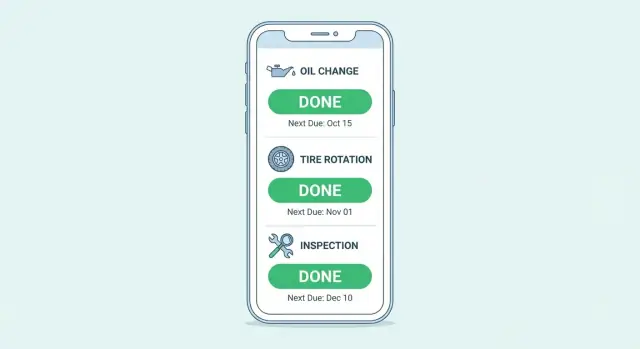
What problem a service reminder tracker solves
Most car maintenance doesn’t get missed because people don’t care. It gets missed because it’s hard to remember what happened when, and what’s supposed to happen next.
The usual stuff slips first: oil changes, tire rotations, inspections. These are easy to push off because the car still feels fine. Then a “small delay” turns into a bigger bill, a failed inspection, or tires that wear out faster than they should.
A lot of the frustration is guessing. “Did I change the oil in spring or early summer?” You look for a receipt, but it’s buried in email, stuffed in the glovebox, or saved as a photo you forgot existed. If you use more than one shop, your history ends up split across invoices and apps. When something starts sounding off, you don’t have a clear baseline.
A car service reminder tracker fixes this by giving you one place that answers two questions:
- What’s due?
- When is it due?
Not a giant spreadsheet you never open. Just a clear view of the next important dates and mileages.
The simplest version runs on two ideas:
- A “Done” button when you complete a service
- A “Next due” date or mileage set immediately
Tap Done for an oil change, record the date and mileage, and set “next due at 5,000 miles” or “next due on Oct 1” (whatever rule you follow). Do the same for tires and inspections.
Here’s what that prevents in real life: you rotate your tires in March, but by September you can’t remember if it happened before or after a road trip. With a tracker, you see “Tire rotation: done Mar 12, next due Sep 12 (or 6,000 miles).” No hunting, no guessing, no last-minute surprises.
How a simple tracker works (Done + next due)
A good tracker is built around one action: when you finish a task, you hit Done, and the tracker immediately tells you what’s next and when it’s due. That sounds small, but it removes the worst part of maintenance: having to think about scheduling right after you paid for a service.
Reminders vs a maintenance log (you want both)
A reminder answers: what do I need to do next?
A vehicle maintenance log answers: what did I do before?
Reminders keep you on track. Logs protect you when you forget details, sell the car, talk to a mechanic, or need proof of service. The simplest system keeps them together: each item includes the last done date and mileage (the log), plus the next due date and mileage (the reminder).
What the Done button should do
Done should do more than check a box. It should save the completion and set the next due automatically based on the interval you chose.
In practice, it needs to:
- Save today’s date and your current mileage as “last done”
- Add your interval (for example, +6 months or +5,000 miles)
- Calculate and display “next due” by date, mileage, or both
- Optionally store a quick note (shop name, cost, tire brand)
This is why a tracker beats sticky notes or a one-time calendar reminder. You don’t have to reset anything manually.
Track by date and mileage (use both when you can)
Some tasks age out even if you barely drive (inspections, batteries, certain fluids). Others mostly depend on mileage (oil changes, tire rotations). Track only one and you’ll eventually miss the other.
A practical rule is “whichever comes first.” Example: oil change next due at 5,000 miles or 6 months. If you hit 5,000 miles in three months, do it then. If you only drive 2,000 miles in six months, still do it.
Intervals also depend on the car and how you drive. Stop-and-go traffic, short trips, towing, extreme temperatures, dusty roads, and older engines often mean shorter intervals. Your tracker should let you adjust intervals per vehicle without breaking the Done workflow.
What to track: the core maintenance items
A tracker only works if it covers the handful of things that actually cause breakdowns, unsafe driving, or surprise bills. Start small, then add extras once the habit sticks.
A simple rule: track anything that (1) has a clear interval and (2) you can mark as done the same day you do it.
Most cars do well with a short core set:
- Oil and filter: record date and odometer, then set next due by mileage and time (whichever comes first).
- Tires: rotation interval, plus a quick pressure check you do monthly or before long trips.
- Inspections: anything with a hard deadline (safety, emissions, annual checks).
- Brakes and battery: not always a strict schedule, but periodic checks catch problems early.
- Basics that quietly fail: wipers, washer fluid, coolant level, brake fluid checks.
Oil changes and tires deserve extra attention because they’re easy to forget and easy to log. For oil, many people track only mileage and miss the time limit if the car sits. For tires, people rotate once and then never again. “Last done” plus “next due” makes the decision automatic.
Inspections are different: the due date matters more than “last done.” If your inspection is due in September, your tracker should keep that date visible even if you did an oil change yesterday.
Seasonal items are optional, but useful in places with real weather. In cold climates, add a winter tire swap (or at least a tread check) and a battery test before the first deep freeze. In hot climates, add a cooling system check before peak summer and watch tire pressure swings.
If you’re unsure which intervals to use, start with your owner’s manual, your service sticker, or what your shop recommends. Adjust after a couple of months based on how you actually drive.
Set up your tracker in 15 minutes
A tracker only works if it stays simple. The goal is one place where you can tap Done and immediately see the next due date or mileage.
Step 1: Use a small set of fields
Use paper, a notes app, a spreadsheet, or a tiny app. Keep only the fields you’ll really fill in:
- Service item
- Last done date
- Last done mileage
- Interval (miles, months, or both)
- Next due
That’s enough for most people. Too many columns and you’ll stop using it.
Step 2: Decide what makes something “due”
Use your manual as the starting point, then adjust for your driving. Short city trips often mean shorter oil intervals than steady highway miles.
For each item, pick one rule:
- Mileage only (often fine for rotations)
- Date only (often best for annual inspections)
- Either mileage or date (great for oil change reminders)
Then add one simple status so you can scan in seconds: OK, Due soon, Overdue. Keep the “due soon” buffer modest, like 500 miles or 2 weeks.
Notes and receipts should be optional. If you have them, great. If not, still press Done and move on.
Example: you set oil changes to 6,000 miles or 6 months. When you change oil at 42,000 miles on Jan 10, you record it, hit Done, and the tracker sets next due to 48,000 miles and Jul 10. That’s the whole habit.
Step by step: build the Done button workflow
A Done button only helps if it does two things every time:
- Records what you just did
- Calculates the next due date and/or mileage automatically
Start with a short list of items you’ll actually use. If you never track “air filter,” don’t add it on day one. The tracker should feel boring and easy.
A simple workflow
- List your service items (keep it around 8-12 max).
- Enter a baseline: current odometer, and the last known service date and mileage for each item. If you don’t know, estimate it and label it “estimated.”
- Set an interval per item: miles, months, or both.
- Choose a “due soon” window that gives you time to book service.
- Test one item: press Done for “Oil change” and confirm the “last done” and “next due” values update correctly.
What Done should record
When you press Done, save:
- Today’s date
- Current odometer
- Optional notes (shop name, parts used, cost)
Then calculate the next due based on your interval.
To avoid surprises, treat items with both miles and months as due when either one is reached first. That matches real life.
Concrete example: you enter 72,400 miles today and your oil interval is 5,000 miles. You tap Done and it records “Done: 72,400 miles, Jan 21” and sets “Next due: 77,400 miles” (plus a date if you also track months).
If you’re turning this into an app, keep the Done screen tiny: one odometer field, one optional note, then Done. Less typing means more updates.
A realistic example: one month of using the tracker
Maya and Chris share two cars: a 2018 SUV that Maya drives to work, and a 2012 sedan that Chris uses for errands. Their teenager occasionally drives the sedan on weekends. They set up a simple tracker with rows for each car and a few Done buttons that automatically set the next due date.
The first week is about getting a baseline, especially for the used sedan with missing history. They start from today rather than trying to reconstruct the past. They do a quick check: oil condition, tire tread and pressure, brake feel, lights, wipers, and the recorded inspection date. In the tracker they mark “Baseline check” as Done, then set sensible next dates based on what they confirm.
Mid-month, a road trip is coming up. They look at the tracker and see the SUV’s tire rotation is due in 10 days, and the sedan’s inspection is due next month. They schedule the rotation now and add a “Pre-trip check” item for both cars.
Before leaving, they tap Done on the pre-trip check and the rotation. The tracker updates the next due dates automatically, so they don’t have to remember anything later.
It also saves them from paying twice:
Their teen finds an oil change coupon and wants to use it on the sedan. Chris checks the tracker first and sees the oil change was already done two weeks ago, so they save the coupon for later.
By the end of the month, their log has real dates instead of fuzzy memories. They can also see who marked items as Done, which helps when multiple drivers share the responsibility.
Common mistakes that make reminders useless
A tracker works only if the “next due” info stays believable. Most systems fail for a few simple reasons: unclear rules, drifting dates, or a list so long you stop using it.
Mistake 1: Relying on miles only (especially if you drive little)
If you drive a lot, mileage-based reminders feel natural. But if your car sits for weeks, a “5,000 miles” rule can hide problems. Oil, batteries, and fluids age by time too.
Store both a mileage and a date whenever you can. Example: “Oil change: next due at 75,000 miles or Oct 2026, whichever comes first.” Your inspection due date tracker logic stays useful even if your driving changes.
Mistake 2: Pressing Done without updating the odometer
If you mark Done but don’t record mileage, the math becomes guesswork. The tracker may say something isn’t due when it actually is.
Keep the Done step minimal: date done and odometer done. That’s enough to keep your next due calculations reliable.
Mistake 3: Copying generic intervals that don’t match your car or climate
Online advice is often too broad. “Oil every 3,000 miles” can be outdated. “Rotate every 10,000” may not fit your tires or driving.
Start with the manual, then adjust based on what happens in real life. If your tire rotation schedule is always late because it’s too frequent, change it. Consistency matters more than perfection.
Mistake 4: Tracking too many items at once
A huge vehicle maintenance log feels organized on day one, then gets abandoned.
Pick 5-8 items that actually affect cost and safety. After a month of steady use, add one new item at a time.
Mistake 5: Using vague names like “Service”
“Service” doesn’t tell you what happened or what’s next. Use specific names you can confirm, like “Oil + filter,” “Cabin air filter,” “Brake fluid,” “State inspection,” or “Rotate tires.” Clear names make oil change reminders and inspection entries easier to trust and act on.
Quick checklist: a 2-minute maintenance check
If it takes more than two minutes to review, you’ll stop doing it. Keep the check fast and boring.
A simple weekly scan:
- Look for anything overdue by date or mileage and treat it as top priority.
- Update your current mileage. If you don’t know it exactly, estimate and correct it next time you drive.
- Check what’s due soon in the next 2-4 weeks or the next 500-1,000 miles.
- Make sure your last oil change has at least a date and mileage.
- Decide what to book this week vs later, and put a date on it.
Example: it’s Sunday night and you enter 62,300 miles. Tire rotation is due at 62,000 (overdue), and inspection is due in three weeks. You book the rotation for this week and plan to schedule the inspection next weekend. Oil change shows “done 58,000” with a note, so you leave it alone.
If you do only one thing, keep the mileage current. Without it, “next due” becomes guesswork, and the tracker turns into noise.
Keeping the tracker consistent without extra effort
A tracker helps only if it stays up to date. The easiest way is to make updates feel like a single tap and reviews feel like a tiny habit.
Keep notifications simple: one when something is due soon, and one when it’s overdue. “Due soon” gives you time to plan. “Overdue” prevents “I’ll do it next week” from turning into months.
Pick one weekly review time and treat it like taking out the trash. Sunday evening works for many people, but any quiet 5-minute slot is fine. During that review, you’re not doing maintenance. You’re only scanning next due dates and deciding what needs booking.
Make the tracker easy for every driver to access. If it requires hunting for a file or logging into a rarely used account, it’ll be skipped.
A few small rules keep it clean:
- Use the same task names every time.
- Record mileage only when you hit Done, not as a separate chore.
- If multiple people drive, agree on one person to do the weekly review.
- Keep personal cars separate from work vehicles so reminders don’t mix.
Finally, protect your history. A maintenance log gets more valuable over time, especially when diagnosing issues or selling the car. If your tool supports backups, turn them on. If not, export a copy monthly and store it somewhere safe.
Next steps: choose your format and build what you’ll use
A tracker works only if you actually open it. Pick the format that feels easiest on a normal day, not the one that looks nicest.
Start with three items: oil, tires, and your next inspection due date. After the habit sticks, add wiper blades, brake fluid, cabin filters, and anything else that matters for your situation.
Pick a format you’ll keep using
Commit to one for a month:
- Spreadsheet
- Notes app
- Calendar reminders
- A simple custom app
If you go the custom app route, write the app in plain language first. Example: “Home screen shows Oil, Tires, Inspection. Each card shows last done date and next due date. Tap Done, enter mileage, and it sets the next due based on miles or months. History shows the log. Settings lets me change intervals.”
If you want to build that kind of lightweight tool quickly, Koder.ai (koder.ai) is a vibe-coding platform where you can describe the screens and the Done + next due rules in chat, then deploy or export the source code when you’re ready.
Put your next three actions in the tracker today
Don’t wait for the perfect setup. Add three real items you already need:
- Next oil change (date or mileage)
- Next tire rotation schedule (date or mileage)
- Next inspection due date (the exact deadline)
If your inspection is due on March 30, add it now and set a reminder two weeks earlier so you have time to book a slot. Once those three are in, your tracker is already doing its job.
FAQ
What is a car service reminder tracker, and why would I use one?
A service reminder tracker keeps your maintenance history and your next due dates in one place, so you don’t have to rely on memory, receipts, or a shop’s records. It reduces missed oil changes, late inspections, and “I think I did that recently” guesswork.
What should I track first if I want to keep it simple?
Start with oil and filter, tire rotation, and your next inspection deadline. Add only a few more after you’ve used it for a couple of weeks, like wipers, brake checks, and battery checks.
Should I track maintenance by date, mileage, or both?
Use both whenever you can. Set the task as due when either the date limit or the mileage limit is reached first, because time-based wear still matters even if you don’t drive much.
What should the “Done” button actually do?
It should record today’s date and your current odometer, then automatically set the next due date and/or mileage based on the interval you chose. The point is to avoid resetting reminders manually after every service.
How do I choose the right maintenance intervals?
Use your owner’s manual or your shop’s sticker as a starting point, then adjust to match how you drive. If you’re always late because an interval is too aggressive, simplify it so you can follow it consistently.
What if I don’t know the car’s maintenance history?
Enter a baseline using what you know today: current mileage and the last known service for each item. If you’re not sure, estimate it and label it as estimated, then rely on the next few real services to make the log accurate over time.
How do I handle maintenance tracking when multiple people drive the same car?
Record who pressed Done (or add a short note) and agree on one person to do a quick weekly review. Shared cars work best when everyone uses the same task names and the same tracker instead of separate notes.
What’s the biggest mistake that makes reminders useless?
The most common failure is marking Done without updating the odometer, which makes the next due math unreliable. Another is tracking only miles or only dates and missing the other trigger, especially for cars that sit for long periods.
How should I set notifications so they help instead of annoy me?
Set just two alerts per item: one for “due soon” and one for “overdue.” Keep the “due soon” window small, like a couple of weeks or a few hundred miles, so it prompts action without becoming constant noise.
Can I build a simple tracker app instead of using a spreadsheet?
Export or back up your log regularly so you don’t lose years of history if you switch phones, apps, or vehicles. If you’re building a custom tracker, platforms like Koder.ai can help you create the Done-plus-next-due workflow quickly and still let you export the source code later.