

Catering menu picker for quotes: a simple draft workflow
Build a catering menu picker that lets customers choose dishes and guest count, then creates a quote draft you can confirm and adjust before sending.
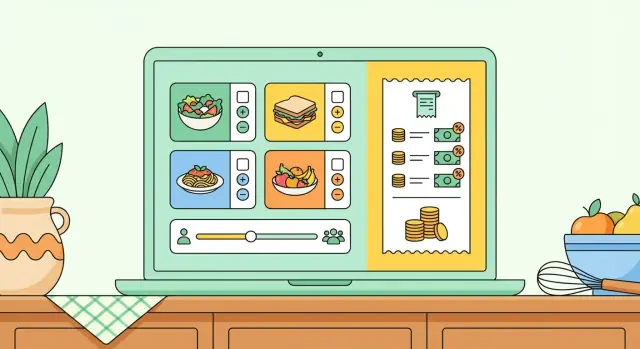
What problem a catering menu picker solves
Most catering requests start with one question: “How much will it cost?” The problem is that customers often don’t know what you need in order to price it. Portion sizes aren’t obvious. “Lunch” could mean boxed sandwiches, a hot buffet, or something in between. Small menu choices can swing the total, but customers don’t know that going in.
That uncertainty creates slow back-and-forth. First you clarify headcount. Then dietary needs. Then delivery vs pickup. Then they react to the first number because their mental picture didn’t match what you priced.
A catering menu picker fixes that by turning “Can I get a price?” into a guided selection. Instead of starting from a blank email, the customer chooses dishes or packages, sets a guest count, and gets a clear draft total. You get consistent inputs, and you spend less time re-asking the same questions.
A quote draft isn’t a final invoice. It’s a structured starting point that gets you most of the way there, so you can reply quickly without overpromising.
A good draft helps you do three things:
- Set a realistic price range based on what they picked
- Capture enough detail to confirm availability and timing
- Reduce “what does that include?” confusion
You’ll still need a few final details before you confirm: delivery address and time window, venue constraints (parking, loading access, elevators), the headcount deadline, and any last-minute substitutions.
Example: a customer planning a team lunch selects “Mediterranean buffet,” chooses two sides and one dessert, and enters 40 guests. You can respond with a draft quote that already includes service style and add-ons, then only confirm the remaining details.
What the picker should collect (and what to avoid)
A good catering menu picker collects just enough to draft a usable quote without turning the request into a long questionnaire. The goal is clarity: what food, how many people, when and where, and anything that changes price.
Start with how customers prefer to order. Some want a simple package (“Lunch Box A”). Others want to mix items. Support both, but make the difference obvious: packages for speed, a la carte for control. If you offer a la carte, show serving sizes in plain words (per person, feeds 10, per platter) so customers don’t guess.
For most caterers, the minimum you need for a solid draft is:
- What they selected (and any required choices like protein, side, or dressing)
- Guest count, plus a clear serving rule (per person, per 10 people, minimum order)
- Dietary options and add-ons that affect prep or price (vegetarian swap, gluten-free option, extra sauces, disposable plates)
- Service basics: pickup vs delivery, event date and time, and address if delivery
- Contact details and a short “special notes” field
Be strict about what you don’t collect. Extra fields reduce completion and create messy free-text notes.
Avoid questions you can’t price consistently. “How hungry is your group?” invites guesswork and arguments later. If you want to offer different portion levels, make them explicit (standard vs hearty) with a clear per-person adjustment.
Common items to avoid:
- Open text for dish quantities (use plus/minus controls and portion rules instead)
- Too many dietary questions up front (collect only what affects pricing, save the rest for follow-up)
- Detailed room setup (tables, linens, staffing schedules) unless you sell staffed service with defined pricing
- Payment details before the quote is confirmed
When you design the flow, treat each question as a pricing input. If it doesn’t change the quote, it can wait until after they submit the request.
Simple user flow: from menu to quote draft
A good catering menu picker should feel like ordering, not negotiating. The customer chooses a few dishes, sets headcount, and immediately sees a draft total you can confirm later.
1) Start with menu categories, then simple dish cards
Put 4 to 8 categories at the top (Sandwiches, Salads, Hot mains, Sides, Desserts, Drinks). Inside each category, use dish cards with a short name, a one-line description, and the key detail customers care about: serves X, vegetarian, gluten-free, spicy.
Photos are optional. If you use them, keep them consistent and lightweight so the page stays fast on phones.
2) Ask for guest count early, with sensible limits
Place guest count near the top and keep it visible while scrolling. Use a minimum and maximum that matches how you actually cater (min 10, max 300) and explain what happens outside the range (“For 300+, we’ll confirm details by phone”). A reasonable default like 25 reduces friction.
3) Keep an always-visible quote summary
As customers add items, update a quote summary instantly. On mobile, a bottom drawer works well. The summary should show quantities, per-person or per-tray pricing, estimated taxes/fees (if you use them), and a clear label that the total is a draft.
A simple flow that works:
- Choose dishes (tap Add)
- Set guest count
- See suggested quantities and an updating draft total
- Save the draft (so they can come back)
- Request confirmation (so you can finalize)
4) Use two clear actions: Save draft vs Request confirmation
“Save draft” is for customers still deciding. “Request confirmation” collects the last details you need to finalize: date/time, delivery address, and contact info. Keep it short. This is a handoff, not a full checkout.
Mobile-first matters: big tap targets, short dish names, and a summary that doesn’t disappear. If someone can build a draft while waiting for an elevator, it’s doing its job.
Pricing rules that keep quotes consistent
A picker only feels trustworthy if two people selecting the same menu see the same draft total. That means writing down a few simple pricing rules and applying them the same way every time.
Choose one base unit per item
Avoid mixing pricing styles on the same line item. Pick the unit that matches how you prep and portion.
Per-person pricing works best for plated meals, boxed lunches, and anything where each guest gets a set portion. Per-tray pricing fits appetizers, sandwich platters, and desserts made in batches.
If you offer trays, define serving size clearly (“feeds 10-12”), then apply a consistent rule for draft quotes: always round up to the next whole tray. That protects your kitchen and prevents awkward under-ordering.
Add guardrails: minimums and lead time
Most quote problems come from orders that should never have reached the pricing step.
Set rules like a minimum order value (or minimum guest count), minimum lead time (48 or 72 hours), cutoff times (orders after 3pm count as next-day requests), and weekend/holiday adjustments if you offer those.
Show these early, before the customer builds a full menu and hits a hard stop.
Fees and taxes: show them as estimates
Draft quotes should be clear about what’s included. Common add-ons are delivery, setup, service staff, and a service fee. Taxes vary by location and sometimes by item type, so label them as “estimated tax” unless you calculate them precisely.
Treat each fee as its own line item with a clear rule: fixed amount, percent of food subtotal, or “starts at” if it depends on distance or staffing.
Discounts and clean totals
If you use discount codes or tiered pricing, keep the rule easy to explain (for example, “10% off food only for 100+ guests”). Apply discounts before tax, and decide whether delivery and service fees can be discounted.
Use simple rounding so numbers look intentional:
- Round tray counts up
- Round per-person totals to the nearest whole dollar
- Round the final total to the nearest $5 or $10 for large events
Example: a customer selects 75 guests and 6 appetizer options priced per tray (serves 12). Your draft should automatically price 7 trays total, add a delivery fee, apply estimated tax, and present a clean total your team can confirm quickly.
Menu design tips customers actually use
A menu picker works best when it matches how people order catering: pick a package, add a couple extras, set headcount. If customers have to scroll through a long restaurant-style menu, they hesitate, abandon the form, or ask for a phone call.
Group items by decision, not by kitchen station. Customers usually think in terms of meal format first (boxed lunches vs buffet), then add-ons (drinks, desserts, staffing). Fewer, clearer groups keep the picker fast.
Keep choices clear and compact
Use plain dish names and short descriptions. Save the chef story for your main website, not the quote draft.
A structure that usually works:
- Pick one format: Buffet, Boxed Lunches, Platters, Breakfast
- Choose a main: 2-6 options per group
- Add-ons: drinks, dessert, extra protein, delivery/setup
- Service: chafing dishes, staff, pickup vs delivery
- Notes: timing, venue, allergies (free text)
Next to each item, state what’s included in one line: sides, bread, sauces, utensils, plates/napkins, and whether setup is included. One sentence like “Includes utensils and napkins” reduces follow-ups.
Dietary labels without confusion
Dietary tags help only if they’re accurate and consistent. If a dish can be made vegetarian only on request, label it “Vegetarian option,” not “Vegetarian.” If cross-contamination is possible, say so plainly.
Make changes effortless. Every selected item should have a clear remove button and simple quantity controls. Customers often start with one plan, then adjust fast (60 boxed lunches down to 55, plus 10 gluten-free). If that’s frustrating, they’ll email instead.
Step-by-step: build the quote draft process
A good catering menu picker should produce a quote draft that’s consistent, easy to review, and easy to edit before anything official goes out. Build it in small pieces so you can test each part.
Start by putting your menu into a clean structure. Each dish or package needs a customer-friendly name, a base price, and a unit (per guest, per tray, per person-per-hour). Keep choices limited at first.
Get the basics in place:
- List dishes and packages with base price and what’s included
- Set serving rules: per guest vs per tray, minimum guest counts, and any minimum order
- Decide what’s customizable (dietary swaps, add-ons) and what’s fixed
Then define the math for the draft summary. The goal isn’t a perfect final invoice. It’s a reliable starting point.
A simple formula many teams use:
subtotal = sum(line_items)
service_fee = subtotal * service_fee_rate (or fixed amount)
delivery_fee = based on zone/time
estimated_tax = (subtotal + fees) * tax_rate
estimated_total = subtotal + service_fee + delivery_fee + estimated_tax
Add a review screen before the request is sent. Show guest count, selected items, estimated total, and the main assumptions (minimums, included staff hours, delivery window). Include one clear action like “Request this quote.”
After submission, save the draft into a back-office view where staff can adjust prices, override quantities, and add notes. When you reply, build the quote message directly from that saved draft: items, totals, assumptions, and what you still need to confirm.
Example: a customer selects “Sandwich Lunch Package” for 40 guests plus 2 salad trays. The draft shows the package price per guest, the tray add-on, and a note that tax is an estimate. Your team opens the saved draft, adjusts delivery based on the address, and sends a finalized quote without rewriting everything.
Common mistakes and how to avoid them
Most quote tools fail for one of two reasons: they surprise the customer, or they create extra work for your team. A catering menu picker should feel like a helpful estimate, not a contract.
Mistakes that cause confusion (and lost requests)
Skipping minimums is a classic problem. If you have a minimum guest count or minimum order amount, show it immediately when the customer enters headcount or starts adding items.
Another trap is asking for too much before showing any numbers. If customers must complete a long form before seeing even a rough total, many will quit. Start with guest count and menu choices, show a ballpark, then collect details like delivery address, dietary notes, and contact info.
Hidden fees also break trust. If delivery, staffing, rentals, service charges, or tax may apply, show them as separate line items as soon as they’re relevant, even if they’re estimates.
Finally, label what’s estimated vs confirmed. Ingredient pricing changes. Staffing depends on venue rules. Distance affects delivery. Call it a draft quote and say what might change.
Simple fixes that save your team time
Build the draft so staff can adjust it before it goes out. Let the customer do the repetitive part (pick dishes, set headcount), and let your team handle judgment calls.
Guardrails that help:
- Show minimums next to guest count and cart total, not in fine print
- Display an itemized estimate early: food, delivery, service fees, tax
- Use plain labels like “Estimate” and “Final after confirmation”
- Keep required fields to 2 or 3 until the customer sees a number
- Add an internal edit step: swap dishes, override quantities, add notes
Example: a customer selects 40 guests and a sandwich platter. If your minimum is $600, show “$600 minimum order” immediately and suggest common add-ons (salads or drinks) to reach it.
Example scenario: a 75-guest office lunch request
A workplace admin is planning a team lunch for 75 people on a Thursday. They don’t want to email back and forth, so they use your catering menu picker and build a request in under two minutes.
They choose a buffet package like “Mediterranean Lunch Buffet.” The package clearly states what’s included per guest (main, two sides, salad, bread) and the minimum guest count. Then they add two extras that commonly change the total.
Their selection looks like this:
- Mediterranean Lunch Buffet
- Dessert platter
- Assorted drinks
- Guest count: 75
- Delivery time: 12:15 pm
As soon as they set headcount, the draft updates. The picker shows an estimated total that’s good enough for planning, not a final promise - for example, $1,650-$1,850, plus a delivery fee range like $35-$60 depending on distance and parking.
The request lands as a quote draft with all choices captured. Your staff reviews it quickly and adjusts what the picker can’t know yet: office floor number, elevator access, loading dock rules, parking costs, and whether setup is needed. If the client added dietary notes, you confirm counts for vegetarian or gluten-free and whether substitutions change the per-person rate.
You send back the final quote with a short summary of what’s confirmed (menu and headcount), what changed (delivery/setup fees), and what matters next (cutoff time for changes, headcount deadline, and your payment/cancellation terms).
Quick checklist before you share it with customers
Before you put the picker in front of real customers, test it the way they’ll use it: on a phone, in a hurry, with missing details.
The phone test
Open it on a mobile connection and complete a request with one hand. If the page jumps while images load or takes too long to appear, people will quit. Keep photos light and make sure dish names, prices, and buttons appear quickly.
Make quantities painless. If someone changes headcount from 60 to 75, every relevant number should update cleanly without forcing them to rebuild the order.
The staff test
A catering menu picker is only useful if it creates a draft your team can finish quickly. After submission, the draft should be readable at a glance and easy to adjust.
A quick pre-launch checklist:
- Loads quickly on mobile and stays stable while loading
- Guest count, servings, and add-ons are easy to change
- Totals update instantly and explain what’s included (tax, delivery, staffing, service fee)
- Captures event basics (date, time window, address, pickup vs delivery) plus contact info
- Staff can edit the draft and export it into the format you use (email text, PDF, or an internal template)
Add one clear sentence near the total that sets expectations: this is a draft estimate, and the final price is confirmed by your team after availability and details are checked.
A simple test: ask a friend to request “lunch for 25” with one allergy note and a delivery address. If you can turn that submission into a send-ready quote in under five minutes, you’re in good shape.
Next steps: launch a small version and improve it
Start small so you can launch in days, not months. Pick 10 to 20 items you sell most often, and stick to one pricing model you can explain in one sentence (for example, per-person packages with a minimum guest count). The goal isn’t to cover every edge case. It’s to get clean requests that turn into fast, consistent draft quotes.
Keep the first version focused on decisions customers can make confidently. Too many options early (special diet variations, complex swap rules, multiple delivery windows, equipment rentals) slows people down.
After you publish, watch where customers abandon the form. Note the last step they completed and the last question they saw. If most drop-offs happen when choosing sides, reduce the options or preselect a default they can change.
A simple weekly improvement loop:
- Launch with one menu and one event type (like office lunch)
- Review drop-offs and common “special notes” requests
- Simplify the most confusing step (fewer choices, clearer labels)
- Add one missing option you keep seeing (like a gluten-free dessert)
Add a staff-only view as soon as you can. This is where you confirm availability, adjust quantities, apply real delivery fees, and add notes before sending the final quote.
If you want to prototype the workflow quickly, Koder.ai (koder.ai) can help you build an internal tool from chat: you describe your menu, pricing rules, and screens, then iterate on the draft summary and staff review view before you share it with customers.
FAQ
What is a catering menu picker, in plain terms?
A catering menu picker turns an open-ended request into a structured selection. The customer picks a menu or package, sets guest count, and sees a draft total, so you start the conversation with the same inputs every time.
Why do catering quotes take so long without a picker?
Email estimates fail because people describe the same event in vague ways, and small assumptions change the price a lot. A picker forces the key choices up front so the first number you send is closer to what they expected.
What’s the minimum info I need to generate a usable draft quote?
Collect the selections, guest count, and the pricing unit rules that apply (per person or per tray), plus pickup vs delivery and event date/time. Add only the few add-ons that reliably change price, so the draft total is meaningful.
What should I avoid asking in the picker?
Avoid open text fields for quantities and avoid questions you can’t price consistently. Also skip payment info and detailed room setup until after the customer has seen a draft number and you’ve confirmed feasibility.
When should I ask for guest count?
Ask early and keep it visible while they browse, because it drives suggested quantities and totals. Use a sensible default and clear limits so customers don’t build an order you can’t fulfill.
How do I handle per-tray items and serving sizes without confusion?
Show each item’s serving unit in plain language and apply one consistent rounding rule, usually rounding up to whole trays. This prevents under-ordering and keeps two customers with the same selections seeing the same draft total.
How should the picker show delivery fees, service fees, and tax?
Display them as separate line items as estimates, and label them clearly as draft values. If a fee depends on distance, staffing, or venue constraints, state that it may change after confirmation rather than hiding it.
How do I make it clear this is not a final invoice?
Use a clear label like “draft estimate” and include the assumptions that could change the price, such as minimums, rounding, and delivery conditions. The goal is a reliable starting point, not a promise you can’t keep.
What’s the difference between “Save draft” and “Request confirmation”?
Give two actions: one to save the draft for later and another to request confirmation. Saving helps indecisive customers, and requesting confirmation is where you collect only the final details you need to finalize the quote.
How can I build or prototype a menu picker quickly?
Start with a small menu that you can price consistently, then add complexity only after you see real submissions. If you want to build it quickly, Koder.ai can generate a web app flow from chat and let you iterate on the draft summary and staff review steps before sharing it with customers.