

Client Intake Forms That Save to a Database (No‑Code Guide)
Learn how to build client intake forms that save submissions to a database using no-code tools. Set fields, validate data, automate follow-ups, and stay secure.
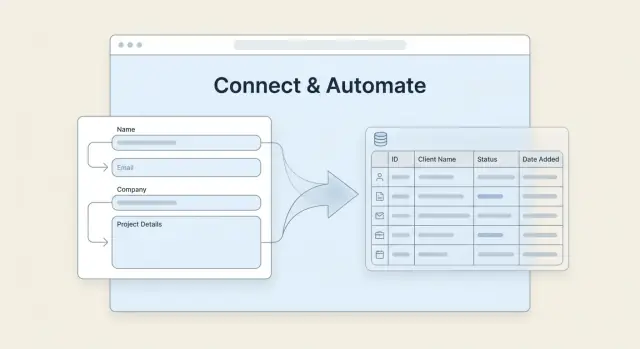
What You’re Building (Form + Database + Workflow)
A “form to database” intake system is exactly what it sounds like: someone fills out a client intake form, and their answers land as a clean, structured record in a database table—ready for your team to act on.
That sounds similar to “sending responses to a spreadsheet,” but the difference shows up fast. Spreadsheets are great for quick lists, but they break down when you need consistent fields, statuses, multiple owners, file attachments, audit trails, or automations that depend on reliable structure. A database-style table enforces order: each submission becomes one record, with the same set of fields every time.
Where this setup is most useful
This isn’t just for tech teams. Common no-code intake workflows include:
- Agencies capturing project requirements, assets, budgets, and timelines
- Coaches and consultants collecting goals, availability, and payment details
- Clinics and wellness practices gathering patient history and consent (with tighter privacy needs)
- Home services capturing job details, addresses, photos, and preferred appointment windows
What you’ll have at the end
By the time you’re done, you’ll have three connected pieces:
- A client-facing form that’s easy to complete on mobile and desktop
- A database table where each submission becomes a record (with fields like status, service type, priority, and owner)
- A simple workflow layer that triggers actions—like notifying the right person, creating tasks, or sending a confirmation message
You can think of it as: capture → organize → act.
The key decisions you’ll make early
A smooth build depends on four choices:
- Tool choice: form builder + database + automation (or an all-in-one)
- Data structure: what fields you store now vs. later (keeping it simple but consistent)
- Permissions: who can view, edit, assign, or export records
- Notifications: what happens immediately after submission (and what happens if something fails)
Get these right, and your “intake form” becomes a dependable intake system—not another messy sheet to clean up every week.
Plan the Intake: Questions, Outcomes, and Ownership
Before you open a form builder, get clear on what you’re trying to learn, what you’ll do with the answers, and who is responsible for moving the request forward. This step prevents “junk drawer” databases full of half-useful submissions.
Start with outcomes, not questions
Write down the decisions you need to make after someone submits. Examples: qualify a lead, schedule a call, create a project brief, or route a support request. Each outcome should map to one or more fields—if a question doesn’t change what you do next, it probably doesn’t belong in the first version.
Estimate volume and access (it affects design)
How many submissions per week/month do you expect? And how many people need access to view or update records?
Low volume and a small team can work with manual review and simple notifications. Higher volume usually needs tighter validation, clearer status tracking, and permissions (who can see what) to avoid confusion.
Decide what a “client” record is vs. an “intake” record
A common mistake is treating every submission as a brand-new client. Instead, separate:
- Client record: the person/company (one per client)
- Intake record: each request or submission (many per client)
This keeps history intact: a returning client can submit multiple intakes without duplicating contact details.
Required vs. nice-to-have fields
Be strict. Every required field reduces completion rates.
- Required: details you must have to take the next step (name, email, request type)
- Nice-to-have: helpful later (budget range, timeline, attachments)
If you’re unsure, make it optional and revisit after you see real submissions.
Define what happens after submit (and who owns it)
Write a simple “after submit” checklist:
- Send confirmation email to the submitter
- Notify the right teammate (based on request type)
- Create a task and assign an owner
- Update your CRM intake stage (or create a new lead)
Finally, name an intake owner. Without a single person accountable for triage, even the best client intake form turns into a pile of unclaimed requests.
Choose Your No-Code Stack (Without Overthinking It)
Your “stack” is just three parts that need to work together: a form (where clients submit info), a database (where submissions live), and an automation layer (what happens next). You can mix-and-match, but you’ll move faster if you pick tools that already play nicely.
Form builder: hosted vs. embedded
Hosted forms (a shareable link) are quickest to ship and easiest to use on mobile. They’re great for “send this link and fill it out” client intake.
Embedded forms live on your website (or a portal page). They look more branded and reduce context-switching, but may take a little more setup—especially if you need styling, consent checkboxes, or a multi-step flow.
Rule of thumb: start hosted if speed matters; embed when brand trust and conversion matter.
Database: spreadsheet-like vs. built-in CRM
A spreadsheet-like database (tables, views, filters) is ideal when you want full control of fields, statuses, and team workflows. It’s flexible for many use cases beyond sales—project requests, onboarding, support intake, and more.
A built-in CRM database can be faster if your intake is really “lead capture → deal pipeline.” You’ll get contacts, companies, and deal stages out of the box, but you may feel boxed in if your process doesn’t match the CRM’s model.
If you’re unsure, choose the spreadsheet-like database and add a simple pipeline view later.
Automation: native vs. connectors
Native automation (built into your form/database tool) usually covers the basics: send an email, create a task, post a Slack message. It’s simpler to maintain and easier for non-technical teams.
Connectors (like workflow tools) are best when you need multi-step logic across multiple apps—CRM + email marketing + calendar + file storage—or when you want retries, branching, and better logging.
If you want an “app” instead of a stack
If you’re outgrowing stitched-together tools, you can also build a lightweight intake application (form, database, permissions, and workflows) in one place. For example, Koder.ai lets you vibe-code a full intake system from a chat interface—web, backend, and even mobile—while still giving you real infrastructure underneath (React on the web, Go + PostgreSQL on the backend, Flutter for mobile). It’s useful when you want custom routing rules, structured data, and role-based access without maintaining a complex development pipeline. You can export source code, deploy/host, connect a custom domain, and use snapshots/rollback as the workflow evolves.
Quick selection checklist
Before you commit, sanity-check these five points:
- Ease: Can a non-technical teammate edit questions, fields, and notifications?
- Cost: What happens when you hit submission limits, automation runs, or add users?
- Permissions: Can you restrict who can view sensitive fields and export data?
- Integrations: Do you already rely on tools like email, calendar, Slack, or a CRM?
- Exports: Can you easily export to CSV/Excel if you switch tools later?
Pick the simplest combination that meets today’s needs. You can always upgrade the workflow once the intake is reliably capturing clean data.
Design the Database Schema (Simple but Future-Proof)
Before you build the form, decide where the answers will live. A clean schema makes everything else easier: reporting, follow-ups, deduping, and handoffs to your team.
Start with 2–3 core tables
Most intake systems work best with these tables:
- Clients: one row per person/company you may work with (even if they submit multiple intakes)
- Intakes: one row per submission (your historical record)
- Services (optional): a simple list of what you offer (helpful if you route requests differently)
This setup mirrors how CRMs store data, and it works whether you’re using Airtable, a Notion-style tool, or an Airtable alternative like Baserow/NocoDB.
Choose field types that prevent messy data
Pick field types intentionally so your database stays searchable:
- Text for names and open-ended answers
- Email and Phone fields (not plain text) when your tool supports them
- Single select for structured answers (budget range, preferred contact method)
- Multi select sparingly (it’s harder to filter later)
- File upload for briefs, screenshots, contracts (store links if your database doesn’t host files)
Add identifiers and dedupe rules
Create a unique Intake ID (auto-number or timestamp-based) on the Intakes table. In addition, decide how you’ll detect duplicates:
- Primary dedupe key: Email (most reliable for lead capture)
- Secondary: Phone or Company name
When a new submission arrives, your automation workflow can either link it to an existing Client record or create a new one.
Build workflow into the schema with “status”
Add a Status field to Intakes (and optionally Clients) to track progress:
- New → In Review → Booked → Closed
This single field powers views like “New this week,” handoff queues for client onboarding, and triggers for a Zapier workflow or other form-to-database automation.
Build the Intake Form: UX That Gets Completed
A client intake form only works if people actually finish it. The goal isn’t to ask everything—it’s to get the right information with the least friction, so your database stays clean and your team can act quickly.
Structure it like a short conversation
Break long forms into clear sections so it feels manageable. A simple flow that works for most service businesses:
- Contact: name, email, phone, company (if relevant)
- Needs: what they want help with, timeline, budget range (optional)
- Logistics: preferred contact method, time zone, availability
- Consent: permission to contact, data/privacy acknowledgment
Keep each section focused. If someone sees 25 fields on one screen, completion rates usually drop.
Use conditional logic to remove irrelevant questions
Conditional logic (sometimes called “branching”) lets the form adapt. If a user selects “Website redesign,” show questions about current site URL and pages. If they choose “Consulting,” show questions about goals and decision-makers.
This reduces fatigue for the client and prevents extra “N/A” answers that clutter your database.
Add helper text that prevents back-and-forth
Any field that can be interpreted multiple ways should include a short hint or example. Good places for helper text:
- “Project timeline” → “Example: ‘By March 15’ or ‘Q2 this year’”
- “Budget” → “A range is fine (e.g., $2k–$5k)”
- “Main goal” → “Example: ‘More demo requests’ or ‘Reduce support tickets’”
Helper text is cheaper than follow-up emails.
Use required fields sparingly
Make only the fields required that you truly need to respond (usually name + email + the core request). Overusing required fields increases drop-offs and invites low-quality answers (“asdf”) just to get through.
Confirm submission and set expectations
After submission, show a clear confirmation message with next steps:
- When they’ll hear back (e.g., “within 1 business day”)
- What happens next (screening call, proposal, questionnaire)
- A link to schedule if that’s your process
A strong confirmation screen reduces anxiety and cuts “Did you get my form?” follow-ups.
Connect the Form to the Database (Field Mapping)
Once your form is collecting the right info, the next step is making sure every answer lands in the right place—cleanly and consistently. This is where many “it mostly works” systems start to drift.
Create a clear field map (question → database field)
List each form question and the exact database field it should populate. Be explicit about types (text, single select, date, attachment, link to another table) so your automation doesn’t guess.
A simple rule: one question should write to one primary field. If one answer needs to power reporting and messaging, store it once and derive the rest later.
Normalize data so it stays usable
Free-text fields feel flexible, but they create messy data that’s hard to filter, assign, or report on. Normalize wherever you can:
- Use dropdowns for categories (service type, budget range, urgency)
- Use structured fields for dates/times (not “next Tuesday”)
- Apply phone formatting (E.164 if possible) and trim extra spaces
- Standardize names (e.g., separate “First name” and “Last name” if you’ll personalize emails)
If your form tool can’t enforce formatting, do it in your automation step before saving to the database.
Handle file uploads without losing control
Many no-code stacks store uploads in the form tool (or a connected drive) and pass a link into your database. That’s usually the best approach.
Key points:
- Save the file URL (or attachment reference) in a dedicated “Files” field
- Keep permissions tight: avoid public links for sensitive documents
- Consider an “Upload received?” checkbox so your team can spot missing files quickly
Prevent duplicates (and update the right record)
Intake systems often collect repeat submissions (people resubmit, forward the link, typo their email once). Add a dedupe step:
- Match on email first (best unique identifier)
- Fall back to phone if email is missing
- If a match exists: update the existing record and append notes (don’t create a new row)
This one choice keeps your database clean—and makes follow-ups, reporting, and client onboarding far easier later.
Add Validation, Tracking, and Error Handling
Once your form is connected to a database, the next step is making it reliable. Validation keeps your data usable, tracking tells you where submissions came from, and error handling prevents “silent failures” where leads disappear.
Validation that prevents messy records
Start with the fields that break workflows most often:
- Email format: use the form’s built-in email field type (preferred) or a simple pattern check. This avoids “john@” or “gmail.con”.
- Required consent: make privacy/marketing consent a required checkbox (and store the exact wording/version in your database).
- Min/max length: set guardrails for text areas like “Project description” (e.g., minimum 30 characters, maximum 1,000). This reduces one-word answers and overly long essays.
- Conditional questions: only show follow-ups when relevant. Fewer irrelevant questions means higher completion rates.
Tracking with hidden fields (without annoying the client)
Hidden fields let you capture attribution and context automatically. Common ones:
- Source (e.g., “website”, “referral”, “ads”)
- Campaign / UTM parameters (utm_source, utm_campaign, etc.)
- Page URL where the form was submitted
- Referrer URL (if available)
Many form tools can prefill hidden fields from URL parameters. If not, your automation tool can add them when the submission is received.
Timestamps and auditing
In your database, add:
- Created timestamp (when the submission was received)
- Last updated (helpful if your team edits records later)
- Created by / submission ID (useful for tracing duplicates and support issues)
These fields make it easier to reconcile “we got your intake” claims and to see how long onboarding takes.
Error handling: plan for the write failing
Database writes fail for predictable reasons: API limits, deleted fields, permission changes, or temporary outages.
Set a simple fallback:
- Show a clear confirmation message only after a successful save.
- If the save fails, route the submission to a backup store (email to an internal address or a “Failed Submissions” table).
- Send an alert to the owner (Slack/email) with the submission payload and the error message, so someone can fix and reprocess it quickly.
Automate Follow-Ups and Team Notifications
Once your form is saving submissions into your database, the real time-saver is what happens next—without anyone copying, pasting, or remembering to “circle back.” A few simple automations can turn each intake into a clear next step for both the client and your team.
1) Send an instant confirmation (email or SMS)
Set up an automatic message the moment a new record is created. Keep it short: confirm you received the request, share expected response time, and include any next-step link (calendar, portal, pricing page).
If you support SMS, reserve it for urgent or high-intent services—too many texts can feel intrusive.
2) Notify the right people (with context)
Instead of blasting a generic “new submission” email, send a structured notification to email or Slack that includes:
- Key fields (name, service type, budget, deadline)
- A direct link to the database record
- Any flags (missing info, high priority, existing client)
This saves the team from asking “where is it?” and helps them reply faster.
3) Auto-assign an owner (so nothing sits unclaimed)
Use simple rules to assign each intake to a person or queue. Common assignment logic:
- Service type (e.g., bookkeeping → Alex, tax → Priya)
- Region/time zone (so follow-ups happen during business hours)
- Capacity (round-robin across available owners)
Most no-code automation tools (Zapier, Make) can update an “Owner” field in your database and notify that person immediately.
4) Create follow-up tasks and reminders
A good intake system nudges you before a lead goes cold. Create a task when a record arrives, then schedule reminders:
- Day 0: “Reply within 2 hours”
- Day 2: “Send follow-up if no response”
- Day 7: “Close as stale / ask if still interested”
If your database supports it, store “Next Follow-Up Date” and drive a daily “Due Today” view.
5) Optional: route hot leads faster with scoring
Add a simple score (0–10) based on rules like budget range, urgency, or “referred by.” High-score intakes can trigger a faster Slack ping, an SMS to on-call staff, or a priority queue.
For more ideas on keeping workflows tidy, see /blog/scale-your-no-code-intake-system.
Privacy and Security Basics for Intake Data
Client intake forms often collect sensitive information—contact details, budgets, health notes, project access, and more. A few simple decisions up front can prevent accidental oversharing later.
Start with “least access”
Set role-based access in your database tool so people only see what they need:
- Viewers (e.g., leadership) can review submissions but can’t change them.
- Editors (e.g., operations) can update status fields and add internal notes.
- Admins control integrations, permissions, and exports.
If your tool supports it, restrict exports to a small group. Exports are the easiest way for data to end up in the wrong inbox.
Collect only what you truly need
Data minimization is both good practice and easier to manage. Before adding a question, ask:
- Will this change what we do next?
- Is there a safer alternative (e.g., “preferred contact method” instead of “all social profiles”)?
- Can this be collected later after the relationship is established?
Fewer fields also increases completion rates.
Add consent and clear expectations
In the form footer, include a short consent statement and links to your privacy policy and terms (relative links like /privacy and /terms are fine). Keep it plain:
- What you’ll use the data for (e.g., onboarding and follow-ups)
- Who may contact them
- Whether you share data with processors (email/SMS tools)
Secure file uploads
Uploads (contracts, IDs, briefs) are high-risk. Prefer built-in secure uploads that store files behind authentication. Avoid workflows that generate public, shareable file links by default. If you must share files internally, use expiring links or access-controlled folders.
Decide retention: how long and why
Set a retention rule and document it (even in a simple internal note). Example: keep leads for 12 months for reporting, convert clients to your main CRM, and delete attachments after 90 days unless needed for delivery. Retention isn’t just compliance—it reduces what you have to protect.
Test, Launch, and Monitor the Intake System
Before you share your intake form publicly, run it like a real client would. Most “intake issues” aren’t technical—they’re small UX gaps, unclear questions, or automations that silently fail.
Run realistic tests (not just one)
Start with at least 10–15 submissions using real-world scenarios:
- Happy path: a straightforward, complete submission
- Edge cases: missing optional fields, unusually long answers, special characters (quotes, emojis, accents), and attachments
- Human behavior: typos, wrong phone formats, and people selecting the “wrong” option
As you test, confirm each submission is usable, not just “received.” If someone rushes through the form, can your team still take the next step?
Verify mobile, speed, and accessibility basics
Open the form on a phone (not just a resized desktop browser).
Check:
- Tappable fields and buttons (no tiny targets)
- Whether the form loads quickly on cellular data
- Required fields clearly marked and error messages understandable
- Labels and help text visible without excessive scrolling
If your form feels slow or cramped on mobile, completion rates drop quickly.
Do an end-to-end system walkthrough
Submit the form and then follow the data through every step:
- Database record created with correct field mapping
- Automations triggered (tags, status changes, task creation)
- Notifications delivered to the right people/channels
- Follow-ups sent with the correct client info
Also test failure modes: turn off an integration, remove permissions, or use an invalid email to ensure errors surface somewhere your team will notice.
Launch with an admin checklist
Create a one-page internal checklist: where to look for new submissions, how to re-send a failed email, how to merge duplicates, and who owns fixes. This avoids “everyone saw it, nobody handled it.”
Monitor early metrics for quick improvements
For the first 1–2 weeks, track:
- Completion rate (starts vs. submits)
- Duplicate rate (same person submitting twice)
- Response time (how quickly your team replies)
These numbers tell you whether to shorten the form, clarify questions, or tighten internal handoffs.
Scale Over Time: Views, Templates, and Integrations
Once your intake form reliably saves to a database, the fastest wins come from how you use the data—without rebuilding the system.
Build views that match how you work
Instead of one giant table, create a few focused views that answer common questions at a glance:
- Pipeline view: New → In Review → Scheduled → Completed (or whatever steps fit your process)
- Calendar-ready list: only records with a confirmed date/time, formatted for scheduling
- Missing-info queue: submissions that are incomplete or failed a validation check
These views reduce “Where is this client at?” messages and make handoffs easier.
Create templates for different services or locations
If you offer multiple services, don’t force one mega-form. Duplicate your base form + database fields, then adjust:
- service-specific questions (e.g., “Budget range” for one service, “Insurance details” for another)
- default tags (Service A, Service B, Location East, etc.)
- routing rules (who gets notified, which team owns the record)
Keep the core fields consistent (name, email, consent, status, source) so reporting stays clean.
Add a client portal or simple status updates (optional)
You don’t need a full portal to feel “premium.” A lightweight next step is to send clients a confirmation message that includes:
- what happens next and expected timeline
- a link to update details (a short “Update my info” form)
- optional status updates (“We received your request,” “You’re scheduled,” “We need one more detail”)
This cuts down on back-and-forth and improves completion rates.
Integrate only when it prevents double entry
Syncing is useful when it removes manual work—not just because it’s possible. Common integrations:
- CRM intake: create/update a contact and attach the intake record
- Accounting tools: generate a customer record or draft invoice after approval
- Team tools: create tasks for follow-ups when status changes
Start with one high-impact workflow, then expand.
For more on what to ask and when, see /blog/client-onboarding-checklist. If you want to compare plans for automations and views, check /pricing.
FAQ
What’s the real difference between sending form responses to a spreadsheet vs a database?
A spreadsheet is fine for simple lists, but it gets messy when you need reliable structure and workflow.
A database-style table helps you:
- Enforce consistent field types (email, single select, dates)
- Track status/owner without breaking formatting
- Link related records (one client → many intakes)
- Power automations that depend on clean, predictable data
What tables should I create for a simple intake system?
Aim for the smallest schema that supports your workflow. For most teams, start with:
- Clients: one record per person/company
- Intakes: one record per submission/request
- Services (optional): a controlled list of what you offer for routing/reporting
This prevents duplicating contact details while preserving intake history over time.
Which intake form fields should be required vs optional?
Start with outcomes (what you’ll do next) and only require what’s needed to take that next step.
A common baseline:
- Required: name, email, request type
- Optional (initially): budget, timeline, attachments, extra context
If a question doesn’t change routing, qualification, or the next action, leave it out of v1.
How do I use conditional logic without making the form too complex?
Use conditional logic to hide irrelevant fields and reduce “N/A” data.
Examples:
- If Service type = Website redesign, show current URL + page count
- If Service type = Consulting, show goals + decision-maker questions
- If Budget provided = Yes, show budget range
This improves completion rates and keeps your database easier to filter and assign.
What’s the best way to map form questions to database fields?
Create a simple field map before you build automation: each question → one database field.
Tips:
- Match field types (single select → single select; date → date)
- Avoid having one answer write to multiple places; derive later if needed
- Use consistent naming so it’s obvious what populates what
This prevents “it mostly works” drift as your form evolves.
How do I keep submissions clean and searchable (not a pile of free text)?
Normalize anything you’ll filter, route, or report on.
Practical defaults:
- Single select for service type, urgency, budget range
- Email/Phone field types (not plain text) when available
- Dates as actual date fields (avoid “next Tuesday”)
- Multi-select only when you truly need multiple values (it’s harder to query)
Clean field types now save hours of cleanup later.
How can I prevent duplicate clients and repeated submissions?
Pick a primary dedupe key and decide whether to create or update records.
A common approach:
- Primary match: email
- Secondary match: phone or company name
- If match exists: link the intake to the existing Client (and avoid duplicating the client)
Also add an Intake ID (auto-number/timestamp) so every submission is traceable even if contact info changes.
What’s the safest way to handle file uploads in a no-code intake flow?
Store uploads in a secure file system (your form tool or connected drive) and save the reference in your database.
Recommended pattern:
- Save file URL/attachment reference in a dedicated field
- Avoid public links for sensitive documents
- Add a simple flag like “Upload received?” so missing files are visible in views/queues
This keeps your database lightweight while preserving access control.
Which automations are most useful right after a form is submitted?
Automate the few steps that prevent requests from going stale.
High-impact basics:
- Instant confirmation to the submitter with expected response time
- A structured Slack/email alert to the team with key fields + record link
- Auto-assign an Owner (by service type, region, or round-robin)
- Create a follow-up task and a Next follow-up date
Keep automation simple at first, then add branching when your process is stable.
What are the minimum privacy and security practices for intake data?
Focus on least-access, data minimization, and reliable auditing.
Practical checklist:
- Role-based permissions (view/edit/admin) and restrict exports
- Collect only what you need for the next step
- Store consent (and ideally the consent wording/version)
- Add timestamps (Created, Last updated) for traceability
- Define a retention rule (e.g., delete old leads/attachments after a set period)
Include clear links like /privacy and /terms where appropriate.