

How to Create a Customer Self‑Service Hub Website (Step‑by‑Step)
Learn how to plan, build, and launch a customer self‑service hub website with FAQs, a knowledge base, strong search, and analytics to reduce support load.
What a Customer Self‑Service Hub Is (and Isn’t)
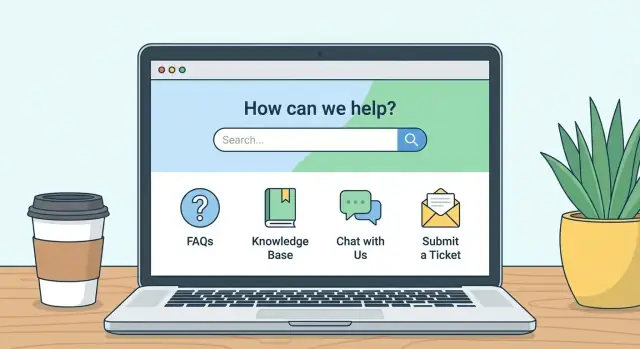
A customer self‑service hub is a single place where people can get answers and take actions without contacting support. Think of it as your support “front desk”: clear, searchable, and built around common customer goals.
What it includes
A good hub usually combines three things:
- Answers: a knowledge base, troubleshooting guides, release notes, and a focused FAQ page for recurring questions.
- Actions: account and billing tasks (reset a password, update a payment method, download invoices), plus guided flows like “cancel/renew” or “report a bug.”
- Account help: status updates (orders, subscriptions), how‑to guidance for admins, and links to key settings inside the product.
The problems it should solve first
Start with the issues that create the most friction:
- “I can’t log in / reset my password.”
- “Where do I find X setting?”
- “Why didn’t my payment go through?”
- “How do I set this up for my team?”
If the hub can’t solve these reliably, adding more content won’t help.
What it isn’t
A self‑service hub is not a dumping ground for every internal document, and it’s not a marketing page dressed up as support. It also shouldn’t force customers to read multiple articles before they can contact a human.
Define success up front
Pick a few simple metrics you can track over time: ticket reduction (deflection), time to answer, and CSAT for customers who used the hub.
Know your audiences
Write for distinct groups:
- Prospects looking for product capabilities and basic setup answers.
- Customers trying to complete tasks and fix issues fast.
- Admins who need permissions, security, and configuration guidance.
Start with Research: Questions, Tickets, and Journeys
A self‑service hub succeeds or fails based on whether it answers the questions customers actually ask. Before choosing features or writing new articles, spend a short sprint on research. The goal isn’t a perfect spreadsheet—it’s a clear, ranked list of problems to solve.
1) Inventory what you already have
Most teams already maintain “shadow support content” across tools and file types. Gather it in one place so you can reuse and standardize it later.
Make a quick inventory of:
- Email templates and macros your support team uses
- Chat transcripts and canned replies
- Existing docs (product documentation, release notes)
- PDFs, onboarding decks, internal troubleshooting notes
- Any current FAQ page or help center website content
2) Extract top questions from real conversations
Tickets and chats are your best source of truth. Pull the top themes from the last 30–90 days:
- What customers ask most often (by count)
- What takes the longest time to resolve
- What creates repeat contacts (“I tried that already”)
- What blocks payment, access, or core usage
If possible, tag each question with an example ticket link and a plain‑language “customer phrasing.” That phrasing later improves help center search and article titles.
3) Map questions to journeys
Group questions by when they happen:
- Onboarding (setup, first success)
- Billing (plans, invoices, cancellations)
- Troubleshooting (errors, integrations, performance)
This keeps your knowledge base organized around customer intent, not internal teams.
4) Prioritize by volume, urgency, and impact
Rank items using three signals:
- Volume: how often it appears
- Urgency: how painful/time‑sensitive it is
- Business impact: churn risk, revenue, compliance, or activation
Your first release should target the highest‑scoring issues to drive support ticket deflection quickly and build confidence in the support portal.
Pick the Right Hub Features for Your Customers
A customer self‑service hub isn’t one thing—it’s a set of components. The best mix depends on what your customers are trying to do without contacting support. Start small, choose features that reduce the most friction, then expand based on usage.
Core hub components (start here)
Most teams get value fastest from a few foundational pieces:
- FAQ page for quick, high‑volume questions (“Can I change my plan?”, “Do you support X?”).
- Knowledge base articles for step‑by‑step “how‑to” and troubleshooting.
- Tutorials (written guides or short videos) for onboarding and common workflows.
- Status page (or status section) to reduce “Is it down?” tickets.
- Contact options that make it clear how to reach you when needed.
If you already have content scattered across docs, old FAQs, and onboarding emails, prioritize consolidation over creating everything from scratch.
Public vs. sign‑in: decide what belongs where
Keep public content public whenever possible: setup guides, feature explanations, billing basics, and troubleshooting. Require sign‑in only for account‑specific actions and data, such as:
- viewing invoices or plan details
- changing passwords or security settings
- managing users and permissions
- checking account‑specific usage or limits
This split improves SEO for your help center website and reduces friction for new customers evaluating your product.
Escalation paths: plan the “still need help” moments
Even a great support portal won’t cover every case. Add clear next steps at the end of key articles:
- “Contact support” for billing or account access issues
- “Report a bug” with the right form fields
- “Chat with us” for time‑sensitive problems
Make escalation contextual (from the article) and set expectations (response times, required info).
A simple roadmap: MVP first, upgrades later
For an MVP, ship: FAQ + knowledge base + help center search + contact. Add later: tutorials library, community, in‑product widgets, and deeper customer support automation once you’ve confirmed what actually drives deflection.
If you want to build and iterate on the hub quickly, a vibe‑coding platform like Koder.ai can help you prototype the hub UI (React), the backend workflows (Go), and a PostgreSQL knowledge base through a chat interface—useful when you want to ship an MVP, collect real search queries, then refine. Features like snapshots/rollback also make it safer to update navigation, templates, or forms without worrying about breaking production.
Information Architecture: Categories, Tags, and Navigation
A self‑service hub succeeds or fails on how quickly people can find the right answer. The goal of information architecture (IA) is simple: help customers recognize where to go, even when they don’t know the “official” name of a feature.
Design categories around customer tasks
Organize categories around what customers are trying to do (tasks), not how your company is structured (teams, departments, or internal product names). Customers rarely think in “Billing Ops” or “Platform Team”—they think “change my plan,” “reset my password,” or “connect an integration.”
If you already have a help center, scan it for categories that sound internal and rewrite them as outcomes or actions.
Build a consistent taxonomy
A practical pattern is a three‑level taxonomy:
Product area → task → article
For example: Integrations → Connect Slack → How to connect Slack to notifications. This keeps browsing predictable and prevents “misc” categories from growing forever.
Use tags as a secondary tool (filters and related content), not as your main navigation. Tags work best for cross‑cutting concepts like “mobile,” “security,” “admins,” or “troubleshooting.”
Add a “Start here” page and top shortcuts
Create a clear “Start here” page that routes new customers to the first steps: setup, account basics, and key workflows. On the hub homepage, add shortcuts to your top tasks (based on ticket volume), such as “Update payment method” or “Invite teammates.”
If you offer different plans or roles, include small “I am a…” links that narrow the path (e.g., Admin vs. Member).
Avoid duplicates and unclear labels
Duplicate categories confuse customers and split content maintenance. If two categories could both contain the same article, they’re not distinct enough—merge or rename.
Write category labels like buttons: short, concrete, and scannable. Avoid jargon, clever names, and overlapping terms (e.g., “Account,” “Profile,” “User Settings”) unless you clearly define what goes where.
A quick rule: if a new support agent can’t place an article within 5 seconds, your categories need simplification.
Content That Works: Article Templates and Writing Rules
Good self‑service content isn’t “more content.” It’s content customers can scan, trust, and finish without opening a ticket.
Use one template for (almost) everything
Consistency reduces reading effort and makes articles easier to maintain. A simple template that works across products and topics:
- Problem: One sentence describing what the customer is trying to do (or what’s failing).
- Cause (optional): Brief explanation of why it happens, in customer terms.
- Steps: Numbered instructions that start with the first click.
- Expected result: What the customer should see when it worked.
- Next steps: Links to the most likely follow‑ups (e.g., settings, billing, related features).
If you have an internal style guide, link it from your hub’s contributor page (for example: /help-center/contribute).
Write for scanning: plain language + numbered steps
Use short sentences and familiar words. Replace “authenticate” with “sign in,” “terminate” with “cancel,” and “utilize” with “use.”
For procedures, always use numbered steps. Keep each step to one action. If a step has options, use sub‑bullets.
Screenshots can help, but only when they clarify a decision (“click the blue Save button”) or confirm the correct page. Pair every screenshot reference with text so the article still works without it.
Add troubleshooting and “What to do if…”
Most tickets happen when reality doesn’t match the happy path. Add a small section near the end:
- What to do if you don’t see X
- Common error messages and fixes
- When to contact support (and what info to include)
Make ownership and reviews non‑optional
Every article needs an owner (team or person) and a review date. Put it at the bottom so it’s visible to editors and prevents outdated instructions from quietly hurting trust.
Search and Findability: The Heart of Self‑Service
If customers can’t find the right answer in seconds, they won’t keep browsing—they’ll open a ticket. Your help center’s search experience is often more important than its homepage.
Put search everywhere (not just the top level)
Make the search bar the most visible element on key pages: the hub home, category pages, and article pages. A customer who lands deep from Google should still be one search away from the next answer.
Tip: keep the placeholder text action‑oriented (“Search for billing, login, refunds…”), and allow searching from the keyboard (Enter to search).
Think like customers: synonyms and misspellings
Customers rarely use your internal product terms. Build a small synonym list based on real tickets and chat logs: “invoice” vs “receipt,” “2FA” vs “authentication code,” “cancel” vs “close account.”
Also include common misspellings and spacing variations (“log in” vs “login”). Many help center platforms support synonyms directly; if not, add them naturally in summaries or FAQ callouts.
Optimize each article for scanning and search
Search results depend heavily on structure. Use:
- Clear, specific titles (“Reset your password”) instead of vague ones (“Account help”)
- A one‑sentence summary at the top that matches how people search
- Descriptive H2/H3 headings that mirror common questions
This improves both on‑site search and organic discovery.
Close the loop: feedback + related answers
Add a simple “Did this help?” control at the end of every article. If someone clicks “No,” offer a short prompt (“What were you trying to do?”) to capture keywords your search missed.
On each article, show 3–5 related articles based on the same intent (not just the same category). This keeps customers in self‑service and reduces support ticket deflection gaps.
Escalation Paths: When Customers Still Need Help
Self‑service should reduce effort, not block customers. A good hub makes “contact support” easy to find, and even easier to complete—without forcing people to retype what they already did.
Build a clear “Contact support” flow (with context)
Place a consistent Contact support entry point on article pages and in the hub navigation. When someone clicks it, carry over helpful context such as:
- The article they were reading
- Their search query (if any)
- Product, plan, device, and app version
- Account/workspace ID (when appropriate)
This context speeds resolution and prevents “Can you send screenshots?” back‑and‑forth.
Route requests with forms by issue type
One generic form creates messy queues. Instead, offer a small set of issue types (billing, login, bug, feature request, data export, etc.) and tailor required fields per type.
For example, “Bug” can require steps to reproduce and timestamps, while “Billing” can require invoice number. Keep forms short, but specific.
Suggest articles before submission
Right before the final submit step, show 2–5 highly relevant articles based on the chosen issue type and keywords from the subject line. Don’t hide the form; make suggestions a helpful detour.
If you have a support portal, link it as a fallback (e.g., /support) and clearly explain what happens next.
Set expectations upfront
Customers feel calmer when they know the rules:
- Typical response times (and hours of coverage)
- What details are required to avoid delays
- What urgent issues qualify for faster handling
A simple “You’ll hear back within X business hours” plus a checklist of needed info turns escalation into a predictable, trustworthy experience.
UX and Accessibility: Make It Easy for Everyone
A self‑service hub only reduces support load if customers can scan, tap, and understand it quickly—on any device, in any situation.
Design a clear visual hierarchy
Treat your homepage like a decision screen, not a brochure. Put the most common actions first:
- Quick links to key tasks (reset password, update billing, tracking, cancellations)
- Top articles based on ticket volume and search trends
- Featured guides for bigger workflows (setup, integrations, onboarding)
Keep the first screen focused. If everything is highlighted, nothing is.
Go mobile‑first (and typography‑first)
Many customers will arrive from email, social, or an in‑app webview. Design for thumbs and small screens:
- Use large tap targets and generous spacing
- Write descriptive link text (“Download invoices”) instead of “Click here”
- Choose readable typography: a comfortable base size, short line length, and clear heading levels
If an article requires horizontal scrolling or tiny text, customers will abandon and open a ticket.
Use consistent UI patterns for clarity
Standardize how information is presented across articles so customers don’t have to re‑learn your layout each time:
- Step‑by‑step instructions should look the same everywhere
- Use consistent callouts for Notes, Warnings, and Tips
- Make primary actions obvious (for example, “Contact support” versus “Back to results”)
Consistency also helps your team publish faster with fewer formatting mistakes.
Accessibility basics that pay off immediately
Accessibility improvements usually improve UX for everyone:
- Ensure sufficient color contrast for text and buttons
- Add alt text for meaningful images and icons (decorative elements can be empty)
- Support keyboard navigation: visible focus states, logical tab order, and no “trap” components
When in doubt, test a few key pages using only a keyboard and a phone on low brightness—you’ll spot friction quickly.
Security, Privacy, and Content Governance
A self‑service hub is public‑facing support, which means it can accidentally become a public record of things you never intended to share: customer data, internal processes, or even security weaknesses. Treat your help center website like product content—owned, reviewed, and controlled.
Lock down who can change what
Set clear permissions for editors, approvers, and viewers. Most teams work best with:
- Editors (draft and update articles)
- Approvers (final review for accuracy, tone, and risk)
- Publishers/Admins (release changes, manage categories, templates)
Keep an audit trail (who changed what, and when). If your platform supports it, require approval for changes to high‑risk areas like billing, account access, or security.
Remove sensitive data from public pages
Make “privacy‑safe examples” a writing rule. Remove sensitive data from public pages and examples, including:
- Emails, phone numbers, order IDs, invoice numbers
- Screenshots showing customer info
- API keys, tokens, private URLs, internal system names
If you need to illustrate a workflow, use fake data that can’t be mistaken for real accounts.
Provide a clear security contact path
Add a security/contact page and safe reporting method so researchers and customers know where to report issues. Include:
- A dedicated email (or form) for security reports
- What details to include (steps, screenshots, affected accounts)
- Expected response time
Link it from your footer and “Account & Security” category, e.g. /security.
Plan for versioning and product change
Product updates can make articles wrong overnight. Plan versioning for product changes and legacy features by defining:
- How you label older UI (e.g., “Classic experience”)
- What triggers an update (release notes, flagged tickets)
- A simple change log at the bottom of key articles
When in doubt, prefer fewer public details about internal controls while still giving customers actionable steps to stay safe.
Analytics: Prove Value and Improve Continuously
A customer self‑service hub isn’t “set and forget.” Analytics tell you whether people are actually finding answers—and what to fix next. The goal is simple: reduce effort for customers and reduce repetitive tickets for your team.
What to measure (and why it matters)
Start with a small set of metrics you can act on:
- Search queries with no results: direct signals for missing content, unclear naming, or poor tagging.
- Article views + search‑to‑click rate: high views with low success can indicate customers are stuck or bouncing.
- Helpfulness signals (thumbs up/down, “Was this helpful?”): useful, but only when paired with qualitative feedback (“What was missing?”).
- Ticket deflection signals: patterns like fewer tickets in categories that have strong articles, shorter time‑to‑resolution, or fewer “how do I…” contacts after publishing.
Build a weekly review loop
Treat analytics like a recurring maintenance task, not a quarterly project.
Each week, review:
- Top “no results” searches and synonyms customers used.
- Articles with high views but low helpfulness.
- New ticket themes that should become new articles or updates.
Make small edits fast (titles, first paragraph, steps, screenshots) and log what changed so you can see impact the following week.
Use dashboards to catch issues after releases
After product changes, support volume often spikes before anyone updates documentation. A simple dashboard can highlight emerging issues within hours:
- sudden growth in a search term
- sharp increase in views on one article
- rising tickets tied to a feature area
When you connect releases to self‑service metrics, the help center becomes part of your product feedback loop—not just a place to park FAQs.
Testing and Launch: Ship an MVP Without Surprises
Launching a self‑service hub is less about “finishing everything” and more about proving the core experience works: customers can find answers fast, and the right issues still reach your team.
Run a small beta first
Start with a controlled beta: a few internal teammates (support, sales, success) plus a handful of real customers. Give them realistic scenarios, not a tour. Ask them to narrate what they expect to happen, where they’d click next, and what wording feels unclear.
Keep a simple feedback channel (a form or a dedicated email) and capture three things for every report: what they tried to do, what they saw, and what they expected instead.
Test “top tasks” end to end
Pick the most common, highest‑impact journeys and test them like a customer would:
- Password reset and account access
- Billing questions (invoices, refunds, plan changes)
- Common product errors and troubleshooting steps
For each task, verify the full path: search → article → next step (link, button, or contact option). You’re looking for dead ends, circular links, or advice that doesn’t match the product UI.
Do a pre‑launch quality sweep
Before you open it to everyone, check for:
- Broken links and missing redirects
- Outdated screenshots or terminology
- Confusing labels in navigation and categories
- Mobile readability (spacing, headings, tables)
Launch checklist + ownership
Create a short launch checklist and assign owners. Include: who approves edits, how fast urgent fixes ship, and how often you review top articles. An MVP succeeds when updates are routine—not heroic.
If you’re building the hub as a standalone app (not just a hosted help center), it helps to choose tooling that supports quick iteration and safe releases. For example, Koder.ai supports deployment/hosting, custom domains, and source code export, which can be useful when you want to start lightweight (free/pro tiers) and later move to a more controlled setup (business/enterprise) without rebuilding from scratch.
Adoption: Get Customers and Support Teams Using It
A self‑service hub only pays off once customers can actually find it—and once your team uses it as the default way to answer repeat questions. Adoption is a mix of placement, habits, and feedback loops.
Put the hub where customers already look
Don’t rely on a tiny “Help” link in the footer. Surface the hub in the moments customers need it:
- Inside your app: add a “?” menu, contextual links near complex settings, and a persistent “Search help” entry.
- In onboarding: link the 3–5 most common “getting started” articles and your main /help entry in welcome emails.
- In lifecycle emails: when you send invoices, trial reminders, or upgrade prompts, include a relevant help link (e.g., billing article + /pricing).
If you have a marketing site, add the hub to your top navigation and link it from high‑intent pages like /pricing and your signup flow.
Make sharing articles a team habit
Adoption rises when support agents treat the hub as the source of truth. Train the team to:
- Paste article links as the first response to repeat questions (with a one‑sentence summary).
- Use the same canonical URL every time to avoid multiple versions of the answer.
- Flag gaps immediately (“I answered this twice today—needs an article”) so content stays aligned with reality.
Create a lightweight internal rule: if an answer is reused more than a few times, it becomes an article.
Plan localization early (even if you start with one language)
If you support multiple languages, decide what gets translated first (top traffic articles, onboarding flows, billing/security pages). Use consistent terminology and keep UI labels in sync so translated content matches what users see.
Reinforce with gentle nudges
Add “Was this helpful?” prompts, make it easy to request an article update, and periodically share “top searched / no results” terms with the team. That closes the loop—and keeps customers coming back to the hub instead of opening a ticket.
FAQ
What is a customer self‑service hub, in plain terms?
A customer self‑service hub is a single place where customers can find answers and complete common tasks (like resetting a password or downloading an invoice) without contacting support.
It typically combines help content (FAQ/knowledge base), self‑serve actions (account/billing flows), and clear escalation paths when help is still needed.
What issues should a self‑service hub solve first?
Start with the problems that create the most friction and tickets:
- Login and password resets
- Finding key settings
- Billing failures and invoice requests
- Team setup and permissions
If the hub can’t solve these reliably, adding more articles usually won’t improve outcomes.
What should a self‑service hub NOT be?
A hub isn’t a dumping ground for internal docs or a marketing page disguised as support.
It also shouldn’t block customers from reaching a human—avoid forcing people to read multiple articles before they can contact support.
How do I figure out what content to include before I build anything?
Do a short research sprint using real customer data:
- Inventory existing “shadow” content (macros, transcripts, decks, docs)
- Pull top themes from the last 30–90 days of tickets and chats
- Capture customer phrasing (the exact words they use)
- Prioritize by volume, urgency, and business impact
What are the minimum features for an MVP self‑service hub?
A practical MVP is:
- An FAQ page for high‑volume questions
- A knowledge base for how‑tos and troubleshooting
- Strong search across all pages
- Clear contact options for escalation
Add tutorials, community, in‑product widgets, and automation after you confirm what customers actually use.
What should be public vs. behind a login?
Keep content public whenever it isn’t account‑specific (setup guides, billing basics, troubleshooting). Require sign‑in only for actions and private data, such as:
- Viewing invoices and plan details
- Changing passwords/security settings
- Managing users/permissions
- Checking usage/limits tied to an account
How should I structure categories and navigation so people can find answers fast?
Organize around customer tasks, not internal teams. A simple taxonomy that stays scalable is:
- Product area → task → article
Use tags as secondary filters (e.g., “admins,” “security,” “mobile”), and avoid duplicate or overlapping category labels that make articles hard to place.
What’s a good article template for self‑service content?
Use a consistent template so articles are easy to scan and maintain:
- Problem
- Cause (optional)
- Numbered steps (one action per step)
- Expected result
- Next steps (related links and escalation)
Add a short “What to do if…” troubleshooting section near the end to prevent repeat contacts.
How do I make help center search actually work for customers?
Make search highly visible on the hub home, category pages, and article pages. Improve findability by:
- Using customer language in titles and summaries
- Adding synonyms (e.g., “invoice” vs “receipt,” “2FA” vs “authentication code”)
- Accounting for common misspellings (“login” vs “log in”)
Track “no results” searches to spot missing content quickly.
How do I measure whether the hub is successful?
Use simple metrics you can act on:
- Ticket deflection signals (fewer repeat tickets in covered areas)
- Time to answer (search-to-solution speed)
- CSAT for customers who used the hub
- Search queries with no results
Run a weekly review loop to update titles, first paragraphs, steps, and missing articles based on what customers are doing now.