

How to Create a Medical Practice Website With Appointment Requests
Step-by-step guide to build a medical practice website with appointment requests, clear services, trust elements, and secure workflows that fit your clinic.
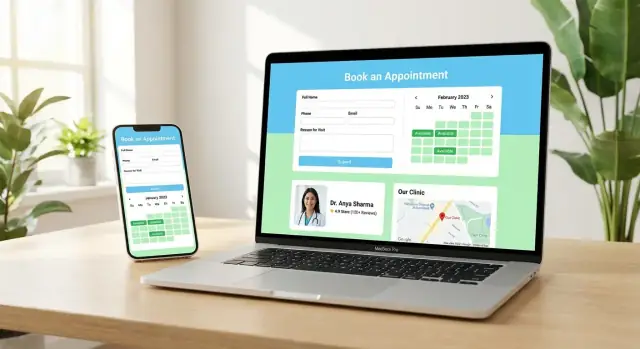
Define Goals and Requirements for Your Practice
Before you pick a platform or design a homepage, get specific about what you want the website to do. “Get more patients” is a start, but the best medical practice websites translate a clear goal into a simple patient action.
Clarify the primary goal
Decide which of these outcomes you’re optimizing for:
- Appointment requests (most common): patients submit a preferred time, reason for visit, and contact details; your staff confirms.
- Instant booking: patients choose a live slot and book immediately (requires tighter calendar and policy setup).
- Call-first: the site prioritizes tap-to-call, often best for urgent care, complex cases, or practices with frequent scheduling questions.
Your choice affects everything: button wording, what fields you collect, and how quickly you need to respond.
Match requirements to your practice type
Different specialties have different “must-haves.” A few common examples:
- Family medicine / primary care: new-patient vs. established-patient routing, insurance notes, vaccination/physical visit types.
- Dental: procedure categories (cleaning, emergency, cosmetic), anxiety/comfort preferences, photo upload (optional).
- Physio / chiropractic: referral/source, injury area, session length, ongoing plan scheduling.
- Mental health: intake fit questions, privacy-forward messaging, and clear boundaries for crisis situations.
Decide who maintains the site
Be honest about internal capacity. Will updates be handled by a front office manager, an agency, or an in-house admin? This determines how simple editing needs to be, who owns logins, and how quickly you can post updates (hours, closures, new services).
Set success metrics upfront
Choose a few measurable signals:
- Appointment request volume (per week)
- Tap-to-call clicks from mobile
- Time-to-response (how fast requests are confirmed)
- No-show reduction (via better confirmation and reminders)
With goals, requirements, ownership, and metrics defined, every next decision becomes easier—and your site is more likely to convert real patients, not just visitors.
Choose the Right Website Platform and Setup
Your platform choice affects how quickly you can publish, how easily staff can update pages, and how reliably you can handle online appointment requests.
Pick the right build approach
Most practices do well with one of these options:
- Website builder (Squarespace/Wix-style): Fast to launch and easy to edit. Good if you need a clean brochure site plus a simple appointment request form.
- WordPress: More flexibility for pages, SEO, and form tools. Best when you expect ongoing content updates or want more control over patient lead capture.
- Custom build: Useful for unique workflows or complex integrations, but usually higher cost and longer timelines.
Choose based on who will maintain it. If your office manager will edit hours and bios, prioritize simplicity.
If you want the flexibility of a custom build without a traditional months-long dev cycle, a vibe-coding approach can be a practical middle ground. For example, Koder.ai lets teams create web apps through a chat interface, which can be useful for building a tailored appointment-request workflow, internal routing rules, or a lightweight admin dashboard—while still keeping the option to export source code and deploy on your preferred infrastructure.
Domain + hosting: keep ownership with the practice
Register the domain (e.g., YourClinicName.com) and set renewals so the practice owns the account—not a vendor or a departing staff member. Do the same for hosting, email, and any form/scheduling tools. Keep logins in a shared, secure credential manager.
If you use WordPress, pick reputable managed hosting with daily backups and easy SSL setup. Builders typically include hosting.
Theme/layout: mobile-first and form-ready
Pick a theme that supports:
- Clear call-to-action buttons (“Request an Appointment”)
- Mobile-friendly forms (large fields, minimal typing)
- Fast loading and readable typography
Before committing, test the form on your phone.
Plan integrations (only what you’ll use)
Start with essentials: secure form delivery to staff email, a shared inbox, and confirmations. Add others only if they simplify workflow—CRM for lead tracking, scheduling software for time slots, or EHR connections when there’s a clear operational need (and vendor support).
Plan Site Structure and Patient Flow
A medical practice website should feel simple: patients arrive with a question, and you guide them to the next step in one or two clicks. Before writing copy or choosing colors, sketch the pages you need and how patients will move between them.
Map the core pages (the “must-haves”)
Most practices can start with a lean set of pages:
- Home: your quickest summary—who you help, where you are, and how to request an appointment.
- Services: conditions treated, visit types, and what to expect.
- Providers: bios, specialties, languages, and credentials.
- Locations: addresses, parking, hours, and directions.
- Insurance & Billing: plans accepted, self-pay notes, FAQs.
- Contact: phone, messages, and after-hours guidance.
If you already use a patient portal, include a clear, persistent link (e.g., /patient-portal).
Design for real patient journeys
Create paths for common needs:
- New patient: Home → Services/Provider → Insurance → Request appointment.
- Returning patient: Home → Portal link or “Request follow-up” → Confirmation.
- Urgent question: Home → “Same-day options” or “Call now” → Phone.
Each journey should have a clear end point: request, call, or get directions.
Place conversion points where decisions happen
Add “Request an Appointment” buttons near:
- the top of Home and every major page
- each provider profile
- service sections where patients choose a visit type
Keep navigation short and consistent (ideally 5–7 items). Use the same labels everywhere—patients shouldn’t have to re-learn your menu as they move through the site.
Write Patient-Friendly Content That Builds Trust
Your website copy should answer the questions patients are already asking—quickly, clearly, and without sounding like a legal document or a medical journal. The goal isn’t to impress with terminology; it’s to help someone feel confident enough to request an appointment.
Lead with plain-language “who we help” pages
Most patients scan before they read. Use clear headings that match how people describe their concerns, and then explain what you offer in everyday terms.
For example, structure key pages around:
- Conditions or concerns you treat (using common names first)
- Who you typically help (age groups, activity level, specific needs)
- What the first visit is like (step-by-step)
- When to seek urgent care vs. when to book with you (without alarming language)
Avoid medical guarantees. Instead of “We cure X,” focus on what you do and what patients can expect: evaluation, treatment options, timelines that vary, and how you support follow-up care.
Make providers feel real (and credible)
Provider bios are often the most-visited pages on a medical practice website. A strong bio builds trust by combining credentials with warmth.
Include:
- Credentials and licensure (kept readable)
- Specialties and areas of focus
- A short “why I do this work” line
- Friendly, current photos (consistent lighting/style across staff)
If you have multiple clinicians, add a simple “Who should I book with?” paragraph to help patients choose without guessing.
Include practical details that remove friction
Trust is also logistical. Patients want to know you’re easy to find, reachable, and prepared for their needs.
Add (and keep updated): hours, phone number, location details, parking/transit notes, accessibility information, languages spoken, and typical response times for online appointment requests.
A simple “Before your visit” section can reduce anxiety and improve patient lead capture by clarifying what to bring (ID, insurance card if applicable, current meds list) and what happens after submitting the appointment request form.
Write like you speak—but proofread like a pro
Aim for short sentences, active voice, and one idea per paragraph. Use supportive, respectful language (“you may,” “many patients,” “we’ll discuss options”) and avoid fear-based messaging.
If you want a quick quality check: ask a non-clinician to read your top pages (Home, Services, About, Appointment Request) and tell you what your practice does, who it’s for, and how to book—without prompting.
Create an Appointment Request Form (Best Practices)
Your appointment request form is where interested patients decide whether booking with you feels easy—or stressful. The goal is to remove friction, set expectations, and collect just enough information for your team to respond quickly.
Pick the right form style
For most practices, a two-step approach works best: start with a short request form, then gather more details after your staff confirms availability.
- Step 1 (on the website): capture a request and preferred times.
- Step 2 (after confirmation): send a link to complete intake details (or collect them by phone), based on your workflow.
This keeps the website form fast, which typically increases completion rates—especially on mobile.
Collect only what you truly need
Aim for the minimum information required to contact the patient and match them to the right appointment type:
- Full name
- Phone number and/or email
- Preferred appointment days/times (offer 2–3 options)
- Visit reason (optional, with a short prompt like “Briefly tell us what you’d like help with”)
Avoid requesting sensitive medical details unless there’s a clear operational need. If you include a “reason for visit,” keep it optional and encourage brevity.
Add consent and privacy acknowledgements
Include clear checkboxes so patients understand what happens after they submit:
- Permission to contact: “You may contact me by phone/text/email about my request.”
- Privacy notice acknowledgement: “I have read and acknowledge the Privacy Notice.” (Link to your /privacy-policy or relevant notice page.)
Keep the language simple and visible near the submit button.
Reduce errors and confirm next steps
Use friendly, specific error messages (e.g., “Please enter a valid phone number”) and keep required fields to a minimum.
After submission, show a confirmation page that answers the patient’s immediate questions:
- When they should expect a response (e.g., “within 1 business day”)
- How you’ll contact them
- What to do if they need to update details
Offer alternatives and safety guidance
Not everyone will want to submit a form. Provide a clear call option (tap-to-call on mobile) and, when appropriate, add brief safety guidance such as: “If this is an emergency, call 911 or go to the nearest emergency room.”
Add Scheduling Options and Staff Workflow
Adding scheduling isn’t just a website feature—it’s an operational decision. Pick the option that matches how your front desk works today, then document exactly what happens after a patient clicks “Request.”
Option A: “Request only” (staff confirms manually)
This approach uses an appointment request form that collects the basics (name, phone, preferred times) and sends it to your team for confirmation. It’s ideal if you triage requests, verify insurance, or coordinate multiple providers.
Keep the promise clear on the page: “Submit a request and our team will contact you to confirm.” Avoid wording that implies a guaranteed appointment.
Option B: Connect to a scheduling tool (widget or integration)
If your practice already uses online scheduling, you can embed a widget or integrate via API so patients can pick real-time openings. This reduces phone time and can increase completed bookings, but it requires clean schedules, visit-type rules, and staff buy-in.
Routing rules that prevent chaos
Even simple routing saves time. Decide how requests are categorized and where they go based on:
- Location (multi-office practices)
- Provider (if patients can choose)
- Visit type (new patient, follow-up, procedure)
- Insurance (optional—only if you truly use it to route)
Confirmations and team response standards
Set up immediate email/SMS confirmations that acknowledge receipt without including sensitive details. Then document the workflow: who monitors requests, expected response time (for example, within 1 business hour), and template replies for common outcomes (confirmed, needs info, redirected, emergency symptoms). A shared inbox or ticketing view helps ensure nothing gets missed.
Security, Privacy, and Compliance Considerations
Patients will only use your online appointment request option if it feels safe. Security and privacy are also where small website decisions (a plugin, a form field, a vendor) can create big risks, so it’s worth setting a few clear rules before you publish.
Start with basic website security
Your medical practice website should run on HTTPS (a valid SSL/TLS certificate). It protects data in transit and prevents “Not Secure” warnings in browsers.
Also treat every login as a high-value target:
- Use strong, unique admin passwords (a password manager helps)
- Turn on MFA for all accounts that can access the website, email inboxes, form submissions, or scheduling tools
- Remove unused accounts and keep plugins/themes updated
Collect the minimum on first contact
An appointment request form is not the same as a full patient intake form. For first contact, limit what you collect to what your staff needs to respond and schedule.
Good “minimum” fields often include: name, best callback number, email (optional), preferred times, and a short reason for visit.
Avoid collecting sensitive details too early—especially Social Security numbers or detailed medical history—unless you have a clear, compliant workflow and a strong reason. If you need clinical information, consider a separate, secure process after the appointment is confirmed.
Make privacy clear (in plain English)
Add a simple privacy notice that explains:
- What information you collect in the form
- How you use it (e.g., “to contact you about scheduling”)
- Where it goes (email inbox, scheduling system, EHR portal, etc.)
- How long you keep it
Link this notice near every form submit button, and in the footer. Keep it readable—patients shouldn’t need legal training to understand it.
Spam protection without blocking real patients
Healthcare forms attract spam. Use protections that don’t create accessibility barriers:
- A hidden “honeypot” field (bots fill it, humans don’t)
- Rate limiting (blocks repeated rapid submissions)
- Server-side validation (so junk can’t be submitted easily)
Try to avoid challenges that confuse users (especially on mobile) unless spam becomes severe.
HIPAA and compliance: confirm vendors and workflows
If your practice must meet HIPAA requirements, don’t assume your website tools automatically qualify. Confirm whether your form provider, hosting, analytics, email workflow, and scheduling vendor support HIPAA-appropriate configurations and agreements (for example, a Business Associate Agreement where required). This is not legal advice—when in doubt, review your setup with a qualified compliance professional.
A practical rule: if form submissions are being emailed as plain text to a shared inbox, that may not match your compliance needs. Plan the workflow before you embed the form.
Design for Mobile and Accessibility
Most patients will find your medical practice website on a phone—often between tasks, with limited time and attention. A mobile-first layout isn’t just “nice to have”; it directly affects whether someone successfully submits an appointment request.
Mobile-first essentials that reduce drop-offs
Make the most common actions effortless:
- Tap-to-call and tap-to-map: Put a click-to-call phone number in the header and a clear “Get directions” link near your address.
- Fast pages: Use compressed images, minimal animations, and avoid heavy pop-ups. Patients on cellular data won’t wait.
- Form fields built for thumbs: Use large input areas, plenty of spacing, and the right keyboard type (phone keypad for phone numbers, email keyboard for email).
Accessibility basics (and why they matter)
Accessibility helps patients with disabilities, older patients, and anyone using a small screen or poor lighting.
- Readable contrast and text size: Aim for comfortable font sizes and strong contrast for buttons and body text.
- Keyboard navigation: Ensure the site works without a mouse; users should be able to tab through menus and forms logically.
- Clear labels and error messages: Every form field should have a visible label (not just placeholder text). If something is wrong, explain it in plain language (e.g., “Please enter a 10-digit phone number”).
Consistent calls-to-action
Use one primary phrase everywhere—typically “Request an appointment”—and keep button styling consistent. Patients shouldn’t have to guess whether “Contact us,” “Book,” and “Send” do the same thing.
Multilingual support (when it fits your community)
If your practice serves multiple languages, add translated key pages and form instructions. Even a focused approach—home page, services, insurance info, and appointment request guidance—can make patients feel welcomed and reduce misunderstandings.
Local SEO for Medical Practices
Local SEO helps your practice show up when nearby patients search “doctor near me” or a specific service in your area. The goal is simple: make it easy for search engines (and humans) to confirm who you are, what you offer, and where you’re located.
Get the basics right on every location page
Start by adding complete NAP (name, address, phone) on every location page—written exactly the same way everywhere (including suite numbers and abbreviations). If you have multiple locations, give each one its own page with unique details (parking notes, entrance info, nearby landmarks) rather than copying and pasting.
Embed a map so patients can confirm the location quickly and tap for directions.
Build pages that match real patient searches
Create service pages for common searches (e.g., annual physicals, cleanings). These pages should explain:
- Who the service is for
- What happens during the visit
- Typical timing and preparation
- Insurance/payment notes (without overpromising)
Optimize titles/meta, headers, and FAQs with patient-friendly keywords. For example, “Annual Physical in Springfield” is clearer than internal jargon. FAQs are especially useful for long-tail searches like “Do I need to fast for bloodwork?”
Help Google understand your clinic
Add schema markup for medical organizations/locations so search engines can confidently connect your practice name, address, hours, and services. If your platform supports it, add “MedicalOrganization” and “LocalBusiness” (or a medical-specific subtype) schema to your location pages.
Reviews: earn them the right way
Encourage reviews and link to your profiles (no incentives or fake reviews). A simple post-visit message like “If you’d like to share feedback, you can review us here” works well. Also, respond professionally—thank patients and avoid discussing any personal health details.
For more on structuring your pages, see /blog/plan-site-structure-and-patient-flow.
Analytics and Conversion Tracking
If you don’t measure what patients do on your site, you’ll end up guessing why appointment requests are slow—or why they spike. Good tracking focuses on a few patient actions that signal intent, then helps you improve pages without adding friction.
Track the events that matter
Start with a small set of “key events” and make sure each one is recorded reliably:
- Appointment request form submissions (success/thank-you page or submission event)
- Tap-to-call clicks on mobile (especially from header and contact page)
- Get directions / map clicks (often a strong local-intent signal)
- Patient portal clicks (useful for understanding how many visitors are existing patients)
Also track where the patient came from (Google Business Profile, organic search, paid ads, referrals), but keep it high level.
Set up analytics with privacy in mind
Healthcare sites should be conservative with data. Configure analytics to avoid collecting unnecessary details—especially anything that could identify a patient.
Practical guidelines:
- Don’t send names, phone numbers, symptoms, or form-field contents into analytics.
- Limit tracking to page views and the key events above.
- Use a consent banner if required in your region, and honor opt-outs.
- Prefer tools and settings that minimize data collection (for example, IP anonymization where available).
Give staff a simple weekly view
Create a lightweight dashboard that an owner or office manager can check in 2–3 minutes each week: sessions, top pages, key events, and conversion rate (event ÷ visits). Note any sudden drops after site edits.
A/B test small, safe changes
Run simple experiments one at a time: button text (“Request Appointment” vs. “Book a Visit”), form length, or page layout. Judge success by increases in completed requests, not just clicks.
Follow-Up: Turn Requests into Confirmed Visits
An appointment request is only a “maybe” until your team confirms it. The difference between a full schedule and a leaky funnel is often what happens in the first hour after a request arrives.
Use a thank-you page to set expectations
After a patient submits your appointment request form, send them to a dedicated thank-you page that clearly explains what happens next. Include:
- When they’ll hear back (for example, “within 1 business day”)
- How you’ll contact them (phone/text/email)
- What to do if it’s urgent (call 911 or the office—match your practice policy)
This reduces repeat submissions and builds trust by removing uncertainty.
Notify staff immediately (and securely)
Make sure requests reach the right person without relying on someone “checking the inbox.” Set up a secure internal notification—either to an office email monitored during business hours or, better, a ticketing/task system your staff already uses. Keep the notification short and avoid sending sensitive details if email isn’t secured for healthcare communications.
Prepare follow-up templates that keep things moving
Create a few ready-to-send message templates so staff can respond quickly and consistently:
- Missing info (insurance, preferred times, reason for visit)
- Scheduling options (2–3 time windows to choose from)
- New patient instructions (forms to complete, what to bring)
Templates speed up responses while still allowing staff to personalize.
Plan for missed calls and after-hours requests
Many confirmations happen by phone—and many calls go unanswered. Have a simple workflow for:
- Missed calls: call-back attempts at set times, plus a short text/email (if permitted)
- After-hours requests: an automatic reply acknowledging receipt and stating the next business day response time
Track outcomes weekly (requests received vs. confirmed visits) so you can spot delays and fix bottlenecks quickly.
Launch Checklist and Ongoing Maintenance
Launching a medical practice website isn’t just pressing “publish.” A short, repeatable checklist helps you avoid missed calls, lost appointment requests, and patient frustration.
Pre-launch checklist (quick but thorough)
Before you share the site publicly, confirm the basics:
- Links and navigation: Every menu item, button, and footer link works (including map links, phone tap-to-call, and directions).
- Forms: Appointment request form submits successfully and shows a clear confirmation message.
- Mobile experience: Pages read well on small screens; form fields are easy to tap; phone number is clickable.
- Speed: Key pages load quickly on cellular data, not just office Wi‑Fi.
- SSL: The site loads as https:// (no browser warnings). If you have a patient portal link, verify it also uses HTTPS.
Test appointment request delivery (don’t skip this)
Run end-to-end tests from:
- At least one iPhone and Android
- Multiple browsers (Chrome, Safari)
- Different email providers (Gmail, Outlook/Office 365)
Verify that the request arrives where staff expect it (inbox, dashboard, or EHR integration), and that you can reply or call back without hunting for details. If you send an auto-reply, make sure it doesn’t promise a confirmed time—use language like “We’ll contact you to confirm.”
Backups and updates (set a routine)
Put maintenance on the calendar:
- Backups: automatic daily (or at least weekly), plus a manual backup before major changes.
- Updates: monthly review of platform, theme, and plugins. Apply security updates sooner.
- Monitoring: uptime alerts and a quick monthly check that forms still work.
Keep the site fresh with a simple content plan
Plan small, low-effort updates: new services, insurance notes, holiday hours, and staff announcements. As an optional next step, publish short patient guidance posts in /blog and link them back to key service pages to support discovery and reduce repetitive front-desk questions.
FAQ
What’s the first decision to make when building a medical practice website?
Start by choosing a single primary action:
- Appointment requests (staff confirms)
- Instant booking (patients pick a live slot)
- Call-first (tap-to-call is the main CTA)
Your primary goal should determine your button text, how many form fields you require, and how quickly your team must respond to avoid losing motivated patients.
Which platform is best for a medical practice website: a builder, WordPress, or custom?
Use a builder (Squarespace/Wix-style) if you want a simple brochure site and an appointment request form that staff can maintain easily. Choose WordPress if you need stronger SEO/content flexibility and more form/workflow options. Consider a custom build only when you have unique scheduling workflows or complex integrations that off-the-shelf tools can’t handle.
Who should own the domain, hosting, and website logins?
Make sure the practice owns the accounts for:
- Domain registration
- Hosting (or builder subscription)
- Email used for form delivery
- Scheduling/form tools
Store logins in a shared password manager, enable MFA, and avoid tying critical access to a single staff member or agency. This prevents outages and delays if someone leaves.
What pages should a medical practice website include at launch?
Most practices can start with:
- Home
- Services
- Providers
- Locations
- Insurance & Billing
- Contact
Add a persistent patient portal link (e.g., /patient-portal) if you already use one, and keep navigation to roughly 5–7 items so patients can find the next step fast.
How do you design a patient flow that actually increases appointment requests?
Design around common paths:
- New patient: Home → Services/Provider → Insurance → Request appointment
- Returning patient: Home → Portal link or follow-up request → Confirmation
- Urgent question: Home → Call now / same-day options → Phone
Each path should end in one clear outcome: request, call, or get directions.
What should an appointment request form include (and not include)?
Keep it short and mobile-friendly with a two-step approach:
- Website form: name, phone/email, preferred times, (optional) brief reason
- After confirmation: collect fuller intake details via your portal or a secure process
Show a confirmation message that states when you’ll respond and how, so patients don’t re-submit or call repeatedly.
How do you handle consent and privacy messaging on appointment forms?
Add two clear checkboxes near the submit button:
- Permission to contact by phone/text/email
- Acknowledgement of your privacy notice (link to /privacy-policy)
Use plain language explaining what happens next and avoid implying the appointment is confirmed until staff verifies availability.
What security and compliance steps matter most for a healthcare website?
Start with basics that protect users and reduce risk:
- HTTPS (valid SSL/TLS)
- MFA for all admin and inbox accounts
- Regular plugin/theme/platform updates
- Minimal data collection on first contact
If you have HIPAA obligations, confirm whether each vendor in the workflow (forms, hosting, scheduling, email handling) supports HIPAA-appropriate configurations and agreements where required.
What are the most important mobile and accessibility features for a practice website?
Prioritize the actions patients need most:
- Tap-to-call phone number in the header
- Easy “Get directions”/map clicks
- Fast loading pages (compressed images, minimal pop-ups)
- Large, labeled form fields with clear error messages
Also check accessibility basics: readable contrast, logical keyboard navigation, and visible labels (not placeholders only).
What should you track to know if the website is working (without invading privacy)?
Track a small set of high-intent events:
- Appointment request submissions (thank-you page or submit event)
- Tap-to-call clicks
- Directions/map clicks
- Patient portal clicks
Keep analytics privacy-forward: don’t send names, phone numbers, symptoms, or form contents into analytics. Review results weekly so you can spot drops after site edits.