

Create a Childcare Scheduling & Updates App: Step-by-Step
Learn how to plan, design, and build a mobile app that handles daycare schedules, attendance, and parent updates with secure messaging and alerts.
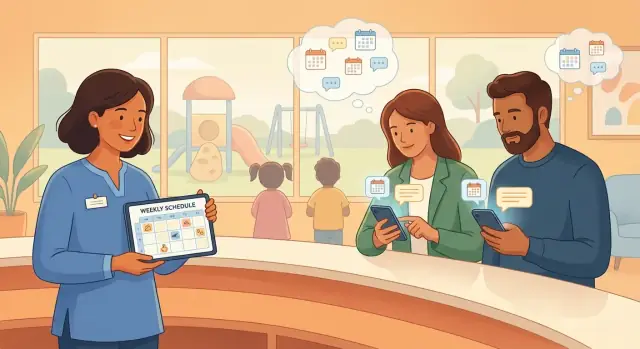
Define Goals, Users, and Success Metrics
Before screens, features, or tech decisions, get specific about the problems your childcare scheduling app must solve. Childcare centers run on routine—but the “exceptions” (late pickups, schedule swaps, sudden closures) are what create stress, phone calls, and mistakes.
Clarify the problem you’re solving
Write down the situations that cause friction today. For most centers, the core set is predictable:
- Scheduling: recurring attendance patterns, part-time days, extended care, staff coverage
- Attendance: check-in/out accuracy, authorized pickup, late pickup tracking
- Daily updates: meals, naps, diapering/toileting, activities, photos (if you choose)
- Reminders and last-minute changes: closures, supply needs, event days, “tomorrow is pajama day”
Keep this list grounded in real examples from your center (or your target customers). Each example should map to a clear outcome like “parents know the plan without calling” or “teachers stop rewriting schedules.”
Identify your user groups
A successful daycare mobile app serves different people with different urgency levels:
- Parents/guardians: need quick clarity (schedule, messages, pickup info) and reassurance (daily summaries)
- Teachers/staff: need fast entry (attendance, updates) with minimal tapping during busy moments
- Admins/owners: need control (rosters, billing-adjacent rules, permissions) and visibility (basic reporting)
If you only design for one group, the others will work around your tool—and adoption will stall.
Pick the top outcomes and define metrics
Choose three outcomes to prioritize, such as:
- Fewer missed pickups and fewer late surprises
- Less phone tag and fewer “did you see my message?” moments
- Fewer schedule errors and double-booked staffing assumptions
Then attach measurable success metrics:
- Adoption rate: % of families active weekly; % of staff using attendance daily
- Operational reduction: fewer inbound calls/texts; fewer manual schedule edits
- Timeliness: on-time check-ins; average message response time; notification open rate
These metrics will guide your MVP app features and prevent “nice-to-have” features from taking over.
Map Real-World Childcare Workflows
Before you sketch screens or choose features, map what actually happens in a childcare center hour by hour. A scheduling and updates app succeeds when it mirrors real routines, not an idealized calendar.
Start with the daily and weekly rhythm
Write down the “default day” as staff experience it: drop-off window, room handoffs, planned activities, outdoor time, naps, meals/snacks, diaper/toilet routines, and pickup. Then add the weekly patterns—special classes, field trips, cleaning days, and staff meetings.
A simple way to do this is to create a timeline for each room (infants, toddlers, preschool) and mark where information changes hands (front desk to room lead, room lead to parent).
Map the scheduling scenarios you’ll support
Childcare scheduling isn’t one-size-fits-all. Capture the common cases:
- Recurring care (Mon–Fri, same hours)
- Part-time schedules (2–3 days/week)
- Rotating shifts (alternating weeks, changing pickup times)
- Holidays and planned closures
Note what “scheduled” means in your center: a reserved spot, expected arrival time, staffing ratio planning, or all three.
Plan for exceptions (they happen every day)
Document how staff handles late pickup, sick days, early pickup, substitute staff, and room closures. For each exception, define what changes: schedule, attendance, fees, notifications, and who must be informed.
Decide self-serve vs admin approval
Be explicit about what parents can do instantly (request schedule changes, report absence) versus what needs review (change enrollment days, approve extra hours, switch rooms). This decision shapes your app’s workflows, not just its permissions.
Pick an MVP Feature Set (What to Build First)
An MVP for a childcare scheduling app should solve two everyday problems immediately: “Who is coming, and when?” and “What do parents need to know today?” If you nail those, you can earn trust and daily usage before adding extras.
Start with the smallest useful “unit”
Define your MVP so it can run in a real setting with minimal workarounds—either one classroom (best for piloting) or one center (best if you have multiple rooms but shared admins). This keeps the scope concrete and decisions easier.
Must-have MVP features
These are the core of a usable daycare mobile app and parent communication app:
- Child roster: basic profiles (name, guardian contacts, pickup permissions, notes like allergies).
- Schedule calendar: staff can view/edit daily/weekly schedules; parents can view their child’s schedule. Simple calendar integration (export or subscribe) can be a later enhancement.
- Attendance tracking: quick check-in/out with timestamps and who performed the action.
- Updates: center/class announcements plus one-to-one in-app messaging between staff and guardians.
- Push notifications: for new messages, schedule changes, and key announcements (with quiet hours).
- User roles and permissions: at least Admin, Staff, Parent/Guardian to prevent accidental oversharing.
Nice-to-haves to postpone
Save these until the MVP proves daily value:
- Billing/invoicing, subsidies, tax receipts
- Meal planning, menus, allergies workflow automation
- Photo sharing and media galleries (adds heavy privacy review)
- Complex reports beyond simple attendance and message logs
Define what “done” means
Your MVP is “done” when a real classroom/center can run a full week using it for scheduling, daily updates, and attendance—without spreadsheets, and with parents actually reading notifications.
Plan Data, Roles, and Permissions
Before you design screens, decide what “things” your app needs to store and who’s allowed to do what. Getting this right early prevents messy migrations later—and it reduces the risk of accidentally showing the wrong child’s info to the wrong adult.
Key data entities to model
Start with a simple set of building blocks (you can always extend later):
- Child: profile, enrollment status, allergies/notes, assigned classroom(s)
- Parent/Guardian: contact details, relationship to child, notification preferences
- Staff: role (teacher, admin), classroom assignments, employment status
- Classroom/Group: name, capacity, staff assignments
- Schedule: planned drop-off/pick-up times, recurring patterns, exceptions (holidays, half-days)
- Attendance event: check-in/out time, who performed it, method (manual, kiosk), notes
- Message/Announcement: sender, recipients, attachments (optional), timestamps
A practical tip: treat Schedule as “planned” and Attendance as “what actually happened.” Keeping them separate makes reporting and disputes easier.
Roles and permissions (who can do what)
Define roles in plain language and map them to permissions:
- Parents/Guardians: view their child’s schedule and daily updates; request changes (if allowed); message staff within their child’s classroom
- Staff: view schedules for assigned classrooms; record attendance; send classroom announcements
- Admins: manage enrollments, classrooms, staff access; edit schedules globally; export reports
Be explicit about boundaries:
- Who can edit a schedule vs. only request changes?
- Can staff message all parents, or only those in their classroom?
- Can parents message other parents? (Many centers disable this.)
Multiple guardians, authorized pickups, and emergencies
Real families often have more than one guardian. Support:
- Multiple guardians per child, each with their own login and notification settings
- An authorized pickup list (grandparents, babysitters) with names, phone numbers, and optional photo/ID notes
- Emergency contacts separate from guardians
Also decide what a guardian can see: some centers need per-guardian visibility controls (e.g., one guardian can’t view certain details).
Audit trails and read receipts
Schedule and attendance data can affect billing and safety, so plan traceability:
- Audit trail for schedule changes: what changed, who changed it, when, and the previous value
- Read receipts for announcements: who has seen an important update (closure, illness notice), plus a “resend” option for non-readers
Keep audit logs tamper-resistant (admins can view, but not edit), and store timestamps consistently (with time zone handling) to avoid confusion.
Design a Simple UX for Busy Parents and Staff
A childcare app succeeds or fails on speed. Parents often have one hand on a stroller and staff are juggling a room—so every common task should take seconds, not minutes. Aim for fewer screens, fewer taps, and clear “what should I do next?” guidance.
Design for speed (especially on phones)
Optimize for one-handed use: keep primary actions within thumb reach, use large tap targets, and prefer short, scannable text.
Build “quick actions” into the UI so users don’t hunt through menus. For example, on the main screen provide prominent buttons for Check in, Message, and Alert (or “Call center” / “Report issue,” depending on your program). If a task is frequent, it deserves a front-and-center shortcut.
Keep navigation predictable and shallow
A simple, consistent bottom navigation works well for this kind of app:
- Today: what’s happening now and next
- Schedule: upcoming days, rooms, staff assignments
- Messages: 1:1 and group conversations
- Updates: announcements, daily posts, photos (if you support them)
- Profile: child details, pickup contacts, settings
The goal is to make the app feel familiar after one use. Avoid hiding core features behind a “More” tab unless you truly have too many sections.
Prevent information overload with smart prioritization
Childcare generates lots of small updates. Instead of showing everything equally, surface the next relevant event and unread items first.
On Today, consider a top summary that answers:
- What time is the next pickup/drop-off or activity?
- Are there unread messages or urgent notices?
- Is the child currently checked in?
When something is time-sensitive (late pickup, closure notice, medication reminder), label it clearly with status chips like Action needed, Info, Confirmed.
Accessibility basics that help everyone
Accessibility is not just a compliance checkbox—it reduces mistakes in busy environments.
Use readable type sizes, strong color contrast, and never rely on color alone to indicate status (add text labels like “Checked in” vs “Not checked in”). Ensure buttons and links have clear names (“Message teacher” beats “Contact”). If you use icons, pair them with text in the primary navigation.
A simple UX lets parents feel informed without being overwhelmed, and it lets staff update the app without interrupting care—exactly what your childcare scheduling app should enable.
Build the Scheduling Engine and Calendar Views
A childcare scheduling app succeeds or fails on one thing: whether people can understand “who is where, when” in seconds. Start by defining the scheduling model and the rules the engine must enforce, then build calendar views that match how directors, staff, and parents actually think.
Choose your scheduling model
Decide how schedules get created:
- Staff-created: the center publishes each child’s schedule; parents can view and request changes.
- Parent-requested: parents submit days/times; staff approves (good for flexible programs).
- Hybrid: staff sets defaults, parents request exceptions. This is often the easiest to roll out.
Make the model explicit in the UI: “Requested,” “Pending approval,” “Approved,” and “Declined” should be visible states, not hidden logic.
Handle recurring schedules and real-life exceptions
Most childcare schedules repeat. Store a recurring pattern (e.g., Mon–Fri 8:30–3:30) plus exceptions that override a single date (late drop-off, early pick-up, swap day) and center-level closures (holidays, weather days).
Design your data so exceptions win over recurrence, and closures win over everything.
Enforce capacity rules (without surprising people)
Your engine should check:
- Room capacity (max kids per room)
- Staffing ratios (kids per staff member)
- Operating hours and cutoff times
If a slot is full, decide the behavior: block the request, allow it with a warning for admin override, or add a waitlist with clear priority rules (first-come, sibling priority, etc.). Show “Full” and “Waitlist available” directly in the calendar so parents don’t submit requests that will fail.
Calendar views that match each role
Provide at least two views:
- Parent view: child-centric day/week schedule, simple “Request change” flow.
- Staff/admin view: room-centric roster by time block, quick filters (room, age group, staff).
Calendar sync (export to a device calendar) is a nice add-on, but it doesn’t have to be MVP—focus first on accuracy, speed, and clarity.
Create Updates, Messaging, and Notification Flows
Parents don’t just want a schedule—they want to know how the day is going without chasing staff for answers. Your updates and messaging should feel predictable: same structure every time, easy to send in seconds, and clear about what needs attention.
Define your update types (and make them consistent)
Start with a small set of update types so staff don’t have to decide “what kind of message is this?” each time:
- Daily note: naps, meals, mood, quick highlights.
- Incident/health note: bumps, fever, medication, allergies, pickup changes (often needs acknowledgement).
- Activity log: photos (optional), crafts, outdoor time, learning moments.
- Center-wide announcement: closures, reminders, events, policy updates.
Give each type a simple template (fields like time, summary, details, action needed) so updates are scannable.
Messaging rules: who can talk to whom
Set expectations early to reduce confusion and protect privacy:
- 1:1 parent–teacher for child-specific questions.
- Group room chat for general room updates (read-only for parents is often best).
- Admin broadcasts for center-wide messages.
Be explicit about boundaries: for example, parents can message staff, but not other parents unless you’re building an opt-in community feature.
Notification strategy: push vs inbox
Push notifications should be reserved for things that are time-sensitive:
- Push: urgent health/incident notes, pickup changes, direct replies, schedule changes for today.
- Silent inbox update: activity logs, non-urgent daily notes, photo posts.
Let users control preferences per category, and show a badge count for unseen items so nothing gets buried.
Safety controls that prevent chaos
A few guardrails make communication calmer:
- Quiet hours (e.g., 7pm–7am): messages still deliver, but pushes are delayed unless marked urgent.
- Urgent flag with a clear definition and limited access (typically staff/admin only).
- Message templates for common scenarios (late pickup, minor scrape, needed supplies) to speed up sending and reduce wording mistakes.
Finally, add lightweight read receipts or “acknowledged” buttons for incident/health notes—so staff knows parents saw what matters.
Add Attendance Tracking and Daily Summaries
Attendance is more than “present/absent.” It’s a safety record parents rely on and staff must be able to complete quickly, even during a busy drop-off line.
Choose a check-in method that fits your center
Start with the simplest option that staff can execute consistently:
- Staff-only check-in/out (recommended MVP): teachers record drop-off and pickup from a classroom roster.
- PIN-based check-in: approved adults enter a short PIN on a kiosk device.
- QR code: parents/guardians scan a code at the front desk for faster lines.
- Geofence (optional): allow check-in only when the device is near the facility. Treat this as an add-on, not a requirement.
Whatever you choose, always allow staff to complete attendance if a parent’s phone is dead or the lobby tablet is offline.
Track the right timestamps (and who did what)
Your attendance record should store:
- Drop-off time and pickup time
- Who was authorized to drop off/pick up (linked to a guardian profile)
- Who recorded it (staff member, kiosk, or guardian)
- Notes when needed (e.g., “grandparent pickup,” “early dismissal”)
These details reduce confusion later and are essential when parents call with “Was she picked up already?” questions.
Handle corrections without losing trust
Mistakes happen—someone taps the wrong child or forgets to check out. Build a correction flow that’s transparent:
- Edit requests: staff can request a fix (e.g., adjust pickup time), optionally with a reason.
- Admin overrides: managers approve/deny and apply changes.
- Change history: keep an audit trail showing what changed, when, and by whom.
This approach prevents silent edits and helps resolve disputes calmly.
Generate simple daily summaries
Daily summaries should be quick to skim and consistent. For parents, include attendance plus a short snapshot: meals, naps, activities, and key notes. For staff, provide a classroom view: arrivals/departures, missing check-outs, and exceptions that need follow-up.
If you already send updates, reuse that data—attendance can be the “spine” of the day’s timeline rather than another separate form.
Provide Admin Tools and Lightweight Reporting
Admin features don’t need to be fancy—but they do need to be fast, clear, and hard to misuse. The goal is to reduce front-desk work and make the app reliable day-to-day.
What the admin dashboard should cover
Start with the essentials that keep operations moving:
- Rooms and groups: create rooms, set capacity, assign age ranges, and define standard ratios.
- Staff accounts: invite staff, deactivate leavers, and quickly reset access without touching personal devices.
- Children profiles: manage enrollment status, guardians, pickup permissions, allergies/notes, and room assignment.
- Schedules: view staffing and child attendance in one place, with quick edits for sick days and swaps.
Make search a first-class feature (child name, guardian, room, staff member). Admins live in lookups.
Templates that prevent inconsistent updates
Templates help busy teams send consistent information with fewer taps.
Create:
- Recurring announcements: e.g., “Bring a labeled coat on Mondays,” planned closures, or weekly reminders.
- Standard daily update forms: prebuilt fields for meals, naps, diapers/toilet, mood, activities, and notes.
Keep templates editable per room, and allow admins to lock required fields (so daily summaries don’t arrive half-empty).
Lightweight reporting that answers real questions
Avoid complex analytics early. Provide exports and a few clear counters:
- Attendance export: date range CSV for billing or compliance checks.
- Schedule utilization: simple views like “filled spots vs capacity” by room/week.
- Message volume: counts by room/time (useful to spot overloaded staff or confusing processes).
Operational tools admins will actually use
Add small tools that prevent chaos:
- Holiday calendar: center-wide closures and room-specific events.
- Emergency broadcast: send one alert to all guardians and staff, with read receipts.
- Contact list: printable/shareable roster (with permissions) for quick calls and authorized pickups.
If you plan billing later, keep reports compatible now: consistent date formats, stable child IDs, and clean exports.
Cover Privacy, Safety, and Compliance Basics
A childcare app handles some of the most sensitive information a business can collect: children’s schedules, locations (pickup/drop-off), photos, and health notes. Treat privacy and safety as product features, not legal afterthoughts.
Minimize the data you collect
Start with data minimization: collect only what you truly need to run scheduling and daily updates. If a field isn’t required for care (or billing), don’t add it “just in case.” Fewer data points means less risk if something goes wrong.
Also decide early what you won’t store:
- Avoid storing unnecessary identifiers (e.g., full medical histories).
- Consider keeping sensitive notes short-lived (e.g., delete after X days).
Security basics that prevent real incidents
At minimum, implement:
- Strong authentication (support passkeys or at least enforced strong passwords + optional MFA).
- Role-based access so parents see only their child(ren), staff see only their classroom, and admins have audited elevated access.
- Encrypted data in transit (HTTPS/TLS everywhere, including APIs and webhooks).
Keep security visible in day-to-day workflows: don’t show children’s full names on lock screens, and avoid putting sensitive details in push notification text.
Privacy expectations: consent, retention, and logs
Parents expect clarity. Provide plain-language consent for things like:
- Photo sharing (and where it appears)
- Messaging and notification preferences
- Who can access emergency contacts
Define retention rules (how long you keep messages, photos, attendance, incident reports) and maintain access logs so you can answer “who viewed or changed this?”
Plan for lost devices
Assume phones will be lost or shared.
- Use session timeouts for staff accounts.
- Offer remote logout (invalidate sessions from the admin panel).
- Keep minimal sensitive data on-screen by default, especially in public areas.
If you need a deeper checklist, add a short “Privacy & Security” page in your app settings and link to it from onboarding.
Choose a Build Approach and Tech Stack
Your tech choices should match your timeline, budget, and the team who will maintain the app. A childcare scheduling app isn’t just a calendar—it’s also communication, permissions, and reliable notifications. Choosing the right approach early helps you avoid rebuilding the foundation later.
Compare common build options
No-code prototype is best when you need to validate workflows quickly with one center. Tools like Bubble, Glide, or Softr can create clickable demos or a limited internal tool.
Cross-platform app (React Native or Flutter) is a practical default for most teams: one codebase for iOS and Android, faster iteration, and good performance for calendars, messaging screens, and photo sharing.
Native apps (Swift/Kotlin) make sense if you need platform-specific features, strict performance requirements, or you already have native engineers. Expect higher cost and longer delivery since you’ll maintain two apps.
Typical components you’ll likely need
Most successful builds separate the system into a few pieces:
- Mobile app for parents and staff
- Admin web panel for directors (enrollment, rooms, staffing, templates)
- Backend API to handle authentication, scheduling logic, messaging rules, and audit logs
- Database (PostgreSQL is a common choice) for children, guardians, schedules, and attendance
- Notification service to send push notifications and manage device tokens
If you want to move faster without committing to a full custom engineering pipeline on day one, a vibe-coding platform like Koder.ai can help you prototype the parent and admin flows from a chat-driven spec—then iterate quickly as you validate real center workflows. (This is especially useful for an MVP with clear roles, scheduling rules, and messaging requirements.)
Buy vs. build for messaging and notifications
Building chat, delivery receipts, retries, and moderation from scratch can slow you down. When possible, use trusted providers:
- Push notifications via Firebase Cloud Messaging / Apple Push Notification service
- Transactional email/SMS via established services
- In-app messaging: consider a messaging SDK if you need real-time chat and attachments quickly
You can still keep core data (children, schedules, permissions) in your own backend while outsourcing delivery.
Plan integrations for later
Even if you don’t build them in the MVP, design for:
- Billing/payments (tuition, late pickup fees)
- CRM or enrollment pipelines
- Email syncing for announcements
- SSO (especially if centers are part of a larger organization)
A simple rule: pick a stack your team can support for years—not just the fastest demo.
Test, Pilot, Launch, and Maintain the App
Shipping a childcare app isn’t just “build and publish.” You need confidence it works on chaotic days, and a plan to keep it reliable once families depend on it.
Test with real childcare scenarios
Write a short set of end-to-end scripts that match real life, then run them on multiple devices (older phones included) and with different roles (parent, teacher, admin).
Focus on scenarios that can’t fail:
- Last-minute schedule change (swap pickup time, add early drop-off, update staffing)
- Closure announcement (weather day, emergency maintenance) and confirmation it reached everyone
- Pickup authorization (add an approved pickup person, staff view it instantly, audit trail)
Also test “messy” inputs: duplicate children names, parents with multiple kids, time zone differences, and spotty connectivity.
Pilot with a small group
Start with one classroom or one center. Keep the pilot short (2–4 weeks), and gather feedback weekly. Ask for screenshots and “what were you trying to do?” notes, not just ratings.
Track a few simple numbers during the pilot: message delivery success, time-to-schedule-change, and how often staff have to fall back to phone calls.
Prepare launch assets
A smooth rollout needs:
- Clear onboarding (what parents do first, what staff do first)
- Short tutorials (30–60 seconds each) for scheduling, messages, and daily updates
- A support email and a “Help” area
- In-app tips that appear only when relevant (and can be dismissed)
Maintenance plan (non-negotiable)
Define a weekly rhythm: bug triage, feature roadmap review, and analytics checks. Set a schedule for regular security updates and dependency upgrades. Keep a simple public changelog at /blog/updates so centers know what changed and why.
FAQ
What should I define before designing screens for a childcare scheduling app?
Start by writing down the real “pain moments” you’re fixing (late pickups, schedule swaps, closure alerts, missing check-outs). Then pick three outcomes to prioritize and attach metrics, for example:
- Adoption: % of families active weekly; % of staff recording attendance daily
- Operational reduction: fewer inbound calls/texts; fewer manual schedule edits
- Timeliness: on-time check-ins; message response time; notification open rate
Those metrics will keep the MVP focused and prevent “nice-to-haves” from taking over.
Who are the core user groups for a daycare scheduling and updates app?
Design for at least three roles:
- Parents/guardians: quick clarity on schedule, messages, pickup details
- Teachers/staff: fastest possible attendance and updates with minimal tapping
- Admins/owners: control over rosters, rooms, permissions, and basic reporting
If you optimize for only one group, the others will work around the tool (paper, texts, spreadsheets), and adoption will stall.
How do I map real childcare workflows so the app matches daily routines?
Map what actually happens hour by hour and room by room (infants/toddlers/preschool). Create a simple timeline that includes drop-off windows, room handoffs, naps/meals, and pickup.
Then add “exceptions” you see weekly (sick days, early pickup, substitute staff, room closure). Your app should mirror these workflows, not an idealized calendar.
What features should be in the MVP for a childcare scheduling app?
A strong MVP solves two daily questions: “Who is coming, and when?” and “What do parents need to know today?”
Common must-haves:
- Child roster (contacts, allergies/notes, pickup permissions)
- Schedule calendar (view + simple edits or requests)
- Attendance check-in/out with timestamps
- Announcements + 1:1 messaging
- Push notifications (with quiet hours)
- Roles/permissions (Admin, Staff, Parent)
Postpone billing, photo galleries, and complex analytics until the MVP proves daily value.
How should I model scheduling vs attendance data?
Keep Schedule and Attendance separate:
- Schedule = the plan (recurring patterns + exceptions)
- Attendance = what actually happened (check-in/out events)
This makes reporting, safety questions (“Is she picked up already?”), and dispute resolution much easier. It also keeps corrections auditable without rewriting the “planned” data.
What roles and permissions should the app include to protect privacy?
Start with simple roles (Parent/Guardian, Staff, Admin) and write down clear boundaries:
- Who can edit a schedule vs request changes?
- Can staff message all parents or only their classroom?
- Can parents message other parents? (Many centers disable this.)
Add audit trails for schedule and attendance changes so you can answer what changed, who did it, and when—without silent edits.
Should parents be able to edit schedules directly, or should changes require approval?
Use a scheduling model that matches your program:
- Staff-created: staff publishes schedules; parents request changes
- Parent-requested: parents submit days/times; staff approves
- Hybrid: staff sets defaults; parents request exceptions (often easiest to roll out)
In the UI, make states explicit (Requested, Pending approval, Approved, Declined). Hidden logic causes confusion and support tickets.
What calendar views are essential for parents versus staff/admins?
Build at least two calendar views:
- Parent view: child-centric day/week schedule with a simple “Request change” flow
- Staff/admin view: room-centric roster by time block with filters (room, age group, staff)
Also enforce rules without surprises (capacity, staffing ratios, operating hours). If a slot is full, show Full or Waitlist available before a parent submits a request.
How should messaging and notifications work without overwhelming parents?
Keep a small set of consistent update types and templates:
- Daily note (naps/meals/highlights)
- Incident/health note (often needs acknowledgement)
- Activity log (optionally photos)
- Center-wide announcement (closures, reminders)
Use push notifications only for time-sensitive items (urgent health notes, pickup changes, direct replies, schedule changes for today). Put non-urgent items in the inbox with badges so they don’t get buried.
What privacy and security basics should a childcare app cover from day one?
Treat privacy and safety as product features:
- Data minimization: collect only what you need to run care and operations
- Role-based access: parents see only their children; staff only assigned rooms
- Security basics: strong authentication, TLS everywhere, encrypted storage where appropriate
- Operational controls: session timeouts, remote logout from admin panel, minimal sensitive text in push notifications
Also define retention rules (messages, photos, attendance, incident notes) and keep access logs so you can answer “who viewed or changed this?”