

How to Create a Mobile App for Class Attendance Check-Ins
Learn how to plan, design, and build a mobile attendance app with QR/NFC check-ins, admin tools, privacy basics, testing, and launch tips.
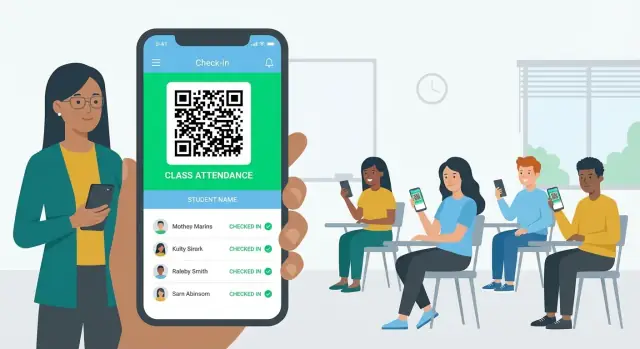
Define the Goal and Users
Before wireframes or features, get clear on what you’re building and who it’s for. A class attendance app can mean anything from a quick “present/absent” tool to a full attendance tracking system with audits, reporting, and parent visibility. If you don’t set boundaries early, you’ll end up with a student check-in app that’s confusing for teachers and hard to maintain.
Who will use it?
Start with the primary users and their daily reality:
- Teachers need fast, low-friction check-ins, the ability to correct mistakes, and a simple view of who’s missing.
- Students want a check-in flow that’s quick and predictable (and doesn’t fail when Wi‑Fi is weak).
- Admins care about reporting, compliance, and consistent rules across classes.
- Parents (optional) may need read-only visibility or absence notifications—only if your school policy supports it.
The main problem to solve
Define the core promise in one sentence, such as: “Reduce roll call time and improve accuracy without creating more work.” That keeps decisions focused—whether you choose QR code attendance, NFC check-in, manual overrides, or reporting.
Where it will be used
Attendance happens in messy, real environments: classrooms, labs, gyms, field trips, assemblies, and sometimes remote sessions. Note constraints like noise, time pressure, device availability, and spotty connectivity—these shape what a “mobile app for attendance” should feel like in practice.
What success looks like
Pick measurable outcomes:
- Time saved per class (e.g., roll call drops from 3 minutes to 30 seconds)
- Higher check-in accuracy (fewer duplicates and fewer “I was here” disputes)
- Fewer corrections needed by teachers and admins
- Reporting usefulness (clear trends by class, date, and student)
These goals become your decision filter for every feature you add later.
Choose the Core Use Cases (MVP First)
A class attendance app can grow into a full classroom management suite—but trying to ship everything at once is the fastest way to stall. Start by defining the smallest set of use cases that delivers reliable check-ins and a clear record for teachers.
Must-have flows (your MVP)
These are the non-negotiables that make the product usable end-to-end:
- Create a class: Teacher creates a class (name, schedule, location optional) and gets a join method (code/link).
- Add a roster: Import from a CSV, paste a list, or let students join themselves and the teacher approves.
- Start a session: Teacher taps “Start attendance” for today’s class and sets basic rules (open for X minutes).
- Student check-in: Student confirms their presence using the chosen method (QR/NFC/location/manual—pick one for MVP).
- Teacher review: Teacher sees who is present/absent and can override with a reason.
Optional flows (phase 2)
Once the core loop is stable, add features that improve accuracy and reporting:
- Late / early flags (with a grace period)
- Excused absence (simple reason codes)
- Make-up sessions (attach an attendance result to a different date/session)
Edge cases worth handling early
Real classrooms are messy. Plan lightweight fallbacks so teachers don’t abandon the app:
- Student forgot phone / dead battery: Teacher can mark present with a note, or issue a one-time “manual check-in” code.
- Shared device: Allow switching accounts before check-in, or support “check in another student” with teacher approval.
- Guest attendees: Let teachers add a temporary attendee (name + tag) without polluting the official roster.
Keep scope realistic
A good MVP answers: “Can a teacher take attendance in under 30 seconds, and can students check in without confusion?” If a feature doesn’t directly support that, schedule it for later releases.
Map Roles and Permissions
Roles and permissions decide who can do what in your class attendance app. Get this right early and you’ll avoid confusion (“Why can students edit check-ins?”) and reduce privacy risk.
Start with three core roles
Most schools can launch an MVP with:
- Teacher: create attendance sessions, view live check-ins, edit exceptions (late/absent/excused), and export reports.
- Student: quick check-in, view personal attendance history, and receive reminders.
- Admin: manage schools/classes, users, roles, and academic terms.
If you later need more nuance (e.g., substitutes, teaching assistants, department heads), add them as new roles—not as one-off “special cases.”
Define permissions as actions on objects
Write permissions as plain sentences tied to app objects. For example:
| Object | Teacher | Student | Admin |
|---|---|---|---|
| Class | View assigned | View enrolled | Create/edit/archive |
| Session | Create/view/edit for assigned | View/check-in for enrolled | View all, audit |
| Attendance record | Mark/edit within allowed window | View own only | Edit, resolve disputes |
| Reports/Exports | Export own classes | No export | Export all |
This format makes gaps obvious and helps your team implement role-based access control (RBAC) without guesswork.
Apply “least access” and scope rules
Permissions should be limited by scope, not just role:
- A teacher can access only their classes, not all classes in a school.
- A student can view only their own attendance history.
- Admin access should be logged and reserved for real management tasks.
Also decide where edits are allowed. For example, teachers can correct check-ins only within 24 hours, while admins can override later with a reason.
Don’t forget edge cases
Plan for transfers, dropped classes, and term changes. Keep historical records readable even if a student changes classes, and ensure the right people can still produce reports for past terms.
Pick a Check-In Method (QR, NFC, Location, or Manual)
Your check-in method determines everything else: how fast attendance runs, what devices you must support, and how easy it is to fake. Many apps support multiple methods so schools can start simple and add options later.
Manual check-in (teacher-led baseline)
Manual attendance is the safest “works anywhere” option. The teacher opens the class roster, marks present/late/absent, and can add quick notes (e.g., “arrived 10 min late”).
Use it as a fallback even if you add scanning or location—Wi‑Fi fails, cameras break, and substitutes still need a reliable flow.
QR code scan (fast, low cost)
QR is popular because it’s quick and doesn’t require special hardware. The teacher displays a QR code on a screen (or prints it), students scan it with the app, and the check-in is recorded.
To reduce “screenshot sharing,” make the QR code:
- Time-limited (e.g., rotates every 15–30 seconds)
- Class/session-specific (not reusable)
- Valid only during a short check-in window
NFC tap (very fast, but hardware-dependent)
NFC can be the smoothest in-person experience: students tap a phone on a tag at the classroom door, or tap the teacher’s device.
Trade-offs: not all phones support NFC, and you may need to buy and manage tags. NFC works best when the school controls the physical space and wants “tap-and-go” speed.
Location-based check-in (GPS/geofence)
Geofencing can confirm a student is at a specific venue (gym, lab, campus building). It’s useful for field sessions or large lecture halls where scanning lines form.
Be careful: GPS can be inaccurate indoors, and location data is sensitive. Keep consent clear, collect the minimum needed (often “inside/outside” is enough), and offer a non-location fallback.
Remote attendance for online classes
For virtual sessions, a practical approach is a one-time code plus a time window (e.g., 3 minutes). To discourage code sharing, combine it with lightweight checks like requiring the student to be signed in, limiting retries, and flagging unusual patterns (many check-ins from the same device/IP).
If you’re unsure, start with manual + QR as your MVP, then add NFC or geofence only where the school benefits most.
Design the User Experience and Screens
Good attendance apps feel “instant.” Students should be able to check in within a few taps, and teachers should understand the room status at a glance.
Student app: keep it one primary flow
Start with a minimal set of screens that support daily use:
- Join class: enter a code/link, confirm class name and teacher, and save it.
- Today’s session: show the current class, time window, and a single primary action (Scan / Tap / Check in).
- Scan/Tap: camera or NFC prompt with clear instructions and a big cancel button.
- Confirmation: success state with timestamp, session name, and what to do if there’s an issue.
- History: simple list of past sessions (Present / Late / Excused / Missing), with filters kept optional.
Design tip: assume hurried use. Large buttons, short labels, and a “Try again” path for scanning failures reduce support requests.
Teacher app: setup fast, monitor live, fix quickly
Teachers need three moments covered:
- Session setup: choose class, start session, optionally set late cutoff, and generate QR/NFC prompt.
- Roster + live status: real-time list with clear badges (Not checked in / Present / Late). Include a search bar.
- Edit reasons + finalize: quick overrides (e.g., “Bus delay,” “Medical”), notes, and a finalize button that locks the session.
Avoid burying critical actions in menus—starting and ending a session should always be visible.
Admin dashboard: often best on the web
Many schools prefer an admin web dashboard instead of mobile for managing classes, users, and reports. It’s easier for bulk edits, exporting attendance, and handling staff turnover.
Accessibility basics that matter
Use high-contrast text, support large font sizes, write clear error messages (“QR not recognized—move closer and increase brightness”), and add a low-light scanning UI (bright viewfinder, flashlight toggle).
Plan the Data Model and Records
A clean data model keeps your attendance app reliable as you add more classes, terms, and check-in methods. Start by writing down the minimum data you truly need, then expand only when a use case demands it.
Minimum data to store (to ship an MVP)
At a baseline, you’ll need:
- Student identity: name and a stable student ID (avoid using email as the primary identifier)
- Class membership: which students belong to which classes
- Attendance records: who checked in, for which session, and with what status (present/late/excused)
- Device tokens (optional but common): for push notifications (e.g., reminders or “check-in recorded” receipts)
Key entities (a practical starter schema)
Most class attendance apps can be modeled with a small set of entities:
- School → basic org container
- Term → date-bounded grouping (semester/quarter)
- Class → a course section within a term (e.g., “Math 2B – Period 3”)
- Session → a specific meeting of a class (date/time; can be created ahead of time or on demand)
- Student → profile + identifiers
- AttendanceEvent → the “fact table” of check-ins (student + session + status + timestamp + method)
Tip: store Session separately from AttendanceEvent so you can track “no-shows” without creating fake events.
Audit trail (non-negotiable for schools)
Any edit should be traceable. For each change, store: who changed it (teacher/admin ID), when, what fields, and a short reason (e.g., “medical note provided”). This reduces disputes and supports compliance.
Retention and deletion plan
Define how long you keep:
- Raw logs and audit records (often longer than UI-visible data)
- Exports (CSV/PDF) created by staff
Document deletion workflows for data requests: what gets removed, what’s anonymized, and what must be retained for legal or policy reasons. A clear policy prevents last-minute scrambling later.
Choose the Tech Stack (Simple, Maintainable Choices)
Your tech stack should match your MVP scope, your team’s skills, and the reporting needs schools care about (by class, by date range, by student, by teacher). The simplest stack is usually the one with the fewest moving parts.
Backend: managed first, custom when you must
For most first versions, a managed backend saves months.
- Firebase is great when you want quick auth, real-time updates, push notifications, and minimal server maintenance.
- Supabase is a strong alternative if you prefer a Postgres foundation and SQL-style querying while still staying “managed.”
- A custom API (Node/Java/.NET, etc.) makes sense when you have strict integration requirements, custom business rules, or a district needs on-prem or special hosting.
A good rule: start managed, and move to a custom API only after you hit a clear limitation.
If you want to move faster without committing to a long, traditional build cycle, you can also prototype an MVP using a vibe-coding platform like Koder.ai. It lets you iterate on teacher/student flows via chat, generate a React web admin dashboard, and stand up a Go + PostgreSQL backend—with source code export available when you’re ready to take full control of the codebase.
Mobile app: cross-platform vs native
- Flutter and React Native are usually the best choice for an MVP: one codebase for iOS/Android, faster iteration, easier staffing.
- Native iOS/Android can be worth it if you need deep device features (advanced NFC behaviors, device management policies) or you already have strong native teams.
Database: choose based on reporting
Attendance is reporting-heavy. If you expect queries like “all absences for Grade 9 in September” or “tardies per student across terms,” SQL (Postgres) is typically the safest choice.
NoSQL can work for simple lookups and rapid prototyping, but reporting often gets harder as requirements grow.
Authentication: make it easy for schools
Common options:
- Google/Microsoft SSO for districts already using Workspace or Microsoft 365.
- Magic links for quick teacher onboarding with fewer password resets.
- School-provisioned accounts (synced rosters) when you need tighter control.
Whatever you choose, plan for account lifecycle (new term, transfers, graduation) early—otherwise support costs spike after launch.
Build for Real Classrooms: Offline and Anti-Cheating Basics
A classroom is a noisy, time‑boxed environment. Students arrive at different times, Wi‑Fi can be spotty, and “just scan the code” quickly turns into edge cases. If your attendance flow fails under these conditions, teachers will abandon it.
Offline-first check-ins (so weak Wi‑Fi doesn’t break the session)
Plan for check-ins to work even when the network doesn’t.
- Store check-ins locally on the device (timestamp, session ID, student ID, method, and a temporary status like “pending”).
- Sync later in the background when connectivity returns.
- Show clear UI states: Checked in (pending sync) vs Checked in (confirmed), so students and teachers don’t argue about whether it “went through.”
When syncing, send events as an append-only log rather than trying to “overwrite” a single attendance value. This makes debugging much easier.
Conflict rules you should decide up front
Offline and multiple devices create conflicts. Define deterministic rules so the server can resolve them automatically:
- Duplicate scans: keep the earliest valid check-in, ignore the rest (but log them).
- Multiple devices for one student: allow only one active check-in per session; flag additional attempts for teacher review.
- Late sync after the session ends: accept if the check-in was created inside the allowed window; otherwise mark as late/invalid.
Anti-cheating basics that don’t annoy teachers
You don’t need heavy surveillance—just a few practical controls:
- Rotating QR codes (change every 15–30 seconds) to reduce code sharing.
- Short time windows (e.g., first 5–10 minutes of class) with an optional “late” reason.
- Teacher approval flags for suspicious patterns (many check-ins in one second, repeated duplicates, or unusual device changes).
Device time problems (the silent source of bugs)
Phones can have incorrect clocks. Rely on server time when possible: have the app request the session time window from the server and validate on upload. If offline, record the device timestamp but verify it against server rules during sync and apply the conflict rules consistently.
Privacy and Security Requirements
Attendance data can feel “simple,” but it often includes personally identifiable information (PII) and time/location signals. Treat privacy and security as product requirements, not just engineering tasks.
Encrypt data in transit and at rest
All network traffic should be encrypted in transit using HTTPS (TLS). This protects check-ins, roster updates, and admin actions from being intercepted on school Wi‑Fi.
For data stored on servers, enable encryption at rest where your database/cloud provider supports it, and protect encryption keys using a managed key service. On the device, avoid storing sensitive data unless necessary; if you cache data for offline use, prefer OS-provided secure storage.
Collect only what you need (and explain why)
Minimize the data you collect to what’s required to verify attendance and support disputes. For many schools, a student ID, class/session ID, timestamp, and a “check-in method” flag are enough.
If you log extra signals (like GPS coordinates, QR scan metadata, or device identifiers), document the purpose in plain language. “We use location only to confirm you’re in the classroom” is clearer than vague statements.
Consent, transparency, and clear rules
Users should understand what counts as a valid check-in and what will be logged. Make the check-in screen and settings explicit:
- What data is recorded (e.g., time, class, method, location if enabled)
- Who can view it (teacher, admins)
- How long it’s kept
- What happens if a student checks in late or from outside the allowed area
This reduces conflict and builds trust—especially when you introduce QR, NFC, or geofenced attendance.
Basic compliance considerations (without legal promises)
Requirements vary by region and institution. In the U.S., student records may fall under FERPA; in the EU/UK, GDPR may apply. Don’t promise compliance in marketing copy unless you’ve validated it legally. Instead, design with common expectations in mind: access controls by role, audit logs for edits, data retention controls, and a way to export or delete records when policy requires it.
If your app integrates with other systems, review what data is shared and ensure those integrations also use secure, authenticated connections.
Notifications and Integrations
Notifications are where a class attendance app starts to feel “alive.” Done well, they reduce missed check-ins and cut down on teacher follow-ups. Done poorly, they become noise—so keep them relevant, timely, and easy to control.
Push notifications that actually help
A simple set of push notifications covers most schools:
- Class reminders: sent to students a few minutes before start time (with quiet hours and timezone handling).
- Session started: triggered when the teacher opens attendance for that class.
- Missing check-in prompt: sent only if the student hasn’t checked in after a short grace period.
Give users control. Students should be able to mute reminders for a course, and teachers should be able to disable student prompts for special cases (exams, field trips, substitute days). Also consider accessibility: clear wording, not just “You’re late,” and support for different notification channels.
Email summaries for teachers and admins (optional)
Email is still useful for record-keeping and admin workflows. Keep it optional and configurable:
- Daily/weekly summaries for teachers (who attended, who missed, late arrivals).
- Admin digests for attendance trends by class or grade.
Avoid sending sensitive details to the wrong inbox—use role-based recipients and include only what’s needed.
Integrations: start with CSV, then connect SIS/LMS
Integrations can save time, but they can also slow down your MVP. A practical approach:
- CSV import/export first (students, rosters, attendance records). It’s easy to test and works with most systems.
- Add SIS/LMS exports next (or one-way sync) once your data format is stable.
Keep integrations opt-in
Schools vary widely. Put integrations behind settings so each school can choose what to connect, who can enable it, and what data moves. Make the default “off,” and document the behavior clearly (for example on /privacy or /settings) so admins know exactly what they’re turning on.
Test, Pilot, and Measure
Shipping an attendance app without real testing is how you end up with angry teachers, confused students, and unreliable records. The goal here isn’t “perfect”—it’s to prove the check-in flow is fast, clear, and produces data you can defend.
Test the rules that matter (before you test the UI)
Attendance is mostly logic: who can check in, when they can do it, and what happens if they try twice.
Write unit tests for your check-in rules, especially:
- Time windows (early/late cutoffs, grace periods, timezone handling)
- Duplicate scans and retries (idempotent requests)
- Permissions (wrong class, wrong role, revoked access)
These tests prevent silent failures that are hard to spot in manual QA.
Device testing in real conditions
A student check-in app can pass in the simulator and still fail in the classroom.
Test on a small matrix of devices and OS versions, including older phones. Focus on the highest-risk hardware features:
- Camera scanning speed and focus (cracked screens, low light, glare)
- NFC reliability (different phone models, cases that block the antenna)
- Low battery and “power saver” modes that restrict background work
Also test spotty connectivity: airplane mode, switching from Wi‑Fi to cellular, and captive portals.
Pilot with one class (and watch, don’t just ask)
Run a pilot with one teacher and one class for at least a week. Observe the first sessions live if possible.
Gather feedback on:
- Speed: time from opening the app to confirmation
- Clarity: what students think they should do next
- Failure cases: what they do when scanning doesn’t work
Make it easy to report issues in the moment (e.g., a “Report a problem” link that includes device info and a timestamp).
Measure what’s happening without blaming students
Set up analytics you can trust by separating technical failures from actual absences.
Log events like “scan failed,” “NFC read error,” “GPS unavailable,” and “offline queued,” separately from attendance outcomes. This helps you answer questions like, “Were 12 students absent—or did the QR code not render on the projector?”
If you publish any teacher-facing metrics, keep them actionable: highlight where the flow slows down, and what to fix next in the MVP.
Launch and Improve Over Time
Launching your class attendance app isn’t a finish line—it’s the point where real usage starts teaching you what to fix, simplify, and expand.
App Store and Play Store basics
Plan a clean release package before you submit:
- Store listing that clearly explains who the app is for (teachers, students, admins)
- High-quality screenshots that show the check-in flow and teacher view
- Privacy disclosures that match what you actually collect (location, device identifiers, student IDs, etc.)
If you need a quick reference, keep a short “What we collect and why” page linked inside the app (for example, /privacy) and mirror that wording in store disclosures.
Make admin onboarding fast (and forgiving)
Most adoption problems start with setup friction. Your admin onboarding should cover the minimum steps:
- Create a term and classes
- Import or paste a roster (CSV upload is usually enough)
- Invite teachers and students (email link, code, or SSO if you have it)
Add guardrails: detect duplicate students, allow easy roster edits, and provide a “sample class” so new admins can click around safely.
Support that doesn’t overwhelm your team
Ship with a lightweight support plan:
- A small help center with 10–15 common questions (e.g., “Student can’t check in”) at /help
- In-app contact form that includes device/app version and class ID
- Simple troubleshooting steps (refresh roster, rejoin class, check permissions)
Build your post-launch roadmap
Use feedback + metrics to prioritize:
- Better reporting (late arrivals, trends, exports)
- Integrations (SIS/LMS, Google Classroom, Microsoft 365)
- Additional check-in methods (QR, NFC, geofenced, or teacher override)
Release small improvements regularly and communicate changes in plain language inside the app.
FAQ
What should I define first before building a class attendance app?
Start with a one-sentence promise (e.g., “Take attendance in under 30 seconds with fewer disputes”) and name your primary users.
- Teachers: speed + corrections
- Students: predictable check-in that works with weak Wi‑Fi
- Admins: reporting + compliance
- Parents (optional): read-only visibility only if policy allows
What’s a practical MVP for a mobile attendance check-in app?
Ship the smallest loop that works end-to-end:
- Create class + join code/link
- Add roster (CSV import, paste list, or self-join with approval)
- Start session (open window for X minutes)
- Student check-in (pick one method for MVP)
- Teacher review + override with a reason
If it doesn’t directly support fast, reliable check-ins, push it to phase 2.
How do I set up roles and permissions without overcomplicating it?
Define roles as actions on objects and apply least access:
- Teacher: manage sessions and edit records only for their classes
- Student: check in and view only their own history
- Admin: manage users/classes/terms, run audits, export reports
Also decide edit windows (e.g., teachers can change within 24 hours; admins can override later with a logged reason).
Which check-in method should I choose (QR, NFC, location, or manual)?
Pick the method that fits your environment and cheating risk:
- Manual (teacher-led): most reliable fallback, works anywhere
- QR: fast and low-cost; reduce sharing with rotating, time-limited codes
- NFC: very fast but hardware-dependent and may require tags
- Location (geofence): useful in large venues/field sessions; keep a non-location fallback
Many teams start with manual + QR and add others only when needed.
What screens and UX patterns make attendance feel fast for teachers and students?
Design for “hurried use”:
- One primary action on the student screen (Scan/Tap/Check in)
- Clear confirmation with timestamp and what to do if it fails
- Teacher view shows live status at a glance (Not checked in / Present / Late)
- Keep Start/End session visible (not buried in menus)
Add accessibility basics early: high contrast, large text support, clear error messages, flashlight toggle for scanning.
What data model should I use for attendance records and sessions?
Keep the schema small and reporting-friendly:
- School, Term, Class, Session
- Student (stable student ID)
- AttendanceEvent (student + session + status + timestamp + method)
Store Session separately from AttendanceEvent so “no-shows” are meaningful. Add an audit trail for edits: who changed what, when, and why.
How do I make check-ins work with spotty Wi‑Fi or offline?
Treat it as a core requirement:
- Store check-ins locally as “pending” with timestamp + session/student IDs
- Sync in the background when network returns
- Show distinct UI states: pending sync vs confirmed
- Sync as an append-only event log to simplify debugging
Define deterministic conflict rules (duplicates, multiple devices, late sync) so the server can resolve issues consistently.
How can I reduce cheating without adding heavy surveillance?
Use lightweight controls that don’t slow teachers down:
- Rotating QR codes (every 15–30 seconds)
- Short check-in windows with optional late reasons
- Flag suspicious patterns (many check-ins at once, repeated duplicates, device changes)
Also account for wrong device clocks: validate against server time when possible, and apply consistent rules during sync when offline timestamps are uploaded.
What privacy and security requirements matter most for attendance apps?
Collect the minimum needed and be transparent:
- Encrypt in transit (TLS) and enable encryption at rest
- Limit access by role + scope (students see only their own history)
- Log admin/teacher edits with reasons (audit trail)
- Avoid storing sensitive data on-device unless necessary; use secure storage for offline caches
If you use location or device identifiers, explain why and keep it optional with a fallback. Link a plain-language policy at a relative path like /privacy.
How should I test and pilot a class attendance app before launch?
Pilot with one class for at least a week and measure flow quality:
- Unit test time windows, duplicates/idempotency, and permissions
- Device test in real conditions (low light, glare, older phones, power saver)
- Log technical failures separately from absences (scan failed, NFC error, offline queued)
During the pilot, watch sessions live if possible and add an in-app issue report that includes device/app version and timestamps.