

How to Create a Mobile App for Digital Form Signatures
Learn the steps to build a mobile app that captures valid e-signatures on forms, supports offline signing, and syncs securely with your backend.
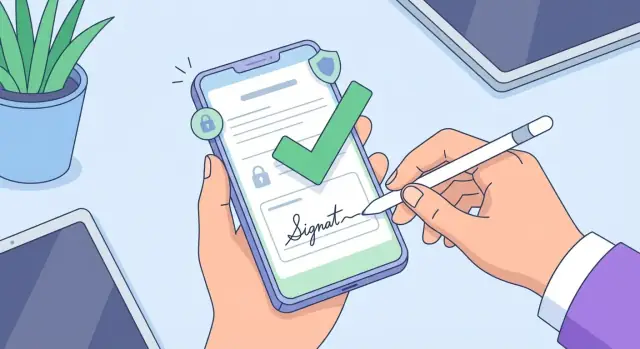
What a Mobile Signature App Needs to Do
A mobile signature app is more than a “draw your name on the screen” feature. It’s an end-to-end workflow: capture intent, attach it to the right document, record what happened, and make the result easy to store, share, and verify later.
What “digital form signatures” can mean
People use “digital signature” to describe several different things. Your app may support one or more:
- Typed signature: the signer types their name and the app renders it in a font. Simple and fast, but weaker evidence on its own.
- Drawn (finger/stylus) signature: in-app signature capture on a touchscreen. Common for deliveries and field work.
- Image-based signature: the signer inserts a saved image of their signature (or you reuse a previously captured one). Convenient, but you must control reuse carefully.
- Certificate-based digital signature: a cryptographic signature tied to a certificate (often used for regulated or high-trust scenarios). This is what many enterprises mean when they ask for tamper-evident PDF signing.
Common real-world use cases
Most mobile e-signature apps cluster around a few patterns:
- Delivery proof: customer signs after receiving goods; often includes photos, location, and timestamps.
- Consent forms: healthcare, schools, events—clear presentation of terms plus a record of acceptance.
- Field service: work orders, completion confirmations, parts used, and customer approval.
- HR onboarding: acknowledgements, policy sign-offs, and document packets signed in sequence.
What this guide covers
The rest of this guide focuses on what matters to ship a dependable signing experience:
- UX on mobile: keeping forms readable, reducing errors, and making signatures feel deliberate.
- Tech choices: generating documents, capturing signatures, and implementing PDF signing on mobile when needed.
- Security and trust: identity options (including biometric authentication), secure document storage, and an audit trail for signatures.
- Offline form signing: collecting signatures without connectivity and syncing safely.
- Release readiness: testing and a practical checklist for launching and improving over time.
Legal and Compliance Basics (Plain English)
Building a mobile e-signature app isn’t only about capturing a finger scribble on glass. You need signatures that hold up when someone asks, “Who signed this, when, and has it been changed?”
When e-signatures are usually fine (and when they aren’t)
For many everyday agreements—service authorizations, delivery confirmations, internal approvals—an electronic signature is generally acceptable if you can show the signer agreed and the document wasn’t altered afterward.
Stricter methods may be required for higher-risk situations (for example, regulated financial documents, some real-estate or government forms, healthcare consents in certain contexts, or when a contract specifically demands a particular signature standard). Requirements vary widely by country, state, and industry.
The three things that matter: intent, identity, integrity
- Intent: the person meant to sign. Make the action unambiguous (e.g., “I agree and sign”) and avoid accidental taps.
- Identity: you can reasonably link the signer to the signature. This might be an email/SMS link, account login, or stronger checks like ID verification or biometrics—depending on risk.
- Integrity: the signed document can’t be silently changed later. You need tamper-evidence, versioning, and (for many enterprise cases) cryptographic protection for PDFs.
What you should record (your audit trail)
At minimum, store:
- Signer details (name, email/phone, account ID, device/session info as appropriate)
- Timestamp(s) with timezone
- Document identifier and the exact version/hash that was signed
- The consent text shown at signing (e.g., “By tapping Sign, you agree…”) and the user’s action
Confirm the rules for your use case
Treat this as product guidance, not legal advice. Before launch, confirm the signature, retention, and identity requirements for your region and industry—especially if you serve regulated customers.
Define Your Signature Workflow and Requirements
Before you design screens or pick tools, get clear on what your mobile e-signature app is supposed to do. A precise workflow definition prevents rework later—especially when you add offline form signing, approvals, and secure document storage.
Start with your form types
Different inputs shape everything from UX to storage.
- PDF signing on mobile: users upload or generate a PDF, place fields (name, date, signature), then sign.
- Templates: repeatable forms (e.g., delivery confirmation) with fixed fields.
- Dynamic fields: build forms from components (text, checkbox, photo, location), then produce a PDF for sharing.
If you’ll support multiple types, decide what ships in v1 and what can wait.
Define roles and responsibility
Map who can do what in each document. Common roles:
- Signer: fills required fields and provides in-app signature capture.
- Approver: reviews and accepts/rejects (often without editing).
- Witness (if applicable): signs after the signer, sometimes with extra identity checks.
Also decide whether one person can hold multiple roles, and what happens if someone declines.
Map the end-to-end flow
Write your happy path in one sentence: create form → fill → sign → store → share.
Then add the “real life” steps: reminders, reassignment, edits, cancellations, and versioning (what changes are allowed after a signature?).
Single-device vs. external signers
Be explicit about how signatures are collected:
- Single-device signing: everyone signs on the same phone/tablet (great for in-person workflows).
- Remote signing: send a link to external signers via email/SMS; define timeouts, authentication, and what the signer can see.
These choices affect your audit trail for signatures, identity checks (including biometric authentication), and how you prove who signed what—and when.
Design the Signing Experience (UX) on Mobile
A signature flow on a phone should feel like “fill, sign, done”—with no uncertainty about the next step. Great UX reduces abandoned forms more than legal fine print.
Offer the right signature input options
Different users sign differently, and mobile devices vary. Provide at least:
- Drawn signature (finger or stylus) with a clear “Sign here” area
- Typed name rendered in a signature-style font (and labeled clearly as typed)
- Photo upload of a signature (useful for accessibility and certain business processes)
Make the default smart: if a stylus is detected, preselect draw; otherwise, keep options visible.
Make common fields fast to complete
Most forms need more than a signature. Add field tools that are quick on small screens:
- Initials (often repeated across pages)
- Auto-filled date with the ability to edit
- Checkbox consent with short, readable consent text
- Name/title fields (with keyboard optimized for text)
- Free text notes where needed
When a signer taps “Next,” jump to the next required field and show progress (e.g., “3 of 7”).
Prevent mistakes with forgiving controls
People sign with shaky thumbs, glare, and distractions. Add guardrails:
- Auto-zoom into the signing area
- Stroke smoothing (subtle—don’t distort the signature’s character)
- Undo/redo for recent strokes
- A prominent Clear button with confirmation
Also show a simple preview of the final document section so users know what they’re signing.
Cover accessibility basics
Mobile signing must work for everyone:
- Use large touch targets (especially for checkboxes and “Sign” actions)
- Maintain good contrast and readable font sizes
- Add screen reader labels for every field, button, and error message
If users can’t confidently sign, they won’t—so treat UX as a core feature.
Generate Documents and Apply Signatures Correctly
Getting the “signature” onto the document is only half the job. The other half is ensuring the final file looks right everywhere, stays intact, and is verifiable later.
Start from a predictable PDF
Generate PDFs from a server-side template (or a well-tested client template) so field positions don’t drift across devices. Avoid “print-to-PDF” shortcuts that change fonts and spacing.
If your forms are data-driven, save the form data separately (JSON) and also generate a human-readable PDF version for sharing.
Embed signatures: flatten vs. editable annotations
There are two common ways to place a signature mark:
- Editable annotations (not recommended for final documents): easy to add and move, but can remain selectable or removable in some viewers.
- Flattened content (recommended for the final copy): the signature image and its text label are merged into the page content so it behaves like normal ink on paper.
A practical approach is to keep annotations while the signer is editing, then flatten on “Finish” so the exported PDF is consistent and hard to alter without detection.
Protect integrity with tamper-evident output
Even if you’re not doing full certificate-based digital signatures, you can make changes detectable:
- Generate a document hash (e.g., SHA-256) for the final PDF and store it with the record.
- Lock the final document in your workflow: once signed, create a new “final” version and treat earlier drafts as read-only.
- Include a clear version ID so support can quickly identify the authoritative copy.
Add a receipt page (or certificate of completion)
Append a simple receipt page that answers: who, what, when, and how.
Typical fields:
- Signer name and signing role
- Timestamp (with timezone) and document ID
- Basic device/app info
- IP address only if appropriate for your product and privacy policy
Keep it readable—this page is often what stakeholders check first.
Export formats that work everywhere
- PDF: your default for sharing and printing.
- PDF/A: consider this for long-term archiving (it restricts fonts and external dependencies).
- Image preview: generate a PNG/JPEG thumbnail so users can confirm the right document without opening a large PDF.
- Shareable link: if you offer links, make them time-limited and permissioned, pointing to the exact signed version.
Plan Your Backend, APIs, and Data Model
A great signing experience on the phone only works if the backend reliably creates documents, tracks who signed what, and produces a clean audit trail later. Before you write code, map the “things” your system manages and the actions users take.
Core services (what you store and track)
Most mobile e-signature apps settle into a few core services:
- Form templates: reusable definitions (fields, required signatures, branding)
- Documents: a generated or uploaded file that will be signed
- Signatures: captured signature data plus placement and verification info
- Users/participants: who can view, sign, approve, or countersign
- Audit events: append-only timeline of actions (created, viewed, signed, finalized)
This separation keeps your data model understandable and makes it easier to add features like countersigning or reminders without rewriting everything.
APIs your mobile app will need
Keep endpoints simple and task-based. Typical calls include:
- Create document (optionally from a template)
- Upload an existing PDF
- Sign (submit signature + field values)
- Finalize (lock the document, seal it, generate final PDF)
- Download (original + final)
- Webhook callbacks (notify other systems when signing is complete)
Add idempotency for “sign” and “finalize” so a bad connection doesn’t create duplicates.
Storage + versioning rules
Use object storage for files (original PDF, final PDF, attachments) and a database for metadata (participants, field values, signature placements, audit events).
Plan for versioning up front:
- When a template changes, decide whether existing documents continue with the old version.
- Define when re-signing is required (for example, after field changes).
- Support revocation rules: who can void a document, and what happens to the audit trail (it should remain, marked as voided).
Identity, Security, and Audit Trail
A mobile e-signature app succeeds or fails on trust. Users need to know the right person signed, the document wasn’t altered, and you can prove what happened later.
Authentication (who are you?)
Offer a primary sign-in method plus a step-up option when a user is about to sign.
Email login works for many teams, but enterprise customers often need SSO (SAML/OIDC) so accounts and access can be managed centrally.
Passkeys are a strong modern default: they’re phishing-resistant and reduce password resets. For “re-auth” before signing, support biometrics (Face ID/Touch ID) or device PIN—fast for users, and it confirms the device holder is present.
Authorization (what are you allowed to do?)
Define roles and permissions early. Common actions include: view, edit form fields, sign, countersign, delegate, download, and void.
Enforce authorization on the server, not just in the app UI. Also consider document-level permissions (this contract) and field-level rules (only HR can fill salary). Keep a clear “source of truth” so support can answer “why can’t I sign this?” quickly.
Security basics (how is data protected?)
Use TLS for all network traffic. Encrypt documents and sensitive metadata at rest. Decide who manages keys: your cloud KMS (managed keys) or customer-managed keys for regulated clients. Minimize what’s stored on-device, and protect any cached files with OS-level secure storage.
Audit trail (can you prove what happened?)
Create an immutable event log for every document: created, viewed, fields completed, signature started, signature applied, countersigned, downloaded, and voided. Each entry should include actor identity, timestamp, device/app version, and a tamper-evident hash chain.
A clear audit export (PDF/JSON) turns “I didn’t sign this” into a verifiable answer.
Offline Signing and Sync Without Data Loss
Offline signing is a feature users notice only when it’s missing—on a job site, in a basement, or anywhere connectivity drops. The goal isn’t just “works without internet,” but “never loses work.”
What “offline-ready” should mean
Offline-ready typically includes four capabilities:
- Cache forms and templates so the user can open the right document and fields without a network call.
- Save every input locally (field values, photos, checkboxes, signature strokes) as the user goes.
- Queue submissions as immutable “packages” (filled form + signature + metadata) waiting to upload.
- Upload later automatically when a connection returns, without requiring the user to re-open the form.
Conflict handling you can’t ignore
Offline creates messy edge cases. Plan for them explicitly:
- Updated template: if the form template changes while someone is offline, keep their completed version and treat it as signed against the old revision. Flag it for review rather than attempting to “merge” fields.
- Duplicate submissions: use a client-generated unique ID for each signing session so retries don’t create multiple records.
- Partial uploads: if a large attachment fails mid-transfer, resume from where it stopped (chunked upload) or restart cleanly without double-signing.
On-device storage and cleanup
Store offline data in a secure container: encrypted database for field data plus encrypted files for PDFs/attachments. Keep keys in the platform keystore (iOS Keychain/Android Keystore).
Add cleanup rules: auto-delete successfully synced packages after X days, and wipe drafts on logout.
User feedback that builds trust
Show a simple sync status: “Saved on device,” “Waiting to sync,” “Syncing,” “Synced,” “Needs attention.” Provide a retry button, explain errors in plain language, and never imply “sent” until the server confirms receipt.
A small /help/offline page can reduce support tickets.
Choose Your Mobile Tech Stack and Tools
The right stack determines how “native” your signing experience feels, how quickly you can ship, and how painful updates will be later. For signature apps, prioritize smooth drawing, reliable PDF handling, and predictable offline storage.
Native vs. cross-platform
Native (Swift/Kotlin) usually delivers the best pen-and-finger responsiveness, tighter OS integration (files, sharing, secure storage), and fewer edge-case rendering issues. It can cost more if you maintain two codebases.
Cross-platform (React Native / Flutter) can reduce development time and keep UI consistent. The trade-off is that complex PDF rendering or high-frequency touch events (signature drawing) sometimes require native modules anyway—so plan for some platform-specific work.
Signature capture: library or custom canvas?
A proven signature capture library is often the fastest path: it handles stroke smoothing, pressure-like curves (simulated), and exporting to PNG/SVG.
Choose one that supports:
- High-DPI output (for clean signatures on PDFs)
- Erase/undo
- Consistent results across devices
Build your own canvas only if you need custom ink behavior (e.g., stylus optimization) or strict control over data formats.
PDF tooling choices
For PDF signing on mobile, you typically need three capabilities:
- Render PDFs accurately (including zoom and page rotation)
- Read/edit form fields (AcroForms) when forms are fillable
- Stamp the signature image and metadata onto the correct page coordinates
Pick a PDF toolkit with strong mobile support and clear licensing.
Keep it maintainable
Structure the app as modular components: Forms, Signing, and Storage/Sync. This makes it easier to swap libraries (for example, a PDF engine) without rewriting the whole product.
If you later add identity checks or a deeper audit trail, clean boundaries will save weeks.
Speed up prototyping with Koder.ai (optional)
If your goal is to validate the workflow quickly—templates, roles, audit events, offline queueing logic, and a basic admin dashboard—Koder.ai can help you get a working prototype faster via a chat-driven build process.
Because Koder.ai generates typical production building blocks (React for web consoles, Go + PostgreSQL for APIs/data, and Flutter for mobile), it’s well-suited to signature products where you need both a mobile app and a backend with versioning, secure storage, and audit trails. Features like planning mode and snapshots/rollback are also useful when you’re iterating on compliance-sensitive flows. When you’re ready, you can export the source code and deploy/host with custom domains.
Testing Checklist for Forms and Signatures
Testing a mobile e-signature app is less about “does it run?” and more about “does it still work when users are stressed, rushed, or offline?” Below is a practical checklist you can run before every release.
Form validation rules
Start by testing the rules that protect data quality. Don’t just test the happy path—try to break your own forms.
- Required fields: confirm required fields block submission; error messages should be clear and placed near the field.
- Format checks: emails, phone numbers, postcodes, IDs, and dates (including different locales and keyboard types).
- Numeric constraints: min/max values, decimal precision, currency formatting.
- Conditional questions: fields that appear/disappear based on earlier answers should:
- reset safely (no hidden invalid values),
- preserve state when users navigate back,
- validate only when visible.
Also verify partial saves: if you allow “Save draft,” drafts must reopen with the exact same state and validation behavior.
Mobile UX edge cases (the ones that cause support tickets)
Mobile devices introduce failure modes that desktop testing won’t catch.
- Small screens: long labels, help text, and error messages shouldn’t overlap or get cut off.
- Landscape mode: rotate mid-form and mid-signature; confirm layout reflows without losing input.
- Interruptions: test calls, app switching, account switching, and the OS killing the app in the background.
- Accessibility basics: larger text settings, screen reader labels for fields and buttons, focus order (especially around the signature step).
Signature capture surface
Treat the signature pad like a mini drawing app with its own test plan.
- Device coverage: test low-end and high-end devices, different refresh rates, and OS versions.
- Stylus support: where relevant, confirm palm rejection doesn’t cause random strokes and stylus input is smooth.
- Latency: draw fast strokes and dots; ensure the ink keeps up and doesn’t skip or lag.
- Edge behavior: writing near borders, accidental scroll gestures, multi-touch events.
- Controls: clear/redo, undo (if you have it), “I agree” checkbox (if used), and an obvious way to re-open and re-sign before submission.
Security testing basics
You don’t need a full security lab to catch common problems, but you do need to test intent.
- Access control checks: confirm users can’t open someone else’s documents by changing an ID, deep link, or cached file name.
- Tamper attempts: try modifying local files, intercepted requests, or offline payloads; the server should reject altered content and record the attempt.
- Logging: verify signature events are logged consistently (created, viewed, signed, declined, revoked), and logs don’t contain sensitive form data.
If you maintain an audit trail, every test run should answer: Can we explain who signed what, when, and on which device?
Privacy, Retention, and Support Workflows
A signature app isn’t just about capturing a scribble—it’s also about handling personal data responsibly after the document is signed. Clear rules here reduce risk and make support far easier.
Privacy-by-design (collect less, protect more)
Start by listing every data point your app collects: name, email/phone, signature image, timestamps, location, device identifiers, and any IDs.
Challenge each one: Do we truly need this to complete the agreement or meet legal needs?
Keep consent text simple and visible at the moment it matters (before signing or before uploading an ID). If you use biometrics (Face ID/Touch ID) for login, explain that the biometric check happens on the device and you’re not storing biometric data yourself.
Also consider “secondary use” limits: don’t reuse signature data for analytics or marketing unless users explicitly opt in.
Retention and deletion rules
Define retention by document type and customer type. Examples:
- Keep signed contracts for X years (based on your industry).
- Keep failed/abandoned drafts for a much shorter time.
Make deletion practical: support manual deletion (when allowed), automatic expiry, and legal-hold exceptions. Ensure deletions cover backups where feasible, and store evidence of deletion without keeping the sensitive file.
Support workflows users actually need
Plan common help requests as in-app actions:
- Resend a receipt/confirmation email or SMS.
- Re-download the signed PDF (with access controls).
- Correct a mistake (e.g., wrong signer email): usually handled via “void + reissue,” not editing a signed file.
Publish clear policies in your help center and reference them from /security and /pricing, plus a deeper explainer on /blog if you cover compliance topics.
Launch, Monitor, and Improve Over Time
Shipping a mobile e-signature app isn’t the finish line—it’s the start of real-world feedback. Launching well means meeting store rules, watching for operational issues, and learning where people struggle so you can fix the right things first.
App store requirements you can’t ignore
Plan time for store review and policy details that affect a mobile e-signature app:
- Permissions: ask only for what you truly need (camera for scanning, files/storage for saving PDFs, notifications for status updates). “Just in case” permissions slow adoption and can trigger extra review.
- Data safety disclosures: both major stores require clear statements about what you collect (profile info, documents, device identifiers), how it’s used, and whether it’s shared. Keep this aligned with your in-app privacy text.
- Screenshots and preview media: show the signing flow, how consent is captured, and where signed files are saved. Avoid marketing screenshots that don’t reflect the real UI.
If you support biometric unlock, clarify that you’re using it for authentication to the app, not as stand-alone proof of signing.
Operational monitoring (what breaks in the wild)
After launch, most problems won’t be “signature doesn’t work.” They’ll be edge cases around networks, storage, and document rendering. Monitor:
- Failed syncs (especially after offline form signing): retries, conflicts, and partial uploads.
- Signature application errors: rendering differences, missing fonts, incorrect page coordinates, or flattening issues that place signatures incorrectly.
- Storage limits: large attachments, cached PDFs, or photo scans filling device storage and causing save failures.
Make your logs actionable: include a document ID, step name (capture/apply/upload), and a human-readable reason support can use.
Analytics that actually help you improve
Track signals that point to UX friction and workflow mismatches:
- Completion rate per form type and step (open → fill → review → sign → submit)
- Drop-off points (e.g., identity check, review screen, signature placement)
- Time to sign, segmented by document length and whether the signer was online/offline
Use these metrics to validate UX changes, not to surveil users. Aggregate by default.
Roadmap ideas users will ask for
Once your core flow is stable, prioritize features that reduce repetitive work and enable teams:
- Signer invitations (send a link, track status, reminders)
- Templates for common forms and reusable fields
- Team roles (admin, preparer, signer, viewer) and shared document folders
- Integrations (cloud storage, CRM, ticketing) via your API and webhooks
Keep a lightweight changelog in-app or on /blog so customers understand what improved and why.
FAQ
What kinds of “digital signatures” should a mobile signature app support?
Pick the method that matches your risk and compliance needs:
- Typed/drawn/image signatures are great for speed and in-person workflows, but need a solid audit trail to be persuasive.
- Certificate-based digital signatures add strong tamper-evidence and are often required in regulated environments.
Decide what you’ll support in v1, and design the workflow (identity + integrity) around it.
What makes an e-signature hold up if it’s challenged later?
Focus on the three pillars:
- Intent: make signing deliberate (e.g., “I agree and sign”), prevent accidental taps, and show a clear preview.
- Identity: link the signer to the action (account login, email/SMS link, or step-up auth like biometrics).
- Integrity: prevent silent edits after signing (finalize/lock, hash the final PDF, and version documents).
What should be included in an audit trail for mobile signatures?
At minimum, store:
- Signer details appropriate to your product (name, email/phone, account ID, device/session info)
- Timestamps with timezone
- Document ID plus the exact version/hash that was signed
- The consent text shown at signing and the user action (tap, checkbox, etc.)
Keep it append-only so you can show a reliable timeline of events.
How do I define a signature workflow before building screens?
Start with a clear “happy path” and then define edge cases:
- create → fill → review → sign → finalize → store/share
- Roles: signer, approver, witness (and whether one person can be multiple roles)
- Rules for edits: what changes require re-signing vs. what’s allowed pre-finalization
- Decline/void flows and how they appear in the audit log
What UX features reduce errors and abandonment on mobile signing?
Offer multiple inputs and add guardrails:
- Default to drawn signature, but keep typed and upload options visible.
- Auto-zoom into the signing area, add subtle stroke smoothing, and include undo/redo + a confirmed “Clear.”
- Use “Next required field” navigation and show progress (e.g., “3 of 7”).
Make the last step unambiguous: review → consent → sign → submit.
How should I apply signatures to PDFs so they’re consistent and tamper-evident?
Use a predictable approach:
- Generate PDFs from stable templates so field positions don’t drift.
- While editing, you can use annotations—but on completion, flatten signature content into the PDF.
- Create a “final” immutable version and store a SHA-256 hash (or similar) alongside metadata.
This makes the exported file consistent across viewers and harder to alter without detection.
Can a mobile signature app work offline safely?
Yes—if you design for “never loses work”:
- Cache the form/template and save every input locally as the user goes.
- Queue a completed signing session as an immutable package for upload.
- Use idempotency (client-generated session IDs) to prevent duplicates on retry.
- Handle conflicts explicitly (e.g., template updated while offline → keep old revision and flag for review).
What backend services and data model do I need for a signing app?
A practical split is:
- Object storage for files: original PDF, final PDF, attachments.
- Database for metadata: participants, field values, signature placement, audit events, version IDs.
Add rules for template/document versioning up front (when to require re-signing, how to void without deleting the audit history).
How should I handle identity and security for mobile e-signatures?
Use layered controls:
- Authentication: account login, SSO where needed, and step-up re-auth before signing (biometrics/device PIN).
- Authorization: server-enforced roles (view, edit, sign, countersign, download, void).
- Protection: TLS in transit, encryption at rest, minimal on-device storage with OS keystore.
Treat biometrics as authentication to the app, not standalone proof of a signature.
What should I test before launching a mobile e-signature app?
Test beyond the happy path:
- Validation rules: required fields, locale-specific dates, conditional fields, draft save/restore.
- Mobile edge cases: rotation mid-form, interruptions (calls/app switch), small screens, accessibility settings.
- Signature pad behavior: latency, border strokes, multi-touch, stylus/palm rejection.
- Security checks: access control (ID tampering), offline payload tampering, consistent audit events.
Release with monitoring for failed syncs, PDF placement issues, and storage-related crashes.