

How to Build a Mobile App for Digital Receipts & Expenses
A practical guide to creating a mobile app that captures receipts, extracts data with OCR, categorizes expenses, and exports to accounting tools.
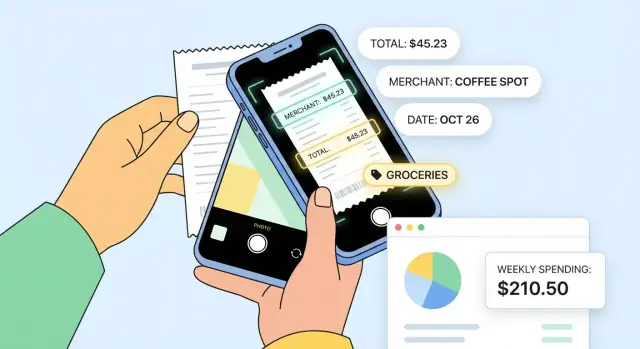
Define the Goal and Who the App Is For
Before you choose features or screen designs, get specific about the problem you’re solving. “Track expenses” is too broad; the real pain is usually lost receipts, tedious manual entry, and slow reimbursement cycles.
Start with the core problem
Write a one-sentence problem statement you can test against every decision:
“Help people capture a receipt in seconds, turn it into a complete expense automatically, and submit it without chasing missing details.”
This keeps scope under control and prevents your app from turning into a generic finance tool.
Identify primary users (and their different needs)
Most digital receipts apps serve more than one audience:
- Employees need fast capture, minimal typing, and confidence that reimbursements won’t get delayed.
- Freelancers care about tax-ready organization, searching past purchases, and separating personal vs. business spend.
- Finance teams want policy compliance, fewer back-and-forth messages, and clean exports to accounting tools.
Pick a primary user first (often employees or freelancers), then design the finance-team experience as a “review layer” rather than the core workflow.
Define the main jobs-to-be-done
Keep the first version focused on a small set of outcomes:
- Capture: snap a photo (or forward an email receipt).
- Auto-fill: merchant, date, total, currency, tax, and payment method where possible.
- Submit: one-tap submission to an expense report or client project.
- Reimburse: status updates so users know what’s happening.
Set success metrics you can measure
Agree on a few metrics that reflect real value:
- Capture-to-submit time (e.g., median under 60–90 seconds)
- OCR/auto-fill accuracy (field-level accuracy, not just “receipt recognized”)
- Adoption rate (weekly active users vs. invited users)
When the goal, users, jobs, and metrics are clear, the rest of the build becomes a series of straightforward trade-offs rather than guesswork.
Map the Receipt-to-Expense Workflow
Before you pick features or screens, write down the end-to-end journey your app needs to support. A clear workflow prevents “receipt scanning” from becoming a pile of disconnected tools.
The core flow (from proof to payable)
At a minimum, map the full path:
- Receipt captured → data extracted → categorized → submitted
- Submitted → reviewed/approved (or rejected with a reason)
- Approved → exported to payroll/accounting and stored for audit
For each step, note what the user sees, what data is created, and what must happen automatically (for example: totals calculated, currency normalized, taxes detected).
Where the workflow starts
Decide the main entry points, because they shape the UI and your backend assumptions:
- Camera capture (most common): quick scan at the point of purchase
- Inbox/email forward: “send receipts to receipts@…” and auto-import
- Wallet pass / e-receipts: imported from a provider or merchant
- File upload: PDFs from ride shares, airlines, or booking tools
Pick one “default start” for your MVP, then support the rest as secondary paths.
Roles, permissions, and handoffs
Clarify who can do what:
- Employee: create expenses, edit fields, submit
- Manager/approver: approve/reject, request changes, view team totals
- Admin/finance: configure categories, policies, export destinations, retention
Design the handoff rules early (e.g., when an expense becomes read-only, who can override, and how changes are logged).
Edge cases to model up front
Document messy realities: returns/refunds, split bills, multi-currency, tips, missing receipts, and per diem. Even if you don’t fully automate them in v1, your workflow should have a clear path that doesn’t block users.
Plan Your Data Model: Receipts, Expenses, and Metadata
A good data model makes everything else easier: faster search, fewer manual edits, and cleaner exports for accounting. The key is to separate what the user captured (the original receipt file) from what your app understands (normalized fields you can filter and report on).
Receipt vs. Expense: two linked records
Treat a Receipt as evidence (a file plus extraction results) and an Expense as the business record used for reimbursement, policy checks, and reporting.
- Receipt: capture source, raw file location, OCR output, confidence scores.
- Expense: amount, category, project/client, reimbursement status, approval state.
A single expense may have one receipt, multiple receipts (split payments), or no receipt (manual entry), so model this as a flexible relationship.
Capture methods to support from day one
Plan a capture_method field so you can grow beyond camera scans:
- photo capture
- PDF upload
- email import (forwarded receipts)
- e-receipt APIs (where available)
This field also helps you troubleshoot quality issues and tune OCR/parsing later.
Minimum normalized fields (and why they matter)
At a minimum, store these on the Expense (even if sourced from OCR): merchant, date, total, tax, currency, payment method. Keep both the raw text and normalized values (e.g., ISO currency codes, parsed dates) so edits are reversible and explainable.
Also store metadata like:
merchant_normalized(for consistent search)transaction_last4or tokenized card reference (to prevent duplicates)timezoneandlocale(to parse dates/taxes correctly)
Storage and search
Store raw image/PDF separately from the extracted/normalized data. This enables re-processing (better OCR later) without losing the original.
Design search for the real questions users ask:
- merchant
- date range
- amount range
- category and project
Index these fields early; it’s the difference between “scroll forever” and instant answers.
Retention and deletion rules
Include retention controls in your schema, not as an afterthought:
- user-initiated delete
- company retention policies (e.g., lock/delete after N years)
- export/backup tracking (what was exported, when, and by whom)
With these pieces, your app can scale from personal expense capture to company-wide compliance without rewriting the foundation.
Receipt Capture and OCR: From Image to Structured Data
Receipt capture is the moment users decide whether your app feels effortless or annoying. Treat the camera as a “scanner,” not a photo tool: make the default path fast, guided, and forgiving.
Camera UX that feels automatic
Use live edge detection and auto-crop so users don’t need to frame perfectly. Add subtle, actionable hints (“Move closer,” “Avoid shadows,” “Hold steady”) and a glare warning when highlights blow out the paper.
Multi-page capture matters for hotel folios and long itemized receipts. Let users keep snapping pages in one flow, then confirm once.
Image preprocessing before OCR
A little preprocessing often improves accuracy more than switching OCR engines:
- Deskew and correct perspective so text lines are horizontal.
- Denoise and increase contrast to separate faded ink from the background.
- Normalize lighting (especially for crumpled receipts) and reduce motion blur where possible.
Run this pipeline consistently so the OCR sees predictable inputs.
OCR strategy: on-device, cloud, or hybrid
On-device OCR is great for speed, offline use, and privacy. Cloud OCR can be better for low-quality images and complex layouts. A practical approach is hybrid:
- Try on-device first.
- Fall back to cloud when confidence is low, the receipt is long, or line-item detail is requested.
Be transparent about what triggers uploads and give users control.
Field extraction with confidence
Start with high-value fields: merchant, date, currency, total, tax, and tip. Line items are useful but significantly harder—treat them as an enhancement.
Store a confidence score per field, not just per receipt. That lets you highlight only what needs attention (e.g., “Total unclear”).
Human-in-the-loop review (fast)
After scanning, show a quick review screen with one-tap fixes (edit total, set date, change merchant). Capture corrections as training signals: if users repeatedly fix “TotaI” to “Total,” your extraction can learn common patterns and improve over time.
Categorization, Rules, and Duplicate Prevention
Good capture is only half the job. To keep expenses clean (and reduce back-and-forth), your app needs fast categorization, flexible metadata, and strong guardrails against duplicates.
Categorization: rules first, then smart suggestions
Start with deterministic rules that users can understand and admins can manage. Examples: “Uber → Transport,” “Starbucks → Meals,” or “USD + airport merchant codes → Travel.” Rules are predictable, easy to audit, and can work offline.
On top of that, add ML-based suggestions (optional) to speed up entry without taking control away. Keep the UI clear: show the suggested category, why it was suggested (e.g., “based on merchant”), and let users override in one tap.
A third accelerator is user favorites: recently used categories per merchant, pinned categories, and “last used for this project.” These often outperform “AI” for real-world speed.
Custom fields that match how teams actually spend
Most organizations need more than a category. Build custom fields such as project, cost center, client, and policy tags (e.g., “billable,” “personal,” “recurring”). Make them configurable per workspace, with required/optional rules depending on policy.
Split expenses without pain
Splits are common: a hotel bill split across projects, or a group meal split by attendees.
Support splitting one expense into multiple lines with different categories, projects, or attendees. For shared payments, allow users to mark “paid by” and allocate shares—while keeping one underlying receipt.
Policy checks + duplicate detection
Run policy checks at save and at submit:
- Missing receipt (when required)
- Over-limit amounts
- Weekend spend flags
- Potential duplicates
For duplicates, combine multiple signals:
- Merchant + date + amount similarity
- Image hash (same photo uploaded twice)
- Transaction match (if linked to card feeds)
When you detect a likely duplicate, don’t block immediately—offer “Review” with side-by-side details and a safe “Keep both” option.
Architecture Choices for a Reliable Mobile Experience
A receipts-and-expenses app fails or succeeds on reliability: can people capture a receipt in a basement café, trust it won’t disappear, and find it later when finance asks? The architecture decisions you make early determine that day-to-day feel.
Pick your MVP platform strategy
For an MVP, decide whether you’re optimizing for speed of delivery or best-in-class native experience.
- iOS-only or Android-only can be fastest if your user base is heavily skewed.
- Cross-platform (React Native, Flutter) often gives the best “ship once” path for a first version while keeping UI good enough for frequent capture workflows.
- Fully native makes sense when you need top-tier camera performance, background processing, or OS-specific integrations—but it’s usually slower to launch.
Go offline-first (even if you have a backend)
Receipt capture happens when connectivity is unreliable. Treat the phone as the first place data is saved.
Use a local queue: when a user submits a receipt, store the image + draft expense locally, mark it “pending,” and sync later. Plan for retries (with exponential backoff), and define how you’ll handle sync conflicts (e.g., “server wins,” “latest wins,” or “ask the user” for rare cases like edited amounts).
Define backend responsibilities clearly
Most teams need a backend for:
- Authentication and user/org membership
- Secure storage for receipt images and generated PDFs
- An OCR pipeline (upload → process → return extracted fields)
- Audit logs (who changed what, when) to support finance workflows
- Exports (CSV, accounting formats) and web dashboards
Keeping these services modular helps you swap OCR providers or improve parsing without rebuilding the app.
Design the database for search and reporting
Indexes matter when people search “Uber” or filter “Meals in March.” Store normalized merchant names, dates, totals, currency, categories, and tags. Add indexes for common queries (date range, merchant, category, status), and consider a lightweight search layer if “receipt storage and search” is a core promise.
Plan updates: sync + notifications
Use background sync where supported, but don’t depend on it. Show clear in-app sync status, and consider push notifications for events like “OCR ready,” “receipt rejected,” or “expense approved,” so users don’t keep opening the app just to check.
Speeding up delivery without compromising control
If you want to validate the workflow quickly (capture → OCR → review → submit) before investing in a full custom build, a vibe-coding platform like Koder.ai can help you prototype and ship faster using a chat-driven interface. It’s particularly useful for building the supporting web dashboard and backend services (for example, a React admin panel plus a Go + PostgreSQL API), iterating in “planning mode,” and rolling back changes with snapshots while you test with real users.
Security, Privacy, and Access Control
Receipts and expenses contain sensitive personal and company details: names, card fragments, addresses, travel patterns, and sometimes tax IDs. Treat security and privacy as product features, not just compliance checkboxes.
Authentication that fits your users
Choose a login method that matches how the app is deployed:
- Email + magic link works well for contractors and BYOD users and avoids weak passwords.
- SSO (SAML/OIDC) is ideal for mid-sized and enterprise teams that need centralized offboarding and policy control.
- Device-based login (managed devices, biometric unlock) can simplify field deployments, but still plan for lost devices and re-enrollment.
Protect data in transit and at rest
Use TLS for all network calls, and encrypt sensitive data on the server. Receipts are often stored as images or PDFs, so secure media storage separately from database records (private buckets, short-lived signed URLs, and strict access policies).
On-device, cache as little as possible. If offline storage is required, encrypt local files and protect access behind OS-level security (biometrics/passcode).
Least-privilege access control
Define roles early and keep permissions explicit:
- Submitters can create and edit their own expenses.
- Approvers can review, comment, and approve/reject within assigned scopes.
- Admins can manage policies, integrations, and user access.
Add guardrails such as “view-only” access for auditors and restricted visibility for sensitive categories (e.g., medical).
Privacy-by-design and user consent
Collect only what you need. If you don’t need full card numbers or exact locations, don’t store them. Be clear about what’s extracted from receipts, how long you keep it, and how users can delete it.
Auditability you can trust
Maintain an audit log for key actions: who changed what, when, and why (including edits to amounts, categories, and approvals). This supports dispute resolution, compliance reviews, and integration troubleshooting.
UX and UI Patterns That Reduce Manual Work
A great receipts-and-expenses app feels like a shortcut: users spend seconds capturing, not minutes correcting. The goal is to turn “I paid” into “it’s ready to submit” with as few taps as possible.
Core screens (keep the loop tight)
Most teams can cover 90% of real usage with six screens:
- Capture (camera + gallery import)
- Review (what was extracted, quick fixes)
- Expense list (drafts, submitted, reimbursed)
- Submit (policy checks, totals, notes)
- Status (approval, reimbursement timeline)
- Settings (profiles, currencies, integrations)
Design these screens as a single flow: capture → review → auto-save to list → submit when ready.
Design for speed: fewer taps, less typing
Prioritize one-handed capture: big shutter button, reachable controls, and a clear “Done” action. Use smart defaults to prevent repetitive data entry—pre-fill currency, payment method, project/client, and commonly used categories.
In the Review screen, use “chips” and quick actions (e.g., Change category, Split, Add attendees) instead of long forms. Inline editing beats pushing users into separate edit pages.
Trust signals: show your work
People won’t accept automation unless they understand it. Highlight extracted fields (merchant, date, total) and add a short “why” for suggestions:
- “Category suggested because merchant is Starbucks.”
- “Tax detected from receipt line items.”
Visually mark confidence (e.g., Needs attention for low-confidence fields) so users know where to look.
Error handling that keeps momentum
When capture quality is poor, don’t just fail. Prompt with specific guidance: “Receipt is blurry—move closer” or “Too dark—turn on flash.” If OCR fails, provide retry states and a fast manual fallback for only the missing fields.
Accessibility basics that benefit everyone
Use readable typography, strong contrast, and large tap targets. Support voice input for notes and attendees, and ensure error messages are announced by screen readers. Accessibility isn’t extra—it reduces friction for all users.
Approvals, Reporting, and Accounting Integrations
A receipt-capture app becomes truly useful when it can move expenses through review, reimbursement, and accounting with minimal back-and-forth. That means building clear approval steps, exporting reports people actually submit, and integrating with the tools finance teams already use.
Approval flow that doesn’t create extra work
Keep the workflow simple, predictable, and visible. A typical loop is:
- Employee submits an expense (or a report with multiple expenses)
- Manager reviews, adds comments, approves or rejects
- If rejected, the employee edits and re-submits (with an audit trail)
Design details matter: show “what changed since last submission,” allow inline comments on a specific line item, and store every status transition (Submitted → Approved → Exported, etc.). Also decide early whether approvals happen per expense, per report, or both—finance teams often prefer approving a report, while managers may want to spot-check line items.
Reporting formats people can hand off immediately
Support common exports so users don’t need to rebuild reports manually:
- CSV for spreadsheets and custom imports
- PDF packet that bundles a summary page plus receipt images (useful for audits)
- Accounting-friendly mappings that include chart-of-accounts codes, tax/VAT fields, and “billable to client/project” metadata
If you offer a PDF packet, make the summary page match what finance expects: totals by category, currency, tax, and policy flags (e.g., “missing receipt,” “over limit”).
Integrations with accounting systems (and a fallback)
For popular platforms (QuickBooks, Xero, NetSuite), integrations usually boil down to: creating expenses/bills, attaching receipt files, and mapping fields correctly (vendor/merchant, date, amount, category/account, tax). Even if you don’t ship native integrations immediately, provide a generic webhook/API so teams can connect your app to their workflow tools.
To reduce support headaches, make mappings configurable: let an admin map your categories to their accounts and set defaults by team, project, or merchant.
Reimbursement status: close the loop
Users care most about “when do I get paid?” Even if payouts happen in payroll, your app can track reimbursement status:
- Submitted → Approved → Sent to payroll/accounting → Paid
If you can’t confirm “Paid” automatically, allow a manual handoff step or a payroll import to reconcile statuses.
For plan and integration considerations, it can help to outline what’s included at each tier—linking to /pricing keeps expectations clear without burying readers in details.
Build an MVP and Validate with Real Users
An expense app succeeds when it removes busywork, not when it has the longest feature list. Start with the smallest useful loop and prove it works for real people doing real expense reports.
Define the MVP loop (smallest useful set)
Build only what’s required to complete: capture → extract → categorize → export.
That means a user can snap a receipt, see key fields (merchant, date, total) filled in, choose or confirm a category, and export/share an expense report (CSV, PDF, or a simple email summary). If users can’t finish this loop quickly, extra features won’t save you.
Create a phased roadmap (MVP → v1 → v2)
Write down what you’re deliberately not building yet:
- MVP: receipt capture, OCR extraction, basic categories, manual edits, simple export
- v1: line items, better merchant parsing, multi-currency, offline mode improvements
- v2: card feeds, policy engine, advanced rules, approvals
Keeping a clear roadmap prevents scope creep and makes user feedback easier to prioritize.
Instrument analytics that match user value
Track the funnel from capture to submission:
- % of receipts successfully extracted
- time from capture to “ready to submit”
- drop-off points (after capture, after OCR, after categorization)
Pair this with lightweight in-app prompts like “What was frustrating about this receipt?” at the moment of failure.
Validate OCR with a real receipt test set
Build a small, diverse set of real receipts (different merchants, fonts, languages, crumpled photos). Use it for evaluation and regression tests so OCR quality doesn’t silently degrade.
Run a focused beta pilot
Pilot with a small team for 1–2 cycles of expense submissions. Ask users to correct extracted fields and categorize receipts; treat those corrections as labeled training/quality data. The goal isn’t perfection—it’s proving the workflow saves time consistently.
A practical shortcut for MVP builds
If your goal is to get to a working beta quickly, consider using Koder.ai to build the supporting pieces (admin console, exports, OCR job dashboard, and core API) from a chat-driven specification. Because it supports source-code export, deployments/hosting, and snapshots with rollback, you can iterate rapidly with pilot users and still keep ownership of the code as the product matures.
Common Pitfalls and How to Avoid Them
Even well-designed expense apps can stumble in predictable places. Planning for these issues early saves weeks of rework and a lot of support tickets.
1) OCR fails because receipts are messy
Real receipts aren’t studio photos. Crumpled paper, faded ink, and especially thermal paper can produce partial or distorted text.
To reduce failures, guide users at capture time (auto-crop, glare detection, “move closer” prompts) and keep the original image so they can rescan without re-entering everything. Treat OCR as “best effort”: show the extracted fields with confidence indicators and make edits fast. Also consider a fallback path for low-confidence scans (manual entry or human review for high-value receipts).
2) Localization gets bolted on too late
Dates, currencies, and taxes vary widely. A receipt with “03/04/25” can mean different things, and VAT/GST rules affect what totals should be stored.
Avoid hardcoding formats. Store amounts as numbers plus currency code, store dates as ISO timestamps, and keep the raw receipt text for auditing. Build tax fields that can handle inclusive/exclusive taxes and multiple tax lines. If you expand to multiple languages, keep merchant names in original form but localize UI labels and category names.
3) Performance issues from large images and poor networks
High-resolution images are heavy, and uploads over mobile data can be slow—draining battery and frustrating users.
Compress and resize on-device, upload in the background with retry, and use a queue so receipts don’t “disappear” when the network drops. Cache recent receipts and thumbnails for quick browsing. Put strict limits on memory usage to avoid crashes on older phones.
4) Fraud and misuse aren’t “edge cases”
Altered totals, duplicate submissions, and fake receipts show up quickly in real deployments.
Add duplicate detection (same merchant/amount/date, similar OCR text, image fingerprints) and flag suspicious edits (e.g., total changed after OCR). Keep immutable audit logs of what was captured vs. what was edited, and require justification for manual overrides on policy-sensitive fields.
5) Operational readiness is often forgotten
Users will ask for exports, deletions, and help recovering missing receipts.
Prepare basic support tooling: search by user/receipt ID, view processing status, re-run OCR, and export data on request. Define incident response: what happens if OCR is down, or uploads fail? Having clear runbooks and a simple status page (/status) turns chaos into a manageable workflow.
Launch, Monitor, and Improve Over Time
A successful launch isn’t just “shipping to the app store.” It’s setting expectations, watching real-world behavior, and tightening the loop between what users experience and what your team fixes.
Set SLAs—and show them in the UI
Define clear SLAs for the two moments users care about most: receipt processing (OCR) and syncing across devices.
For example, if OCR usually completes in 10–30 seconds but can take longer on poor networks, say so directly: “Processing receipt… usually under 30 seconds.” If sync can be delayed, show a lightweight status like “Saved locally • Syncing” and a retry option. These small cues prevent support tickets and reduce repeated uploads.
Monitor the health metrics that predict churn
Track a small set of indicators that reveal reliability issues early:
- Crash rate (by device model and OS version)
- Sync failures and retry counts
- OCR confidence trends (overall and by merchant)
- Time-to-first-expense (from install to successful capture)
Alert on spikes, and review trends weekly. OCR confidence drifting down often signals a vendor change, camera update, or a new receipt format in the wild.
Build a continuous improvement loop
Add an in-app feedback button near the receipt details screen, where frustration happens. Make corrections easy, then review aggregated “correction logs” to identify common parsing mistakes (dates, totals, taxes, tips). Use that list to prioritize model/rule updates.
Plan expansions without derailing the core
Once capture and search are stable, consider:
- E-receipt partnerships (email forwarding, merchant portals)
- Card transaction matching to confirm totals and reduce duplicates
- Accounting integrations that support draft vs. posted states
Onboarding that actually reduces manual work
Offer a 60-second walkthrough, a sample receipt users can edit, and a short “best results” tip page (good lighting, flat surface). Link to /help/receipts for quick reference.
FAQ
What’s the first thing to define before building a receipts and expenses app?
Start with a narrow, testable problem statement (e.g., “capture a receipt in seconds, auto-create an expense, submit without missing details”). Then choose a primary user (employees or freelancers) and define 2–4 measurable success metrics like:
- Median capture-to-submit time (e.g., < 60–90 seconds)
- Field-level OCR accuracy (total/date/merchant)
- Weekly active / invited adoption rate
These constraints prevent scope creep into a generic finance app.
What features should an MVP include for a digital receipts app?
A practical MVP loop is: capture → extract → categorize → export/submit.
In v1, prioritize:
- Camera capture (one default entry point)
- OCR + extraction for merchant/date/total/currency/tax (where possible)
- Fast review + manual edits for low-confidence fields
- Basic categories + a simple export (CSV/PDF) or submission flow
Defer line items, card feeds, advanced policies, and deep integrations until the loop reliably saves time.
How do I map the end-to-end receipt-to-expense workflow?
Map the full path from “proof” to “payable”:
- Receipt captured → data extracted → categorized → submitted
- Submitted → reviewed/approved (or rejected with a reason)
- Approved → exported to payroll/accounting and stored for audit
For each step, specify what’s automatic, what the user sees, and what data is created. This prevents building disconnected tools that don’t complete the reimbursement journey.
Which receipt capture entry points should I support first?
Pick one default start for your MVP (usually camera capture) and add others as secondary paths:
- Email forward/import (e.g., receipts inbox)
- PDF upload (airlines, rideshares)
- E-receipt APIs/wallet passes (where available)
Your choice affects UI and backend assumptions (e.g., image preprocessing vs. parsing PDFs/email HTML). Track this with a capture_method field so you can debug accuracy and conversion by source.
How should I design the data model for receipts vs. expenses?
Model Receipt and Expense as separate but linked records:
- Receipt = evidence (file, OCR output, confidence scores, source)
- Expense = business record (normalized amount/date/currency/category/status)
Keep relationships flexible: one expense can have multiple receipts (split payments) or none (manual entry). Store both raw OCR text and normalized fields so edits are explainable and reversible.
What camera UX and preprocessing steps most improve OCR results?
Use a camera experience that behaves like a scanner:
- Live edge detection + auto-crop
- Clear capture guidance (“move closer,” “avoid shadows,” glare warnings)
- Multi-page capture for long receipts/hotel folios
Before OCR, run consistent preprocessing (deskew, perspective correction, denoise, contrast/lighting normalization). Often this improves accuracy more than switching OCR vendors.
Should OCR run on-device, in the cloud, or both?
A hybrid approach is often most practical:
- On-device first for speed, offline capture, and privacy
- Cloud fallback when confidence is low, receipts are long, or advanced extraction is needed
Whichever you choose, store confidence per field (not just per receipt) and build a fast review screen that highlights only what needs attention (e.g., “Total unclear”). Be transparent about what triggers uploads and give users control.
How do I handle categorization without making the app feel “AI-driven” and unpredictable?
Start with rules users can understand, then layer suggestions:
- Deterministic rules (e.g., “Uber → Transport”) are predictable and auditable
- Optional ML suggestions can accelerate entry, but must be easy to override
- “Favorites” (recent categories per merchant/project) often boosts speed more than complex ML
Also support custom fields like project, cost center, and client so categorization matches real workflows.
How can I prevent duplicate receipts and reduce fraud?
Combine multiple signals and avoid hard-blocking:
- Merchant + date + amount similarity
- Image hash (same photo uploaded twice)
- Transaction match (if you later add card feeds)
When you detect a likely duplicate, show a side-by-side review and allow “Keep both.” Also log suspicious changes (e.g., total edited after OCR) in an audit trail for finance review.
What architecture decisions matter most for a reliable mobile receipts experience?
Build offline-first reliability into the core flow:
- Save image + draft expense locally immediately
- Use a local sync queue with retries (exponential backoff)
- Define conflict rules (server wins, latest wins, or prompt user for rare cases)
Show clear states like “Saved locally • Syncing” and use notifications for key events (OCR ready, rejected, approved). This is what makes the app trustworthy in poor connectivity.