

How to Create a Mobile App for Equipment Inspections & Checklists
Learn how to plan, design, and build a mobile app for equipment inspections and checklists—offline support, photos, QR codes, reports, and admin tools.
Define the Goal and Who Will Use the App
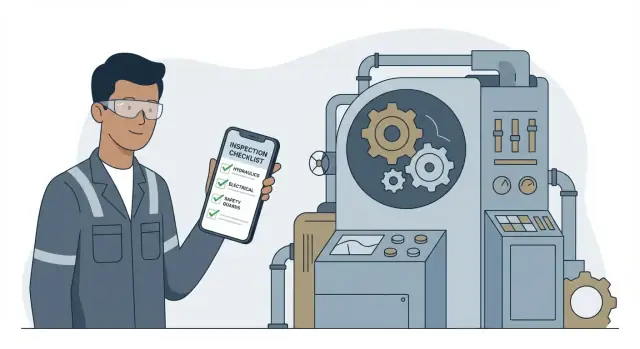
An equipment inspection app is more than a digital form. At its core, it’s a mobile inspection checklist that guides someone through required checks, captures what they found, and produces a record you can trust later.
What the app should do (in plain terms)
A good equipment inspection app typically supports:
- Checklists: step-by-step questions with required fields so critical checks aren’t skipped.
- Findings: log issues (e.g., “leak detected”), assign severity, and track status.
- Evidence: attach photos, notes, meter readings, and sometimes video/audio for photo evidence inspections.
- Signatures and timestamps: confirm who performed the inspection and when.
If your team already uses “forms,” the real goal is to convert them into a repeatable inspection workflow design that works reliably on-site.
Who will use it day-to-day
Define primary users early, because their needs differ:
- Inspectors/technicians want speed, large tap targets, and minimal typing.
- Supervisors need visibility, review, and escalation paths.
- Contractors may need limited access and simple assignments.
This user mix drives permissions, UX, and the “must-have” field inspection software features.
Where it’s used: industries and equipment types
Common starting points include vehicles and fleets, HVAC units, forklifts, generators, compressors, and safety equipment—anywhere a maintenance checklist app replaces paper and improves consistency.
Outcomes to aim for
Set measurable goals before building:
- Fewer missed checks (higher completion/required-field compliance)
- Faster reporting (same-day closeout, fewer manual handoffs)
- Better audit trails (who/when/what evidence), supporting compliance checklists
Write these outcomes down; they’ll guide later decisions—from offline behavior to inspection reporting.
Choose the Core App Model: Assets, Checklists, and Workflows
A great equipment inspection app is easier to build (and scale) when you decide early what the “center” of the product is: the equipment registry (assets), the mobile inspection checklist, or the process that moves work from open to closed. Most successful field inspection software uses all three—clearly separated.
Checklists: templates vs. one-off forms
Start with inspection checklist templates: reusable, versioned checklists for recurring inspections (daily, weekly, pre-start, compliance checklists). Templates reduce drift, keep reporting consistent, and simplify training.
Keep one-off forms as an escape hatch for unusual events (incident follow-ups, vendor-specific checks). The key is to label them clearly so your inspection reporting doesn’t mix ad hoc data with standard KPIs.
Assets: an equipment registry with locations
Treat every inspected item as an asset with an ID, status, and history. Pair it with a location hierarchy—site > area > unit—so inspectors can filter quickly and managers can analyze patterns by facility or zone.
This model also prepares you for QR code equipment tracking: scan a code, open the right maintenance checklist app screen, and avoid selecting the wrong unit.
Workflows and roles
Define the inspection workflow design as states (not screens):
- Create inspection (scheduled or ad hoc)
- Perform (capture answers, notes, photo evidence inspections)
- Review (approve, request changes)
- Close (complete and lock)
- Re-open (only with permission and an audit trail)
Assign roles and permissions: inspector (fill), reviewer (approve/reject), admin (manage templates, assets, and assignments). This separation keeps accountability clear and prevents accidental edits after compliance outputs are issued.
Design Checklist Questions and Data Types
A mobile inspection checklist only works if the questions are fast to answer and the data remains usable later in inspection reporting. Start by listing what you need to prove (for compliance checklists) and what you need to fix (for maintenance). Then choose the simplest input type that still captures the truth.
Pick the right question types
Use structured fields wherever possible—this makes dashboards and alerts reliable in your equipment inspection app.
- Checkbox, pass/fail, numeric reading with limits: Use pass/fail for clear standards and numeric readings when you need measurements (e.g., pressure, temperature). Add min/max limits to flag out-of-range values automatically.
- Text notes with quick phrases: Free text is sometimes necessary, but keep it controlled. Offer “quick phrases” like “Guard missing,” “Leak observed,” or “Needs calibration” to speed entry and improve consistency.
Capture evidence without slowing people down
For photo evidence inspections, make attachments optional by default, but required for specific answers (see conditional logic below).
- Photo/video, file attachments, and annotations: Allow marking a photo (circle, arrow) so the issue is obvious to maintenance.
- GPS, timestamp, and digital signature when needed: Location and time are often automatic; signatures should be used only when policy requires them.
Add smart logic with conditional questions
Conditional questions (show/hide based on answers) keep the inspection workflow design clean. Example: if “Pass/Fail = Fail,” then show “Severity,” “Root cause,” “Add photo,” and “Create finding.” This is especially helpful in an offline inspection app because it reduces extra taps and data entry.
Tip: standardize units, required fields, and “Not applicable” rules early—changing them later can break comparisons across assets in your field inspection software.
Map the User Experience for Fast Field Use
Field inspections happen in noisy, bright, messy places—so the app should feel “one-hand fast.” The UX goal is simple: help someone finish an inspection correctly with minimal taps, minimal typing, and zero confusion.
Start with a home screen that prioritizes action
The home screen should answer: “What do I need to do next?”
- Assigned inspections (with site/area and asset name)
- Due soon (clear due dates and urgency labels)
- Recent assets (quick re-open for repeats)
Keep filters lightweight (site, team, due date) and make search forgiving (scan QR, type part of an asset name).
Make the inspection flow hard to mess up
Inside an inspection, people need constant feedback and a quick exit path:
- Show progress (e.g., 12/20 questions) and what’s left
- Make required fields obvious before submission (not after)
- Allow save as draft at any time, with an autosave indicator
- Keep navigation predictable: Next/Back plus a section list for jumping
A strong pattern is a “review” screen at the end that highlights missing required items before submitting.
Reduce typing to near-zero
Typing on-site slows everything down. Use:
- Defaults (common answers pre-selected)
- Auto-fill from asset data (serial number, last service date)
- Voice-to-text for notes, with a quick edit option
Design for real hands, real lighting
Accessibility here is productivity:
- Large tap targets and spacing for gloves
- High contrast and readable fonts outdoors
- Clear “Fail / Pass / N/A” controls that don’t rely on color alone
Plan Offline Mode and Reliable Sync
Offline mode isn’t a “nice to have” for an equipment inspection app—it’s often the difference between work getting done and work getting delayed. Inspections happen in basements with no signal, remote sites, hangars, mechanical rooms, and fenced yards where connectivity is unreliable or prohibited.
What “offline” should mean in practice
Your mobile inspection checklist should open quickly, show assigned inspections, and let users complete checklists without any network dependency. That includes saving answers, timestamps, signatures, and draft reports locally so the app feels dependable in the field.
Local storage + a sync queue (a proven model)
A reliable approach is “store locally first, sync in the background.” Instead of trying to post every tap to the server, the app records changes as events in a local database (for example: “Inspection #123, Question 7 = ‘Fail’, added note, attached photo”).
When connectivity returns, the app uploads a queued list of changes in order. This reduces data loss risk and makes error recovery straightforward.
Handling conflicts without confusing people
Conflicts happen when two devices update the same inspection or asset record. Keep the rules simple and visible:
- Treat completed inspections as locked (no edits unless reopened by an admin).
- For editable drafts, prefer “last saved wins” with an audit trail, or prompt only when the conflict is meaningful (like two different pass/fail outcomes).
The goal is to avoid pop-ups mid-job. If a conflict can’t be resolved automatically, save both versions and flag it for review in the admin panel.
Make sync status obvious (and recoverable)
Users should always know whether their work is safe. Add clear indicators such as “Saved on device,” “Syncing…,” and “Synced.” If upload fails, show the reason (no connection, server error) and provide a one-tap retry.
Minimize mobile data usage, especially for media
Photo evidence inspections can consume data fast. Add upload rules:
- Wi‑Fi only option for photos/videos
- Upload thumbnails first, full images later
- Compress images by default (with an “original quality” toggle when required)
This keeps inspections moving while protecting data plans and battery life.
Add Asset Tracking with QR Codes and Locations
Asset tracking turns a generic checklist app into a practical equipment inspection app. Instead of asking users to “pick the right item,” you let them start from the equipment itself—scan it, confirm it, inspect it.
Asset IDs with QR codes (and optional NFC)
Give every piece of equipment a unique Asset ID and encode it into a QR code label. In the app, the scan action should immediately open the correct asset profile and the right mobile inspection checklist for that asset type (e.g., fire extinguisher vs. forklift).
If your environment supports it, add NFC as an alternative to QR. The key is speed: one scan, zero searching.
Inspection history on an asset timeline
Each asset should have a simple “timeline” view:
- Last inspections and outcomes (pass/fail)
- Photos, notes, and signatures tied to each visit
- Open findings and when they were resolved
This creates instant context for the inspector and a clear audit trail for compliance checklists. It also helps supervisors spot repeat failures and prioritize maintenance.
Location-based filtering that matches reality
Field teams think in locations, not databases. Model locations in a way that mirrors the site:
- Site → building → floor/room (or area/zone)
Then let users filter assets by where they are, or auto-suggest nearby assets when they select a location. Location also improves inspection workflow design by reducing missed items and duplicate inspections.
Bulk import and ongoing updates
Most teams already have an asset register. Support bulk import from CSV with mapping for Asset ID, name, type, location, and status.
After import, plan for ongoing updates: new installs, relocations, retirements. Keep it simple—editable fields, change history, and a controlled way for admins to approve changes if needed. This prevents your QR code equipment tracking from drifting out of sync with the real world.
Collect Evidence and Handle Findings
Evidence is what turns a “checked” box into something you can trust later. In an equipment inspection app, design evidence capture as part of the checklist itself—especially for safety‑critical items—so inspectors don’t have to remember extra steps.
Standardize evidence for critical checks
For high‑risk questions, require (or strongly prompt) photos. Be explicit: “Photo of pressure gauge reading” or “Photo of guard in place.” This avoids unusable images and makes reviews faster.
Make photos useful (without slowing people down)
Add quick annotation tools—arrows, circles, and short labels—so inspectors can point to the exact defect. Keep the original image file too, stored alongside the annotated version. That protects credibility and lets supervisors re-check details later.
If you allow multiple photos, label them automatically (e.g., “Before,” “After,” “Serial plate”) to reduce confusion.
Turn findings into action
A finding should be more than “fail.” Add severity levels (e.g., Minor, Major, Critical) and tie each level to required fields such as recommended corrective action, due date, and responsible person/team.
For anything not resolved on the spot, generate a follow-up task with status tracking (Open → In progress → Verified). Link the task back to the specific question and evidence so nothing gets lost in handoffs.
Keep an audit trail
Inspections often become compliance records. Log who changed what and when for checklist answers, photos, annotations, severity, and task status. A simple, clear audit history builds trust with managers and auditors—and prevents “mystery edits” after the fact.
Build Reporting, Dashboards, and Compliance Outputs
Once inspections are being completed reliably, reporting is what turns raw checklist answers into decisions. Aim for outputs that are fast to generate, easy to share, and defensible during audits.
Instant reports vs. server-side reporting
Many teams want a report the moment an inspector taps Submit. A common pattern is to generate a PDF/CSV on the device for simple, “single inspection” summaries (equipment details, answers, signatures, photos). This feels instant and works even with limited connectivity.
For heavier needs—multi-site rollups, branded templates, large photo packs, and consistent formatting—server-side report generation is usually more reliable. It can also re-generate reports later if checklist templates change, without relying on the original device.
Sharing flows and access controls
Reports often leave the app, so design the share step carefully:
- Email/send link rather than attaching large files whenever possible.
- Role-based access: supervisors can view all reports; inspectors only see their own.
- Expiring links and “view-only” access for external parties (vendors, auditors).
- A clear audit trail: who generated, viewed, and forwarded a report.
If you include a “Share” button, make it explicit whether it shares a file or a controlled link—this avoids accidental data leaks.
Dashboards that actually help
Dashboards should answer a few recurring questions without digging:
- Pass rates by site, asset type, or checklist template
- Recurring failures (top findings, repeat defects on the same asset)
- Overdue inspections and upcoming schedules
A simple trend view (weekly/monthly) plus filters is often more useful than a crowded analytics page.
Compliance outputs: retention and versioned checklists
Compliance usually depends on being able to prove what was asked at the time of inspection. Store versioned checklists (template ID + version + effective dates) and link every submitted inspection to that version.
Also define retention periods (e.g., keep inspection records for 3–7 years), including how you handle deletions, legal holds, and export requests. This makes your reporting credible when it matters most.
Create an Admin Panel for Templates and Assignments
A mobile inspection app lives or dies by how quickly your team can adjust checklists and dispatch work—without waiting for a developer. That’s the job of the admin panel: a simple place where supervisors and compliance owners create templates, manage assets, and control who gets what.
Admin console: checklist builder + asset management
Start with a checklist builder that supports common field inputs (yes/no, pass/fail, number, text, dropdown, photo). Keep it “form-like,” with drag-and-drop ordering and clear labels.
Alongside the builder, include asset management basics: asset types, serial numbers, locations, and QR-code identifiers so admins can keep equipment records aligned with the field app.
Template versioning and publishing
Treat templates like documents with history. Draft changes, preview them, then publish a new version. Publishing should answer two questions:
- Does the new version apply only to new inspections, or also to in-progress work?
- Do you need an approval step before it goes live?
Versioning matters for audits: you want to prove what checklist was used at the time a report was created.
Assignment rules and scheduling
Add flexible assignment rules: by role (electrician vs. supervisor), site, asset type, and schedule (daily/weekly/monthly or usage-based). The admin should be able to create repeating plans (“Fire extinguishers: monthly”) and exceptions (“High-risk zone: weekly”).
Notifications and escalation
Build a small notification center: due reminders, overdue escalations, and reviewer alerts when a submission needs sign-off. Keep controls simple (timing, recipients, escalation path) so people actually use them.
Security, Permissions, and Data Protection Basics
Security is easier (and cheaper) when you build it into the first version of your equipment inspection app. Even if your checklists feel “simple,” they often include sensitive context: facility locations, equipment IDs, photos, and corrective actions.
Authentication: pick the right login for the field
Start with one primary sign-in method and add others as needed:
- Email/password works everywhere, but requires password reset flows.
- Magic links / one-time codes reduce password fatigue for occasional users.
- SSO (SAML/OIDC) is ideal for larger organizations that already manage identities and offboarding centrally.
Whatever you choose, support fast re-auth for inspectors (e.g., short sessions with secure refresh) without forcing constant full logins.
Permissions: roles and least privilege by default
Use role-based access control (RBAC) and default to the minimum access needed:
- Inspectors can complete assigned checklists and view only their assigned assets/sites.
- Supervisors can review, reopen, and approve.
- Admins can manage templates, users, and global settings.
Design permissions around real tasks: “Can edit findings after submission?” or “Can delete photo evidence?” These are clearer than broad “read/write” rules.
Data protection: protect data in transit and at rest
All traffic should use TLS (HTTPS). For stored data, encrypt sensitive records in the database where appropriate, and use secure object storage for media (photos/videos) with expiring, access-controlled links.
On-device, store cached inspections and media in encrypted storage and avoid leaving files in the public photo gallery unless explicitly required.
Device security: plan for lost phones
Field devices get lost. Support PIN/biometric app lock, and consider remote wipe or “sign out all devices” capabilities. Also log key events (login, export, deletion) so you can audit what happened if something goes wrong.
Choose a Tech Stack and Architecture
Your tech stack should match how your equipment inspection app will be used: fast checklists in the field, photo evidence, occasional offline work, and clear inspection reporting.
Mobile app: native vs cross-platform
- Native (Swift for iOS, Kotlin for Android): best performance and camera/QR code reliability. Higher cost because you build twice.
- Cross-platform (Flutter, React Native): one codebase for iOS/Android, faster MVP and easier maintenance. Make sure your chosen framework supports background sync, barcode scanning, and local storage well.
If your users scan a lot of QR code equipment tracking labels and capture many photos, prioritize stability over novelty.
Backend API and data model
Most field inspection software uses REST because it’s simple and easy to integrate. GraphQL can reduce over-fetching (useful for complex dashboards), but it needs stricter governance.
For the database, model inspections as:
- Assets (equipment, locations, QR codes)
- Templates (mobile inspection checklist questions)
- Runs (each completed checklist)
- Answers (with typed fields: pass/fail, numeric, text, date)
- Findings (issues, severity, status, assigned owner)
Attachments: photos, video, and cost control
Store media (photo evidence inspections) in object storage (e.g., S3-compatible) with a CDN for faster downloads.
To control costs: resize images on upload, limit video length, and keep originals only when needed for compliance checklists.
Integrations and exports
Plan early for integrations:
- Webhooks for real-time events (inspection completed, finding created)
- Exports to CMMS/ERP (CSV, scheduled reports, or API sync)
- Email systems for alerts and compliance-ready PDFs
A clean architecture now prevents painful rewrites when customers ask for “just one integration.”
A note on speeding up delivery with Koder.ai
If you want to move faster than a traditional build cycle, Koder.ai can help you prototype and ship an inspection product through a chat-driven workflow—useful for rapidly validating your checklist model, roles/permissions, and admin flows. It’s designed for building web, backend, and mobile apps (React on the web, Go + PostgreSQL on the backend, Flutter for mobile), with options like source-code export, deployment/hosting, custom domains, and snapshots/rollback.
MVP Scope, Testing, and Pilot Rollout
An equipment inspection app succeeds or fails on field usability. Before you build every feature request, define a Minimum Viable Product (MVP) that proves the workflow works end to end: create a checklist, complete it in the field, sync it, and produce a usable report.
Define MVP scope (must-have vs nice-to-have)
Must-have features usually include: a mobile inspection checklist that supports required questions, pass/fail and notes, photo evidence inspections, offline inspection app behavior, and basic inspection reporting.
Nice-to-have items (often deferred) include advanced dashboards, complex conditional logic, and deep integrations.
A practical MVP rule: if a technician can’t finish an inspection with it on day one, it’s not optional.
Testing plan that matches real field conditions
Test with realistic data and devices, not just on a developer phone:
- Offline sync: airplane mode inspections, queued uploads, conflict handling when the same asset is updated twice
- Edge cases: missing required answers, duplicate QR scans, time zone/date issues, interrupted uploads
- Large checklists: 100+ questions, many photos, long notes
- Slow phones: older Android devices, low storage, poor connectivity
Pilot with a small team and tight feedback loops
Run a 2–4 week pilot with a small crew across different sites. Collect feedback right after inspections: what slowed them down, what they skipped, and which questions caused confusion. Prioritize fixes that reduce taps and prevent rework.
Rollout plan: training, template migration, support
Plan a short training session (15–30 minutes), migrate existing compliance checklists into your templates, and set up a clear support path (who to contact, how to report issues, response times).
A lightweight internal “playbook” page (e.g., /help/inspections) reduces repeated questions and speeds adoption.
Measure Results and Plan the Next Improvements
Launching your inspection app isn’t the finish line—it’s the start of a feedback loop. The goal is to prove the app saves time, reduces missed issues, and makes compliance easier, then use real usage data to guide what you build next.
Track the metrics that reflect field reality
Start with a small set of product metrics that are easy to explain and hard to argue with:
- Checklist completion time (median and by site/team) to see whether the flow is actually faster.
- Error rates such as invalid entries, missing required photos, or frequent edits after submission.
- Overdue count and “time-to-close” on findings to show whether follow‑ups are improving.
Compare these numbers to your pre-app baseline (paper, spreadsheets, or legacy tools). A 10–20% improvement in completion time can be meaningful if inspections happen daily.
Iterate on templates and UI based on usage
Look for where inspectors hesitate: which questions get skipped, where people backtrack, and which data types cause mistakes (free text often does). Common improvements include:
- Rewording questions to be unambiguous
- Replacing text fields with picklists, ranges, or pass/fail + notes
- Adjusting the order of questions to match how equipment is physically inspected
Do changes in small releases so teams can adapt.
Add advanced features when the basics are stable
Once completion and data quality are consistent, consider features like scheduling, sensor/IoT data capture, and barcode/QR label printing for smoother rollout. Prioritize what removes manual steps—not what looks impressive in a demo.
If you want help estimating a roadmap or budgeting the next phase, see /pricing or reach out via /contact.
FAQ
What should I define before building an equipment inspection app?
Start by writing measurable outcomes such as fewer missed checks, faster closeout, and a stronger audit trail (who/when/what evidence). Then identify primary users (inspectors, supervisors, contractors) and the environments they work in (poor signal areas, bright outdoor light, gloves). Those constraints should drive your checklist design, offline behavior, and reporting needs.
What’s the difference between a checklist and a finding?
A checklist is the guided set of questions that must be answered during an inspection. A finding is an issue discovered during that checklist (e.g., leak, missing guard) with severity, status, and follow-up ownership. Treat findings as actionable records that can be tracked from Open → In progress → Verified, and always link them back to the exact question and evidence.
Should I use checklist templates or one-off forms?
Use versioned checklist templates for recurring work (daily/weekly/compliance) because they reduce drift, improve reporting consistency, and simplify training. Keep one-off forms as an exception for unusual events (incidents, vendor-specific checks), and label them clearly so ad hoc data doesn’t pollute standard KPIs.
How should I structure assets and locations in the app?
Model equipment as assets with an ID, type, status, location, and history. Add a location hierarchy like site → area → unit (or building/floor/room) so inspectors can filter quickly and managers can analyze trends. This structure also enables QR scans to open the correct asset and the right checklist automatically.
What question types work best for mobile inspection checklists?
Pick the simplest input that still captures the truth:
- Pass/fail for clear standards
- Numeric readings with min/max limits for measurements
- Dropdowns/quick phrases to reduce free-text variability
- Text notes only when needed, ideally with suggested phrases
Standardize units and “N/A” rules early to keep reporting comparable over time.
When should photo evidence be required during an inspection?
Make attachments optional by default, but required for specific answers (for example, when pass/fail = Fail or severity = Critical). Use prompts like “Photo of gauge reading” to get usable images. If you support annotations (arrows/circles), keep the original photo alongside the annotated version for credibility and later review.
How do I design offline mode and sync that won’t lose data?
Offline should mean the inspector can open assignments, complete checklists, capture signatures/photos, and save drafts without any network. A reliable pattern is local-first storage + a sync queue that uploads events in order when connectivity returns. Show clear states like “Saved on device,” “Syncing…,” and “Synced,” with one-tap retry on failures.
How should the app handle conflicts when two devices edit the same inspection?
Keep conflict rules simple:
- Submitted/completed inspections are locked (only reopen with permission and an audit trail).
- For drafts, use last saved wins plus change history, or prompt only when outcomes materially differ (e.g., different pass/fail).
- If auto-merge isn’t safe, save both versions and flag for supervisor/admin review.
Avoid interrupting inspectors mid-job with frequent pop-ups.
What features should an admin panel include for inspection apps?
A practical minimum set is:
- Checklist builder with common field types (pass/fail, number, text, photo)
- Template versioning (draft → publish) and clear rules for in-progress inspections
- Asset management (types, IDs, locations, QR codes)
- Assignments and scheduling (by site/role/asset type; recurring plans)
- Notifications (due reminders, overdue escalations, review alerts)
The goal is to adjust templates and dispatch work without needing a developer.
What security basics should an equipment inspection app include?
Include role-based access control (inspectors vs supervisors vs admins), TLS for all traffic, encrypted storage for sensitive data and media, and expiring access-controlled links for shared reports. On devices, store cached inspections in encrypted storage and add app lock (PIN/biometric) plus a way to sign out all devices or remotely wipe. Always log key events (edits, exports, deletions) to support audits.