

How to Create a Mobile App for Event Tickets & Check-Ins
Learn how to plan, design, and build a mobile app for event tickets and fast check-ins, including QR codes, offline scanning, payments, security, and launch tips.
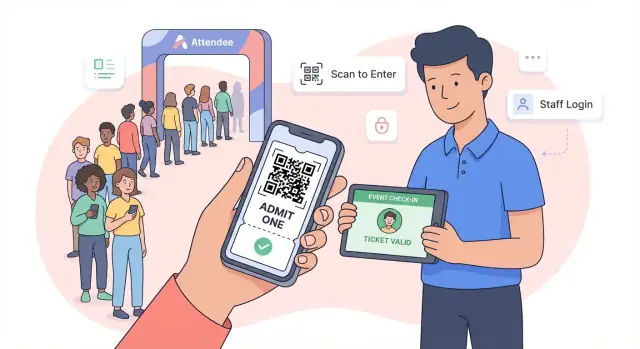
Start With Goals, Users, and Event Types
Before you sketch screens or pick a QR scanner library, get clear on the problem you’re solving. Event ticketing apps often fail for straightforward reasons: tickets are hard to find, entry lines move slowly, fraud isn’t handled consistently, or staff can’t coordinate when something goes wrong.
Define the problem you’re fixing
Write down the top 2–3 pain points in plain language. Examples:
- Ticket delivery is unreliable (emails get lost, screenshots fail, transfers are confusing)
- Entry lines are too slow (manual lookups, bad connectivity, unclear staff roles)
- Fraud and duplicate tickets are common (shared PDFs, reused QR codes)
- Staff don’t have the right tools (no live capacity view, no escalation path)
This keeps the product focused when feature requests start piling up.
Identify your core users
Most event ticketing products contain three experiences in one:
- Attendees: need a frictionless way to access tickets, transfer them, and get in quickly.
- Staff scanners: need speed, clarity, and reliability under pressure.
- Admins/organizers: need control (ticket rules, staffing, reporting) and fewer support requests.
Be explicit about who you’re serving first. A staff-first MVP can look very different from an attendee-first one.
Choose event types you’ll support
Event type changes timing, entry patterns, and validation rules:
- Concerts / single-session events: one big rush window, scan speed matters.
- Conferences: multiple badge scans, session access, role-based entry.
- Multi-day festivals: re-entry rules, wristbands vs tickets, offline operation is critical.
Define what “success” looks like
Pick measurable outcomes you can track:
- Median scan time (e.g., under 2 seconds)
- Queue time reduction at peak entry
- Support tickets per 1,000 attendees
- Invalid/duplicate scan rate
These goals will guide every product decision that follows.
Map the Ticketing and Check-In Journey
Before you choose features or screens, map the real-world journey from three angles: attendee, staff, and organizer. A clear journey map prevents “works in the office, fails at the door” surprises.
Attendee flow: from ticket to entry
Start with the simplest path an attendee expects:
Buy/receive ticket → open the app (or email/wallet) → find the ticket fast → present QR code → get admitted.
Call out every handoff and potential delay: account creation, email delivery, low battery, no signal, and how quickly someone can locate the right ticket while standing in a queue. Decide whether attendees must log in, or whether a magic link/guest mode is acceptable.
Staff flow: scan, confirm, resolve
Staff need a repeatable loop:
Open scanner → scan → instant result (valid/invalid/already used) → confirm entry → handle exceptions.
Map what staff see for each result. “Invalid” should explain why (wrong day, wrong gate, canceled, not found) and what to do next. Also map what happens when scanning fails: cracked screens, glare, or a printed code that’s smudged.
Organizer flow: configure and monitor
Organizers typically follow this path:
Create event → set ticket types and rules → assign staff roles/devices → monitor entries in real time.
Include the reporting moments that matter: expected vs. checked-in, peak times, and alerts for unusual patterns.
Edge cases to surface early
List edge cases now so your later design decisions support them: late arrivals, re-entry, multi-day passes, VIP/press lanes, guest list entries, ticket transfers, and “lost phone” recovery. Each edge case should have an owner (staff vs. support) and a clear resolution path.
Pick Your Ticket Model and Validation Rules
Before you design screens or choose a scanner SDK, decide what a “valid ticket” means for your event. Clear models and rules reduce support issues, speed up entry, and make fraud harder.
Choose the ticket format
Most event apps use QR code tickets because they’re fast to display, easy to scan on modern cameras, and can work well for offline check-ins.
- 1D barcodes can be useful when older scanners are involved, but they’re typically slower and more error-prone on small phone screens.
- NFC passes (wallet-style taps) feel premium and can be very fast, but require compatible devices and more setup; they’re best when you control the venue hardware or want a “tap-in” experience.
Define how validation works
Start with the simplest rule set that matches reality:
- Single-use vs. multi-use (re-entry): Single-use means “scan once, then invalid.” Multi-use supports re-entry, but you’ll want rules like “one active entry at a time” or a cooldown between scans to reduce pass-backs.
- Multi-day events: Add per-day validity (e.g., valid only on Day 2) or a “valid across all days” flag. Your scan result should clearly show which day(s) remain.
- Seat-based vs. general admission: Seat-based tickets must validate the section/row/seat (and optionally gate). General admission usually validates only ticket type and time window.
Keep state changes consistent
Tickets move through states—define them up front:
- Transferred: decide whether the original QR invalidates immediately and whether transfers are reversible.
- Refunded/cancelled: scanning should always show a clear “not valid” reason.
- Cancelled order vs. cancelled attendee: handle both so staff sees the right message at the door.
Write these rules in plain language for staff, and mirror them in the app’s scan responses.
Define MVP Features (Attendee, Staff, Admin)
An MVP for an event ticketing app isn’t “a smaller app.” It’s the shortest set of features that lets real people get in the door smoothly—while giving organizers confidence in counts and control.
Attendee essentials (the “my ticket” moment)
Your attendee experience should answer three questions quickly: What’s my ticket? Where do I go? What do I need to know today?
Include:
- A ticket wallet that clearly shows each ticket (name, event, date/time, entrance info).
- Event details: venue address, timing, entry rules, and basic help/contact.
- Add to Apple Wallet / Google Wallet so attendees can access tickets even if they forget to log in.
Keep account creation optional if possible. For many events, “open email → see ticket” beats “create password.”
Staff essentials (speed + certainty)
Staff need a single purpose: validate tickets quickly with minimal ambiguity.
Prioritize:
- A dedicated scan screen that opens instantly.
- Flashlight toggle for low-light entry points.
- Big status feedback (clear success/invalid/already-used states, with color + text).
- Manual lookup by name, email, or order code for damaged screens and edge cases.
Organizer/admin essentials (control in real time)
Admin tools should reduce radio chatter and guesswork:
- A real-time dashboard: check-ins over time, per gate, per ticket type.
- Capacity counters (inside/outside) for safety and staffing decisions.
- An incident log for overrides (e.g., “VIP escort,” “replacement ticket,” “device issue”).
Nice-to-haves (only if the MVP is stable)
Once entry is reliable, consider push notifications, maps, schedules, and exhibitor lists—useful, but not critical for day-one check-in performance.
Design the QR Code Ticket and Scan Experience
A great check-in app feels instant: point the camera, get a clear answer, move to the next person. That only happens when your QR design, scanner UI, and validation logic are planned together.
What should the QR code contain?
You generally have two options:
- Random token (recommended): The QR code holds a short, random-looking string (or UUID). The app sends it to your server (or checks a locally cached list) to confirm validity.
- Encoded ticket data: The QR includes details like ticket ID, event ID, seat, or even attendee info.
Prefer tokens because they’re safer and easier to rotate. If someone screenshots or shares the code, you can invalidate that token without leaking personal data. Encoded data can be useful for fully offline setups, but it increases privacy risk and makes revocation harder unless you also verify a signature and maintain revocation lists.
Make scanning fast and unambiguous
Speed is mostly about reducing camera friction and decision time:
- Optimize for quick autofocus and low-light performance (use device torch control when needed).
- Keep the scanning view simple: large frame, no clutter, clear instruction (“Hold steady over QR”).
- Show an immediate, high-contrast result state: Valid (green) vs. Invalid (red) plus a short reason.
Handle duplicates gracefully
Duplicates happen—shared screenshots, multiple entrances, or staff mistakes. A practical rule is:
- First scan = valid and marks the ticket as used.
- Later scans = “Already used” and display the time and location/gate of the first scan so staff can resolve it quickly.
Add a manual fallback for broken screens
Not every QR will scan. Build a fast “Find ticket” option:
- Search by name, email, or order ID.
- Show a minimal result card with status (unused/used) and a one-tap “Check in” action.
This keeps lines moving when attendees bring printed tickets, cracked phones, or dim screens.
Support Offline Check-Ins and Reliable Sync
Crowds don’t wait for Wi‑Fi. If your check-in app depends on a perfect connection, you’ll create lines, confusion, and staff workarounds. Offline-first check-ins are less about fancy tech and more about clear rules: what the scanner can do without a network, and how it “tells the truth” once it reconnects.
Decide offline behavior
Define what the device downloads before doors open: the attendee list (or ticket IDs), ticket types, validation rules (date/time windows, entry limits), and any banned/refunded tickets.
When the network drops, the app should still:
- Validate tickets using cached rules
- Record scans locally with timestamp + device ID
- Show a clear status like “Checked in (offline)”
Define sync and conflict rules
Conflicts happen when the same ticket is scanned on two devices before either syncs. Pick a policy and make it visible:
- First scan wins: the earliest timestamp becomes valid; later scans become “duplicate.”
- Staff override: allow supervisors to mark an exception (useful for VIP transfers).
Either way, sync should be incremental and reliable: retry automatically, show last sync time, and never lose local scan history.
Plan device setup for staff
Reduce morning chaos with a short setup flow:
- Staff login (or PIN)
- Select event (or auto-assigned)
- Download scan list + rules (confirm “Ready for offline”)
“No network” messaging and a quick checklist
Avoid vague errors. Use plain messages: “No connection — scanning will continue offline.” Add a one-screen checklist for staff: toggle airplane mode, check venue Wi‑Fi, confirm device time, verify event selected, and contact a lead if duplicates spike.
Add Ticket Sales and Payments (If Needed)
Not every check-in app needs to sell tickets. If your events already use a ticketing platform, you may only need import + validation. But if you want a full event ticketing app, payments become a product feature—not just an integration—so define scope early.
Choose payment methods that match your audience
Start with card payments, because they’re broadly supported and fast to implement through providers like Stripe, Adyen, or Braintree.
Then decide whether you need local payment methods (for example, bank transfers, wallets, or region-specific options). A useful rule: add local methods only when you can clearly link them to higher conversion in the markets you operate in.
Keep checkout as short as possible
A checkout flow for digital tickets should feel like buying a coffee: minimal steps, clear totals, and immediate confirmation.
At minimum:
- Ticket selection (type + quantity)
- Buyer info (name + email; collect more only if required)
- Payment
- Confirmation screen
If you need attendee details per ticket (common for conferences), collect them after purchase as a “complete registration” step so you don’t block payment.
Deliver tickets instantly (and in multiple places)
After successful payment, send receipts and tickets through reliable channels:
- Email receipt + ticket details (easy to forward and search)
- In-app “My Tickets” wallet for quick access
- Optional wallet pass (Apple Wallet / Google Wallet) if your users expect it
Make the QR code available offline in the attendee app so entry doesn’t depend on reception.
Plan for tax/VAT and invoicing upfront
Taxes and invoices can turn into support pain if you treat them as an afterthought. Decide:
- Whether you must calculate and show tax/VAT during checkout
- What invoice fields are needed (company name, tax ID, address)
- How refunds and partial refunds affect invoices and receipts
If you operate across regions, align early with your payment provider’s tax features (or your finance process) so confirmations and reports stay consistent.
Security, Privacy, and Fraud Prevention
A ticketing and check-in app handles real value (paid entry) and personal data. Getting the basics right early saves you from duplicated tickets, leaked attendee lists, and chaotic entry lines.
Make tickets hard to fake
QR codes should not contain meaningful data like an email address or ticket type that anyone can edit. Instead, encode a secure token that your server can verify.
When the device is online, prefer server-side validation: the scanner app sends the token to your backend, which checks whether it’s valid, unused, refunded, or reassigned.
To reduce fraud, use short-lived signatures (or rotating keys) so screenshots and copied QR codes have a shorter window of usefulness. If you need to support transfers, invalidate the old token when issuing a new one.
Protect attendee data by default
Collect only what you truly need for entry (often: name and ticket status). If you don’t need phone numbers, don’t ask for them.
Set retention rules: decide how long you keep attendee records, scan logs, and payment history—and document it. Make exporting and deletion straightforward for admins.
Role-based access that matches real teams
Separate permissions so:
- Staff can scan and see only what’s required to admit someone.
- Admins can create/edit events, manage ticket types, and export reports.
Avoid shared accounts. Even for small events, individual logins make audit trails possible.
Prevent abuse at the system level
Add guardrails that stop both automated attacks and accidental misuse:
- Rate limits on validation and login endpoints.
- Device binding options for staff accounts (e.g., approve a scanner device per event).
- Audit logs for scans and admin actions (who did what, when, and on which device).
These measures won’t slow down check-in, but they will give you a clear story when something goes wrong—and the tools to fix it quickly.
Architecture and Tech Choices (Simple and Scalable)
A ticketing and check-in app doesn’t need an enterprise-grade stack on day one. It needs a structure that stays reliable during peak entry, is easy to maintain, and can grow from a single event to a season of events.
Choose your build approach
You typically have three practical options:
- Native apps (iOS/Android): Best scanning performance and device access, but two codebases.
- Cross-platform (React Native/Flutter): One codebase with near-native experience. A strong default for most teams.
- Web-based scanning (PWA in a browser): Fast to ship and easy to deploy, but camera/scanner speed and offline behavior can be less predictable.
If check-in speed and offline mode are critical, favor native or cross-platform.
If you’re moving fast with a small team, consider using a vibe-coding platform like Koder.ai to prototype the admin dashboard and core flows (attendee wallet, staff scanner UI, basic reporting) via chat—then iterate on the validation rules and offline behavior. Since Koder.ai supports modern web apps (React) and can generate backends (Go + PostgreSQL), it’s a practical way to get to a working internal MVP quickly while still keeping a code-export path for long-term ownership.
Core services to keep clean and separable
Even for an MVP, think in building blocks:
- Ticket issuance: Create a ticket record, attach an attendee, and generate a QR code payload.
- Validation API: A simple endpoint that confirms ticket status (valid/used/refunded), records a scan, and returns a clear result.
- Event management: Events, ticket types, capacity, entry rules, staff roles.
- Analytics: Basic metrics like check-ins per minute, peak times, no-show rate, and device/staff performance.
Keeping validation separate from event management makes it easier to scale check-in traffic without rewriting everything.
Plan integrations early (even if you ship them later)
Decide how you’ll connect to:
- CRM/email tools for confirmations and updates
- Payments (e.g., Stripe) if you sell tickets in-app
- Existing ticketing systems via import/export or APIs
Use staging and production environments
Create a staging environment for test events and staff training, and a production environment for live events. This prevents test scans from polluting real analytics and lets you rehearse entry flow before doors open.
UX Details That Make Check-Ins Faster
Fast check-ins are mostly a UX problem: the best scanner is the one staff can use correctly under pressure. Focus on reducing taps, making states obvious, and designing for messy real-world conditions.
Make actions obvious (and accessible)
Design the staff screen for speed and visibility. Use large primary buttons (e.g., Scan, Search, Manual Entry) and keep secondary actions behind a menu. High contrast, readable type, and clear icon labels help in bright sun and dim hallways.
Error states should be specific and actionable. Instead of “Invalid ticket,” show:
- Not found (with a “Try again” prompt)
- Already checked in (with last check-in time)
- Wrong event/day (with a quick switch option)
Minimize taps and hand movement
Aim for a “scan → confirm → next” rhythm. Patterns that save seconds per attendee:
- Automatically return to scanning after a successful check-in
- Keep the camera open; avoid modal dialogs that require extra taps
- Support one-handed use (thumb-reachable controls, large hit targets)
- Enable quick event switching (especially for multi-room or multi-day events)
Design for real venues (not perfect phones)
Scanning often happens in low light, with glare, or on cracked screens. Help staff succeed with:
- A torch toggle right on the scan screen
- Strong camera focus behavior and clear “move closer/farther” hints
- Support for printed tickets and worn badges (bigger scan box, tolerant QR detection)
- A “screen brightness boost” option for scanning from attendee phones
Get localization right
Small localization mistakes create big entry confusion. Localize the basics:
- App language (at least for the staff experience)
- Date and time formats
- Event-specific time zone handling so “valid today” and session start times match the venue
If you show timestamps (e.g., “Checked in at 9:03”), label the time zone or use the venue’s local time consistently across devices.
Testing With Real Event Scenarios
A ticketing app can look perfect in the office and still struggle at the door. Real events are messy: guests arrive in waves, staff rotate between gates, screens glare in sunlight, and Wi‑Fi drops at the worst moment. Testing should mimic that chaos so you can trust the app when it matters.
Stress-test realistic loads
Don’t just test “does scanning work?” Test “does scanning work fast, repeatedly, across multiple devices?” Recreate peak entry periods by running many scans per minute and splitting traffic across multiple gates. Include different ticket states (valid, already used, wrong day, cancelled, VIP) so the app’s messages and actions are verified under pressure.
If you support offline ticket scanning, force poor connectivity and confirm the app behaves predictably: scans should validate locally, show clear offline indicators, and sync later without creating duplicates or losing logs.
Run a mock event (with people who haven’t seen the build)
A mock event is part load test, part staff training rehearsal. Set up the exact devices staff will use, sign in with real staff roles, and run through:
- Device setup (camera permissions, brightness, battery checks)
- Gate assignments and switching between gates
- Incident scenarios (forgotten ticket, screenshot of someone else’s ticket, name search fallback)
The goal is to find friction: unclear button labels, confusing error states, or admin settings that are too easy to misconfigure.
Measure scan accuracy and time-to-validate
Test QR scans under different lighting conditions: bright sun, indoor low light, colored stage lights, and glare from glossy screens. Track two metrics:
- Time-to-validate: from camera open to “Entry allowed”
- Accuracy: how often a valid ticket fails to scan on the first attempt
These numbers help you compare builds and identify regressions after changes to the scanner, UI, or validation rules.
Create a launch checklist (and treat it like a gate)
Before each event, use a simple checklist to reduce surprises:
- Confirm app versions on staff devices (no mixed releases)
- Verify camera/scanner permissions and OS updates
- Test sign-in and role permissions at each gate
- Prepare backup devices and charging plans
- Verify offline mode expectations and sync status indicators
If you want a deeper readiness process, pair this with your security and fraud checks in the Security, Privacy, and Fraud Prevention section.
Launch, Monitor, and Improve After Each Event
Launching a ticketing and check-in app isn’t the finish line—it’s the start of a feedback loop. The best teams treat every event as a test run, then tighten the product and operations before the next one.
Monitor what matters on event day
Set up a simple dashboard (even if it’s exported logs reviewed hourly) that answers: “Is entry flowing, and why not?” Track key metrics like:
- Scans per minute (overall and per gate)
- Peak entry times (to validate staffing plans)
- Invalid scan reasons (expired ticket, already used, wrong day/session, tampered code)
Make sure your scanning app captures structured reasons for rejects, not just “invalid.” That detail becomes your roadmap.
Give ops teams practical tools
Operational needs show up quickly once real staff use the system. Add tools that reduce back-and-forth on radios and messaging:
- Exportable reports (attendance totals, per-ticket-type usage, re-entry counts)
- Incident notes (e.g., “VIP list issue at Gate B, 18:10”) tied to time and location
- Staff shift tracking (who was scanning where, and when)
These features also help post-event accountability without blaming individuals.
Plan support before people need it
Support is part of the product. Prepare:
- A short FAQ for attendees (finding tickets, brightness tips, name changes)
- In-app help for staff (common errors and what to do next)
- A clear day-of-event escalation path (who can override, how to verify identity, what to do if sync fails)
Document the playbook in one place and link it from the admin area (e.g., /help/check-in).
Iterate after each event
Within 24–72 hours, run a quick retro: review issues, update validation rules, and improve onboarding for both staff and admins. Prioritize changes that increase throughput and reduce human workarounds—those are the signals your app is ready for bigger events.
FAQ
What’s the first step before designing an event ticketing and check-in app?
Start by writing 2–3 measurable pain points (e.g., “median scan time is over 5s,” “duplicate scans are common,” “support tickets spike on event morning”). Then define success metrics like:
- Median scan time (e.g., < 2 seconds)
- Peak queue time reduction
- Invalid/duplicate scan rate
- Support tickets per 1,000 attendees
Use these to decide what to build (and what to postpone).
Who are the core users of a ticketing and check-in product?
Treat it as three experiences with different priorities:
- Attendees: find tickets fast, transfer them, get in with minimal friction.
- Staff scanners: speed, clarity, offline reliability, and simple exception handling.
- Admins/organizers: ticket rules, staff roles, live counts, and reporting.
Pick who you’re serving first; a staff-first MVP is often the fastest path to shorter lines.
How do event types affect ticket validation and check-in UX?
Event type changes validation rules and peak-load patterns:
- Concerts/single-session: one big rush window; scan speed and clear “already used” handling matter most.
- Conferences: repeated scans (badge + sessions), role-based access, more manual lookup.
- Multi-day festivals: re-entry rules and offline mode become critical.
Choose 1–2 event types to support initially so rules stay consistent and testable.
What should the staff scanning flow look like for fast entry lines?
Use a simple, repeatable loop:
- Open scanner
- Scan
- Show an instant result (valid/invalid/already used) with a short reason
- Confirm entry
- Return to scanning automatically
For “invalid,” show why (wrong day, canceled/refunded, not found) and what to do next (manual lookup, switch gate/event, escalate).
What should a QR code ticket contain: a token or full ticket data?
Prefer a random token (e.g., UUID) that your app verifies against the server or a cached offline list.
Benefits:
- Less personal data exposure if the QR is shared
- Easier to revoke/rotate tickets (invalidate the token)
- Simpler fraud mitigation
Only embed richer data in the QR if you truly need fully offline validation—and then you’ll need signing and revocation strategies.
How do you support offline check-ins without creating chaos?
Decide in advance what the scanner can do without a network:
- Validate using cached rules and ticket lists
- Record scans locally with timestamp + device ID
- Display a clear state like “Checked in (offline)” plus last sync time
Before doors open, require a “download rules + list” step so staff sees “Ready for offline.”
How do you handle duplicate scans and offline sync conflicts?
Pick and document a conflict policy for offline periods:
- First scan wins: earliest timestamp becomes valid; later scans become duplicates.
- Supervisor override: allow privileged staff to mark exceptions with a note.
In the “Already used” result, show when and where the first scan happened (time + gate/device) so staff can resolve disputes quickly.
What features belong in the MVP for attendees, staff, and admins?
A practical MVP is the minimum that reliably gets people through the door:
- Attendee: ticket wallet, essential event info, wallet passes (Apple/Google) if possible.
- Staff: instant scan screen, flashlight toggle, big status feedback, manual lookup.
- Admin: real-time check-in counts per gate/type, capacity counters, incident/override log.
Defer “nice-to-haves” (maps, schedules, exhibitor lists) until check-in is stable.
What are the most important security and privacy basics for ticketing apps?
Use layers of protection that don’t slow down scanning:
- Server-side validation when online; token-based QR codes.
- Rotate/invalidate tokens on transfer; mark refunded/canceled tickets as not valid.
- Role-based access (staff vs admin) and avoid shared accounts.
- Rate limits on login/validation endpoints.
- Audit logs for scans and admin actions.
Also collect only necessary attendee data and define retention/deletion rules up front.
How should you test and launch a check-in app for real event conditions?
Test like a real venue, not an office:
- Stress-test many scans per minute across multiple devices and gates.
- Force bad connectivity to verify offline indicators, local scan storage, and later sync.
- Run a mock event with staff who haven’t used the build.
- Track time-to-validate and first-try scan accuracy under different lighting.
Before each event, use a checklist (app versions, permissions, backup devices, offline readiness) and keep staff guidance accessible (e.g., /help/check-in).