

How to Create a Mobile App for Field Survey Collection
Learn how to plan, design, and build a mobile app for field survey collection: offline forms, GPS, media capture, sync, security, testing, and rollout.
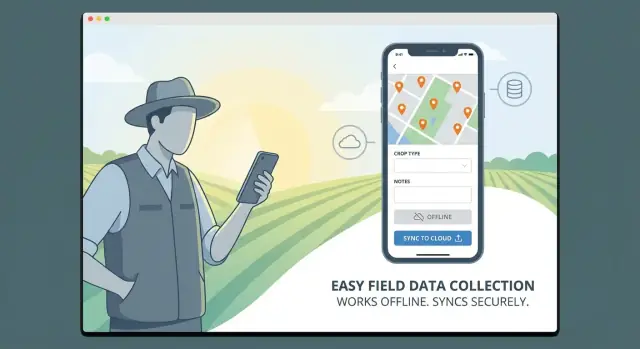
Start With Clear Survey and Business Goals
A mobile field survey app isn’t “just a form on a phone.” It’s an end-to-end workflow that helps real people collect evidence, make decisions, and close loops with the office. Before wireframes or feature lists, get clear on what success looks like and who the app is for.
Define your primary users
Start by naming the field roles you’re designing around: inspectors, researchers, technicians, auditors, enumerators, or contractors. Each group works differently.
Inspectors may need strict compliance checks and photo proof. Researchers may need flexible notes and sampling. Technicians may need quick issue logging tied to assets. When you’re specific about the user, the rest of the product decisions (form length, media capture, approvals, offline needs) become much easier.
List the decisions the data will support
Document what happens after data is collected. Is it used for compliance reports, maintenance prioritization, billing, risk scoring, or regulatory audits? If the data doesn’t drive a decision, it often becomes “nice to have” noise.
A useful exercise: write 3–5 example decisions (“Approve this site,” “Schedule a repair within 48 hours,” “Flag non-compliance”) and note what fields must be present for each.
Choose survey types and cadence
Decide whether you need one-time surveys (e.g., initial assessments), recurring visits (monthly inspections), audits, or checklist-style tasks. Recurring and audit workflows usually require timestamps, signatures, and traceability, while checklists emphasize speed and consistency.
Set measurable success metrics
Pick metrics you can validate early: average completion time, error rate (missing/invalid fields), sync reliability (successful uploads), and rework rate (surveys returned for fixes). These metrics keep your MVP focused and prevent feature creep later.
Understand Field Constraints and User Needs
Before you sketch screens or pick a database, get specific about what the field actually feels like. A survey app that works perfectly in the office can fail quickly when someone is standing in mud, on a roadside, or inside a warehouse.
Profile real field conditions
Start by shadowing a few fieldworkers or running short interviews. Document constraints that directly affect the UI and workflows:
- Connectivity: frequent dead zones, intermittent signal, or expensive roaming. Assume offline work is normal, not an exception.
- Environment: rain, dust, heat/cold, and gloves that make precise tapping difficult.
- Visibility: low light, direct sun glare, and quick “one-hand” moments.
- Shift length: long days where battery, fatigue, and speed matter more than “perfect” data entry.
These details should translate into requirements like larger tap targets, autosave, fewer steps per record, and clear progress indicators.
Identify required device capabilities
List what the app must use on typical phones/tablets:
- GPS for location capture (and accuracy/timeout expectations)
- Camera for photo evidence (and minimum quality)
- Barcode/QR or NFC for fast asset identification
- Bluetooth for external sensors (scales, meters, diagnostic tools)
Confirm what devices teams already carry and what’s realistic to standardize.
Estimate data volume and attachments
Quantify usage: records per worker per day, peak days, and average attachments per record (photos, audio, documents). This drives offline storage needs, upload time, and how aggressive compression should be.
Clarify data ownership and retention
Decide who owns collected data (client, agency, subcontractor), how long it must be retained, and whether deletion must be auditable. These answers shape permissions, export needs, and long-term storage costs.
Design Your Survey Forms and Data Model
Good field data starts with good form design—and a data model that won’t break when requirements evolve. Treat these as one problem: every question type you add should map cleanly to how you store, validate, and report the answer later.
Pick question types that match real-world answers
Start with a small, consistent set of inputs that cover most surveys:
- Text for names, notes, and IDs (with length limits).
- Numbers for counts, measurements, and prices (with units and decimals defined).
- Single select / multi select for standardized options (avoid free text when you need reporting).
- Ratings (e.g., 1–5) for audits and qualitative scoring.
Keep options stable by assigning each choice an internal ID, not just a label—labels change, IDs shouldn’t.
Plan conditional logic without turning the form into spaghetti
Field teams move fast. Conditional logic helps them see only what’s relevant:
- Show/hide follow-up questions based on a prior answer (e.g., “If damaged = yes, ask for damage type”).
- Required fields that change by context (e.g., make “reason” required only when a task is skipped).
Model logic as simple rules (conditions + actions). Store rule definitions with the form version so older submissions remain interpretable.
Add validation rules where mistakes happen most
Validation should prevent common errors while staying practical offline:
- Ranges (temperature must be 0–60).
- Formats (phone, email, asset IDs with regex).
- Duplicate checks (warn if the same site ID was submitted today).
Use clear, human error messages (“Enter a value between 0 and 60”) and decide what is a hard block vs. a warning.
Design a flexible data model for reporting and change
A reliable approach is: Form → Sections → Questions → Responses, plus metadata (user, timestamp, location, version). Prefer storing responses as typed values (number/date/string) rather than only as text.
Version your forms. When a question changes, create a new version so analytics can compare apples to apples.
Build reusable templates for teams and regions
Create templates for common survey patterns (site inspection, customer visit, inventory check). Allow controlled customization—like region-specific options—without forking everything. Templates reduce build time and keep results consistent across teams.
Create a Field-Friendly UX for Mobile
Field teams work in bright sun, rain, gloves, and noisy streets—often with one hand free and weak signal. Your UX should reduce effort, prevent mistakes, and make progress obvious.
Offline-first, with confidence
Design the app so data entry never depends on a connection. Let people complete a full survey offline, attach photos, and move on.
Make sync status unmissable: a simple indicator like Not synced / Syncing / Synced / Needs attention at the record level and a small global status in the header. Fieldworkers shouldn’t have to guess whether their work is safely uploaded.
Fast input: big targets, less typing
Use large touch targets, clear spacing, and high-contrast labels. Keep typing to a minimum by leaning on:
- Pickers, toggles, and radio buttons instead of free text
- Smart defaults (last used value, common options preselected)
- Auto-fill where possible (date/time, team, project)
When text is required, offer short suggestions and input masks (e.g., phone numbers) to reduce formatting errors.
Drafts, resume later, and quick navigation
Support Save as draft at any time, including mid-question. Fieldwork gets interrupted—calls, gates, weather—so “resume later” must be reliable.
Navigation should be predictable: a simple section list, a “Next incomplete” button, and a review screen that jumps directly to missing or invalid answers.
Validation that helps, not scolds
Show errors inline and explain how to fix them: “Photo is required for this site type” or “Value must be between 0 and 100.” Avoid vague messages like “Invalid input.” When possible, prevent errors earlier with constrained choices and clear examples under the field.
Add Location and Mapping Features
Location is often the difference between “we collected data” and “we can prove where and when it was collected.” A well-designed location layer also reduces back-and-forth with field teams by making assignments and coverage visible on a map.
Capture GPS (and be honest about accuracy)
When a survey starts, record GPS coordinates along with an accuracy value (e.g., in meters). Accuracy matters as much as the pin itself: a point captured at ±5 m is very different from ±80 m.
Allow a manual adjustment when needed—urban canyons, dense forests, and indoor work can confuse GPS. If you allow edits, log both the original reading and the adjusted value, plus a reason (optional), so reviewers understand what happened.
Use maps to guide work, not just display pins
Maps are most valuable when they answer “what should I do next?” Consider map views for:
- Assignment areas (polygons/wards/blocks) to prevent duplicate coverage
- Routes to optimize travel between sites
- Nearby tasks so fieldworkers can pick the closest next stop
If your workflow includes quotas or zones, add simple filters (unvisited, due today, high priority) rather than complex GIS controls.
Add geofencing and location requirements selectively
Geofencing can block submissions outside an approved boundary or prompt a warning (“You’re 300 m outside the assigned area”). Use it where it protects data quality, but avoid strict blocking if GPS is unreliable in your region—warnings plus supervisor review may work better.
Log timestamps and user IDs for traceability
Record key timestamps (opened, saved, submitted, synced) and the user ID/device ID for each event. This audit trail supports compliance, resolves disputes, and improves QA without adding extra steps for the fieldworker.
Support Media Capture and Device Integrations
Field surveys often need proof: a photo of a damaged pole, a short video of a leak, or an audio note from a resident interview. If your app treats media as an afterthought, fieldworkers will fall back to personal camera apps and send files over chat—creating gaps and privacy risks.
Photo, video, and audio—built into the form
Make media capture a first-class question type, so attachments are automatically tied to the right record (and the right question).
Allow optional annotations that help reviewers later: captions, issue tags, or simple markup (arrows/circles) on images. Keep it lightweight—one tap to capture, one tap to accept, then move on.
Barcode/QR scanning for faster, cleaner IDs
For asset surveys, barcode/QR scanning reduces typing errors and speeds up repetitive work. Use scanning as an input method for fields like Asset ID, Inventory code, or Meter number, and show immediate validation feedback (e.g., “ID not found” or “Already surveyed today”).
When scanning fails (dirty label, low light), provide a quick fallback: manual entry plus a “photo of label” option.
Compression and resizing to cut upload time and cost
Media can overwhelm mobile data plans and slow down sync. Apply sensible defaults:
- Resize photos for typical review needs (e.g., 1600–2048px on the long edge)
- Use modern codecs when available (HEIC/HEVC or efficient JPEG settings)
- Compress video aggressively unless the project truly needs high resolution
Always preview the final file size before upload so users understand what will sync.
Attachment limits and offline storage rules
Define clear limits per question and per submission (count and total MB). When offline, store attachments locally with rules like:
- Warn when device storage is low
- Queue uploads and allow “sync over Wi‑Fi only”
- Auto-purge local copies after successful upload (or keep for X days)
This keeps the app reliable in the field while preventing surprise storage and data bills.
Plan Data Sync, Storage, and Conflict Handling
Field survey apps live or die by what happens when connectivity is unreliable. Your goal is simple: a fieldworker should never worry about losing work, and a supervisor should be able to trust what’s in the system.
Define how syncing works (and make it predictable)
Decide whether sync is manual (a clear “Sync now” button) or automatic (quietly syncing in the background). Many teams use a hybrid: autosync when a connection is decent, plus a manual control for peace of mind.
Also plan background retries. If an upload fails, the app should queue it and retry later without forcing the user to re-enter anything. Show a small status indicator (“3 items pending”) instead of interrupting the workflow.
Local storage first, server second
Assume the device is the primary workspace. Save every form and edit locally immediately, even if the user is online. This offline-first approach prevents data loss from brief signal drops and makes the app feel faster.
Conflict handling: choose rules you can explain
Conflicts happen when the same record is edited on two devices, or a supervisor updates a case while a fieldworker is offline. Pick a strategy that matches your operations:
- Last-write wins for simple, low-risk data
- Merge rules (e.g., keep the newest answer per field) for structured forms
- Review queue when accuracy matters, so someone can choose which version is correct
Document the rule in plain language and keep an audit trail so changes are traceable.
Media uploads: incremental and resumable
Photos, audio, and videos are where syncing breaks down. Use incremental uploads (send smaller chunks) and resumable transfers so a 30MB video doesn’t fail at 95% and start over. Let users keep working while media uploads in the background.
Admin visibility: monitor failures before users complain
Provide admin tools to spot trouble early: dashboards or reports that show sync failures, last successful sync per device, storage pressure, and app version. A simple “device health” view can save hours of support time and protect your data quality.
Build in Security, Privacy, and Permissions
Field survey apps often handle sensitive information (locations, photos, respondent details, operational notes). Security and privacy aren’t “nice to have” features—if people don’t trust the app, they won’t use it, and you may create compliance risks.
Define roles and enforce least privilege
Start with role-based access control (RBAC) and keep it simple:
- Field user: can create and edit their own submissions (and maybe view only their assigned sites).
- Supervisor: can review, approve/reject, reassign work, and see team progress.
- Admin: manages form templates, users, permissions, and exports.
Design permissions around real workflows: who can edit after submission, who can delete records, and who can see personally identifiable information (PII). A useful pattern is to let supervisors see operational fields (status, GPS, timestamps) while restricting respondent details unless necessary.
Protect data on the device and in transit
Fieldwork often happens offline, so your app will store data locally. Treat the phone as a potentially lost device.
- Encryption in transit: use TLS for all API calls.
- Secure local storage: store tokens and sensitive fields using platform-secure storage (Keychain/Keystore) and encrypt the local database when possible.
Also consider safeguards like automatic logout, biometric/PIN unlock for the app, and the ability to revoke sessions or wipe local data when a device is compromised.
Choose authentication that fits the team
Your sign-in method should match how field teams actually operate:
- Email + password works for many smaller deployments.
- SSO (SAML/OIDC) fits enterprises that already manage identities centrally.
- Device-based sign-in (managed devices with MDM) can reduce friction for shared or tightly controlled hardware.
Whatever you choose, support quick account recovery and clear session handling—nothing slows fieldwork like lockouts.
Minimize personal data and capture consent
Collect only what you truly need. If you must gather PII, document why, set retention rules, and make consent explicit.
Build lightweight consent flows: a checkbox with a short explanation, a signature field when required, and metadata that records when and how consent was obtained. This keeps your surveys respectful and easier to audit later.
Choose Your Tech Stack and Architecture
Your tech stack should fit how field teams actually work: unreliable connectivity, mixed device fleets, and a need to ship updates without breaking data collection. The “best” stack is the one your team can build, maintain, and iterate on quickly.
Cross-platform vs. native mobile
If you need to support both iOS and Android, a cross-platform framework is often the fastest path to a solid MVP.
- Cross-platform (React Native / Flutter): One codebase for two platforms, faster feature parity, usually lower cost for an MVP.
- Native (Swift for iOS / Kotlin for Android): Best access to device features and OS-specific polish; can be worth it if you rely heavily on background location, advanced camera workflows, or strict performance requirements.
A practical compromise is cross-platform for most UI and logic, with small native modules only where needed (e.g., specialized Bluetooth device SDKs).
Backend options: managed, serverless, or custom
Your backend must handle user accounts, form definitions, submissions, media files, and sync.
- Managed database + auth (e.g., hosted Postgres, managed identity): Predictable, flexible, and great for reporting.
- Serverless APIs: Quick to launch and scales automatically; good when workloads spike during survey campaigns.
- Custom server: Maximum control (validation rules, sync logic, auditing), but higher engineering and ops effort.
Whichever you pick, design around an offline-first client: local storage on the device, a sync queue, and clear server-side validation.
If you want to accelerate the first working version without committing to a full traditional build right away, a vibe-coding platform like Koder.ai can help you prototype the web admin, backend APIs, and even a companion mobile app from a chat-driven spec. It’s especially useful for field survey products because you can iterate quickly on form definitions, roles/permissions, and sync behavior, then export source code when you’re ready to take the project in-house. (Koder.ai commonly ships React for web, Go + PostgreSQL for backend services, and Flutter for mobile.)
Plan integrations early
Field data rarely lives alone. Common integration targets include CRM/ERP, GIS systems, spreadsheets, and BI tools. Favor an architecture with:
- A stable API layer (REST/GraphQL)
- Webhooks or export jobs for downstream tools
- A canonical data model so integrations don’t depend on app screens
Timelines: MVP vs. full release
As a rule of thumb:
- MVP (6–10 weeks): core forms, offline capture, basic sync, minimal admin tooling.
- Full release (3–6 months): roles/permissions, richer validation, media workflows, integrations, analytics, and hardening for scale.
If your timeline is tight, keep the first release focused on reliable capture and sync—everything else can build on that foundation.
Prototype and Validate Before Full Development
Before you commit to full build-out, create a small prototype that proves the app works where it matters: in the field, on real devices, under real constraints. A good prototype isn’t a polished demo—it’s a fast way to uncover usability problems and missing requirements while changes are still cheap.
Prototype only the “make-or-break” flows
Start with 2–3 key flows that represent daily work:
- Start a survey, complete a few questions, and submit
- Save a partially completed survey offline and resume later
- Sync later when connectivity returns, and confirm the record is safely uploaded
Keep the prototype focused. You’re validating the core experience, not building every form type or feature.
If you’re moving fast, consider using a planning-first approach (user roles → workflows → data model → screens) and then generating a working skeleton quickly. For example, Koder.ai’s planning mode can help you turn those requirements into a build plan and a baseline implementation, while snapshots and rollback make it safer to iterate aggressively during prototype cycles.
Test in the environments your teams actually face
Run quick field tests with real users (not just stakeholders) and real conditions: bright sun, gloves, spotty reception, older phones, and time pressure. Ask participants to “think out loud” as they work so you can hear what’s confusing.
Measure friction, not opinions
During tests, track concrete issues:
- Too many taps to reach common questions
- Unclear labels or options that don’t match field terminology
- Slow screens, long loading, or accidental data loss
Even small delays add up when someone completes dozens of surveys per day.
Iterate on form layout and smart defaults
Use what you learn to refine question order, grouping, validation messages, and default values (e.g., auto-fill date/time, last-used site, or common answers). Tightening the form design early prevents expensive rework later and sets you up for a smoother MVP build. If you’re defining scope, also see /blog/mobile-app-mvp for prioritization ideas.
Test in Real Conditions and Prepare for Release
Testing a mobile field survey app at a desk is rarely enough. Before release, you want proof that forms, GPS, and sync behave the same way in basements, rural roads, and busy job sites.
Stress-test real connectivity (and no connectivity)
Run structured offline scenarios: create surveys in airplane mode, in areas with one bar of signal, and during network handoffs (Wi‑Fi → LTE). Verify that users can still search lists, save drafts, and submit queues without losing work.
Pay special attention to “edge timing” issues: a form saved at 11:58 PM local time, then synced after midnight; or a device that changes time zones mid-trip. Confirm that timestamps remain consistent in the backend and reports.
Validate GPS, permissions, and device quirks
Test GPS accuracy across device types and environments (urban canyons, indoors near windows, open field). Decide what “good enough” means (e.g., warn under 30m accuracy) and verify those prompts.
Also test permission flows from a clean install: location, camera, storage, Bluetooth integrations, and background sync. A surprising number of failures happen when a user taps “Don’t Allow” once.
Automate what you can (especially form logic)
Automate regression tests for skip logic, calculations, required fields, and validation rules. Each new form update can break old assumptions—automated checks keep releases safe.
Create a release checklist
Use a simple checklist so nothing is missed:
- App store/MDM metadata, versioning, and release notes
- Crash reporting and analytics enabled
- Offline queue and sync retry verified
- Data export/reporting smoke tests
- Supported device fleet tested (OS versions, screen sizes)
- Rollback plan and support playbook
Launch, Train Teams, and Improve With Analytics
A field survey app only delivers value when teams actually use it correctly, consistently, and comfortably. Treat launch as an operational project—not just a button you press in the app store.
Make onboarding effortless for busy field teams
Aim for “learn in 10 minutes, master in a day.” Build onboarding into the app so people don’t need to hunt for instructions.
Include:
- In-app tips that appear the first time someone opens a form (and can be revisited later).
- Short training flows (2–3 screens) that explain the essentials: picking an assignment, completing a survey, capturing GPS/media, and syncing.
- Printable one-page guides for supervisors to hand out or post in a vehicle/office—especially helpful when connectivity is limited.
Roll out in phases, not all at once
Start with a pilot team that represents real working conditions (different regions, devices, and skill levels). Keep a tight feedback loop:
- Collect issues daily for the first week (confusing questions, missing answer options, slow screens).
- Fix the biggest blockers quickly, then expand to the next group.
A phased rollout reduces risk and builds internal champions who can help train others.
Give managers reporting that helps them act
Field data collection isn’t complete until it can be reviewed and used. Provide simple reporting options:
- Dashboards for completion rates, overdue assignments, and data quality flags.
- Exports like CSV for spreadsheets and a basic API for connecting to other tools.
Keep reporting focused on decisions: what’s done, what needs attention, and what looks suspicious.
Measure outcomes and continuously refine
Use analytics to spot friction points and improve:
- Where do users abandon a form?
- Which questions trigger lots of edits or validation errors?
- How long does a typical survey take by region/team?
Turn those insights into practical changes: shorten forms, clarify wording, tweak validation rules, adjust workflows, and rebalance assignments so teams stay productive and data stays trustworthy.
FAQ
What should I define before designing a mobile field survey app?
Start by defining primary users (inspectors, technicians, enumerators, etc.) and the decisions the data must support (e.g., approve a site, schedule a repair, flag non-compliance). Then choose the survey cadence (one-time vs recurring vs audits) and set measurable metrics like completion time, error rate, sync reliability, and rework rate—so your MVP doesn’t drift.
What field conditions most often break survey apps in real-world use?
Assume offline is normal. Design for:
- Intermittent connectivity (dead zones, roaming costs)
- Harsh environments (rain, dust, gloves)
- Poor visibility (glare, low light)
- Long shifts (battery, fatigue, speed)
These constraints translate into requirements like autosave, fewer steps per record, large tap targets, and clear progress/sync indicators.
Which question types work best for mobile field surveys?
Prioritize inputs that are fast and reportable:
- Text with length limits
- Numbers with units and defined decimals
- Single/multi-select for standardized reporting
- Ratings for audits
Use stable internal IDs for options (labels can change), and keep question types consistent so validation and analytics stay reliable over time.
How do I add skip logic without creating an unmaintainable form?
Use conditional logic to show only what’s relevant (e.g., “If damaged = yes, ask damage type”). Keep it manageable by modeling logic as simple rules (conditions → actions) and storing those rule definitions with the form version so older submissions remain interpretable even after the form evolves.
What validation rules should a field survey app include?
Focus validation where mistakes are common:
- Ranges (e.g., 0–60)
- Formats (regex for IDs, phones)
- Duplicate warnings (same site submitted today)
Use clear, actionable messages and decide what’s a hard block vs a warning, especially for offline situations where lookup data may be unavailable.
How should offline mode and syncing work in a field data collection app?
Use an offline-first approach:
- Save every edit locally immediately
- Allow full completion offline, including attachments
- Show record-level sync states like Not synced / Syncing / Synced / Needs attention
- Provide background retries and (optionally) a manual Sync now button
The goal is that fieldworkers never wonder whether their work is safe.
What’s the right way to capture GPS and timestamps for traceability?
Capture GPS with an accuracy value (meters) and log key timestamps (opened/saved/submitted/synced) plus user/device IDs for traceability. Allow manual location adjustment when GPS is unreliable, but log both the original and adjusted coordinates (and optionally a reason) so reviewers can trust what happened.
How do I handle photos/videos without killing sync performance or data plans?
Make media a first-class part of the form:
- Attach capture directly to a question so files are tied to the right record
- Set practical defaults (resize/compress photos and video)
- Use resumable/incremental uploads for large files
- Define limits (count/MB) and offline storage rules (Wi‑Fi only sync, low storage warnings, auto-purge after upload)
This prevents teams from using personal camera apps and sharing files outside the system.
How should I handle conflicts when the same record is edited offline on multiple devices?
Pick a conflict strategy you can explain:
- Last-write wins for low-risk records
- Per-field merge rules for structured forms
- Review queue when accuracy matters
Always keep an audit trail of changes so supervisors can see what changed, when, and by whom.
What tech stack and architecture should I choose for a mobile field survey app?
Choose based on device needs and team capacity:
- Cross-platform (React Native/Flutter): faster MVP with iOS + Android parity
- Native (Swift/Kotlin): better for advanced camera, background location, or specialized performance
Backends can be managed (hosted Postgres + managed auth), serverless (campaign spikes), or custom (maximum control). Whatever you choose, design around an offline-first client, a sync queue, and a stable API for integrations (CRM/ERP, GIS, BI, exports).