

How to Create a Mobile App for Parent–Teacher Updates
Learn how to plan, design, and build a parent–teacher update app with secure messaging, announcements, calendars, and privacy-first workflows.
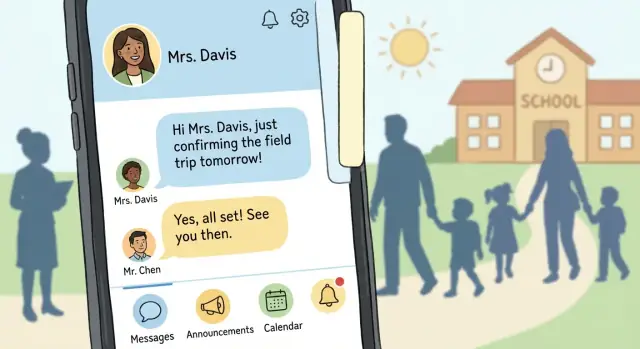
What a Parent–Teacher Updates App Should Solve
A parent–teacher updates app isn’t just “messaging on a phone.” Its real job is to deliver timely, relevant information to the right people—without creating a constant stream of interruptions.
The goal: clarity without noise
Schools already send updates through paper notes, email, and multiple apps. The app should reduce the “where did that message go?” problem while also preventing notification fatigue.
Good outcomes look like:
- Parents reliably see time-sensitive notices (e.g., early dismissal, schedule changes).
- Teachers share updates in seconds, not minutes.
- Everyone can find past messages later without digging through inboxes.
Who it’s for (and what each needs)
At a minimum, design for three groups:
- Teachers: quick posting, templates, scheduled messages, and confidence that the right families receive updates.
- Parents/guardians: simple, readable updates, translation support if needed, and easy ways to acknowledge or respond.
- School admins: oversight, policy controls, and tools for school-wide announcements.
The typical updates you must handle
Most schools need a consistent structure for:
Homework and classroom announcements, behavior notes (sensitive), attendance/absences, reminders (forms, fees), event notices, and calendar changes.
Define success metrics early
Before building features, agree on how you’ll measure “working,” such as:
- Read rate for critical messages
- Average response time when replies are required
- Reduction in missed notices (tracked via fewer follow-ups)
Scope: first release vs later phases
For an MVP, focus on dependable delivery: announcements, one-to-one messaging, attachments, and basic acknowledgements.
Save advanced items (analytics dashboards, integrations, automation) for later phases once real usage shows what families and staff actually need.
Know Your Users and Their Daily Workflow
A parent–teacher updates app succeeds or fails based on whether it fits into real school days—not ideal ones. Before you choose features, get clear on what people are doing while they communicate: supervising kids, moving between classrooms, commuting, working shifts, or translating messages for family members.
Start with the pain in current tools
Look for recurring friction in what schools already use:
- Email chains that bury the latest instruction (and create “reply-all” confusion)
- Paper notes that never make it out of backpacks
- Group chats that blur boundaries, mix topics, and flood notifications
- Multiple apps for calendars, grades, and announcements that don’t agree
Capture specific examples (screenshots with names removed, anonymized stories, “this happened on Thursday after dismissal…”). Concrete incidents will guide better design than opinions.
Interview a small, balanced set
Aim for 5–10 teachers and 5–10 parents to start. Keep questions grounded:
- “Walk me through the last time you sent/received an update.”
- “What made it hard to respond quickly?”
- “Which updates are urgent vs. informational?”
Include edge cases: substitute teachers, divorced co-parents, families with limited connectivity, and parents who rely on translated messages.
Map the moments that matter
Plot communication needs by time and context:
- Morning drop-off (last-minute changes)
- After school (pickup coordination, incidents)
- Evenings (homework clarity)
- Weekends (events, reminders)
This helps you define notification rules and expected response times.
Turn insights into requirements
Document accessibility needs early: languages, readability, large tap targets, and simple navigation. Then separate must-have requirements (e.g., reliable delivery, translations, quiet hours) from nice-to-have requests (e.g., themes, stickers). This becomes your foundation for scoping an MVP without losing what users actually need.
Core Features to Prioritize
An updates app succeeds when it reduces back-and-forth and makes it easy for families to stay informed without creating extra work for staff. Start with a small set of features that cover the most common communication moments, then add complexity only after schools are using it.
Secure 1:1 messaging (teacher ↔ parent/guardian)
Private messaging is the heart of a parent teacher communication app, but it needs guardrails. Keep the experience simple: a single thread per student/teacher pairing (or per class) so people don’t lose context.
Support essentials like attachments (PDFs, images), translated message previews if your audience needs it, and clear delivery status (sent/delivered). Avoid “chatty” expectations by setting norms in the UI—e.g., office hours or an auto-reply option for teachers.
Class and school announcements (optionally with read receipts)
Announcements reduce repeated questions and ensure everyone sees the same information. Treat these as one-to-many posts with a clean, scannable format: title, short body, key dates, and optional attachment.
Read receipts can help for critical notices, but they can also increase pressure on families and staff. Make them optional per post (or per school policy) and consider a softer metric like “viewed” rather than “read.”
A calendar families will actually use
A built-in calendar should answer: “What’s happening, and when?” Include events like parent nights, early dismissals, deadlines, field trips, and conferences.
Keep it frictionless: one tap to add to the device calendar, clear time zones, and reminders that respect quiet hours. If you already have a school calendar feed, prioritize syncing rather than asking staff to duplicate entries.
Student-specific updates (only what’s appropriate)
Families want timely, student-specific information—progress notes, behavior, attendance, and quick check-ins. Schools vary widely on what can be shared and how, so design these updates as structured templates (not free-form) and make each category configurable.
For example, a “progress note” could be a short text plus tags (Needs practice/Improving/Great work) to keep messages consistent and reduce misunderstandings.
Search and message history for fast context
When a parent asks, “What did we decide last time?” the app should answer in seconds. Add global search across messages and announcements, filters by student/class/date, and a reliable history that doesn’t disappear when devices change.
This is also where trust is built: consistent threading, easy access to past attachments, and clear timestamps make the app feel dependable—especially during busy weeks.
User Roles, Accounts, and Permissions
Getting roles and permissions right is what prevents awkward (and sometimes serious) mistakes—like a message meant for one class going to every family in the grade.
Define roles around real school responsibilities
Most parent–teacher updates apps need three primary roles:
- Parent/guardian: reads updates, receives notifications, can message staff where allowed.
- Teacher/staff: posts classroom announcements, sends student-specific notes, manages class rosters within limits.
- Admin: controls school-wide settings, verifies users, imports rosters, and audits access.
If you anticipate counselors, coaches, or substitute teachers, model them as staff with scoped permissions rather than inventing new “special” roles.
Visibility rules: classroom vs. student-level
Build two clear communication channels:
- Classroom-level: announcements, homework reminders, schedule changes. Audience should be the guardians linked to students in that class.
- Student-level: attendance notes, behavior or progress updates, sensitive reminders. Audience should be guardians linked to that specific student only.
Design the UI so the sender can’t accidentally pick the wrong audience. For example, require a visible “You are messaging: Class 3B” or “You are messaging: Student: Maya K.” confirmation before sending.
Verification and onboarding that schools can trust
Common verification options include invite codes, school-managed roster imports (SIS/CSV), or admin approval. Many schools prefer a roster import plus admin approval for exceptions, so access matches official records.
Relationships: multiple guardians and multiple classes
Support multiple guardians per student (shared custody, grandparents) and multiple classes per teacher. Model these as flexible links (Guardian ↔ Student, Teacher ↔ Class) so permissions update automatically when rosters change.
Account recovery without lockouts
Make device changes painless: phone/email verification, backup codes, and an admin-assisted recovery path. Recovery should preserve access history and role rules—never “reset” a user into broader permissions by accident.
Messaging and Notification Design That Works
Messaging is where parent–teacher updates succeed or fail. If notifications feel noisy or unclear, parents mute the app—and important information gets missed. A good design treats every message as a decision: who needs it, how fast, and in what format.
Separate urgent alerts from routine reminders
Not every update deserves a lock-screen interruption. Build at least two notification types:
- Urgent alerts (school closure, safety issues, last-minute schedule change): push notification by default, marked clearly as “Urgent,” and optionally followed by SMS/email depending on school policy.
- Routine reminders (tomorrow’s field trip, permission slips, weekly homework): delivered as standard push (or in-app inbox only), grouped when possible.
This simple split helps families understand what requires action now versus later.
Quiet hours and frequency controls
Parents and teachers have different schedules. Offer quiet hours (e.g., 9pm–7am) and frequency controls:
- Daily or weekly digests for non-urgent items
- Per-class or per-student subscription toggles
- “Mute for 1 week” for chatty channels
For teachers, add safeguards like “Send tomorrow morning” and a preview showing how many families will be notified.
Templates that save teachers time
Teachers send the same messages repeatedly: reminders, supplies, dismissal changes, missing work. Provide templates with editable fields:
- Quick-pick categories (Homework, Schedule, Behavior, Announcement)
- Pre-filled subject lines and suggested phrasing
- Buttons for common actions (RSVP, Sign permission slip, Add to calendar)
Templates reduce typing on mobile and keep messaging consistent across classes.
Translation support without confusion
Plan translation early. Options include:
- Built-in translation for speed (with a “Translated” label and original text available)
- Manual translations for high-stakes messages (teacher writes in two languages)
- External workflow for districts using interpreters (draft → review → send)
Make the choice visible in the composer so teachers know what families will receive.
Offline-friendly viewing
Parents often check updates in transit or during busy pickup times. Cache recent messages and announcements so the inbox remains readable offline, and clearly show what’s new once connectivity returns.
UX and UI Patterns for Busy Parents and Teachers
A parent–teacher communication app succeeds when it respects attention and time. Most users will open it for 20–60 seconds: to check what’s new today, reply to a message, or confirm an event. Design for quick wins, not exploration.
Keep the home screen predictable
A simple home screen reduces cognitive load and support requests. A practical structure is:
- Today: a short feed of what needs attention (unread messages, today’s events, urgent announcements)
- Messages: conversations grouped by class or child
- Announcements: one-to-many posts from school/class
- Calendar: events with clear start/end times and location/notes
Avoid hiding essentials behind menus. If “Today” shows everything important at a glance, users won’t have to hunt.
Make actions obvious (and hard to mess up)
Busy teachers should never wonder where to tap to send a classroom update, and parents should always see how to respond.
Use clear primary actions such as “Send update”, “Reply”, and “Add event”. Place them consistently (e.g., a primary button at the bottom of key screens). When an action is sensitive—like messaging an entire class—add a short confirmation step that shows who will receive it.
Use plain language labels
Prefer words over clever icons. “Announcements” is clearer than a megaphone icon alone. “Absence note” is clearer than “Attendance request.” If you must use icons, pair them with labels.
Also keep message metadata understandable: “Delivered,” “Read,” and “Needs reply” are more helpful than technical states.
Accessibility that helps everyone
Accessibility features aren’t only for edge cases; they make the app easier for tired, distracted users.
Check for:
- Font scaling without broken layouts
- High contrast for outdoor use and older devices
- Screen reader support (logical reading order, labeled buttons)
- Large tap targets for one-handed use
Prototype key flows before building
Prototype 2–3 critical flows and test with real parents and teachers:
- Reading and acknowledging an announcement
- Sending a student update (teacher) and replying (parent)
- Adding a calendar event and getting notified
You’ll quickly learn what labels confuse people, where they hesitate, and which screens can be simplified—before any engineering time is spent.
Privacy, Safety, and Data Handling Basics
A parent–teacher updates app handles information families care about deeply. The safest approach is to design for “minimum necessary data” from day one, then make your choices visible to users.
Collect only what you truly need
Start with a short list of required data: parent/guardian names, a way to link each account to a class (or student), contact info for sign-in and alerts, and the message content itself. Everything else should be optional and justified.
Keep student details out of push notifications whenever possible. A lock-screen preview that says “New message from Ms. Rivera” is safer than “Jordan missed math homework again.” Let users choose whether previews show full text.
Be clear about data use—inside the app
Don’t hide privacy information in legal pages only. Add a simple “Why we ask this” line near sensitive fields, and offer in-app controls such as:
- notification preview settings
- contact visibility (e.g., whether other parents can see a phone/email)
- the ability to export or delete personal data (when policy allows)
Define retention and deletion (including attachments)
Create retention rules for messages, photos, and files. Decide what “delete” means: removed from the device only, removed from the server, removed from backups after a set period, and whether teachers can delete messages for everyone or only themselves.
Admin tools that prevent surprises
Schools need control and accountability. Plan admin features early:
- audit logs (who accessed what and when)
- quick access changes when a student changes classes
- account removal for staff departures or family requests
These basics reduce risk, build trust, and make future compliance requirements much easier to meet.
Choosing the Right Build Approach and Architecture
Your build approach affects everything: how quickly you can launch, how “native” the experience feels, and how much effort it takes to maintain over time.
Pick your approach
Native (iOS + Android separately) is best when you need top-tier performance, deep device access (camera, push notifications, background tasks), and platform-perfect UI.
Cross-platform (Flutter/React Native) is often the sweet spot for school apps: one shared codebase, fast iteration, and good access to device features.
Responsive web app (PWA) can work for pilots or small schools. It’s easiest to deploy and update, but can be weaker on push notifications, offline use, and some device capabilities.
Trade-offs to weigh
- Cost & speed: PWA is usually fastest/cheapest; cross-platform is next; native is the highest investment.
- Device features: Native wins, cross-platform is close, PWA varies by browser.
- Maintenance: One codebase (cross-platform/PWA) is simpler; two native apps require more coordination.
Decide integrations early
Avoid rework by confirming the “source of truth” up front:
- Roster/SIS sync (students, guardians, classes, staff)
- Calendar (school events, class schedules)
- Email/SMS fallback for critical messages when push isn’t available
Plan for scale: one school to district-wide
Design for multiple schools from day one: tenant-aware data, role-based access, and audit logs. Even if you start with a single campus, this keeps expansion predictable.
A realistic timeline (MVP to v2)
- Weeks 1–2: requirements, data model, integration decisions
- Weeks 3–6: MVP build (messaging, announcements, basic notifications)
- Weeks 7–8: testing, pilot launch, support workflow
- v2 (next 4–8 weeks): richer permissions, templates, calendar sync, improved analytics (see /blog/mvp-planning-and-feature-scoping)
A faster path to a working pilot (without cutting corners)
If your biggest risk is speed-to-pilot, consider a build workflow that produces a real, deployable app early, then iterates with school feedback. For example, Koder.ai is a vibe-coding platform where you can describe screens, roles, and message flows in chat, then generate a working React web app (and backend services) quickly—useful for prototypes, internal demos, and MVPs. Features like planning mode, snapshots, and rollback also help when you’re testing permission rules and notification logic and need safe iteration.
MVP Planning and Feature Scoping
An MVP (minimum viable product) for a parent–teacher updates app isn’t “the smallest app you can ship.” It’s the smallest set of features that makes communication noticeably easier for a real class, starting next week.
Pick 3–5 features that prove the value
For a first pilot, prioritize features that support the core loop: teacher sends an update → parents see it quickly → parents can respond or acknowledge.
A strong MVP set usually looks like:
- Class announcements feed (text + simple attachments)
- Targeted notifications (push + optional email)
- Two-way messaging (teacher ↔ parent, with clear boundaries)
- Basic class roster and invites (admin or teacher-driven)
- Simple calendar items (optional if it’s central to your pilot)
Anything that adds complexity—multi-language automation, advanced analytics, complex scheduling—can wait until the pilot proves the fundamentals.
Write user stories and “done” criteria
Create a short list of user stories that match real tasks:
- Teacher posts an announcement to one class, schedules it, and attaches a PDF.
- Parent replies to an announcement (or sends a message) and can see when it was delivered.
- Admin invites teachers and parents, and can revoke access when needed.
For each story, define acceptance criteria (what “done” means). Example: “When a teacher posts, all parents in that class receive a notification within 30 seconds; parents without the app receive an email; the post appears in the class feed and is searchable by keyword.”
Prototype, pilot, then cut ruthlessly
Build a clickable prototype (Figma is fine) to validate flow before building. Then run a short pilot with one class or one grade for 1–2 weeks.
Use feedback to cut, simplify, or reorder features. If teachers say “posting takes too long,” fix creation speed before adding anything new. If parents say “too many pings,” improve notification controls before expanding scope.
From Wireframes to a Build-Ready Specification
Wireframes help everyone agree on “what goes where.” A build-ready specification turns that agreement into clear instructions for design, development, and testing—so your parent teacher communication app doesn’t drift into last-minute decisions.
Draft the screen list (and what each screen must do)
Start with a tight set of screens and write a one-paragraph purpose for each:
- Onboarding: pick school, verify identity, accept policies, set notification preferences.
- Class list: show a parent’s children/classes or a teacher’s classes; quick access to recent threads.
- Message thread: 1:1 or group thread, read receipts (optional), attachments, translation (if planned).
- Announcement feed: classroom announcements app feed with filters (class, grade, school-wide) and pinned posts.
Plan the data model (high level, no database debates yet)
Document the core objects and how they connect:
- Users (role, contact info, notification settings)
- Students (linked to one or more parents/guardians)
- Classes (teacher(s), roster, term)
- Messages (thread, sender, recipients, timestamps, status)
- Events (school calendar app items: date/time, location, RSVP)
A simple diagram (even in a doc) prevents confusion about “who can message whom” later.
Content guidelines: tone, categories, and urgent alerts
Write rules people can follow. Define categories like Homework, Schedule, Behavior, Health, Admin, and Emergency. Clarify what qualifies as an urgent alert (and who can send it), plus suggested tone: short, respectful, actionable.
Attachment rules that protect everyone
Set allowed types (photos, PDFs), size limits, and whether teacher uploads need approvals. Note any restrictions around student photos and where consent is stored.
Analytics events to validate real usage
Choose a few signals for your student updates mobile app:
- message_sent, message_opened, message_replied
- announcement_viewed
Add properties (role, class id, category) so you can see what’s working without collecting unnecessary personal data.
Testing, Quality, and School-Friendly Support
A parent–teacher communication app succeeds or fails on trust. If a message goes to the wrong parent, a notification arrives hours late, or an account gets hijacked, schools won’t “work around it”—they’ll abandon it. Testing and support aren’t the last step; they’re part of what makes your school messaging app feel safe and dependable.
Test the critical flows (end-to-end)
Prioritize real-life journeys over isolated feature tests. Set up test accounts that mimic how a school actually uses a student updates mobile app, then run these flows on every build:
- Onboarding: invite, sign-up, identity verification, first login
- Switching contexts: parent switching between multiple children; teacher switching between classes
- Sending updates: classroom announcements, attachments, and secure school notifications
- Replies and read states: confirm delivery, muted threads, and “who saw what” behavior
If you can, run “day-in-the-life” tests: 10 updates sent during a school day, with parents on different devices and network conditions.
Include edge cases schools always have
Education is full of non-standard family and staffing scenarios. Build test fixtures for:
- Divorced or separated households: two guardians, different permissions, different pickup rights
- Multiple teachers per student: co-teachers, aides, specialists, after-school staff
- Substitute teachers: temporary access with automatic expiry
- Emergency messages: fast send, high priority, audit trail
These cases help validate your roles/permissions model and prevent accidental oversharing.
Accessibility + older devices (real hardware)
Run basic accessibility checks (font scaling, contrast, screen readers, tap targets) so every guardian can use the app under stress.
Also test on older phones and weak connections. A school calendar app feature that works on a flagship device but stalls on a five-year-old phone will generate support tickets instantly.
Plan support workflows before launch
Schools need clear paths for problems that involve safety and privacy in education apps:
- Reported messages: escalation rules, review tools, and response templates
- Wrong recipient: rapid containment steps and audit logs for investigation
- Account takeover: lockout, forced password reset, device/session revocation
Decide what support can do (and what only a school admin can do), and document it.
Use a simple release checklist
A lightweight checklist keeps education app development predictable:
- Smoke test critical flows
- Verify notifications across iOS/Android
- Confirm permission rules with edge-case accounts
- Review privacy changes and logging
- Update help articles and in-app “What’s new” notes
Treat every release like it’s going live to a principal’s phone—because it is.
Launch, Adoption, and Iteration
A parent–teacher updates app succeeds or fails after release based on how quickly people feel it saves time (not adds another inbox). Treat launch as a learning phase, not a finish line.
Start with a focused pilot
Pilot with one school, grade level, or a small set of classes. This keeps training manageable and makes issues easier to spot.
Track adoption weekly using simple metrics: invite acceptance rate, first-message rate, weekly active parents/teachers, and how many announcements are actually viewed. Pair numbers with short check-ins with office staff and a few teachers—often the “why” behind drop-off is a small friction (confusing login, too many notifications, unclear class setup).
Make onboarding painless
Busy users won’t read long docs. Provide:
- 60–90 second videos (one for parents, one for teachers)
- One-page quick-start guides and printable handouts for back-to-school nights
- An FAQ that answers real questions (“How do I change my language?”, “Can both guardians join?”)
If you offer a teacher/admin sandbox, keep it clearly labeled so no one sends a real message by accident.
Build feedback into the product
Add an in-app feedback entry point that’s always available but not intrusive (e.g., “Help & feedback” in the menu). Ask for lightweight input: a one-tap rating plus an optional note and screenshot. Also include a “Report a problem” option on messages/threads for quick moderation signals.
Iterate on what schools ask for next
Plan ongoing improvements based on pilot learnings—commonly: stronger moderation tools, smarter message templates, scheduling (send later), and clearer notification controls.
When you’re ready to expand beyond the pilot, set expectations for pricing, support, and rollout timelines (see /pricing), and make it easy for schools to reach your team for a structured rollout plan (/contact).
FAQ
What should a parent–teacher updates app solve first?
Start with the core loop: teacher sends an update → parents see it quickly → parents can acknowledge or reply.
A strong MVP usually includes:
- Class announcements (text + simple attachments)
- Targeted notifications (push + optional email fallback)
- Secure 1:1 messaging (with clear boundaries)
- Basic roster/invites and role-based access
- Simple acknowledgements (e.g., “Received”)
Save dashboards, automation, and deep integrations until you’ve validated real usage in a pilot.
How do you prevent notification fatigue while still delivering urgent information?
Use at least two notification tiers:
- Urgent alerts: closures, safety issues, last-minute schedule changes (push by default; consider SMS/email fallback per policy)
- Routine updates: reminders, homework, weekly notes (digest options, grouped notifications, or in-app only)
Add quiet hours, per-class/per-student toggles, and “mute for a week” controls so families don’t disable notifications entirely.
What roles and permissions are essential to avoid sending messages to the wrong people?
Model three primary roles and keep permissions scoped:
- Parents/guardians: receive updates, reply where allowed
- Teachers/staff: post to assigned classes, message guardians linked to their students
- Admins: manage rosters, settings, approvals, and audits
Separate classroom-level announcements from student-level sensitive updates, and make the selected audience extremely obvious before sending (e.g., “You are messaging: Class 3B”).
How should the app handle divorced co-parents and multiple guardians?
Plan for multiple guardians per student and multiple classes per teacher from day one.
Practically, you need:
- Flexible links (Guardian ↔ Student, Teacher ↔ Class)
- Per-guardian notification preferences
- Clear visibility rules (who can see and message whom)
This prevents brittle logic when custody situations, emergency contacts, or class assignments change mid-year.
What’s the best way to add translation support without creating confusion?
Translation works best when the UI is explicit about what families will receive.
Common approaches:
- Built-in translation (fast; label as “Translated” and show the original)
- Manual bilingual messages for high-stakes content
- Interpreter workflow (draft → review → send) for districts that require it
Also decide early where translation happens (composer vs. reader) so teachers aren’t surprised by the final output.
What UX patterns make the app usable for busy parents and teachers?
Keep the home screen focused on “what needs attention” in 20–60 seconds.
A practical structure:
- Today: unread items, urgent posts, today’s events
- Messages: threads by child/class
- Announcements: one-to-many posts with filters
- Calendar: clear events with reminders
Use plain labels, large tap targets, and predictable placement for primary actions like Send update and Reply.
How should announcements differ from 1:1 messaging?
Treat announcements as scannable one-to-many posts:
- Short title + concise body
- Key dates/times highlighted
- Optional attachment (PDF/photo)
- Optional acknowledgement or “viewed” indicator
If you use read receipts, make them optional per post or policy to avoid pressure and reduce conflicts over what “read” means.
What privacy and safety practices are most important for a school messaging app?
Prioritize trust-building basics:
- Collect only what you need (identity, role, roster links, message content)
- Keep student details out of lock-screen previews by default
- Clear retention rules for messages and attachments
- Admin tools: audit logs, quick access changes, account removal
Also provide in-app controls for notification previews and data export/delete where policy allows.
How should onboarding, verification, and account recovery work?
Use verification that matches school reality:
- Roster import (SIS/CSV) + admin approval is often the most reliable
- Invite codes work for smaller pilots but can be shared accidentally
For recovery, support phone/email verification, optional backup codes, and an admin-assisted path—without ever “resetting” a user into broader permissions than they should have.
Should you build native, cross-platform, or a web app—and when do integrations matter?
Pilot first, then choose the architecture that fits your constraints:
- Cross-platform (Flutter/React Native): strong default for speed + device features
- Native: best for platform-perfect UI and deepest OS integration
- PWA: fastest to deploy, but can be weaker on push/offline
Regardless of approach, decide early on your “source of truth” integrations (rosters/SIS, calendar feeds, SMS/email fallback) to avoid expensive rework later.