

How to Create a Mobile App for Incident Reporting, Step by Step
Learn how to plan, design, and build a mobile incident reporting app: key features, offline capture, workflows, security, testing, and rollout tips.
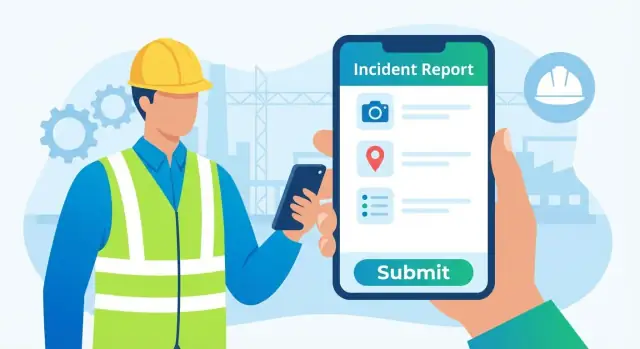
Start with Clear Goals and Users
Before you sketch screens or write requirements, get specific about what your organization means by an “incident.” Different teams use the same word to describe very different events, and that confusion shows up later as messy forms, misrouted alerts, and slow follow-up.
Define what “incident” means (and what it doesn’t)
Start with a simple definition and a few concrete examples. For instance:
- Safety: near-misses, injuries, unsafe conditions
- IT: outages, security concerns, lost devices
- Facilities: spills, broken equipment, access issues
- HR: harassment, policy violations (if appropriate for mobile intake)
Also define what is not in scope (e.g., routine maintenance requests or anonymous tips), or you’ll end up building a catch-all tool that satisfies nobody.
Identify your real users (not just “employees”)
List the roles that will touch the incident reporting app and what they need from it:
- Employees/contractors: report quickly, without fear of getting it “wrong”
- Supervisors: get notified, confirm details, take immediate action
- Safety/IT/Facilities managers: triage, track patterns, document outcomes
- Admins: manage locations, categories, permissions, and compliance needs
This is where you decide whether you need multiple reporting modes (e.g., a lightweight “quick report” and a more detailed “manager report”).
Choose success metrics you can measure
Agree on a few outcomes that matter. Common metrics include:
- Time from incident occurrence to first report
- Reduction in missing fields (location, category, severity)
- Higher follow-up completion rates (actions taken, closure notes)
Make sure each metric ties to a business goal, like reducing response time or improving audit readiness.
Decide routing and boundaries early
Clarify where reports should go: a team inbox, an on-call rotation, a safety manager, or different queues by location.
Finally, set a boundary between reporting only (capture + notify) and full case management (investigation, corrective actions, approvals). Getting this decision right prevents rework and keeps the first version focused.
Map the Incident Workflow Before You Build
A good incident reporting app is more than a digital form. It’s a guided process that moves an issue from “something happened” to “it’s handled” with clear accountability. Before you design screens, map the workflow your organization actually uses (or should use), step by step.
Start with the end-to-end flow
Write the full sequence in plain language and validate it with the people who will use it:
Report → triage → assign → investigate → resolve → close.
For each stage, note what information is needed, who acts next, and what “done” means. This prevents building an app that collects data but doesn’t support follow-up.
Define statuses and ownership
Statuses keep work moving and make reporting measurable. Keep them simple and unambiguous (for example: New, In Review, Assigned, In Progress, Waiting, Resolved, Closed).
For every status, define:
- Owner: who is responsible right now (reporter, supervisor, safety team, investigator)
- Allowed transitions: what can change it to the next status
- Required actions: what must be completed before moving on (add notes, attach evidence, select root cause)
Capture escalation rules early
Escalation is where many incident reporting apps succeed or fail. Document rules such as:
- Severity thresholds (e.g., “High” pages the on-call manager)
- Location-based routing (site A vs. site B)
- Incident type routing (injury vs. near-miss vs. security)
- After-hours handling (who gets notified and how)
This becomes the foundation for triage logic, push notifications for incidents, and service-level expectations.
Decide required fields by incident type (dynamic forms)
Not every report needs every field. Define a small set of universal questions (what/where/when) and then add required fields based on type—e.g., injury reports may require body part and treatment, while equipment damage may require asset ID and downtime estimate.
Identify integrations now (not later)
List systems the incident reporting app must talk to: email, ticketing tools, chat channels, HR or EHS systems. Early decisions here shape IDs, data formats, and who “owns” the source of truth once the app is live.
Choose the Right Data to Collect (Without Overloading)
An incident reporting app succeeds or fails on one thing: whether people can submit a complete report in under a minute, while still giving supervisors enough detail to act. The trick is to collect minimum viable facts first, then offer optional fields that improve investigation quality.
Start with a “must-have” incident report form
Design your incident report form so the first screen captures only what’s needed to start triage:
- Title (short summary)
- Description (what happened)
- Category (e.g., injury, near-miss, property damage)
- Severity (simple scale mapped to your policy)
- Date/time (default to device time)
- Location (site/area)
- People involved (optional if it slows reporting; can be “unknown”)
This keeps workplace safety reporting consistent and makes your incident management workflow easier to automate.
Capture evidence without making it mandatory
Evidence improves accuracy, but forcing it can reduce reporting. Offer one-tap options:
- Photos and videos
- Voice notes (often faster than typing in the field)
- Attachments (documents, screenshots)
If you’re building a field reporting app, prioritize fast camera access and allow “add later” so a report can be submitted safely and quickly.
Use auto-capture to reduce typing
Smart defaults make offline mobile reporting feel effortless:
- GPS location (with an option to edit)
- Device timestamp
- Reporter identity (or anonymous mode if your policy allows it)
Auto-capture reduces errors and keeps the mobile app development scope focused on speed.
Separate “now” vs. “follow-up” details
Some information is better collected after the immediate situation is stable. Put these into a follow-up step or supervisor view:
- Immediate actions taken
- Witnesses
- Hazards observed
- Corrective actions and due dates
This structure also supports push notifications for incidents when a manager needs more detail.
Give admins control—carefully
Your app should include admin features to adapt the workflow without frequent releases:
- Manage categories and a severity matrix
- Create templates for common incident types
- Add a few custom fields per site/team (with limits)
Set guardrails: too many custom fields can slow reporting, reduce data quality, and complicate app security and compliance reviews.
Design a Simple, Fast Reporting Experience
If people hesitate to report, incidents get missed (or reported late), which hurts safety, compliance, and response time. The goal is to make reporting feel as easy as sending a message—especially for frontline teams who may be busy, stressed, or wearing gloves.
Create a “quick report” that takes under a minute
Design a short path for the most common cases: “Something happened, I need to log it now.” Keep it to the essentials: incident type, location, time (default to now), and one or two lines of what happened.
Let users attach a photo immediately and submit—then offer an optional “add details” screen after submission.
A good pattern is Quick Report → Submit → Follow-up. This ensures you capture the event while it’s fresh, even if the reporter can’t complete a longer incident report form on the spot.
Use guided steps and plain-language labels
Replace internal terms with everyday words. “Injury severity classification” becomes “Was anyone hurt?” and “Environmental hazard” becomes “Spill, trip hazard, or unsafe area.”
Keep screens focused, with 1–3 questions per step, and show progress so users know it won’t take long.
When you need more detail (for compliance or investigations), use conditional questions that appear only when relevant. If the user selects “Vehicle incident,” then ask for vehicle ID; otherwise, don’t show it.
Reduce typing with smart defaults and pickers
Typing on a phone is slow. Use dropdowns, toggles, date/time pickers, and “tap to select” lists wherever you can. Helpful defaults make a big difference:
- Auto-fill reporter name and department from the user profile
- Default time to “now,” with an easy edit option
- Suggest locations based on GPS and recent sites
- Offer common descriptions as templates (e.g., “Near miss—no injury”) that users can tweak
Also consider voice-to-text for the description field, but don’t require it.
Add validation that helps, not blocks
Validation should prevent unusable reports without feeling like punishment. Examples that work well in an incident reporting app:
- Require at least one photo for certain incident types (e.g., property damage)
- Enforce a minimum description length (e.g., 20–30 characters) so “N/A” isn’t the default
- Warn if location is missing (“Add a location so the right team can respond faster”)
Use inline hints (“What did you see? What happened next?”) instead of pop-up errors.
Build in accessibility basics from day one
Many users report incidents in poor lighting, noisy sites, or while moving. Keep tap targets large, maintain strong contrast, and ensure every input has a clear label for screen readers.
Avoid relying on color alone to communicate status, and keep the primary “Submit” action obvious and reachable with one hand.
Plan for Offline Use and Reliable Sync
Incidents rarely happen next to perfect Wi‑Fi. If reporting fails in a basement, on a remote job site, or during a network outage, people stop trusting the app—and they go back to paper or texting.
Treat offline as the default
Design the app to capture a complete report even with zero connectivity. Save everything locally first (text, selections, photos, location, timestamps), then sync when possible.
A practical pattern is local queueing: every submission becomes a queued “sync job” stored on the device. The app can attempt background sync when the network returns, without forcing the user to keep the app open.
Safe sync in spotty connectivity
Connectivity can drop mid-upload, causing partial data and confusion. Build predictable rules:
- Retry policies (exponential backoff, max attempts, and a “Try again now” button)
- Clear user feedback: “Saved on device,” “Uploading…,” “Queued,” “Failed—tap to retry”
- Conflict handling for edits: if a report was updated on the device and on the server, choose a simple strategy (e.g., last edit wins) and show a prompt only when necessary
To prevent accidental double taps (or repeated retries) from creating duplicate incidents, use idempotency keys: each report gets a unique token, and the server treats repeat submissions with the same token as the same request.
Make media uploads reliable (and respectful)
Photos and videos are often the biggest source of sync pain. Keep uploads fast and transparent:
- Compress images by default
- Offer an “Upload on Wi‑Fi only” setting for large files
- Show per-file progress and allow cancel/resume
Drafts: let people finish later
Not every report can be completed in the moment. Store draft reports automatically (including attachments) so users can return later, add missing details, and submit when ready.
When offline mobile reporting works well, the app feels calm and dependable—exactly what people need during an incident.
Pick a Tech Stack and Architecture That Fits
Your tech stack should match your constraints: how quickly you need to ship, what devices your teams use, what integrations you’ll need, and who will maintain the app.
Mobile app: native vs. cross-platform
You typically have two good options:
- Native (Swift for iOS, Kotlin for Android): Best when you need top performance, deep device features, or when your organization already has separate iOS/Android teams.
- Cross-platform (one codebase): Often faster and cheaper to build and maintain. Frameworks like React Native or Flutter can still support camera, GPS, and offline storage well—key features for a field reporting app.
If your users are on mixed devices (common in field teams), cross-platform can simplify releases and reduce inconsistent behavior.
Backend: what you’ll almost always need
Even a “simple” incident reporting app usually needs a backend to store reports, route them, and support admins. Plan for:
- An API (the app talks to this for login, submitting incidents, syncing offline drafts)
- A database (incidents, users, permissions, audit history)
- Media storage for photos/videos (with resizing and retention rules)
- Notifications (push notifications and/or email) for assignment and status updates
- An admin portal so supervisors can manage categories, users, and reporting status without a developer
If you want to move faster without rebuilding your whole pipeline, a vibe-coding platform like Koder.ai can help you prototype (and often productionize) the core pieces—React-based web admin, a Go API, and a PostgreSQL data model—directly from a structured chat, then export the source code for internal ownership.
Start with a clear data model
A practical baseline data model includes:
- Incidents (type, severity, description, timestamps, status)
- Users and roles (reporter, supervisor, safety admin)
- Locations (site, building, GPS coordinates)
- Comments/updates (follow-ups, notes, attachments)
- Tasks (assignments, due dates, resolution steps)
This doesn’t lock you in—it prevents surprises later when you add triage and follow-up.
Where should admins manage forms and categories?
Decide early whether form fields, incident categories, and severity levels are managed:
- In a web console (common and easier to maintain), or
- In the app (handy for small teams, but harder to control and audit)
Document the API contract early
Before building screens, write down the request/response shapes for key actions (create incident, upload media, change status, sync offline changes). A simple API contract aligns mobile and backend work, reduces rework, and makes testing much smoother.
Build in Security, Privacy, and Access Control
Incident reports often include personal details, medical notes, photos, and precise locations. Treat app security and compliance as product features from day one—not something to “add later.” Doing so also builds trust, which directly affects reporting rates.
Authentication: choose the least-friction option that still fits your risk
Pick a sign-in method based on where and how the app will be used:
- SSO (Single Sign-On): best for larger organizations with existing identity systems.
- Email + password: familiar, but higher support burden (resets, lockouts).
- Magic links/one-time codes: quick on mobile and reduces password problems.
- Kiosk/shared-device mode: useful for factory floors or vehicles—pair with short sessions and clear “sign out” behavior.
Role-based access: give people exactly what they need
Most incident reporting apps need at least four roles:
- Reporter: submit and view their own reports (and updates, if allowed).
- Supervisor: review reports for a team/location and take immediate action.
- Investigator: access full details, attach findings, and manage follow-ups.
- Admin: configure forms, permissions, retention, and integrations.
Make permissions granular. For example, supervisors may see summary details but not medical attachments unless explicitly authorized.
Protect sensitive data: media is part of the risk
Secure both text and attachments:
- Encryption in transit and at rest (standard, but non-negotiable).
- Secure media URLs (time-limited links, access checks, no “public” buckets).
- Consider device-level protections (PIN/biometric) for high-risk environments.
Audit trail: prove what happened and when
Incidents can become HR or legal matters. Keep an immutable event history: who created the report, who edited fields, who changed status, and when. This should be readable in-app and exportable for compliance.
Privacy choices: decide up front (with legal)
Privacy rules vary. Common options include anonymous reporting, redaction tools (blur faces/plates, hide names), and retention policies (automatic deletion after a set period). Confirm these requirements with legal and safety leadership before launch.
Add Triage, Assignment, and Follow-Up Tools
A good incident reporting app doesn’t stop at “submit.” Once reports start arriving, teams need a clear way to sort, act, and close the loop—without losing track of what’s urgent.
Build a triage inbox that’s easy to scan
Create a central inbox where safety or operations leads can quickly review new and in-progress incidents. Keep filters simple and practical: location, incident type, severity, status, and date range.
A fast triage view usually includes a short summary (who/where/when), severity tag, and whether there’s supporting evidence like photos or location.
Make ownership obvious
Incidents shouldn’t sit in “someone will handle it” territory. Add assignment tools that let a supervisor:
- assign to a person or team
- set due dates for the next action (not just the final resolution)
- trigger reminders as the due date approaches
Aim for a clear “owner” field and a simple status flow (New → In Review → Actioned → Closed), so anyone can see what’s happening at a glance.
Separate internal collaboration from reporter updates
Most teams need two parallel threads:
- Internal notes for investigation details, sensitive context, and handoffs
- Reporter-visible updates like “Received,” “In progress,” and “Resolved”
This helps maintain privacy while still keeping the reporter informed, which increases trust and future reporting.
Add SLA rules and escalation for high-risk cases
Define lightweight SLA and escalation rules: if a high-severity incident is submitted, alert the right group immediately; if a due date is missed, escalate to a manager. These can be push notifications or email—whatever your team actually checks.
Make it easy to export and report
Even basic reporting goes a long way. Support CSV and PDF exports for summaries, plus a small dashboard for counts by type, location, severity, and time period. This helps teams spot recurring issues and show progress to stakeholders.
Test the App in Real Conditions
A reporting app can look perfect in a demo and still fail on the job site. Real conditions—noise, gloves, poor signal, time pressure—are where an incident reporting app proves whether it’s truly usable.
Test the hardware features people rely on
Start with device-level checks on the phones your teams actually carry. Verify camera capture (including low light), GPS accuracy, and how the app behaves when permissions are denied or changed later.
Also test background behavior: if a user takes photos and locks the screen, does the upload resume? If the app is killed by the OS, do drafts recover when reopened?
Push the “bad day” scenarios
Incident reporting often happens when devices are stressed. Run edge-case tests such as:
- Offline mode for extended periods, then reconnecting
- Low battery (including power-saving modes)
- Low storage when adding multiple photos or videos
- Interrupted uploads (switching networks, walking into dead zones)
Your goal is to ensure the field reporting app never loses a report, even if it can’t send it immediately.
Validate forms and protect data quality
Form validation should be strict enough to prevent unusable reports, but not so strict that users abandon the incident report form. Test required fields, date/time logic, and “other” text inputs.
Run data integrity checks too: confirm photos and location capture stay linked to the correct incident, and that edits don’t create duplicates when syncing.
Basic security testing you shouldn’t skip
Before any pilot, confirm access rules work as intended (who can view, edit, or export). Test file upload safety (type/size limits, malware scanning where applicable) and apply basic rate limiting to reduce abuse.
Pilot with real users and measure drop-offs
A short pilot is where you’ll spot friction you can’t predict. Watch where people hesitate, abandon drafts, or skip fields. Refine wording, defaults, and field order based on those drop-offs, then re-test before a wider rollout.
Launch, Train Users, and Improve Over Time
A successful incident reporting app launch is less about a big release day and more about building new habits. Plan for a rollout that reduces risk, supports users, and turns early feedback into steady improvements.
Roll out in phases (and learn fast)
Start with a pilot group that represents real use cases: a few sites, a mix of roles (frontline staff, supervisors, safety team), and different phone types.
Keep the pilot short (for example, 2–4 weeks) with clear goals like “increase near-miss reporting” or “reduce time-to-submit.”
After the pilot, move to a phased release—site by site or department by department—so you can fix issues before they affect everyone.
Train for speed, not theory
Training should focus on the 60-second path: open the app, pick a category, add a short description, attach photo/location if needed, and submit.
Provide a one-page quick-start guide and a short video. Make the guide accessible inside the app (for example, under Help) so users don’t have to search emails.
Separate “app support” from “incident reporting”
Users need to know where to go when the app itself has a problem (login issues, sync stuck, camera not working). Set up a dedicated support route—like a Help button that opens a support form or a link to /support.
Be explicit: app issues go to support; safety incidents go through the incident report form.
Measure adoption and report quality
Track a few simple metrics:
- Completion rate (started vs. submitted)
- Median time to submit
- Most common missing fields or validation failures
- Percentage with photos/location when appropriate
Iterate with a visible feedback loop
Adjust categories, improve wording, and revisit which fields are required based on what you learn. Close the loop by telling users what changed and why (“We shortened the description prompt to make reporting faster”). That transparency builds trust—and more reporting over time.
If your team is iterating quickly, consider tools that shorten the build–measure–learn loop. For example, Koder.ai supports snapshots and rollback, which can be useful when you’re testing workflow tweaks and want a safe way to revert after a pilot.
Helpful Enhancements to Consider Next
Once your core incident management workflow is stable, a few focused upgrades can make the app noticeably more useful—without turning it into a complicated “everything” tool.
Smarter notifications (without annoying people)
Push notifications help close the loop: reporters get status updates, supervisors get assignments, and everyone sees time-sensitive changes.
Set clear rules for what triggers a notification (e.g., “assigned to you,” “more info requested,” “resolved”), and add quiet hours so night shifts and office staff aren’t interrupted unnecessarily.
If you support multiple sites, let users choose which locations they receive alerts for.
Site-based reporting with geofencing (optional)
If incidents happen at known facilities or job sites, location geofencing can reduce errors. When a user is inside a site boundary, pre-fill the site name and show the correct form options (like local hazards or contacts).
Keep it optional: GPS can be inaccurate indoors, and some organizations prefer manual selection for privacy reasons.
Faster asset capture with barcode/QR
For equipment or vehicle incidents, barcode/QR scanning saves time and improves accuracy. A scan can pull in an asset ID, model, maintenance status, or owner department—so the report is complete even when the user doesn’t know details.
Multi-language support
If your workforce is multilingual, support the languages people actually use on the job. Prioritize translating:
- Form labels and guidance text
- Severity options and injury types
- Status updates and notification text
Link users to the right resources
Add a small “Need help?” area that links to internal forms, policies, and training—keep URLs relative so they work across environments (e.g., /blog for guidance articles or /pricing for plan details).
These enhancements are best added one at a time, measuring whether they reduce reporting time, increase completion rates, or improve follow-up speed.
FAQ
What’s the first step to building an incident reporting mobile app?
Start with a definition everyone agrees on (and what’s out of scope), then map the workflow: Report → Triage → Assign → Investigate → Resolve → Close. Build the smallest version that reliably captures minimum viable facts and routes them to the right owner.
In early versions, focus on capture + notify before expanding into full case management.
What data should an incident report form collect by default?
At minimum, collect what’s needed to start triage:
- Title and description
- Category/type
- Severity (aligned with policy)
- Date/time (default to device time)
- Location (site/area; GPS-assisted if possible)
Make everything else optional or part of follow-up so most users can submit in under a minute.
How do you make the app work reliably offline?
Treat offline as the default: save locally first, then sync later.
Implement:
- A local queue of “sync jobs”
- Drafts users can finish later
- Clear states like “Saved on device,” “Queued,” “Uploading,” “Failed—tap to retry”
- Idempotency keys to prevent duplicate incidents when retries happen
Should the app use one form for everything or different forms by incident type?
Use dynamic forms: a small set of universal fields (what/where/when) plus type-specific requirements.
Examples:
- Injury: body part, treatment, work restriction
- Equipment damage: asset ID, downtime estimate
- Security: device ID, last known location
This improves data quality without slowing down common reports.
How can you make reporting fast enough for frontline users?
Design a Quick Report → Submit → Follow-up flow.
Keep the quick path to essentials (type, location, time, 1–2 lines). Then offer an optional screen to add witnesses, hazards, corrective actions, and attachments once the immediate situation is stable.
How should the app handle photos, videos, and other evidence?
Offer one-tap capture for photos/videos, voice notes, and attachments, but avoid making evidence mandatory for all incidents.
If you require evidence for specific types (like property damage), explain why in plain language and allow “add later” when safe.
What statuses should an incident follow, and why do they matter?
Choose simple, unambiguous statuses and define ownership at each step.
A practical set:
- New → In Review → Assigned → In Progress → Waiting → Resolved → Closed
For each status, document:
- Who the owner is
- Allowed transitions
- Required actions to move forward (notes, evidence, root cause, etc.)
How do you route and escalate incidents to the right people?
Start with routing rules you can explain and test:
- Severity thresholds (e.g., High pages on-call)
- Location-based queues (site A vs site B)
- Type-based routing (injury vs security vs facilities)
- After-hours handling
Treat routing as part of the product: it drives notifications, triage load, and response time.
What roles and permissions are typical in an incident reporting app?
Most apps need at least:
- Reporter: create and see their own reports
- Supervisor: review/assign for a team or location
- Investigator: access full details and manage follow-ups
- Admin: manage forms, permissions, retention, integrations
Add an audit trail (immutable event history) and protect media with access checks and time-limited URLs.
How do you test and roll out the app without disrupting operations?
Pilot in real conditions (gloves, noise, low signal) and measure friction.
Track:
- Completion rate (started vs submitted)
- Median time to submit
- Common missing fields/validation failures
- Follow-up completion and time-to-first-response
Use a phased rollout and a clear support path (e.g., in-app Help linking to /support) so app issues don’t get confused with incidents.