

How to Build a Mobile App for Learning Session Summaries
A step-by-step guide to designing, building, and launching a mobile app that captures learning sessions and turns them into clear summaries, notes, and reviews.
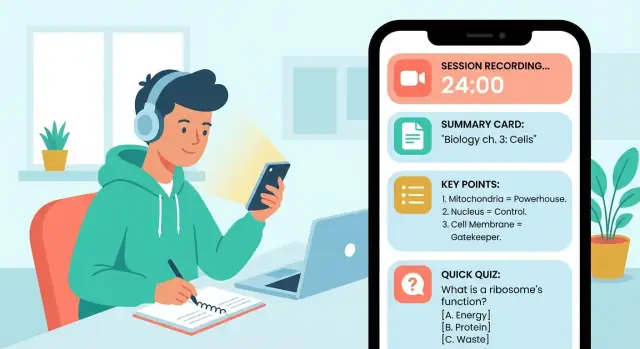
Define the Problem and the User
Before you plan screens or pick an AI model, get specific about who the app serves and what “success” looks like. A study summary app that works for a college student may fail for a sales team or a language tutor.
Who is the app for?
Pick a primary user first, then list secondary users.
- Students: want fast revision materials, flashcards from notes, and a clear view of what will be tested.
- Tutors/coaches: need shareable summaries, progress snapshots, and follow-up tasks for learners.
- Teams (training or project learning): care about action items, decisions, and searchable knowledge.
- Self-learners: prefer habit support (streaks, weekly goals) and quick “what did I learn?” recaps.
Write a one-sentence promise for your primary user, such as: “Turn any learning session into a clean summary and a 5-question quiz in under two minutes.”
What counts as a “session”?
Define the session types your first version will support:
- Lecture/class (live or recorded)
- Reading session (PDF, web article, textbook chapter)
- Practice session (problem set, coding exercise, language drills)
- Meeting-style learning (study group, training call)
Each session type produces different outputs. A meeting needs action items; a lecture needs key concepts and definitions.
Core outcomes users should get
Focus on 3–4 outputs that feel immediately useful:
- A short summary (3–6 sentences)
- Key points (bullet highlights)
- Action items / next steps (optional for students, critical for teams)
- A quick quiz to reinforce retention
Success metrics to track
Choose measurable signals tied to the app’s value:
- Time saved: “From session to usable summary in \u003c 90 seconds”
- Retention: quiz accuracy improvements or repeat quiz completion
- Weekly active users (WAU) and sessions summarized per week
- Return rate: % of users who summarize again within 7 days
If you want a simple structure for these decisions, create a one-page “User + Session + Output” doc and keep it linked from your project notes (e.g., /blog/mvp-mobile-app-planning).
Pick the Features That Matter Most
Feature lists grow fast on learning apps, especially when “summaries” can mean notes, highlights, flashcards, and more. The quickest way to stay focused is to decide what your app will accept as input, what it will produce as output, and which “learning helpers” genuinely improve retention.
Start with the right inputs
Pick 1–2 input types for your first version, based on how your target users already study.
- Audio recording works well for lectures and tutoring sessions, but it adds permissions, storage, and transcription decisions.
- Typed notes are the simplest and often enough for self-study.
- Pasted text (from articles or chat) is low-friction and great for quick summaries.
- PDFs are valuable for students, but parsing and formatting edge cases can slow you down.
A practical MVP combo: typed notes + pasted text, with audio/PDF as planned upgrades.
Decide what “summary” means
Offer clear output formats so users can pick what they need in seconds:
- Short summary (3–7 bullets) for quick recall.
- Detailed notes (structured sections) for review.
- Highlights (key terms, definitions, takeaways) for skimming.
Make these consistent across every session so the app feels predictable.
Add learning helpers—only if they close the loop
If summaries don’t lead to practice, learning fades. The most useful helpers are:
- Flashcards from notes (term → definition) with light editing.
- Spaced repetition scheduling that’s automatic, not another task.
- Quick quizzes (5 questions) to confirm understanding.
Plan sharing and export early
Users will want their work outside your app. Support a few “escape hatches”:
Copy to clipboard, export to PDF or Markdown, send via email, and optionally attach LMS links (even simple URL fields per session).
Design the User Journey (Screens and Flow)
A good study summary app feels predictable: you always know what to do next, and you can get back to your notes quickly. Start by mapping the “happy path” end-to-end, then design screens that support it without extra taps.
Map the happy path
Keep the core flow tight:
- Start session (choose a course/folder, optional goal)
- Capture (type notes, paste content, or record audio)
- Summarize (generate a short summary + key points)
- Review (read, edit, save, and optionally create flashcards)
Every screen should answer one question: “What’s the next best action?” If you need multiple actions, make one primary (large button) and the rest secondary.
Home screen: get back to learning fast
Design the home screen for return visits. Three elements usually cover 90% of needs:
- Recent sessions (most important)
- Folders/courses (to stay organized)
- Search (for when memory fails)
A simple layout works well: a “Continue” or “New session” primary button, then a scrollable list of recent items with status (Draft, Summarized, Needs review).
“Review later” flows that don’t annoy
People won’t review immediately. Build gentle re-entry:
- A Review later toggle on the summary screen
- Reminders (time-based or “next day morning”)
- A daily/weekly recap screen that batches pending summaries
Keep reminders optional and easy to pause. The goal is to reduce guilt, not create it.
Keep it simple: one primary action per screen
Examples:
- Capture screen: Save note
- Session screen: Generate summary
- Summary screen: Mark reviewed
If users can always move forward with one clear tap, your flow will feel natural even before you polish visuals.
UX Patterns for Capturing and Reviewing Summaries
Good UX for learning summaries is mostly about reducing friction at two moments: when a session starts (capture) and when a learner returns later (review). The best patterns keep the “work” invisible and make progress feel immediate.
Session capture that feels effortless
Use a single, primary Record button centered on the screen, with a large timer that confirms the app is actually listening. Add pause/resume as a secondary action (easy to hit, but not competing with Record).
A small notes field should always be available without changing screens—think “quick jot,” not “write an essay.” Consider subtle prompts like “Key term?” or “Question to revisit?” that appear only after a minute or two, so you don’t interrupt the flow.
If the user gets interrupted, preserve state automatically: when they return, show “Resume session?” with the last timer value and any notes already typed.
Summary view that matches how people study
Structure the summary like a study sheet, not a paragraph. A reliable pattern is:
- Title (editable)
- Key points (scannable bullets)
- Definitions (term → meaning)
- Examples (one or two concrete applications)
- Next steps (what to do before the next session)
Make each block collapsible so users can skim fast, then expand details.
Review mode built for repetition
Add a dedicated “Review” tab with three quick actions: Flashcards, Quiz questions, and Bookmarks. Bookmarks should be one-tap from anywhere in the summary (“Save this definition”). Flashcards should support swipe (know/don’t know) and show progress for motivation.
Accessibility and offline-friendly defaults
Include font size controls, strong contrast, and captions if audio is present. Design screens to work offline: let users open existing summaries, review flashcards, and add bookmarks without connectivity, then sync later.
How to Generate High-Quality Summaries
A great summary isn’t just “shorter text.” For learning session summaries, it needs to preserve what matters for recall: key concepts, definitions, decisions, and next steps—without losing the thread.
Pick a Summarization Style (and make it consistent)
Offer a few clear formats and apply them predictably, so users learn what to expect each time:
- Bullet recap: fast scan, best for quick revision.
- Structured sections: e.g., Key ideas, Examples, Questions, Action items.
- Outline: hierarchical headings that map to the lecture or study flow.
If your study summary app supports flashcards from notes, structure helps: “definition” and “example” sections can be turned into cards more reliably than a single paragraph.
Give users controls that actually improve output
Small controls can dramatically reduce “good but wrong” summaries. Helpful knobs include:
- Length (short / medium / detailed)
- Focus topics (choose tags like “exam terms” or “homework tasks”)
- Tone (neutral vs. simplified)
- Language (especially for bilingual classes)
Keep defaults simple, and let power users customize.
Prevent errors: show uncertainty and invite edits
AI summarization can mishear names, formulas, or dates. When the model is unsure, don’t hide it—highlight low-confidence lines and suggest a fix (“Check: was it ‘mitosis’ or ‘meiosis’?”). Add lightweight editing so users can correct the summary without redoing everything.
Link “source to summary” for trust
Let users tap a key point to reveal the exact source context (timestamp, paragraph, or note chunk). This one feature boosts trust and makes review faster—turning your note-taking app into a study tool, not just a text generator.
Transcription Options (If You Use Audio)
If your study summary app supports voice notes or recorded sessions, transcription quickly becomes a core feature—not a “nice to have.” The choice you make affects privacy, accuracy, speed, and cost.
On-device vs server-based transcription
On-device transcription keeps audio on the user’s phone, which can boost trust and reduce backend complexity. It’s great for short recordings and privacy-sensitive users, but it may struggle on older devices and usually supports fewer languages or lower accuracy.
Server-based transcription uploads audio to a cloud service for processing. This often delivers better accuracy, more languages, and faster iteration (you can improve without app updates). The tradeoff: you must handle storage, consent, and security carefully, and you’ll pay per minute or per request.
A practical middle ground is: on-device by default (when available), with an optional “higher accuracy” cloud mode.
Handling noisy audio (before it ruins summaries)
Study sessions aren’t recorded in studios. Help users get cleaner input:
- Recommend wired earbuds or a clip-on mic for lectures.
- Encourage the phone to be close to the speaker and away from keyboard tapping.
- Offer a simple “Test recording” step with a volume meter.
On the processing side, consider lightweight noise reduction and voice activity detection (trim long silences) before transcription. Even small improvements can reduce hallucinated words and boost summary quality.
Timestamps: the feature users don’t know they need
Store word- or sentence-level timestamps so users can tap a line in the transcript and jump to that moment in audio. This also supports “quote-backed” learning session summaries and faster review.
Costs, quotas, and fallbacks
Plan for transcription costs early: long recordings can get expensive. Set clear limits (minutes per day), show remaining quota, and offer fallbacks like:
- Transcribe only selected segments
- Lower-cost models for drafts
- “Upload later on Wi‑Fi” to reduce failed jobs
This keeps audio transcription predictable and prevents surprise bills—for you and your users.
Data Model and Storage Basics
A clear data model keeps your app reliable as you add features like search, exports, and flashcards. You don’t need to over-engineer it—just define the “things” your app stores and how they relate.
A simple data model that scales
Start with these core entities:
- User: settings, plan, devices, and encryption/consent flags.
- Session: one learning event (date, title, course/topic, duration, tags).
- Source: where the content came from (typed notes, pasted text, PDF excerpt, audio recording, imported doc). A session can have multiple sources.
- Transcript (optional): text produced from an audio source, including timestamps and language.
- Summary: generated outputs (short, detailed, bullet list, “key takeaways”), plus the model/version used.
- Cards: flashcards created from a summary or transcript (front, back, difficulty, review history).
The key idea: Session is the hub. Sources attach to sessions, transcripts attach to sources, summaries attach to sessions (and reference the inputs they were generated from), and cards reference the summary passages they came from. That traceability helps you explain results and rebuild summaries later.
Search: make it feel instant
Users expect to search across sessions, notes, and summaries in one box.
A practical approach:
- Store a searchable text field per session that concatenates title, tags, note text, and summary text.
- Add full-text search for that field (device-based or server-based). Keep it incremental: update the index when sources/summaries change.
Sync: offline-first vs always-online
If learners use the app in classrooms, commutes, or poor Wi‑Fi, offline-first is worth it.
- Offline-first: save everything locally, sync in the background, and resolve conflicts.
- Always-online: simpler, but failures feel harsher (lost edits, blocked access).
For conflicts, prefer “last write wins” for small fields (title, tags), but for notes consider append-only revisions so you can merge or restore.
File storage: audio, attachments, exports
Audio recordings and attachments are big. Store them as files (“blobs”) separate from your main database, and save only metadata in the database (duration, format, size, checksum).
Plan for:
- Uploads/downloads with resume (large audio files fail often)
- Exports (PDF/Markdown) generated on demand and cached briefly
- Storage limits per user to control costs
Privacy, Permissions, and Trust
If your app records study sessions or stores summaries, trust is a feature—not a checkbox. People will only use a study summary app regularly if they feel in control of what’s captured, what’s stored, and who can see it.
Authentication without friction
Start with familiar sign-in options so users can keep their summaries across devices:
- Email sign-in (simple and universal)
- Apple / Google sign-in (fast, fewer passwords)
- Optional guest mode (great for “try it now,” but be clear that uninstalling may erase data)
Explain what an account enables (sync, backup, restore) in one sentence at the moment it matters, not in a long onboarding screen.
Permissions and clear recording signals
Only ask for permissions when the user triggers the feature (e.g., tap “Record”). Pair the prompt with a plain-language reason: “We need microphone access to record your study session.”
When recording is active, make it obvious:
- A visible recording indicator on the screen
- A persistent timer
- A clear “Stop” action
Also give users control over what gets summarized: allow pausing, trimming, or excluding a segment before generating a learning session summary.
Retention controls users can understand
Don’t force people to keep everything forever.
Offer:
- Delete a single session anytime
- Bulk delete (e.g., “Delete all recordings older than 30 days”)
- Auto-delete options (7/30/90 days) for recordings, while keeping text summaries if the user prefers
Make retention settings easy to find from the session screen and in Settings.
Security essentials (in plain terms)
At minimum, protect data while it moves and while it sits:
- Encryption in transit (so uploads/downloads can’t be easily intercepted)
- Secure storage (protect sessions and summaries on device and in your database)
- Backups with care: backups should be encrypted and access-controlled, and users should be able to restore safely when switching phones
A simple privacy page at /privacy that matches your in-app behavior builds credibility quickly.
Technology Choices Without the Jargon
The best tech choice is the one that lets you ship a reliable first version, learn from real users, and improve quickly—without locking you into months of rework.
iOS, Android, or cross-platform?
If you already know where your users are, start there. For example, a study tool for a university might skew iOS, while broader audiences may be more mixed.
If you don’t know yet, cross-platform can be a practical default because you can reach both iOS and Android with one codebase. The trade-off is that some device-specific features (advanced audio handling, background recording rules, or system UI polish) can take extra effort.
Native vs React Native vs Flutter (what it means in practice)
- Native (Swift for iOS, Kotlin for Android): Best “fits the phone” feel and easiest access to the newest device features. Expect two apps to maintain.
- React Native: A popular cross-platform approach that uses JavaScript/TypeScript. Great for moving fast, lots of developer resources, and good enough performance for most summary apps.
- Flutter: Another cross-platform option that uses Dart. Often delivers consistent UI and smooth performance, especially if your design is custom.
For a learning session summaries app (capture → summarize → review), all three can work. Choose based on your team’s experience and how soon you need both platforms.
Backend: managed services vs a custom API
If you want the simplest path, managed services (authentication, database, file storage) reduce setup and maintenance. They’re a strong fit when you need accounts, syncing notes across devices, and storing recordings.
A custom API makes sense if you have unusual requirements (complex permissions, custom billing rules, or you want to control every detail of data storage). It can also make it easier to switch providers later.
If you want to move even faster, you can also prototype the product end-to-end on a vibe-coding platform like Koder.ai—use chat to generate a React web app and a Go + PostgreSQL backend, iterate on the capture → summarize → review flow, and export source code when you’re ready to own the full stack. This can be especially useful for validating UX and onboarding before investing in a fully native mobile build.
Analytics and crash reporting (start on day one)
Even for an MVP, add basic tracking so you know what’s working:
- Activation: did users create their first summary?
- Funnel steps: recording/import → transcript (if used) → summary → saved → revisited.
- Quality signals: edits to the summary, “thumbs up/down,” and retries.
- Reliability: crash reporting, slow screens, failed uploads.
Keep it privacy-friendly: track events about actions, not the actual content of notes or recordings. If you publish later, link to clear policies from /privacy and /terms.
Build an MVP That You Can Ship
An MVP isn’t a “tiny version” of your dream app—it’s the smallest product that proves people will use it repeatedly. For a study summary app, that means nailing the loop: capture → summarize → find later → review.
The MVP scope (what you must ship)
Start with four core capabilities:
- Capture: a quick way to create a session (title, course/topic, timestamp) and add text notes (and optionally audio).
- Summarize: one button that generates a clear summary with a few key takeaways.
- Search: find past sessions by keyword, course, or date.
- Basic review: a “Today” or “Recent” view plus lightweight actions (pin, mark as reviewed, add a highlight).
If you can do those well, you already have something people can rely on.
Decide what you’ll skip (on purpose)
Scope control is what makes a shippable MVP. Explicitly postpone:
- Sharing, invites, and team workspaces
- Advanced quizzes, spaced repetition, or full flashcard systems
- PDF import/export and complex formatting
- Deep integrations (calendar, LMS, cloud drives) unless your target users demand one
Write these into a “Not in MVP” list so you don’t re-debate them mid-build.
A simple 2–4 week build plan
Keep milestones outcome-based:
Week 1: Prototype and flow
Lock the screens and the end-to-end journey (even with fake data). Aim for “tap through in 60 seconds.”
Week 2: Working capture + storage + search
Users can create sessions, save notes, and reliably find them again.
Week 3: Summaries and review
Add summarization, then refine how the results are displayed and edited.
Week 4 (optional): Polish and ship prep
Fix rough edges, add onboarding, and make sure the app feels stable.
Validate early with 5–10 target users
Before you build everything, test a clickable prototype (Figma or similar) with real students or self-learners. Give them tasks like “capture a lecture,” “find last week’s summary,” and “review for a quiz.” If they hesitate, your MVP scope is fine—your screens aren’t.
Treat the first release as a learning tool for you: ship, measure retention, then earn the right to add features.
Testing: Quality, Performance, and Real-Life Edge Cases
Testing a study summary app isn’t only about “does it crash?” You’re shipping something people rely on to remember and review—so you need to validate quality, learning impact, and day-to-day reliability.
Quality: is the summary actually good?
Start with simple, repeatable checks.
- User ratings per summary: a quick 1–5 score plus an optional “why?” prompt.
- Edits as a signal: track how often users rewrite generated bullets (lots of edits may mean the model is missing key points).
- “Useful” feedback: add a one-tap “Useful / Not useful” after a review session, not immediately after generation (users judge better after they try to use it).
Learning value: does it help people retain?
Your app should improve study outcomes, not just produce tidy text.
Measure:
- Review completion: do users finish reviewing the summary (or do they abandon it)?
- Quiz accuracy trends: if you offer quick quizzes or flashcards from notes, watch whether accuracy improves over time for users who review summaries.
Performance checks: don’t drain the phone
Summary apps often process audio and upload files, which can hurt the experience.
Test:
- Battery usage during recording, uploading, and summarizing.
- Upload speed and behavior on slow networks.
- App size and startup time on older devices.
Real-life edge cases to simulate
Make a small “torture test” set:
- Long sessions (60–120 minutes) and back-to-back recordings.
- Poor connectivity (airplane mode mid-upload, switching Wi‑Fi to cellular).
- Low storage (near-full phone; ensure graceful warnings and cleanup).
Log failures with enough context (device, network state, file length) so fixes don’t turn into guesswork.
Launch, Pricing, and Improving After Release
Shipping is only half the job. A summary app gets better when real students use it, hit limits, and tell you what they expected to happen.
Pricing that feels fair (and easy to explain)
Start with a free tier that lets people experience the “aha” moment without doing math. For example: a limited number of summaries per week, or a cap on minutes of processing.
A simple upgrade path:
- Subscription for frequent users (monthly/annual).
- Credit packs for occasional users (buy 20 summaries, use anytime).
- Student discount ideas: verify with a school email, offer annual plans at a reduced rate, or run a “back to school” promo.
Keep the paywall tied to value (e.g., more summaries, longer sessions, exporting to flashcards from notes), not basic usability.
If you’re taking inspiration from other AI products, note that many platforms—including Koder.ai—use a tiered model (Free, Pro, Business, Enterprise) and credits/quotas to keep value clear and costs predictable. The same principle applies here: charge for what’s expensive (transcription minutes, summary generations, exports), not for simply letting people access their notes.
Onboarding: first win in 60 seconds
People don’t want a tour—they want proof. Make the first screen about action:
- Offer a sample session (“Watch how a 12-minute lecture becomes a study sheet”).
- Provide a quick tutorial that takes one tap per step.
- Deliver a first win fast: a clean summary with key points and a couple of auto-made flashcards.
App store readiness checklist
Before you submit, prepare:
- Clear screenshots showing capture, summary, and review.
- App store keywords aligned with what users search (study summary app, note-taking app, learning session summaries).
- Plain-English privacy disclosures: what you record, what gets uploaded, retention settings, and how to delete data.
Post-launch loop (how you actually improve)
Set up a visible support inbox and an in-app “Send feedback” button. Tag requests (summaries, audio transcription, exports, bugs), review weekly, and ship on a predictable cadence (e.g., two-week iterations). Publish changes in release notes and link to a simple /changelog so users see momentum.
FAQ
What should I define before designing screens or choosing an AI model?
Start by writing a one-sentence promise for a primary user (e.g., student, tutor, team lead). Then define:
- What a “session” is (lecture, reading, practice, meeting-style learning)
- The 3–4 outputs you’ll always generate (short summary, key points, next steps, quick quiz)
- A measurable success target (e.g., “session to usable summary in <90 seconds”)
Which input types are best for a first version of a study summary app?
Pick 1–2 input types that match how your target user already studies. A practical MVP combo is:
- Typed notes + pasted text (fastest to ship, lowest friction)
Then plan upgrades like audio recording (needs permissions + transcription) and PDF import (needs parsing + formatting edge cases).
How do I decide what “summary” means in the app?
Make “summary” a set of predictable formats, not a single blob of text. Common options:
- Short recap (3–7 bullets)
- Structured notes (Key ideas → Examples → Questions → Action items)
- Highlights (terms, definitions, takeaways)
Consistency matters more than variety—users should know what they’ll get every time.
What’s the simplest user flow that still feels good?
Map a simple happy path and design one primary action per screen:
- Start session (choose course/folder)
- Capture (type/paste/record)
- Summarize (generate summary + key points)
- Review (edit/save, optionally create flashcards)
If a screen has multiple actions, make one clearly primary (big button) and keep others secondary.
How can I support “review later” without annoying users?
Most people don’t review immediately, so add gentle re-entry:
- A Review later toggle on the summary
- Optional reminders (time-based or “tomorrow morning”)
- A daily/weekly recap that batches pending items
Keep reminders easy to pause so the app reduces stress instead of adding it.
What should the summary screen include to support real studying?
A reliable pattern is a study-sheet layout:
- Editable title
- Scannable key points (bullets)
- Definitions (term → meaning)
- One or two examples
- Next steps
Make blocks collapsible and add one-tap bookmarking (“Save this definition”) to speed up repetition.
What user controls actually improve AI summary quality?
Give users small controls that reduce “good but wrong” results:
- Length (short/medium/detailed)
- Focus topics (e.g., exam terms, homework tasks)
- Tone (neutral vs simplified)
- Language (for bilingual classes)
Default to simple settings, and hide advanced options until users ask for them.
How do I reduce hallucinations and increase trust in generated summaries?
Use two tactics:
- Show uncertainty (highlight low-confidence lines and ask for confirmation)
- Source-to-summary links (tap a bullet to view the original paragraph/timestamp)
This builds trust and makes corrections fast without forcing users to regenerate everything.
Should transcription be on-device or server-based if I add audio?
On-device is best for privacy and simplicity, but can be less accurate and limited on older devices. Server-based is typically more accurate and flexible, but requires strong consent, security, and cost controls.
A practical approach is on-device by default (when available) with an optional “higher accuracy” cloud mode.
What metrics should I track to know the MVP is working?
Track metrics that reflect ongoing value, not just downloads:
- Time saved (session → summary time)
- Return rate (summarize again within 7 days)
- WAU and sessions summarized per week
- Quality signals (edits, thumbs up/down, retries)
For privacy, log actions (e.g., “exported summary”) rather than the content itself, and keep your disclosures consistent with /privacy.