

How to Create a Mobile App for Location-Based Notes
Learn how to plan, design, and build a mobile app for location-based notes—key features, geofencing, tech stack choices, privacy, testing, and launch.
What a Location-Based Notes App Is (and Why People Use It)
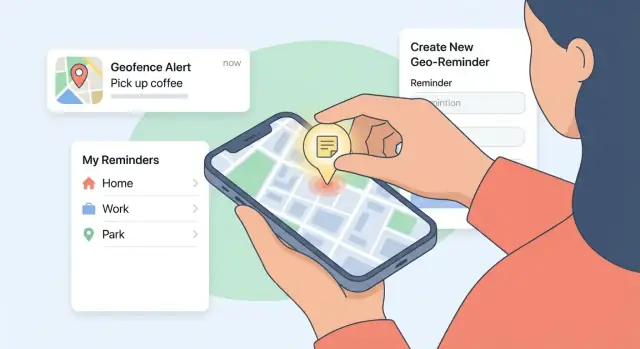
A location-based notes app is a notes app where each note is connected to a place (a specific address), a route (like your commute), or a general area (a radius around a point). Instead of digging through folders or searching at the exact moment you need something, the app uses your device’s location to surface the note automatically.
The core promise is simple: show the right note at the right place.
What “tied to a location” really means
A note can be attached to a pin on a map, a saved place (like “Home” or “Office”), or a circular boundary (an area you enter or leave). When you cross that boundary, the app can display a reminder or notification.
Some apps also support a “nearby” mode, where opening the app shows notes close to your current position—useful when you don’t want notifications.
Common, real-world use cases
People use map-based notes because memory is contextual. A few popular patterns:
- Errands and shopping: “Buy batteries” appears when you’re near the hardware store, not when you’re on the couch.
- Travel: save tips for a neighborhood, check-in instructions for a hotel, or a list of places to eat—visible when you arrive.
- Work sites and field teams: site-specific instructions, safety notes, or what to inspect next time you’re on location.
- Study spots: reminders tied to the library, a classroom building, or a café where you tend to revise.
Set expectations: MVP first, then iterate
It’s tempting to start with shared notebooks, AI summaries, collaborative maps, and complex automation. For an MVP, you’re proving one thing: that users will reliably create notes because location makes them more useful.
Focus on the minimum experience that delivers the promise—create a note, attach a place or area, and have it appear at the right moment. Once people use it in real life, you can iterate based on what they actually do (and where they get annoyed): missed reminders, too many notifications, messy organization, or battery concerns.
Define the MVP: Users, Jobs-to-Be-Done, and Success Metrics
An MVP for a location-based notes app isn’t “a smaller app.” It’s the smallest version that proves people will reliably capture notes tied to places and get useful reminders at the right time.
1) Pick one primary audience
Choose a single “home” audience so every feature decision has a clear yes/no filter. Good options include:
- Students: campus locations, study spots, office hours reminders
- Travelers: trip checklists tied to landmarks, packing and itinerary notes
- Field teams: on-site instructions, safety checklists, client notes
- Personal productivity: errands, grocery reminders, “don’t forget next time” notes
You can support others later, but the MVP should sound like it was built for one group.
2) Write the core Jobs-to-Be-Done (3–5)
Keep jobs phrased as outcomes, not features. A solid MVP usually centers on:
- Create a note quickly (in under ~10 seconds).
- Attach a place to that note (current location or a searched address).
- Get a reminder when arriving/leaving a place (simple, predictable behavior).
- Search and review history (find what you wrote last week at “that café”).
- (Optional MVP job) Edit or snooze reminders without losing context.
If a feature doesn’t support one of these jobs, it likely belongs after launch.
3) Define success metrics you can measure
Avoid vanity numbers and pick metrics that reflect real usage:
- Weekly Active Users (WAU): how many people return each week.
- Notes created per active user: whether the app becomes a habit.
- Reminders delivered vs. scheduled: reliability of geofencing reminders.
- Reminder-to-action rate: opens, check-offs, or edits after a notification.
Set a baseline target (e.g., “70% of scheduled reminders are delivered within the expected time window”) so you can decide what to fix first.
4) Lock MVP scope (and park nice-to-haves)
Write a short “MVP includes / excludes” list. Common nice-to-haves to postpone: shared notes, attachments, advanced automation, full calendar integration, and complex tag systems.
Shipping a focused MVP prevents feature overload and creates cleaner feedback for iteration.
Core Features: Notes, Places, Tags, and Search
Your MVP should feel simple: create a note, tie it to a place, find it again fast. Everything else is optional.
Notes: pick a small set of types
Start with text notes as the default. Then add one or two formats that match real “on the go” use:
- Checklist notes for errands (groceries, packing, hardware store runs)
- Photo notes for visual reminders (parking spot, product label, receipt)
- Optional: voice notes for quick capture when typing is inconvenient
- Optional: a single attachment slot (PDF/image) rather than a full file manager
A good rule: every type must share the same core actions—create, edit, archive, and attach a location—so the app stays predictable.
Places: decide how a note connects to location
You have three common ways to link notes to where they matter:
- Pin on map: drop a point where the reminder should trigger (best for “right here”).
- Saved place: choose from a list like “Home,” “Office,” “Gym” (best for repeat locations).
- Address search: type an address or venue name, then confirm on the map (best for planning ahead).
For the MVP, support pin + search. Saved places can be lightweight: let users star a location after they’ve used it once.
Organization: keep it flexible, not heavy
Instead of forcing users into a hierarchy, offer quick tools:
- Tags (#groceries, #work)
- Favorites for high-priority notes
- Archive to hide completed or no-longer-relevant notes without deleting them
Folders can wait unless your research shows power users need them early.
Add time as an optional dimension
Location-based notes are strongest when time is optional. Allow a time window (e.g., “only weekdays 8–10am”) alongside the location trigger. If users skip time, the note still works.
Search: the feature that makes everything feel fast
Search should cover title + body + tags + place name/address. Add simple filters like “Nearby,” “Favorites,” and “Archived” so users can find the right note in two taps.
Geofencing Basics: Triggers, Radius, and Notifications
Geofencing is a simple idea: you draw an invisible circle around a place, and your app shows a reminder when the user enters or exits that area. For a location-based notes app, this turns “remember later” into “remember when I’m actually there.”
Picking the right trigger
Most apps should support three trigger types:
- On entering: “Buy milk” appears when you arrive at the grocery store.
- On leaving: “Don’t forget your keys” fires when you leave home.
- Nearby: a softer version of entering—useful when you don’t want the user to cross an exact boundary (for example, “Text John when I’m close to the office”).
Default to entering for the MVP; it matches user expectations and is easiest to explain.
Radius: defaults that work in real life
A good starting default is 100–300 meters. Smaller radii can feel “accurate” but fail in dense cities; larger radii can trigger too early.
Make the radius adjustable with a simple control (like Small / Medium / Large) rather than a technical meter slider. Advanced users can still fine-tune if you offer a numeric option.
Notifications that feel respectful
Location reminders are only useful if they’re not annoying.
- Quiet hours: let users mute geofence alerts at night.
- Repeat behavior: decide whether a note triggers once, once per day, or every time.
- Snooze: allow “Remind me again in 10 minutes” or “next time I’m here.”
Edge cases to plan for
GPS can be unreliable due to poor signal, urban canyons, and battery-saving modes that delay location updates. Handle late triggers gracefully (e.g., “You arrived near X” rather than claiming the user is exactly at the pin), and avoid spamming multiple alerts if the location “bounces” around the boundary.
Data Model and Offline-First Decisions
A location-based notes app feels “instant” only if it works when the network doesn’t. That’s why your data model and offline approach should be decided early—changing them later is expensive.
Local-only vs. sign-in
Start by choosing whether the app works without an account.
- Local-only (no sign-in): fastest to ship, lowest privacy friction, ideal for an MVP. The downside is no backup and no multi-device access unless you add export later.
- Sign-in + sync: enables phone-to-tablet continuity and safer storage, but adds onboarding, account recovery, and more trust work.
A common compromise is: local-first by default, then offer optional sign-in for backup and sync.
What to store (minimum useful fields)
Keep the first version simple and explicit. A practical note record often includes:
- Note content: title (optional), body, checklist flag if needed
- Location: latitude, longitude, and an optional radius (if used for reminders)
- Place label: user-entered name or resolved place name (cache it so it displays offline)
- Metadata: created_at, updated_at, pinned/archived, and a unique id
- Tags: either a list of tag ids or plain strings
Avoid storing raw location history. Store only what’s required to power the note.
Offline-first behavior and sync later
Define “offline mode” as a product feature: users can create, edit, tag, and search notes without connectivity. When the device is back online, you sync.
If you support multiple devices, plan conflict resolution up front. For an MVP, a reasonable approach is:
- Track
updated_atand a per-noteversion - Use “last write wins” as a default
- When both devices edit the same note, create a “conflicted copy” rather than silently losing text
This keeps your app reliable without turning sync into a research project.
Privacy, Permissions, and Trust
Location-based notes feel personal: they can reveal where someone lives, works, shops, or spends time. If users don’t trust your app, they won’t grant the permissions you need—and they won’t keep their notes there.
Ask for permission only when it’s clearly useful
Don’t request location access on first launch “just because.” Instead, wait until the user tries to attach a place to a note or enable a location reminder.
Pair the system prompt with a simple pre-permission screen that explains the benefit in plain language. Keep your privacy copy specific. For example: “We use your location to trigger reminders near places you choose. We don’t track your location in the background unless you turn on ‘Always’ reminders.”
While-in-use vs always-on: choose the least intrusive option
- While-in-use is best for adding places, previewing triggers on a map, and checking nearby notes. It’s easier to justify and typically better for trust.
- Always-on can enable reminders even when the app is closed, but it can raise user concerns and may increase battery usage.
Ship with while-in-use by default, then offer always-on only when the user explicitly enables background reminders.
Avoid building a location history product by accident
For a location-based notes app, you usually don’t need continuous GPS logging. Prefer storing:
- a note’s chosen place (coordinates + radius)
- the last time a reminder was triggered (optional)
Anything beyond that should have a clear, user-facing reason.
Give users control in Settings
Include clear options to disable triggers, change notification behavior, delete notes (and associated places), and export data.
A simple “Privacy & Data” section (e.g., /privacy) helps users feel in control—and reduces support issues later.
UX Flow and Screen Plan (Map + List Done Right)
A location-based notes app succeeds when it feels faster than “I’ll remember it later.” Your UX should minimize decisions, keep context visible, and make the next action obvious.
Primary screens to sketch first
Map screen: A map with clustered pins plus a lightweight bottom sheet (preview of the selected note/place). This is for “What’s near me?” exploration.
List screen: A sortable, filterable list for “Show me everything.” Include quick filters (Nearby, Due/Triggered, Tagged) and a search bar.
Note editor: Title + body first, then a clear “Location trigger” section. Keep advanced options tucked away.
Place picker: Search places, drop a pin, or choose “Current location.” Show the radius preview on the map.
Settings: Notification toggles, permission status, privacy controls, and a link to /privacy.
Keep the core flow short
Aim for a 4-step path:
Create note → Pick place → Choose trigger (Arrive/Leave) → Save.
Use progressive disclosure: default to a sensible radius (e.g., 200–300 m) and a single notification. Offer “More options” for custom radius, quiet hours, or repeat behavior.
Accessibility basics that pay off
Use readable text sizes, strong contrast, and large tap targets (especially on map pins and the radius control). Support Dynamic Type (iOS) / font scaling (Android). Don’t rely on color alone to communicate triggered vs. not triggered—add labels or icons.
Empty states and onboarding that teach quickly
Empty states should explain the value in one line and provide one action: “Add your first place-based note.”
Keep onboarding short: one screen explaining arrive/leave reminders, then permission prompts with plain-language rationale (why location is needed, and how it’s used). If the user skips permissions, keep the app usable with regular notes and show a gentle banner to enable location later.
Tech Stack Options: iOS/Android, Cross-Platform, and Backend
Your tech stack should follow the MVP, not the other way around. A location-based notes app is mostly about reliable location triggers, fast search, and trust—so prioritize platform features that make those stable.
Native vs. cross-platform
Native (Swift for iOS, Kotlin for Android) is the safest bet if geofencing and background behavior are central to the experience. You get first-class access to OS features, fewer edge cases, and easier troubleshooting when notifications don’t fire.
Cross-platform (Flutter or React Native) can work well for the UI (map + list + note editor) and speed up MVP delivery. The trade-off is that location/geofencing and background execution often require native modules anyway—so plan for some platform-specific work.
A practical split for MVP: build most screens in Flutter/React Native, but implement location + notification handling with native plugins you control.
Location services you’ll rely on
- iOS: Core Location (region monitoring/geofencing, significant-location changes) plus local notifications.
- Android: Google Play Services Location (Geofencing API, fused location provider) plus notification channels.
Location features behave differently across OS versions and battery modes, so pick a stack where you can debug device-specific issues.
Backend: optional, but define your path
You have three common options:
- No backend (local-only): fastest, privacy-friendly, great for an MVP.
- Lightweight sync: simple sign-in + sync across devices.
- Full accounts: sharing, collaboration, and multi-device history.
If you’re trying to ship fast while keeping room to grow, it can help to prototype the full product flow (notes → places → triggers → settings) before you commit to a large engineering investment. For example, teams use Koder.ai to vibe-code MVPs from a chat interface, then export source code and iterate—useful when you want to validate UX, data model, and edge cases early. Koder.ai supports React for web dashboards, Go + PostgreSQL for backends, and Flutter for mobile apps, which maps well to a notes + geofencing product.
If you choose Firebase
Firebase is a common “lightweight sync” route:
- Authentication for user identity
- Firestore for notes/places/tags
- Cloud Functions for sync rules (e.g., server-side validation)
Reliability: analytics and crash reporting
Add crash reporting early (Crashlytics, Sentry). Basic analytics (opt-in if possible) helps spot failures like “notification delivered late” or “geofence never triggered,” so you can fix the right problems after launch.
Storage and Sync Implementation Details
Storage and sync decisions shape how “instant” and “reliable” your location-based notes app feels—especially when the user has poor reception.
Pick a local database first (offline-first)
Even if you plan cloud sync, treat the on-device database as the source of truth during normal use.
Common choices:
- Android: Room (SQLite under the hood)
- iOS: Core Data (often backed by SQLite)
- Cross-platform: SQLite wrappers (e.g., SQLDelight) or an embedded database with good mobile support
Design your tables/collections so reads are fast for the main screens: “notes near me,” “notes for this place,” and search. Add indexes for place_id, updated_at, and any normalized tag mapping.
Encryption at rest (when it matters)
If users can store sensitive text (addresses, entry codes, personal reminders), plan encryption at rest. Options include SQLCipher (SQLite) or platform encryption APIs. Keep keys in the OS key store (Keychain on iOS, Keystore on Android) rather than in-app storage.
Sync model and conflict handling
A practical baseline is per-record updated_at + device_id + version.
For conflicts, choose intentionally:
- Last-write-wins (LWW): simplest; works well if edits are rare
- Field-level merge: merge non-overlapping edits (e.g., tags changed on one device, note body changed on another)
Document the rule and make it testable; “mystery” overwrites hurt trust.
Deletion: tombstones and retention
Use soft delete locally and sync a tombstone (a deletion marker with timestamp). This prevents deleted notes from reappearing after a delayed sync.
Consider retention (e.g., keep tombstones for 30–90 days) to bound database growth while still supporting multi-device consistency.
Testing: Real-World Location Accuracy and Reliability
Location features fail in subtle ways: a reminder fires late, drains the battery, or stops working after an OS update. Testing needs to reflect how people actually move through the world.
Know the device constraints (before you blame your code)
Mobile operating systems heavily limit background work. Your app might behave perfectly on a dev phone and still miss triggers in the wild.
Key constraints to account for:
- Background limits: apps may be suspended when not actively used, especially on older devices.
- Battery optimization modes: “Low Power” settings can delay location updates and notifications.
- OS versions and vendor tweaks: Android devices vary widely; iOS is more consistent, but still changes behavior between releases.
Stress-test geofence reliability
Run a matrix of tests, not a single “walk around the block” check.
- Different radii: small (50–100m), medium (200–500m), large (1km). Smaller isn’t always better—GPS jitter can cause missed or repeated triggers.
- Movement speeds: walking, driving, and public transit. Fast movement can skip the “enter” event.
- City vs rural: tall buildings create GPS drift; rural areas can have slower location fixes.
Simulate, then verify on real devices
Use emulator/simulator location tools to quickly repeat scenarios (enter/exit loops, rapid jumps, long idle times). Then validate with field tests on multiple phones, with different carriers, and with Wi‑Fi on/off.
Add monitoring for silent failures
Track (anonymously) the funnel around location:
- Permission prompts shown → granted/denied
- Geofences registered successfully
- Notifications scheduled → delivered
- Drop-offs after OS updates or app upgrades
This helps you catch reliability issues early and prioritize fixes based on real user impact.
Polish Features That Add Value (Without Breaking the MVP)
Once your MVP reliably creates a note, links it to a place, and surfaces it later (via search or geofencing reminders), “polish” should aim at speed and confidence—not adding a second product.
1) Saved places + note templates = faster capture
People repeat the same GPS notes: “Buy milk,” “Ask reception,” “Park on level 4.” Add Saved Places (Home, Office, Gym) so users don’t have to pin the map every time.
Pair that with lightweight templates:
- “Shopping list” with checkboxes
- “Meeting notes” with a title + attendees field
- “Maintenance” with a photo placeholder and a “done” toggle
Templates reduce friction without complicating your offline location notes or data model much—mostly preset text and tags.
2) Sharing that stays simple
Instead of full collaboration on day one, start with export/share:
- Share a note as plain text (or a checklist) to Messages/Email
- Share a place-linked checklist for errands
This creates value immediately without building accounts, permissions, or complex conflict resolution. If you later add a backend like Firebase, sharing can upgrade into “share link” behavior.
3) Smart suggestions that feel helpful (not creepy)
Small suggestions can improve quality without touching core flows:
- Recent places and frequent locations as quick picks
- Duplicate detection (e.g., “You already have a note for this place”)
- Suggested tags based on past notes
Keep these on-device when possible for a privacy-first location app, and make them easy to dismiss.
4) Widgets and shortcuts for instant notes
Quick capture is a superpower for a map-based notes app. Add:
- Home screen widget: “New note at current location”
- Shortcut: “Add to Saved Place”
This helps users create notes in seconds—before they forget why they opened the app—while keeping your MVP focused.
If you want a safe later-phase option, consider collaborative notes for teams only after you’ve nailed reliability, permissions, and push notifications.
Launch Checklist and Post-Launch Iteration Plan
Shipping a location-based notes app isn’t only “submit to stores and wait.” The first release sets expectations around accuracy, battery use, and privacy—so your launch materials and iteration plan matter as much as the code.
Store listings that reduce surprises
Before submitting to the App Store / Play Store, prepare a listing that answers the questions users will have after they install:
- Screenshots: show the map + list view, creating a note, attaching a place, and the “notify me” settings.
- Plain-language privacy details: what location access you request (While Using / Always), why you need it, and what you store.
- Keywords and positioning: emphasize “geofencing reminders” and “offline location notes” only if you truly support them.
If you have a public pricing page or plan tiers, keep it consistent with in-app messaging: /pricing.
Onboarding + help content (especially for triggers)
A short onboarding flow can prevent most negative reviews. Explain:
- How geofencing triggers work (enter vs. exit, radius meaning, delays)
- Battery tips (e.g., don’t disable background location if they want reminders)
- Permission recovery (how to re-enable location/notifications in settings)
Consider a lightweight help center page you can update without app releases, e.g. /blog/geofencing-reminders-basics.
Feedback loops you can act on
Add in-app pathways for:
- Bug reporting (include app version + last known location timestamp)
- Feature requests (single-text field + optional contact)
- “This reminder didn’t fire” reports (capture note id + geofence config)
Roadmap: MVP → reliability → growth
Define your next three versions before launch:
- MVP fixes: crashes, sync issues, permission edge cases.
- Reliability: better location accuracy handling, notification delivery audits, offline conflict resolution.
- Growth features: sharing, widgets, smart suggestions, integrations—only after reliability metrics stabilize.
Post-launch, review analytics weekly and ship small updates fast. Location apps earn trust through consistency.
FAQ
What should the MVP of a location-based notes app include (and exclude)?
An MVP proves one core behavior: users reliably create notes because location makes them more useful.
Include only:
- Create a note fast (text first; checklist optional)
- Attach a place (pin or search)
- Trigger on arrive/leave (arrive as default)
- Search by text + place
Defer sharing, attachments, complex tags/folders, and deep automations until you see real usage patterns.
How do I choose the right target user for a location-based notes app?
Pick one audience so every scope decision becomes a clear yes/no.
Good MVP audiences:
- Personal productivity (errands, “next time I’m here” reminders)
- Students (campus buildings, study spots)
- Travelers (hotel instructions, neighborhood tips)
- Field teams (site checklists, safety notes)
Write 3–5 Jobs-to-Be-Done for that group and cut anything that doesn’t support them.
What success metrics actually matter for a location-based notes MVP?
Start with measurable reliability and habit metrics, not downloads.
Practical MVP metrics:
- WAU (do people come back?)
- Notes created per active user (is it becoming a habit?)
- Reminders delivered vs. scheduled (geofence reliability)
- Reminder-to-action rate (open, check-off, edit after alert)
Set a clear target like “≥70% of scheduled geofence reminders deliver within the expected window.”
How do I handle location privacy without scaring users away?
Use a simple, consistent rule:
- Store only the user-chosen place (lat/lng + optional radius)
- Trigger only on defined events (enter/exit/nearby)
- Avoid continuous background tracking unless it’s a deliberate feature
In your permission explainer, be specific: you use location to trigger reminders near places they choose—not to build a location history.
When should I request location permissions, and which level should I default to?
Ask when the value is immediate—right before the user attaches a place or enables a location reminder.
Recommended flow:
- Show a short pre-permission screen (“Enable location so we can remind you when you arrive.”)
- Request OS permission
- If denied, keep the app usable (regular notes + gentle banner to enable later)
Default to “While-in-use,” and only upsell “Always” when the user explicitly turns on background reminders.
What geofence radius and trigger type should I use by default?
For most real-world cases, start with 100–300 meters.
Guidelines:
- Too small: misses triggers due to GPS jitter (especially in dense cities)
- Too large: triggers too early and feels noisy
UI tip: offer Small/Medium/Large presets, with an advanced numeric option if needed. Default to “Arrive” triggers; it’s easiest to understand and matches expectations.
How should I design the data model for offline-first location notes?
Design offline as a first-class feature: create, edit, tag, and search without connectivity.
Minimum fields that usually matter:
- Content: title (optional), body, checklist state
- Location: latitude, longitude, radius (if reminders)
- Place label: cached name/address for offline display
- Metadata: id, created_at, updated_at, archived/favorite
- Tags: strings or ids
Avoid storing raw location history—store only what powers the note.
What’s the simplest safe way to implement sync and conflict resolution?
If you add sync, decide conflict behavior up front.
A practical MVP approach:
- Local database is the source of truth
- Track
updated_at+version(optionallydevice_id) - Default to last-write-wins
- If both devices edit the same note, create a conflicted copy instead of overwriting silently
For deletions, sync tombstones (soft delete markers) so removed notes don’t reappear after delayed sync.
Should I build this app native or cross-platform?
If geofencing reliability is central, native implementations reduce edge cases.
Options:
- Native: Swift (iOS) + Kotlin (Android) for best background/location control
- Cross-platform: Flutter/React Native for UI speed, but plan native modules for geofencing + notifications
A common compromise: cross-platform screens (map/list/editor) + native location/notification layer you can debug per OS.
How do I test geofencing and reminder reliability in real-world conditions?
Test beyond “walk around the block.” Location fails differently across devices, speeds, and environments.
A useful test matrix:
- Radii: 50–100m, 200–500m, ~1km
- Movement: walking, driving, transit
- Places: dense city (urban canyon) vs. open/rural
- States: app closed, low power mode, background restrictions
Add monitoring for silent failures (permission granted → geofence registered → notification scheduled → delivered) so you can fix what’s actually breaking after launch.