

Create a High-Signal Tracking App with Minimal User Input
Learn how to design a mobile tracking app that captures meaningful data with minimal taps. Includes UX patterns, data model tips, and launch checklist.
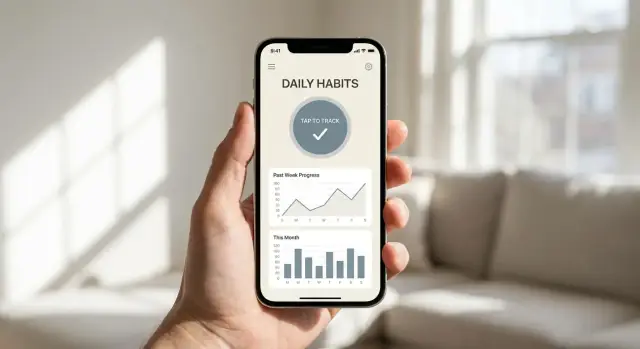
What “Minimal Input, High Signal” Really Means
“Minimal input” doesn’t mean your app is simplistic. It means the user can log what happened in seconds—often with one tap—without typing, scrolling, or making lots of decisions.
“High signal” means those quick logs reliably lead to useful patterns: what changes over time, what triggers what, and what actions help. The goal isn’t to collect more data—it’s to collect the right data.
Define it for your app
Minimal input is a concrete limit you design for, such as:
- One screen to log
- 1–3 choices per log
- Under 10 seconds per entry
High signal is also concrete. A log is “high signal” if it can support a clear insight, like “sleep under 6 hours increases afternoon cravings” or “headaches cluster on days after long meetings.”
Examples across common tracking apps
The same principle works across categories:
- Mood: a 1–5 rating + optional tag (e.g., “work,” “family,” “social”)
- Habits: done/not done + context (“morning,” “after lunch”)
- Symptoms: severity + body area + one suspected trigger tag
- Spending: amount + category; merchant and notes are optional
- Workouts: type + duration; intensity as a quick slider
Notice what’s missing: long questionnaires, detailed journaling, and mandatory notes.
The most common failure mode
Many tracking apps confuse activity with progress: they ask for lots of fields “just in case,” then struggle to turn it into insights. Users feel punished for being thorough—more tapping, more effort, and no payoff.
A good litmus test: if you can’t name the decision or insight each field supports, remove it or make it optional.
The outcome you’re aiming for
When you prioritize minimal input and high signal, you get fewer taps, clearer insights, and higher retention. Users return because logging feels easy and the results feel obvious.
Start With a Single Tracking Goal
A high-signal tracker starts by being opinionated about what it’s for. If you try to support “anything people might want to track,” you’ll end up asking for more input, generating noisier data, and making the app feel like homework.
Choose the one question you answer
Pick a single core question your app will answer for a typical user, stated in plain language. Examples:
- “What situations trigger my afternoon snack cravings?”
- “Which workouts leave me energized the next day?”
- “Do I sleep better on days I walk more than 20 minutes?”
A good question is specific enough that it suggests what to log (and what not to log). If the question doesn’t clearly imply a small set of events, it’s probably too broad.
Identify the decision the user will make
Tracking only matters if it leads to action. Define the decision your user will make from the data, then design backward from that.
For example:
- Decision: “I’ll avoid coffee after 2pm.”
- Therefore you must capture: coffee time (quick), sleep quality next morning (quick), and optionally a simple context tag.
If you can’t name the decision, you’re not designing a tracking app—you’re designing a diary.
Define success metrics for the first release
Set measurable signals that tell you whether the goal is working:
- Daily completion rate: % of active users who log the minimum required input each day
- Insight views: how often users open the “results” screen (or view a generated takeaway)
- Retention: users who return in week 2/week 4 (choose one as your primary)
Keep these metrics tied to the single goal; avoid vanity metrics like total logs.
List assumptions to validate in v1
Write down what must be true for your goal to work, then test those assumptions early:
- Users can answer the required prompt in under 5 seconds.
- The logged data is consistent enough to spot patterns within 7–14 days.
- Users trust the app with this category of information.
- The first “insight” feels obviously useful, not merely interesting.
Lock the goal, then resist adding features until these assumptions are validated.
Design the Tracking Loop (Log → Learn → Act)
A tracking app feels “effortless” when it behaves like a loop, not a form. Each pass through the loop should take seconds, produce a clear takeaway, and suggest a small next step.
Map the journey: trigger → log → feedback → next action
Start by writing the simplest flow a user repeats every day:
- Trigger: something happens (a meal, a craving, a workout, a mood shift).
- Log: the user records the minimum that still preserves meaning.
- Feedback: the app immediately reflects what that log changed (today’s score, streak, trend, warning, or win).
- Next action: one recommendation that’s easy to follow (drink water, take a short walk, plan tomorrow’s task).
If any step is missing—especially feedback—the app becomes “data entry,” and retention drops.
Pick the smallest set of events that explain progress
High-signal tracking usually relies on a handful of event types that answer: “What happened?” and “Did it help?” Examples: did the habit, skipped, symptom occurred, slept poorly, craved, completed session.
Prefer fewer event types with consistent meaning over many specialized ones. If you can’t explain why an event exists in one sentence, it’s probably not core.
Cut fields with “must have / nice to have”
For every logging screen, label inputs:
- Must have: required to generate feedback (often just time + one value)
- Nice to have: helpful later, but not required (notes, tags, photos)
Make nice-to-have inputs optional and hidden by default so the fastest path stays fast.
Plan for imperfect use
Real users miss days and log partially. Design for that:
- Allow backfill without guilt (quickly log yesterday).
- Support unknown values instead of forcing guesses.
- Treat gaps as data (e.g., “no log” is different from “no event”).
A good loop rewards honesty and consistency, not perfection.
Input Patterns That Minimize Effort
High-signal tracking fails when logging feels like homework. The best input patterns reduce decisions, typing, and context switching—so users can record an event in seconds and get back to their day.
Default-first input (remove decisions)
Start every log screen with something already selected. Pre-fill fields with the last-used value, the most common option, or a sensible baseline (for example, “30 min” for a workout duration or “Medium” for mood intensity). Then let users change it only when needed.
Smart suggestions work best when they’re predictable:
- Show “recently used” choices first
- Offer a short list of common values rather than a long menu
- Remember per-user preferences (not global averages)
This turns logging into confirmation instead of configuration.
One-tap logging (reduce time-to-done)
Whenever possible, logging should be a single action:
- Large buttons for common events (e.g., “Took meds”, “Walked”, “Caffeine”)
- Quick pickers (chips) for discrete values like “Low / Medium / High”
- Sliders for fast ranges when precision isn’t essential
If an entry needs details, let the first tap save the log immediately, then make “add details” optional. Many users will skip extras—and that’s fine if your core signal is captured.
Templates for “usual” entries (reuse what users repeat)
People repeat routines. Give them templates like “Usual workout” or “Typical meal” that bundle multiple fields into one tap. Templates should be editable over time, but never required to set up before the app becomes useful.
A simple rule: if a user logs the same combination twice, the app should offer to save it as a template.
Offline-first logging (protect momentum)
If logging fails when the network is weak, users stop trying. Allow entries to be saved instantly on-device and synced later. Make offline mode invisible: no scary warnings, no blocked buttons—just a subtle “Syncing when available” status so users trust nothing is lost.
A Simple Data Model That Still Creates Insight
A high-signal tracking app doesn’t need a complicated database. It needs a clear “unit” of tracking and a structure that preserves the truth of what happened while still enabling fast, friendly insights.
1) Choose the unit of tracking
Start by deciding what one user action represents in your system:
- Entry: one quick note (e.g., “coffee”, “headache”, “took meds”)
- Session: a bounded activity (e.g., a workout with start/end)
- Day: one check-in per day (e.g., mood score, sleep quality)
- Event: a timestamped occurrence (best for minimal-input tracking because one tap can equal one fact)
Pick the smallest unit that users can log effortlessly, then build summaries on top.
2) Store raw events, plus lightweight summaries
To keep high-signal data, store raw events as your source of truth, then compute summaries for speed and clarity.
A practical baseline:
- Event:
id,user_id,type,timestamp, optionalvalue(number), optionalnote - Daily summary:
date,type,total_count,total_value,streak,last_event_time
Raw events protect you from losing detail later. Summaries make charts load instantly and enable features like streaks without reprocessing everything.
3) Capture context only when it improves signal
Context should earn its keep. Add it when it meaningfully changes interpretation:
- Time: often free (auto-captured) and highly informative
- Location: only if it explains patterns (and only with clear permission)
- Tags: great when users want one extra tap to clarify (e.g., “with friends”, “at work”)
If a context field is optional but rarely used, consider auto-suggestions or defaults instead of forcing input.
4) Plan edits and deletions without breaking charts
Edits are unavoidable: mis-taps, late logging, duplicates. Decide early how to keep visualizations stable:
- Treat summaries as derived: recompute daily totals when an event changes.
- Use soft delete (
deleted_at) to preserve auditability and avoid confusing “missing data” artifacts. - When an event moves to a different day (timestamp edit), update both days’ summaries.
This model supports reliable trends, streaks, and retention-friendly feedback without drowning users in forms.
Turn Logs Into High-Signal Insights
Collecting logs is only half the job. The value of a minimal-input tracker is that it turns tiny data points into answers a person can act on.
Start with a few derived metrics that feel “obvious”
Rather than drowning users in raw events, compute a small set of metrics that summarize progress:
- Averages (e.g., “You logged 4 check-ins/week”)
- Streaks (e.g., “3 days in a row,” but also “consistency over weeks”)
- Variability (e.g., “Your sleep score is steady vs. up-and-down”)
These are easy to understand and work well even when users skip days.
Detect meaningful change (without overreacting)
Insights should be anchored to time windows that match how habits change:
- 7-day trend: good for short-term momentum and “this week vs last week”
- 30-day trend: good for stability, seasonality, and whether a change is sticking
Use simple, defensible signals such as: crossing a threshold (e.g., “less than 3 days/week”), sustained improvement for two weeks, or a noticeable shift in average. Avoid treating one great (or terrible) day as a turning point.
Avoid false precision: show ranges and plain language
If users log irregularly, exact numbers can mislead. Prefer:
- Ranges (“typically 3–5 times per week”) over decimals
- Confidence cues (“based on 6 logs this month”) instead of pretending you know more than you do
- Plain explanations (“Your check-ins were more consistent this month”) alongside the chart
Recommend “what to try next” (without medical claims)
Translate insights into light-touch suggestions that don’t sound clinical:
- “You do best when you log before noon—want to set a morning reminder?”
- “Consistency dipped on weekends—try a simpler weekend version of the habit.”
- “You’re trending up over 30 days—keep the same plan for another week and review again.”
Frame recommendations as experiments the user can choose, not diagnoses or promises. The goal is fewer numbers, more clarity, and one next step.
UX for Feedback: Make Results Obvious
A minimal-input tracker only feels “worth it” when the payoff is immediate. If users log something and can’t see what changed, they’ll stop—even if the data is technically being collected.
Put “today” at the center
Your home screen should answer two questions in under a second:
- What’s the one action to do (or log) today?
- What progress did I already make?
Design the home screen around today’s action + a quick view of progress. That quick view can be as small as a single number (“3-day streak”), a tiny sparkline, or a simple status (“On track this week”). The key is that it’s visible without tapping into a dashboard.
Use fewer chart types—and make them readable
Consistency beats variety. Pick 1–2 chart types and use them everywhere, so users learn the “visual language” once. Good options for most tracking apps:
- Line chart for trends
- Bar chart for totals/comparisons
- Calendar heatmap for daily consistency
Whatever you choose, make charts readable:
- Always show clear labels (what, units)
- Start from an honest baseline (often zero for bars)
- Offer a simple time range toggle (7 days / 30 days / 12 weeks)
Avoid tiny text, faint colors, or “clever” axes. A chart that requires interpretation is a chart that won’t get used.
Notes are not a default—use them to explain spikes
Freeform notes can quickly turn “minimal input” into homework. Add notes sparingly, only when they help explain outliers.
A good pattern is an optional, lightweight prompt after unusual events:
- “That’s higher than usual—want to add a reason?”
This keeps the core loop fast while still capturing context when it matters.
Smart Reminders Without Annoying Users
Reminders should feel like a helpful nudge at the right moment—not a demand for attention. The goal is to support the user’s routine so logging stays effortless and consistent.
Anchor reminders to real-life routines
Generic “Don’t forget to track!” messages train users to ignore you. Instead, tie prompts to moments that already happen:
- Morning coffee → “Log your sleep in one tap”
- After lunch → “Quick mood check-in?”
- After workout time → “Record your session?”
This works because the reminder piggybacks on an existing habit, so it feels timely rather than random.
Give users control: frequency and quiet hours
People have different tolerance for notifications. Put the controls upfront and keep them simple:
- Choose frequency (daily, weekdays only, 3×/week, custom)
- Set quiet hours (no buzz during meetings, evenings, or sleep)
- Optional “snooze for 1 hour / until tomorrow”
A good rule: fewer default notifications, clearer opt-ins. Users who choose reminders are far less likely to resent them.
Make notifications actionable (one-tap logging)
A reminder should let users finish the job immediately. If they tap and land on a complex screen, you’ve added friction.
Design notifications that can log with one tap, such as:
- Buttons: “Done”, “Skip”, “Not today”
- A single slider or quick rating (e.g., stress 1–5)
- Confirmation feedback: “Logged—nice work” with an undo option
This keeps the “prompt → action” loop under a few seconds.
Re-engagement after missed days, without guilt
Missed streaks happen. Avoid shaming language or dramatic alerts. Use gentle, specific prompts after a gap:
- Day 2 missed: “Want to restart with a smaller goal?”
- Day 5 missed: “Switch to 3×/week reminders?”
Offer an easy reset and adjust the plan. The best reminder strategy adapts to real life rather than punishing it.
Privacy, Trust, and Data Safety Basics
A tracking app only works if people feel safe using it. When you ask for personal logs—mood, symptoms, cravings, spending, focus—you’re asking for trust. Earn it by collecting less, explaining more, and giving users control.
Collect the minimum (and label the rest as optional)
Start by deciding what the app must store to deliver the promised insight, and what’s merely “nice to have.” Every extra field increases risk and drop-off.
If something is optional, make that explicit in the UI. Optional data should never block the core experience, and it shouldn’t quietly change the app’s behavior without the user noticing.
Explain data use in plain language at first run
The first run experience should answer three questions clearly:
- What data is stored?
- Why is it needed (what does the user get in return)?
- Where does it live (on device, in the cloud, or both)?
Avoid legal-sounding text. Use short sentences and concrete examples, like “We use your check-ins to show weekly patterns” rather than “We process personal data to improve services.”
Prefer on-device storage, and secure it
For many minimal-input trackers, on-device storage is enough for an MVP and reduces exposure.
If you store data locally:
- Use the platform’s secure storage options where appropriate.
- Encrypt sensitive records at rest if the data could be harmful if exposed.
- Protect access with device authentication (PIN/biometric) for “private mode” entries.
If you add sync later, treat it as a product feature with its own consent screen and clear trade-offs.
Give control: export, delete, and retention
Trust increases when users can take their data with them and remove it when they want.
Include:
- Export (CSV/JSON is usually enough) so users aren’t locked in.
- Delete (single entry, date range, and full account/device wipe).
- Retention rules (for example, “We keep backups for X days” if you use cloud sync).
When people understand what you collect and can control it, they’ll log more honestly—leading to higher-signal insights with less input.
MVP Scope and Build Options
An MVP for a minimal-input tracker isn’t “a smaller version of the full app.” It’s a carefully limited product that proves one thing: people will log quickly, and the app will return a result worth coming back for.
Define your MVP: 1 tracker, 1 insight, 1 reminder
Keep the scope intentionally narrow:
- 1 core tracker: pick a single behavior or event type (e.g., “coffee,” “headache,” “study session”). Support one logging interaction and make it fast.
- 1 insight view: one screen that answers a clear question (e.g., “How often this week?” or “What time does it usually happen?”). If it doesn’t change a decision, it doesn’t belong in the MVP.
- 1 reminder flow: one reminder style (time-based or context-based) with one clear action (“Log now”). Don’t add schedules, streaks, widgets, and multiple notification types yet.
This constraint forces the product to earn its value with signal, not features.
Choose a build approach that matches risk
You have three practical paths:
- Native (iOS/Android): best performance and OS integration (notifications, health data, system UI). Choose this if logging must feel instant and you expect long-term investment.
- Cross-platform (Flutter/React Native): faster iteration with one codebase, good UI control. Choose this if you need to test multiple tracker ideas quickly.
- No-code / prototype tools: fastest way to validate interaction design. Choose this when the biggest risk is whether people will actually log and understand the feedback.
Your “best” option is the one that helps you test the core loop with the least time spent on infrastructure.
If you want to move fast without locking yourself into a heavy pipeline, a vibe-coding workflow can help. For example, Koder.ai lets you build and iterate on a tracker from a chat interface, generate a React web app (with a Go + PostgreSQL backend), and even extend to Flutter for mobile—useful when your priority is validating the loop (log → feedback → next action) before polishing every edge case.
Prototype the logging speed and clarity first
Before building real storage and charts, create a clickable prototype that simulates:
- opening the app and logging in 1–2 taps
- confirming the log (subtle but obvious)
- viewing the single insight screen
Test with a handful of people and measure: How many seconds to log? Where do they hesitate? Do they understand what the app will do for them after logging?
Plan analytics that indicate success
Define “success events” early so you can learn quickly:
- Logging funnel: app open → log started → log saved
- Return signal: insight screen viewed after logging
- Retention proxy: logs on day 2 and day 7
- Reminder quality: notification delivered → opened → log saved (and opt-out rate)
If the MVP can’t clearly answer whether logging is easy and insights feel worthwhile, it’s not scoped tightly enough.
Testing, Launch, and Iteration Checklist
A minimal-input tracker only works if logging feels effortless and the feedback feels worth it. Your goal in testing is to prove (or disprove) that users can log in seconds, understand what the app is “for,” and return because the insights help.
Recruit the right 10–20 testers
Pick testers who match your target user, not just friends who like trying new apps. Aim for a mix of motivation levels: a few “super organized” people and a few who usually quit trackers.
Before they start, ask two quick questions:
- What are you trying to improve right now?
- What would make you stop using this after 3 days?
Run a focused 7-day test
Keep the test short and structured so you can compare results.
Measure:
- Time-to-log: how long it takes from opening the app to completing a log
- Completion rate: how many days they log at least once
Also watch for drop-off points: day 2 and day 5 are common “silent quit” moments.
Collect qualitative feedback (the “why”)
Numbers tell you what happened; interviews tell you why. Do a 10–15 minute call or voice note check-in mid-week and at the end.
Prompts that surface confusion and waste:
- “What felt confusing?”
- “What felt unnecessary?”
- “If you could delete one screen or step, what would it be?”
- “Did the app ever tell you something useful? When?”
Prepare launch assets that reduce support load
Create simple materials that prevent misunderstandings:
- Onboarding that explains the single tracking goal in one sentence
- A short FAQ focused on logging, reminders, and data handling
- App store screenshots that show: logging speed, one insight, and what users get after a week
Post-launch iteration plan (keep cutting)
Plan weekly reviews for the first month. Prioritize:
- Remove fields that don’t drive insights or decisions
- Improve defaults so first-time logging takes fewer taps
- Refine insights to answer “What should I do next?” not just “What happened?”
If your build setup supports fast iteration (for example, snapshots/rollback and quick redeploys—features available in platforms like Koder.ai), it becomes much easier to keep simplifying without fear of breaking what already works.
If retention improves when you simplify, you’re moving in the right direction.
FAQ
What does “minimal input, high signal” mean in a tracking app?
It means users can record an event in seconds (often one tap) while the data still reliably produces actionable patterns.
A practical target is one screen, 1–3 choices per log, and under 10 seconds per entry.
Why do tracking apps fail when they ask for “just in case” data?
Because extra fields increase friction and reduce consistency, which lowers data quality.
If you can’t name the specific insight or decision a field supports, make it optional or remove it.
How do I choose a single tracking goal for my MVP?
Pick one core question the app answers for most users (e.g., “What triggers my afternoon cravings?”).
If the question doesn’t clearly imply what to log (and what not to log), it’s too broad for v1.
How do I ensure tracking leads to action, not just data collection?
Define the decision the user will make from the data, then design backward.
Example:
- Decision: “Avoid coffee after 2pm.”
- Log: coffee time + next-morning sleep quality (optional context tag).
What is the “tracking loop” and why does it matter?
Design it as Log → Learn → Act:
- Log: capture the minimum meaningful input
- Learn: show what changed (streak, trend, status)
- Act: suggest one small next step
If feedback is delayed or hidden, the app will feel like data entry.
How many event types should a high-signal tracker support?
Use fewer event types with consistent meaning (e.g., did/skip, symptom occurred, craving happened).
If you can’t explain an event type in one sentence—or it rarely changes insights—it probably isn’t core.
What input patterns make logging feel effortless?
Default-first input turns logging into confirmation:
- Pre-fill the last-used value
- Show recently used options first
- Keep the choice set short
Users should usually tap “save” without configuring anything.
How should my app handle missed days and inconsistent logging?
Plan for missed days and partial entries:
- Allow quick backfill (e.g., “log yesterday”)
- Support “unknown” instead of forcing guesses
- Treat “no log” as distinct from “no event”
This rewards honesty and keeps users from quitting after imperfection.
What’s a simple data model that still enables useful insights?
Start with a simple unit and structure:
- Choose a unit: event is often best for one-tap tracking
- Store raw events as source of truth
- Compute lightweight daily summaries for speed (counts, totals, streaks)
This supports fast charts and reliable edits without a complex database.
How do I turn tiny logs into insights users actually trust?
Use simple, defensible insights:
- Show ranges (e.g., “typically 3–5×/week”) vs. false precision
- Add confidence cues (e.g., “based on 6 logs this month”)
- Provide one “what to try next” suggestion framed as an experiment
Avoid medical claims and avoid overreacting to single-day spikes.