

How to Create a Mobile App for One-Tap Data Logging
Learn how to design and build a mobile app for one-tap data logging: define the data, craft fast UX, support offline use, and ship safely.
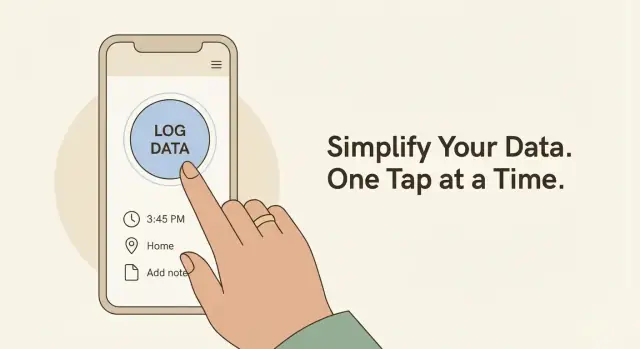
Clarify the one-tap logging use case
A “one-tap” app only feels magical when you’re crystal clear about what people are trying to record, where they are, and what success looks like. Before you sketch screens or pick a database, define the exact logging moment you’re optimizing.
Who is logging—and in what conditions?
Start by naming the primary logger and their context. A habit tracker user might log from a couch with plenty of time, while a field technician might log in the rain with gloves on and a shaky signal.
Common one-tap audiences include:
- Habits and routines (water, meds, workouts)
- Field work (site visits, inspections, deliveries)
- Health tracking (symptoms, mood, pain level)
- Inventory and operations (stock counts, equipment checks)
- Incident reports (safety events, near-misses)
Then write down constraints that can break “fast input”: offline areas, bright sun, one-handed use, limited attention, strict rules about accuracy, or frequent interruptions.
Define the tap outcome (what gets saved?)
“One tap” must map to a specific, predictable record. Decide what the app can infer automatically versus what you must ask.
Typically saved automatically:
- Timestamp (when)
- Location (where), if permitted
- User/device identifier (who)
- Default category (what), based on the current screen or last choice
Asked only when necessary:
- Quantity (e.g., 1 glass vs 2)
- Notes or photo proof
- Severity or status (normal vs urgent)
A useful exercise: write the record as a sentence. Example: “At 3:42 PM, I took my medication (Dose A) at home.” If any word in that sentence requires a decision, ask whether it can be defaulted, remembered from last time, or postponed.
Choose success metrics early
Pick a few measurable targets so later design decisions have a clear trade-off.
- Time-to-log (tap to saved): aim for seconds, not steps
- Error rate: wrong category, wrong quantity, duplicate logs
- Completion rate: how often users finish a log once they start
When you can describe the logger, the environment, the exact saved record, and the metrics, you’ve defined the use case well enough to design a truly fast one-tap experience.
Design the data you need to capture
Before you sketch screens, decide what a single “log” is. One-tap apps succeed when each tap creates a clean, consistent record you can summarize later.
Start with a core event shape
Keep the core record small and predictable. A good default is:
- timestamp: when it happened (auto-filled; allow quick edit)
- type: what happened (the button/category the user tapped)
- value: optional numeric or choice value (e.g., 1–5, “small/medium/large”)
- note: optional free text, but never required
This structure supports many use cases—habits, symptoms, field checks, sales visits—without forcing extra steps.
Add context—only when it earns its place
Context can be powerful, but each extra field risks slowing down the tap flow. Treat context as optional metadata that can be captured automatically or added after the tap:
- location: GPS (with clear permission prompts), or a simple “at home / at work” selector
- device/app context: device model, OS version, app version (for debugging and analytics)
- tags: user-defined labels for later filtering (keep tagging optional)
- attachment: photo/audio, if it genuinely helps (field inspections, receipts)
- mood rating / intensity: a lightweight scale for wellness or incident logging
A useful rule: if users can’t explain how a field will help them later, don’t ask for it now.
Keep your taxonomy tight
Your “type” list is the backbone of one-tap logging. Aim for a small, stable set of categories (often 5–12) that fit on one screen. Avoid deep hierarchies; if you need detail, use a second step like a quick value picker or a single tag.
Write down privacy requirements early
If you’re collecting health, workplace, or location data, document:
- which fields are sensitive
- whether data should stay on-device by default
- how long logs should be retained
- what the user can export or delete
This up-front clarity prevents painful redesigns when you later add syncing, analytics, or exports.
Create a one-tap UX that stays fast
A one-tap logger only works if the main action is instantly obvious and consistently quick. Your goal is to reduce the “think time” and the “tap count” without making people feel like they’ll accidentally log the wrong thing.
Design the home screen around one primary action
Start with a single, dominant button that matches the core event you’re logging (for example: “Log Water,” “Check In,” “Start Delivery,” “Symptom Now”). Make it visually heavier than everything else and place it where the thumb naturally rests.
If you truly need a secondary action, keep it subordinate: a smaller button, a swipe, or a long-press on the main button. Two equal choices slow people down.
Use defaults so people rarely type
Speed comes from smart pre-fill. Every time you ask for typing, you risk breaking the “one-tap” promise.
Use:
- Last-used values (same quantity, same location, same category)
- Quick presets (“Small / Medium / Large,” “On-site / In transit / Done”)
- Smart suggestions based on time and patterns (for example: default to “Coffee” at 8am if that’s common)
When you do need extra detail, tuck it behind an optional panel: tap once to log, then optionally expand to add notes or adjust.
Reduce fear with “undo” and “edit last entry”
One-tap experiences make mistakes feel expensive. Make recovery effortless.
Include a brief confirmation state (like a subtle toast) with Undo, and add an always-available Edit last entry option. People log faster when they know they can fix an error without hunting through history.
Keep accessibility part of “fast”
Accessibility improvements often make the app faster for everyone.
- Use large touch targets and clear spacing to prevent mis-taps
- Offer haptics (light vibration) to confirm the action without needing to look
- Consider a voice input option for hands-busy scenarios (field work, gloves, mobility needs)
Finally, measure “fast” with a simple metric: time from app open to log saved. If that number creeps up as features grow, your UX is drifting away from one-tap.
Pick an architecture and tech stack
A one-tap data logging app succeeds on speed and reliability, so your architecture should minimize latency, avoid heavy screens, and keep the “log” path simple even when other features grow.
Choose your platform approach
If you’re targeting a single ecosystem first, native (Swift for iOS, Kotlin for Android) gives the best control over performance and system integrations like widgets and quick actions.
If you need iOS and Android from day one, cross-platform can work well for a mobile app data logging workflow:
- Flutter: consistent UI, good performance, strong offline-first logging story.
- React Native: fast iteration and a big ecosystem, but you’ll rely more on native modules for “instant” UX details.
If you want to prototype and iterate quickly before committing to a full native build, a vibe-coding platform like Koder.ai can be useful: you can describe the one-tap flow in chat, generate a working React web app or Flutter mobile app, and refine UX with fast cycles—then export the source code when you’re ready to own and extend it.
Decide what backend you actually need
Start by picking the smallest backend footprint that supports your use case:
- Local-only: simplest; ideal for private habit tracker one tap apps where data never leaves the device.
- Sync: adds multi-device continuity and backups, but requires identity, conflict handling, and monitoring.
- Team sharing (field data collection app): adds roles, audit trails, and stricter permissions.
A practical rule: if you can’t describe your sync conflicts in one sentence, keep v1 local-first.
Pick local data storage
For fast input, local storage should be boring and proven:
- iOS: Core Data or SQLite
- Android: Room (SQLite)
- Cross-platform: SQLite plus a local-first database layer if you need easier syncing later
This choice shapes your app database schema logging approach, migrations, and export performance.
Estimate effort by feature set
One-tap logging is small; everything around it isn’t. Expect complexity to rise quickly with: login + sync, charts and summaries, exports (CSV/PDF), push notifications logging, widgets, and app analytics events. Plan your roadmap so the core “tap → saved” loop is finished first, then add features without slowing that loop down.
Build a simple, flexible data model
Your data model should be boring in the best way: predictable, easy to query, and ready for future features like sync, exports, and summaries.
Core tables/collections
Most apps can start with four building blocks:
- entries: the actual log events (the thing created with one tap)
- entry_types: what kind of entry it is (e.g., “Coffee”, “Headache”, “Site Visit”)
- tags: optional labels to filter and group (e.g., “Work”, “Travel”)
- users (if any): only if you support accounts, multiple profiles, or cross-device sync
An entry typically stores: entry_id, entry_type_id, created_at, optional value (number/text), optional note, optional tag_ids, and optional metadata (like location accuracy or source).
IDs, timestamps, and soft-delete
Use stable IDs that can be created offline (UUIDs are common), not server-assigned integers.
Add timestamps for:
created_at(when the user logged it)updated_at(when anything about it changes)
For deletion, prefer soft-delete fields like deleted_at (or is_deleted) rather than removing records. This makes later syncing and conflict resolution much easier.
Derived values: store with intent
Dashboards often need totals like “cups per day.” You can calculate these from raw entries, which keeps data clean. Only store derived fields (like day_bucket or entry_count_cache) if you truly need speed—and then ensure they can be recomputed.
Plan migrations from day one
Apps evolve: you’ll add new fields, rename types, or change how tags work. Use versioned migrations so updates don’t break existing installs. Keep migrations small, test them on real-looking data, and always provide safe defaults for new columns/fields.
Add offline-first behavior and syncing
A one-tap logging app must assume the network is unreliable. If a user taps “Log,” it should succeed instantly—even in airplane mode—then sync later without them thinking about it.
Make the tap write locally, immediately
Cache writes instantly; never block the tap on network requests. Treat the device database as the source of truth for the moment of capture: save the log entry locally, update the UI, and let the sync layer catch up in the background.
A practical pattern is to store each log with a syncState (for example: pending, synced, error) plus timestamps like createdAt and updatedAt. That gives you enough metadata to drive both syncing and user feedback.
Queue sync jobs, retry safely
Queue sync jobs and retry safely (backoff, conflict handling). Instead of “send immediately,” enqueue a lightweight job that can run when:
- connectivity returns
- the app is opened
- the OS grants background time
Retries should use exponential backoff so you don’t drain battery or hammer your server. Keep jobs idempotent (safe to run twice) by assigning each log a stable unique ID.
Decide how conflicts resolve
Define conflict rules: last-write-wins vs merge per field. Conflicts happen when a user edits the same log on two devices, or taps quickly while a previous sync is still pending. For simple logs, last-write-wins is often fine. If your log has multiple fields (e.g., “mood” and “note”), consider merging per field so you don’t overwrite unrelated changes.
Communicate sync status without noise
Show clear sync status without distracting from logging. Avoid pop-ups. A small indicator (e.g., “Offline • 12 to sync”) or a subtle icon in the history list reassures users that nothing was lost, while keeping the one-tap flow fast.
Handle security, privacy, and permissions
Fast logging should never mean careless handling of personal data. A one-tap app often collects sensitive signals (health, habits, locations, workplace notes), so set expectations early and design for least exposure by default.
Ask for the minimum, at the right moment
Minimize permissions: request location/camera only when needed. If the core flow is “tap to log,” don’t block first use with a wall of permission prompts.
Instead, explain the benefit in plain language right before the feature is used (“Add a photo to this log?”), and provide a graceful fallback (“Skip for now”). Also consider whether you can offer coarse location, manual entry, or “approximate time only” for users who prefer less tracking.
Protect data in transit and on the device
Protect data at rest (device encryption options) and in transit (HTTPS). Practically, that means:
- Store logs using the platform’s encrypted storage where available.
- Encrypt especially sensitive fields (notes, tags) if you maintain your own local database.
- Use HTTPS for every network request, and avoid sending raw identifiers unless you truly need them.
Be careful with “invisible” data too: crash reports, analytics events, and debug logs should never include the content of a user’s log entry.
Optional app lock for sensitive logs
Add optional passcode/biometric lock for sensitive logs. Make it opt-in so you don’t slow down everyday users, and provide a quick “lock on background” setting for those who need it. If you support shared devices (family tablet, field device), consider a “private mode” that hides previews in notifications and app switcher thumbnails.
Data retention, export, and deletion that you can honor
Write a clear data retention and export/delete approach (no promises you can’t keep). State:
- What stays on-device vs. what syncs to your servers (if any)
- How long backups or server copies may persist
- How users can export their logs in a readable format
- How users can delete data, and what deletion actually covers (device, cloud, backups)
Clarity builds trust—and trust is what keeps people logging.
Turn logs into useful summaries and exports
A one-tap logger earns its keep when it turns tiny entries into answers. Before designing charts, write down the questions your users will ask most: “How often?”, “Am I consistent?”, “When does it happen?”, “What’s the typical value?” Build summaries around those questions, not around whatever chart type is easiest.
Summaries that map to real questions
Keep the default view simple and fast:
- Frequency: entries per day/week/month, plus a clear trend vs the previous period.
- Streaks: current streak, longest streak, and a gentle “streak at risk” indicator when relevant.
- Time-of-day patterns: a small histogram (morning/afternoon/evening) or hourly buckets.
- Averages and totals: average value per day, total per week, min/max—only if the log has a numeric field.
If you support multiple log types, show each metric only when it makes sense. A yes/no habit shouldn’t default to “average,” while a measurement log should.
Filters that stay lightweight
Filtering is where insights become personal. Support a few high-value controls:
- Type (if multiple log categories exist)
- Tag (user-defined labels)
- Date range (last 7/30/90, custom)
- Location (only if you collected it, and only with clear user intent)
Prefer precomputed aggregates for common ranges, and load detailed lists only when the user drills in.
Exports users can trust
Exports are your escape hatch for power users and backups. Offer:
- CSV for spreadsheets
- JSON for interoperability
- Share options via the system share sheet and as an email attachment
Include timezone, units, and a small data dictionary (field names and meanings). Keep insights lightweight so the app stays fast: summaries should feel instant, not like a report generator.
Add reminders, widgets, and quick actions
Reminders and shortcuts should reduce friction, not create noise. The goal is to help people log at the right moment—even when they don’t open your app—while keeping the experience firmly “one tap.”
Reminders that feel helpful
Use local notifications for reminders and follow-ups when the use case benefits from time-based prompts (hydration, medication, daily mood, field checks). Local notifications are fast, work offline, and avoid the trust issues some users have with server-triggered pushes.
Keep reminder copy specific and action-oriented. If your platform supports it, add notification actions like “Log now” or “Skip today” so users can complete the interaction from the notification itself.
Smart nudges (not spam)
Add lightweight nudges that respond to behavior:
- Missed-day reminder: If someone usually logs daily and misses a day, prompt once—then stop.
- Goal-based prompts: If a user sets a target (e.g., 8 logs/week), send a gentle check-in when they’re falling behind.
Make nudges conditional and rate-limited. A good rule: no more than one “catch-up” nudge per day, and never stack multiple notifications for the same missed period.
Give users control: frequency and quiet hours
Offer clear settings for:
- Reminder frequency (daily, weekdays, custom schedule)
- Quiet hours / do-not-disturb window
- Optional follow-ups (on/off)
Default to conservative settings. Let users opt into stronger prompting rather than forcing it.
Widgets and shortcuts for true one-tap logging
Support a home screen widget (or lock screen widget where available) with a single prominent Log button and, optionally, 2–4 favorite log types. Add app shortcuts/quick actions (long-press the app icon) for the same favorites.
Design these entry points to open directly into a completed log or a minimal confirmation step—no extra navigation.
Instrument analytics and reliability tracking
One-tap logging succeeds or fails on trust: the tap should register instantly, the data shouldn’t disappear, and the app shouldn’t surprise people. Lightweight analytics and reliability tracking help you verify that experience in real usage—without turning the app into a surveillance tool.
Define the events that matter (and nothing more)
Start with a tiny, intentional event list tied to your core flow. For a one-tap data logging app, these are usually enough:
- Tap logged (include the log type and whether it was online/offline)
- Undo and Edit (so you can spot accidental taps)
- Sync success and Sync failure (include a failure category, not raw server responses)
- Export created (and export format)
Avoid collecting free-form text, GPS, contacts, or any “just in case” metadata. If you don’t need it to improve the product, don’t track it.
Measure performance in user terms
Traditional metrics don’t always reveal the pain points in fast-input apps. Add measurements that map to what people feel:
- Time-to-log: from tap to confirmed UI feedback
- Cold start time: app launch to first interactive screen
- Crash rate: crashes per session (or per active user)
Track these as simple distributions (p50/p95), so you can see whether a small group is having a bad experience.
Be transparent and respectful
Explain what is tracked and why in plain language inside the app (for example, in Settings). Offer an easy opt-out for analytics that aren’t essential for reliability. Keep IDs anonymous, rotate them when appropriate, and avoid combining data in ways that can identify someone.
Add error reporting that helps you fix bugs
Analytics tells you “something is wrong”; error reporting tells you “what and where.” Capture:
- Exceptions with stack traces
- Device/OS/app version
- A small breadcrumb trail (screens visited, last action), without personal content
Alert on spikes in sync failures and crashes so edge cases get caught early—before they become one-star reviews.
QA, usability testing, and launch checklist
One-tap logging succeeds or fails on confidence: did the tap “stick,” did it stay fast, and does it behave predictably in messy real-life conditions. QA for this kind of app is less about exotic edge cases and more about everyday moments people actually log—walking, tired, offline, or distracted.
A practical QA checklist (real-world conditions)
Test on multiple devices and OS versions, but focus on scenarios that break confidence:
- Offline mode: log several entries with no connection, close the app, reopen, then reconnect and verify everything syncs exactly once.
- Airplane mode: confirm the UI doesn’t hang while trying to sync, and that “saved locally” messaging is clear.
- Low battery / battery saver: ensure background sync and reminders degrade gracefully.
- Low storage: verify the app handles database write failures without losing previous logs; show a clear prompt if the device is out of space.
- App killed and resumed: tap to log, immediately force-close, then reopen. The log should still be there.
Prevent accidental taps and double-logging
One-tap UIs invite rapid repeats—sometimes on purpose, often by accident.
Validate:
- Debounce behavior: a single tap should create one log even if the user taps twice quickly.
- Intentional multi-taps: if your app supports “log 3 times,” make it explicit (e.g., a “+1” counter), rather than relying on repeated taps.
- Batching and UI feedback: show immediate confirmation (haptic/visual) while the write happens safely in the background.
Usability tests that measure speed (not opinions)
Run short, timed sessions. Give users a phone with the app installed and one goal: “Log an event now.”
What to measure:
- Time-to-log: can someone open the app and record a log in under 2 seconds?
- Error rate: how often do they hesitate, tap the wrong thing, or wonder if it worked?
- Confidence signals: do they look for confirmation after tapping, and is it instantly obvious?
Keep the flow honest: test while standing, using one hand, with notifications arriving—because that’s when one-tap logging matters.
Launch readiness tasks
Before submitting to the app stores, tighten the “boring but critical” details:
- App store listing: clear screenshots that show the one-tap flow, simple value proposition, and what’s tracked.
- Privacy disclosures: accurate data collection statements (especially for health/location), and clear in-app explanations.
- Support contact: an email and basic help text for sync issues, device changes, and data export questions.
If you iterate quickly during launch week, tools that support snapshots and rollback can save you from shipping regressions that slow the “tap → saved” loop. For example, Koder.ai includes snapshots and rollback plus code export, which can be handy when you’re testing variations of the same one-tap flow and need a safe way to revert.
A clean launch checklist prevents support chaos later—and makes users feel safe tapping once and moving on.
FAQ
What does “one-tap data logging” actually mean in a mobile app?
Start by defining the exact logging moment you’re optimizing: who is logging, in what environment (rain, gloves, bright sun, interruptions), and what “success” means.
Then make a one-tap action map to a single predictable record (usually timestamp + type + optional value), so the tap always does the same thing.
How do I clarify the real-world use case before designing screens?
Identify the primary logger and list constraints that slow input:
- Offline or shaky connectivity
- One-handed use / gloves
- Low attention (walking, multitasking)
- High accuracy requirements
Design choices (defaults, undo, offline-first storage) should directly address those constraints.
How do I decide what gets saved on a single tap?
Write the log entry as a sentence (e.g., “At 3:42 PM, I took Dose A at home.”). Any word that requires a decision is friction.
Try to:
- Default it (last-used, common case)
- Infer it (timestamp, location if allowed)
- Postpone it (optional edit-after-tap panel)
What’s a good minimal data model for one-tap logs?
A practical core event shape is:
timestamp(auto-filled)type(the tapped category)value(optional numeric/choice)note(optional; never required)
This keeps logging consistent and makes summaries/exports easier later.
When should I capture location, tags, or attachments?
Add context only if users can explain how it helps later. Good candidates are:
location(with clear permission prompts)- lightweight
tags attachment(photo/audio) for proof-based workflowsmetadatafor debugging (app version, device) kept separate from user content
If it won’t be used in summaries, filters, or exports, avoid collecting it.
How many categories (“types”) should a one-tap app have?
Keep the taxonomy small and stable—often 5–12 types that fit on one screen. Avoid deep hierarchies.
If you need extra detail, prefer:
- a quick
valuepicker (e.g., Small/Medium/Large) - an optional tag
This preserves speed while still allowing useful filtering.
How do I keep the UX truly “one tap” without losing important details?
Use a single dominant primary action on the home screen, then rely on defaults:
- last-used values
- quick presets
- smart suggestions based on time/patterns
When additional info is needed, let users log first and edit immediately after without blocking the tap.
How do I prevent accidental taps and wrong entries in a one-tap UI?
Add fast recovery:
- a subtle confirmation with Undo
- an always-available Edit last entry
- debounce to prevent accidental double logs
This reduces fear of mis-logging and makes users comfortable logging quickly.
What does offline-first syncing look like for a one-tap logger?
Make the tap write locally immediately and sync later. Treat the device database as the source of truth at capture time.
Use:
- stable offline IDs (UUIDs)
- a
syncState(pending/synced/error) - queued, idempotent sync jobs with exponential backoff
Show status subtly (e.g., “Offline • 12 to sync”) without interrupting logging.
What should I measure to know if the one-tap experience is working?
Track metrics tied to the core promise:
- Time-to-log (tap to saved feedback)
- Error rate (wrong type/value, duplicates)
- Completion rate (started vs finished)
- reliability: sync failures, crashes
Keep analytics minimal and avoid collecting sensitive content (notes, precise GPS) unless essential.