

Create a Mobile App for Personal Time Awareness: A Guide
Plan, design, and build a mobile app that helps users see where time goes, set goals, log activities, and reflect with gentle insights.
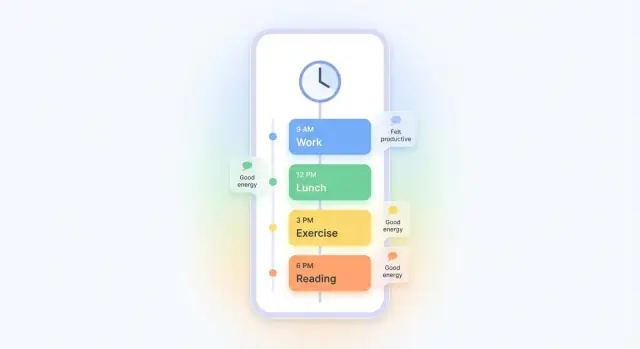
What a “Time Awareness” App Should Help People Do
A personal time awareness app isn’t just a timer with charts. It’s a gentle mirror: it helps people notice where their time actually goes, compare it with what they thought was happening, and make small, realistic adjustments.
Define “time awareness” for your audience
Different people need different kinds of clarity:
- Busy professionals may want to spot meeting overload and context switching.
- Students may need to understand study rhythms and procrastination triggers.
- Caregivers often need validation and visibility—recognizing that “invisible” tasks (coordination, driving, waiting) take real time.
Choose a definition that fits your target user. “Time awareness” can mean:
- “Knowing what I did today.”
- “Understanding my week’s patterns.”
- “Seeing which activities drain or recharge me.”
Clarify the core promise
Make the value statement simple:
- Notice patterns (e.g., late-afternoon slump, endless scrolling after work)
- Reduce wasted time by making it visible, not by shaming users
- Feel more in control through better expectations and planning
The app should help users move from “I’m always busy” to “I know what’s taking my time, and I can choose what to change.”
Set expectations (without overpromising)
Be explicit: this is guidance, not a medical tool, therapy, or a guarantee of productivity gains. People may be dealing with stress, ADHD, burnout, chronic illness, or unpredictable schedules. Your product should respect that reality and focus on clarity and reflection.
Typical outcomes users should feel
A good time awareness app supports outcomes like:
- Better planning (“this task takes 45 minutes, not 15”)
- Fewer surprises (“my errands take half a day”)
- More mindful choices (“I’ll rest now, and I won’t feel guilty later”)
Start With One Clear Use Case and a Simple Success Metric
A personal time awareness app can do a lot—track, analyze, coach, nudge. Your first version shouldn’t try to solve every time problem at once. Start with one specific “pain sentence” a person would actually say.
Pick the primary user problem
Choose a single, concrete situation you can design around, such as:
- “I don’t know where my evenings go.”
- “My workday gets eaten by meetings and context switching.”
- “I keep meaning to exercise, but I can’t tell what crowds it out.”
A good use case has:
- A clear time window (evenings, workdays, weekends)
- A clear motivation (reduce scrolling, protect focus, make room for a habit)
Choose 1–2 metrics that prove progress
Metrics should be easy to understand and hard to “game.” Pick one primary metric and one optional supporting metric:
- Time spent per category (e.g., Social, Family, Health, Admin)
- Planned vs. actual (did the day match intentions?)
- Focus blocks (count or minutes of uninterrupted work)
Avoid starting with complicated scores. Early users need clarity more than precision.
Decide: passive, active, or hybrid tracking
- Manual logging (active): simplest to build, strongest user intent, but higher friction.
- Auto-detect (passive): feels magical, but is harder to implement and easier to get wrong.
- Hybrid: auto-suggests, user confirms—often the best MVP balance.
Write a simple MVP success statement
Make it testable and time-bound. For example:
“Within 7 days, a new user can log at least 5 days and view one insight that changes what they do tomorrow (e.g., shifting 30 minutes from ‘scrolling’ to ‘exercise’).”
That statement keeps every design and feature decision honest.
Choose Your Tracking Method: Manual, Semi-Auto, or Auto
Your tracking method determines whether people stick with the app after day one. The goal isn’t “perfect data”—it’s a flow that matches how users actually move through a day.
Manual: simplest, most transparent
Manual tracking is the easiest to understand and the easiest to trust.
A classic option is task timers: a clear Start/Stop button for the current activity, plus a “resume last” shortcut. Make corrections painless: allow users to adjust the start/end time, split an entry, or change the category without hunting through settings.
Also include quick entries for people who won’t run timers: one tap for “Just finished: commute / social / chores.” This captures reality even when users forget to start a timer.
Semi-auto: assist, don’t guess
Semi-auto tracking reduces effort without pretending to be magic. Examples: suggested activities based on time of day, calendar import prompts, or “You’re still on ‘Work’—keep it running?” confirmations.
Optional context can make logs more meaningful, but keep it truly optional: mood, energy, and location only if you can explain why it helps and how it’s used.
Auto: powerful, but high trust requirements
Fully automatic tracking (sensors, background detection) can boost accuracy, but it raises privacy concerns and can misclassify activities. If you offer it, make it opt-in, explain the tradeoffs, and provide an easy “fix it” review screen.
Handling multitasking and interruptions
People switch constantly. Support:
- Pause and switch (one tap to stop current and start another)
- Overlaps when needed (e.g., “Cooking” while “Listening to podcast”)
- Interruptions as lightweight tags (“interrupted by call”) rather than forcing complex entries
Design for forgiveness: users should feel in control, not judged by the UI.
Design Categories That Make Logging Easy (Not Stressful)
Categories are the “buttons people press” all day long, so your system should feel small, friendly, and forgiving. If users hesitate because they can’t find the perfect label, they’ll stop logging.
Start with a small, neutral set
Begin with 8–12 categories max. That’s enough to cover most days without turning logging into a classification task. Keep wording neutral and descriptive rather than moral:
- “Work” instead of “Productive”
- “Rest” instead of “Lazy time”
- “Meals” instead of “Cheat food”
A good default set might include: Work/Study, Meetings/Admin, Commute, Meals, Chores, Exercise, Social/Family, Leisure, Rest/Sleep, and Errands.
Add flexibility with custom categories and tags
People’s lives vary, so support:
- Custom categories (user-defined, with color/icon) for big recurring areas (e.g., “Childcare”, “Side project”).
- Tags for nuance without category sprawl (e.g., “deep work”, “client A”, “family”, “outdoors”).
A simple rule: categories answer “what kind of time is this?” while tags answer “in what context?”.
Let users rename without guilt—or data loss
Allow renaming categories at any time. If someone sees “Exercise” and would rather log “Movement”, that’s a comfort upgrade, not an edge case. Consider an optional “hide category” feature so unused defaults don’t clutter the picker.
Plan for category evolution without breaking history
Behind the scenes, store categories with stable IDs and treat renames as display-only changes. For merges (e.g., “Commute” into “Travel”), keep old entries intact but map them for reporting.
Provide a lightweight “Manage categories” screen with clear actions: rename, merge, archive, and reorder.
Outline an MVP Feature Set and Key Screens
An MVP for a personal time awareness app should feel useful on day one, even if it’s “small.” The goal is to help someone capture what they did, then reflect on it in a way that nudges better choices.
The smallest usable feature set
Keep the core loop tight:
- Log time: create an entry with category, optional notes, and start/end (or duration).
- Review day/week: a clear summary of where time went, plus a simple weekly rollup.
- Edit entries: fix mistakes quickly (adjust times, merge, split, reassign category).
If you can’t do these three things smoothly, extra features won’t matter.
The main screens to sketch first
Design the app around a few predictable places users will return to:
- Today: “What am I doing now?” plus a lightweight summary of the day so far.
- Log: fast entry creation (start timer or add after-the-fact), minimal fields.
- Timeline / Calendar: a scrollable day view to spot gaps and overlaps.
- Insights: basic charts (top categories, day totals, week comparison) with plain-language takeaways.
- Settings: categories, reminders on/off, data export/delete, privacy controls.
What can wait (on purpose)
Avoid shipping “maybe later” complexity:
- Advanced analytics (correlations, forecasting, goal automation)
- Integrations (calendar, health data, task tools)
- Cross-device sync and multi-account support
A short MVP spec everyone can agree on
Write a one-page spec with: target user, core loop, the five screens above, and acceptance criteria like “Add/edit an entry in under 10 seconds” and “Show a week summary in two taps.” This keeps product, design, and engineering aligned when tradeoffs arrive.
Onboarding That Gets Users to Their First Useful Day
Onboarding should do one job: get someone to a “useful day” of data as quickly as possible. If setup feels like a questionnaire, people bounce before they’ve logged anything.
Keep it under 2 minutes
Aim for a four-step flow that fits on a single progress bar:
- Pick a goal (one tap): “Understand where my evenings go,” “Reduce work overtime,” or “Make time for fitness.”
- Choose a few categories (5–8 max): preselected options that cover most lives.
- Set reminders (optional, with sensible defaults): e.g., one evening check-in.
- Done → first log prompt: immediately ask for a simple entry.
Default settings that work (customize later)
Start with defaults that feel “normal”:
- A starter category set: Work/Study, Commute, Meals, Chores, Social, Rest, Exercise, Personal.
- A single daily reminder turned on, scheduled for early evening.
- A “Weekly summary” turned on.
Add a calm “You can change this anytime” link to /settings, but don’t push customization up front.
Use plain language, not app jargon
Replace feature names with examples:
- “Log the last 30 minutes” (with suggested categories)
- “What are you doing right now?”
- “Fix a mistake” instead of “Edit entry”
A tiny sample entry (pre-filled) helps users understand the format without thinking.
Design a gentle first week
The first week should feel forgiving. Offer a daily nudge like “If you missed earlier, just log your last hour.” Celebrate consistency (“3 days logged”) more than perfection, and allow “Skip today” so people don’t quit after one busy day.
Logging UX: Fast Entries, Easy Fixes, and Low Friction
If logging feels like homework, people will quit—even if they love the insights. The goal of your logging UX is simple: capture “good enough” data quickly, then make it painless to correct later.
Make “Quick Add” genuinely quick (5–10 seconds)
Design a one-tap entry that works even when the user is busy or distracted. A strong pattern is:
- Single primary action on the home screen (big “Start” or “Log now” button)
- Last used category preselected (with one-tap change)
- Optional notes hidden behind a secondary tap
- Smart defaults (start time = now; duration = running timer or last typical duration)
If your app requires multiple screens before saving, users will postpone logging—and then forget.
Editing should be easier than re-logging
People will make mistakes: wrong category, late start, forgot to stop a timer. Build an easy edit flow that supports common fixes in seconds:
- Adjust start/end times with a simple time picker (and “+5 min / -5 min” nudges)
- Switch category without losing notes or tags
- Merge entries when someone accidentally creates duplicates (e.g., “Commute” split into two)
A helpful detail: show a clear “before/after” preview so edits feel safe.
Templates for repeated routines
Offer templates for routines that repeat daily or weekly (e.g., morning routine, school run, gym). A template should create an entry (or a sequence of entries) with preset categories, typical durations, and optional reminders—without forcing users into strict schedules.
Make missed logs recoverable
Instead of punishing gaps, help users repair them. Use an end-of-day recap prompt that’s light-touch: “Want to fill the missing blocks?” Then show a simple timeline with suggestions like “Likely Work” or “Unlogged,” letting users confirm or adjust quickly.
When logging feels forgiving, users stick around long enough to benefit from the habit.
Insights That Help Users Reflect (Without Overwhelming Them)
Insights are where a personal time awareness app earns trust—or loses it. The goal isn’t to “grade” users. It’s to help them notice patterns quickly, spot mismatches between intention and reality, and make one small change tomorrow.
Start with a simple daily timeline
Give users a clean, scrollable day view that answers one question: “Where did my time go?”
A good default is a chronological timeline with:
- Clear gaps (untracked time) shown as empty blocks, not as “failures”
- Overlaps flagged gently (“Two activities logged at 3:00–3:30”) with a one-tap fix
- A short daily total per category at the bottom, so the timeline doesn’t turn into a dashboard
Weekly patterns without complex charts
In a weekly view, focus on patterns by day and category rather than dense visualizations.
For example: “Tue and Thu have the most ‘Admin’ time” or “Evenings trend toward ‘Scrolling’.” A lightweight grid (days × categories) with color intensity often works better than multi-axis charts.
Planned vs actual with “time budgets”
Let users set optional “time budgets” per category (e.g., Work: 8h, Exercise: 30m, Social: 1h). Then show a calm comparison:
- “Under / On track / Over” labels
- Small deltas (“+25m”) instead of dramatic percentages
This keeps planning flexible while still revealing tradeoffs.
Reflection prompts that don’t feel like homework
Offer one optional prompt at the end of the day or week, such as:
- “What felt worth it today?”
- “What would you do less of tomorrow?”
Make it skippable, saveable in one tap, and visible alongside the timeline so reflection connects to real entries. Avoid pop-ups that interrupt logging; place prompts on the home/summary screen instead.
Notifications and Nudges Users Won’t Immediately Turn Off
Notifications are a trade: they can help people stay aware, but they can also become noise fast. The goal isn’t “more reminders”—it’s fewer, better-timed prompts that users feel in control of.
Start with three gentle anchors
For most people, a small rhythm works better than frequent pings. A good default set is:
- Start-of-day plan: a quick prompt to choose today’s focus (even just one intention).
- Mid-day check-in: a light “How’s it going?” moment to log what actually happened.
- End-of-day review: a short reflection prompt to close the loop.
Keep each notification actionable and tiny: one tap should open the exact screen needed, not a generic home view.
Put users in the driver’s seat
Let users choose:
- Quiet hours (including weekends as a separate option)
- Notification frequency (off / basic / standard / high)
- Which anchors they want (plan, check-in, review)
Offer these controls during onboarding and keep them easy to change later in /settings.
Smart nudges—only with opt-in
“Smart” nudges can be helpful if they’re based on the user’s behavior, but they must be optional. Examples:
- If someone logs consistently in the evening, suggest moving the review reminder later.
- If a user hasn’t logged for two days, send one gentle “Want to restart today?” message—then back off.
Supportive copy, no shame
Avoid pressure or guilt (“You missed your goals”). Use encouraging language (“Want to take 30 seconds to capture your day?”) and provide easy Snooze options (e.g., 15 min, 1 hour, tomorrow). When in doubt, fewer notifications—with better timing—wins.
Privacy, Data Storage, and Trust-Building Basics
A personal time awareness app can feel intimate: it reflects routines, priorities, and sometimes stress. Trust is not a “nice to have”—it’s a core feature that affects whether people log consistently.
Decide what data you store (and keep it minimal)
Start with the smallest set of data that still delivers value:
- Time entries: start/end time (or duration) and an activity label.
- Categories/tags: a simple structure to group entries.
- Notes (optional): short text for context.
- Mood/energy (optional): a quick rating, never required.
Avoid collecting sensitive data by default (precise location, contacts, microphone, background app usage) unless you can clearly explain why it improves outcomes for the user. If a feature needs it, make it opt-in and easy to disable.
Explain storage choices in plain language
Give users a clear choice during onboarding or in Settings:
- Local-only: data stays on the device. Great for privacy, but switching phones is harder.
- Cloud sync: data is backed up and syncs across devices. Great for convenience, but requires an account and stronger security.
Use simple copy like “Stored on this phone” vs “Synced to your account,” and state what you can and cannot see as the app provider.
Put users in control: export and delete
Offer a visible “Data controls” area that includes:
- Export (CSV and/or JSON) so users can take their history elsewhere.
- Delete entry / delete range for quick cleanup.
- Delete account & data (for cloud sync), with a clear timeline.
When you make privacy practical—clear options, minimal collection, and easy exits—people are more willing to log honestly and stick with the app.
Build Plan: Tools, Architecture, and Testing for a Reliable App
A time-awareness app lives or dies on reliability. If logging fails, sync duplicates entries, or charts look “off,” people won’t trust the insights—so plan the build around correctness first, polish second.
Pick your build approach
No-code prototype is best when you’re still validating the flow: quick screens, basic storage, and a clickable demo to test onboarding and logging UX. It won’t handle complex offline sync well, but it’s perfect for learning what users actually need.
Cross-platform (React Native/Flutter) gives you one codebase for iOS and Android with near-native performance. This is often the best MVP choice when you want to ship to both stores without doubling effort.
Native (Swift/Kotlin) is worth it if you need deep OS integrations (widgets, advanced background tracking, tight battery control) or you’re optimizing heavily for one platform first.
If you want to move faster from idea → working product, a vibe-coding platform like Koder.ai can help you prototype the core loop (logging, timeline, basic insights) via a chat interface, then iterate with “planning mode” before you commit to deeper engineering. It’s also useful if you want a clean handoff: you can export source code, and evolve it into a production-grade stack.
Common building blocks (keep them simple)
Most MVPs need the same core components:
- Local database (so logging works instantly): entries, categories, tags, and edits.
- Optional account + cloud sync: sign-in, backups, multi-device access.
- Notifications: reminders, gentle check-ins, and “complete your day” prompts.
- Charts and summaries: daily totals, category breakdowns, streaks, and comparisons.
- Export: CSV or a simple share sheet to build confidence and portability.
Offline first, then sync (with conflict rules)
Assume users will log on the subway or during travel.
- Store every change locally with timestamps.
- Sync in the background when connected.
- Define conflict resolution up front: for example, last edit wins for simple records, or keep both versions and ask the user to choose only when necessary.
- Be careful with time math across devices: store timestamps in UTC, display in local time.
Testing plan: trust is a feature
Run lightweight usability tests early (5–8 people) focused on “Can you log an activity in 10 seconds?” Then add targeted edge-case tests:
- Missed logs and backfilling yesterday.
- Edits that split/merge entries.
- Daylight savings time changes and time-zone travel.
- Phone restarts, low battery mode, and no connectivity.
- Sync duplication and “phantom totals” in charts.
A reliable app doesn’t need fancy tech—it needs predictable behavior users can depend on every day.
Launch, Measure, and Improve: A Practical Roadmap
A time awareness app gets better when you treat launch as the start of learning—not the finish line. The goal is to ship something stable, observe real behavior, and make small, confident improvements.
1) Launch in controlled steps
Start with a small beta (TestFlight/closed testing) and a short “first-week checklist” for users: log 3–5 entries/day, edit at least once, and review insights on day 3. This gives you comparable early data.
Add lightweight feedback loops right inside the app:
- A one-question prompt after day 3 (“Was logging easy today?”)
- A 30-second survey after the first weekly summary
- A gentle nudge to leave an app store review after a user hits a clear win (e.g., 7 days logged)
2) Track a few product metrics that matter
Avoid metric overload. Track simple signals that map to your core value:
- Retention (D1/D7/D30): do people return?
- Daily logs per active user: is logging becoming a habit?
- Edit rate: are entries accurate enough to trust?
Pair numbers with a handful of user comments each week so you understand why metrics move.
3) Iterate based on real behavior
Use what you learn to refine three areas first:
- Categories: merge confusing ones, rename for clarity, add quick favorites
- Reminders: adjust timing, offer “quiet weeks,” and learn which nudges get dismissed
- Insights: simplify charts, add plain-language takeaways, and highlight one action step
4) Grow the roadmap carefully
Once the core loop is sticky, consider upgrades users often ask for:
- Home screen widgets for quick logging
- Calendar integration to prefill events (with clear permission controls)
- Focus sessions (timers + intention setting)
- Light coaching content (weekly prompts, reflection templates)
Keep a public “What’s next” page (e.g., /roadmap) so users see progress and feel heard.
FAQ
What is a “time awareness” app, and how is it different from a productivity app?
A time awareness app helps people notice how they spend time, compare it to what they expected, and make small adjustments.
It’s less about “being productive” and more about clarity: where time goes, what patterns repeat, and what tradeoffs are happening.
How do I define “time awareness” for my target users?
Pick one audience and define time awareness in their terms:
- Professionals: meeting load, context switching, overtime
- Students: study rhythms, procrastination triggers
- Caregivers: visibility for “invisible” coordination and waiting
Then write a simple promise like “See where your evenings go in 7 days.”
What’s a good first use case for an MVP time awareness app?
Start with one concrete “pain sentence” and one time window, for example:
- “I don’t know where my evenings go.”
- “My workday gets eaten by meetings.”
Your MVP should answer that one question better than anything else, before expanding.
Which success metrics should I track in the MVP?
Use 1–2 metrics that are easy to understand and hard to game:
- Time spent per category (primary)
- Planned vs actual or focus blocks (supporting)
Avoid complex scoring early; clarity beats precision in the first version.
Should the app use manual, automatic, or hybrid time tracking?
It depends on your user and your build capacity:
- Manual: simplest and most trustworthy; higher friction
- Auto: feels magical but can misclassify and raises privacy concerns
- Hybrid: auto-suggest + user confirm; often the best MVP balance
If accuracy and trust are critical, start manual or hybrid.
How should I handle multitasking and interruptions in the logging flow?
Design for constant switching:
- One-tap pause and switch
- Optional overlaps only when truly needed
- Lightweight interruption tags (instead of forcing complex entries)
The goal is “forgiving logs,” not perfect diaries.
How many categories should I start with, and how should I structure them?
Keep categories small, neutral, and easy to choose:
- Start with 8–12 defaults
- Use descriptive labels (e.g., “Rest,” not “Lazy time”)
- Add tags for nuance without exploding the category list
Also allow rename/merge/archive so the system can evolve without breaking history.
What are the essential MVP features and screens?
The minimum useful loop is:
- Log time (timer or quick entry)
- Review day/week (simple totals + timeline)
- Edit entries (adjust times, split/merge, recategorize)
If any of these are slow or confusing, extra features won’t save retention.
How do I design onboarding so users actually start logging?
Onboarding should get users to a “useful day” fast:
- Keep it under 2 minutes
- Pick a goal, choose a small category set, set an optional reminder
- Immediately prompt the first log (with a pre-filled example)
Optimize for first-day success, not perfect setup.
What privacy and data controls are important for a time awareness app?
Collect the minimum needed and make choices explicit:
- Start with entries, categories/tags, and optional notes
- Make sensitive inputs (location, background detection) opt-in
- Offer clear export (CSV/JSON) and delete controls
Trust improves consistency—privacy controls are part of the product.