

How to Create a Mobile App for Remote Employee Check-Ins
Learn how to plan, design, build, and launch a mobile app that helps remote employees check in securely, share status, and keep teams aligned.
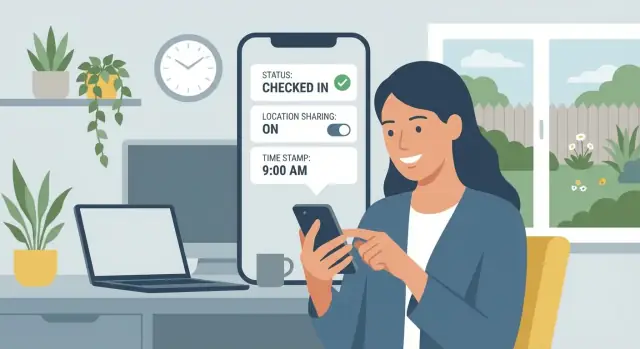
What a Remote Check-In App Should Do
A “check-in” is a lightweight update that answers the basic question: What’s my work status right now? In a remote employee check-in app, that usually means a short status (e.g., “Starting my shift,” “On site,” “In focus time,” “On a client call”), an optional note, and an automatic timestamp.
Some teams also include availability (available/busy/on break) and optional location signals (like “at customer site” vs. “remote”). Location should be configurable and used only when it supports a real operational need.
The outcomes you’re building for
The goal isn’t more data—it’s clearer coordination with less overhead. A good mobile app for workforce check-ins should create:
- Visibility: Managers and teammates can quickly see who’s active, who’s on break, and who’s unavailable—without chasing updates.
- Accountability: Time-stamped employee status updates help confirm attendance, shift start/end, and key milestones.
- Fewer meetings and pings: Instead of “Are you online?” messages or daily standups that don’t fit shift work, a fast check-in flow keeps everyone aligned.
For many organizations, this overlaps with time and attendance mobile needs (e.g., confirming shift start). It can also support operational updates (e.g., “arrived at site,” “job complete”) depending on your scenarios.
What it is not
A remote work tracking tool can easily drift into the wrong territory. A check-in app is not:
- Constant surveillance
- Screen recording or keystroke logging
- A way to measure “activity” minute-by-minute
If your product feels like monitoring rather than coordination, adoption will drop—and you’ll introduce serious privacy and trust issues.
Who benefits (when it’s done right)
- Employees: One tap to communicate status, fewer interruptions, and clearer expectations.
- Managers: A dependable view of team availability, shift coverage, and exceptions that need attention.
- HR/Ops: More consistent records for attendance, workforce coordination, and later workforce analytics—without turning work into a reporting chore.
Done well, secure employee check-ins become a simple habit: fast to submit, easy to understand, and useful enough that people actually want to use it.
Requirements: Users, Scenarios, and Success Metrics
Before you design screens or pick a tech stack, get specific about who will use the remote employee check-in app, when they’ll use it, and what “good” looks like. This prevents building features nobody needs—and makes later decisions (like location tracking) much clearer.
Define the primary user groups
Most check-in apps have three core roles:
- Employees: submit status updates, start/end shifts, confirm arrival at a site, flag issues.
- Managers: monitor team availability, approve exceptions, respond to incident check-ins.
- Admins (HR/Operations/IT): manage policies, access control, locations, and reporting.
Write down what each role needs to do in under 30 seconds—and what they should never have access to (e.g., employee personal details, location history).
Collect real check-in scenarios (5–10)
Interview a few people from each role and document concrete moments, such as:
- Start-of-day “I’m online” or “I’m delayed”
- Shift change handoff
- Field visit arrival/departure
- Incident or safety check (“I need help”, “All clear”)
For each scenario, capture: trigger, required fields, who gets notified, and what happens if the user can’t complete it (bad signal, dead battery, time pressure).
Choose success metrics you can measure
Pick a small set of metrics tied to value:
- Adoption rate (who uses it weekly)
- Completion rate (submitted vs. attempted check-ins)
- Time saved (vs. calls/texts/manual logs)
- Operational impact (fewer no-shows, faster response to incidents)
Decide the location policy upfront
Location can improve trust for field teams, but it raises privacy concerns. Decide whether it’s required, optional, or disabled by default—and document when it’s collected (only during check-in vs. background), how precise it must be, and who can view it.
Core Features and Check-In Flows
A remote employee check-in app succeeds when it makes the “tell us how you’re doing” loop quick for employees and actionable for managers. That means a small set of predictable flows, consistent status fields, and clear rules around edits.
Employee core flows
1) Sign in
Use SSO where possible, then keep the session persistent. The goal is “open app → ready to check in,” not repeated logins.
2) Submit a check-in
Make the default check-in a single screen with a few structured fields plus an optional note. Typical fields:
- Availability (available, in a meeting, offline, on leave)
- Mood/energy (simple scale or quick tags)
- Blockers (none / select from list / free text)
- Next tasks (top 1–3 priorities)
- ETA (when you’ll be back / when a task will be done)
3) View history
Let users scan their recent check-ins (today, week, month) and open a single entry to see what they submitted. This reduces repeated questions and helps employees stay consistent.
4) Edit/cancel rules
Be explicit: allow edits for a limited window (e.g., 15–60 minutes), and keep an audit trail if managers can see changes. If cancellation is allowed, require a reason.
Scheduling support (prompts that don’t annoy)
Support recurring prompts (daily standup, end-of-day wrap), plus shift-based check-ins for hourly teams. Reminders should be configurable per user and per team, with “snooze” and “mark as not working today” options.
Manager view: from updates to action
Managers need a team timeline (who checked in, who hasn’t, what changed) with exceptions highlighted (new blockers, low energy, missed check-ins).
Add lightweight follow-up actions—comment, assign a task, request an update, or escalate to HR—without turning the app into a full project tracker.
Data Model: What You Capture and Why
Your data model determines how easy it is to report, audit, and improve your remote employee check-in app later. A good rule: store the minimum needed to run the workflow, then add optional fields that help managers without forcing extra typing.
Minimal fields vs. detailed notes
A “minimal” check-in is great for speed: users pick a status and submit. This works well for daily pulse checks and simple time and attendance mobile use cases.
Detailed check-ins add value when teams need context (handoffs, blockers, safety updates). The trick is making detail optional—don’t make notes mandatory unless your scenario truly requires it.
A practical check-in record schema
A typical check-in record can look like this:
- check_in_id: unique identifier
- user_id (and optionally team_id/manager_id for routing)
- timestamp: when it was submitted (store in UTC)
- status: e.g., Available, In a meeting, On site, Sick, PTO
- notes: short text (optional)
- attachments: references to files/photos (optional)
- location_flag: a privacy-friendly boolean like “On-site = true/false” instead of exact GPS by default
- source: mobile, web, API (helps troubleshooting)
If you need edits, consider an original_timestamp plus updated_at to preserve history.
Retention, exports, and audit trail
Define retention rules early. For example, keep status updates for 90–180 days for team operations, and store audit logs longer if required by policy.
Document who can delete records and what “delete” means (soft delete vs. permanent removal).
Plan exports from day one: CSV downloads for HR, and an API for payroll or workforce analytics. For trust and compliance, maintain an audit trail (created_by, updated_by, timestamps) so you can answer “who changed what, and when” without guesswork.
Security and Access Control Basics
A remote employee check-in app only works if people trust it. Security isn’t just about blocking attackers—it’s also about preventing accidental exposure of sensitive details like location, health notes, or attachments.
Authentication: keep sign-in simple, but strong
Offer more than one sign-in option so teams can choose what fits their environment:
- Email link / magic link for low-friction access (great for frontline teams who don’t want passwords)
- SSO (SAML/OIDC) for companies that already manage identity centrally
- Biometrics (Face ID / fingerprint) to quickly re-open the app on a personal device
If you support magic links, set short expiration times and protect against link forwarding by binding sessions to the device when possible.
Role-based access: define who can see what
Start with clear roles and keep permissions tight:
- Employee: create their own check-ins, view their history
- Manager: view check-ins for their direct team, follow up on exceptions
- Admin: manage org settings, policies, and integrations
- Auditor: read-only access to logs and reports
A good rule is: if someone doesn’t need a data field to do their job, they shouldn’t see it.
Least privilege for sensitive fields
Treat location, free-text notes, and attachments as higher-risk data. Make them optional, restrict visibility by role, and consider masking or redacting in reports.
For example, a manager might see “location verified” instead of precise coordinates unless it’s required.
Threats to plan for early
Design around real-world misuse:
- Lost devices: require app lock/biometric re-check and allow remote session revocation
- Shared phones: separate profiles clearly; avoid storing check-in history without re-auth
- Fake check-ins: add server-side checks (time windows, device signals) and flag anomalies for review
Privacy, Consent, and Compliance Considerations
A remote employee check-in app can quickly feel “too personal” if people don’t understand what’s collected and why. Treat privacy as a product feature: be explicit, predictable, and respectful.
Consent and transparency
Explain tracking in plain language during onboarding and in Settings: what data is captured (status, time, optional location), when it’s captured (on check-in only vs. background), who can see it (manager, HR, admin), and how long it’s kept.
Consent should be meaningful: avoid burying it in a long policy. Consider a short summary screen with a link to a fuller policy (e.g., /privacy) and a way to change choices later.
Location privacy choices
Decide whether you need location at all. Many teams can run check-ins with “no location” and still get value.
If location is needed, offer the least invasive option that meets the business goal:
- Geofence (e.g., “at job site: yes/no”) is often enough for on-site verification.
- Precise GPS should be optional and justified (e.g., field safety), with clear limits.
- User controls: show what’s being sent, allow “approximate” where possible, and never collect silently in the background unless there’s a strong reason.
Regional and legal principles (GDPR-style)
Design around purpose limitation and data minimization: collect only what you need for check-ins, don’t reuse it for unrelated monitoring, and keep retention short. Provide access requests, corrections, and deletion paths when applicable.
Policies to align with HR/legal
Define and document:
- Acceptable use (what the app is for—and not for)
- Retention period and deletion schedule
- Admin/manager access rules and audit trails
- How disputes are handled (e.g., missed check-ins, incorrect location)
Clear rules reduce risk—and increase employee trust.
UX Design for Fast, Low-Friction Check-Ins
A check-in app only works if people can complete it in seconds, even when they’re busy, on a small screen, or in poor connectivity. UX decisions should reduce thinking time and typing, while still capturing the context managers need.
Mobile-first UI: make the primary action effortless
Put the main action (“Check in”) front and center with large tap targets, high-contrast buttons, and minimal navigation. Aim for one-handed use: the most common options should be reachable without stretching.
Keep the flow short: status → optional note → submit. Use quick notes (e.g., “On-site”, “Traveling”, “Delayed 15 min”) rather than forcing free text.
Reduce friction with smart defaults
Good defaults remove repetition:
- Templates for common situations (start shift, break, end shift, incident).
- Recent statuses and “repeat last check-in” for routine days.
- Auto-filled context like current time and location only if your privacy policy supports it.
- Optional voice input for notes when typing is inconvenient.
Consider “micro-confirmations” (a subtle success screen and haptic feedback) instead of extra dialogs.
Accessibility that doesn’t slow anyone down
Support system font scaling, clear focus states, and screen-reader labels for every control (especially status chips and icons). Use strong contrast and avoid conveying meaning with color alone (e.g., pair “Late” with an icon and text).
International-ready by default
Remote teams cross borders. Display times in the user’s local timezone, but store an unambiguous timestamp. Let users choose 12/24-hour formats, and design layouts that handle longer translations.
If your workforce is multilingual, add language switching early—it’s far harder to retrofit later.
Offline Mode, Reliability, and Notifications
Remote check-ins fail most often when connectivity is weak, the app times out, or reminders don’t arrive. Designing for “imperfect conditions” makes the experience feel dependable—and reduces support tickets.
Offline-first check-ins (queue, then sync)
Treat every check-in as a local transaction first. Save it on-device immediately (with a local timestamp), show a clear “Saved—will sync” state, and enqueue it for upload when the network returns.
When syncing, send a batch of queued events to the server and mark them as synced only after you get an acknowledgement. If something fails, keep it in the queue and retry with backoff to avoid draining the battery.
Conflict rules you can explain to users
Offline mode and retries create edge cases. Define simple, predictable rules:
- Duplicate check-ins: de-duplicate by a client-generated UUID; if two are truly different, keep both but label the later one.
- Late submissions: store both event time (when the user says it happened) and received time (when the server got it). Reports can use either.
- Edited entries: avoid “silent edits.” Create a new revision and keep an audit trail so managers can trust the record.
Reliable notifications: local reminders vs push
Use local notifications for user-set reminders (they work without internet and are instant). Use push notifications for manager prompts, policy changes, or schedule updates.
Design notifications to be actionable: a single tap should open the exact check-in screen, not the app home.
Battery and data usage safeguards
Limit background GPS to opt-in scenarios. Prefer coarse location or “on check-in only” capture. Compress uploads, avoid large attachments by default, and sync only on Wi‑Fi when files are involved.
Choosing the Tech Stack and Architecture
The right stack for a remote employee check-in app is the one that ships quickly, stays reliable on spotty connections, and is easy to maintain as requirements evolve (new check-in types, approvals, reporting, and integrations).
Mobile platform: native vs. cross-platform
If you expect heavy use of device features (background location, geofencing, advanced biometrics) or you’re optimizing for the absolute best performance, native apps (Swift for iOS, Kotlin for Android) give you maximum control.
If your priority is faster delivery with one shared codebase—and your check-ins are mostly forms, status updates, and basic offline caching—cross-platform is usually a better fit.
- React Native: strong ecosystem, great for fast iteration.
- Flutter: consistent UI, good performance, predictable rendering.
A practical approach is to start cross-platform, then build small native modules only where needed.
If you’re aiming to validate workflows quickly (check-in types, reminders, dashboards) before committing to a full build, platforms like Koder.ai can help you prototype and iterate via a chat-driven “vibe-coding” workflow—then export source code when you’re ready to take it into a standard engineering pipeline.
Backend building blocks
Most teams underestimate how much “backend plumbing” a check-in product needs. At minimum, plan for:
- API layer: REST or GraphQL for mobile clients and admin tools.
- Database: relational (PostgreSQL) works well for check-ins, schedules, and audit trails.
- Auth provider: SSO (Google/Microsoft), passwordless options, MFA, and user lifecycle.
- File storage (optional): if check-ins include photos or attachments.
Architecturally, a modular monolith is often the simplest starting point: one deployable service with clear modules (auth, check-ins, notifications, reporting). Move to microservices only when scale and team size demand it.
Integrations you may want later
Even if you don’t build integrations on day one, design with them in mind:
- Slack/Microsoft Teams alerts for missed or high-priority check-ins.
- Calendars to pre-fill “on-site/off-site” expectations.
- HRIS for employee directory sync and org structure.
If you’re unsure how to compare frameworks and hosting options, use this decision guide: /blog/mobile-app-tech-stack-guide.
Building the Backend and APIs
Your backend is the single source of truth for employee status updates. It should be simple to integrate, predictable under load, and strict about what it accepts—because check-ins are frequent and easy to spam by accident.
Core API endpoints to start with
Keep the first version focused on a few high-value endpoints that support the main check-in flow and basic administration:
- Create check-in:
POST /api/check-ins(used by the mobile app) - List history:
GET /api/check-ins?me=true&from=...&to=...(for “my history” screens) - Team dashboard:
GET /api/teams/:teamId/dashboard(latest status per person + counts) - Admin settings:
GET/PUT /api/admin/settings(work hours, required fields, retention rules)
A simple REST sketch looks like this:
POST /api/check-ins
Authorization: Bearer <token>
Content-Type: application/json

{
  "status": "ON_SITE",
  "timestamp": "2025-12-26T09:02:31Z",
  "note": "Arrived at client site",
  "location": {"lat": 40.7128, "lng": -74.0060}
}
Input validation + rate limiting
Validation prevents messy data that ruins reporting later. Enforce required fields, allowed status values, maximum note length, and timestamp rules (e.g., not too far in the future).
Add rate limiting per user and per device (for example, a small burst limit and a steady limit). This reduces spam from repeated taps, flaky networks, or automation.
Encryption and secure storage
- In transit: always use TLS (HTTPS) for API calls.
- At rest (server): encrypt databases and backups; restrict access to production data.
- On device: store tokens and cached check-ins in the OS secure storage (Keychain/Keystore), not plain local storage.
Logging: what to capture (and what not to)
Log enough to debug issues and investigate abuse:
- Request IDs, endpoint, response time, status code, user ID (or stable internal identifier)
- Auth failures, rate-limit triggers, and validation errors (without sensitive payloads)
Avoid logging sensitive content like full notes, exact GPS coordinates, or raw access tokens. If you need troubleshooting detail, log redacted summaries and keep retention short.
For more, connect logs to your ongoing improvements process in /blog/analytics-reporting-checkins.
Testing, Pilot Rollout, and Launch Checklist
A remote employee check-in app only works if it’s dependable under real working conditions: weak signal, busy mornings, and lots of different devices. Treat testing and rollout as product features, not a final hurdle.
Testing levels to run (and keep running)
Start with unit tests for business rules (e.g., check-in eligibility, required fields, timestamp formatting). Add integration tests for API flows like login → fetch schedule → submit status update → confirm server receipt.
Then do device testing across iOS/Android versions and a mix of low- and high-end phones. Finally, dedicate time to notification testing: first-time permission prompts, push delivery delays, and “tap notification → open correct screen” behavior.
Edge cases that break check-ins
Time-related bugs are common. Validate behavior for time zone changes (traveling employees), daylight saving time shifts, and server/client clock drift.
Network-related cases matter just as much: airplane mode, spotty Wi‑Fi, background refresh disabled, and the app being force-closed right after submitting.
Confirm the app clearly indicates whether a check-in is saved locally, queued, or successfully synced.
Pilot rollout plan
Launch to a small team first (one department, one region). Define what “success” means for the pilot: adoption rate, failed check-ins, average time to complete, and support tickets.
Collect feedback in short cycles (weekly), iterate quickly, and only then expand to more teams.
App store readiness checklist
Before release, prepare store screenshots, a plain-language privacy disclosure (what you collect and why), and a support contact email/web page.
Also confirm your production config is correct (push certificates/keys, API endpoints, crash reporting) so you don’t learn about setup issues from your first real users.
Analytics, Reporting, and Ongoing Improvements
Analytics is what turns a remote employee check-in app from “a form people fill out” into a tool that helps teams act early, support employees, and prove the app is worth maintaining.
Dashboards that answer real questions
Start with a simple dashboard built around the most common management questions:
- Completion rate: who checked in vs. expected check-ins (daily/shift-based)
- Late check-ins: patterns by day, time window, location type, or shift
- Trends by team/role: which groups struggle most, and whether changes improve behavior
Keep views filterable (team, role, time range) and make “what should I do next?” obvious—for example, a list of employees who missed today’s check-in.
Alerts that help without creating noise
Reporting is retrospective; alerts are proactive. Define a small set of alerting rules and make them configurable by team:
- Missed check-ins: notify the employee first, then escalate to a manager after a grace period
- Safety check triggers: a distinct, high-priority flow for “I’m not safe” or “need help” responses
- Anomalies: unusual sequences (e.g., repeated late check-ins, sudden status changes, or multiple check-ins from unexpected regions if you track location)
Tune thresholds carefully and add quiet hours to prevent alert fatigue.
Build a continuous improvement loop
The best improvements come from combining qualitative feedback with behavior data:
- Add in-app feedback after check-in (one tap: “Was this easy?”) and a short text box for issues
- Track feature usage (reminders opened, check-in completion after notification, drop-off steps)
- Run small A/B tests (notification wording, reminder timing, default answers) to improve completion without adding friction
Close the loop by publishing changes in release notes and measuring whether the metrics move.
Next steps and resources
If you’re budgeting the project, see /pricing for an idea of how teams typically scope features. For retention and culture ideas that pair well with check-ins, read /blog/employee-engagement-remote-teams.
If you want a faster path to an MVP—especially for standard flows like check-ins, dashboards, and admin settings—Koder.ai can help teams go from requirements to a working web/backend/mobile foundation quickly, with planning mode, snapshots/rollback, deployment/hosting, and source code export when you’re ready to scale the build.
FAQ
What should a remote employee check-in app do (and keep simple)?
A good check-in answers one question fast: “What’s my work status right now?” Keep the default flow to a single screen:
- A structured status (e.g., Available, On break, On site)
- Optional note (short)
- Automatic timestamp
- Optional signals like ETA, blockers, and “on-site yes/no” when needed
Aim for “open app → check in” in under 30 seconds.
How do we avoid turning check-ins into employee surveillance?
Design for coordination, not surveillance. A check-in app should not do things like:
- Screen recording
- Keystroke logging
- Minute-by-minute “activity scoring”
If you need operational proof (e.g., arrival at a job site), use the least invasive signal that works (like a geofence yes/no on check-in) and document the purpose clearly.
What scenarios should we capture before building screens?
Start by listing 5–10 real moments when someone needs to update status, such as:
- Start shift / end shift
- Shift handoff
- “Running late”
- Arrival/departure at a customer site
- Safety/incident check
For each scenario, define: required fields, who gets notified, and what the fallback is when the user is offline or rushed.
Which success metrics best show the app is working?
Use a small set tied to outcomes you care about:
- Adoption rate (weekly active users)
- Completion rate (submitted vs attempted)
- Time saved (fewer calls/texts/manual logs)
- Operational impact (missed shifts, incident response time)
Make sure each metric is measurable from your logs and dashboards, not just “nice to have.”
Should we collect employee location in a check-in app?
Only collect location when it supports a real operational need. Common policies:
- Disabled by default for office/knowledge teams
- Optional for hybrid teams
- Required for field workflows (only at check-in, not background)
Prefer privacy-friendly options first (e.g., “on-site: true/false” or geofence verification) and limit who can view it.
What roles and permissions should the app support?
Use role-based access control and least privilege. A practical baseline:
- Employee: create check-ins, view their own history
- Manager: view only their team’s check-ins, follow up on exceptions
- Admin: manage settings, policies, integrations
- Auditor: read-only access to logs/reports
If a role doesn’t need a field (like exact location or attachments), don’t show it.
What data should each check-in record include?
Store the minimum needed to run workflows and report reliably:
- User/team identifiers
- Submitted timestamp (UTC)
- Status (from an allowed set)
- Optional note, optional attachments
- Optional location flag (prefer yes/no over GPS by default)
- Source (mobile/web/API)
If edits are allowed, keep original_timestamp, updated_at, and an audit trail so records stay trustworthy.
How should we handle editing or canceling a check-in?
Make rules explicit and consistent:
- Allow edits only within a short window (e.g., 15–60 minutes)
- Keep an audit trail of what changed and when
- If cancellation is allowed, require a reason
Avoid “silent edits”—they reduce manager trust and create disputes later.
How can we make check-ins reliable offline and prevent duplicates?
Build offline-first for real-world conditions:
- Save check-ins locally immediately and show “Saved—will sync”
- Sync queued events in batches and mark as synced only after server acknowledgement
- De-duplicate with a client-generated UUID
- Store both “event time” (user action) and “received time” (server) for late submissions
These choices reduce failed check-ins and support tickets when connectivity is weak.
What should we test and validate before a pilot launch?
Test beyond the happy path and roll out gradually:
- Device testing across iOS/Android versions (including low-end phones)
- Notification testing (permissions, delivery delays, deep links)
- Time edge cases: time zones, DST changes, clock drift
- Network edge cases: airplane mode, force-close right after submit
Pilot with one team first, define success criteria, iterate weekly, then expand.