

How to Build a Smart To‑Do Automation Mobile App, Step by Step
Learn how to plan, design, and build a mobile app that automates to-dos with rules, reminders, and integrations—plus testing and launch tips.
Define the Goal and the “Smart” Automation Scope
A smart to‑do app succeeds when it solves one specific “why” for a specific group of people. Before designing features, decide who you’re building for and what “smart” will mean in your product—otherwise automation turns into a confusing pile of toggles.
Choose a primary audience (and a secondary one)
Pick one core persona you’ll optimize for:
- Busy professionals who need fast capture and reliable reminders between meetings
- Students who juggle deadlines, recurring study blocks, and flexible schedules
- Teams who need lightweight assignment and shared visibility (if you support collaboration)
- Neurodivergent users who benefit from reduced decision load, routines, and gentle nudges
Write the persona in one sentence (e.g., “a sales rep who lives in their calendar and forgets follow‑ups”). This becomes your filter for every automation idea.
Identify 3–5 painful moments worth automating
List the biggest recurring frustrations your persona experiences, such as:
- Forgetting tasks after a quick conversation or message
- Prioritizing when everything feels urgent
- Repeating the same setup (weekly reports, bills, workouts)
- Context switching (copying info from emails, calendar, notes)
- Lack of closure (tasks linger with no review habit)
These pain points should map directly to your first automation rules and triggers.
Define success metrics you’ll actually measure
Automation is only “smart” if it changes behavior. Choose a small set of metrics:
- Daily/weekly active use (is the app part of a routine?)
- Tasks completed per active user (is it helping execution?)
- Retention at day 7 and day 30 (does the value persist?)
- Optional: time to capture (seconds from idea to saved task)
Clarify what “smart” means in your app
Pick one approach—or combine them carefully:
- Rules: “If X happens, create/update a task.”
- Suggestions: “Looks like you do this weekly—want a recurring task?”
- Auto‑scheduling: “Place tasks into open calendar slots.”
Be explicit about the scope. Users trust “smart” features when they’re predictable, transparent, and easy to turn off.
Choose MVP Features That Prove Automation Value
An MVP for a smart to‑do app isn’t “a smaller version of everything.” It’s a focused set of features that proves automation saves time without confusing users. If people can’t reliably capture tasks and feel the automations working within the first day, they won’t return.
Start with the core to‑do actions
Before any automation, the app must nail the basics:
- Add tasks quickly (one screen, minimal typing)
- Edit details (title, notes, due date, tags/project)
- Complete tasks (with satisfying feedback and easy undo)
- Snooze (e.g., “later today,” “tomorrow morning”)
- Recurring tasks (simple patterns like daily/weekly/monthly)
These actions are the “test bench” where automation will prove its value.
Minimum automation that feels immediately useful
For v1, keep automation simple and transparent:
- If/then rules with a small set of triggers and actions (e.g., “If I add a task with ‘call’, then set due date to today 5pm”)
- Reminders and notifications that are reliable and easy to control
- Templates for repeated task sets (e.g., “Morning routine,” “Weekly admin”) so users get speed without learning rules on day one
The goal is not cleverness—it’s predictable time savings.
Be explicit about what’s out of scope for v1
To ship on time, draw a hard line around features that create complexity:
- AI task writing or rewriting
- Team collaboration, assignments, shared projects
- Deep analytics and productivity scoring
You can still validate demand for these later with lightweight experiments (waitlists, surveys, or a “coming soon” page).
Define MVP success criteria and a 4–8 week plan
Pick measurable outcomes, such as:
- Users create at least 1 rule or template in their first week
- Automation runs successfully with a low error/undo rate
- Day-7 retention improves compared to a non-automation baseline
A realistic 4–8 week build plan: weeks 1–2 core task flows, weeks 3–4 reminders + recurring tasks, weeks 5–6 simple rules + templates, weeks 7–8 polish, onboarding, and instrumentation.
Plan the User Flows and UX for Fast Task Capture
A smart to‑do app only feels “smart” when it reduces effort at the exact moment a user thinks of something. Design for speed: capture first, organize later, and make automation visible without forcing people to learn a system.
Map onboarding to the first “aha”
Onboarding should deliver one clear win in under two minutes: create a task → attach a simple rule → watch it trigger.
Keep the flow tight:
- Ask for one preference (e.g., work hours or notification permission), not a survey.
- Create a sample task the user can edit (“Pay rent”) so they start from success.
- Offer one beginner rule template (“When I add a due date, remind me 1 day before”).
- Confirm the automation with a small, friendly event log message (“Rule applied: reminder scheduled”).
Design the main screens around real behavior
Most people live in three places:
- Inbox: the default drop zone for quick capture.
- Today: a focused list that answers “What am I doing next?”
- Projects/Tags: optional structure for people who want it.
Add two more screens that support trust and control:
- Automation/Rules: where users can view, pause, and edit rules.
- Settings: kept minimal, with clear wording (avoid technical terms).
Keep inputs fast (capture beats perfection)
Speed features matter more than fancy visuals:
- Quick add from anywhere (persistent “+” or swipe action).
- Natural-language due dates (e.g., “Call Alex tomorrow 3pm”).
- Templates for repeating task types (“Weekly review”, “Grocery run”).
- A lightweight “details” drawer so users can add notes, tags, or a project without leaving the capture screen.
Accessibility basics that improve everyone’s experience
Accessibility is not optional—fast capture must work for different hands, eyes, and contexts:
- Large tap targets and spacing for one‑hand use.
- High contrast and readable font sizes (support system text scaling).
- Voice input support for quick capture while walking or commuting.
- Clear focus states and labels for screen readers, especially on rule-related controls.
If the capture flow is smooth, users will forgive early feature gaps—because the app already saves time every day.
Design the Data Model for Tasks, Rules, and History
A smart to‑do app succeeds or fails on its data model. If the underlying objects are too simple, automation feels “random.” If they’re too complex, the app becomes hard to use and hard to maintain.
Task model: keep it complete, not bloated
Start with a task schema that can represent most real-life work without forcing users into workarounds. A practical baseline includes: title, notes, due date (or none), priority, tags, status (open/done/snoozed), and recurrence.
Two design tips that prevent painful migrations later:
- Treat due date and reminder time as separate fields. Many tasks need a due date without a noisy alert.
- Model recurrence explicitly (pattern + next occurrence) rather than copying tasks. It makes edits and history much cleaner.
Rule model: make automation explainable
Your rule model should mirror how people think: trigger → conditions → actions, plus a few safety controls.
In addition to trigger/conditions/actions, include a schedule window (e.g., weekdays 9–6), and exceptions (e.g., “unless tag is Vacation” or “skip holidays”). This structure also makes it easier to create templates and an automation library later.
Event log: trust is a feature
Automation breaks trust when users can’t tell why something changed. Store an event log that records what happened and the reason:
- timestamp
- rule ID (or “manual edit”)
- before/after snapshots of key fields
- a short explanation string you can show in the UI (“Moved to Today because it’s due within 24 hours.”)
This doubles as a debugging tool and a user-facing “activity history.”
Privacy: store only what you can justify
Collect the minimum data needed to run automations. If you request permissions (calendar, location, contacts), explain clearly what the app reads, what it stores, and what stays on-device. Good privacy copy reduces drop-off at the exact moment users decide whether to trust your automation.
Pick Automation Triggers Users Actually Need
Automation only feels “smart” when it starts at the right moment. The mistake many apps make is offering dozens of triggers that sound impressive but rarely match real routines. Start with triggers that map to daily life and are easy to predict.
Time-based triggers (the everyday workhorse)
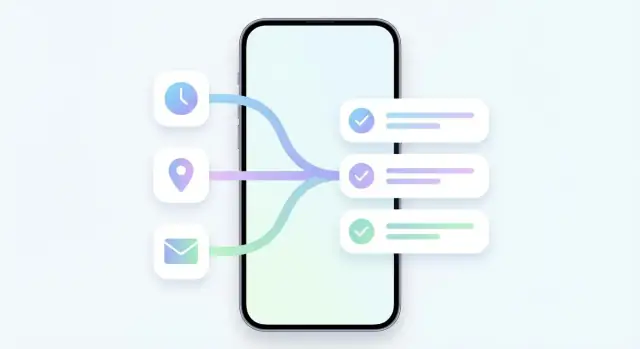
Time triggers cover most use cases with minimal complexity: at 9:00am, every weekday, or after 15 minutes.
They’re ideal for habits (take vitamins), work rhythms (standup prep), and follow-ups (remind me if I haven’t checked this off). Time triggers are also the easiest for users to understand and troubleshoot.
Location triggers (high value, high sensitivity)
Arriving/leaving a place can be magical: “When I arrive at the grocery store, show my shopping list.”
But location requires trust. Ask permission only when the user enables a location-based rule, explain what you’ll track, and provide a clear fallback (“If location is off, you’ll get a time reminder instead”). Also let users name places (“Home”, “Office”) so rules read naturally.
App and content triggers (power without complexity)
These triggers tie tasks to existing tools and events:
- Calendar event starts → create a “Join meeting” checklist 10 minutes before
- Email label added → create a task “Reply to client”
- Webhook received (from a service) → add a task when a form is submitted
Keep the list short and focus on integrations that remove real manual work.
Manual triggers (control on demand)
Not everything should run automatically. Offer quick ways to start rules: a button, voice shortcut, widget, or a simple “Run rule now” option. Manual triggers help users test rules, recover from missed automation, and feel in control.
Define Automation Actions and Safety Guardrails
Automation only feels “smart” when it reliably does the few things people actually want—without surprising them. Before you build a rule builder or add integrations, define a small, explicit set of actions your engine can perform, and wrap them in safety guardrails.
Core actions your rules can apply
Start with actions that map to common to‑do decisions:
- Create task (optionally in a specific list/project)
- Reschedule (e.g., “tomorrow at 9am” or “next business day”)
- Set priority (low/medium/high)
- Add tag (or remove tag)
- Create checklist items (useful when a trigger implies a template)
Keep action parameters simple and predictable. For example, “reschedule” should accept either a specific date/time or a relative offset—not both in a confusing way.
Notification actions users expect
Notifications are where automation meets reality: users are busy and often on the move. Add a few quick actions directly on reminders:
- Remind later (snooze using a consistent set of options)
- Mark done (single tap completion)
- Convert to recurring (for tasks that keep coming back)
These actions should be reversible and should not fire additional rules in a way that surprises the user.
Cross-item actions (power, but carefully)
Some of the highest-value automations affect more than one task. A practical example: when a task is tagged “work,” move it to the Work project.
Cross-item actions should be limited to clearly scoped operations (move, batch-tag) to avoid accidental mass edits.
Safety guardrails that protect trust
- Avoid loops: if an action changes a field that triggers the same rule, detect and stop re-entry.
- Rate limits: cap actions per minute per rule (especially for batch changes and notification-driven flows).
- Undo for key changes: offer a visible “Undo” after moves, reschedules, and bulk updates; store a short action history so users can revert confidently.
If users feel safe experimenting, they’ll use automation more—and keep it turned on.
Build a Rule Builder That Non-Technical Users Understand
A rule builder only works if people feel confident using it. The goal is to let users express intent (“help me remember and focus”) without forcing them to think like programmers (“if/then/else”).
Start with templates, not a blank canvas
Lead with a small set of guided templates that cover common needs:
- Time-based: “Every weekday at 9:00, show my Today list”
- Location-based: “When I arrive at Work, pin Work tasks”
- Calendar-based: “If I have a meeting in the next hour, silence non-urgent reminders”
Each template should ask only one question per screen (time, place, list, priority), and end with a clear preview before saving.
Always generate a human-readable summary
At the top of every rule, show a sentence users can understand and trust:
“When I arrive at Work, show Work tasks.”
Make it editable by tapping any highlighted token (“Work”, “show”, “Work tasks”). This reduces the fear of “hidden logic,” and it also helps users quickly scan their automation library.
Add “Advanced mode” later (and keep it optional)
Once templates work, introduce an advanced editor for power users—grouping conditions, adding exceptions, or combining triggers. Keep the entry point subtle (“Advanced”) and never require it for core value.
Handle conflicts predictably
Two rules will eventually collide (e.g., one sets a task to High priority, another moves it to a different list). Provide a simple conflict policy:
- Show the order of operations (which rule ran last)
- Allow users to set rule priority (“Run this first”) or stop after match
- Offer safe defaults like “Don’t overwrite manual edits made in the last X minutes”
Make automation explainable: “Why did this happen?”
Every automated change should have a visible reason on the task history:
“Moved to Work list • Because rule ‘Arrive at Work’ ran at 9:02 AM.”
Add a “Why?” link on recent changes that opens the exact rule and the data that triggered it. This single feature prevents frustration and builds long-term trust.
Choose the Architecture: Offline-First, Sync, and Background Limits
A smart to‑do automation app only feels “smart” if it’s dependable. That usually means an offline‑first core: tasks and rules work instantly on the device, even with no signal, and syncing is an enhancement—not a requirement.
Start local-first (then add sync intentionally)
Store tasks, rules, and recent automation history in an on-device database so “add task” is instant and search is fast. Later, if you add accounts and multi-device sync, treat the server as a coordination layer.
Design for sync conflicts up front: two devices might edit the same task or rule. Keep changes as small operations (create/update/complete) with timestamps, and define simple merge rules (for example: “last edit wins” for title, but completion is sticky).
Respect background execution limits
iOS and Android heavily restrict background work to protect battery. That means you can’t rely on a rule engine running constantly.
Instead, design around event-driven moments:
- When the user opens the app (run any due checks)
- When a push/local notification fires (bring them back in)
- When the OS grants brief background time (use it to sync or schedule)
Notification scheduling: local vs. server
If reminders must work offline, schedule them locally on the device. Use server-side notifications only for cross-device cases (e.g., a task created on your laptop should alert your phone).
A common approach is hybrid: local scheduling for personal reminders, server push for sync-triggered alerts.
Performance targets that protect trust
Set clear targets early: instant task capture, search results in under a second, and low battery impact. Keep automation evaluation lightweight, cache common queries, and avoid scanning “all tasks” on every change. This architecture keeps your app feeling fast—and your automation feeling reliable.
Add Integrations That Reduce Manual Work
Integrations are where a smart to‑do app stops feeling like “another place to type tasks” and starts acting like a personal assistant. Prioritize connections that remove repetitive copying and keep people in the tools they already use.
Calendar integration: plan work, not just list it
A calendar connection can do more than show due dates. Good automation reduces planning friction:
- Auto-create prep tasks when a meeting is added (e.g., “Read agenda,” “Collect metrics,” “Send pre-read”). You can base this on meeting title, attendees, or a keyword like “review.”
- Block focus time for deep work. For example, when a task is marked “High priority,” the app can suggest a 60–90 minute calendar block and avoid scheduling it too close to existing meetings.
Keep controls simple: let users pick which calendars to read/write, and add clear labels like “Created by To‑Do App” so calendar edits don’t feel mysterious.
Email and chat: turn messages into tasks in one tap
Most tasks originate in communication. Add lightweight actions in the places people already triage:
- Convert an email or message into a task with title + link back to the thread.
- Pull in key fields automatically (sender, due date hints like “by Friday,” attachments).
- Allow quick choices: inbox folder/project, due date, and priority—without a long form.
Voice and shortcuts: fastest capture wins
Support quick capture through Siri Shortcuts and Android App Actions so users can say “Add a task to call Alex tomorrow” or trigger a “Start daily review” routine.
Shortcuts also let power users chain actions (create task + set reminder + start timer).
If you offer advanced integrations as part of paid tiers, reference details on /features and /pricing so users understand what they get.
Design Reminders, Widgets, and Daily Review Features
Reminders and review screens are where a smart to‑do automation app either feels helpful—or becomes noisy. Treat these features as part of the product’s “trust layer”: they should reduce mental load, not compete for attention.
Notifications that help (and don’t annoy)
Make notifications actionable, timed, and respectful.
Actionable means users can complete, snooze, reschedule, or “start focus” directly from the notification. Timed means you send them when they can realistically act—based on due date, user work hours, and current context (e.g., don’t prompt “Call dentist” at 2 a.m.). Respectful means clear quiet hours and predictable behavior.
Also give users the settings they expect:
- Snooze defaults (e.g., 10 min, 1 hour, tomorrow morning)
- Work hours / workdays (so nudges align with their routine)
- Notification channels (separate “Overdue”, “Today”, “Automation ran”, “Focus timer ended”)
A useful rule of thumb: if a notification isn’t something users would want to see on a lock screen, it should be in an inbox-style feed instead.
Widgets and quick actions for fast capture
Widgets aren’t decoration—they’re the fastest path from intent to a captured task.
Include 2–3 high-frequency quick actions:
- Add task (with voice or one-tap “Quick Add”)
- Start focus (on the next task or a chosen list)
- Run a rule (e.g., “Plan my day” or “Move errands to Saturday”)
Keep widgets stable: avoid changing button positions based on “smart” guesses, which can increase mis-taps.
Daily review that feels supportive
A daily review should be short and calming: “What’s planned, what’s blocked, what can be deferred.”
Offer a gentle summary (tasks completed, tasks moved, automations that helped) and one meaningful prompt like “Pick the top 3.”
Gamification with restraint
If you add streaks or goals, keep them optional and forgiving. Prefer gentle summaries over pressure—celebrate consistency, but don’t punish users for real life.
Test Automation Thoroughly (Rules Break Trust Fast)
Automation is only “smart” when it’s predictable. If a rule fires at the wrong time—or doesn’t fire at all—users stop relying on it and revert to manual to-dos.
Testing isn’t just a checkbox here; it’s the trust-building phase.
Unit tests: treat rule evaluation like a calculator
Start with unit tests for the rule engine: given inputs (task fields, time, location, calendar state), the output should be deterministic (run / don’t run, action list, next scheduled run).
Create fixtures for the tricky stuff you’ll forget later:
- Time zones (travel scenarios, device time zone changes)
- “Edge” dates (end of month, leap day)
- Recurrence patterns (every weekday, “last business day”)
- Daylight Saving Time transitions (missing hour / repeated hour)
This lets you reproduce bugs without guessing what a user’s device was doing.
QA scenarios: simulate real phones, not ideal conditions
Build a short set of repeatable QA runs that anyone on the team can execute:
- Recurring rules across DST changes
- Offline mode: create/edit tasks and rules, then reconnect and verify sync outcomes
- Permission denial: notifications off, calendar access denied, location disabled—verify graceful fallbacks and clear messaging
- Background limits: confirm rules scheduled at the OS level still run when the app isn’t open
Beta testing: hunt for “false triggers” and confusion
In beta, your goal is to learn where users feel surprised.
Add a lightweight way to report issues from the rule screen: “This ran when it shouldn’t have” / “This didn’t run” plus an optional note.
Telemetry (opt-in where required): measure reliability and time-to-aha
Track basics—carefully and transparently:
- Rule runs, skips, and failures (with error categories)
- Average time from install to first successful automation (“time-to-aha”)
- Most common rule types that users create but later disable
These signals tell you what to fix first: accuracy, clarity, or setup friction.
Launch, Measure, and Improve the Automation Library
A “smart” to‑do app lives or dies by trust: users must feel that automations save time without creating surprises. Treat the automation library as a product of its own—shipped carefully, measured honestly, and expanded based on real behavior.
App Store / Play Store launch checklist
Before release, make compliance and expectations crystal clear.
- Privacy labels & data disclosure: document what you collect (analytics, crash reports, optional account data) and why. Keep it consistent with in‑app explanations.
- Permissions explanations (just‑in‑time): don’t ask for calendar/notifications/contacts at first launch. Ask only when a user enables a feature that needs it, and explain the benefit (“To schedule your ‘Prep for meeting’ task 30 minutes before events”).
- Automation safety copy: describe guardrails in store text (confirmations, undo, activity log) so users know they can review what happened.
Onboarding that gets users to value fast
Don’t start onboarding with a blank page. Offer sample automations users can enable in one tap, then edit:
- “When I add a task with ‘call’, set a reminder for 5pm.”
- “If a task is due tomorrow and not started, move it to Today at 9am.”
- “After I complete ‘Grocery shopping’, create ‘Put groceries away’.”
Show a short preview of what will happen, and include a “Try it safely” mode (e.g., runs once or requires confirmation).
Measure what matters (and iterate)
Track metrics that reflect usefulness and trust:
- rule activation rate (created → enabled)
- rule retention (enabled after 7/30 days)
- automation “undo” and manual edits after actions
- top trigger/action combinations and failure reasons
Use this data to add rule templates users are already approximating. If many people build similar “calendar → prep task” rules, turn it into a guided preset with fewer steps.
Support resources that reduce churn
Automations generate questions. Ship support content alongside features:
- a searchable FAQ focused on “Why didn’t my rule run?”
- a transparent changelog with behavior changes
- a /blog guide hub that explains new templates and best practices, linked from in‑app help
A practical build acceleration note (optional)
If you want to validate this product quickly, a vibe-coding workflow can help you ship the first working prototype (capture flows, rules UI, reminders, and analytics events) without building every screen by hand.
For example, Koder.ai can generate a React web app, a Go + PostgreSQL backend, and even a Flutter mobile client from a structured chat-based spec—useful for getting to an MVP fast, iterating on rule templates, and exporting source code when you’re ready to take over a traditional engineering pipeline.
FAQ
What should I define first before building a smart to-do automation app?
Start by defining a single primary persona and 3–5 painful moments you want to automate (forgetting, prioritizing, repeating setups, context switching, lack of closure). Then pick a narrow “smart” scope—rules, suggestions, and/or auto-scheduling—and set measurable success metrics like day-7/day-30 retention and tasks completed per active user.
What belongs in a v1 MVP for a smart to-do app?
Focus on the basics plus one clear automation win:
- Fast task capture, edit, complete, snooze, and simple recurrence
- Reliable reminders/notifications
- A small set of transparent if/then rules and/or templates
Avoid complex scope like AI rewriting, collaboration, or deep analytics until you’ve proven automation saves time for your core persona.
How do I design onboarding so users quickly experience the automation value?
Aim for an “aha” in under two minutes: create a task → attach a simple rule/template → see it apply. Keep onboarding minimal:
- Ask for one preference (e.g., work hours)
- Provide a sample task users can edit
- Offer one beginner automation template
- Show a clear confirmation (e.g., an event log entry) so users trust what happened
Which main screens should a smart to-do app prioritize?
Build around the three places users actually live:
- Inbox for quick capture
- Today for next actions
- Projects/Tags for optional structure
Add two trust-and-control surfaces:
- Automation/Rules to view/pause/edit
- History/Event log so users can answer “Why did this change?”
What data model do I need for tasks, rules, and automation history?
Use a practical baseline that supports real workflows without forcing migrations:
- Tasks: title, notes, due date (optional), reminder time (separate), priority, tags, status, recurrence
- Rules: trigger → conditions → actions plus schedule windows and exceptions
- History: timestamp, rule/manual source, before/after snapshots, and an explanation string
This makes automation predictable, debuggable, and explainable in the UI.
Which automation triggers are most useful for most users?
Start with triggers that are common, predictable, and easy to troubleshoot:
- Time-based (daily/weekday/at a time)
- Manual triggers (“Run rule now,” button, widget, voice shortcut)
- A few high-value integrations (calendar starts, email label added, webhook received)
Treat location as optional and permission-gated, with clear fallbacks when location is off.
What automation actions should I support, and how do I keep them safe?
Keep actions small, explicit, and reversible:
- Create task, reschedule, set priority, add/remove tags, create checklist items
Add guardrails to protect trust:
- Loop prevention (stop re-entry)
- Rate limits per rule
- Visible undo for key changes and bulk actions
Also prevent surprises by ensuring notification quick-actions don’t accidentally trigger cascades of rules.
How do I build a rule builder that non-technical users understand?
Lead with templates and human-readable summaries instead of a blank builder:
- Provide guided presets (time, location, calendar)
- Always show an editable sentence summary (e.g., “When I arrive at Work, show Work tasks.”)
- Add “Advanced” later for power users
Handle conflicts predictably by showing rule order, allowing rule priority, and optionally protecting recent manual edits from being overwritten.
What architecture choices matter most for reliability (offline, sync, background limits)?
Go offline-first so capture and search are instant, then add sync as coordination:
- Store tasks/rules/history locally
- Sync small operations with timestamps and clear merge policies
- Don’t assume background execution; schedule reminders locally and run checks on app open/notification events
A hybrid model (local reminders + server push for cross-device changes) is often the most reliable.
How should I test automation so rules don’t break user trust?
Test the rule engine like a deterministic calculator and validate real-world conditions:
- Unit tests for time zones, DST, end-of-month, recurrence edge cases
- QA runs for offline → reconnect sync, denied permissions, and background limits
- In beta, collect “ran when it shouldn’t” / “didn’t run” feedback from the rule screen
Measure reliability with rule runs/skips/failures and track “time-to-aha” (install → first successful automation).