

How to Create a Mobile App for Time-Blocked Daily Planning
A practical guide to creating a time-blocked daily planning mobile app: core features, UX flow, tech choices, integrations, launch, and iteration.
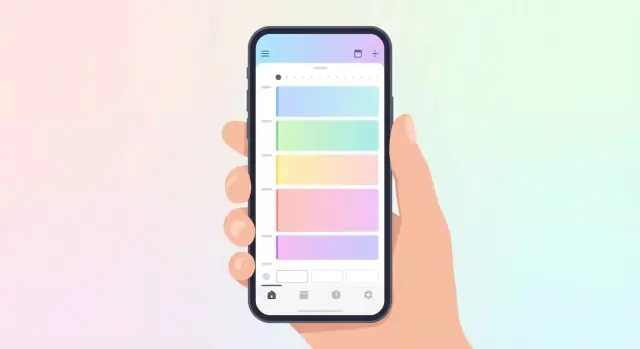
What a Time-Blocked Planning App Should Solve
Time-blocking is a planning method where you assign specific chunks of time to specific activities—work tasks, classes, meals, workouts, errands, and breaks. Instead of hoping you’ll “fit things in,” you decide when they’ll happen and then protect that time.
People want time-blocking because it reduces daily decision fatigue, makes workload feel more realistic, and helps prevent the trap of a long to‑do list with no clear path to finishing it.
Who this app is for
A good time-blocking app can serve several audiences, but you’ll build faster if you pick a clear first target:
- Students balancing classes, study sessions, and deadlines
- Professionals who need focus time, meetings, and admin work to coexist
- ADHD-friendly planners who benefit from structure, gentle prompts, and easy reshuffling
- Solo users vs teams: time-blocking is most natural for individual planning; teams add complexity (shared calendars, conflicts, permissions)
The main outcome: a day built from blocks
The core outcome your app must deliver is simple: users want a real daily schedule built from time blocks, not just another task list.
That means the app must help users:
- Turn intentions (“write report”) into a scheduled block (“10:00–11:30 write report”)
- See the day as a sequence of blocks with start/end times
- Adjust quickly when the day changes (drag, shorten, move, or swap blocks)
What this guide covers
This post walks from MVP thinking through launch: what to build first, what to postpone, and how to design the experience so users can create tomorrow’s plan in minutes. The focus is practical—shipping a mobile app that makes time-blocking feel easy, not like extra work.
User Needs and Use Cases to Target First
A time-blocked planner only succeeds if it helps people make better decisions with less effort. Before adding features, define the small set of “jobs” users hire the app to do every day.
The top 3 user jobs
- Plan the day fast: turn a messy list of tasks into a realistic schedule in a couple of minutes.
- Stay on track: know what to do right now (and what to ignore), with gentle prompts and a clear “current block.”
- Review how time was spent: compare plan vs actual quickly, so tomorrow’s plan improves without becoming complicated.
Common pain points to design around
Overplanning is the biggest: users create perfect-looking schedules that collapse by 11 a.m. Your early experience should nudge toward “good enough” plans—short blocks, buffers, and frictionless edits.
Context switching is another: if planning requires bouncing between tasks, calendar, notes, and timers, people stop using the app. Aim for one primary planning surface and minimal navigation during the day.
Unrealistic schedules happen when the app ignores constraints (meetings, commute, school pickup) or makes durations too optimistic. Even without advanced analytics, you can help with better defaults and optional buffer blocks.
Key moments to support
- Morning planning (2–5 minutes): choose priorities, drag them into blocks, and start the first block without extra setup.
- Mid-day adjustments (30 seconds): a meeting runs over, energy dips, something urgent appears—users need a fast way to shift blocks, pause, or swap priorities.
- End-of-day review (1–2 minutes): mark what happened, capture quick notes, and carry forward unfinished items without guilt.
Pick a primary platform first
Decide based on where your target users already live:
- Start with iOS if your audience is professionals, students with iPhones, or you rely on iOS-focused calendar behaviors and subscriptions.
- Start with Android if you’re targeting broader global reach, price-sensitive users, or heavy customization expectations.
- Build both only if you have strong distribution on both platforms and enough budget to maintain parity.
A focused first platform helps you validate the core loop—plan → follow → review—before expanding.
MVP Scope: Core Features vs Nice-to-Haves
Your MVP isn’t “a planning app with everything.” It’s the smallest product that lets someone successfully time-block a real day—twice—without frustration. The goal is confidence and repeat use, not feature breadth.
Core MVP: what must work on day one
Start with a timeline-first experience where users can:
- Create and edit time blocks (title, start/end time, color/category)
- Drag-and-drop blocks to reschedule quickly (this is the magic of time blocking)
- Add basic tasks inside a block (simple checklist; no complex projects yet)
- Set reminders per block (at start, or X minutes before)
Keep the flow tight: open app → see today → add/move blocks → get reminded → mark done.
Must-have settings that prevent early churn
A few settings eliminate most “this doesn’t fit my life” moments:
- Work hours / availability windows (so the timeline defaults to relevant hours)
- Default block length (e.g., 30/45/60 minutes)
- Week start day (Monday vs Sunday)
- Time zone handling that’s predictable while traveling (show local time; don’t shift past blocks unexpectedly)
Offline basics: plan even without internet
Offline doesn’t need perfect sync in v1, but it does need reliability:
- Users can view and edit today without a connection.
- Changes queue and sync later when online.
Nice-to-haves for later (don’t build first)
These are valuable, but they can wait until you’ve validated retention:
- Templates and recurring schedules
- Shared calendars / collaboration
- Advanced analytics and insights
- Widgets and home-screen shortcuts
If you’re unsure whether a feature belongs in MVP, ask: “Does it help a first-time user plan and follow today?” If not, park it.
UX and Screen Flow for Time Blocking
A time-blocking app succeeds or fails on how quickly someone can understand “what’s next” and adjust the day without friction. Your screen flow should reduce decisions, keep context visible, and make edits feel reversible.
Main navigation: keep it predictable
A simple bottom tab pattern works well for most daily planning apps:
- Today: the primary timeline and what to do now
- Calendar: a broader view (day/week) for moving blocks across dates
- Tasks: a place to capture and organize to-dos that can become blocks
- Insights: lightweight summaries and streaks (save depth for later)
Keep Today as the default landing screen, especially after onboarding.
The timeline: make “now” impossible to miss
Use an hourly grid that reads instantly at a glance. Two details noticeably improve usability:
- Auto-scroll to current time when opening Today (with a subtle “jump to now” button if the user scrolls away)
- A clear “now” indicator (line + time label) so users always know where they are
Avoid cramming: prioritize legible labels and generous spacing over showing 24 hours at once.
Editing blocks: tap, resize, confirm
A fast flow looks like this:
- Tap an empty slot to create a block.
- Adjust with resize handles (top/bottom) and a quick duration picker (15/30/60 minutes).
- Add title, color/category, and optional notes—then save.
Design for “oops” moments: include undo, and make “Cancel” truly discard changes.
Accessibility and clarity
Use color to support meaning, not replace it. Pair colors with labels/icons, maintain strong text contrast, and ensure large tap targets for resizing (especially on small screens).
Empty states that teach
When the timeline is blank, don’t show a dead end. Offer:
- An example day users can explore
- A one-tap sample template that populates a realistic schedule and can be edited immediately
This turns onboarding into a hands-on demo instead of a tutorial wall.
Data Model: Blocks, Templates, and Recurring Schedules
A time-blocking app lives or dies by how well it represents a “block.” If your data model is clear, everything else—drag-and-drop, reminders, stats—becomes easier.
What a time block is (and what it isn’t)
At minimum, a time block should include:
- Start time and end time (or start + duration)
- Label (e.g., “Deep work: proposal,” “School pickup”)
- Category (Work, Personal, Health, Errands) for filtering and insights
- Optional task link to a task (or checklist) when the block represents “do this thing” rather than “be in this place”
A useful mental model: the block is the source of truth for the schedule; tasks are optional attachments. Many users time-block without formal tasks at all.
Templates and recurring schedules
Most people repeat patterns: weekday routines, gym days, or a Monday planning block. Support this with two related concepts:
- Templates (presets): reusable sets of blocks like “Standard Weekday,” “Interview Day,” or “Kids at home.” Applying a template creates real blocks on the calendar.
- Recurring blocks: a rule that generates blocks over time (e.g., every weekday 8:30–9:00 “Inbox”). Keep the recurrence rule so edits can apply to “this one” or “all future.”
A practical approach is to store a recurrence rule with the series and generate instances as needed for display and reminders.
Conflicts: overlaps, buffers, travel, and breaks
Overlaps happen—users double-book themselves or forget to add commute time. Your model should support:
- Detecting overlapping blocks and flagging them (not necessarily blocking the save)
- Optional buffer time before/after a block
- Travel time as either a linked mini-block or an auto-added buffer
- Quick break blocks that can be inserted without reworking the day
Quick rescheduling (move one, shift the rest)
When a user drags a block later, offer two behaviors:
- Move only this block (may create overlaps)
- Shift following blocks by the same delta, preserving the plan’s structure
To support shifting, each block should be easy to query in day order (e.g., “what comes after this?”).
Completion state: planned vs done vs skipped
Tracking outcomes unlocks reviews. Store a simple state per block instance:
- Planned (default)
- Done
- Skipped (with an optional reason like “ran out of time”)
“Skipped” matters because it’s different from “failed”—it helps users learn which blocks are unrealistic versus merely postponed.
Tech Choices Without Overthinking the Stack
Tech decisions matter, but they shouldn’t block you from shipping an MVP. For a time blocking app, the winning stack is usually the one your team can build, test, and maintain quickly—while handling calendar/time edge cases reliably.
Native vs cross‑platform (plain-English tradeoffs)
Native (Swift for iOS, Kotlin for Android) is a strong choice when you need deep OS integration (widgets, background behavior, tight notification controls) and want the smoothest platform feel. The tradeoff is building and maintaining two apps.
Cross-platform (Flutter or React Native) gives you one shared codebase and faster iteration. It’s a great fit for an MVP where most screens are forms, lists, and a calendar-like UI. The tradeoff: some OS-specific behaviors (background execution limits, notification quirks) may still require native modules.
A typical architecture that stays simple
Most teams do well with:
- Mobile app: UI, offline caching, scheduling logic
- API: auth, sync, sharing/collaboration later
- Database: users, schedules, blocks, templates
If you expect offline use (common for planning), consider local-first with sync: store blocks on-device, then sync to the server when online.
A practical MVP backend
To move fast, use managed services:
- Managed auth (email/Apple/Google)
- Managed database (hosted Postgres/Firestore)
- Optional serverless functions for reminders or conflict checks
This reduces DevOps work and keeps the team focused on the planner experience.
If you want to prototype the product and iterate quickly before committing to a full engineering pipeline, platforms like Koder.ai can help you generate working web, backend, and mobile app foundations from a chat-driven workflow. In practice, that can be useful for quickly validating your core loop (timeline UI + blocks + reminders + sync) and then exporting source code when you’re ready to take it further.
Testing you can’t skip
Time-based apps break in surprising ways. Test:
- Timezones (travel, manual timezone changes)
- Daylight saving time (missing/repeated hours)
- Background behavior (notifications delayed, OS killing the app)
- Calendar permissions and partial failures (user denies access mid-flow)
Notifications, Timers, and Staying on Track
Time blocking only works if the plan shows up at the right moment—without turning your app into a noisy alarm clock. The goal is to help users start on time, recover gracefully when they slip, and finish blocks with closure.
Notifications that feel helpful
A simple, predictable set of notifications covers most needs:
- Start-of-block alert: “Design block starts in 5 minutes” or “Start now.”
- Gentle check-in (optional): mid-block prompt like “Still on this task?” with quick actions.
- End-of-block wrap-up: “Block complete—mark done, extend, or move.”
Make these configurable per block type (e.g., deep work vs errands) so users can keep high-focus blocks quiet.
Snooze and reschedule without punishment
People miss blocks. Your UX should assume it.
Offer one-tap options from the notification and the block screen:
- Snooze 5/10/15 minutes
- Reschedule to the next open slot today
- Move to tomorrow (with a quick “choose time” follow-up)
Avoid streak-shaming. A missed block should become a scheduling decision, not a guilt trip.
What’s realistic in the background (iOS and Android)
Mobile OSes restrict background work to protect battery. Plan around constraints:
- You can’t rely on a continuously running timer when the app is fully backgrounded.
- Use scheduled local notifications for start/end alerts.
- For longer sessions, store timestamps and recompute elapsed time when the app returns to foreground.
Optional focus tools: timer mode and DND prompts
A “Focus mode” can be lightweight but valuable:
- Timer mode (countdown or count-up) tied to a block
- Do Not Disturb prompt when a deep-work block begins
- Sound/vibration choices (including silent + haptics)
Keep focus tools optional and easy to ignore—users should feel supported, not controlled.
Calendar and Task Integrations Users Expect
Integrations are often the difference between a “nice planner” and a planner people stick with. Most users already live in Google Calendar, Apple Calendar, Outlook, or a task app—your time blocking app should fit into that routine without creating extra work.
Calendar sync: read-only vs two-way
Start with read-only calendar sync: display external events inside your planner, but don’t write anything back. It’s simpler, safer, and reduces support issues.
Two-way sync (creating/updating events in the user’s calendar) is powerful, but it introduces edge cases: conflicts, duplicates, timezone quirks, and “which system is the source of truth?” If you offer it, be explicit:
- Choose one calendar to write to (e.g., a dedicated “Time Blocks” calendar)
- Provide clear “sync now” and “disconnect” options
- Log changes in plain language (“Moved ‘Deep Work’ to 10:00 due to meeting”)
Avoid double-booking with locked blocks
Treat external calendar events as locked blocks: visible in the timeline, but not editable from your app (unless two-way sync is enabled).
When someone drags a time block onto a locked event, don’t just reject it—offer a helpful alternative:
- Snap the block to the nearest open slot
- Suggest a new time (“Next free 60 minutes: 2:30–3:30 PM”)
Task import: keep it optional and lightweight
Many users want tasks pulled in from somewhere else, but don’t overbuild. A practical MVP approach:
- Import from system reminders (iOS Reminders) or a simple CSV
- Allow a single inbox list rather than complex projects
- Let users convert tasks into time blocks with one tap
Permissions and onboarding that earns trust
Ask for permissions only when needed and explain the “why” in one sentence. Offer Skip for now so users can try the core experience first.
Example: “Allow calendar access to show your meetings and avoid double-booking. You can connect later in Settings.”
Progress, Insights, and Weekly Review Features
Time blocking feels great when you can see it working. A lightweight progress layer helps users stay motivated and plan better—without turning the app into a scorekeeper.
The few metrics that actually matter
Start with simple signals that connect directly to better planning:
- Planning streak: days where the user created a plan (even a rough one)
- On-time start rate: how often a block started within a grace window (e.g., 5–10 minutes)
- Completed blocks: blocks marked done (or “mostly done”) by end of day
- Reschedule frequency: how often blocks get moved
Keep definitions visible in-app. If a metric can be misunderstood, it will be.
A daily review that’s fast, not homework
Add a daily review screen that compares planned vs actual in plain language. The goal is closure and a better tomorrow.
A good MVP flow:
- A timeline view showing what changed (moved, skipped, overruns)
- One-tap outcomes per block: Done, Partly done, Skipped
- A small optional notes area: “What got in the way?” and “What would I change tomorrow?”
If you track overruns, show them as ranges (e.g., “often runs 10–20 min long”) rather than precise seconds.
Insights as helpful tips (never judgment)
Analytics should read like coaching, not grading:
- “Your first block starts late most days—try a 15-minute buffer at the start.”
- “Rescheduling peaks on Tuesdays—consider a lighter plan that day.”
- “You complete more blocks when you schedule breaks.”
Let users dismiss tips and control what’s tracked.
Weekly review and export (keep it optional)
A weekly summary can be simple: streak, completion trend, most-rescheduled day, and a few note highlights.
For export, start with a shareable weekly summary inside the app. CSV/PDF export can be a later add-on once you know users want it (and what they do with it).
Privacy, Security, and Trust Basics
A daily planning app quickly becomes a record of someone’s life: work hours, medical appointments, family time, and routines. If users don’t trust how you handle that data, they won’t commit to time blocking—or they’ll churn right after onboarding.
Set clear expectations (and keep them simple)
Use plain-language data ownership: users own their schedules and can export them. Put an easy account deletion path in the app (for example: Settings → Account → Delete) and explain what deletion means (what’s removed immediately, what’s retained briefly for billing, and what disappears from backups).
Be explicit about what you store—and why
Tell users what data you collect and the purpose for each:
- Time blocks (start/end, title) to build the schedule and show history
- Categories/tags to filter, color-code, and generate insights
- Reminders/notification settings to alert before a block starts
Avoid collecting anything that isn’t required for the core experience (like contacts or precise location) unless there’s a clear user benefit.
Security basics that should be non-negotiable
At minimum:
- Encryption in transit (HTTPS/TLS)
- Secure authentication (OS sign-in, OAuth, or email + strong password rules)
- Least-privilege permissions: request calendar access only if integrations are enabled; ask for notification permission when it’s needed—not on first launch
Consider local-first with optional cloud sync
Local-first storage feels safer to many users: schedules stay on-device by default, and cloud sync is opt-in. If you add sync, describe how it works and provide controls like “sync over Wi‑Fi only” and “pause sync.” Link to a readable policy page (e.g., /privacy) and a short “Your data” screen in settings.
Monetization and Pricing That Fits Planning Apps
Planning apps earn trust first, then revenue. A straightforward model is free core + subscription for premium: let people succeed in the first week, then make the upgrade feel like a boost—not a barrier.
Keep the core genuinely usable
Avoid paywalling essentials like creating blocks, editing a daily plan, and getting basic reminders. If users can’t build a workable schedule without paying, they’ll churn before they understand the value.
A solid free tier typically includes:
- Creating and moving time blocks
- A basic daily view and week view
- Simple notifications for upcoming blocks
What people are willing to pay for
Subscriptions work best when they unlock depth, convenience, and personalization. Common paid features:
- Template libraries (workdays, exams, parenting, shift work)
- Advanced insights (where time went, consistency, rescheduling patterns)
- Multi-device sync
- Widgets and richer notification options
Make pricing transparent
Keep options limited (usually monthly + annual) and explain benefits in plain language. On your pricing page, show what’s free vs premium in a simple comparison and include a clear call to action: /pricing.
If you offer a trial, set expectations up front: how long it lasts, what happens after, and how to cancel.
Launch Plan, Testing, and Iterating After Release
A time blocking app lives or dies on trust: blocks must save reliably, reminders must fire at the right time, and calendar sync must not create chaos. Treat your launch like an operations project, not just a marketing moment.
Prepare store assets that match real usage
Your screenshots shouldn’t be pretty empty screens—they should show a believable day plan with a few time blocks, one quick edit, and a reminder preview. Aim to demonstrate:
- A “today” view with morning/afternoon blocks (meetings, focus time, errands)
- Editing a block in two taps (change time, label, or color)
- A conflict or overlap indicator (even if basic)
Keep your messaging consistent: if your store listing promises “calendar sync” or “focus timer,” those features must work well on day one.
Beta testing checklist (catch the silent failures)
Time and notifications bugs are often hard to notice until users complain. Include targeted tests for:
- Reminders: lock screen alerts, sound/vibration settings, DND, and permission flows
- Calendar sync: create/update/delete blocks; avoid duplicates; handle read-only calendars
- DST and timezones: schedules created before a change should still make sense after traveling
- Offline behavior: edits made offline should sync cleanly without overwriting newer changes
- Edge cases: long blocks, back-to-back blocks, overlaps, recurring templates
If you support recurrence, test editing “this event only” vs “all future.” Even simple rules need predictable outcomes.
Launch with a tight feedback loop
At launch, prioritize learning over feature expansion. Add a lightweight feedback flow inside the app:
- An in-app “Send feedback” entry in Settings
- A one-minute survey after a user completes their first planned day
- A bug reporting path that captures app version and device info
Make it easy for users to describe failures in their own words: “My reminder was late,” “My calendar duplicated blocks,” or “I can’t find how to move a block.” Those phrases map directly to fixes.
Plan post-launch updates (iterate in the right order)
Resist adding shiny features until the core loop is smooth. A practical sequence:
- Onboarding improvements: clarify permissions (notifications, calendar) and show a sample day plan
- Templates: ship a few starter schedules (workday, student, parenting, shift work)
- Performance and reliability: faster loading, fewer sync errors, better battery behavior
- Accessibility: font scaling, contrast, VoiceOver/TalkBack support, larger tap targets
If your team is small, it can also help to build in “safe iteration” tooling from the start—features like snapshots and rollback are invaluable when you’re shipping frequently. (That’s one reason teams sometimes prototype in environments like Koder.ai, which supports rapid iteration and lets you export code once the product direction is validated.)
Publish short release notes in plain language. Users of a daily planning app care most about stability and predictability—earning that trust is your best growth strategy.
FAQ
What should a time-blocked planning app solve at its core?
A time-blocked app should help users produce a real schedule with start/end times, not just a to-do list. The core loop is:
- Turn an intention into a scheduled block (e.g., “10:00–11:30 Write report”)
- Make “what’s next” obvious via a clear current block/now indicator
- Allow quick edits when plans change (move/resize/swap in seconds)
What user needs should you prioritize first when designing the app?
Start with the few daily jobs that drive retention:
- Plan fast (2–5 minutes): prioritize and drop items into a realistic timeline
- Stay on track: reminders + a clear “current block” so users don’t renegotiate all day
- Review quickly (1–2 minutes): planned vs actual, so tomorrow’s plan improves
What features belong in the MVP vs later releases?
An MVP should let a first-time user time-block a real day—twice—without friction. Minimum features:
- Create/edit blocks (title, time, color/category)
- Drag-and-drop rescheduling
- Simple checklist/tasks inside a block (optional)
- Per-block reminders (start or X minutes before)
If a feature doesn’t help a new user plan and follow today, postpone it.
Which settings prevent early churn in a time-blocking app?
The most churn-reducing settings are the ones that make the timeline match real life:
- Work hours/availability windows
- Default block length (30/45/60)
- Week start day (Mon/Sun)
- Predictable timezone behavior while traveling
These are small to build but prevent “this app doesn’t fit me” frustration early.
What UX choices make time blocking feel fast instead of tedious?
Use a timeline-first “Today” screen with:
- An hourly grid that’s readable (don’t cram 24 hours)
- Auto-scroll to current time + a “jump to now” control
- A strong now indicator (line + time label)
Keep editing fast: tap empty slot → resize/quick duration → title/category → save, with a real undo/cancel.
What’s the best basic data model for time blocks and completion?
Model blocks as the source of truth for the schedule. At minimum store:
- Start/end (or start + duration)
- Label
- Category
- Optional task/checklist link
Also store an instance status like Planned / Done / Skipped (optionally with a reason) so reviews and insights stay simple and useful.
How should offline mode and sync work in an MVP?
Treat offline as reliability, not perfect sync:
- Users can view and edit today without internet
- Changes queue locally and sync later
- Resolve conflicts by prioritizing most-recent edits and showing a simple “needs review” prompt when necessary
Local-first storage is often a strong default for planning apps where people expect the day plan to always open instantly.
What calendar/task integrations do users expect, and what should you build first?
Start with read-only sync: show external calendar events as locked blocks in the timeline so users avoid double-booking. If you later add two-way sync:
- Write to one dedicated calendar (e.g., “Time Blocks”)
- Provide clear “sync now” and “disconnect” controls
- Log changes in plain language to prevent surprises
Ask for calendar permission only when the user enables the integration, and explain why in one sentence.
How do you design reminders and “stay on track” features without being annoying?
Aim for a small, predictable set:
- Start-of-block alert (optionally 5–10 minutes before)
- Optional mid-block check-in with quick actions
- End-of-block wrap-up: mark done, extend, or move
Assume users will slip. Provide one-tap snooze, reschedule to next open slot, and move to tomorrow—without guilt or “failure” messaging.
What monetization model fits a time-blocking planning app?
Keep the free tier genuinely usable (creating/moving blocks, basic day/week views, basic reminders). Monetize depth and convenience, such as:
- Templates/recurring schedules
- Advanced insights and review features
- Multi-device sync
- Widgets and richer notification options
Make pricing simple (monthly + annual), clearly separate free vs premium, and link to details on /pricing.