

How to Build a Multilingual Website for Schools and Colleges
Learn how to plan, build, translate, and maintain a multilingual website for schools and universities, with clear UX, SEO basics, and governance.
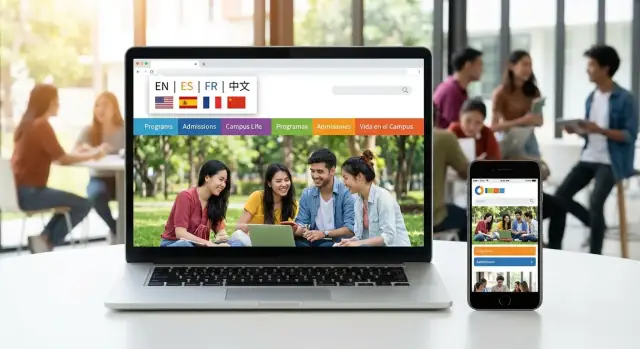
Set goals, audiences, and language scope
A multilingual education website works best when it starts with clarity: who you’re serving, what they need to do, and which languages remove real barriers. Before choosing tools or starting translation, align leadership, admissions, and communications around a shared plan.
Identify your key audiences
Most school and university sites serve multiple groups at once. List them explicitly so you can prioritize content later:
- Current students
- Parents/guardians
- Faculty and staff
- Alumni and donors
- International applicants and exchange students
- Local community partners
If your institution has distinct campuses, programs, or age groups, note where needs differ (e.g., K–12 parents vs. graduate applicants).
Define the primary tasks visitors must complete
Multilingual content should support actions, not just “translated pages.” Write down the top tasks for each audience, such as:
- Find admissions requirements, deadlines, and tuition
- Contact the right office quickly
- Complete forms (enrollment, records requests, housing)
- Read news and emergency updates
- View calendars (academic dates, events, closures)
These tasks help you decide what must be accurate and current in every language.
Decide which languages to support—and why
Choose languages based on evidence: enrollment goals, applicant markets, community demographics, and support requests. Start with languages that reduce friction in high-stakes journeys (applications, payments, safety information). If resources are limited, define a “minimum viable” language set for launch and a roadmap for expansion.
Set success metrics you can measure
Pick metrics tied to outcomes, for example:
- Fewer repetitive support requests (track by topic and language)
- More qualified inquiries or completed applications
- Better engagement on key pages (time on page, form completion)
- Reduced bounce rate on admissions and contact pages
Document these decisions in a short one-page brief so every later choice (content, design, workflow) supports the same goals.
Audit content and choose what to translate
Translation is most effective when you translate the right content—not everything by default. Start with a clear inventory so you know what exists, what’s missing, and what should be retired before translation begins.
Build a complete content inventory
List every public-facing page and file, including PDFs and “hidden” documents that families often rely on: policies, handbooks, enrollment guides, fee schedules, transportation rules, safeguarding statements, and accessibility info. Include media with text (images of flyers, scanned forms) because they often need rewriting, not just translation.
A simple spreadsheet is enough. Capture URL, page title, owner, last updated date, and where it lives (CMS page, PDF, Google Doc).
Label content by type and urgency
Group items into:
- Evergreen: admissions overview, curriculum, campus info, tuition details, student support, legal/policy pages.
- Time-sensitive: announcements, calendars, event posts, emergency updates, deadline reminders.
This helps you avoid translating content that will expire in a week, and it clarifies what needs faster turnaround.
Decide what must be translated
For each audience (parents/guardians, applicants, current students, alumni), mark content as:
- Required (high-impact and high-risk if misunderstood): admissions steps, eligibility, deadlines, policies, contact details.
- Recommended: program highlights, student life, FAQs.
- Single-language acceptable: highly specialized research news or archive posts—if you clearly label them.
Remove duplication before you translate
Translation multiplies maintenance. Combine duplicate pages, delete outdated content, and standardize terminology (program names, grade levels, office titles) so your translations stay consistent and easier to keep updated.
Pick a multilingual site structure (URLs and navigation)
Your URL structure is the backbone of a multilingual education site. It affects SEO, analytics, editing workflows, and how easily students and parents can share the right version of a page.
Three common URL options
- Subfolders:
example.edu/es/andexample.edu/fr/
Best when you want one website to manage, consistent branding, and simpler analytics. - Subdomains:
es.example.edu
Useful when teams are semi-independent, but it can feel like multiple sites to maintain. - Separate domains:
example.eduandexample.edu.mx(or different TLDs)
More regional flexibility, but the highest overhead for governance, SEO, and content parity.
For most schools and colleges, subfolders are the practical default: one CMS, one design system, one set of technical settings, and easier cross-language navigation.
Plan URL patterns that stay consistent
Pick a predictable pattern and keep it stable over time:
- Use language codes at the first level:
/es/,/ar/,/zh/. - Keep slugs aligned when possible:
/es/admissions/mirrors/en/admissions/. - Decide what stays untranslated (often: PDF filenames, certain acronyms, internal system paths).
Consistency makes it easier to maintain menus, breadcrumbs, and translation workflows—especially when multiple departments publish content.
Navigation and breadcrumbs per language
Navigation should be translated and culturally clear, not just copied. Build:
- A main menu per language (some items may differ)
- Language-specific breadcrumbs (so users always know where they are)
- Cross-links that point to the matching language page when it exists
Handling pages that don’t exist in every language
Institutions often have programs, campuses, or forms available in only one location or language. Decide upfront:
- Whether to hide unavailable pages from that language’s navigation
- Whether to show a short “not available in this language” page with clear next steps
- How to route users to the closest alternative (e.g., an English program overview)
This avoids dead ends and prevents students from feeling like they’ve reached an incomplete website.
Select a CMS and define publishing workflows
A multilingual education website succeeds or fails on day-to-day operations. The right CMS should make it easy to create language versions, route them to the right people, and publish consistently—without relying on a single “web person” to do everything.
What to look for in a CMS
Choose a CMS that supports multi-language pages and content types natively (or via well-supported modules). Key capabilities to confirm before you commit:
- Language-aware page management: each page can have linked translations, with clear “missing translation” status.
- Roles and permissions: separate access for schools, departments, and central communications.
- Workflow states: draft → in translation → in review → approved → scheduled/published.
- Revision history and comments: so translators and reviewers can clarify meaning, not just wording.
- Metadata per language: titles, descriptions, and social previews should be editable for each locale.
If your institution already uses a CMS, test multilingual publishing on a small set of pages first (e.g., admissions and contact) to reveal gaps.
If you’re also building net-new experiences (a microsite for international applicants, a scholarship portal, or a multilingual events hub), consider prototyping outside the CMS first. For example, Koder.ai can help teams quickly generate a working web app from a chat-based spec—useful for validating page templates, language switching behavior, and workflows before committing to a full implementation. Because Koder.ai can export source code and supports deployment/hosting plus snapshots and rollback, it can fit both early-stage prototyping and production handoff when your internal team is ready.
Define roles (and who owns what)
Set expectations early by defining roles like:
- Editor: writes and maintains the source-language content.
- Translator: produces the translated version (internal staff or a vendor).
- Reviewer: validates terminology, tone, and accuracy (often an international office or bilingual faculty/staff).
- Publisher: final check for formatting, links, and compliance before publishing.
Keep ownership clear: departments can update program details, while central teams maintain global navigation, policy pages, and brand voice.
Plan templates for key pages
Standardize templates so translations stay predictable:
- Admissions (requirements, deadlines, tuition, visa guidance)
- Programs and departments (overview, learning outcomes, contact)
- Contact and campus info (addresses, maps, office hours)
Templates reduce rework and help reviewers focus on meaning.
Don’t forget media and alt text per language
Your media library should support alt text per language (and ideally captions/transcripts for video). Alt text often needs translation because it conveys meaning and supports accessibility—especially for forms, infographics, and instructional images.
Design UX for language switching and navigation
A multilingual school or university site succeeds when visitors can switch languages quickly and still feel oriented afterward. International students, parents, and faculty often arrive through deep links (a program page, a deadline notice), so the language experience has to work beyond the homepage.
Place the switcher where people expect it
Put the language switcher in a consistent, easy-to-find location across all templates—typically the top header (right side for left-to-right languages). Keep it visible on mobile as well (in the header or the first items inside the menu), not buried in the footer.
Use clear language labels (not just flags)
Label languages with their native names—“English”, “Español”, “العربية”—rather than flags only. Flags can be ambiguous (e.g., Spanish varies by country), and many users don’t identify their language with a single flag.
Make navigation readable in every language
Avoid abbreviations in menus (“Acad.”, “Intl.”) because they don’t translate cleanly. Use short, plain terms like “Admissions”, “Programs”, “Student Life”. If items become longer after translation, allow the layout to wrap gracefully instead of shrinking text.
Plan for right-to-left (RTL) languages
If you support Arabic, Hebrew, or similar, design for RTL from the start: mirrored layouts, appropriate typography, correct alignment for icons and arrows, and forms that behave naturally. Test key pages (admissions, request info, apply) in RTL early.
Define fallback behavior for missing translations
Decide what happens when a page isn’t translated yet. Common patterns include:
- Show the page in the default language with a short note (and link back to the translated section).
- Redirect to the closest translated parent page (e.g., the department overview).
Whichever you choose, keep users informed—silent redirects can feel like the site is “broken.”
Create a translation and review process
A multilingual site succeeds or fails on trust. For schools and colleges, that means families must be able to rely on what they read—especially when the topic is admissions, safety, policies, and student support.
Decide what gets human translation
Start by classifying content by risk and impact. Use human translation (not just machine output) for critical pages such as:
- Admissions and application steps
- Tuition, fees, and refund policies
- Legal notices, privacy, and consent forms
- Health, safety, and emergency information
- Accessibility statements and required disclosures
For lower-risk content (news posts, event recaps), you can move faster—but still apply review and clear ownership.
Build consistency with a glossary + translation memory
Educational websites repeat specialized terms: program names, campus locations, grade levels, scholarship titles, and “official” phrases used in policies. Create:
- A glossary of preferred translations (including “do not translate” items like brand names)
- A translation memory to reuse approved sentences and reduce cost over time
This prevents small inconsistencies that confuse readers (for example, the same program being translated two different ways across pages).
Set clear roles and review gates
Define a lightweight workflow so updates don’t stall:
- Content owner (department) writes or updates the source content
- Translator translates using the glossary and translation memory
- Bilingual reviewer (staff member or trusted reviewer) checks meaning, tone, and institutional accuracy
- Final approver confirms legal/policy pages before publishing
Add service-level expectations (e.g., “admissions pages updated within 3 business days”) so language versions don’t lag behind.
If you use machine translation, disclose it
Machine translation can help for non-critical content, but avoid publishing it on important pages without disclosure. If you do use it, label it clearly and provide a way to report issues (for example, a short note and feedback link in the footer).
When you’re ready, document the process in a simple internal page (e.g., /blog/translation-workflow) so new staff can follow the same steps.
Handle multilingual SEO (hreflang, metadata, indexing)
Multilingual SEO helps families and applicants land on the right language version of your pages from Google—without seeing duplicates, mixed languages, or the wrong campus information. The goal is clarity: one topic, multiple language versions, each clearly labeled for search engines.
Use unique URLs and consistent patterns
Give each language its own, stable URL. Common options include:
- Subfolders:
/en/admissions/and/es/admisiones/(often easiest to manage) - Subdomains:
en.exampleandes.example
Whichever you choose, keep navigation and internal links consistent within each language so search engines (and users) don’t bounce between languages unexpectedly.
Write titles and meta descriptions per language
Create a unique page title and meta description for every language version—don’t leave English metadata on translated pages. Aim for natural phrasing that matches how people search in that language (especially for high-intent pages like Admissions, Tuition & Fees, Programs, and Contact).
Also translate key on-page headings (H1/H2) naturally. Avoid keyword stuffing; it reads poorly and can hurt trust—particularly for schools where credibility matters.
Implement hreflang and correct canonicals
Use hreflang to tell search engines which language (and optionally region) each page targets, and how pages relate across languages. Pair it with correct canonical tags so Google doesn’t treat translations as duplicates.
A simplified example (on the English page) looks like:
<link rel="alternate" hreflang="en" href="/en/admissions/" />
<link rel="alternate" hreflang="es" href="/es/admisiones/" />
<link rel="alternate" hreflang="x-default" href="/admissions/" />
Each language page should reference itself and its counterparts.
Indexing and sitemaps: help search engines find the right pages
If your setup requires it, create multilingual sitemaps (either one sitemap with language URLs or separate sitemaps per language). Submit them in Google Search Console.
For partially translated sections, consider temporarily using noindex until the page is complete—this prevents half-finished translations from being indexed and shared. After launch, monitor indexing and “language mismatch” issues, and spot-check results by searching key pages in each language.
Accessibility and compliance for multilingual sites
Accessibility is not “nice to have” for education websites—students, parents, faculty, and applicants may rely on assistive technology every day. When you add multiple languages, you also multiply the number of places where accessibility issues can hide.
Build accessible templates first
Start by ensuring your core layouts meet widely used standards such as WCAG 2.2 AA (often referenced by ADA/Section 508 in the US, and by EN 301 549 in the EU). Focus on fundamentals that affect every language:
- Clear heading structure (H1–H3) so pages make sense to screen readers
- Sufficient color contrast and readable font sizes
- Full keyboard navigation for menus, buttons, modals, and language switchers
- ARIA only where needed (and only when it improves clarity)
Make documents and media accessible in every language
Schools often publish key information as PDFs. Avoid scanned PDFs when possible; they are difficult to read with assistive tech. Provide properly structured documents (real text, headings, lists, table headers) and keep file titles and link text descriptive.
For audio/video, include captions and, where required, transcripts—then translate them, too.
Localize accessibility elements (not just the main text)
Accessibility content must be translated with the same care as page copy:
- Alt text for images (and skip decorative images with empty alt)
- Form labels, help text, and error messages
- “Skip to content” text, ARIA labels (if used), and button names
Also set the correct page language (and changes within a page) so screen readers pronounce content correctly.
Test in real conditions
Check each language on mobile and desktop. Run keyboard-only tests and validate with at least one screen reader (e.g., NVDA/JAWS on Windows, VoiceOver on iOS/macOS). Small differences in text length can break layouts—catch those before launch.
Key components: pages, forms, calendars, and integrations
A multilingual school or university site is easier to maintain when the “moving parts” are designed for translation from the start. Focus on standard components that departments can reuse, and make sure time-sensitive content (alerts, events, announcements) can be published quickly in every language.
Reusable page templates for departments
Create a small set of templates that cover most needs—department home, program detail, staff profile, news post, and FAQ. Keep layout elements (headings, labels, buttons, callouts) in editable fields rather than baked into images.
A practical approach is to define a shared component library that every department uses:
- Program cards with consistent fields (duration, campus, requirements)
- Contact blocks (phone, email, office hours)
- CTA buttons (Apply, Request info) with translatable labels
This reduces translation effort and prevents one-off pages that break consistency.
Calendars, announcements, and emergency alerts
Calendars and alerts are the hardest to keep synchronized across languages because they change often.
Make these items structured: title, short summary, full details, location, audience, and “publish until” date. Avoid embedding critical info inside PDFs or images. If you need rapid updates, support a “primary language first” workflow with clear status indicators (e.g., “Translation in progress”) so users aren’t misled.
Forms: labels, confirmations, and emails
Decide early what is translated:
- On-page fields and helper text
- Success/error messages
- Confirmation emails and staff notifications
Also plan how you’ll store submissions: if users answer in different languages, staff may need a consistent internal format or a tagged “submission language” field.
Integrations and third-party widgets
Common integrations—student portals, payment processors, campus maps, and embedded vendor widgets—may not support every language.
Inventory them and confirm what can be localized (UI text, emails, receipts, error states). When a widget can’t be translated, provide a clear alternative path on the page (for example, a translated contact method or a link to a translated portal landing page).
Analytics, monitoring, and continuous improvement
A multilingual education website isn’t done after launch. Languages evolve, programs change, and international audiences behave differently from local visitors. A simple monitoring routine helps you spot issues early and keep every language equally trustworthy.
Track how each language is actually used
Start by separating performance by locale (language + region when relevant). Look at:
- Visits by locale and device type (mobile behavior often differs by country)
- Top pages per language (admissions, programs, tuition, housing)
- Search terms by language in your site search and in Google Search Console
This data tells you where to invest translation and UX improvements. For example, if Spanish visitors land mostly on admissions pages, prioritize keeping those pages fresh and fully translated.
Monitor quality: missing content and broken paths
Multilingual sites can quietly drift out of sync. Set up regular checks to:
- Detect broken links per language (especially in navigation and footers)
- Flag pages that exist in one language but not others
- Identify missing translations in key UI elements (buttons, form labels, error messages)
If your CMS supports it, create a dashboard or scheduled report for “translation completeness” by section.
Keep critical pages fresh
Create a content freshness schedule for high-stakes pages, such as admissions, program descriptions, tuition/fees, deadlines, and scholarship pages. Tie updates to the academic calendar so changes trigger a review in every language—not just the default one.
Add a simple feedback loop
Include a visible “Report a translation issue” option (for example in the footer of translated pages). Route submissions to the team responsible for language QA, and tag the page + language automatically.
Over time, these signals help you refine your translation workflow, reduce support emails, and improve multilingual SEO without major redesigns. For related setup steps, see /blog/multilingual-seo-hreflang-metadata and /blog/translation-review-workflow.
Launch plan and phased rollout
A multilingual launch is easier (and safer) when you treat it as a series of small, measurable releases—not a single “big bang.” The goal is to ship something useful to families and applicants quickly, then expand with confidence.
Start with the highest-impact pages
Begin with the pages that answer the most common questions and drive inquiries. For most schools and colleges, that means:
- Homepage (clear programs overview and key calls to action)
- Admissions (/admissions)
- Tuition and fees
- Contact information (including office hours)
- FAQs
This first set should feel complete and trustworthy in the new language: correct dates, phone numbers, addresses, and links—not just translated paragraphs.
Run a pilot before expanding
Choose one additional language for a pilot. This lets you test the full workflow—translation, review, publishing, and updates—without multiplying effort across many languages.
During the pilot, watch for practical issues that affect real users:
- Do visitors find the language switcher quickly?
- Are key tasks (request info, book a tour, apply) understandable end-to-end?
- Do translated pages stay in sync when the source language changes?
Build a translation backlog and release schedule
Create a backlog of pages and components to translate, then release in batches. A simple cadence (for example, weekly or biweekly) keeps momentum and makes it easier for staff to review.
A good batch is “task complete,” not “section complete.” For example, translate all content needed for “Apply,” including the program page, requirements, deadlines, confirmation messages, and any email templates.
Define acceptance checks before you publish
Before each batch goes live, run quick acceptance checks so the site looks professional in every language:
- Links: internal links work and point to the correct language version
- Layout: no broken spacing, misaligned cards, or overlapping text
- Fonts/characters: accents and special characters render correctly
- Copy review: tone, terminology, and names (programs, offices) match your official wording
A phased rollout keeps risk low and creates a clear path from “pilot language” to a fully supported multilingual education website.
Long-term governance and content guidelines
A multilingual education website stays useful only if it stays consistent. The best time to prevent “translation drift” (where pages slowly stop matching across languages) is before the next update cycle starts.
Editorial guidelines: voice, tone, and terminology
Write a short style guide that all contributors can follow—staff writers, student workers, and external translators.
Include:
- Tone and formality rules (e.g., friendly but official; avoid slang; explain acronyms)
- Preferred terms for admissions steps, degree types, and student services
- Rules for names: when to translate vs. keep official names (e.g., “Office of the Registrar” may stay official, while service descriptions are translated)
- Formatting standards: dates, phone numbers, addresses, currency, time zones, and capitalization
Keep it brief enough to be used, and store it where editors and translators will actually see it (often inside the CMS or in a shared drive).
Shared glossary for programs, departments, and locations
Maintain a shared glossary that includes:
- Official program names, degrees, course prefixes, and department titles
- Campus and building names, city names, and abbreviations
- Approved translations (or “do not translate” labels)
Assign an owner (often Marketing/Comms) and a simple change process: requests come in, updates are reviewed, and the glossary is published to translators and content editors.
Ownership and change triggers (who updates what)
Governance fails when “everyone can edit everything.” Define content ownership by section:
- Admissions owns entry requirements and deadlines
- Academic departments own program pages
- Student services owns support pages
- IT/Web team owns templates, navigation, and technical SEO elements
Then define translation triggers so updates don’t get missed. For example:
- Any change to the source-language page automatically creates a “needs translation review” task
- Deadline-related pages require review on a set schedule (e.g., monthly during recruitment season)
- Emergency notices can be published immediately with a clear banner: “Translation in progress”
Documentation that keeps the process running
Create a lightweight “how we publish” playbook: page types, approval steps, and escalation contacts.
If you’re evaluating tooling to support this, prioritize systems that reduce handoffs and make rollback safe. For instance, teams building custom multilingual features with Koder.ai often use its planning mode to map roles/workflow up front, then rely on snapshots and rollback when rolling out navigation or language-routing changes across many templates.
You may also find it helpful to compare options on /pricing or browse related workflow tips in /blog.
FAQ
How do we decide which languages our education website should support?
Start by listing your key audiences (students, parents/guardians, applicants, faculty/staff, alumni) and the top tasks they must complete (apply, pay tuition, find deadlines, contact offices). Then choose languages based on evidence—enrollment goals, applicant markets, and community demographics—not “nice-to-have” requests.
A one-page brief that documents audiences, priority tasks, supported languages, and success metrics will keep decisions aligned across departments.
What pages should we translate first for a multilingual school or university site?
Translate the content that supports high-stakes actions first:
- Admissions steps, eligibility, deadlines, tuition/fees
- Contact information and office hours
- Policies, safety/emergency information, accessibility statements
- Core forms and their confirmation messages
Avoid translating short-lived content by default (like event recaps) unless it directly supports a priority audience task.
How do we audit our site to choose what to translate (and what not to)?
Create a content inventory (pages, PDFs, forms, “hidden” documents) and tag each item as evergreen or time-sensitive. Then mark each as Required, Recommended, or Single-language acceptable.
Before translation, remove duplicates and standardize terminology (program names, office titles). Translation multiplies maintenance, so cleanup saves time long-term.
Should we use subfolders, subdomains, or separate domains for different languages?
For most institutions, subfolders are the practical default (e.g., /en/, /es/) because they keep one CMS, one design system, and simpler analytics.
Subdomains can work when teams are independent, and separate domains add the most overhead (governance, SEO, parity). Choose one pattern and keep it consistent over time.
What’s the best way to design a language switcher and handle missing translations?
Use a visible switcher in the header (and on mobile), label languages by their native names (e.g., “English”, “Español”), and link to the matching page when it exists.
For missing translations, decide a clear fallback:
- Show the default-language page with a short note
- Or redirect to the closest translated parent page
Avoid silent redirects that make users feel lost.
What CMS capabilities and workflows matter most for multilingual publishing?
Pick a CMS that supports linked translations, per-language metadata, roles/permissions, and workflow states (draft → translation → review → publish). Define roles so work doesn’t bottleneck:
- Editor (source content)
- Translator
- Bilingual reviewer
- Publisher/approver
Use templates for key pages (Admissions, Programs, Contact) to keep translations consistent and easier to QA.
When should we use human translation vs. machine translation?
Use human translation for critical, high-risk content (admissions, tuition/refunds, legal/privacy, safety/emergency, accessibility). For lower-risk content (news, recaps), you can use faster approaches—but still include review and clear ownership.
If you publish machine-translated content, disclose it and provide a way to report issues.
How do we keep terminology consistent across languages and departments?
Maintain a glossary of preferred translations (and “do not translate” terms like brand names) plus translation memory to reuse approved phrasing.
This prevents common problems like one program name being translated multiple ways across pages, and it reduces cost and turnaround time as the site grows.
What are the essentials of multilingual SEO for an education website?
Give each language a unique URL and implement hreflang plus correct canonical tags so search engines understand language relationships. Also localize metadata:
- Page titles and meta descriptions per language
- On-page headings (H1/H2) written naturally
Submit multilingual sitemaps in Google Search Console, and consider noindex for incomplete translations until they’re ready.
What accessibility requirements should we plan for on multilingual sites?
Build accessible templates first (keyboard navigation, headings, contrast), then localize accessibility elements—not just body text:
- Alt text, captions/transcripts
- Form labels, help text, error messages
- Correct page language settings for screen readers
Test each language on mobile/desktop and with at least one screen reader, because text expansion and RTL layouts can introduce new issues.