

How to Build an Accounting Firm Web App for Clients & Deadlines
Step-by-step plan to design and build a secure web app for accounting firms to track clients, store documents, and manage filing deadlines.
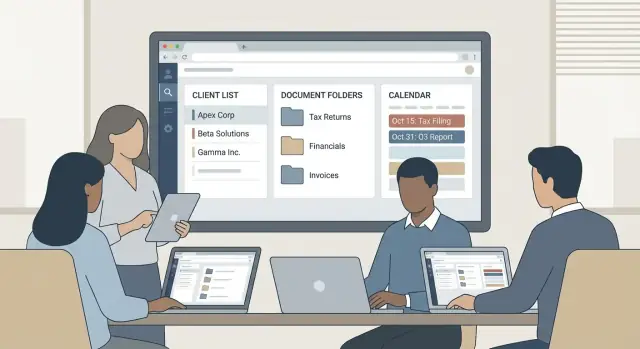
Define the App Goals and v1 Scope
Before you pick features or a tech stack, decide exactly what kind of firm you’re building for—and what “done” means for version 1.
Accounting apps fail when they try to be everything (CRM, file storage, billing, workflow, messaging) on day one. A focused v1 ships faster, gets adopted more reliably, and gives you real usage data to guide what comes next.
Start with the firm type and the real pain
A tax practice, bookkeeping shop, and audit firm may all “manage documents and deadlines,” but their day-to-day work looks very different.
For example:
- Tax firms care about organizer intake, document chasing, e-signatures, and deadline visibility.
- Bookkeeping firms care about recurring monthly checklists, bank-feed issues, and quick client questions.
- Audit/assurance teams care about PBC (Provided By Client) lists, role-based access, and tight audit trails.
Pick one primary firm type for v1. Then write down the top 3–5 problems to solve, phrased as outcomes (e.g., “clients upload documents without email threads” rather than “build a portal”).
Must-have vs. nice-to-have (protect the v1)
A practical way to scope is to define what must be true for the app to be useful on day one.
Must-have examples (typical v1):
- Client workspace with secure file upload/download
- Deadline list with basic statuses (not started / in progress / waiting on client / done)
- Simple task assignment for staff
- Notifications for “we need something from you”
- Role-based access control for staff vs. clients
Nice-to-have examples (delay if possible):
- Full CRM, invoicing, time tracking
- Complex workflow builders and automations
- Custom report builders
- Multi-entity permissions with edge-case exceptions
If a feature won’t be used weekly by your target firm type, it’s probably not a v1 feature.
Define success metrics (so you can measure “working”)
Set 3–4 measurable metrics you can check after a pilot:
- Fewer missed deadlines: reduced by X% over a quarter
- Time saved: X hours/week saved on chasing docs and status updates
- Faster client responses: average response time reduced from X days to Y
- Portal adoption: X% of clients submit documents through the app (not email)
Metrics keep scope decisions grounded when new ideas show up.
Identify constraints early
Write down constraints that will shape every decision:
- Budget and timeline (e.g., “8 weeks to pilot with 10 clients”)
- Team size and skill set
- Hosting preference (cloud-only vs. specific region requirements)
- Compliance expectations (even if you’re not aiming for formal certifications in v1)
Decide what you will not build (explicitly)
To keep scope controlled, add a “Not in v1” list to your planning doc and treat it as a commitment. This is where you park tempting extras—billing, advanced automations, deep integrations—until the core client, document, and deadline flow is proven.
Map User Roles, Permissions, and Approval Flows
Before you design screens, decide who is allowed to do what. Accounting apps usually fail not because they lack features, but because access is either too open (risk) or too restrictive (friction).
Start with a clear set of roles
Most firms can cover 90% of needs with five roles:
- Firm owner (partner): full visibility across clients, staff activity, and firm settings
- Manager: manages a book of business, reviews work, assigns tasks, approves sensitive actions
- Staff accountant: executes tasks, uploads/requests documents, drafts returns and reports
- Admin: handles client onboarding, billing support, and non-accounting operations
- Client: limited access to their own documents, requests, tasks, and messages
Define permissions by object, not by screen
Think in terms of core objects: clients, documents, tasks/deadlines, messages, billing. For each role, decide actions like view, create, edit, delete, share, export.
A few practical rules that keep things safe and usable:
- Client-level access is strict by default: a client can only see records tied to their client account (shared documents, task requests, message threads). Avoid “search all documents” for clients.
- Staff can work, managers can publish: staff can draft, upload, and prepare; managers (or owners) approve anything that leaves the firm.
- Admins can coordinate, not override: admins can invite users, reset access, and manage billing details, but shouldn’t be able to e-sign filings or delete audit-critical items.
Add approval flows for sensitive actions
Plan explicit approval steps for:
- Delete or purge (documents, client records, completed work)
- External sharing (public links, emailing attachments, adding external collaborators)
- E-signature workflows (sending signature requests, re-sending, voiding)
- Exporting data (bulk downloads, report exports)
A common pattern: staff initiates → manager approves → system logs the action.
Handle role changes and offboarding cleanly
People join, change teams, or leave—your app must make that safe.
- When staff leave, disable access immediately and reassign ownership of tasks, clients, and document requests.
- Keep historical activity under the original user in an audit log, but show “inactive user” in the UI.
- If a staff member changes roles, apply the new role instantly and optionally require re-approval for any pending sensitive actions.
This up-front mapping prevents security gaps and makes later features (like a client portal and document sharing) predictable.
Design the Core Workflows (From Onboarding to Delivery)
A good accounting firm web app feels “obvious” because the key workflows match how work actually moves through the firm. Before you add features, map the few paths that happen every week—then make those paths fast, consistent, and hard to mess up.
1) Client onboarding (from “new lead” to active client)
Start with a single action: Create client. From there, the app should guide staff through a repeatable checklist:
- Capture basic details (entity type, tax year, contacts)
- Record an engagement confirmation step (even if it’s just “confirmed” + date)
- Request initial info (prior-year returns, bookkeeping access, ID, etc.)
- Collect documents in one place, tied to the client record
The goal is to avoid scattered emails: onboarding should generate the first set of tasks, document requests, and deadlines.
2) Document request workflow (ask, remind, receive, review)
Document collection is where delays pile up, so make this workflow explicit:
- Staff selects a request list (template by service: 1040, payroll, sales tax)
- Client receives a clear checklist and uploads directly to request items
- Automated reminders go out until items are completed (with a “snooze” option)
- Internal review step: mark items as Accepted, Needs clarification, or Rejected
- Optional approval: a senior reviewer signs off before work moves forward
This creates a single source of truth: what was requested, what arrived, and what still blocks progress.
3) Work tracking (tasks, notes, and status without noise)
Keep statuses simple and meaningful:
Not started → In progress → Waiting on client → Waiting on internal review → Done
Each task should support:
- Internal comments (not visible to clients)
- Client-facing notes (if you choose to share)
- Attachments linked to the exact task/request
Make it easy to see “what’s next” for each client in one screen.
4) Deadline workflow (ownership + proof of completion)
Deadlines should be created with three fields that prevent confusion: due date, owner, and deliverable. Then:
- Notify the assigned owner (and backup) as the date approaches
- Require a completion marker (e.g., filed confirmation number, timestamp, or uploaded proof)
- Log changes when due dates or owners shift
5) Offboarding (close cleanly, stay compliant)
When work ends, offboarding should be controlled: archive the client, export key data if needed, revoke portal access, and apply retention settings (what to keep, for how long, and who can restore access).
Plan the Data Model and Information Structure
A clear data model is what keeps an accounting firm web app from turning into “a bunch of screens.” If you get the structure right early, features like deadline tracking, document search, and a clean client portal become much easier to build—and much harder to break.
Start with the core entities
Keep the first version simple and name things the way the firm already talks:
- Client: the business or individual you serve
- Contact: people associated with the client (owner, bookkeeper, spouse)
- Engagement: a unit of work (2025 tax return, monthly bookkeeping, audit)
- Task and Deadline: work items and due dates tied to an engagement
- Document: uploaded files, generated PDFs, completed forms
- Message: conversations or threads linked to a client or engagement
This structure supports practice management software-style workflows and secure client document sharing without forcing you into an ERP-like system.
Decide the relationships (and enforce them)
The most common relationships are straightforward:
- One Client → many Engagements (tax years, recurring monthly services, special projects)
- One Engagement → many Tasks/Deadlines/Documents/Messages
For documents, make it easy to answer “what is this for?” by tying each document to an engagement and a year/period (e.g., 2024, Q1 2025). That one decision improves reporting, archiving, and your audit trail for documents.
Make search work from day one
Accountants live in search. Plan which fields are indexed and visible:
- Client name, contact name
- Tax year / period
- Form type (e.g., 1099, K-1)
- Status (Requested, Received, Reviewed, Signed)
- Assigned staff
Add lightweight tagging and retention rules
Use a simple tag system for quick filtering: “W-2,” “Bank statements,” “Signed.” Tags should complement (not replace) structured fields.
Finally, define retention and archiving rules to reduce clutter: archive closed engagements after a set period, keep final deliverables longer than raw uploads, and allow firm admins to apply holds when needed.
Build Document Management That Accountants Actually Use
Accountants don’t need a “file vault.” They need a predictable system that makes it faster to request, find, review, and prove what was received—especially when deadlines are close.
Store files like a product, not a folder dump
A practical pattern is database metadata + object storage for the actual files. The database holds client/engagement IDs, document type, period (tax year), status, uploader, timestamps, and links to versions. Object storage (e.g., S3-compatible) keeps uploads fast and scalable while letting you enforce retention and encryption.
This split also makes search, filtering, and audit reporting straightforward because you’re querying metadata, not “browsing.”
Use foldering that matches accounting work
Accountants think in year + engagement. Provide a default structure like:
- 2025 → Tax Return → Source Docs
- 2025 → Bookkeeping → Bank Statements
Add standardized naming rules so the list stays readable: ClientName_2025_W2_JohnDoe.pdf, BankStmt_2025-03.pdf, etc. Let admins set templates by service line, then auto-suggest names on upload.
Versioning that supports “replace, but don’t lose history”
Clients upload the wrong file all the time. Allow “Replace file” while keeping prior versions available to staff. When needed, lock a version as “used for filing” so you can always prove what document the return was based on.
Make review status explicit
Add a simple status pipeline that matches real workflows:
uploaded → in review → accepted/rejected
Require a rejection reason (e.g., “missing pages,” “wrong year”) and notify the client with one-click re-upload.
Control downloads for sensitive documents
For staff, support permission-based downloads and activity logging. For highly sensitive PDFs, offer optional watermarking (client name, email, timestamp) and disable bulk downloads for certain roles. These controls reduce risk without making normal work harder.
Create a Deadline, Task, and Reminder System
Missed deadlines are rarely caused by “forgetting”—they usually happen because work is scattered across emails, spreadsheets, and someone’s memory. Your app should turn each service into a repeatable timeline with clear ownership and predictable reminders.
Model deadline types (and make them reusable)
Start by supporting a few common deadline “shapes,” so firms don’t have to reinvent setup each time:
- One-time filings (e.g., personal or corporate tax filing)
- Monthly close (recurs monthly, often with several internal steps)
- Payroll (strict recurring dates, sometimes by client pay schedule)
- Recurring reminders (e.g., “collect bank statements” on the 5th)
Each deadline should store: due date, client, service type, owner, status, and whether it’s client-blocked (waiting on documents or answers).
Use task templates per service
Accountants think in checklists. Let admins create templates like “Personal tax return checklist” with tasks such as “Request T4/T5,” “Confirm address and dependents,” “Prepare return,” and “Send for e-signature.”
When a new engagement is created, the app generates tasks automatically, assigns default roles, and pre-sets relative dates (e.g., “Request documents: 30 days before filing”). This is how you get consistent delivery without micromanagement.
Notifications that help (not noise)
Support in-app and email by default, with optional SMS only when the client or staff member explicitly consents.
Keep controls simple: per user (channels) and per task type (events). Trigger reminders for upcoming due dates, client-blocked items, and completed milestones.
Escalation rules without spamming
Build one or two escalation layers: if a task is overdue by X days, notify the assignee; after Y days, notify the manager. Bundle alerts into a daily digest where possible, and avoid repeated pings if nothing changed.
A single calendar + a “Today/This week” queue
A calendar view helps planning, but day-to-day work needs a prioritized queue. Provide Today and This week lists that sort by urgency, client impact, and dependencies—so staff always know what to do next.
Design a Client Portal That Reduces Back-and-Forth
A client portal succeeds when clients can answer three questions without emailing your team:
What do you need from me? What have I already sent? What happens next?
The goal isn’t to replicate internal practice management screens—it’s to give clients a small set of clear actions and an obvious status.
Keep the client view intentionally simple
Limit the main navigation to four areas most clients understand immediately:
- Requests (what you need from them)
- Uploads (what they’ve provided, with receipts)
- Messages (conversation tied to the work)
- Status (where things stand and what’s next)
Anything more tends to increase confusion and “just checking…” emails.
Build a guided upload flow (so you get usable documents)
Most back-and-forth happens because clients upload the wrong thing, in the wrong format, or without context. Instead of a generic “Upload files” button, use a guided flow that:
- Shows exactly what to upload per request (e.g., “2024 W-2”)
- Includes examples (“Photo of the full form, all four corners visible”)
- Defines acceptable formats (PDF, JPG/PNG, maximum size)
- Asks a lightweight clarifying question when needed (e.g., “Is this for you or your spouse?”)
After upload, show a confirmation and keep an immutable “received” timestamp. That one detail reduces follow-ups.
Secure messaging tied to the engagement
Messaging should be attached to a client + specific engagement/task, not a general inbox. That way, “Where is my return?” isn’t buried under unrelated threads.
A practical pattern is to allow replies inside the relevant request, and automatically include related documents and status context in the thread. This keeps conversations short and searchable.
Provide “what’s next” clarity
Make the portal proactive:
- A Pending items panel (“2 items needed from you”)
- An Expected turnaround note (“Once received, review typically takes 2–3 business days”)
- A clear completion notice (“All documents received—your return is now in preparation”)
Even if timelines are estimates, clients appreciate having a yardstick.
Design for mobile-first uploads
Many clients upload from phones. Optimize for:
- One-tap camera capture
- Automatic cropping guidance (“keep all corners visible”)
- Fast upload with progress indicators
- Simple retry if a connection drops
If the mobile experience is smooth, you’ll see fewer late submissions and fewer emails asking, “Did you get it?”
Security, Privacy, and Auditability Essentials
Accounting apps handle IDs, tax documents, bank details, and payroll files—so security can’t be an afterthought. Design for minimum necessary access, make actions traceable, and assume every shared file link will eventually be forwarded.
Strong authentication (without hurting adoption)
Start with MFA for staff by default. Staff accounts typically have broad visibility across many clients, so the risk is higher. For clients, offer optional MFA (and encourage it), while keeping login simple enough that adoption doesn’t drop.
If you support password resets, make them resistant to takeover: rate-limit attempts, use short-lived tokens, and notify users when recovery settings change.
Encryption and secure storage
Encrypt data in transit with HTTPS everywhere—no exceptions. For data at rest, encrypt stored files and database content where practical, and don’t forget backups.
Backups are often the weakest link: ensure they are encrypted, access-controlled, and routinely tested for restore.
Audit trails that answer “who did what, when?”
Build audit logs for key events, including login, file upload/download, share actions, permission changes, and deletions. Make logs searchable by client, user, and time range so admins can resolve disputes quickly (e.g., “Was this document actually downloaded?”).
Least-privilege sharing and link controls
Use role-based access control so staff only see the clients they serve, and clients only see their own workspace. For sharing links, prefer expiring links and optional passcodes; log link creation and access.
Finally, consult compliance and legal advisors for your specific regulations (e.g., retention rules, breach notification, regional privacy requirements).
Integrations Accountants Expect (Without Overbuilding)
Integrations can make an accounting firm web app feel “native” to how people already work—but they can also become a time sink. The goal is to remove friction in the busiest moments (deadlines, approvals, document chasing) without building a full ecosystem on day one.
Start with 1–2 high-value integrations
Pick the integrations that reduce daily manual work immediately. For many firms, that’s calendar/email and e-signature. Everything else can be planned as “phase two” once you see real usage patterns.
A practical rule: if the integration doesn’t reduce follow-ups, prevent missed deadlines, or speed up client approvals, it’s probably not v1.
Calendar + email sync for deadlines and reminders
Two-way sync with Google Calendar or Microsoft 365 helps ensure your deadline tracking for accounting is visible where staff actually look.
Keep it simple in v1:
- Create/update events from your task and deadline system
- Push reminder notifications (and log them)
- Avoid building a full email client—support sending templated messages and recording the outcome
E-signature for engagement letters and forms
If your workflow requires signatures, integrate with a common provider so clients can sign without printing or scanning. The key is to store the signed PDF back into your document management system automatically and record an audit trail (who signed, when, and what version).
Accounting/tax tool touchpoints (import/export)
Instead of deep, brittle integrations, start with practical import/export points:
- Export client data for downstream systems
- Import key files (e.g., trial balance, reports) into the client workspace
Payments and invoicing (only if it matches your business model)
If you plan to monetize through the app, add basic payment links or invoice generation. Otherwise, keep billing separate and revisit later.
For more on deciding what belongs in v1, see /blog/define-v1-scope.
Choose a Practical Tech Stack and Architecture
Your tech choices should serve one goal: shipping a reliable v1 that accountants and clients will actually use. The best stack is usually the one your team can maintain, hire for, and deploy confidently.
Pick a stack that fits your team
Common, proven options include:
- React + Node.js: great for teams already living in JavaScript; fast UI iteration
- Django (Python): strong admin tools, mature ecosystem, excellent for data-heavy apps
- Rails (Ruby): productive conventions, especially for CRUD-heavy practice management features
Whatever you choose, prioritize boring essentials: authentication, role-based access control, file storage, background jobs, and reporting.
If you want to accelerate early development (especially for a portal + document workflow), a vibe-coding platform like Koder.ai can be a practical shortcut: you can describe your workflows in chat, generate a React-based web app with a Go + PostgreSQL backend under the hood, and iterate quickly in “planning mode” before committing to implementation details. When you’re ready, you can export the source code and take over with your team.
Start with a monolith (and leave room to grow)
For most accounting firm apps, a modular monolith is the fastest path to v1. Keep “services later” as an option, not a requirement.
A practical rule: split into services only when a part of the system truly needs independent scaling or deployment (for example, heavy OCR processing). Until then, keep one app, one database, and clean internal modules (documents, tasks, clients, audit logs).
Environments and repeatable deployments
Set up dev, staging, and production early so you don’t discover deployment issues during tax season.
- Dev: local setup, seeded sample data
- Staging: production-like config; use it for UAT with a few real users
- Production: locked-down access, monitoring, backups, and incident runbooks
Automate deployments with a pipeline (even a simple one) so releases are consistent and reversible.
Plan file processing as a first-class feature
Accounting workflows revolve around PDFs and scans, so treat file handling as core architecture:
- PDF previews (server-side rendering or generated thumbnails)
- OCR for scanned documents (background jobs; store extracted text for search)
- Virus scanning on upload before files become available
Use asynchronous processing so uploads feel instant and users can keep working.
Hosting and backups with clear recovery steps
Choose hosting you can explain and support. Most teams do well with a major cloud provider and managed database.
Document your recovery plan: what gets backed up (database + file storage), how often, how restores are tested, and the target recovery time. A backup that hasn’t been restored in practice is only a hope.
Testing, Pilot Rollout, and User Training
A successful accounting firm web app isn’t “done” when it ships—it’s done when staff and clients can use it confidently during a real deadline week. Treat testing, the pilot, and training as one connected plan.
Turn workflows into acceptance criteria
Before testing, write simple acceptance criteria for each core workflow so everyone agrees what “working” means.
For example:
- Upload: Client can upload a 50MB PDF, see a clear success message, and the file appears in the right client folder with the right year/engagement.
- Review: Staff can request changes, client receives a notification, and the conversation is attached to the document (not buried in email).
- Deadline completion: When tasks are marked complete, the deadline status updates, reminders stop, and an audit entry is created.
These criteria become your checklist for QA, your pilot scorecard, and your training outline.
Test permissions like you’re trying to break it
Role-based access issues are the fastest way to lose trust. Test permissions thoroughly to prevent cross-client data exposure:
- Log in as each role (admin, partner, staff, client)
- Verify what they can see, download, edit, and delete
- Confirm client users can never browse other clients—even via search, shared links, or “recent files”
Also verify your audit trail records key actions (uploads, downloads, approvals, deletions) with the right user and timestamp.
Performance checks that reflect real firms
Accountants don’t upload one file at a time. Add performance checks for large files and many clients:
- Bulk uploads (multiple PDFs, scans, zipped exports)
- Busy periods with many reminders and notifications
- Search and filtering across thousands of documents
Pilot rollout and training that sticks
Pilot with a small set of firms (or a few teams inside one firm) and collect feedback weekly. Keep the loop tight: what confused users, what took too many clicks, and what they still do in email.
Prepare training in three layers: a one-page quick start guide, a few short videos (2–3 minutes each), and in-app tips for first-time actions like “Upload your first document” or “Request missing info.” Add a simple /help page so users always know where to go next.
Pricing, Support, and a Clear Next Step
Pricing and support aren’t “after launch” details. For an accounting firm web app, they shape how firms adopt the product, how confidently they roll it out to clients, and how much time your team spends answering preventable questions.
Keep pricing simple (and aligned to how firms work)
Choose one primary pricing axis and make it obvious:
- Per firm: easiest to understand and budget; best when usage is fairly predictable
- Per seat: aligns cost with internal staff usage; works well with role-based access control when only some users need admin features
- Per client: maps to firm growth; attractive if your client portal for accountants is the main value driver
If you must mix models, do it carefully (for example, base per firm + optional seats). Avoid pricing that requires a calculator—accountants value clarity.
Be explicit about what’s included
Firms will ask the same questions before they commit, so answer them in the plan table:
- Storage limits and what counts toward them (especially if you offer a document management system with versioning)
- Number of clients and whether archived clients count
- Feature gates: deadline tracking for accounting, e-signature workflow, automations, and integrations
- Support levels: response targets, channels, and whether onboarding help is included
The goal is fewer surprises when firms start using secure client document sharing and managing recurring deadlines.
Plan support workflows before you need them
Support is part of the product experience. Set up:
- Ticketing with categories that match real issues (login/access, document requests, reminders, integrations)
- SLA targets by plan (e.g., “next business day” vs. “same day”)
- Escalation path for security/privacy issues and audit trail for documents questions
Also define what “success” looks like for support: time to first response, time to resolution, and the most common requests you should turn into UI improvements.
Share a simple, honest roadmap
Practice management software buyers like to see direction. Publish a lightweight roadmap (even a quarterly list) and update it consistently. Be clear about what’s committed vs. exploratory—this reduces sales pressure and sets realistic expectations.
End with one clear next step
Don’t leave readers guessing. Point them to plan details and comparison options on /pricing, and offer a straightforward path to start: request a demo, start a trial, or schedule onboarding.
If your immediate goal is to validate the workflows with real users (before committing to a full build), consider prototyping the v1 in Koder.ai: you can iterate the client portal, document requests, and deadline tracking in days, then export the codebase when you’re ready to productionize and scale.
FAQ
How do I keep the v1 scope from exploding when building an accounting firm web app?
Define v1 around a single firm type (tax, bookkeeping, or audit) and 3–5 outcome-based problems.
A useful test: if a feature won’t be used weekly by your target users, keep it out of v1 and put it on a “Not in v1” list to protect scope.
What success metrics should we use to know the app is “working”?
Pick 3–4 metrics you can check right after a pilot, such as:
- Missed deadlines reduced by X%
- Hours/week saved chasing documents
- Average client response time (X days to Y)
- % of clients uploading through the portal (not email)
If you can’t measure it within a quarter, it’s usually not a good v1 success metric.
What user roles should we include in a first version?
Start with five roles that cover most firms:
- Partner/owner
- Manager
- Staff accountant
- Admin
- Client
Then define permissions by object (clients, documents, tasks/deadlines, messages, billing), not by screen, so security stays consistent as the UI evolves.
Which actions should require manager approval in an accounting app?
Put approvals on actions that are hard to undo or high-risk, like:
- Deleting/purging documents or client records
- External sharing (public links, emailing attachments)
- Sending/voiding e-signature requests
- Bulk exports/downloads
A simple pattern works well: staff initiates → manager approves → system logs the event.
What core workflows should we design before building screens?
Map the weekly flows first:
- Client onboarding checklist
- Document requests (ask → remind → receive → review)
- Work tracking with simple statuses
- Deadline ownership + proof of completion
- Offboarding (archive, revoke access, retention)
If these paths feel fast and “obvious,” the rest of the product becomes much easier to add safely.
What data model structure works best for clients, documents, and deadlines?
Use a small set of core entities and enforce relationships:
- Client → many Engagements
- Engagement → many Tasks/Deadlines/Documents/Messages
For documents, tie each file to an engagement and a year/period so you can answer “what is this for?” instantly (and make archiving/search sane).
How should we store and organize uploaded documents?
Plan “metadata in the database + files in object storage.” Store client/engagement IDs, period, status, uploader, timestamps, and version links in the database; store the actual bytes in S3-compatible storage.
This makes search and audit reporting reliable, while keeping uploads fast and scalable.
How do we handle document review, re-uploads, and versioning without chaos?
Keep it explicit and lightweight:
- Statuses like
uploaded → in review → accepted/rejected - “Replace file” while keeping prior versions
- Optional “locked/used for filing” marker for the version that matters
- Rejection reason + one-click re-upload for clients
This reduces back-and-forth and preserves proof of what was received and used.
What makes a client portal actually reduce emails and follow-ups?
Make the portal answer three questions without emailing:
- What do you need from me?
- What have I already sent?
- What happens next?
Limit navigation to Requests, Uploads, Messages, and Status. Use guided uploads (formats, examples, clarifying questions) and show an immutable “received” timestamp to cut “Did you get it?” follow-ups.
What security and auditability features are non-negotiable for v1?
Start with the essentials that reduce real risk:
- MFA for staff by default; optional MFA for clients
- HTTPS everywhere; encryption at rest (including backups)
- Audit logs for login, upload/download, sharing, permission changes, deletions
- Expiring share links + access logging
If you publish a support path for access issues and privacy incidents, link it from your /help so users know where to go when something looks wrong.