

Create a Web App for Customer Onboarding & Account Setup
Learn how to plan, design, and build a web app that automates customer onboarding and account setup, from workflows and data to integrations and security.
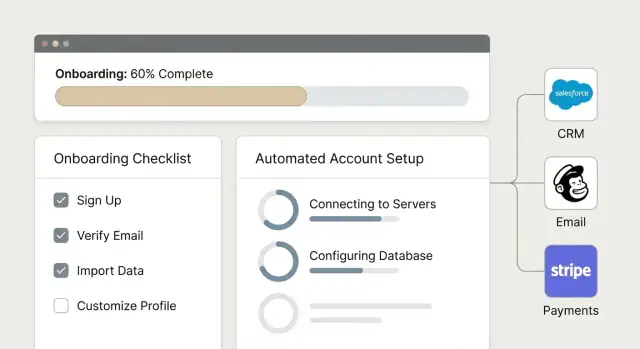
Clarify the Onboarding Goal and Scope
Before you design screens or wire up integrations, define what “onboarding” means for your business. The right scope depends on whether you’re onboarding free trials, paid self-serve customers, or enterprise accounts that require approvals and security checks.
Define the onboarding outcome
Write a simple statement you can measure, such as:
“A customer is onboarded when they can log in, invite teammates, connect their data, and reach their first successful result.”
Then segment your definition by customer type:
- Trial onboarding: fastest path to a first win, minimal data required.
- Paid onboarding: includes billing confirmation, plan limits, and upgrade paths.
- Enterprise onboarding: adds SSO, security review, roles, and internal provisioning steps.
List what to automate (and what not to)
Make a checklist of manual work you want your customer onboarding web app to handle end-to-end. Common account setup automation targets include:
- Creating the account, workspace, and default settings
- User provisioning (invite flow, team creation, role-based access)
- Form automation for required company details
- Triggering emails, in-app prompts, and “next step” tasks
- Billing setup, invoice details, or payment verification
- Creating or updating records for CRM integration and support tools
Keep humans in the loop where judgment is required (e.g., credit checks, contract exceptions, custom legal terms).
Pick success metrics early
Choose a small set of metrics that reflect both customer progress and operational load:
- Time to first value
- Onboarding completion rate
- Drop-off points per step
- Number of onboarding-related support tickets
Decide who the app serves
Be explicit about your primary users:
- Customers: self-serve signup and guided setup
- Internal ops/sales: review, approve, and monitor onboarding workflow
- Both: customers complete steps; ops intervenes only when needed
This clarity prevents building features that don’t improve onboarding analytics—or customer outcomes.
Map the Onboarding Journey and Key Milestones
Map the onboarding journey as a series of steps that move a new customer from “signed up” to their first meaningful result. This keeps the product anchored to outcomes, not just form-filling.
Start with the “first key action”
Define the moment that proves the setup worked. It might be inviting teammates, connecting a data source, sending the first campaign, creating the first project, or publishing the first page.
Work backward from that point to identify everything the customer (and your team) must do to get there.
A simple journey map looks like:
- Signup → account created
- Company details captured
- Plan selected and billing confirmed (if applicable)
- Workspace configured (domain, settings)
- Team invited and roles assigned
- Integration connected
- First key action completed
Identify required data inputs (and keep them minimal)
List what you truly need to make progress. Common inputs include:
- Company info (name, website, industry)
- Domain (for SSO, branding, or verification)
- Team size (for provisioning seats and permissions)
- Primary use case (to tailor templates, defaults, and tips)
If a field doesn’t unlock a next step, consider postponing it until after activation.
Mark decision points and “who owns” them
Not every onboarding step is automatic. Note where the flow can branch:
- Approval needed (internal review, partner validation)
- Compliance checks (KYC, security questionnaire, DPA)
- Plan selection (trial vs paid, self-serve vs sales-assisted)
For each decision point, define:
- Who reviews it
- What criteria they use
- What happens if it fails (request changes, pause onboarding, or offer an alternative)
Create a customer-visible checklist
Turn milestones into a short checklist customers can see inside the app. Aim for 5–7 items max, with clear verbs and progress states (Not started / In progress / Done).
Example:
- Add company details
- Choose a plan
- Verify your domain
- Invite your team
- Connect your tool
- Complete your first project
This checklist becomes the spine of your onboarding experience and a shared reference for Support, Success, and the customer.
Design the UX: Guided Setup, Checklists, and Self-Serve
A good onboarding UX reduces uncertainty. The goal isn’t to “show everything”—it’s to help a new customer reach a successful first moment with as little effort as possible.
Choose a pattern: wizard, checklist, or both
Most customer onboarding web apps work best with two layers:
- Guided wizard for first-time setup (clear sequence, fewer decisions).
- Checklist dashboard for ongoing progress (customers can jump around and see what’s left).
A practical approach: let the wizard handle the critical path (e.g., create workspace → connect a tool → invite teammates). Then keep the checklist on the home screen for everything else (billing, permissions, optional integrations).
Ask for less: progressive disclosure
People abandon onboarding when they hit long forms. Start with the minimum needed to create a working account, then collect details only when they unlock value.
For example:
- Step 1: Workspace name + primary use case
- Step 2: Invite 1–2 teammates (optional)
- Step 3: Connect data source (only show fields relevant to the selected source)
Use conditional fields (show/hide) and save advanced settings for an “Edit later” screen.
Make failure safe: errors, autosave, and “resume later”
Customers will get interrupted. Treat onboarding like a draft:
- Autosave every step (and visibly confirm it).
- Add a Resume onboarding button that returns to the last incomplete milestone.
- Design clear error states: say what went wrong, how to fix it, and preserve the user’s input.
Small UX details matter here: inline validation, examples next to tricky fields, and “Test connection” buttons for integrations reduce support tickets.
Accessibility basics you can’t skip
Accessibility improves usability for everyone:
- Full keyboard navigation (focus order, visible focus state, no keyboard traps)
- Readable contrast for text and buttons
- Clear labels (not just placeholders) and helpful, plain-language error messages
If you have a checklist, ensure it’s readable by screen readers (proper headings, lists, and status text) so progress is understandable, not just visual.
Define Data Model and Onboarding States
A smooth onboarding experience starts with a clear data model: what you store, how pieces relate, and how you know where each customer is in setup. Get this right early and your checklists, automation, and reporting become much simpler.
Core entities to model
Most onboarding apps boil down to a few reusable building blocks:
- User: an individual person who can sign in.
- Account / Customer: the commercial entity (company) tied to billing and contracts.
- Workspace / Project: the operational container where work happens (some products use one per customer; others allow many).
- Role: permissions like Admin, Manager, Member, Viewer.
- Invite: who invited whom, to which workspace, and its status (sent/accepted/expired).
- Task: onboarding checklist items, with owner, due date, and completion evidence (e.g., “billing added”).
Define relationships explicitly (e.g., a user can belong to multiple workspaces; a workspace belongs to one account). This prevents later surprises when customers ask for multiple teams, regions, or subsidiaries.
Onboarding states (and why they matter)
Track onboarding as a state machine so your UI and automation can respond consistently:
- Not started: account created, no setup actions taken.
- In progress: at least one task started/completed.
- Blocked: missing requirement (e.g., domain verification, billing failure, pending admin approval).
- Complete: required tasks done (optionally add a “verified” flag after final review).
Store both a current state and task-level status so you can explain why a customer is blocked.
What’s configurable per customer
Decide which settings customers can tailor without support: role templates, default workspace naming, onboarding checklist templates, and which integrations are enabled.
Keep configuration versioned so you can safely update defaults without breaking existing accounts.
Audit logs for setup actions
Onboarding changes often affect security and billing, so plan for an audit trail: who changed what, when, and from → to.
Record events like role changes, invite sent/accepted, integration connected/disconnected, and billing updates—these logs help support resolve disputes quickly and build trust.
Choose a Tech Stack and Architecture
Picking a stack for an onboarding app is less about “best” technology and more about fit: team skills, integration needs (CRM/email/billing), and how quickly you need to ship changes without breaking existing flows.
Backend framework: what to optimize for
At a high level, these popular options cover most onboarding use cases:
- Node.js + Express (or NestJS): Great if your team is JavaScript/TypeScript-first and you want fast iteration. Works well for event-driven workflows and real-time updates (e.g., in-app progress). You’ll likely assemble more pieces yourself.
- Django (Python): Strong admin tooling out of the box—useful for internal ops teams to view accounts, re-send invites, or manually advance steps. Mature ecosystem for auth, forms, and integrations.
- Ruby on Rails: Very productive for CRUD-heavy onboarding portals, with conventions that help teams move quickly. Solid background jobs story for reminders and provisioning.
- Laravel (PHP): Popular for teams already in the PHP ecosystem, with good scaffolding for auth, queues, and common SaaS patterns.
Rule of thumb: onboarding systems often need background jobs, webhooks, and audit logs—choose a framework where these are familiar to your team.
Database: start with PostgreSQL
For accounts, organizations, roles, onboarding steps, and workflow state, PostgreSQL is a strong default. It handles relational data cleanly (e.g., users belong to organizations; tasks belong to onboarding plans), supports transactions for “create account + provision user” flows, and offers JSON fields when you need flexible metadata.
Frontend approach: server-rendered, SPA, or hybrid
- Server-rendered (Rails/Django templates, Laravel Blade): simplest to ship and maintain for form-heavy setup.
- SPA (React/Vue/Angular): best for highly interactive onboarding with dynamic progress, conditional steps, and rich validation.
- Hybrid: server-rendered core with SPA “islands” for complex screens. Often a practical middle ground.
Hosting and environments
Plan dev, staging, and production from day one. Staging should mirror production integrations (or use sandbox accounts) so you can test webhooks and email safely.
Use managed platforms when possible (e.g., container hosting + managed Postgres) and keep secrets in a dedicated secrets manager. Add basic observability early: request logs, job logs, and alerts for failed onboarding actions.
Shipping faster with Koder.ai (optional path)
If your goal is to stand up a production-ready onboarding portal quickly—without stitching together a long pipeline—Koder.ai can help. It’s a vibe-coding platform where you build web apps through a chat interface, with an agent-based architecture and modern defaults:
- Web: React
- Backend: Go
- Database: PostgreSQL
For onboarding systems specifically, features like Planning Mode (to map steps before implementation), source code export, and snapshots + rollback can reduce risk while you iterate on onboarding workflow and integrations.
Build the Automation Workflow Engine
The workflow engine is the “conductor” of onboarding: it takes a new account from “just signed up” to “ready to use” by executing a predictable set of steps, recording progress, and handling failures without manual babysitting.
Start with a clear list of automated actions
Write down the exact actions your system should run when a customer starts onboarding. A typical sequence might include:
- Create a workspace (account container) and default settings
- Seed starter data (sample project, templates, default tags)
- Create roles and permissions (e.g., Owner, Admin, Member)
- Provision users and send invites to teammates
- Connect optional integrations (CRM sync, billing plan, support widget)
Keep each action small and testable. It’s easier to recover from a failed “send invite” than from a single mega-step called “setup everything.”
Decide: synchronous steps vs background jobs
Some steps should run instantly in the signup request (synchronous): lightweight, required actions like creating the workspace record and assigning the first owner.
Anything slow or flaky should move to background jobs: seeding lots of data, calling external APIs, importing contacts, or generating documents. This keeps signup fast and avoids timeouts—customers can land in the app while setup continues.
A practical pattern is: synchronous “minimum viable account” first, then a background queue completes the rest and updates a progress indicator.
Make failures boring: retries, idempotency, and rollback
Real onboarding automation fails: emails bounce, CRMs rate-limit, webhooks arrive twice. Plan for that:
- Retries with backoff for transient errors (network issues, 429 rate limits)
- Idempotency so re-running a step doesn’t duplicate data (e.g., “create role if missing”)
- Rollback or compensation for partial success (if billing setup fails, revert plan assignment or mark the account as “needs attention”)
The goal is not “never fail,” but “fail safely and recover quickly.”
Add an admin view for safe intervention
Build a simple internal screen that shows each account’s onboarding steps, status, timestamps, and error messages. Include controls to re-run, skip, or mark complete for specific steps.
This lets support resolve issues in minutes without engineers—and gives you confidence to automate more over time.
Handle Authentication, Roles, and Security
Authentication and authorization are the gatekeepers of your onboarding app. Get them right early and everything else (automations, integrations, analytics) becomes safer and easier to maintain.
Pick an authentication method that matches the risk
Most onboarding apps start with email + password or magic links (passwordless). Magic links reduce password resets and can feel smoother during first-time setup.
If you sell to larger organizations, plan for SSO (SAML/OIDC). It reduces friction for enterprise customers and makes offboarding and access control easier for their IT team.
A practical approach is to support magic link/password first, then add SSO for eligible plans.
Implement role-based access (RBAC)
Define roles based on real tasks:
- Customer user: completes setup steps, manages their own company settings.
- Customer admin: can invite teammates, manage billing contacts, change permissions.
- Internal admin: full access for ops (ideally limited to a small group).
- Support: restricted access (read-only by default), with “impersonation” only if audited and explicitly granted.
Make permissions explicit (e.g., can_invite_users, can_manage_billing) rather than hiding everything behind broad roles. This keeps exceptions manageable.
Secure sensitive data by default
Use TLS everywhere and encrypt sensitive fields at rest (API keys, tokens, PII). Store integration credentials in a dedicated secrets store, not in plain database fields.
Follow least privilege: each service and integration should only have the permissions it truly needs (both in your cloud provider and in third-party tools).
Add audit trails for trust and troubleshooting
Record key events: logins, role changes, invites, integration connections, and billing-related actions. Include who, what, when, and where (IP/device when appropriate).
Audit logs help you answer “What happened?” quickly—and they’re often required for compliance and enterprise deals.
Integrate with CRM, Email, Billing, and Support Tools
Integrations turn your onboarding app from a “form collector” into a system that actually sets up accounts end-to-end. The goal is to remove double entry, keep customer data consistent, and trigger the right steps automatically when something changes.
Prioritize the integrations that unlock automation
Start with the tools your team already uses to manage customers:
- CRM integration (e.g., HubSpot, Salesforce): create/update accounts, associate contacts, track lifecycle stage.
- Email provider (e.g., SendGrid, Mailchimp, Customer.io): send transactional onboarding emails and reminders.
- Billing/payments (e.g., Stripe): confirm plan, payment status, trial start/end, and provisioning eligibility.
- Support desk (e.g., Zendesk, Intercom): open onboarding tickets, sync company/contact, capture “needs help” signals.
- Analytics (e.g., Segment, GA4, Mixpanel): measure completion rates and drop-offs.
If you’re unsure what to do first, pick one “source of truth” to anchor the rest (often the CRM or billing system), then add the next integration that eliminates the most manual work.
Use webhooks to react to lifecycle events
Polling external systems is slow and error-prone. Prefer webhooks so you can respond immediately to events such as:
- signup completed
- email verified
- payment succeeded / subscription created
- onboarding completed
- account cancelled
Treat webhooks as inputs into your onboarding workflow: receive the event, validate it, update onboarding state, and trigger the next action (like provisioning or a reminder email). Also plan for duplicates and retries—most providers will resend.
Design an integration settings screen people can trust
A clear integration settings page reduces support tickets and makes failures visible. Include:
- Connection status (Connected / Needs attention)
- Which workspace/account is connected (so teams don’t connect the wrong CRM)
- Last successful sync time and last error message
- Test connection and reconnect actions
- A short list of what data is shared (for transparency)
This screen is also a good place to configure mappings: which CRM field stores “Onboarding stage,” which email list to add new users to, and which billing plan unlocks which features.
Plan data sync rules before you write code
Decide upfront:
- Source of truth: which system “wins” for key fields (company name, owner, plan, status).
- Conflict handling: what happens if the user changes their company name in your app but Sales edits it in the CRM.
- Sync direction: one-way (safer) vs two-way (more powerful, more risk).
- Identifiers: store external IDs (CRM contact ID, Stripe customer ID) so updates are reliable.
Good integration design is less about APIs and more about clarity: what triggers what, who owns the data, and how your app behaves when something goes wrong.
Automate Communication: Email, In-App Prompts, and Reminders
Clear, timely messages reduce drop-off during onboarding. The key is to send fewer, better messages that are tied to real customer actions (or lack of them), not a fixed calendar.
Triggered email sequences that match onboarding steps
Build a small library of event-driven emails, each mapped to a specific onboarding state (e.g., “Workspace created” or “Billing incomplete”). Common triggers include:
- Welcome email immediately after signup: confirm what to do first and link to the setup screen
- Reminders when a milestone hasn’t been reached within a set window (e.g., 24–72 hours)
- Invite teammates when the account owner finishes the first step, with a one-click path to invite others
- Next steps after a success event (e.g., integration connected), explaining what value to unlock next
Keep subject lines specific (“Connect your CRM to finish setup”) and make the CTA mirror the exact action in the app.
In-app prompts for contextual guidance
In-app messages work best when they appear at the moment of need:
- Inline tips next to a form field that is commonly misunderstood
- A small banner when a required step is blocked (“Add a billing method to activate seats”)
- A checklist that updates in real time as steps are completed
Avoid modal overload. If a prompt isn’t tied to the current page context, prefer an email.
Let customers control notification preferences
Offer simple controls: frequency (instant vs daily digest), recipients (owner only vs admins), and which categories they care about (security, billing, onboarding reminders).
Don’t spam: limits and unsubscribe logic
Add rate limits per user/account, suppress repeats once a step is completed, and include unsubscribe options where appropriate (especially for non-transactional emails). Also implement “quiet hours” to prevent late-night reminders in the customer’s timezone.
Measure Onboarding Performance with Analytics
A customer onboarding web app isn’t “done” when it’s shipped. Once you can see where people succeed, hesitate, or abandon account setup automation, you can improve the experience systematically.
Define the funnel events (and keep them consistent)
Start with a small, reliable event taxonomy. At minimum, track:
- Onboarding started (first time a user enters the onboarding flow)
- Step viewed and step completed (per milestone)
- Time per step (store timestamps so you can compute durations)
- Onboarding completed (activation moment—define it clearly)
Add context properties that make analysis practical: plan type, acquisition channel, company size, role, and whether the user took a self-serve signup path or was invited.
Build dashboards your teams will actually use
Dashboards should answer operational questions, not just show charts. Useful views include:
- Blockers & drop-off points: where users exit or loop
- Top errors: validation failures, provisioning errors, payment issues
- Time-to-complete: median and p90 by segment (e.g., small teams vs. enterprise)
If your onboarding touches CRM integration or email automation, include breakdowns by integration enabled vs. not enabled to spot friction introduced by external steps.
Instrument error reporting for automations and integrations
Analytics events won’t tell you why something failed. Add structured error reporting for user provisioning, form automation, webhooks, and third-party APIs. Capture:
- Error type/code, integration name, retry count
- Correlation ID (tie failures back to a specific onboarding session)
- Safe metadata (avoid storing secrets or full payloads)
This is especially important when role-based access or permissions cause steps to silently fail.
Set alerts for unusual patterns
Set up alerts for spikes in automation failures and sudden drops in completion rate. Alert on both error rate (e.g., provisioning failures) and conversion rate (started → completed). That way you catch noisy outages and subtle regressions after a change.
Test, Launch, and Roll Out Safely
Shipping an onboarding automation system isn’t just “deploy and hope.” A careful release protects customer trust, prevents support spikes, and keeps your team in control when integrations misbehave.
A minimal (but effective) test plan
Start with a small set of tests you can run repeatedly before each release:
- Happy path: new signup → email verification → required forms → account setup → user provisioning → onboarding complete.
- Edge cases: duplicate emails, abandoned sessions, partial form completion, users returning days later, time zone/date handling, and retries after temporary failures.
- Failed integrations: CRM down, email provider throttling, billing API timeout, webhooks arriving out of order, expired tokens.
Keep a short checklist of expected outcomes (what the user sees, what gets written to your database, and which events are emitted) so failures are easy to spot.
Roll out gradually with feature flags
Use feature flags to release automation in stages:
- Internal accounts only
- A small percentage of new signups
- Specific customer segments (e.g., self-serve plans first)
Make sure you can disable a feature instantly without redeploying, and that the app falls back to a safe manual flow when automation is turned off.
Plan migrations and backfills
If onboarding data or states change, write down:
- The database migration steps
- How you’ll backfill missing fields or recompute onboarding status
- How you’ll handle customers mid-onboarding during the change
Documentation for customers and internal teams
Publish a short customer-facing guide (and keep it updated) covering common questions, required inputs, and troubleshooting. If you have a help center, link it directly from the UI (e.g., /help).
Internal docs should include runbooks: how to replay a step, inspect integration logs, and escalate incidents.
Maintain, Support, and Improve the System
Launching your onboarding app is the start of operations, not the finish line. Maintenance is about keeping onboarding fast, predictable, and safe as your product, pricing, and team evolve.
Create support playbooks for “stuck onboarding”
Document a simple runbook your team can follow when a customer can’t progress. Keep it focused on diagnosis first, then action.
Common checks include: which step is blocked, last successful event/job, missing permissions, failed integrations (CRM/email/billing), and whether the account is in the expected onboarding state.
Add a small “Support snapshot” view that shows recent onboarding activity, errors, and retry history. This turns a long back-and-forth email thread into a 2‑minute investigation.
Add admin tools that reduce risk and response time
Well-designed admin tools prevent one-off fixes in the database.
Useful capabilities:
- Impersonation (read-only by default) to reproduce what the user sees.
- Step override (with audit logging) to unblock customers when your logic is too strict.
- Resend invites / reminders with rate limits and clear messaging.
- Re-run jobs (e.g., “provision workspace”, “sync to CRM”) with idempotency so retries don’t create duplicates.
If you have a help center, link these actions to internal docs at paths like /docs/support/onboarding.
Review security and permissions regularly
Onboarding often expands to include billing, roles, and integrations—so permissions drift over time. Schedule periodic reviews of role-based access, admin actions, token scopes for third-party tools, and audit logs.
Treat new admin features (especially impersonation and step overrides) as security-sensitive.
Plan iteration: templates, integrations, defaults
Create a lightweight roadmap: add new onboarding templates per customer segment, expand integrations, and improve defaults (pre-filled settings, smarter recommendations).
Use onboarding analytics to prioritize changes that reduce time-to-first-value and support tickets—then ship small improvements continuously.
If you’re experimenting rapidly, consider using a workflow that supports safe iteration in production. For example, platforms like Koder.ai offer snapshots and rollback, which can be helpful when you’re tuning onboarding flows and automation steps without risking long-lived customer setup states.
FAQ
What does “onboarding” mean for a customer onboarding web app?
Define a measurable statement tied to customer value, not internal completion.
Example: “Onboarding is complete when the customer can log in, invite teammates, connect their data, and achieve their first successful result.” Then tailor the required steps by segment (trial vs paid vs enterprise).
Which onboarding success metrics should I choose first?
Start with a short list that captures both customer progress and operational load:
- Time to first value
- Onboarding completion rate
- Drop-off per step
- Number of onboarding-related support tickets
Pick these early so your UX, automations, and tracking align from day one.
How do I map the onboarding journey into steps and milestones?
Map the journey backward from the first “proof it works” action (e.g., send first campaign, publish first page, create first project).
A common milestone sequence is:
- Signup → account created
- Company details captured
- Plan/billing confirmed (if needed)
- Workspace configured
- Team invited + roles assigned
- Integration connected
- First key action completed
How do I decide which data to collect during onboarding (and what to delay)?
Only ask for inputs that unlock the next step. If a field doesn’t change what happens next, postpone it until after activation.
Good “early” fields: workspace name, primary use case, and the minimum required to connect the first integration. Everything else can move to “Edit later.”
Should I use a wizard, a checklist, or both for onboarding UX?
Use a two-layer approach:
- A guided wizard for the critical path (few decisions, sequential)
- A checklist dashboard for progress and optional steps
Keep the checklist short (5–7 items), use clear verbs, show status (Not started / In progress / Done), and support “resume later” with autosave.
What data model and onboarding states should I store?
Model the building blocks and relationships explicitly:
- User
- Account/Customer (billing entity)
- Workspace/Project (where work happens)
- Role + permissions
- Invite (sent/accepted/expired)
- Task (checklist item + completion evidence)
Also track onboarding as states (Not started, In progress, Blocked, Complete) plus task-level statuses so you can explain why someone is stuck.
Which onboarding steps should run synchronously vs in background jobs?
Keep signup fast by doing only the minimum synchronously (create account/workspace, assign the first owner). Move slow or flaky work to background jobs:
- Seeding starter data
- Calling third-party APIs
- Imports, document generation, large provisioning
Update a progress indicator as jobs complete so the customer can start using the app while automation runs.
How do I make onboarding automation reliable (retries, idempotency, rollback)?
Treat failures as normal and design for safe recovery:
- Retries with backoff for transient errors (timeouts, 429 rate limits)
- Idempotency so reruns don’t create duplicates (e.g., “create role if missing”)
- Compensation/rollback when partial success creates a bad state (e.g., mark “billing needs attention”)
Add an internal admin view to rerun/skip/mark steps complete with audit logs.
What are the essentials for authentication, roles, and security in onboarding?
Start with email+password or magic links for self-serve. Plan SSO (SAML/OIDC) for enterprise.
Implement RBAC with explicit permissions (e.g., can_invite_users, can_manage_billing) and apply least privilege for internal roles. Encrypt sensitive data (tokens, PII), use TLS everywhere, and record audit logs for logins, invites, role changes, integrations, and billing actions.
How should I approach CRM, billing, email, and support integrations for onboarding?
Prioritize integrations that remove manual work:
- CRM (account/contact lifecycle)
- Email provider (transactional reminders)
- Billing (plan status, trial, payment events)
- Support desk (tickets, “needs help” signals)
- Analytics (funnel + drop-offs)
Use webhooks for lifecycle events (signup, payment success, cancellation), store external IDs, define a source of truth for fields, and build an integration settings screen with connection status, last sync time, and “test connection.”