

Create a Web App to Track Support Load and Staffing Needs
Learn how to plan and build a web app that tracks support load, key metrics, and staffing needs with forecasts, alerts, and reports your team can act on.
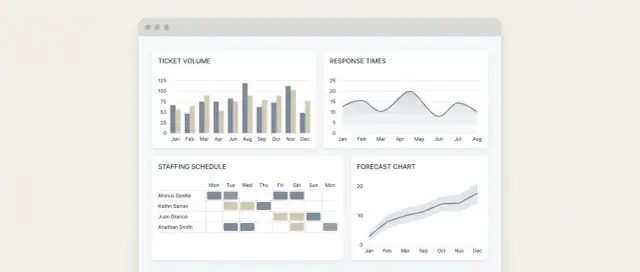
What This Web App Should Solve
This web app exists to answer one practical question: “Do we have enough support capacity for the demand coming in?” When the answer is “not sure,” you get bottlenecks, stressed agents, and inconsistent service levels.
Define “support load” for your team
“Support load” isn’t a single number. It’s the combination of work arriving, work waiting, and effort required to resolve it. For most teams, that includes:
- Incoming volume: tickets, live chats, calls, emails (the channels you run)
- Backlog: open items, aging items, and items breaching targets
- Work complexity: quick questions vs. multi-step cases (often reflected in handle time, tags, or categories)
- Interruptions: escalations, reopens, handoffs, and “waiting on customer” cycles
The app should let you decide what counts as load, then calculate it consistently—so planning moves from opinions to shared numbers.
The outcome you’re aiming for
A good first version should help you:
- Spot where and when queues build up (and why)
- Turn daily demand into a clear staffing plan (today, next week, next month)
- Protect service levels (response time, resolution time, SLA compliance) without guessing
You’re not trying to predict the future perfectly. You’re trying to reduce surprises and make tradeoffs explicit.
Who uses it—and what they ask every day
This app is mainly for support leads, support ops, and managers. Typical daily questions include:
- “Are we keeping up right now, or falling behind?”
- “If volume spikes, how many extra people do we need—and for how long?”
- “Is the backlog growing because of demand, complexity, or capacity?”
- “Which channel or queue is the real constraint?”
Set expectations: start simple, then improve
Start with a small set of metrics and a basic staffing estimate. Once people trust the numbers, refine with better segmentation (queue, region, tier), more accurate handle times, and improved forecasting over time.
Requirements: Goals, Users, and Success Metrics
Before you choose charts or build integrations, define what the app is for—and what it is not. Clear requirements keep the first version small, useful, and easy to adopt.
Pick a small set of goals
Start with 2–4 goals that map directly to everyday support planning. Good early goals are specific and measurable, for example:
- Predict next week’s ticket volume by day (and optionally by hour)
- Spot understaffed hours where backlog grows faster than capacity
- Make backlog vs. capacity visible in one place for today and tomorrow
- Track whether staffing changes reduced breaches or escalations
If a goal can’t be acted on within a week or two, it’s probably too broad for v1.
Define users with 5–10 user stories
List who will open the app and what they’re trying to do. Keep stories short and concrete:
- “As a support lead, I want to see today’s backlog vs. capacity at a glance so I can decide whether to reassign people.”
- “As a team manager, I want to compare volume trends week-over-week so I can plan next week’s schedule.”
- “As an agent, I want to know when we’re in ‘all-hands’ mode so I can pause non-urgent work.”
- “As operations, I want a weekly staffing summary exported to share in planning.”
This list becomes your build checklist: if a screen or metric doesn’t support a story, it’s optional.
Define the decisions the app must enable
Requirements should describe decisions, not just data. For staffing and load tracking, the app should support decisions like:
- Add a shift, extend coverage, or move someone from another queue
- Reassign tickets (or change routing) to reduce wait time
- Pause projects/training temporarily during spikes
- Approve overtime or swap on-call coverage
If you can’t name the decision, you can’t evaluate whether the feature helps.
Set success criteria
Agree on a few outcomes and how you’ll measure them:
- Time-to-report: e.g., “daily staffing view loads in under 10 seconds”
- Adoption: weekly active users among leads/managers; repeat usage
- Operational impact: fewer escalations, fewer SLA breaches, shorter time-to-first-response
- Planning confidence: fewer last-minute schedule changes, fewer surprise backlog spikes
Write these into the project doc (and revisit after launch) so the app is judged by usefulness—not by how many charts it has.
Data Sources and the Minimum Data You Need
A staffing and workload app is only as useful as the data it can reliably pull in. The goal for an early version isn’t “all the data,” it’s enough consistent data to explain load, measure capacity, and spot risk.
Core sources to plan for
Start by listing the systems that represent work, time, and available people:
- Help desk (tickets): counts, statuses, priorities, assignment, timestamps
- Chat tool: incoming chats, handled chats, wait time, staffing by queue (if available)
- Phone system: call volume, answered vs. missed, average handle time
- Schedules/WFM or calendars: shifts, PTO, on-call rotations, timezone coverage
- HR/headcount: team membership, start/end dates, role type (agent/lead), contracted hours
You don’t need perfect detail from every channel on day one. If phone or chat data is messy, start with tickets and add the rest once the pipeline is stable.
API integration vs. CSV imports (v1 decision)
- API integrations are best when you need frequent refresh, automation, and consistent schemas. They take longer to build, but reduce manual effort.
- CSV imports are often the fastest first step (weekly or daily uploads), especially for schedules or HR. Make the import template strict and versioned so it doesn’t drift.
A practical approach is hybrid: API for the help desk (high-volume, time-sensitive) and CSV for schedules/headcount until you’re ready to integrate.
Refresh cadence: real-time isn’t always necessary
Choose cadence based on the decisions you’re supporting:
- Real-time / near real-time: live queue monitoring, “we’re falling behind” alerts
- Hourly: intraday staffing adjustments and trend visibility
- Daily: weekly planning, hiring justification, executive reporting
Minimum dimensions to capture
To make metrics actionable, store these dimensions across sources:
Channel (ticket/chat/phone), team, priority, timezone, language, and customer tier.
Even if some fields are missing initially, design the schema to accommodate them so you don’t have to rebuild later.
Support Metrics to Track (Without Overcomplicating)
The fastest way to derail a support tracking app is to track everything. Start with a small set of metrics that explain (1) how much work is arriving, (2) how much is waiting, and (3) how fast you respond and resolve.
The core metrics (start here)
Focus on four metrics that most teams can trust early on:
- Incoming volume: new tickets per day/week, ideally broken down by channel and priority.
- Backlog: open tickets at a point in time, plus backlog age (how many are older than X hours/days).
- First response time (FRT): time from ticket creation to the first human reply. Track median and 90th percentile.
- Resolution time: time from ticket creation to solved/closed (median and 90th percentile).
These four numbers already answer: “Are we keeping up?” and “Where are delays showing up?”
Productivity metrics (add carefully)
Productivity metrics are useful, but only if everyone agrees on the definition.
Two common options:
- Handled per agent: tickets solved per agent per day/week. Define whether “handled” means solved, replied, or touched.
- Occupancy: percent of an agent’s time spent on ticket work. If you can’t measure time-on-task reliably, keep occupancy out of v1.
Be cautious with comparisons between agents; routing rules, complexity, and shift times can skew results.
SLA targets and breaches
If you track SLAs, keep it simple:
- Define SLA targets by priority and channel (e.g., P1 chat: FRT < 5 minutes; P3 email: FRT < 8 hours).
- Count breaches separately for FRT and resolution.
- Store whether SLA timers pause outside business hours (and what “business hours” means).
Make definitions explicit with a glossary
Add a single in-app glossary page (for example, /glossary) that defines every metric, its formula, and edge cases (merged tickets, reopened tickets, internal notes). Consistent definitions prevent arguments later—and make dashboards credible.
Dashboard Design: Screens, Filters, and Visuals
A good support dashboard answers a handful of repeat questions in seconds: “Is volume changing?”, “Are we keeping up?”, “Where is the risk?”, and “How many people do we need next week?” Design the UI around those questions, not around every metric you can calculate.
The three core screens
1) Overview dashboard (command center)
This is the default landing view for daily check-ins. It should show today/this week at a glance: incoming tickets, resolved tickets, current backlog, and whether demand is outrunning capacity.
2) Team drill-down (diagnose where work is piling up)
Let a lead click into a single team (or queue) to see what’s driving load: channel mix, priority mix, and the biggest contributors to backlog growth.
3) Staffing planner (turn metrics into a staffing number)
This view translates demand into required capacity: forecasted volume, expected handle time assumptions, available agent hours, and a simple “gap/surplus” result.
One primary chart per question
Keep each chart tied to one decision:
- Volume trend: a simple line chart of incoming tickets by day/week.
- Backlog: a line or area chart of open tickets over time (plus a “starting vs. ending backlog” label).
- Capacity vs. demand: two lines (or bars) showing tickets (or hours) needed vs. tickets (or hours) available.
Supporting metrics can sit as small number cards nearby (e.g., “% within SLA”, “median first response”), but avoid turning every card into a chart.
Filters people actually use
Default filters should cover most workflows:
- Date range (with quick picks like “Last 7 days”, “This month”)
- Team/queue
- Channel
- Priority (and optionally “customer tier”)
Make filters sticky across screens so users don’t re-select them repeatedly.
Design for quick scanning
Use plain labels (“Open tickets”, “Resolved”) and consistent units. Add status colors for thresholds (green/on track, amber/watch, red/at risk). Use sparklines in metric cards to show direction without adding clutter. Where possible, show “what changed” (e.g., “Backlog +38 since Monday”) so the next action is obvious.
Demand and Capacity Model for Staffing Needs
This is the “calculator” at the center of your app: how many support requests are likely to arrive (demand), how much work your team can realistically handle (capacity), and where the gaps are.
Step 1: Model demand (incoming work)
Start simple and make it explainable. For an early version, a moving average is often good enough:
- Forecast tickets/chats by hour and day-of-week using the last 2–8 weeks.
- Keep separate curves for channels if they behave differently (email vs. chat).
- Let users choose the lookback window (e.g., “use last 4 weeks”), because seasonality and recent launches can skew results.
If you don’t have enough history, fall back to “same hour yesterday” or “same day last week,” and label the forecast as low confidence.
Step 2: Model capacity (available productive work)
Capacity is not “headcount × 8 hours.” It’s staffed time adjusted for how much work an agent completes per hour.
A practical formula:
Capacity (tickets/hour) = Scheduled agents × Productive hours/agent × Productivity rate
Where:
- Productive hours/agent is scheduled time minus shrinkage.
- Productivity rate can be “tickets resolved per productive hour” (or chats handled per hour). Start with a single number per channel, then refine later.
Step 3: Add shrinkage as configurable settings
Shrinkage is the time people are paid but not available: breaks, PTO, training, team meetings, 1:1s. Treat these as editable percentages (or fixed minutes per shift) so operations can tune them without a code change.
Step 4: Output staffing gaps people can act on
Turn demand vs. capacity into clear guidance:
- “Need +2 agents from 2pm–6pm” (or “overstaffed by 1”).
- Include a confidence note like “medium confidence: based on 4-week moving average; holiday week excluded.”
This keeps the model useful even before you add more advanced forecasting.
Forecasting Methods That Work for Early Versions
Early forecasts don’t need advanced machine learning to be useful. The goal is to produce a “good enough” estimate that helps leads plan shifts and spot upcoming strain—while staying easy to explain and maintain.
Start simple: rolling averages
A strong baseline is a rolling average of incoming tickets (or chats) over the last N days. It smooths random noise and gives a quick read on trend.
If volume is volatile, try two lines side-by-side:
- 7-day rolling average (reacts quickly)
- 28-day rolling average (more stable)
Add lightweight seasonality (weekday/time)
Support work is usually patterned: Mondays differ from Fridays, mornings differ from evenings. Without getting complicated, calculate averages by:
- Day of week (Mon–Sun)
- Optional: hour-of-day blocks (e.g., 2-hour buckets)
Then forecast next week by applying the “typical Monday” profile, “typical Tuesday” profile, etc. This alone often outperforms a plain rolling average.
Handle spikes with event markers
Real life creates outliers: product launches, billing changes, outages, holidays. Don’t let those permanently distort your baseline.
Add manual event markers (date range + label + notes). Use them to:
- Exclude extreme days from baseline calculations, or
- Compare “event days” vs. “normal days” for planning similar future events
Validate weekly and track error
Every week, compare forecast vs. actual and log an error metric. Keep it simple:
- MAPE (mean absolute percentage error), or
- Average % error (with clear sign: over/under)
Trend the error over time so you can see whether the model is improving or drifting.
Make the estimate explainable
Never show “Required staff: 12” without context. Display the inputs and method next to the number:
- Expected ticket volume (and source)
- Assumed productivity (tickets/hour)
- Coverage factor (meetings, breaks, backlog)
- Which baseline was used (7-day average, weekday pattern, etc.)
Transparency builds trust—and makes it easier to correct bad assumptions quickly.
User Roles, Permissions, and Operational Workflow
A support staffing app only works if people trust the numbers and know what they’re allowed to change. Start with a small set of roles, clear edit rights, and an approval flow for anything that affects staffing decisions.
Core roles (and what each can do)
Admin
Admins configure the system: connect data sources, map ticket fields, manage teams, and set global defaults (e.g., business hours, time zones). They can also manage user accounts and permissions.
Manager
Managers see aggregated performance and planning views: ticket volume trends, backlog risk, capacity vs. demand, and upcoming schedule coverage. They can propose or approve changes to staffing assumptions and targets.
Agent
Agents focus on execution: personal queue metrics, team-level workload, and schedule/shift details relevant to them. Keep agent access limited to avoid turning the tool into a performance leaderboard.
What should be editable in-app (and what shouldn’t)
Allow edits that represent planning inputs, not raw ticket history. Examples:
- Staffing targets (e.g., “respond within 4 hours”)
- Schedules and planned coverage (shifts, PTO, training blocks)
- Assumptions (handle time, shrinkage, channel mix, forecast overrides)
Avoid editing imported facts like ticket counts or timestamps. If something is wrong, fix it at the source or via mapping rules, not by hand.
Audit history and approvals
Every change that affects forecasts or coverage should create an audit entry:
- Who changed it, what changed, and when
- Optional note (“holiday week adjustment”, “new product launch”)
- Versioning for assumptions and schedules (so you can compare past plans to outcomes)
A simple workflow works well: Manager drafts → Admin approves (or Manager approves for smaller teams).
Access controls for sensitive data
Protect two categories:
- Agent performance details (individual handle time, reopen rates)
- Customer details (names, emails, message content)
Default to least privilege: agents can’t see other agents’ individual metrics; managers see team aggregates; only admins can access customer-level drilldowns when necessary. Add “masked views” so planning can happen without exposing personal or customer data.
Architecture and Tech Stack (Simple, Maintainable)
A good first version doesn’t need a complicated stack. It needs predictable data, fast dashboards, and a structure that won’t fight you when you add new support tools later.
A simple, proven shape
Start with four building blocks:
- Web UI: where managers view the ticket volume dashboard and staffing needs forecast.
- API: a single backend that serves dashboard queries and accepts ingested metrics.
- Database: stores raw events (tickets, status changes) and aggregated metrics.
- Scheduled jobs: pull data, compute daily/hourly summaries, and refresh caches.
This setup makes it easier to reason about failures (“ingest is broken” vs. “dashboards are slow”) and keeps deployments straightforward.
Storage: time-series without a special database (yet)
For early help desk analytics, relational tables work well even for time-series metrics. A common approach:
tickets_raw(one row per ticket or status event)metrics_hourly(one row per hour per queue/channel)metrics_daily(daily rollups for quick reporting)
Add indexes on time, queue, and channel. When data grows, you can partition by month or move aggregates to a dedicated time-series store—without rewriting the whole app.
Data pipelines: ingest → normalize → aggregate → cache
Design your pipeline as explicit stages:
- Ingest from your help desk tool(s) via API/webhooks.
- Normalize fields into a consistent schema (queues, priorities, business hours).
- Aggregate into metrics needed for queue management and the support staffing calculator.
- Cache dashboard-ready results (materialized views or a simple cache) so filters load quickly.
Integration boundaries that stay clean
Treat each external system as a connector module. Keep tool-specific quirks inside that connector, and expose a stable internal format to the rest of the app. That way, adding a second inbox, chat tool, or phone system later doesn’t leak complexity into your support operations web app.
If you want a reference structure, link your “Connectors” and “Data Model” pages from /docs so non-engineers can understand what’s included and what isn’t.
Accelerating the first build with Koder.ai (optional)
If your goal is to get a working v1 in front of support leads quickly, a vibe-coding platform like Koder.ai can help you prototype the core screens (overview, drill-down, staffing planner), the API, and a PostgreSQL-backed schema from a guided chat—then iterate on the requirements with stakeholders.
Because Koder.ai supports source code export, snapshots, and rollback, it can be useful for fast experimentation (e.g., trying different staffing formulas or SLA definitions) without locking you into a one-off prototype.
Alerts, Reports, and Automation
Dashboards are great for exploration, but support teams run on routines. Alerts and lightweight automation make the app useful even when nobody is actively staring at charts.
Actionable alerts (not noisy ones)
Set thresholds that translate directly into “what should we do next,” not just “something changed.” Start with a small set and refine later:
- Backlog too high: open tickets exceed your acceptable range for X hours/days.
- SLA risk: projected breach rate crosses a threshold (for example, “>5% of tickets likely to miss first response”).
- Staffing gap: forecasted demand vs. planned coverage indicates a shortfall for the next shift/day.
Each alert should include what triggered it, how bad it is, and a link to the exact view that explains it (e.g., /alerts, /dashboard?queue=billing&range=7d).
Notifications to email and Slack
Send alerts where the team already works. Keep messages short and consistent:
- Title: “Billing queue: backlog above threshold”
- Key numbers: backlog size, SLA-at-risk count, estimated clearance time
- Link:
/queues/billing?range=24h
Slack works well for real-time operational pings; email is better for “FYI” alerts and stakeholders.
Weekly summaries that drive decisions
Generate a weekly report automatically (sent Monday morning):
- Trend highlights (volume up/down, backlog trend, SLA trend)
- Top drivers (queues, channels, tags, or categories contributing most)
- Recommended staffing adjustments (e.g., “Add +1 agent on Tue 10–2; reduce coverage Fri late shift”)
Link the summary to the underlying views so people can verify quickly: /reports/weekly.
Export for stakeholders
Not everyone will log in. Allow exporting:
- CSV for deeper analysis in spreadsheets
- PDF for easy sharing in updates
Exports should mirror what’s on screen (filters, date range, queue), so stakeholders trust the numbers.
Testing, Launch, and Continuous Improvement
A support operations app succeeds when it changes decisions—so your rollout should prove it can be trusted, understood, and used.
Test what matters (not everything)
Focus your testing on correctness and clarity:
- Data accuracy checks: pick 20–50 real tickets across common categories and verify the app’s counts, response times, and SLA outcomes match the source system.
- Edge cases: missing fields (no category, no assignee), reopened tickets, merged tickets, and time zone differences.
- Performance sanity: dashboards should load fast enough to feel “instant” for day-to-day use (even if it’s not perfect yet).
If you’re writing automated tests, prioritize the transformations and calculations (your support workload tracking logic) over pixel-perfect UI tests.
Set a baseline and run before/after comparisons
Before launch, snapshot a baseline from the last 4–8 weeks:
- ticket volume per day/week
- backlog by age bucket
- first response time and resolution time
- staffing inputs used (planned hours, shrinkage assumptions)
After the app is used for decisions (like adjusting schedules or routing), compare the same metrics. This is how you validate whether your staffing needs forecast and support capacity planning assumptions are improving outcomes.
Pilot with one team, then widen
Start with one support team or one queue. Run the pilot for 2–4 weeks and collect feedback on:
- whether the ticket volume dashboard answers weekly planning questions
- which filters are confusing or missing
- where the staffing calculator feels unrealistic (e.g., too sensitive to spikes)
Iterate quickly: update labels, add a missing segment, or tweak defaults. Small UX fixes often unlock adoption.
Track adoption (lightly, and respectfully)
You don’t need invasive analytics. Track just enough to know if the tool is being used:
- active users (weekly)
- report views and dashboard opens
- alert clicks (if you have alerts)
If adoption is low, ask why: is the data untrusted, the dashboard too busy, or the workflow misaligned?
Document next steps so the product keeps moving
Create a simple “v2 backlog” based on pilot learnings:
- better integrations (chat, phone, CSAT)
- improved forecasting and seasonality handling
- scenario planning (“What if we add 1 FTE?” / “What if volume spikes 20%?”)
Keep the list visible and prioritized so continuous improvement becomes routine—not a one-time launch task.
FAQ
What problem should a support load and staffing web app solve first?
Start by tracking three things consistently:
- Demand: new tickets/chats/calls over time
- Work-in-progress: current backlog plus backlog age buckets
- Capacity: scheduled coverage adjusted for shrinkage and an agreed productivity rate
If those inputs are stable, you can answer “are we keeping up?” and produce staffing gap estimates without overbuilding.
How do we define “support load” in a way that’s actually usable?
Define load as a combination of:
- Incoming volume (new work)
- Backlog (open work and aging)
- Complexity proxy (handle time, tags, priority, tier)
- Interruptions (reopens, escalations, handoffs, waiting-on-customer cycles)
Pick definitions you can measure reliably, then document them in a glossary so the whole team debates decisions—not numbers.
What are good v1 goals for this kind of app?
Keep v1 goals actionable within 1–2 weeks. Good examples:
- Forecast next week’s volume by day (optionally by hour)
- Identify understaffed hours where backlog grows
- Show backlog vs capacity for today and tomorrow
- Track whether staffing changes reduce SLA breaches
If a goal can’t change an operational decision quickly, it’s likely too broad for the first release.
What’s the minimum data we need to start producing staffing insights?
You can run v1 with:
- Help desk ticket data (timestamps, status, priority, queue/team)
- Schedules/coverage (shifts, PTO, training blocks)
- Basic headcount/roles (who is active, which team)
Add chat/phone later if those pipelines are messy. It’s better to be consistent for one channel than inconsistent across five.
Should we use API integrations or CSV imports for v1?
A practical hybrid is common:
- Use API integrations for high-volume, time-sensitive systems (help desk)
- Use CSV imports for slower-changing inputs (schedules, HR/headcount)
If you do CSV, make templates strict and versioned so columns and meanings don’t drift over time.
Which support metrics should we track first without overcomplicating things?
Start with four core metrics most teams can trust:
- Incoming volume (by channel and priority)
- Backlog + backlog age
- First response time (median and p90)
- Resolution time (median and p90)
These tell you whether demand is rising, where work is stuck, and whether service levels are at risk—without turning the dashboard into a metric dump.
How do we turn demand and capacity into a staffing number people can act on?
Use a simple, explainable model:
- Demand: forecast volume using a moving average (with optional weekday/hour patterns)
- Capacity: scheduled agents × productive hours/agent × productivity rate
- Shrinkage: configurable breaks/PTO/meetings/training assumptions
Then output something operational like “Need +2 agents from 2–6pm” with a confidence note and the exact inputs used.
Do we need machine learning for forecasting support volume?
Yes. Early versions often do best with:
- 7-day and 28-day rolling averages (fast vs stable)
- Weekday/time-of-day seasonality (typical Monday vs typical Friday)
- Event markers to exclude outliers (launches, outages, holidays)
Always show the method and inputs next to the result so teams can debug assumptions quickly.
What dashboards and filters should the UI include in the first version?
Design around repeat questions with three screens:
- Overview: today/this week backlog, inflow, resolved, and risk
- Team/queue drill-down: what’s driving backlog (channel/priority mix)
- Staffing planner: demand vs capacity with a gap/surplus result
Keep filters sticky (date, team/queue, channel, priority) and use clear units and labels so the dashboard is scannable in seconds.
How should roles, permissions, and approvals work for a staffing app?
Start with least privilege and clear edit boundaries:
- Admins: connectors, mappings, global settings, permissions
- Managers: planning views; propose/approve assumptions and targets
- Agents: team workload visibility without turning it into a leaderboard
Make planning inputs editable (shrinkage, schedules, overrides), but don’t allow edits to imported facts like ticket timestamps. Log changes with an audit trail and approvals for anything that affects forecasts or coverage.