

How to Create a Website for Your Business Process Playbook
Learn how to plan, build, and launch a playbook website that documents processes, supports onboarding, and stays simple to update over time.
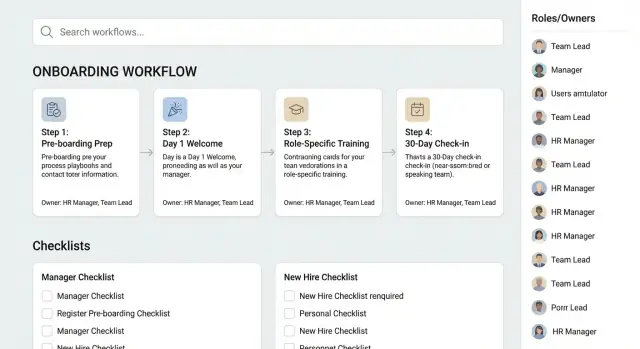
What a Business Process Playbook Website Does
A business process playbook website is a central, organized place where your team can find the “how we do things here” for recurring work—step-by-step instructions, roles, templates, and decision rules. Think of it as a process documentation site that’s easier to browse than scattered PDFs, shared drives, or long chat threads.
It’s most useful when work is repeated across people and teams (onboarding, sales handoffs, support escalations, hiring, invoicing) and when small variations cause real problems (missed steps, inconsistent customer experience, compliance risk). A good SOP website makes the right process the easiest process to follow.
Internal vs. external playbooks
Not every playbook is meant for the same audience:
- Internal playbook portal (employees): SOPs, checklists, approval paths, tools to use, and “definition of done.” Often includes onboarding content and team-specific workflows.
- Partner playbooks (vendors/resellers): narrower scope—how to submit leads, co-market, request support, use brand assets, or follow fulfillment rules.
- Customer-facing playbooks: best practices, setup guides, “how to get value,” and troubleshooting—more polished and less operational detail.
This distinction matters because it affects tone, terminology, and access control for playbooks (what’s private, what’s shareable, and what needs review before publishing).
Start small, improve continuously
A playbook site isn’t a one-time project. The goal is to ship something useful quickly—then refine it as teams use it. Begin with the processes that cause the most confusion or have the biggest impact (onboarding, critical customer workflows, high-risk approvals), and add depth over time.
What pages you usually need
Most workflow documentation sites follow a simple process playbook structure:
- Home: what the playbook is, who it’s for, how to search, and what’s newly updated.
- Process pages: one page per process, written for doing the work (not describing it). Each page typically includes purpose, owner, steps, exceptions, and links to templates.
- Templates & examples: reusable checklists, email scripts, forms, and definitions.
With those basics, you can grow into richer navigation and governance later—without blocking day-to-day use.
Define Goals, Audience, and Success Criteria
Before you pick tools or start writing pages, get clear on what the playbook website is for and who it serves. A process site without a shared purpose quickly turns into a dumping ground—hard to search, harder to trust.
Common goals worth stating explicitly
Most teams build a business process playbook website to achieve one (or more) of these outcomes:
- Faster onboarding: new hires can follow “how we do it here” without shadowing for weeks.
- Consistency and quality: the same task is done the same way across teams, shifts, and locations.
- Compliance and audit readiness: policies, approvals, and required checks are easy to point to.
- Cleaner handoffs: fewer dropped balls between Sales → Ops → Finance, or Support → Engineering.
- Speed and fewer interruptions: people can self-serve answers instead of asking in chat.
Write these goals down in one sentence each. You’ll use them later to decide what to include, what to cut, and what to prioritize.
Identify your primary readers (and what they need)
List the top audiences and what “good” looks like for them:
- New hires: need context, definitions, and step-by-step instructions with examples.
- Operators / doers: need checklists, inputs/outputs, and clear “what to do when it goes wrong.”
- Managers: need ownership, SLAs, escalation paths, and visibility into changes.
- Auditors / compliance: need evidence, version history, and links to source policies.
If you try to write every page for everyone, you’ll frustrate all of them. Pick a primary reader per process page (you can still add a short “For managers” or “For auditors” section when needed).
Define success criteria you can measure
Choose a few metrics that indicate the site is working:
- Time to find an answer (e.g., “Most common questions answered in under 60 seconds”)
- Fewer repeated questions in Slack/Teams or fewer escalations for routine work
- Onboarding time reduced (days to independent task completion)
- Process adherence (fewer missing steps, fewer rework cycles)
Decide on access and usage constraints early
Confirm practical requirements now: does the SOP website need to work well on mobile, in a warehouse/field setting, or with limited connectivity/offline access? Those constraints will shape your content format (shorter steps, printable views) and platform choices later.
Inventory Your Processes and Source Materials
Before you design a process documentation site, you need to know what content you already have—and what you think you have.
A quick inventory prevents the classic failure mode of an SOP website: a polished portal full of half-finished pages, conflicting versions, and orphaned files no one trusts.
Gather everything (yes, everything)
Pull together your existing SOPs and workflow documentation from wherever they live today:
- Google Docs/Word docs, PDFs, and wiki pages
- Spreadsheets used as “living checklists”
- Slide decks used for training or onboarding
- Forms, templates, and example files
- Tools and system links (CRM views, ticket queues, dashboards)
Capture each item in a single tracker with: title, link/location, team, last updated date (if known), and a short description.
Triage: current, outdated, duplicated, missing
As you review, label every item with a simple status:
- Current: safe to publish in the internal playbook portal with minimal edits
- Outdated: valuable, but needs review before it appears on the business process playbook website
- Duplicate: overlaps with another doc; decide which becomes the source of truth
- Missing: the process exists in practice, but not in writing (common for handoffs and approvals)
This step is less about perfection and more about honesty. A clear “needs update” label beats silently publishing wrong instructions.
Assign owners (and make it real)
Every process area needs an accountable owner—someone who can approve changes and answer questions. Add an “Owner” field to your tracker and confirm ownership with managers, not just assumptions.
Choose a naming convention early
A consistent naming convention becomes the backbone of your process playbook structure and future knowledge base navigation. Pick a pattern that stays readable in menus and search, such as:
Team Process Outcome (e.g., “Support Refund Request Approved”) or Function Activity (e.g., “Finance Month-End Close”).
With this inventory complete, you’ll know what to migrate, what to rewrite, and how to organize your onboarding playbook website without guesswork.
Plan the Site Structure and Navigation
A playbook website succeeds or fails on how quickly someone can find the “right” process when they’re busy. Before you build pages, decide how people will browse, what labels you’ll use, and how links will connect related work.
Pick top-level categories that match how people think
Choose 3–6 primary paths that feel natural inside your organization. Common options include:
- Teams/Departments (Sales, Support, Finance)
- Lifecycle stages (Lead → Close → Onboard → Renew)
- Product lines (Product A vs. Product B)
- Locations/regions (US, EMEA, APAC)
Pick one “default” that fits most use cases, then support the others with tags and cross-links. For example, your main navigation could be Teams, while Lifecycle lives as a filter on process pages.
Define a consistent URL structure and page hierarchy
Clean, predictable URLs make the site easier to navigate and maintain. Decide on a pattern and stick to it:
- Department-based:
/playbook/finance/invoicing/ - Lifecycle-based:
/playbook/onboarding/activate-account/
Avoid putting dates or people’s names in URLs. Use short slugs that won’t change when roles change. Also decide where supporting content lives (templates, policies, tools), for example: /playbook/resources/.
Design the homepage for action, not storytelling
Your homepage should help readers move immediately:
- A prominent search bar
- Browse tiles for top-level categories
- Recently updated processes (signals freshness)
- Key links (request a change, onboarding hub, critical SOPs)
If you have a high-volume onboarding need, a direct link like /playbook/onboarding/ can reduce friction for new hires.
Create a simple taxonomy (and keep it disciplined)
Use a small set of tags/fields consistently across process pages, such as:
- Department/owner
- Process type (SOP, checklist, policy, how-to)
- Risk level (low/medium/high)
Keep tags curated (not free-for-all). A controlled taxonomy improves filters, related-content widgets, and “see also” sections—so readers can jump from a process to prerequisites, downstream steps, and tools without hunting.
Design a Process Page Template That Scales
A process documentation site only stays useful if every page feels familiar. A consistent template reduces writing time, speeds up onboarding, and makes it easier for readers to find what they need without hunting.
Core layout (the “always there” sections)
Start with a standard structure that works for most workflows:
- Purpose: Why this process exists and what it protects (speed, quality, compliance, customer experience).
- Scope: When to use it—and when not to.
- Roles & responsibilities: Who does what (include backups/approvers).
- Tools & access: Systems needed, links to forms, required permissions.
- Steps: The sequence, written as short, numbered actions.
Keep steps action-oriented (one verb per step), and add screenshots only when they clarify a confusing UI.
Make it executable: checklists, decisions, and done-ness
Turn “documentation” into something people can follow under pressure:
- Add a pre-flight checklist (what must be true before starting).
- Mark decision points clearly (e.g., “If X, do A; if not, do B”).
- Include a Definition of Done so teams stop debating completion criteria.
A simple pattern is: Start conditions → Steps → Quality checks → Definition of Done.
Inputs/outputs and handoffs between teams
Many processes fail at the boundaries. Add a short section that states:
- Inputs: What you need to begin (request, ticket, file, approval).
- Outputs: What is produced (shipped item, updated record, customer email).
- Handoff rules: Who receives the output, where it goes, and what “accepted” means.
This prevents “I thought you had it” confusion—especially across Sales, Ops, and Finance.
Troubleshooting and common exceptions
Finish with an Exceptions & troubleshooting section: the top 5 failure modes, how to diagnose them, and what to do next (including escalation contacts). This is often the most-read part of an SOP website because it reflects real work, not ideal work.
Choose the Right Platform and Hosting Approach
Your platform choice determines how easy it is to publish, update, and find processes—and how safely you can share them. Start by deciding whether the playbook is primarily internal (employees only) or also external (partners, customers). That single decision affects hosting, permissions, and tooling.
Common platform options (and when they fit)
A website builder (e.g., a drag‑and‑drop site) works if your playbook is small, mostly static, and design matters more than workflow. It can be quick to launch, but often weak on structured permissions and audit trails.
A wiki is great for collaborative, fast-moving documentation. The trade-off: page consistency can drift unless you enforce templates and governance.
A knowledge base tool is purpose-built for findability (search, categories, “related articles”), and usually includes analytics and version history. It’s often the easiest path for a process documentation site that needs to scale.
A CMS (like WordPress or a headless CMS) gives maximum flexibility and integrates well with other systems, but needs more setup and ongoing care.
An intranet can be convenient if you already have one, especially for access control and single sign-on (SSO). The downside is that intranet search and navigation can vary widely in quality.
If you want to launch a custom playbook experience without a traditional build cycle, Koder.ai can be a practical option: you describe the site structure and page templates in chat, generate a React-based web app with a Go + PostgreSQL backend if needed (for roles, approvals, analytics), and iterate quickly. Features like custom domains, hosting, snapshots, and rollback can also reduce the risk of changes when your playbook evolves.
Decide where editing happens
Pick the editing workflow your team will actually use:
- In-browser editor: best for non-technical owners and quick updates.
- Markdown/Git workflow: best for technical teams that want reviews and change control.
- Doc-to-web publishing: good if processes live in Google Docs/Word and you want a “publish” button without rewriting.
Must-haves checklist
Before you commit, confirm you have:
- Permissions and access control (teams, roles, private spaces)
- Version history and the ability to restore changes
- Search quality (filters, tags, synonyms if possible)
- Analytics (what’s viewed, what’s missing, failed searches)
If you’re comparing plans and features, keep a short shortlist and validate with a pilot. For more setup guidance, see /blog/knowledge-base-setup, and if cost is a factor, compare tiers on /pricing.
Create a Clear, Usable Design for Non-Technical Readers
A business process playbook website succeeds when someone can open a page, understand what to do, and complete the task without “figuring out” the site first. Aim for clarity over creativity: fewer choices, predictable patterns, and language that matches how your team actually talks.
Make pages easy to skim
Most readers won’t start at the top and read every word. Design for scanning:
- Use descriptive headings that answer real questions (e.g., “When to use this process,” “Step-by-step,” “What good looks like”).
- Keep steps numbered and action-oriented (“Send the invoice,” “Record the payment,” “Notify Sales”).
- Add brief callouts for exceptions, tips, and common mistakes so they stand out without interrupting the main flow.
If your process has branches, show them explicitly with labels like If/Then rather than burying conditions in long paragraphs.
Use consistent visuals (without turning it into art)
Non-technical readers rely on visual cues to understand roles and risk. Pick a small set of consistent markers and use them everywhere:
- Role icons or badges (Owner, Approver, Requester)
- Warning callouts for high-impact steps (compliance, finance, customer data)
- Approval indicators (e.g., “Approval required” vs “No approval needed”)
Consistency matters more than style. A simple, repeated system reduces errors because readers recognize patterns instantly.
Add quick actions people actually use
Small conveniences drive adoption. On each process page, include a compact “Quick actions” area:
- Print (clean print layout, no sidebars)
- Copy checklist (one-click copy of the steps)
- Download template (forms, email scripts, spreadsheets)
Place these actions near the top so users don’t hunt for them.
Cover accessibility basics
Accessibility is usability. Check the essentials:
- Sufficient contrast and readable font sizes
- Clear link styling (not color alone)
- Full keyboard navigation for menus, search, and accordions
- Plain-language labels (avoid internal jargon where possible)
Treat accessibility as a default design requirement so the playbook works for everyone, including new hires moving fast during onboarding.
Set Permissions, Privacy, and Content Safety Rules
A playbook website only works if people trust it. That trust depends on clear access rules and safe content habits—especially when processes touch payroll, customer data, or security.
Decide what belongs where
Start by classifying pages into three buckets and label them consistently in your navigation:
- Public: high-level “how we work” overviews, brand guidelines, non-sensitive policies.
- Internal-only: most SOPs, onboarding guides, tool instructions, team checklists.
- Restricted: HR (compensation, performance), finance (banking, invoices with details), security (incident response, vendor credentials), legal (contracts).
If a process spans categories, split it: keep the general workflow internal, and move sensitive steps into a restricted subpage.
Set roles that match how work gets done
Keep permissions simple so they’re actually used:
- Viewers: everyone who needs to follow processes.
- Editors: subject-matter owners who draft changes.
- Approvers: leaders/compliance who sign off.
- Admins: manage users, settings, and emergency access.
Tie roles to groups (teams, departments) rather than individuals to reduce maintenance when people change roles.
Document approval rules and sign-off triggers
Write a short “change policy” and link it from every process template. Define:
- What changes are self-serve (typos, screenshots, clarifying wording).
- What requires approval (pricing, legal wording, customer data handling, security steps).
- Expected review timing (e.g., approve within 3 business days) and who is the backup approver.
Keep examples safe by default
Avoid real names, customer identifiers, invoice numbers, API keys, or screenshots with private data.
Use placeholders like:
- Customer: Acme Co.
- Email: [email protected]
- Account/Invoice: INV-000123
If you must show a real system screen, blur sensitive fields and note what was removed.
A small amount of upfront structure prevents accidental leaks and makes your process documentation site easier to share confidently across the company.
Optimize Search, Findability, and Cross-Linking
A playbook site only works when people can quickly find the right process, trust it’s current, and understand what to do next. Good navigation helps, but search and cross-linking are what make the site feel “smart” day to day.
Build search that reflects how people ask for help
Don’t rely on a single search box with a long list of results. Add filters that match how employees think about their work:
- Team/function (Sales, Finance, Support)
- Tag (monthly close, escalation, procurement)
- Role (manager, new hire, approver)
- Tool/system (HubSpot, Jira, NetSuite)
Make these filters visible on results pages and on team index pages, so non-technical readers can narrow down without knowing the exact process name.
Create team index pages (your “starting points”)
For each function, build an index page that answers: “What do we do here, and where do I start?”
Include a short intro, the most-used processes, and grouped links (Onboarding, Daily/Weekly, Exceptions, Templates). This reduces the pressure on global navigation and helps new joiners orient quickly.
Cross-link processes like a workflow, not a wiki
Add “Related processes” links that connect common neighbors (e.g., “Create a quote” → “Discount approval” → “Send contract”).
For linear work, add Next/Previous navigation so someone can follow the full flow without bouncing back to search. Treat it like a checklist of pages, with clear “stop points” (handoff, approval, done).
Add a glossary for internal terms
Company abbreviations and tool nicknames block understanding fast. Maintain a simple glossary page (e.g., /glossary) and link terms inline on process pages.
Keep each definition short, include synonyms (“PO = Purchase Order”), and link to the most relevant process when a term implies an action.
Set Up Governance and Maintenance Workflows
A playbook site stays useful only if people trust it. That trust comes from predictable ownership, clear update paths, and visible history. Without governance, pages drift out of date and teams quietly revert to “asking the expert” instead of using the SOP website.
Assign ownership and review cadence
Treat each process page like a small product. Assign a page owner (usually the team lead closest to the work) and add a review date directly on the page so readers can judge freshness at a glance.
If you have many pages, start with quarterly reviews and move high-risk or fast-changing workflows (billing, compliance, customer comms) to monthly.
Make updates easy—and trackable
People won’t update documentation if the path is unclear. Decide on a single intake method and standardize it across the internal playbook portal.
For example, add a “Request a change” link on every page that opens a short form or ticket template. Include required fields like: what’s wrong, what should change, urgency, and who noticed it.
Use versioning so changes don’t feel risky
When teams fear breaking the “official” process documentation site, they avoid improving it. Reduce that fear by recording what changed and why.
Keep notes short: date, summary, owner, and links to related pages. For larger changes, flag the page as “Updated” in your navigation or on a /recent-changes page.
Standardize writing so pages feel consistent
A small style guide prevents a messy mix of formats and tones across your onboarding playbook website.
Keep it practical: page structure (Purpose → When to use → Steps → Exceptions), naming rules, how to write steps, and how to link related SOPs. Store it in the playbook itself (e.g., /style-guide) and reference it during reviews.
Launch, Drive Adoption, and Improve Over Time
A playbook website isn’t “done” when it goes live. The first version is your starting point—what matters is whether people actually use it when they need help, and whether it stays accurate.
Start with a pilot (and learn fast)
Before migrating every SOP and workflow, run a pilot with one team (or one high-impact process area like onboarding, customer support, or sales ops). Keep the scope small enough to manage, but real enough to reveal issues.
During the pilot, watch for:
- Pages people can’t find (navigation and naming issues)
- Steps that are unclear without tribal knowledge
- Missing artifacts (templates, forms, example tickets)
- Conflicts between “how it’s written” and “how it’s actually done”
Use what you learn to refine the page template, labels, and cross-linking rules before you scale.
Create onboarding guidance for the playbook itself
Don’t assume readers know how to use the site. Add a short “how to use the playbook” page that explains:
- What the playbook is (and isn’t)
- How to search vs. browse
- How to tell if a process is current (last updated, owner)
- How to request changes or report errors
Link to it from your homepage and top navigation. If you have a people onboarding flow, include it in your onboarding checklist and point new hires to the page during their first week.
Announce the launch with quick-start paths
A launch message should help people succeed immediately. Announce the site in the channels people already use (email, Slack/Teams, all-hands), and include quick-start links to the most common tasks.
For example:
- “Start here” (/playbook/start)
- “New manager essentials” (/playbook/management)
- “How we ship work” (/playbook/delivery)
- “Request a change” (/playbook/changes)
If possible, run a short live walkthrough (15 minutes) and record it.
Track adoption and keep improving
Set a simple feedback loop from day one. Track adoption metrics such as:
- Weekly active users and returning visitors
- Top searched terms and “no results” searches
- Most-viewed pages (and time-on-page as a rough clarity signal)
- Number of change requests and time-to-update
Pair metrics with qualitative feedback: add a lightweight “Was this helpful?” prompt or a link to a form. Review insights monthly, fix the highest-friction pages first, and publish small updates regularly so the playbook stays trusted.
FAQ
What is a business process playbook website?
A business process playbook website is a central site where people can find repeatable “how we do things” guidance: SOPs, checklists, roles, templates, and decision rules.
It works best when tasks repeat across teams and inconsistencies create real cost (rework, missed steps, compliance risk, customer experience issues).
How do I start if we have a lot of undocumented or messy processes?
Start with a small pilot: one team or one high-impact workflow (e.g., onboarding, support escalations, invoicing). Publish the minimum set of pages needed to complete real work.
Then iterate based on usage:
- Fix unclear steps and missing templates
- Improve naming/navigation when people can’t find pages
- Add exceptions and troubleshooting as they surface
Should our playbook be internal, partner-facing, or customer-facing?
Use internal playbooks for employee execution details (SOPs, approvals, internal tools). Use partner playbooks for narrow, shareable workflows (lead submission, co-marketing rules). Use customer playbooks for polished best practices and setup/troubleshooting.
This separation helps with tone and reduces risk by keeping sensitive steps and data internal or restricted.
What pages do we need in a process documentation site?
A simple, scalable structure is:
- Home: search, browse paths, what’s new, key links
- Process pages: one page per process written to do the work
- Templates & examples: checklists, scripts, forms, definitions
Add a dedicated resources area as you grow (e.g., /playbook/resources/) so supporting artifacts don’t clutter process steps.
What should a standard process (SOP) page template include?
A consistent template helps every page feel familiar. Include:
- Purpose and what it protects (speed/quality/compliance)
- Scope (when to use it, when not to)
- Roles & responsibilities (owner, doer, approver, backups)
- Tools & access (links + required permissions)
- Steps (numbered, action-oriented)
- Exceptions/troubleshooting (top failure modes + escalation)
Add Definition of Done to stop debates about completion.
How should we organize navigation and URLs for the playbook site?
Pick navigation that matches how people look for help. Common top-level paths:
- Teams/departments
- Lifecycle stages (Lead → Close → Onboard → Renew)
- Product lines
- Regions/locations
Choose one default (e.g., Teams) and use tags/filters for the others. Keep URLs predictable (e.g., /playbook/finance/invoicing/) and avoid names/dates that will change.
How do we make processes easy to find (beyond having a search box)?
Prioritize:
- Strong search with filters (team, role, tool, tag)
- Team index pages that answer “Where do I start?”
- Cross-links like “Related processes” and Next/Previous for linear workflows
- A glossary at
/glossaryfor internal terms and synonyms
Also review “no results” searches to identify missing pages or wrong naming.
What permission and privacy rules should we set for playbooks?
Start with clear content buckets:
- Public: high-level overviews and non-sensitive policies
- Internal-only: most SOPs and onboarding
- Restricted: HR, finance details, security/legal procedures
Keep permissions role-based (Viewers, Editors, Approvers, Admins) and document what changes require approval. Use safe examples (placeholders like [email protected], INV-000123) and avoid exposing real customer data or credentials.
Which platform should we use to host a process playbook website?
Choose the platform based on who edits and who reads:
- Wiki: fast collaboration; needs strong templates/governance
- Knowledge base: best for findability, analytics, version history
- CMS: most flexible; more setup and maintenance
- Intranet: good SSO/access control; search quality varies
Before committing, verify permissions, version history, search quality, and analytics. If you want more setup guidance, see /blog/knowledge-base-setup, and if cost is a factor, compare options on /pricing.
How do we keep the playbook accurate and trusted over time?
Make maintenance part of the workflow:
- Assign a page owner and show a review date on each process
- Add a Request a change link on every page (form or ticket)
- Use version history/changelogs so updates feel safe
- Set review cadence by risk (monthly for high-risk, quarterly for stable)
Track adoption with analytics (top pages, failed searches, change request volume) and prioritize fixes that reduce confusion and interruptions.