

How to Create a Website for a Public Product Learning Center
Learn how to plan, build, and launch a public learning center site: structure, CMS, content types, search, SEO, analytics, and upkeep.
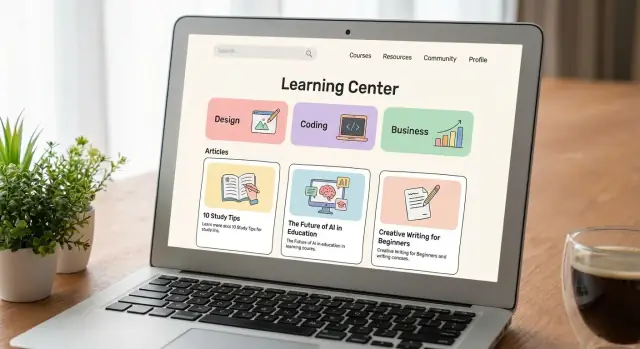
Set goals, audiences, and success criteria
A “public learning center” is more than a page full of articles. It’s the front door to how people understand, adopt, and succeed with your product—without needing a login or a support ticket.
Define what “public learning center” means for your product
Start by choosing the primary purpose:
- Education (pre- and post-purchase): explain concepts, use cases, best practices, and how your product fits into real workflows.
- Support (self-serve help): solve problems fast with setup, troubleshooting, and FAQs.
Most teams need both, but you should decide which one wins when there’s a trade-off (for example, long explanations vs. quick fixes).
Identify your primary audiences
List the groups you expect to serve, and note what “success” looks like for each:
- Prospects: understand value and capabilities; reduce uncertainty.
- New users: complete setup and the first key task.
- Power users: unlock advanced features; expand usage.
- Admins: manage permissions, billing, security, and rollouts.
- Partners: implement, configure, and support shared customers.
Map top questions to outcomes
Collect your most common questions (from sales calls, onboarding sessions, support tickets, and internal experts) and tag each to an outcome:
- Learn (concepts, terminology, comparisons)
- Set up (getting started, prerequisites, checklists)
- Troubleshoot (errors, known issues, workarounds)
- Expand use (advanced guides, integrations, best practices)
Decide scope now vs. later—and measure it
Define what you will publish in the first release, and what waits.
Success criteria should be measurable, such as:
- Reduced “how do I…?” ticket volume
- Faster time-to-first-success for new users
- Higher article helpfulness ratings
- More completions of key onboarding steps
Choose an information architecture that scales
Information architecture (IA) is the map that helps people find answers quickly—and helps your team add new content without creating a maze. A scalable IA starts with what you already have, then turns it into a structure that stays clear as the learning center grows.
Start with an inventory, not assumptions
Before you create categories, gather your existing materials in one list: documentation pages, blog posts that function as guides, webinars (and their recordings/transcripts), release notes, FAQs, support macros, and onboarding emails. Note what each item is for (teach a concept, solve a task, announce a change) and who it serves (new user, admin, developer, power user). This makes gaps and duplicates obvious.
Group topics into categories people recognize
Use plain, predictable buckets that match how users think:
- Getting started (setup, first steps, quick wins)
- How-to (task-based guides)
- Concepts (explanations, terminology, “how it works”)
- FAQs (short answers, troubleshooting, limits)
If you have multiple products or modules, add one level above (Product A / Product B) and keep the same subcategories under each. Consistency is what makes scaling possible.
Design paths for different skill levels
Beginners benefit from a guided sequence: start here → set up → first task → next steps. Advanced users want direct access by feature area, plus deep-dive concept pages. Keep these as separate entry points so neither audience has to wade through content not meant for them.
Decide URL structure and naming rules early
Pick a simple pattern and stick to it, such as:
/getting-started/for onboarding content/how-to/for task guides/concepts/for explanations
Define naming rules (sentence case titles, consistent verbs, one topic per page) so future pages slot in cleanly without renaming everything later.
Design content types and templates
Your learning center feels “easy” when visitors can predict what they’ll get before they click. That predictability comes from a small set of content types and a consistent template for each.
Define your core page types
Start with a handful of types that match how people learn and troubleshoot:
- Guides for end-to-end tasks (setup, configuration, best practices)
- Tutorials for step-by-step outcomes with clear checkpoints
- Reference for factual lookup (fields, limits, APIs, UI options)
- Troubleshooting for symptoms → causes → fixes
- Videos for visual walkthroughs, paired with a short written summary
Keep the list tight. Too many types create confusion and slow publishing.
Create templates people can scan
Each type should have a recognizable structure. For example:
- Intro: what you’ll achieve and who it’s for
- Prerequisites: access, tools, or knowledge required
- Steps: numbered actions with clear verbs; include screenshots only where they clarify a decision or UI change
- Expected result: what “done” looks like
- Next steps: links to related actions or deeper learning paths (e.g., “Try advanced settings”)
Set lightweight standards
Small standards prevent messy content without turning authors into editors:
- Titles: task-based (“Connect X to Y”), not vague (“Integration overview”)
- Reading time: a visible estimate to set expectations
- Prerequisites: always explicit; don’t hide required permissions
- Last updated date: shown near the top so users can trust freshness
Short articles vs. long guides
Use short articles for a single question or fix (one intent, one outcome). Use long guides when users must make choices, understand trade-offs, or complete a multi-stage workflow. If a long guide grows, break out reference and troubleshooting into separate pages and keep the guide focused on the journey.
Pick a CMS and publishing workflow
A learning center lives or dies by how quickly you can publish accurate updates. Choose a CMS and workflow that let subject-matter experts contribute without breaking the site—and that still gives your team control over quality.
Non‑negotiable CMS capabilities
Start by validating the basics:
- Easy editing (a clean WYSIWYG or Markdown editor) so updates don’t require developers
- Versioning and change history so you can roll back mistakes and audit who changed what
- Roles and permissions (author, editor, approver, admin) to prevent accidental publishing
- Staging/preview so reviewers can see changes before they go live
If your learning center includes technical docs, confirm how the CMS handles code snippets (syntax highlighting, copy buttons, and safe formatting).
Common CMS approaches
Headless CMS + static site generator: Great for fast performance and flexible design. Content is managed in the CMS, then built and deployed as a static site. Best when you have some developer support and want strong control over templates and structure.
Docs platforms: Often include built-in navigation, versioned docs, and search integrations. Good for documentation-heavy learning centers where structure matters more than custom design.
Website CMS section: Works well if the learning center is part of a marketing site and your team already uses the same CMS. Make sure it won’t force awkward templates or limit navigation as content grows.
If you’re building your product and learning center in parallel, consider tooling that reduces the time from “feature shipped” to “docs shipped.” For example, teams using Koder.ai (a vibe-coding platform that generates web, backend, and mobile apps from chat) often pair its planning mode and snapshots/rollback with a lightweight documentation workflow, so changes in the product and the learning center can stay in lockstep.
Localization and media workflow
If you plan to support multiple languages, decide early how translations happen: manual entry per locale, translation management integration, or export/import files. Confirm locale switching, URL structure per language, and who approves translated updates.
Finally, plan media management: consistent naming, alt text fields, embed support, and a simple process for updating screenshots when the product UI changes.
Create a user-friendly site structure and UI
A learning center succeeds when people can recognize where they are, see what to do next, and reach the right answer with minimal effort. Good UI isn’t decoration—it’s a set of predictable patterns that reduce confusion.
Navigation that keeps people oriented
Use clear category navigation that mirrors how users think (tasks, problems, features) rather than your org chart. Add breadcrumbs on category and article pages so visitors can backtrack without losing context.
“Related articles” links work best when they’re intentional: show 3–6 items that continue the same task, explain prerequisites, or cover common follow-ups (setup → troubleshoot → advanced options). Avoid dumping a long, generic list.
A homepage that points to outcomes
Design the homepage around the fastest path to value:
- A featured “Getting started” path (a short sequence of articles)
- Top categories with plain-language labels
- Popular topics based on real demand (support tickets, search terms, analytics)
Keep the top area focused. Too many choices can slow people down.
Article pages that make scanning easy
Most readers scan before they commit. Make that easy:
- Table of contents for longer articles, with anchors that jump to sections
- Consistent callouts (Tip, Note, Warning) for guidance and risks
- Copy-to-clipboard for commands, URLs, and config snippets to reduce errors
Write headings that describe the action or answer (e.g., “Reset your API key”), not vague labels (e.g., “API keys”).
Accessibility basics you can’t skip
Aim for:
- Sufficient color contrast for text and interactive elements
- A logical heading hierarchy (H2 → H3 → H4) to support scanning and screen readers
- Full keyboard navigation with visible focus states
- Alt text for meaningful images (and skip it for decorative visuals)
Accessibility improvements also make the UI clearer for everyone.
Implement strong site search and findability
Great search is the difference between a learning center that feels “instant” and one that forces people to click around. Treat search as a product feature: it should answer questions quickly, tolerate messy wording, and guide users when it can’t find an exact match.
Decide what your search indexes
Start by defining what users should be able to search across. At minimum, index page titles and the full body text of articles. If your learning center includes metadata, index tags and short summaries too.
If you publish downloadable resources (PDFs, release notes, templates), decide whether attachments should be searchable. If you can’t index attachment contents reliably, make sure attachments have clear titles and descriptions so people can still find them.
Improve relevance with filters and synonyms
Users often arrive with a role-based intent (“admin setup,” “student view,” “billing owner”). Add filters that match how people think:
- Category (getting started, troubleshooting, billing)
- Role (admin, contributor, viewer)
- Product area (integrations, permissions, reporting)
Then add synonyms for common terms and brand vocabulary. Examples: “login” vs. “sign in,” “invoice” vs. “bill,” “workspace” vs. “project,” and acronyms users might type. Also consider spelling variations and pluralization.
Plan for “no results” as a helpful moment
Zero results shouldn’t be a dead end. Create a dedicated “no results” experience that offers:
- Spelling suggestions and broader query prompts
- A few popular links (top articles, getting started)
- A clear support path (contact, community, or request an article)
This turns a failure into a recovery flow—and tells you what content is missing.
Measure search quality (and act on it)
Track top queries, the zero-result rate, and click-through from results to articles. Pair that with “refined searches” (when users immediately search again) to spot relevance issues. Use these signals to add synonyms, tweak titles, create missing articles, and improve summaries so the right result looks like the right answer.
Build for SEO without sacrificing clarity
SEO should make your learning center easier to find, not harder to use. The guiding rule: write for humans first, then help search engines understand what you wrote.
On-page SEO that stays readable
Use clear, specific page titles and headings that match what a user is trying to solve. A good title is “Reset your password” rather than “Account Management.” Keep one H1 per page, and use H2/H3s to break the steps into scan-friendly chunks.
Meta descriptions won’t “rank” your page by themselves, but they strongly influence clicks. Write them like a concise promise: what the page helps someone do, and who it’s for.
Internal linking is where clarity and SEO align. When you mention a prerequisite or related task, link it using plain language (“Set up SSO”) instead of “click here.” Keep the number of links reasonable so the main path remains obvious.
Prevent duplicate content (before it spreads)
Learning centers often duplicate content via tags, versioned pages, or copied articles. Pick consistent, readable slugs and stick to them. When two URLs must exist, use canonical URLs so search engines know which one is the “main” page. Also avoid publishing near-identical “SEO variants” of the same article—merge them into one better page.
Add structured data when it fits
For true FAQ pages, add FAQ structured data so search engines can understand the question-and-answer format. Don’t force it onto non-FAQ content; it can backfire.
Sitemap and indexability
Generate an XML sitemap and keep it up to date as new articles launch. Make sure pages are indexable when intended (no accidental noindex settings), while keeping drafts, internal notes, and thin pages out of search.
Plan and produce the first content batch
Your first release should prove the learning center is useful, not comprehensive. Aim for a minimum viable set of content that solves the highest-frequency problems and reduces support load immediately.
Start with a “minimum viable” library
A practical starter pack is:
- Onboarding essentials: getting started, account setup, first successful outcome
- The top 20 questions: the issues people ask sales, support, or search for most often
Use real inputs: support tickets, chat transcripts, call notes, and product analytics (e.g., most-used features, common drop-off points). Prioritize topics by impact (how many users) and urgency (blocks adoption or causes churn).
Write for scan-reading and success
Keep each article focused on one job-to-be-done. Write in plain language, with short sections and step-by-step instructions. Include:
- Prerequisites (if any)
- Numbered steps that match what users see in the product
- A “What you should see” checkpoint so readers know they’re on track
- One realistic example (not a perfect demo scenario)
Avoid internal jargon. If you must use a term, define it once and then use it consistently.
Use visuals thoughtfully
Add visuals only when they reduce confusion:
- Annotated screenshots for dense settings screens
- Short clips for multi-step flows (keep them tight)
- Simple diagrams for concepts (roles, permissions, data flow)
Make visuals durable by avoiding dates, personal data, and UI elements that change frequently.
Add clear next steps
End each piece with a “Next steps” section that points to the most likely follow-on action—such as trying the feature, comparing plans, or troubleshooting. You can reference relevant internal routes like /pricing or the next onboarding task, so the content connects naturally to product decisions and progress.
Establish governance to keep content accurate
A public learning center lives or dies on trust. Governance is the practical system that keeps articles current, consistent, and safe to follow—especially when product changes move faster than content updates.
Set clear roles (and name the backups)
Avoid “everyone owns it,” which usually means nobody does. Define a small set of roles and make them visible to the team.
- Content owner: accountable for accuracy and prioritization of updates
- Subject-matter experts (SMEs): validate technical correctness and edge cases
- Editor: ensures clarity, structure, and consistency with the style guide
- Reviewer/approver: final sign-off (often product, support, or legal depending on topic)
Also assign backup owners so content doesn’t stall during vacations or team changes.
Define review cadence and update triggers
Not every page needs the same schedule. High-risk or fast-changing topics (billing, security, onboarding flows) should be checked more often than evergreen concepts.
Set a cadence (for example: quarterly for most pages, monthly for critical ones) and add automatic triggers, such as:
- New feature releases or deprecations
- UI updates that change steps or screenshots
- Policy or pricing changes
- Recurring support tickets that suggest confusion
A simple rule helps: if the product changed, the content must be reviewed before or alongside the release.
Create a style guide that prevents “documentation drift”
A lightweight style guide reduces rewrites and makes multiple authors sound like one team. Include:
- Tone (helpful, direct, inclusive)
- Approved terminology (feature names, menu labels; avoid synonyms for the same thing)
- Capitalization and formatting rules
- Screenshot standards (when to use, how to annotate, how often to refresh)
Keep readers informed with change logs or update notes
Add “Last updated” dates and short update notes on key pages. This signals freshness and sets expectations, especially when instructions change. Internally, maintain a change log so support and product teams can quickly see what was updated, when, and why.
Add feedback, support paths, and learning journeys
A learning center works best when it’s a two-way street: visitors find answers, and you learn where the content falls short. This section is about building those loops without turning every page into a noisy interface.
Add lightweight feedback controls
Place a simple “Was this helpful?” control at the end of articles (or after key steps in longer guides). Keep it fast: Yes/No first, with an optional follow-up.
If someone answers “No,” offer two quick options:
- A short comment field (“What were you trying to do?”)
- A “Report an issue” button for factual problems (outdated steps, broken UI labels, missing screenshots)
Route issue reports to a queue your content owners actually watch. If feedback disappears into an inbox, users will stop using it.
Make escalation paths obvious (and calm)
When self-serve content isn’t enough, people need clear next steps. Provide a small “Need more help?” block that can include:
- A contact form for general inquiries
- A support portal path for account-specific or urgent issues
- A community option for how-to questions and peer tips
Use plain language to set expectations (response times, what information to include). The goal is to reduce frustration and prevent duplicate tickets.
Design learning journeys: hubs that match intent
Create two high-traffic hubs that act as starting points:
- Getting started: a guided path from setup → first success → common next features, with a short checklist and recommended order.
- Troubleshooting: symptom-based navigation (“Can’t log in,” “Integration failing,” “Billing questions”) plus a decision-tree style flow.
Use contextual CTAs carefully
Add CTAs that help users complete the task—download a template, check prerequisites, or view a related how-to. Avoid sales-heavy prompts inside troubleshooting articles; when someone is stuck, clarity and resolution should win.
Set up analytics to improve the learning center
Analytics for a learning center should answer two questions: Are people finding what they need? and Does the content reduce friction and move them forward? Set it up early so you can learn from real behavior instead of guesswork.
Measure content performance (how pages are consumed)
Start with a small set of metrics that are easy to interpret and compare over time:
- Page views and unique visitors to see what’s popular and what’s ignored
- Time on page as a rough signal of engagement (watch for outliers—very long time can also mean confusion)
- Scroll depth to learn whether readers reach the steps, examples, or troubleshooting sections
Tip: Track these by content type (e.g., “How-to,” “Troubleshooting,” “Concepts”) so you can spot patterns like “troubleshooting pages have low scroll depth,” which may indicate answers are buried too far down.
Track outcomes (what happens after learning)
A learning center is successful when it helps users complete tasks. Define a few “next step” actions and track clicks or completions, such as:
- Clicks to key in-product actions or setup steps
- Sign-ups, trial activation, or “contact sales/support” actions (when relevant)
- Downloads, template usage, or “copy” actions for code snippets (if you provide them)
Keep outcome tracking focused: choose 3–5 primary actions to avoid noisy reporting.
Build dashboards that highlight issues and gaps
Dashboards should be built for decisions, not vanity metrics. Create views that answer:
- What are people searching for? (top queries, rising queries, zero-result queries)
- What are the top issues? (pages with high exits, low scroll depth, repeated searches)
- Where are the content gaps? (frequent searches that don’t map to a clear page; high-support topics without a strong article)
Pair search data with page performance to find “high intent, low satisfaction” areas quickly.
Run small experiments and keep what works
Use analytics to test one change at a time and compare before/after results:
- Try new navigation labels to match user language
- Improve the no results page with suggested topics, synonyms, and popular links
- Adjust page structure (moving the answer higher, adding a short summary) and watch scroll depth and exits
Set a simple cadence—monthly review and one or two experiments—so improvement becomes routine rather than a big project.
Launch checklist and ongoing iteration plan
A learning center launch is less about a big “ta‑da” moment and more about reducing surprises: broken pages, confusing navigation, missing support paths, and slow load times. Treat launch day as the start of a steady improvement loop.
Technical checklist (before you announce)
- Performance: confirm key pages load quickly on typical mobile connections; compress images and keep pages lightweight.
- Mobile: test navigation, tables, accordions, and code blocks on small screens.
- Broken links: crawl the site and fix 404s; pay extra attention to template elements (header/footer) that repeat everywhere.
- Redirects: set 301 redirects for any moved pages and verify the most visited legacy URLs.
Content checklist (quality and consistency)
- Accuracy: spot-check the most critical how-to and troubleshooting articles end-to-end.
- Consistent templates: ensure titles, summaries, prerequisites, steps, and next-step guidance follow the same structure.
- Accessibility review: headings in order, descriptive link text, readable contrast, and helpful alt text where relevant.
Launch plan (reduce risk)
Start with a staged rollout: publish the core set first (top tasks + top issues), then expand. Announce from your blog and, if you have it, in-product (tooltips, banners, or the help menu) so users discover the learning center at the moment they need it.
Post-launch iteration (make it better every month)
Schedule a monthly content audit: update anything tied to recent product changes, merge duplicates, and retire stale pages. Keep a visible backlog and prioritize using real signals: top searches with no results, high-exit pages, and recurring support questions. Over time, this turns your learning center into a living system—not a one-time publishing project.
FAQ
What should a public product learning center do first: educate or support?
Start by picking the primary purpose:
- Education: concepts, use cases, best practices, and “why” your product fits.
- Support: fast setup help and troubleshooting.
Decide which purpose wins when there’s a trade-off (long explanations vs. quick fixes), then define measurable success (e.g., fewer “how do I…?” tickets, faster time-to-first-success).
Which audiences should I design the learning center for?
List your main groups and define “success” for each:
- Prospects: reduce uncertainty and clarify value.
- New users: finish setup and complete a first key task.
- Power users: adopt advanced features and expand usage.
- Admins: handle permissions, security, billing, and rollouts.
- Partners: implement and support shared customers.
Use these definitions to prioritize what you publish first and how you organize navigation.
How do I decide what content to publish in the first release?
Create one backlog of real questions from:
- Support tickets and chat transcripts
- Sales call notes
- Onboarding sessions
- Internal SMEs
Tag each question to an outcome like Learn, Set up, Troubleshoot, or Expand use. Then publish the highest-frequency, highest-blocking items first (the ones that stop adoption or create repeated tickets).
What’s a scalable information architecture for a learning center?
Start with an inventory of what you already have (docs, guides, webinars/transcripts, FAQs, macros, onboarding emails). Then group into predictable buckets users recognize:
- Getting started
- How-to
- Concepts
- FAQs
If you have multiple products/modules, put them one level up (e.g., Product A / Product B) and keep the same subcategories under each for consistency.
Which content types and templates work best for public help content?
Keep page types limited and consistent so visitors can predict what they’ll get. Common core types:
- Guides: end-to-end tasks
- Tutorials: step-by-step with checkpoints
- Reference: factual lookup (fields, limits, options)
- Troubleshooting: symptom → cause → fix
Use a repeatable template: intro, prerequisites, numbered steps, expected result, and “next steps” links to related tasks.
What CMS capabilities matter most for a public learning center?
Validate non-negotiables:
- Easy editing (Markdown or clean WYSIWYG)
- Version history and rollback
- Roles/permissions (author, editor, approver)
- Staging/preview
Choose a model that matches your team:
- Headless CMS + static site: best performance and template control (needs some developer support).
- Docs platform: strong navigation and search for doc-heavy centers.
- Website CMS section: convenient if marketing already uses it—confirm it won’t constrain navigation as you scale.
How should I handle localization and screenshots as the product changes?
Decide early:
- Whether translations are manual per locale, managed via a translation tool, or file-based export/import
- How locale switching works and what the URL pattern will be
- Who approves translated updates
Also plan media upkeep: consistent naming, clear alt text fields, and a workflow for updating screenshots when the UI changes.
What makes learning center search actually useful?
Index at least titles and full article text, plus tags/summaries if you have them. Improve relevance with:
- Filters that match intent (category, role, product area)
- Synonyms for real user language (e.g., “sign in” vs “login,” “invoice” vs “bill”)
Design a helpful zero-results experience with suggestions, popular links, and a clear escalation path (support/community/request an article). Track zero-result queries to drive your content roadmap.
How do I make the learning center SEO-friendly without hurting clarity?
Write for humans first, then make it legible to search engines:
- Use specific, task-based titles (“Reset your password”)
- Keep one clear topic per page; avoid near-duplicate “SEO variants”
- Use descriptive internal links (e.g., “Set up SSO”), not “click here”
Prevent duplication by keeping stable slugs and using canonical URLs when multiple URLs must exist. Maintain an XML sitemap and ensure intended pages are indexable (keep drafts/thin pages out of search).
How do I keep a public learning center accurate after launch?
Put a lightweight system in place:
- Define roles: content owner, SMEs, editor, final approver, plus backups
- Set review cadence (e.g., monthly for billing/security; quarterly for evergreen topics)
- Add update triggers tied to releases, UI changes, policy/pricing changes, and recurring tickets
Close the loop with:
- A simple “Was this helpful?” control and an issue-report path
- Analytics for search queries, exits, scroll depth, and key “next step” clicks
- A monthly audit backlog driven by real signals, not guesses