

How to Build a Website That Guides Software Buying Decisions
Learn how to plan, design, and launch a website built around a software buying checklist—structure, templates, interactive features, SEO, and analytics.
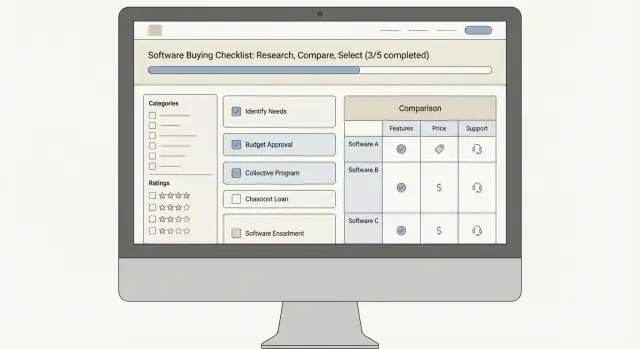
Set the goal and audience for your checklist site
A checklist site can’t be everything to everyone on day one. If you’re vague about what it’s for, you’ll end up with generic advice, unclear calls to action, and visitors who leave without taking the next step.
Start with one primary outcome
Decide what “success” looks like for the site. Pick the main job it should do, and let every page reinforce it.
Common goals for a software buying checklist website include:
- Educate: help people understand the problem, terminology, and tradeoffs
- Compare options: make it easier to evaluate vendors consistently
- Collect leads: capture interest from buyers who want help shortlisting
- Support procurement: provide documentation and criteria that align teams
If you choose more than one, set a priority order. For example: educate first, then convert.
Identify the real decision-makers (and their concerns)
Most software purchases involve multiple roles. Your checklist should speak to each one’s “why,” not just the product features.
- Buyer/Champion: wants clarity, speed, and a defensible recommendation
- IT/Security: cares about access controls, compliance, integrations, and risk
- Finance/Procurement: needs pricing predictability, contract terms, and ROI logic
- End users: want usability, workflows, and support that won’t slow them down
- Founder/Exec: looks for strategic fit, time-to-value, and vendor stability
Choose a primary audience to write for, and treat the others as secondary paths (for example, separate “Security & IT” criteria blocks).
Pick a single “hero” use case to launch
Start with one category where you can go deep—such as CRM, HRIS, project management, or billing. A focused first checklist builds credibility and gives you a template to replicate across other categories later.
Define success metrics you’ll actually track
Tie your goal to measurable behaviors:
- Checklist completion rate
- Time on page (and time in key sections)
- Downloads or saved copies
- Demo requests or consultation inquiries
- Return visits and checklist shares
These metrics will guide what you build next—and what to remove.
Design the checklist content framework
A checklist site is most effective when the content mirrors how people actually buy software. Before you write individual items, define the “spine” of the checklist: the stages, the categories within each stage, and the evidence a buyer should collect to answer each question confidently.
Start with the buying journey stages
Organize your framework around the typical decision flow so readers always know what to do next. A practical set of stages is:
- Discovery (clarify the problem and constraints)
- Shortlisting (filter to a manageable set of options)
- Evaluation (validate fit through demos, trials, and references)
- Approval (build the business case and reduce risk for stakeholders)
- Onboarding (ensure rollout success after purchase)
This structure also makes it easier to create dedicated pages later (for example, an “Approval” page focused on security reviews and procurement questions).
Draft checklist categories that stay consistent
Within each stage, group items into stable categories buyers expect to compare:
- Requirements (must-haves vs. nice-to-haves)
- Security and compliance
- Integrations and data
- Pricing and contract terms
- Support and vendor reliability
Keeping the same categories across different software types (CRM, HRIS, analytics, etc.) makes your site feel predictable and speeds up comparison.
Write items as testable questions (with evidence)
Each checklist item should be something a buyer can answer with proof, not a vague preference. Aim for question formats like:
- “Can the tool enforce role-based access control for admin actions? (Evidence: admin settings screenshot or vendor documentation)”
- “Does pricing scale by users, usage, or modules? (Evidence: current quote and pricing model summary)”
Add a short “Why it matters” note under technical topics (security, APIs, data retention) so non-technical readers understand the impact on risk, cost, or daily work.
Decide on outputs: interactive, printable, or both
Choose the format based on how your audience shares decisions:
- Interactive checklist for collaboration and progress tracking
- Printable PDF for meetings, approvals, and procurement packets
- Both, when you want low-friction sharing plus an on-site workflow
Design the framework once, then publish it in whichever format matches how buyers actually move information through their team.
Map the site structure and navigation
Visitors should be able to reach the right checklist in two or three clicks. Your structure should mirror how people buy software: pick a category, understand options, evaluate, then decide.
Plan the core pages
Start with a small set of pages you can keep consistent as the site grows:
- Home: a clear promise (“Find the right tool faster”) plus entry points by category or use case.
- Checklist hub: the master index of all checklists, with filters (category, company size, deployment, budget) if you have enough content.
- Individual checklist pages: one page per decision, built for scanning and action.
- Blog / resources: supporting explainers (e.g., “What is SOC 2?”) and buying guidance.
- About: who you are, how you create criteria, and how you stay objective.
- Contact: simple form and a direct email option.
Choose your scope: one category or many
If you’re starting out, begin with one software category (e.g., CRM or help desk). You’ll learn what users search for, which criteria matter, and what language they use. Once you have repeatable templates and a few high-performing pages, expand into adjacent categories.
If you support multiple categories from day one, keep the hub page strong: consistent naming, tags, and an obvious way back to the index.
Keep navigation simple
Use a top navigation that matches intent:
- Checklists (hub)
- Compare (SaaS comparison pages and “A vs B”)
- Resources (guides, definitions)
- Contact
Add breadcrumbs on checklist pages so visitors can move between category → checklist → related comparisons.
Add a glossary for buying terminology
A glossary reduces confusion and builds confidence—especially for acronyms buyers see in vendor sales pages. Include short definitions for terms like SSO, SOC 2, SLA, DPA, HIPAA, and uptime. Then reference those terms consistently across checklist items so readers don’t feel lost mid-evaluation.
Pick the right platform and tools
The best platform for a checklist site is the one that lets you publish, update, and standardize pages quickly—without turning every change into a mini project. Start by deciding how often you’ll edit checklists, how many people will contribute, and how comfortable you are with ongoing maintenance.
No-code vs. website builders vs. a CMS
No-code tools work well when you want speed and simple editing (and you can accept some limits). They’re a good fit for a small team publishing a few high-quality checklists.
Website builders are often the fastest path to a polished site. They usually include hosting and security, and they’re friendly for non-technical editors. The tradeoff is less flexibility if you later want deeper search, filtering, or custom interactions.
A CMS (hosted or self-hosted) makes sense when you’ll scale to many pages, multiple content types, and workflows (drafts, reviews, approvals). It takes more setup, but it’s often the most sustainable for a checklist library.
If you want to ship an interactive experience without assembling a full stack first, a vibe-coding platform like Koder.ai can be a practical middle ground: you can describe the checklist workflow in chat, generate a React-based web app with a Go + PostgreSQL backend under the hood, and iterate quickly as you learn what buyers actually use (with options like planning mode, snapshots, rollback, deployment/hosting, and source code export when you’re ready to own the code).
Templates you should be able to repeat
Before you choose anything, confirm you can create reusable templates for:
- Checklist pages (criteria, guidance, scoring, FAQs)
- Vendor profiles (positioning, strengths, limits, pricing notes)
- Comparison pages (side-by-side criteria, “best for” summaries)
If your platform makes consistent templates hard, your content will drift and become harder to maintain.
Non-negotiable essentials
Make sure the stack covers the basics from day one: fast hosting, SSL, automated backups, spam-protected forms, and basic analytics. Also verify that editors can update content without breaking layouts.
Plan for future features—without overbuilding
You don’t need everything at launch, but you should avoid dead ends. Validate whether the platform can support later additions like on-site search, filters, saved shortlists, or user accounts. Choose tools that can grow with you while keeping the first version simple and shippable.
Create a checklist-friendly page design
A checklist site succeeds or fails on readability. People arrive with a goal (pick the right tool, compare options, justify a budget), and your page design should help them move step-by-step without feeling lost.
Use a consistent checklist item pattern
Make every item predictable so users don’t have to relearn the page as they scroll. A simple pattern works well:
Question → Explanation → How to verify
For example: “Does it support SSO?” (question), a one-paragraph plain-English reason (explanation), then a concrete action like “Ask for their SSO documentation or a demo showing SAML setup” (how to verify). This structure turns a software selection checklist into decisions, not just opinions.
Keep it scannable (without turning it into noise)
Use clear headings and short sections, and group related criteria (security, pricing, onboarding, integrations). Accordions can help when explanations would otherwise make the page feel endless—especially on a SaaS comparison page—but keep the titles descriptive so users can skim effectively.
Show progress and let people return later
Checklists feel lighter when users can see momentum. Add a simple progress indicator (e.g., “12 of 30 criteria reviewed”) and a “save your place” option. Saving can be as basic as remembering progress on the device, or offering an optional email send of the current state—only when it truly helps.
Design mobile-first and accessible by default
Most checklist UX problems show up on phones: cramped tap targets, hard-to-read text, and jumpy layouts. Use generous spacing, large checkboxes/toggles, and avoid tiny inline controls.
Cover accessibility basics: strong contrast, full keyboard navigation, and descriptive labels for every interactive element. This also improves clarity for everyone using your interactive checklist builder.
Build reusable page templates
Reusable templates keep your checklist site consistent, faster to update, and easier to scale as you add new categories and vendors. The goal is to standardize the “shape” of each page so visitors always know where to find what they need.
Checklist page template (your core building block)
Create one master template for any “software selection checklist” page. Use reusable blocks you can rearrange without redesigning:
- Intro block: who the checklist is for, when to use it, and what decision it helps make.
- Checklist categories: grouped criteria (Security, Integrations, Pricing, Support). Keep each item short and scannable.
- Decision helper CTA: a simple next step (save, share, or get help).
- FAQs: short answers to the top sources of confusion.
Aim for a predictable rhythm: brief context → criteria → how to act on the result.
Comparison table template for fast shortlisting
A comparison table template turns research into a quick yes/no/maybe shortlist. Keep the columns stable across pages:
- Vendor
- Best for
- Key strengths
- Not ideal for
- Pricing notes (ranges or “quote-based”)
- Must-have features checklist (icons or short labels)
Design it so it works on mobile: allow horizontal scroll, and prioritize the first 2–3 columns for quick scanning.
Vendor profile template (consistent, honest summaries)
Each vendor profile should answer the same questions in the same order:
- Overview: what it is and who it serves
- Feature highlights: 5–7 bullets, plain language
- Pricing notes: what drives cost (seats, usage, tiers)
- Pros / cons: balanced, specific
- Implementation notes: setup effort, typical blockers
- Evaluation tips: what to verify in a demo
Microcopy that reduces friction
Small CTA text changes can improve action rates without being pushy:
- Download: “Get the checklist PDF (no email)” or “Send to my inbox”
- Share: “Share with your team”
- Request help: “Ask for a short recommendation”
Add a short FAQ to prevent bounce
Include 3–5 questions such as: “How do I score this?”, “What if I don’t need every feature?”, and “How often is this updated?” Keep answers to 2–3 sentences each.
Add interactive features that improve decisions
A checklist site is most useful when it doesn’t just display criteria—it helps visitors turn criteria into a decision. The goal is to add interactions that feel like a helpful worksheet, not a heavy app.
Checkboxes, scoring, and “must-have” flags
Start with simple checkboxes for each evaluation item (security, integrations, onboarding, support, pricing model). Then add two lightweight upgrades:
- Must-have toggles for deal-breakers (for example: SSO, SOC 2, on-prem option)
- Optional scoring (1–5) for nice-to-have items, so people can compare trade-offs without overthinking
Keep scoring optional—many buyers want clarity, not math.
Filters that match how teams actually buy
If your checklists cover more than one scenario, filters prevent overwhelm. Useful filters include:
- Company size (startup, mid-market, enterprise)
- Budget range (for quick fit checks)
- Deployment type (cloud, hybrid, on-prem)
When a filter is selected, update the page instantly: hide irrelevant criteria, adjust recommended weights, or swap examples (for instance, “audit logs” means different things in regulated industries).
Export and share without breaking flow
Buying decisions are collaborative. Offer an export option that doesn’t require an account:
- Download a PDF of selected items
- Email a summary to yourself or teammates (with a short note field)
Make the output clean: chosen must-haves, top scored criteria, and any notes.
“Recommended next steps” based on selections
Add a small panel that updates as users interact. Examples:
- If “must-have: SSO” is checked, suggest “Ask these 3 identity questions”
- If budget is low, suggest “Shortlist vendors with transparent pricing”
Keep interactions fast and forgiving
Use instant feedback, save progress locally, and avoid long loading spinners. A checklist should feel like paper: responsive, simple, and easy to revise.
Turn checklist traffic into leads (without friction)
People arrive on checklist pages with a specific job to do: make a decision faster. If your lead capture interrupts that job, they’ll leave. The goal is to offer help that feels like the natural next step after they’ve made progress.
Offer a lead magnet that matches the moment
A good lead magnet is a direct extension of the checklist—not a generic “subscribe for updates.” Make it something the visitor can use immediately:
- A printable PDF version of the checklist for internal sharing
- A spreadsheet version with scoring columns and weighting
- A sample RFP template aligned to your evaluation criteria
Position it as a time-saver: “Take this to your team” or “Turn your answers into a scorecard.”
Place CTAs where they feel earned
Use a few well-timed calls-to-action instead of a constant banner.
- Top of page: a small, low-commitment CTA like “Get the scorecard template.”
- Mid-page: after a major section (e.g., Security, Integrations), offer the matching asset.
- After completion: when users reach the end, they’re most ready to save, share, or get help.
Keep the design consistent with the checklist so CTAs look like part of the experience, not ads.
Keep forms short and set expectations
Ask only for what you truly need—often email + role/company is enough. Add one sentence that explains what happens next, for example:
- “We’ll email the template immediately.”
- “No sales follow-up unless you request it.”
If there will be follow-up, say so plainly. Clarity reduces hesitation.
Route leads to a helpful next step
After submission, don’t drop users on a generic “thanks” page. Send them to a page that continues their buying journey, such as:
- A pricing overview or packaging explainer
- A contact page with the right department options
- A booking page for a quick fit check
Add an optional feedback loop
Include a lightweight “request a review” or “suggest an item” form. It captures high-intent visitors and improves your checklist content over time—without forcing everyone into a sales path.
Build trust with transparency and clear policies
People use a software buying checklist to reduce risk. Your site should reduce risk, too—by making it obvious how decisions are supported, how the site is funded, and how readers can reach you.
Show how you choose criteria (and how you keep it current)
Don’t treat your checklist criteria as “common sense.” Briefly explain where they come from: buyer interviews, vendor documentation, support tickets, security questionnaires, or product demos.
Add a short “How this checklist is maintained” note on each checklist page:
- When it was last reviewed
- What triggers an update (major product releases, pricing changes, policy updates)
- How readers can report an issue
This makes your evaluation criteria feel like a living process rather than a static opinion.
Avoid absolute claims—teach verification
Instead of “Best,” “Guaranteed,” or “Fully compliant,” use language that invites validation:
- “Vendor states …”
- “Verified on (date) using …”
- “Ask your rep for …”
Where possible, include a simple “How to verify” step next to key checklist items (security, uptime, data residency, integrations). For example: “Request the current SOC 2 report,” or “Confirm SSO support with a test tenant.” You’re not just ranking tools—you’re helping buyers confirm fit.
Be explicit about money, privacy, and cookies
If you use affiliate links, sponsored placements, or paid inclusion, disclose it clearly near comparison content and in a dedicated policy. Say what “sponsored” means (placement, review access, or compensation) and what it does not mean (no control over conclusions).
In the footer, include easy-to-find policy pages such as /privacy and /cookies. Keep the language plain: what data you collect, why, and how users can opt out.
Make accountability easy
Add contact information (a simple email is fine) and publish an editorial policy page like /editorial-policy. Explain who writes, how products are evaluated, and how conflicts of interest are handled. Trust grows when readers can see the rules you follow.
Plan SEO and content distribution
A checklist site only works if the right people find it at the moment they’re evaluating options. Your SEO plan should focus on buyer-intent searches and make it easy for visitors (and search engines) to understand what each checklist page is for.
Target high-intent keywords (not just high volume)
Start with terms that signal evaluation and purchasing work, such as “software buying checklist website,” “software selection checklist,” “RFP checklist,” “vendor evaluation,” and “software evaluation criteria.” Map each keyword cluster to a specific page type:
- A checklist hub (the main entry point)
- Category checklists (e.g., CRM, help desk, ERP)
- Task-specific checklists (e.g., security review, implementation readiness)
- A SaaS comparison page format when users are narrowing down options
This keeps your content focused and reduces keyword cannibalization.
Nail the SEO basics on every checklist page
For each page, write:
- A clear title tag that matches the intent (“CRM Software Selection Checklist: Criteria + Scoring”)
- One H1 that mirrors the page purpose
- A meta description that promises the outcome (download not required, interactive scoring, etc.)
Use internal links deliberately. Link from supporting articles to the relevant checklist, and from each checklist back to the hub and adjacent checklists (“Next: Vendor Demos Checklist”). Keep anchor text descriptive (e.g., “implementation readiness checklist,” not “click here”).
Build supporting content that feeds the hub
Create short, specific articles that answer the questions people ask right before they need a checklist: defining requirements, setting evaluation criteria, avoiding common procurement mistakes, and running a fair scoring process. Each article should point to the most relevant interactive checklist as the next step.
Add schema where it helps comprehension
If a checklist page includes an FAQ section, use FAQ schema to help search engines understand the Q&A structure. Don’t force schema onto pages that aren’t actually FAQs.
Plan distribution like a product launch
Treat each new checklist as an asset to distribute:
- A short newsletter snippet that highlights the outcome (“Decide in 30 minutes, not 3 weeks”)
- A LinkedIn post with one practical tip + a reason to use the checklist
- Shares in partner communities (consultants, agencies, implementation partners)
Consistency beats bursts: publish, distribute, measure what drives engaged sessions, then repeat.
Measure, iterate, and maintain the site
A checklist site is never “done.” Buying criteria change, vendors shift pricing, and your visitors will tell you (quietly) where the page is confusing. The goal is a lightweight measurement loop that shows you what to fix next—without turning your team into full-time analysts.
Track what matters (and ignore the rest)
Set up analytics that reflect real progress through the checklist, not just pageviews. At minimum, track:
- Checklist completion rate (or the last step reached)
- Scroll depth to see whether people reach the decision section
- CTA clicks (demo request, consultation, download, etc.)
If your checklist is interactive, also track which criteria get selected most often. That data can guide future content updates and the default order of sections.
Find confusion fast
Numbers tell you where people drop off; qualitative tools help explain why. Heatmaps or session recordings are optional, but they’re a quick way to spot issues like:
- Users repeatedly opening/closing the same accordion
- Rage clicks on non-clickable elements
- People missing a key next step because it looks like a heading
Run small experiments
Make changes you can evaluate in a week, not a quarter. Good candidates:
- CTA wording (e.g., “Get a shortlist” vs. “Contact sales”)
- Section order (move pricing earlier or later)
- Shorter forms (remove fields that don’t affect follow-up)
Keep a simple log: what changed, when, and what metric you expected to move.
Maintenance cadence + launch checklist
Set a recurring update schedule (monthly or quarterly) for evaluation criteria, screenshots, and vendor notes.
Before every launch, run a basic checklist: page speed, mobile QA, broken links, backups, and a quick end-to-end test of interactive elements and form delivery.
FAQ
What’s the first decision to make before building a software buying checklist site?
Pick one primary outcome and prioritize it.
- If you try to educate, compare, collect leads, and support procurement equally at launch, pages get vague.
- A simple priority (e.g., educate first, then convert) keeps copy, CTAs, and metrics aligned.
Who should the checklist be written for if multiple roles influence the purchase?
Choose a primary audience and write directly to their job-to-be-done.
- Buyer/champion: speed and a defensible recommendation
- IT/security: access controls, compliance, integrations, risk
- Finance/procurement: pricing predictability, terms, ROI logic
Then add secondary paths (like separate “Security & IT” blocks) instead of mixing everything into one generic checklist.
How do I choose which software category to cover first?
Launch with one “hero” use case so you can go deep and build credibility.
Examples: CRM, HRIS, project management, billing. A focused first checklist becomes the template you replicate across categories later.
Which success metrics matter most for a checklist website?
Track behaviors that match your goal, not vanity metrics.
Practical metrics include:
- Checklist completion rate
- Time on page (especially key sections)
- Downloads/saved copies
- Demo or consultation requests
- Return visits and shares
How should I structure the checklist so it matches how people buy software?
Use buying-journey stages so readers always know what to do next.
A useful spine is:
- Discovery
- Shortlisting
- Evaluation
- Approval
- Onboarding
This also makes it easy to create dedicated pages later (e.g., an Approval page for security + procurement).
How do I write checklist items that lead to real decisions instead of opinions?
Write each item as a testable question with required evidence.
Example pattern:
- Question: “Can it enforce role-based access control for admin actions?”
- Evidence: admin settings screenshot or vendor documentation
Add a short “Why it matters” note for technical items so non-technical stakeholders understand the risk/cost impact.
What core pages should a checklist site include from day one?
Make it easy to reach the right checklist in 2–3 clicks.
A solid starter set:
- Home (clear promise + entry points)
- Checklist hub (index + filters when you have enough content)
- Individual checklist pages
- Blog/resources (explainers like “What is SOC 2?”)
- About (methodology)
- Contact (simple form + direct email)
What platform is best for a checklist site: no-code, a builder, or a CMS?
Choose the stack that lets you publish and standardize quickly.
- No-code: fastest, some limits
- Website builders: polished and simple, less custom flexibility
- CMS: best for scaling lots of pages and workflows, more setup
Before committing, confirm you can reuse templates for checklist pages, vendor profiles, and comparison pages.
What page design pattern works best for checklist content?
Use a consistent item layout that supports scanning and verification.
A practical pattern is:
- Question → Explanation → How to verify
Also keep it scannable (clear grouping, short sections), mobile-first (big tap targets), and accessible (contrast, keyboard navigation, descriptive labels).
How can a checklist site capture leads without interrupting the buying workflow?
Offer help after users make progress, not before.
Tactics that stay low-friction:
- Lead magnet that extends the checklist (PDF, spreadsheet scorecard, RFP template)
- CTAs placed at the top (low commitment), mid-page (after major sections), and after completion
- Short forms (often email + role/company) with clear expectations (e.g., “no follow-up unless requested”)