

How to Create a Website for a Vertical SaaS Educational Hub
A practical guide to plan, design, and launch a vertical SaaS educational hub website: structure, content types, tech stack, SEO, analytics, and upkeep.
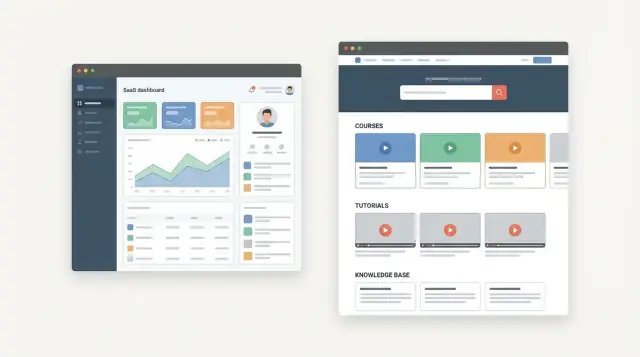
Set goals and scope for a vertical SaaS educational hub
Before you sketch pages or pick a CMS, define what “educational hub” means for your product and vertical. For some vertical SaaS companies it’s primarily a knowledge base and product docs; for others it’s an academy with courses, certifications, templates, office-hours webinars, and implementation playbooks. Your scope should reflect how customers actually learn your product—not what competitors publish.
Define the hub’s purpose (and what it is not)
Write a one-sentence mission statement, then list the content types you’ll support in version 1.
Example: “Help clinic admins get from signup to first successful appointment booking in under 30 minutes.” That mission naturally points to quick-start guides, short videos, and role-specific checklists—rather than long theory articles.
Also define what the hub won’t do at launch (e.g., “no community forum yet,” “no certification v1,” “no partner portal”). This prevents scope creep.
Clarify the vertical and roles you need to serve
Vertical SaaS almost always has multiple user roles with different goals and permissions. Map your primary roles (e.g., admins, managers, frontline staff, end clients/students, and partners/resellers) and decide who the hub is for first.
To keep scope controlled, prioritize 1–2 roles for launch, then add the rest once you have data on what reduces friction.
Set success metrics you can measure
Choose metrics that reflect customer outcomes, not just content production. Common educational-hub metrics for vertical SaaS include:
- Activation: percentage completing key setup steps after using the hub
- Time-to-value: time from first login to first “win” (booked job, sent invoice, assigned class, etc.)
- Support deflection: fewer tickets on topics covered by articles/courses
- Retention / expansion: higher renewal, more feature adoption, more seats
Document constraints early
Be explicit about team size, budget, and timeline. Also list compliance and legal needs tied to your vertical (privacy rules, record retention, accessibility requirements, partner branding rules). These constraints will shape content formats, moderation, and whether you can host community discussion.
Decide what’s public vs customer-only
Split content into:
- Public (SEO, evaluation help, common “how it works” topics)
- Customer-only (account-specific setup, advanced workflows, internal policies)
This decision affects navigation, search, and authentication—and helps you avoid rebuilding later when you add gated onboarding or partner training.
Know your audience and their learning journey
An educational hub works when it mirrors how real customers learn your product—not how your org chart is structured. Start by defining who you’re teaching, what they’re trying to accomplish, and what usually gets in the way.
Identify roles and their jobs-to-be-done
In vertical SaaS, the same feature can mean different things to different people. Break your audience down by role (and seniority) and list the top jobs each role needs help with:
- Setup and first configuration (admins, IT, implementation partners)
- Daily workflows (frontline users, operations)
- Reporting and audits (managers, analysts)
- Billing and account management (owners, finance)
This role-based lens helps you avoid generic content and instead create guidance that matches how customers actually work.
Collect questions from the real world
Don’t guess what people struggle with—harvest it. Pull verbatim questions from support tickets, sales calls, customer success notes, and onboarding sessions. Look for repeated phrases, confusion around the same screen, and “almost works” scenarios.
Translate those questions into page titles and search-friendly headings. If customers ask, “How do I export weekly compliance reports?” that’s likely your best headline.
Map learning paths from beginner to advanced
Most hubs need at least three learning tiers:
- Beginner: vocabulary, first login, the minimum to get value
- Intermediate: common workflows, team processes, standard reports
- Advanced: automations, complex permissions, integrations, scaling
Make the progression explicit with “Start here” paths and clear prerequisites so people don’t feel lost.
Document vertical-specific blockers
Vertical SaaS brings unique friction: industry terminology, regulations, and integrations with legacy tools. Call these out early with plain-language explanations and concrete, domain-specific examples.
Choose a consistent, approachable tone
Write like a helpful teammate: short sentences, clear definitions, and examples that match your customers’ day-to-day reality. Avoid internal jargon—even if it’s normal inside your company.
Plan information architecture and navigation
A vertical SaaS educational hub succeeds or fails on how quickly people can find the right answer—and how confidently they can continue learning afterward. Before you write more content, decide how the hub is organized and how users move through it.
Pick your core hubs (top-level sections)
Most teams do well with a small set of predictable destinations:
- Getting Started (setup, first login, key concepts)
- How‑To (task-based guides)
- Troubleshooting (errors, edge cases, “why isn’t this working?”)
- Academy (structured courses, certifications, longer learning paths)
- Release Notes (what changed, what to do next)
Keep top navigation stable. New content should usually fit inside these hubs rather than adding more top-level tabs.
Design navigation for browsing and searching
Some visitors arrive ready to explore; others are in a hurry and will search immediately. Support both:
- Make global search prominent on every page.
- Use hub landing pages that show “popular tasks,” “common issues,” and “new to the product?” entry points.
- Add clear breadcrumbs so users always know where they are.
Create a taxonomy that matches how customers think
Define categories that reflect real usage:
- Features (Billing, Scheduling, Reporting)
- Workflows (Onboarding a client, Reconciling invoices)
- Roles (Admin, Manager, Frontline staff)
- Integrations (QuickBooks, Slack, SSO)
- Industry terms (your vertical’s jargon, regulated processes)
Document these rules so writers tag content consistently.
Prevent dead ends with prerequisites and “Recommended next”
Every article should answer: What should the reader do next? Add:
- Prerequisites (accounts, permissions, required settings)
- Recommended next links (next step in a workflow, related troubleshooting)
This reduces support tickets caused by missing context.
Plan a consistent URL pattern now
Choose a predictable structure that can grow for years, for example:
/getting-started/…/how-to/…/troubleshooting/…/academy/…/release-notes/…
Avoid embedding dates or internal team names in URLs. Stable patterns make maintenance, SEO, and cross-linking much easier later.
Choose content formats and create a repeatable template
A vertical SaaS educational hub works best when content feels consistent—so users can scan, trust, and act fast. Start by documenting a small set of must-have formats, then standardize how each one is produced.
Pick formats that match real workflows
Most teams need a mix of quick help and deeper customer education:
- Articles for step-by-step tasks, troubleshooting, and “how it works” explanations
- Short videos for visual actions (settings, permissions, approvals) and “watch once, do it” tasks
- Interactive tours for first-time onboarding and feature discovery inside the product
- PDFs for compliance-friendly handouts, checklists, or admin setup guides
Don’t launch every format at once. Choose 2–3 that you can keep current.
Define templates so content scales
Create one template per format. For written guides, a simple structure keeps quality high:
- Who this is for (role, plan, permissions)
- Outcome (what success looks like)
- Prerequisites (data, access, settings)
- Steps with consistent screenshots and UI labels
- Common mistakes and what to do instead
- Next steps (the most likely follow-up tasks)
Set rules for screenshot style (cropping, blur sensitive data, highlight clicks) and an expected length range.
Set standards once, enforce lightly
Agree on reading level, inclusive language, and accessibility basics (descriptive headings, alt text guidelines for key images, clear link text). Standards keep the hub coherent as more authors contribute.
Build a backlog tied to product workflows
List the top 10–20 user jobs (e.g., “import data,” “invite teammates,” “run reports”) and create content briefs for each. This keeps your educational hub focused on what customers actually do.
Assign owners and a review cadence
Define who writes, who approves, and how often content is checked (monthly for fast-changing features, quarterly for stable areas). Shared ownership across product, support, and marketing prevents stale documentation and keeps customer education credible.
Design the hub UX: fast answers plus guided learning
A great educational hub serves two very different user moods: “I need an answer in 30 seconds” and “I want to learn this properly.” Your UX should support both without forcing people into the wrong flow.
Build a homepage that routes users fast
Treat the homepage as a dispatcher, not a marketing page. Put a prominent search bar at the top, followed by clearly labeled top tasks (e.g., “Invite a teammate,” “Connect billing,” “Fix a sync issue”). If your product serves multiple roles, add role-based paths so users can self-identify quickly (e.g., Admin, Instructor, Director).
Add “Start here” pages for each persona
Create a short “Start here” page per persona (for example, clinic admin vs. practitioner; teacher vs. school director). Each page should answer:
- What this person typically needs to do first
- The 3–5 core workflows they’ll repeat
- The most common setup mistakes to avoid
Keep these pages brief, with a guided path into deeper modules.
Make guided learning feel effortless
For series content (courses, onboarding tracks, certification), use a clear module layout with:
- Progress indicators (including “resume where you left off”)
- Estimated time per module and total time
- A consistent “next step” at the bottom of every lesson
Design for real-world constraints
If your users work in the field, on shared devices, or in low-bandwidth environments, prioritize fast-loading pages, readable typography, and tap-friendly controls. Avoid heavy embeds when a lightweight alternative works.
Add trust basics—quietly
Include author (or team), “last updated” date, and version notes where relevant. This builds confidence and helps users decide whether the guidance matches what they see in the product.
Select the CMS and tech stack that fit your team
Your educational hub will only stay fresh if the people who maintain it can publish quickly and safely. Start by matching the CMS to how your team already works—then choose the smallest tech stack that still meets your needs.
Content editing: WYSIWYG vs. Markdown
If subject-matter experts (support, CS, trainers) will publish often, a WYSIWYG editor reduces friction. If your team already writes docs in Markdown, keep that workflow—especially for technical setup guides and changelogs.
Define requirements upfront:
- Roles and permissions: who can draft, approve, publish, or edit live content
- Workflows: drafts, reviews, scheduled publishing, and content ownership
- Versioning: easy rollbacks and change history for critical articles
Platform choice: all-in-one vs. headless
An all-in-one docs/academy platform can get you to launch faster with built-in search, navigation, and templates. A headless CMS plus a custom frontend is better when you need tighter brand control, custom learning paths, or deep integration with your product site.
A simple decision rule: if your team can’t (or doesn’t want to) maintain a frontend, prefer an all-in-one platform.
If you do want a custom experience but don’t want a long build cycle, a vibe-coding platform like Koder.ai can be a practical middle path: you can prototype (and then ship) a React-based hub front end, connect it to a Go + PostgreSQL backend, and iterate through chat-driven “planning mode” rather than starting from scratch. It’s also useful for building internal admin tools for content ops (imports, tagging, review queues), with source-code export and rollback when you need safer changes.
Auth, SSO, and customer-only areas
If you plan to offer customer-only courses, certification content, or premium implementation guides, design for authentication early. Consider SSO (SAML/OIDC) so users can move between your app and the hub without extra logins.
Localization and translation workflow
If you’ll support multiple languages, pick tools that handle structured content, locale-specific URLs, and a clear translation process (human, machine, or hybrid). Retrofitting localization later is expensive.
Hosting fundamentals
Whether managed or custom, ensure you have strong speed, uptime, backups, and a staging environment for testing changes before they go live.
Connect the hub to your product website and onboarding
Your educational hub shouldn’t feel like a separate “content island.” When it’s tightly connected to your marketing site and your in-app onboarding, it reduces confusion, shortens time-to-value, and gives users the next best step—without forcing them to hunt.
Align on what the hub helps people find
Start by defining the core questions visitors bring from your product site. Many will be evaluating or troubleshooting, so make sure the hub clearly covers:
- Key features and “how it works” explanations
- Pricing and plan differences (with an obvious path to /pricing)
- Integrations and setup guides (especially for common tools in your niche)
- Security, privacy, and compliance summaries (written for non-lawyers)
This clarity helps your marketing pages link to the right learning content—and helps your learning content link back to the right decision pages.
Add clear CTAs without turning pages into ads
Each major hub page should offer one or two relevant calls-to-action. Keep them specific and situational:
- Evaluation content: “Start trial” and “Request demo”
- Troubleshooting content: “Contact support” and “View status/known issues” (if applicable)
- Plan/limits content: “Compare plans” linking to /pricing
Place CTAs where they make sense (end of article, sidebar, or after a key section). Avoid sprinkling CTAs after every paragraph.
Use contextual cross-linking between content and product pages
Link learning content to product pages and vice versa, based on user intent:
- Feature page → “2-minute setup guide” or “Common workflows” article
- Integration page → integration tutorial, required permissions, and troubleshooting steps
- Hub article → relevant feature page for deeper details or plan requirements
The goal is guidance, not SEO spam: only link when it genuinely helps the reader complete a task or make a decision.
Create onboarding handoffs after signup
After a user signs up, route them into the right learning path based on role, industry segment, or use case. For example:
- A short “choose your goal” step in-app that deep-links to the matching hub pathway
- A welcome email sequence that points to a starter track plus one “next action”
Add lightweight feedback on key pages
On high-traffic articles and onboarding steps, include a simple “Was this helpful?” prompt. Pair it with an optional comment field so you can capture missing steps, confusing terms, or broken assumptions—and improve the hub continuously.
Build search and self-serve support pathways
Self-serve only works when people can find the right answer in seconds—and when they can confidently move to the next step if they can’t.
Design for how visitors actually search
Most users don’t browse categories; they type what they’re seeing on screen. Prioritize an on-site search bar in the header and within the support area, and make results useful:
- Add filters for product area, role, plan, and content type (how-to, troubleshooting, reference).
- Use tags to connect related articles across modules (e.g., “imports,” “permissions,” “billing”).
- Maintain a synonym list that includes industry vocabulary, acronyms, and “wrong words” people use.
For vertical SaaS, that synonym list is a superpower: map “CPT,” “procedure code,” and “service code” (or your industry equivalents) to the same results so customers don’t have to guess your preferred term.
Build troubleshooting flows users can follow
Create repeatable “symptom → cause → fix” pages for common problems. Write symptoms in the user’s language (“Invoice won’t send,” “Sync stuck at 0%”) and structure fixes as short, testable steps.
When text alone causes mistakes, add annotated screenshots or 10–20 second clips that show exactly where to click and what success looks like.
Make escalation clear (and low-friction)
Self-serve should end with a clean handoff when needed:
- Include “Still stuck?” blocks linking to a support form or /contact.
- Pre-fill context where possible (article title, search query, product area) to reduce back-and-forth.
- Suggest the next best resource before escalation (e.g., “Permissions checklist” or “Admin setup”).
Done well, search and support pathways reduce tickets while making customers feel taken care of.
SEO strategy for a vertical SaaS educational hub
SEO for a vertical SaaS educational hub works best when it mirrors how customers think about their job—not how your product menu is organized. Start by mapping search demand to real workflows, then turn that map into a clear set of pages that are genuinely helpful.
Build keyword clusters around workflows
Create keyword clusters that reflect end-to-end tasks in your niche (e.g., “close month-end,” “run compliance audits,” “schedule field teams”), then support each cluster with a few tightly connected pages:
- One “pillar” guide for the workflow
- Supporting articles for steps, edge cases, and troubleshooting
- Glossary entries only when they clarify terminology people actually search
This approach catches both broad and specific intent without forcing every page to compete for the same keywords.
Write titles and intros that match intent
For each page, pick one primary query and match its intent in the first few lines:
- If the query is “how to…,” lead with the outcome and prerequisites
- If it’s “what is…,” define it in plain language and add a quick example
- If it’s “template/checklist,” provide the asset and explain how to use it
Keep titles specific (“How to Reconcile X in Y: Step-by-Step”) instead of vague (“Reconciliation Guide”).
Use schema when it fits the content
If your CMS supports structured data, add schema that matches the page:
- FAQ for short Q&A sections
- HowTo for step-by-step guides with clear steps and outcomes
Only add schema when the page truly contains that structure.
Avoid thin pages by consolidating and adding proof
If two pages overlap heavily, combine them into one stronger resource. Add pitfalls, “what good looks like,” and concrete examples so the content feels complete.
Create internal linking rules that scale
Define simple rules editors can follow:
- End each guide with Related guides (same workflow cluster)
- Add a Next steps link to the most common follow-up task (e.g., from setup → first run)
- Use consistent anchor text that describes the destination
This helps search engines understand topic relationships and helps readers keep moving forward.
Accessibility, privacy, and security essentials
An educational hub only works if customers can actually use it—regardless of device, ability, or environment—and if they can trust it with their data. Treat accessibility, privacy, and security as requirements, not polish.
Accessibility: make learning usable for everyone
Start with the basics that improve the experience for all readers:
- Use a clear heading structure (H2 → H3 → H4) so screen readers and skim readers can navigate quickly.
- Maintain sufficient color contrast for text, buttons, and callouts.
- Write meaningful link text (“Download the checklist”) instead of “click here.”
- Ensure full keyboard navigation for menus, search, accordions, and video players.
- Add alt text for informative visuals (and empty alt text for purely decorative ones).
If you publish video lessons, include captions and provide a transcript. Transcripts also help search and make content easy to scan when someone just needs the answer.
Privacy: collect less, explain more
Decide what data you collect (analytics, cookie preferences, feedback forms, chat transcripts) and document it in plain language. Include links from the hub footer to /privacy and /cookies (or your equivalents), and keep consent options consistent across the main site and the hub.
For feedback forms, collect only what you need. If an email is optional, say so.
Security: safe defaults and controlled risk
Educational hubs often include embeds, forms, and third-party scripts. Use secure defaults:
- Limit third-party scripts to what you truly need, and review them regularly.
- Lock down embeds (only from approved providers) and avoid pasting arbitrary iframe code from contributors.
- Protect forms with validation and abuse controls (rate limiting, spam prevention).
Finally, add content disclaimers where your vertical requires them (for example, “Not legal advice” or “Not medical advice”), especially on templates, calculators, and policy guidance.
Analytics and feedback loops to improve the hub
Analytics turns your educational hub from a “content library” into a system that gets better every week. The goal isn’t to collect every metric—it’s to answer a few recurring questions: Are people finding what they need? Does the hub reduce support load? Does it move users toward activation and paid conversion?
Track the journeys that matter
Set up two primary paths to measure:
- Hub → signup/demo: which pages and learning paths most often precede a demo request or trial start. Use clear events (e.g., “clicked CTA,” “submitted demo form”) and consistent UTM tagging for campaigns.
- App → hub usage: when users open help from inside the product, what they read next, and whether they return to the app and complete the task.
This view helps you find “assist” content—pages that don’t directly convert, but reliably support key actions.
Measure content performance (and pain)
Beyond pageviews, prioritize signals that reveal confusion:
- Search queries people use inside the hub
- Zero-result searches (and what users search next)
- Time on page + exit rate for task-oriented articles (high time + high exits can mean “still stuck”)
Pair these with support insights: track top deflected topics (articles that precede “no ticket created”) and the areas where customers repeatedly get confused despite reading.
Build a simple dashboard + weekly routine
Create one dashboard the whole team trusts: top entry pages, top searches, zero-results, hub → demo assists, and deflection indicators. Then run a 30-minute weekly review with a short agenda:
- What spiked up or down?
- Where are users failing to find answers?
- What needs a fix this week?
Close the loop with feedback
Add lightweight feedback on key pages (“Was this helpful?” + optional comment) and a way to report outdated steps. Use the input to prioritize edits over new pages when it’s faster—often the biggest gains come from rewriting titles, improving the first 10 lines, adding a missing prerequisite, or updating screenshots.
Launch plan and ongoing maintenance
A strong launch is less about “publishing pages” and more about ensuring people can reliably find the right answer on day one—and that the hub stays accurate after every product change.
Launch checklist (before you announce it)
Run a final pass with both marketing and support in the room. Focus on the unglamorous items that prevent confusion:
- Redirects: map old URLs to new ones (especially if you’re migrating a knowledge base or docs).
- Metadata: titles and descriptions for key pages (Getting Started, pricing-adjacent guides, top workflows).
- Broken links: crawl the site and fix 404s and incorrect anchors.
- Sitemap: generate and submit it; verify it only includes public, indexable pages.
- Indexing: confirm robots rules, canonical tags, and that important pages can be crawled.
Governance: who owns what, and when it changes
Assign clear ownership: one person accountable for the hub’s structure, and subject owners for major areas (onboarding, billing, integrations). Define approvals (who can publish), and set update triggers tied to releases—new features, renamed UI labels, or changed permissions should automatically create content tasks.
Change logs readers can trust
For key guides (setup, critical workflows, compliance), keep a lightweight change log: what changed, when, and why. It reduces support tickets and helps customers re-train teams without guessing.
Quarterly audits (keep it fresh)
Schedule audits to catch:
- Outdated screenshots
- Renamed features
- Broken embeds (videos, forms, external widgets)
Roadmap for content growth
Publish a simple “what’s next” page so customers and internal teams know what to expect: next roles to support, next workflows, and next integrations. This turns maintenance into a visible, planned program instead of last-minute fixes.
FAQ
What should a vertical SaaS educational hub include in version 1?
Start with a one-sentence mission that ties directly to customer outcomes (e.g., “get admins to first successful workflow in 30 minutes”). Then limit v1 to 1–2 primary roles and 2–3 content formats you can realistically keep updated. Use your support tickets and onboarding notes to pick the first 10–20 “jobs” to cover.
Which success metrics matter most for an educational hub?
Separate metrics into learning activity and product outcomes:
- Activation: % completing key setup steps after using the hub
- Time-to-value: time from first login to first “win”
- Support deflection: fewer tickets on topics you cover
- Retention/expansion: higher renewals, more feature adoption, more seats
Avoid relying on pageviews alone; they don’t tell you whether users succeeded.
How do I design content for multiple roles in a vertical SaaS?
Vertical SaaS users have different permissions and goals. Create role-based “Start here” paths (e.g., Admin, Manager, Frontline) and tailor each path to:
- what they do first
- the 3–5 workflows they repeat
- common setup mistakes to avoid
Launch with the top 1–2 roles to prevent scope creep.
What information architecture works best for a SaaS educational hub?
Use a small set of predictable top-level sections and keep them stable:
- Getting Started
- How‑To
- Troubleshooting
- Academy (courses/certifications)
- Release Notes
Then apply consistent tags (role, feature, workflow, integration, industry terms) so search and “recommended next” links work across the whole hub.
What content should be public vs customer-only?
Make it obvious, early—because it affects navigation, search, and authentication.
- Public: SEO-friendly “how it works,” evaluation content, common workflows
- Customer-only: account-specific setup, advanced workflows, internal policies
If you expect gated onboarding or partner training later, plan for it now to avoid rebuilding IA and URLs.
Which content formats should I prioritize (articles, videos, courses, PDFs)?
Start with formats that match real workflows and are easy to maintain:
- Articles for step-by-step tasks and troubleshooting
- Short videos for “watch once, do it” UI actions
- Optional: interactive tours (in-product) and PDFs (compliance checklists)
Pick 2–3 formats for launch; consistency beats variety.
How do I create templates and standards so content scales?
Standardize each format so multiple authors can produce consistent help. For written guides, a repeatable structure is:
- Who this is for (role/permissions)
- Outcome
- Prerequisites
- Steps (with consistent UI labels)
- Common mistakes
- Next steps (links)
Also set screenshot rules (cropping, blur sensitive data) and a review cadence (monthly/quarterly by volatility).
How do I choose between an all-in-one platform and a headless CMS?
Choose based on who will publish most and how much frontend work you can maintain:
- All-in-one docs/academy platform: fastest to launch; built-in search/navigation
- Headless CMS + custom frontend: best for custom learning paths and brand control
Also require: roles/permissions, draft→review workflow, versioning/rollback, and a staging environment.
How do I make hub search effective for vertical-specific terminology?
Treat search as the primary navigation for urgent users:
- Put global search in the header on every page
- Add filters (product area, role, plan, content type)
- Maintain a synonym list (industry terms, acronyms, “wrong words” users type)
- Track zero-result searches and fix gaps quickly
Pair search with clear escalation (“Still stuck?” linking to /contact) and pre-filled context where possible.
What are the must-have accessibility, privacy, and security practices for an educational hub?
Bake them into your baseline requirements:
- Accessibility: clear heading structure, keyboard navigation, descriptive links, captions/transcripts for video
- Privacy: collect minimal data; link to /privacy and /cookies; explain feedback forms plainly
- Security: limit third-party scripts, restrict embeds, protect forms (validation/rate limiting)
If your vertical requires it, add clear disclaimers (e.g., “Not legal advice”).